Key Takeaways
- Discord community automation should support moderation, routing, alerts, and reporting, not spam or user-bot behavior.
- Use official bot and AutoMod capabilities before trying custom workarounds.
- Human review is still needed for escalations, disputes, sensitive messages, and member trust.
- A good workflow records trigger, channel, user action, reviewer, outcome, and recovery step.
- Moimobi fits teams that coordinate social and mobile workflows around community operations, not reckless automation.
Automating Discord community management means using approved bots, AutoMod rules, workflows, and review processes to reduce repetitive moderation and support work. It does not mean using self-bots, user-bots, spam tools, or bulk unsolicited messaging.
The practical goal is simple: route routine events to the right action while keeping human judgment for edge cases. A community team can automate welcome steps, keyword alerts, role requests, moderation queues, FAQ responses, and reports. It should not automate behavior that violates Discord rules or damages member trust.
Discord’s own documentation supports this boundary. The Developer Portal explains Discord apps, bots, commands, interactions, and REST API access. Discord’s Community Guidelines prohibit unsolicited bulk messages and self-bots. AutoMod documentation describes automatic moderation rules that can block or flag content before it spreads.
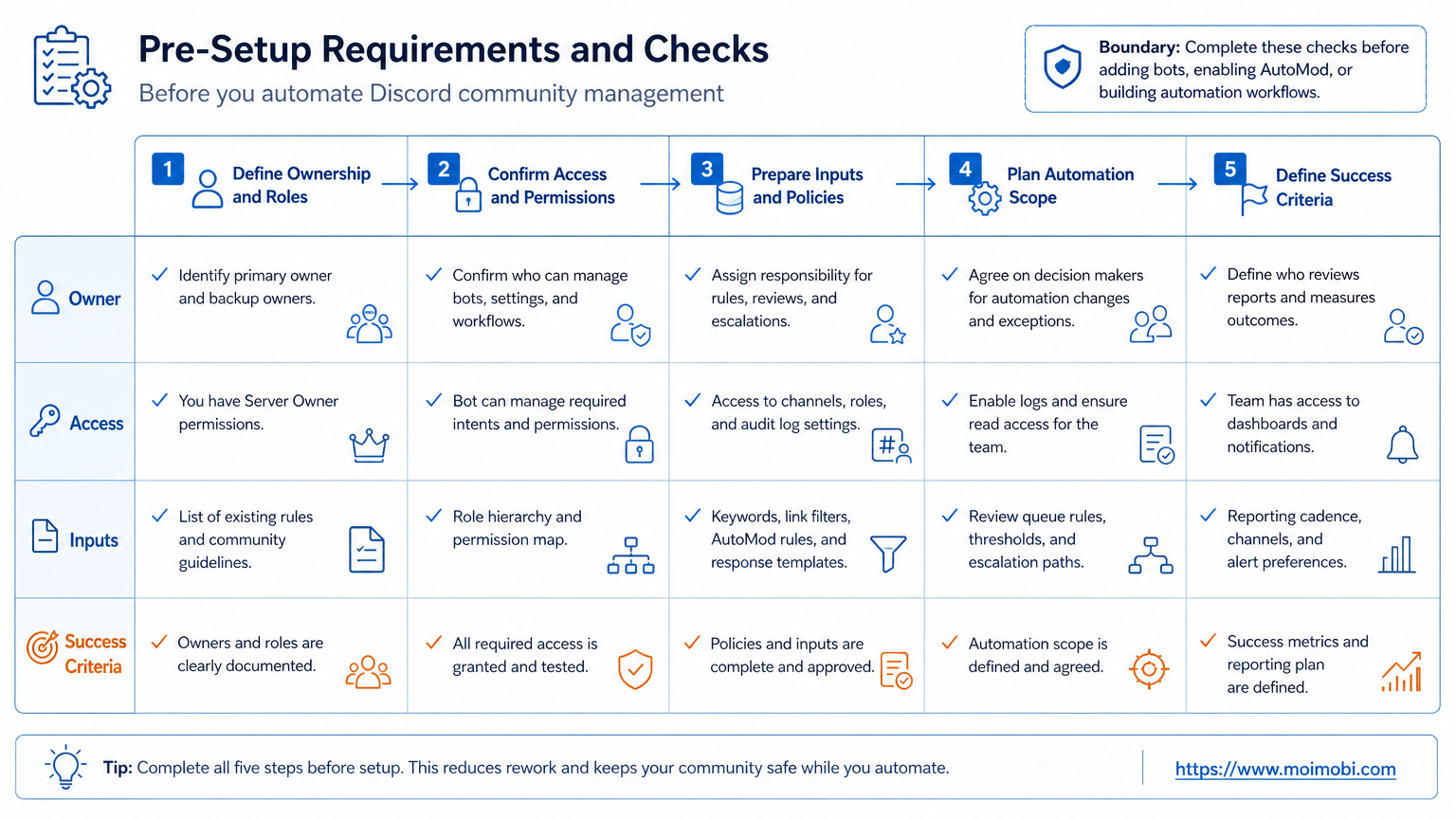
Pre-Setup Requirements and Checks for How to Automate Discord Community Management
Start with server design. Automation works only when channels, roles, and escalation paths are clear.
Prepare these items first:
- server purpose and community rules;
- role structure for members, moderators, admins, and support;
- channel map for announcements, support, onboarding, reports, and off-topic chat;
- moderation categories such as spam, harassment, unsafe links, and support requests;
- response ownership for moderators, support, creators, or operations staff;
- logging channel for moderation actions and workflow events;
- escalation rules for warnings, timeouts, bans, and appeals.
| Setup Area | What to Define | Why It Matters |
|---|---|---|
| Roles | Who can moderate, review, approve, and escalate | Automation needs clear permissions |
| Channels | Where each type of event should go | Alerts should not flood public rooms |
| Rules | What content triggers alerts or blocks | Moderation must match community policy |
| Logs | What each action records | Teams need review and recovery history |
Do not begin by adding many bots. Begin by deciding what the team should automate, what should be reviewed, and what should remain manual.
The Core Workflow for How to Automate Discord Community Management
Use a staged workflow. Each stage should be testable.
- Set community rules. Write short rules that moderators can apply consistently.
- Enable AutoMod rules. Start with keyword filters, spam filters, and alert channels where appropriate.
- Add approved bot workflows. Use official bot patterns for slash commands, interactions, role requests, and routing.
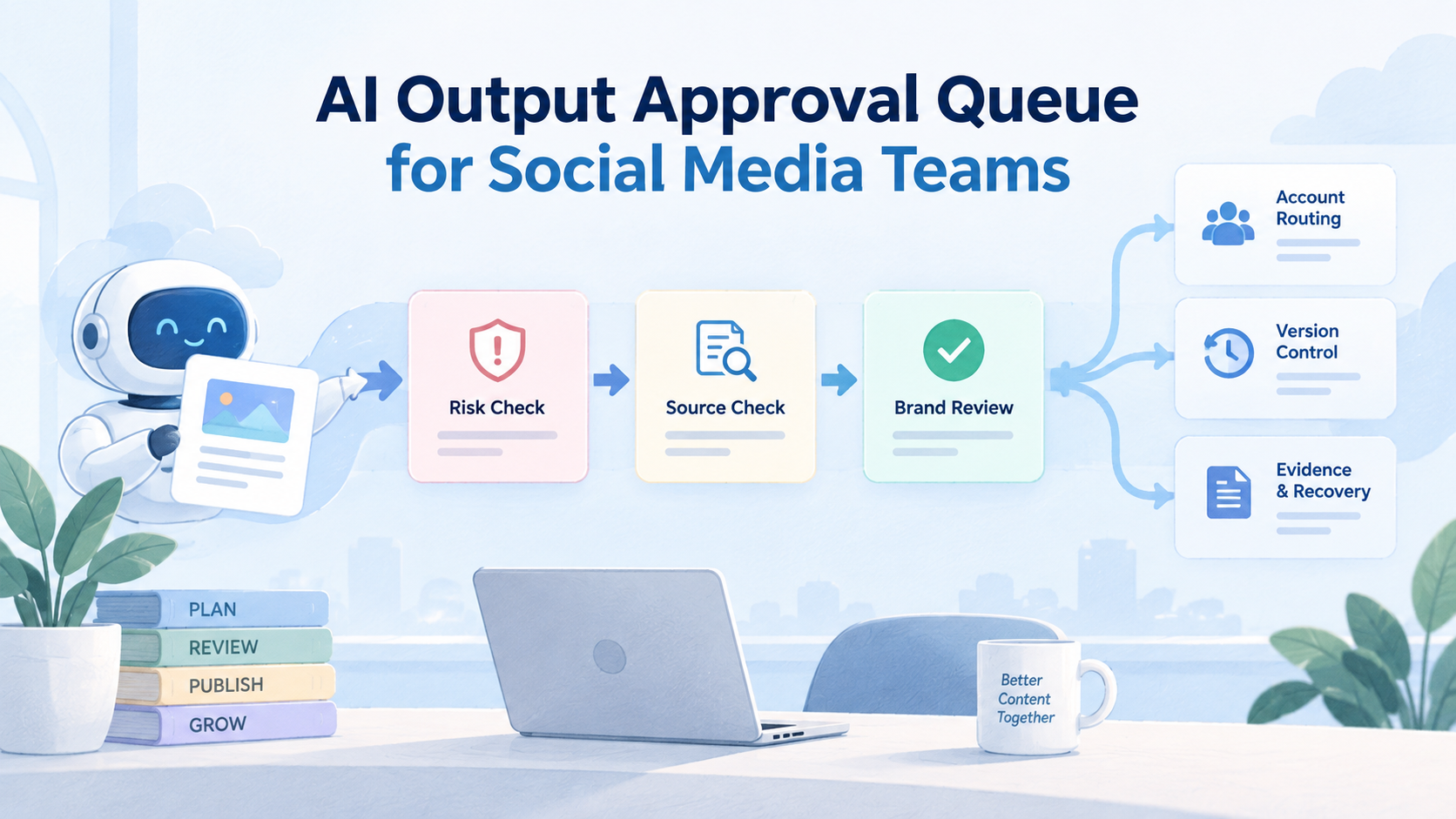
- Create review queues. Send uncertain cases to moderators instead of acting automatically.
- Log actions. Record trigger, channel, member, action, reviewer, and result.
- Run a limited pilot. Test one channel or rule category before expanding.
Discord’s bot documentation explains that apps can use OAuth2 scopes, permissions, Gateway events, and HTTP APIs. That matters because approved bot automation is different from controlling user accounts. Community workflows should use the platform’s intended app model.
Moimobi can support broader social operations around Discord when teams coordinate Discord with mobile-first channels. For example, a support team may use cloud phone environments for mobile apps while Discord handles community triage.
How to Verify the Setup Is Working
Verification should focus on control and trust. A bot that replies quickly is not enough.
Use these pass/fail checks:
- Can members understand which actions are automatic?
- Can moderators see why a message was flagged?
- Can AutoMod alerts go to the right private channel?
- Can bot commands be limited by role?
- Can moderators override or escalate an action?
- Can logs show trigger, action, reviewer, and result?
- Can the team pause one workflow without disabling every bot?
Discord AutoMod documentation explains that rules can trigger actions based on conditions, such as messages containing certain keywords. That makes setup easier, but teams still need review rules. A keyword match does not always mean intent is clear.
Run one review drill. Pick a flagged message and ask the moderation team to reconstruct what happened. If they cannot explain the trigger, action, and owner, the setup needs better logging.
Where Teams Usually Get Stuck
Teams often over-automate too early. They add multiple bots, create too many rules, and lose track of which tool made which decision.
Common mistakes include:
- using bots without role limits;
- sending alerts into public channels;
- treating every keyword match as a violation;
- skipping appeal or review paths;
- failing to log moderator overrides;
- automating member DMs without clear consent;
- using self-bots or user-bots, which Discord rules prohibit.
The hardest problem is not writing a bot command. It is deciding when automation should stop. Good community management preserves room for context.
Next Steps After the First Pass
After the first setup, review outcomes before adding more automation.
Use this sequence:
- Remove rules that create too many false alerts.
- Rewrite vague community rules.
- Add moderator notes for repeated edge cases.
- Move noisy alerts to a private review channel.
- Add dashboards for unresolved reports and appeals.
- Expand automation only after logs are readable.
Teams that run community operations across several platforms should also coordinate Discord with other channels. A TikTok automation tool, TikTok posting automation, or TikTok browser automation workflow may bring new members into Discord. The Discord workflow should be ready to onboard, route, and support them.
For mobile-heavy social operations, Moimobi’s mobile automation and device isolation can help keep app-based work separate from Discord moderation work.
Who It Fits and When It Is a Strong Match
Discord automation fits communities with repeated moderation and support patterns. It is useful when human moderators spend too much time routing, filtering, or answering the same questions.
- Servers with active support or onboarding channels.
- Communities that need moderation queues.
- Teams with clear roles and rules.
- Brands connecting Discord with social campaigns.
- Small servers with low message volume.
- Communities without written rules.
- Teams that want bulk DMs or spam automation.
- Servers with no moderator review process.
The best setup is usually a hybrid. Let automation collect signals, apply clear rules, and route work. Let people handle judgment, conflict, appeals, and community tone.
Permission Design for Discord Automation
Permission design is where many Discord automation projects succeed or fail. A bot should not receive more access than the workflow needs.
Use role-based access:
- admins configure the server and bot settings;
- moderators review flagged messages and member reports;
- support staff answer routed questions;
- community managers review trends and disputes;
- automation owners maintain rules, commands, and logs.
Discord bot setup uses OAuth2 scopes and permissions. That means the team can decide what the app is allowed to do before it enters the server. Treat those permissions like production access, not a setup detail.
Review permissions every month. Remove unused bot permissions, archive inactive roles, and check whether alert channels are still private. A community can change quickly, so automation access should not stay frozen forever.
What to Automate and What to Keep Manual
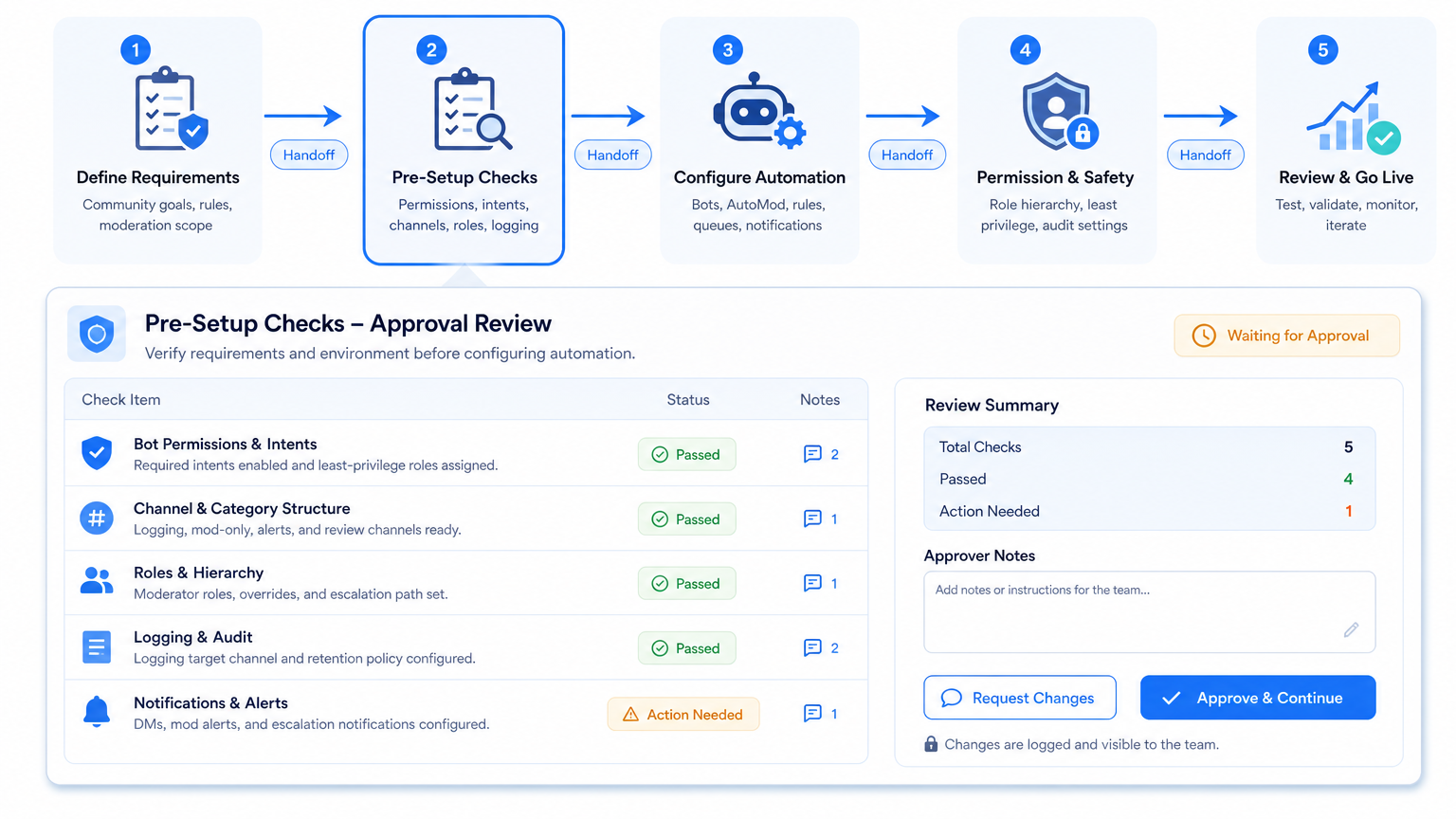
A good Discord workflow separates repeatable signals from human decisions. Automate the signal. Review the judgment.
Good automation candidates include:
- routing support questions by keyword or command;
- sending onboarding checklists;
- flagging spam-like messages;
- creating moderator tickets;
- assigning simple opt-in roles;
- posting scheduled reminders;
- collecting unresolved report counts.
Manual review should stay in place for member disputes, harassment context, ban appeals, partner complaints, sponsorship issues, and any message where tone matters. These cases need context that a rule may miss.
This split keeps the server useful. Members should feel that automation helps moderators respond faster, not that the server is run by unexplained rules.
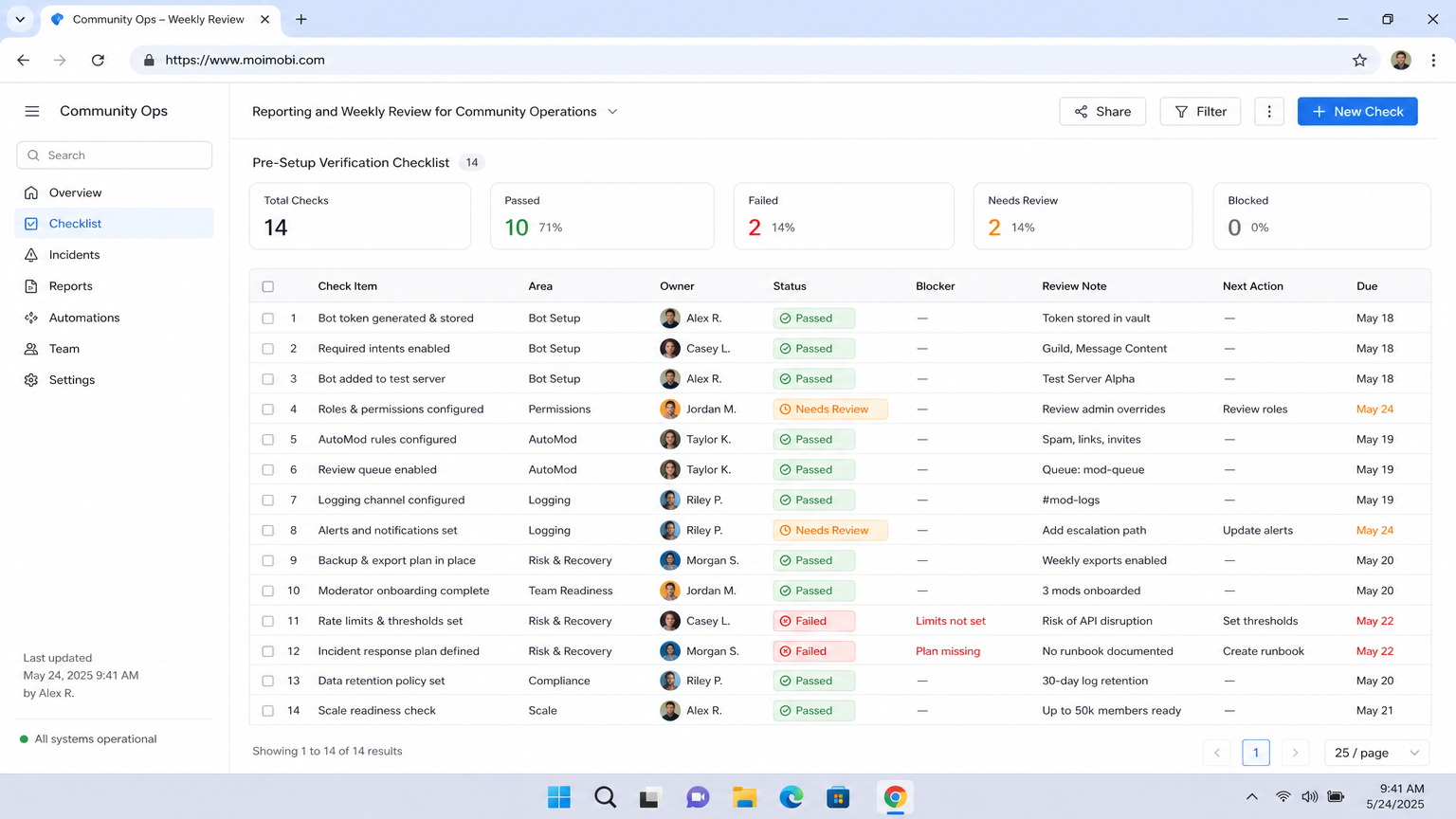
Reporting and Weekly Review for Community Operations
Automation should produce a weekly review, not just instant actions. A report helps the team see whether rules are helping or creating noise.
Track:
- messages flagged by rule type;
- false positives;
- moderator overrides;
- appeals created;
- unresolved support posts;
- response time by channel;
- members affected by repeated rules;
- bot errors or permission failures.
The report should drive small changes. Remove one noisy keyword rule, improve one onboarding message, or move one alert type to a better channel. Avoid changing the full system after one unusual day.
For teams managing social traffic into Discord, reporting also connects upstream campaigns to community load. If a TikTok posting automation campaign drives new members, the Discord team should know whether onboarding, support, and moderation capacity kept up.
How to Automate Discord Community Management Across Teams
Many Discord servers start with one owner and a few moderators. Automation becomes harder when marketing, support, community, and operations teams all need access. At that point, the workflow should be designed like a small operating system.
Assign each team a narrow responsibility. Marketing can prepare campaign announcements. Support can handle routed help requests. Moderators can review flagged messages and appeals. Operations can review logs, permissions, and workflow health. This keeps one bot rule from becoming everybody's problem.
Use shared naming rules for channels, roles, and alerts. For example, support alerts, moderation alerts, and campaign alerts should not arrive in the same room. If every notification looks urgent, moderators will stop trusting the system.
A practical team workflow can look like this:
- campaign team launches a social post;
- new members enter Discord through an onboarding channel;
- AutoMod filters obvious spam and unsafe links;
- bot commands route support questions into the right queue;
- moderators review edge cases and appeals;
- operations checks unresolved issues at the end of the day.
This is also where Moimobi becomes useful for teams that connect Discord with broader social execution. A community may be fed by Instagram, TikTok, mobile app messaging, or e-commerce campaigns. Keeping those mobile and social workflows isolated from Discord moderation helps the team see where demand came from and who owns the next action.
Do not let the Discord setup become a hidden black box. If a member asks why a message was flagged, the team should be able to explain the rule, the action, and the review path in plain language.
Risk Controls Before Scaling Discord Automation
Scaling should happen only after the first workflow is stable. Add one more channel, one more rule category, or one more bot action at a time.
Before scaling, check four controls. First, make sure there is a pause switch for each workflow. Second, make sure logs show enough detail for review. Third, make sure moderators can override automatic actions. Fourth, make sure members have a clear way to appeal or ask for help.
Avoid automation that hides responsibility. If a bot sends a warning, a human owner should still be named in the process. If a rule blocks a message, the team should know whether it came from AutoMod, a bot command, or a custom integration.
The safer path is slower at the beginning. It prevents a common failure mode: the server grows, automation multiplies, and no one can explain which rule created a member-facing action. Good automation makes moderation more consistent. It should not make the team less accountable.
Incident Recovery and Escalation Path
Every automated community workflow needs a recovery path. Mistakes happen when rules are unclear, permissions drift, or context changes.
Create a simple incident path:
- Pause the affected rule or bot command.
- Save the trigger, message, channel, member, and action.
- Assign one reviewer.
- Decide whether the action should be reversed, edited, or left in place.
- Update the rule or document why no change is needed.
- Tell moderators what changed before restarting.
Do not restart a noisy rule without a reason. A paused rule is a chance to learn. Repeating the same false action damages moderator trust and member trust.
Pilot Rollout, Measurement, and Recovery Checks
Start with one channel. Support, onboarding, or reports are good pilot areas because the workflow is easier to define.
Track:
- alerts created;
- false positives;
- actions reviewed;
- moderator overrides;
- unresolved reports;
- member complaints;
- average response time.
The myth is that automation quality is measured only by speed. The workable view is broader. A faster system is not better if it creates confusing alerts or removes human context.
Set recovery rules before launch. Pause a rule when false positives rise, when moderators disagree often, or when members report confusing actions. Update the rule, then restart it in one channel before expanding.
Frequently Asked Questions
Can Discord community management be automated?
Yes, parts of it can be automated with approved bots, AutoMod rules, commands, alerts, queues, and logs.
What should not be automated?
Do not automate spam, self-bots, user-bots, unsolicited bulk messages, or actions that need human judgment.
Is Discord AutoMod enough?
AutoMod helps with rule-based moderation. Larger teams may still need custom routing, reporting, and review workflows.
Should bots reply to every question?
No. Bots should answer clear FAQ patterns and route uncertain questions to people.
What should be logged?
Log trigger, channel, member, action, reviewer, outcome, and recovery step.
How should teams start?
Start with one channel, one rule category, one review queue, and one weekly review.
Where does Moimobi fit?
Moimobi helps teams coordinate social and mobile execution environments around broader community operations.
What is the biggest risk?
The biggest risk is automation without review. Communities need context, appeals, and human ownership.
Conclusion
Automate Discord community management in this order: rules, roles, AutoMod, approved bots, review queues, logs, pilot, then scale.
Before expanding, review one flagged case from start to finish. If the team can explain the trigger, action, reviewer, and recovery path, the workflow is ready for the next channel.
References