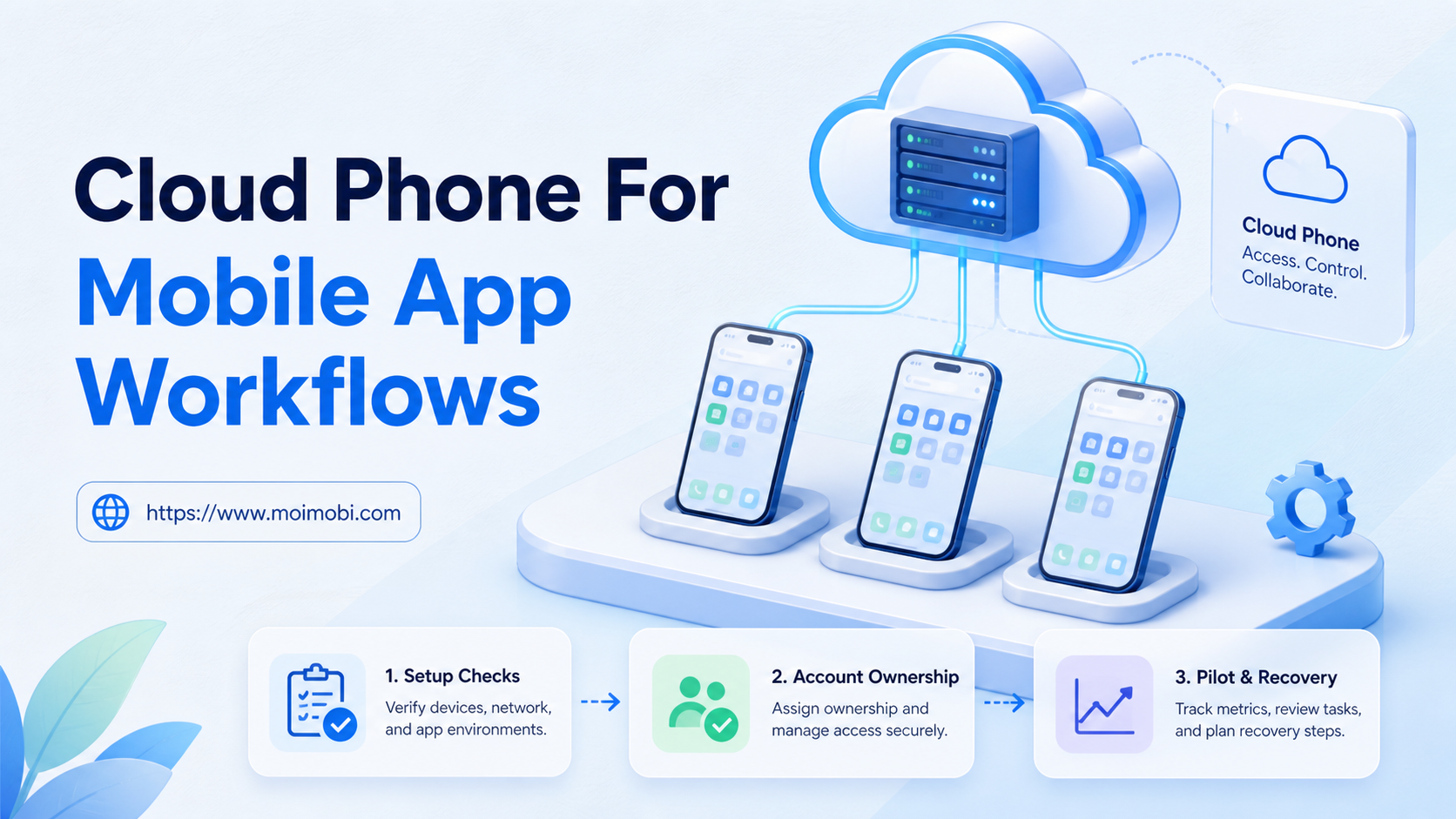
Key Takeaways
- Map the mobile task before choosing a cloud phone, browser, emulator, or physical device.
- Give each account, environment, task, and review decision a clear owner.
- Pilot one workflow, record failures, and scale only after the team can recover a run.
A cloud phone for mobile app workflows gives a team a remote Android environment for repeatable app tasks, account work, and operational handoffs. The useful question is not whether a cloud phone is “better” than every other device. It is whether the environment matches the app, account, ownership, and review requirements of the workflow.
In practical terms, cloud phone for mobile app workflows means connecting a mobile task to a named environment, a responsible operator, and a result that another person can verify. That definition matters because remote device access alone does not create a repeatable operating process.
For a small pilot, start with one workflow, a limited number of accounts, and clear stop rules. A practical setup separates device environments, assigns task ownership, records outcomes, and leaves a human approval point for sensitive actions. This approach makes mobile automation easier to evaluate without assuming that every app behaves like a browser.
The Core Idea Behind Using Cloud Phones for Mobile App Operations
The first mistake is treating a cloud phone as a complete operations system. It is only the execution environment. The team still needs a task definition, account owner, access policy, content or reply rules, failure handling, and a review record.
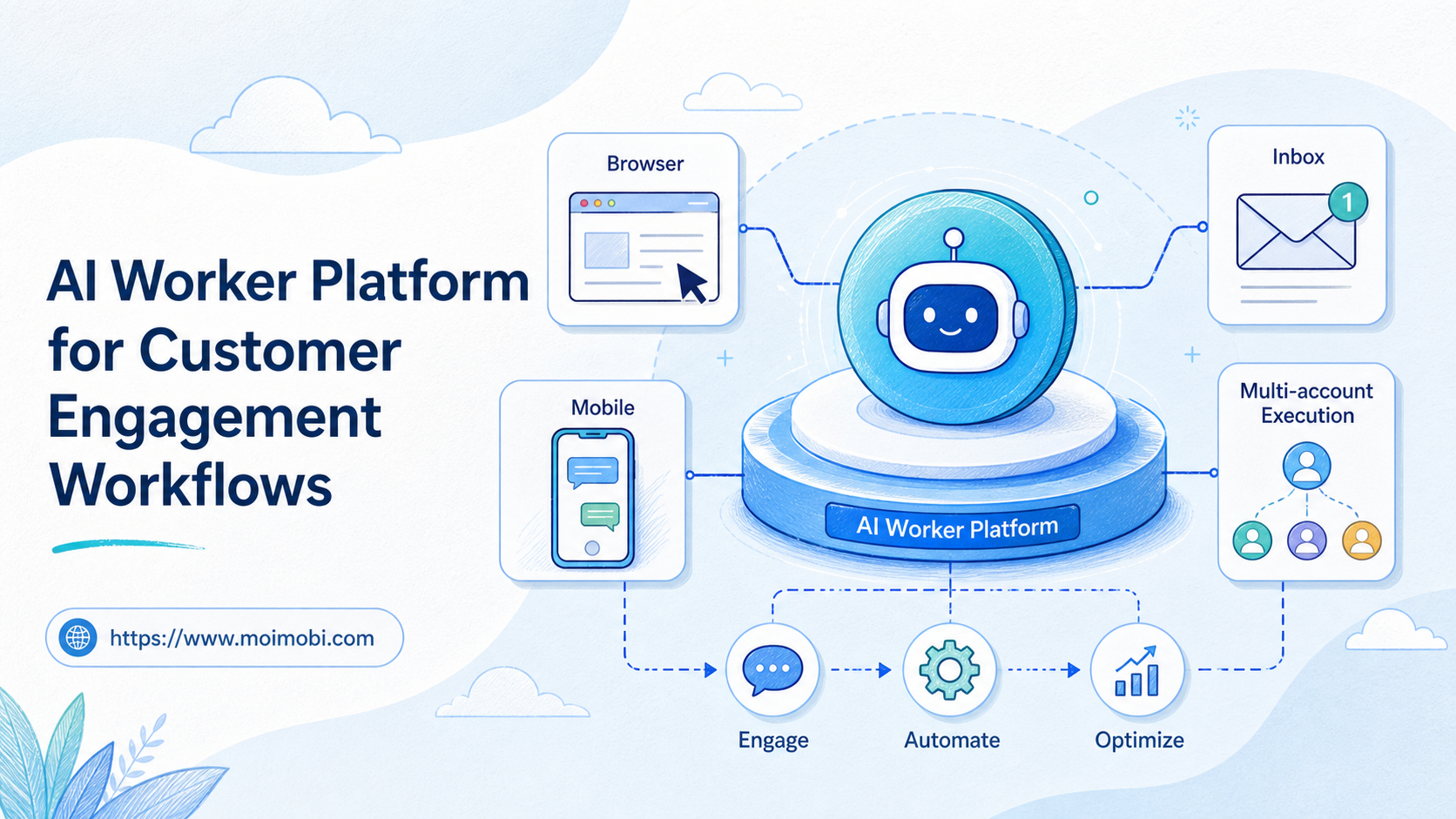
The second mistake is choosing the device layer before mapping the task. Android app workflows may depend on notifications, app state, device permissions, media upload, or a specific mobile interface. A browser profile cannot replace those requirements, while a cloud phone may be unnecessary for a task that is fully supported by a web dashboard.
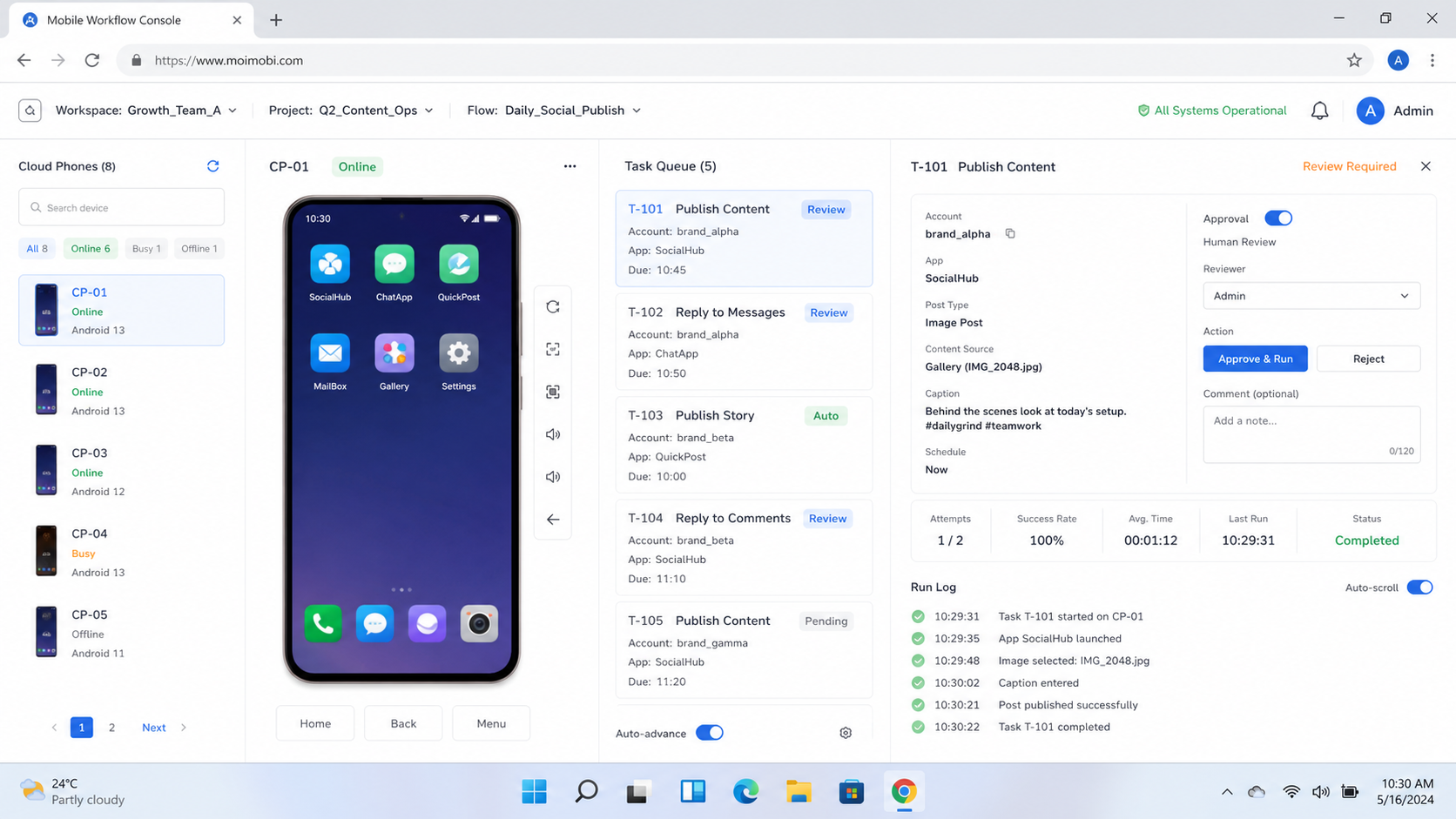
The operating unit is a task, not a device. A useful task record names the account, app, action, input, expected output, reviewer, and recovery path. For example, “publish an approved product update” is incomplete without the target account, asset version, approval state, and evidence that the post was accepted.
Use this sequence before assigning work:
- Describe the action. Record the app, account, trigger, expected result, and human approval point.
- Classify the environment. Decide whether the task needs a mobile app, a browser, or both.
- Separate ownership. Assign the account, device environment, operator, and reviewer.
- Define the stop rule. Pause when login state, permissions, content, or task output differs from the expected state.
- Record the result. Keep the task status, timestamp, account, output, and failure reason together.
This model keeps a cloud phone for mobile app workflows connected to a real business process. It also makes a failed run diagnosable instead of turning it into an unexplained “automation error.”
The same model supports handoffs. A content operator can prepare an approved asset, a reviewer can confirm the caption and destination account, and an operations owner can inspect the final result. The environment remains useful because every role works from the same task record rather than passing informal instructions through chat.
Why Teams Search for This Topic and cloud phone for mobile app workflows
Teams usually reach this topic when mobile work has outgrown a single personal phone. They may need several operators to access different accounts, repeat the same publishing steps, monitor mobile-only notifications, or hand work from marketing to support. The underlying need is controlled execution, not simply remote screen access.
The environment choice affects what can be tested and what can be controlled. The Android Emulator is designed to model Android devices for development and testing. That makes it useful for application testing, but it does not automatically provide the same operational ownership model as a managed team environment. A production workflow needs separate decisions about account access, persistence, permissions, and recovery.
For testing variation, Firebase Test Lab Android virtual devices provide documented virtual device configurations. That is valuable when a team needs repeatable app validation. A customer-facing or account-based operation may need additional controls around who can use the environment, which account is attached, and how an action is approved.
For a managed, single-purpose device model, Android Enterprise’s dedicated device guidance is another useful reference point. It highlights a distinction that matters in operations: a device can be assigned to a focused purpose, but the team still needs ownership, provisioning, and support procedures around it. A cloud environment does not remove those responsibilities; it makes them easier to centralize.
The decision becomes clearer when the task is mapped to its execution layer:
| Workflow requirement | More suitable starting point | What the team must still control |
|---|---|---|
| Web dashboard, export, or browser form | Browser workspace | Session ownership, permissions, and audit trail |
| Android-only app interaction | Cloud phone or managed Android device | App state, account assignment, and recovery |
| App compatibility testing | Emulator or virtual device lab | Test coverage, device matrix, and result capture |
| Notification or device-specific workflow | Mobile execution environment | Notification access, escalation, and human review |
| Many accounts with repeated handoffs | Isolated environments plus task control | Role mapping, duplicate prevention, and stop rules |
Who Benefits Most and In What Situations and cloud phone for mobile app workflows
The strongest fit is a team with repeatable mobile actions and clear account ownership. Examples include a social team that publishes approved content, a support team that triages mobile inboxes, or an operations team that checks app status at scheduled intervals. The work is structured enough to measure, but still requires a mobile interface.
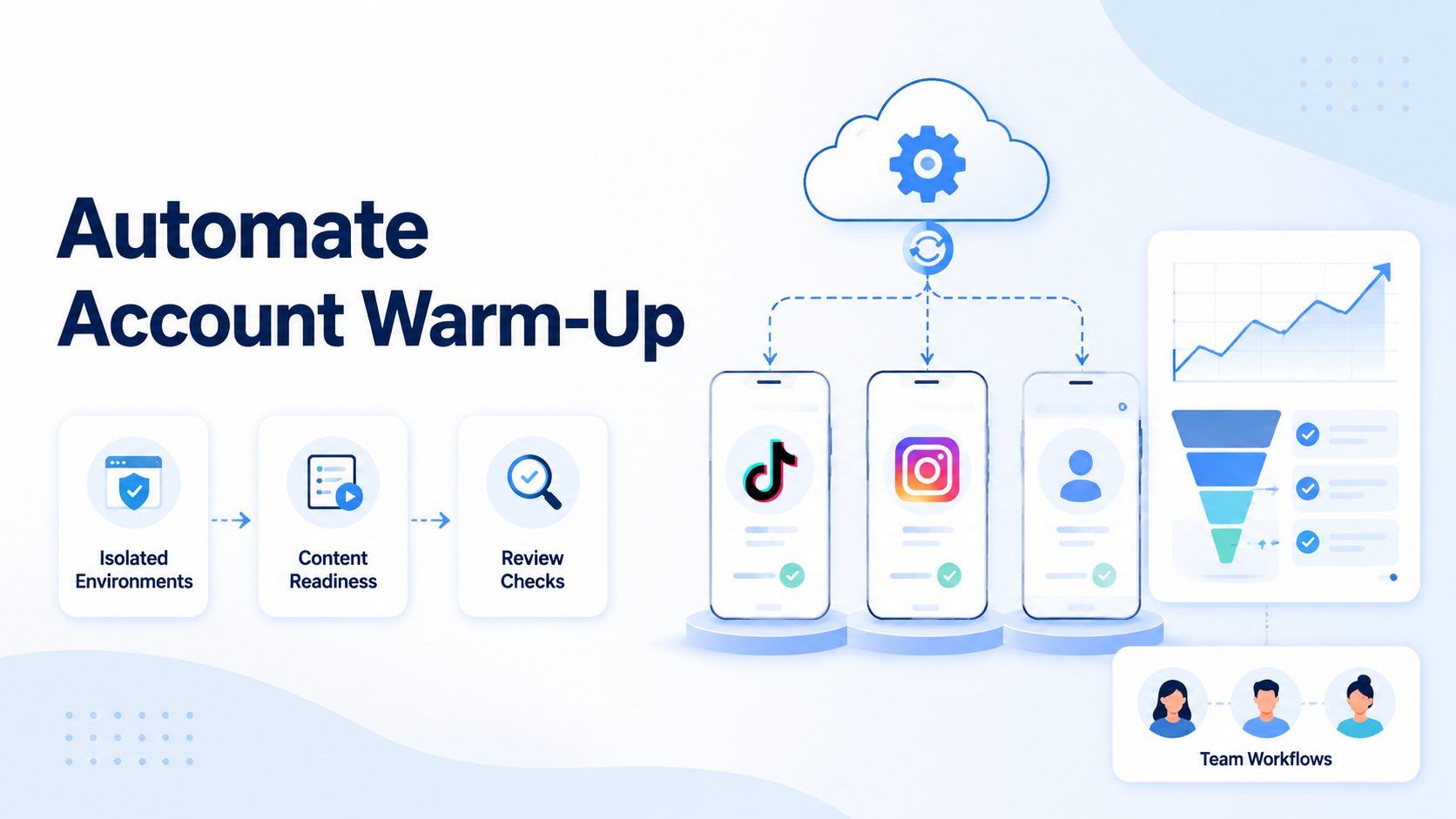
Agencies can also benefit when each client needs a separate operating context. A TikTok platform workflow may need different content rules, account owners, and review queues for each client. Separating those records is more useful than giving every operator one shared login path.
The fit is weaker when the process is undefined or when the team wants unlimited unattended activity. A cloud phone cannot decide whether a message is appropriate, whether a customer has opted out, or whether a content change needs approval. Those decisions belong in the workflow design.
Use this fit test:
- Good fit: the app is required, the task repeats, the account owner is known, and the result can be checked.
- Possible fit: the task is partly manual, but the team can define checkpoints and escalation paths.
- Poor fit: the task depends on guesswork, has no owner, or expects the system to bypass platform controls.
Role, task, and evidence map
| Role | Owns | Evidence to leave behind |
|---|---|---|
| Workflow owner | Task definition and stop rule | Current SOP and change note |
| Account operator | Login state and approved action | Task log and output link |
| Reviewer | Content, recipient, or account decision | Approval or rejection reason |
| Operations lead | Capacity, exceptions, and handoff | Weekly review and recovery action |
This division prevents a common ambiguity: the person who can operate an account is not automatically the person who can approve every action. It also gives a distributed team a practical escalation path when a mobile screen, permission, or app state differs from the runbook.
How to Evaluate or Start Using Using Cloud Phones for Mobile App Operations: A Team Workflow Guide
Run a small setup review before adding more accounts. The following checkpoints make the first pilot easier to troubleshoot.
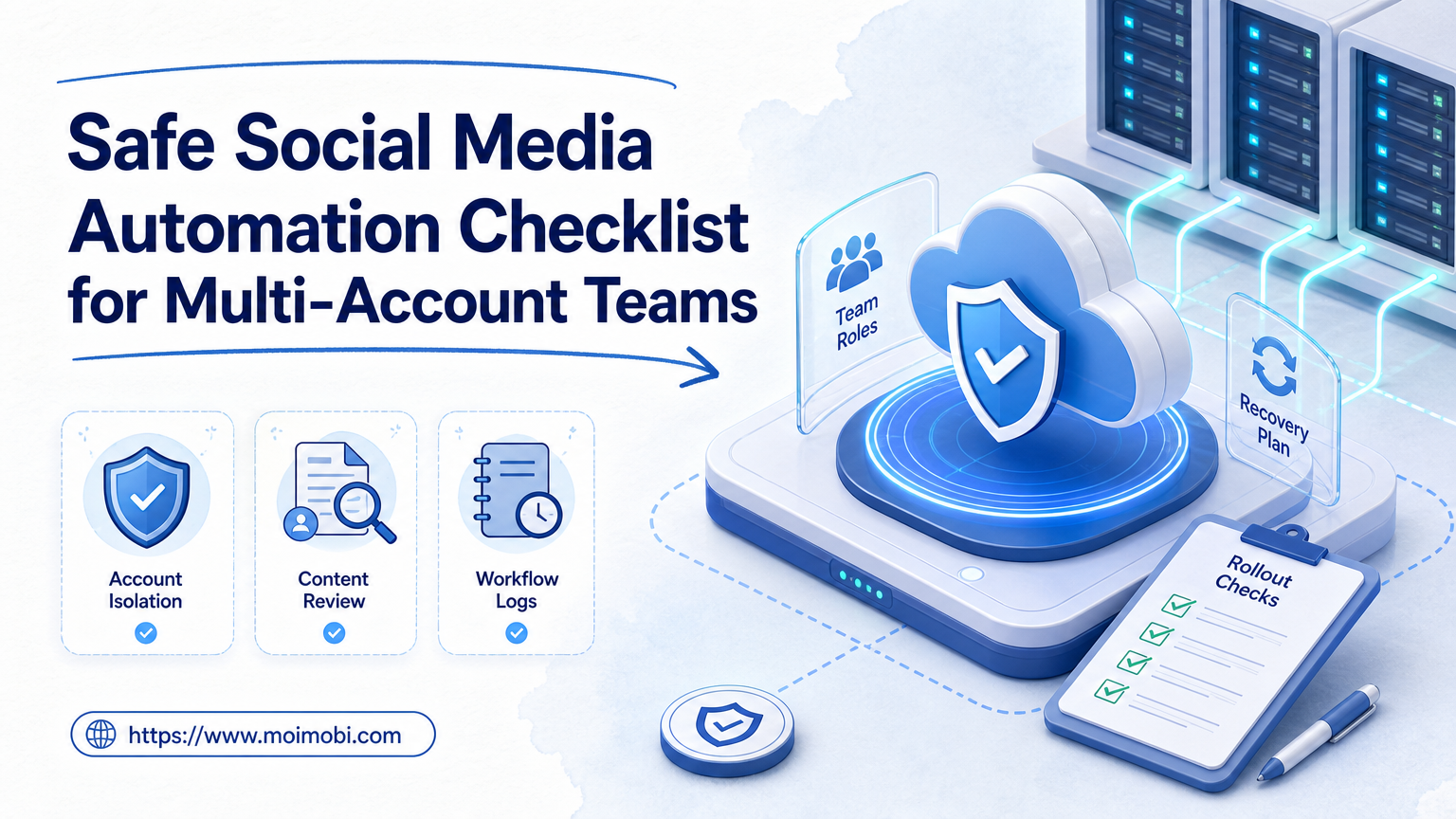
Preflight checklist
- Confirm the app, account, and business purpose.
- Confirm who owns the account and who can approve an action.
- Confirm the device environment and required Android version.
- Confirm whether the task needs notifications, media, location, or other device permissions.
- Confirm where task logs and outputs will be reviewed.
- Confirm the stop condition and manual recovery path.
Then run the workflow in this order:
- Create the environment. Assign one mobile environment to the pilot account or task group. Keep naming consistent with the team’s account register.
- Verify access. Check the login state, app version, permissions, and network path. Do not treat a successful login as proof that the entire workflow works.
- Run one controlled task. Use approved content or a low-impact operation. Capture the start state, action, output, and end state.
- Add review. Route publishing, customer replies, and account changes to a reviewer when the action could affect customers or platform reputation.
- Repeat with a second case. Test a normal run and an exception, such as an expired session or missing permission.
- Hand off cleanly. Record the next owner, pending task, and recovery instruction before closing the run.
For teams comparing device environments, the cloud phone farm infrastructure guide can help frame capacity and operations questions. Treat capacity as an operational planning topic, not as a promise that more devices automatically produce better results.
Before expanding the pilot, test one controlled exception for each important dependency. Remove a permission, expire a session in a test account, provide an invalid asset, or pause the network path according to the team’s approved test procedure. The aim is not to create disruption. It is to confirm that the run stops, records the reason, and reaches the correct owner.
The output of this test should be a short recovery note. It should state what was observed, whether the task was retried, who approved the retry, and how the operator verified the final state. This note turns a one-off fix into a reusable part of the team workflow.
Mistakes That Reduce Results
The most common failure is scaling before the workflow is observable. Adding ten environments does not fix an unclear task, a shared password, or missing review ownership. It only makes the failure harder to trace.
Another mistake is mixing browser and mobile assumptions. A browser workflow may depend on saved sessions and page selectors. A mobile workflow may depend on app state, notifications, touch targets, or an OS permission. The runbook needs to name the dependency instead of calling both cases “browser automation.”
Avoid these operating patterns:
- One account is used by several people without an owner.
- The same content is sent without a review or audience rule.
- A failed run is retried repeatedly without inspecting the state.
- Device environments are renamed informally, so task records cannot be matched.
- The team measures completed clicks but not successful outcomes or escalations.
- A product comparison is used as a substitute for an actual pilot.
When an environment needs a different execution layer, document the reason. For example, a team may move a browser-based reporting task to a browser workspace while keeping an app-based reply task on a cloud phone. A fingerprint browser alternative for Android workflows can be useful as a comparison resource, but the correct choice still depends on the app, account, and review requirements.
Pilot Rollout, Measurement, and Recovery Checks for cloud phone for mobile app workflows
The first pilot should answer three questions: Can the team execute the task? Can the team explain a failure? Can another operator continue the work? Do not judge the pilot by activity volume alone.
Track a small set of fields:
| Metric | What to record | Why it matters |
|---|---|---|
| Task completion | Started, completed, blocked, or escalated | Shows whether the workflow is operational |
| Review rate | Tasks requiring human approval | Shows where automation needs a checkpoint |
| Recovery time | Time from failure to restored execution | Exposes weak handoff or permission steps |
| Duplicate rate | Repeated or conflicting actions | Helps protect account and customer experience |
| Useful output | Published item, resolved message, or accepted report | Connects execution to the business goal |
Use a short pilot window with a fixed task definition. Review the logs daily, remove steps that add no value, and pause when the same exception appears more than once without a documented fix. If the team cannot explain a failed run from the record, the workflow is not ready to scale.
Set a review cadence before the first run. A daily check can focus on blocked tasks, missing approvals, and duplicate actions. A weekly check can examine whether the task definition changed, whether the chosen environment still fits, and whether the recovery path needs a new owner. This cadence keeps the system from drifting while the team adds accounts or apps.
Use a simple decision rule after the pilot:
- Continue: the expected output is clear, exceptions are explainable, and handoffs work.
- Adjust: the task works, but permissions, naming, review timing, or evidence fields are incomplete.
- Stop: the app behavior is unpredictable, the account owner is unclear, or the workflow requires actions outside the approved boundary.
Frequently Asked Questions
What is a cloud phone for mobile app workflows?
It is a remote mobile execution environment used to run Android app tasks without tying every task to a local physical phone. The workflow still needs account, permission, review, and recovery controls.
Is a cloud phone the same as an Android emulator?
No. An emulator models an Android device in software, often for development or testing. A cloud phone may be used as an operational workspace, but the exact capabilities depend on the provider and workflow.
Can a team use one cloud phone for many accounts?
That depends on the app, policy, and workflow design. Separate environments are easier to assign and audit. Do not treat account concentration as a default best practice.
When should a browser be used instead?
Use a browser when the required action is fully available in a web interface and does not depend on mobile-only state, notifications, or app permissions.
Does mobile automation remove human review?
No. Publishing, customer replies, account changes, and other consequential actions may still need review. Automation can prepare and execute a controlled task, while a person owns the decision boundary.
How should a team start a pilot?
Choose one repeatable task, one account group, one reviewer, and one recovery path. Compare the recorded output with the expected result before expanding capacity.
What should be logged after a failed task?
Log the environment, account, task version, timestamp, observed state, error, retry decision, and next owner. A short factual record is more useful than a generic failure label.
How does this relate to social media automation?
Mobile execution can support app-based publishing, inbox work, and monitoring. The content, audience, approval, and platform rules still need to be defined separately.
Conclusion
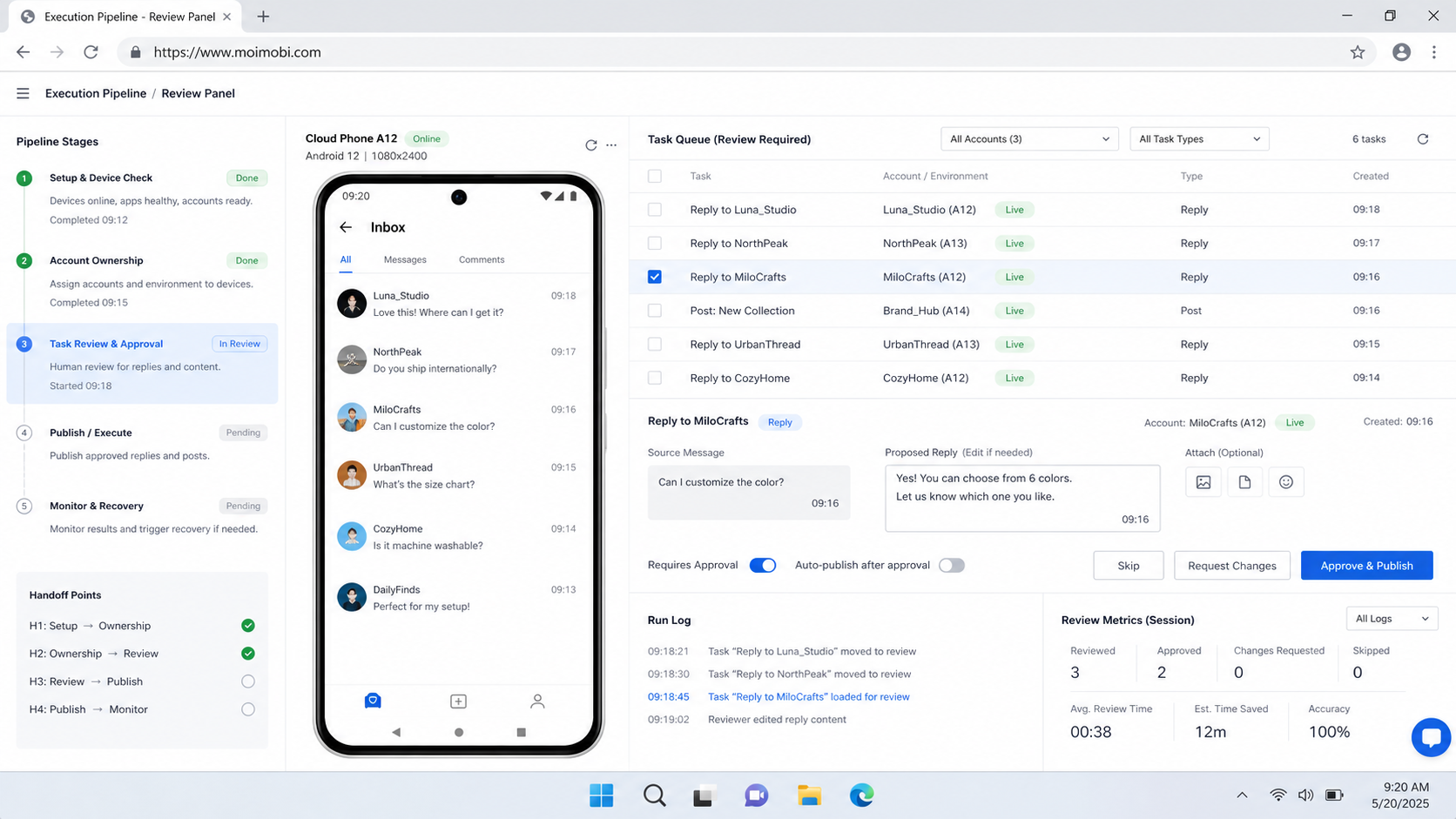
Using cloud phones for mobile app operations works best when the team treats the device as one layer of a controlled workflow. Start with the app requirement, account owner, task steps, review point, and recovery rule. Then test one case before adding more environments or accounts.
The next practical step is a small evidence-based pilot: run one mobile task, record the result, inspect one failure path, and confirm that another operator can continue the work. If those checks pass, the team has a basis for expanding mobile automation without confusing device capacity with operational quality.