Key Takeaways
- A cloud phone gives AI workflows a real mobile execution environment.
- Start narrow.
- Mobile AI automation needs account isolation, review, stop rules, and activity evidence before teams expand into more apps, more accounts, or more schedules.
- Teams should begin with draft, monitoring, and triage workflows before allowing sensitive actions.
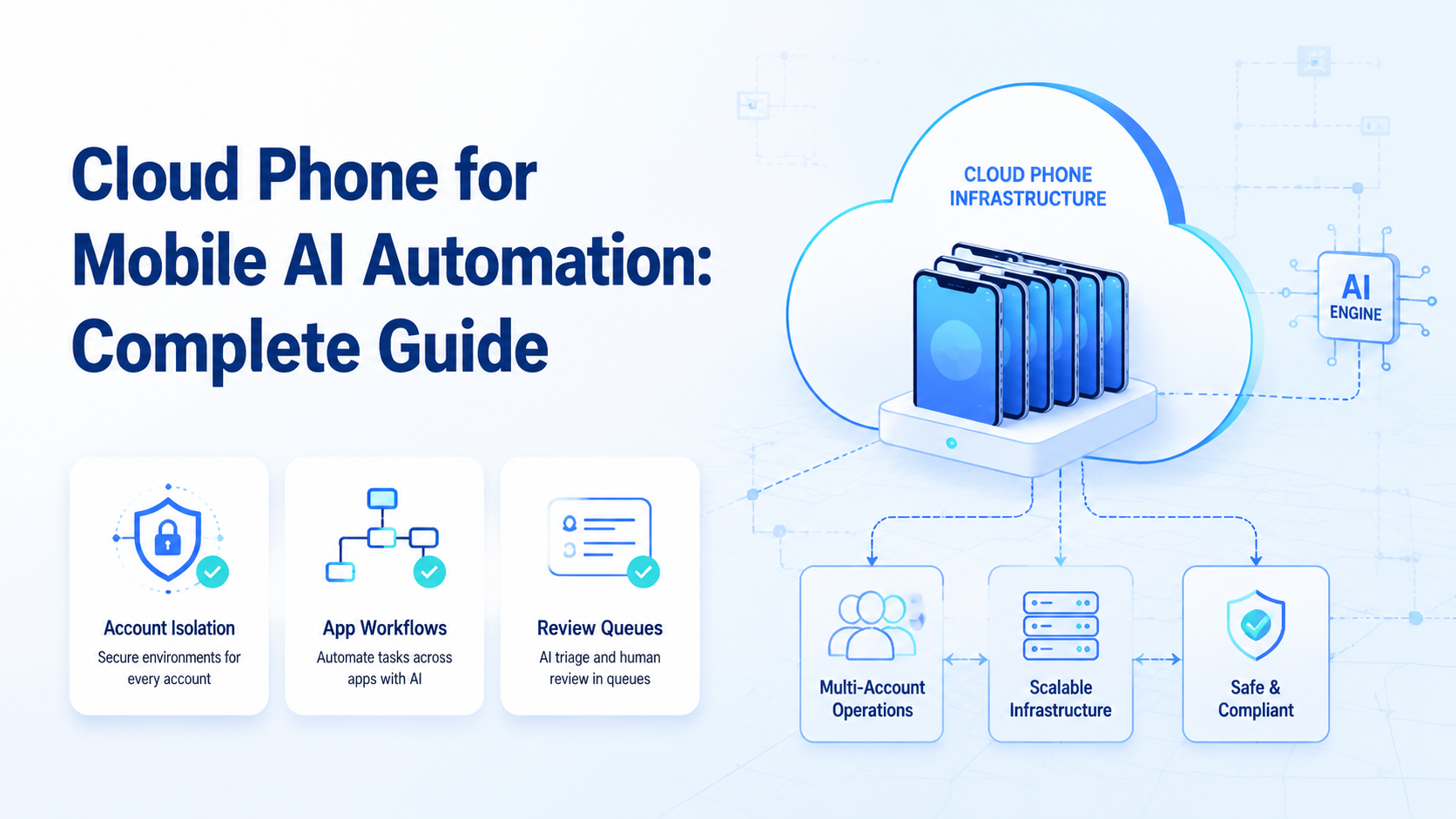
A cloud phone is a remote mobile environment that teams can access and operate from the cloud. For mobile AI automation, it gives AI workers a place to run app-based tasks without relying on a person's physical device.
This matters because many business workflows are no longer desktop-first, and the person who owns the work may not have time to check every app by hand. Social media, messaging, community management, ecommerce, and customer engagement often happen inside mobile apps. If AI cannot work inside those environments, it stays limited to planning and drafting.
MoiMobi connects AI workflows to cloud phones, mobile automation, browser profiles, and multi-account operations. The goal is controlled execution, not unmanaged bot activity.
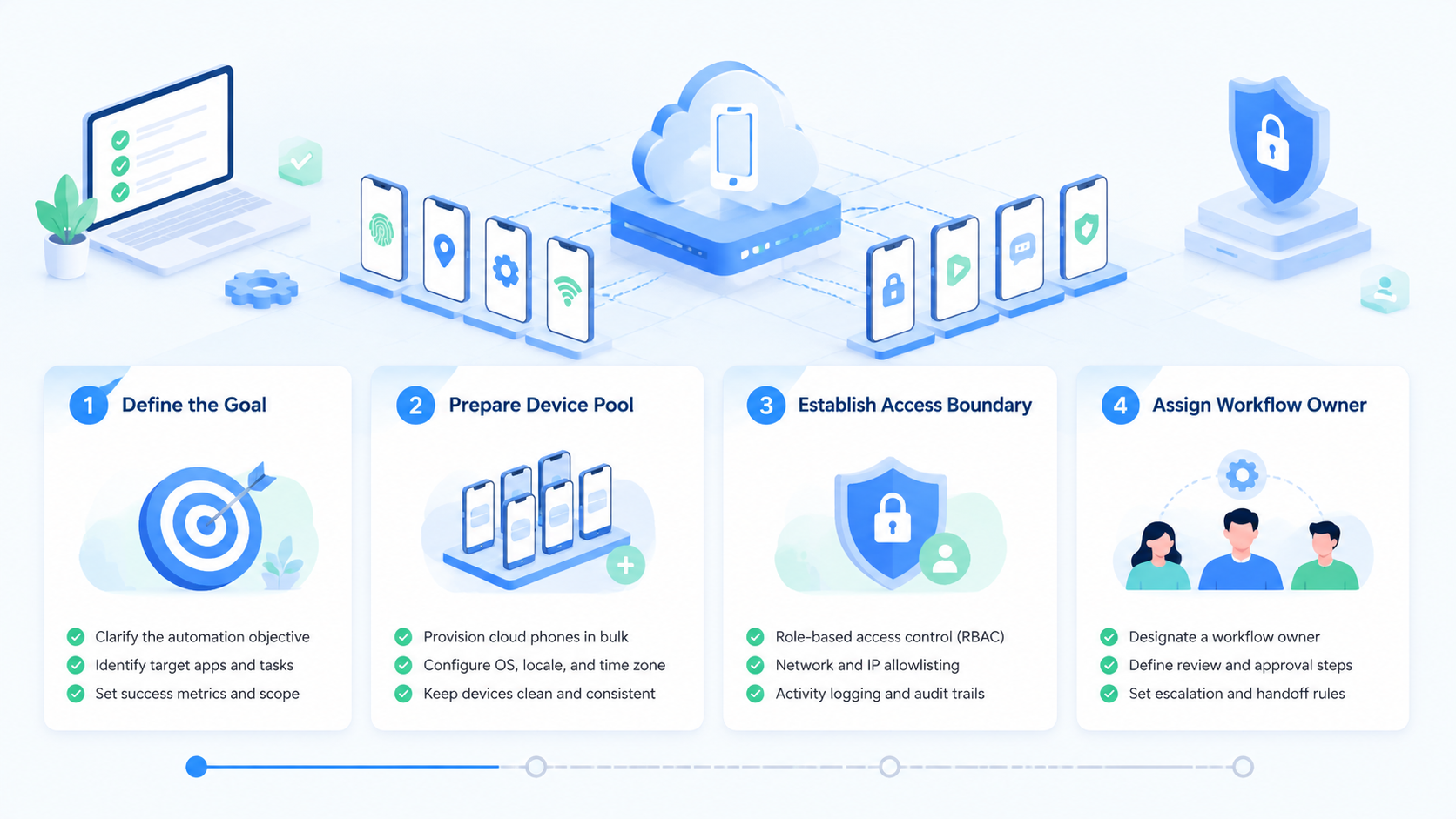
Make the work clear enough that a reviewer can see the account, app, task, and next step without asking the operator for context.
What a Cloud Phone Means for AI Automation.
A cloud phone acts like a remote Android workspace. Teams can assign it to a task, account group, worker, or reviewer.
| Component | Role in mobile AI automation |
|---|---|
| Cloud phone | Remote mobile execution environment |
| AI worker | Drafts, checks, summarizes, and prepares actions |
| Account workspace | Maps one account or account group to a device lane |
| Review queue | Holds sensitive actions before approval |
| Evidence | Screenshots, notes, task logs, and outputs |
| Scheduler | Runs repeated checks or work cycles |
The value is not only remote device access. The value is making mobile work repeatable, separated, and reviewable.
That is the hard part.
Start narrow before adding more apps, accounts, or schedules.
A small lane gives the team a clean place to learn what the worker can check, what it should draft, and when it must stop.
Why Mobile AI Automation Needs Cloud Phones.
Start here.
Many workflows cannot be handled well through a browser or API alone. A platform may have mobile-only features, and a message may arrive inside an app.
A notification may appear only on a device. A content flow may look different on mobile.
Common mobile-first tasks include:
- Checking app inboxes
- Drafting customer replies
- Reviewing comments
- Monitoring notifications
- Preparing content publishing steps
- Capturing screenshots
- Collecting lead context
- Checking app-based dashboards
An AI worker can help prepare and summarize this work. The cloud phone provides the execution surface.
Use the real surface.
Cloud Phone vs Emulator.
Teams often compare cloud phones with emulators. Both can run Android-like workflows, but they are not the same operating model.
| Area | Cloud phone | Emulator |
|---|---|---|
| Primary use | Remote mobile workspace | Local or virtual test environment |
| Team access | Shared through a platform | Often tied to a machine |
| Scheduling | Easier to run continuously | Depends on host setup |
| Account mapping | Can be assigned per workspace | Often manual |
| Best fit | Operations and mobile workflows | Development and testing |
Emulators are useful for development and testing. Cloud phones are often better for operations teams that need persistent, assignable mobile environments.
Choose based on workflow, not labels.
Cloud Phone Account Isolation in Mobile Workflows.
Mobile AI automation becomes risky when accounts share unclear device states. Teams should know which account belongs to which device lane, what workflow runs there, and who reviews the result.
Use a simple mapping:
| Account lane | Cloud phone | AI worker role | Human reviewer |
|---|---|---|---|
| TikTok content lane | Phone A | Content prep worker | Social lead |
| WhatsApp support lane | Phone B | Reply draft worker | Support owner |
| Telegram community lane | Phone C | Monitoring worker | Community manager |
| Ecommerce app lane | Phone D | Store check worker | Operations lead |
This structure helps prevent mixed sessions and unclear responsibility. It also helps managers understand what each mobile environment is doing.
What to Automate First With a Cloud Phone.
Start with workflows where the AI worker prepares or monitors, not workflows where it takes irreversible action.
Good first workflows:
- App notification summaries
- Message classification
- Reply draft preparation
- Comment queue review
- Content checklist preparation
- Competitor activity notes
- Lead follow-up reminders
- Daily account status reports
Avoid starting with final sends, publishing, deletions, account setting changes, billing actions, or anything that affects money.
Draft first. Execute later.
Cloud Phone Example: Mobile Reply Workflow.
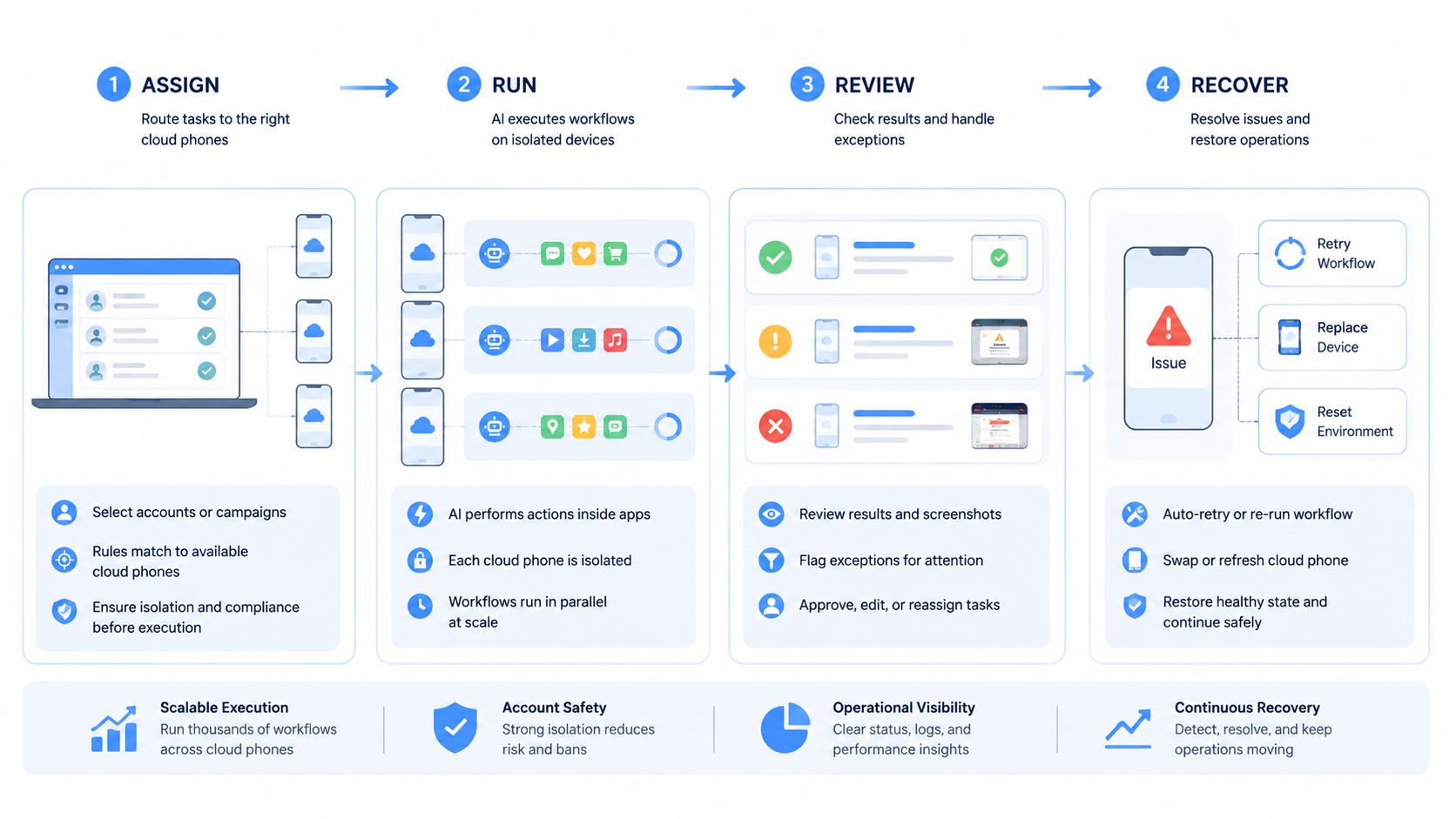
A mobile reply workflow should begin with human approval.
| Step | Owner |
|---|---|
| Open assigned cloud phone | AI worker |
| Check new app messages | AI worker |
| Group message types | AI worker |
| Draft suggested replies | AI worker |
| Flag sensitive items | AI worker |
| Approve or edit replies | Human reviewer |
Sensitive items include refunds, complaints, delivery problems, legal concerns, personal data, and unclear customer intent. Those should stop before sending.
This model is useful for WhatsApp, Telegram, Instagram, TikTok, Facebook, and marketplace apps where messages arrive in mobile-first channels.
Cloud Phone Example: Mobile Content Workflow.
Content teams can use cloud phones to support app-based publishing prep without giving AI final publishing authority at the start.
The worker can:
- Collect topic ideas
- Prepare caption drafts
- Check mobile previews
- Review comment context
- Capture screen evidence
- Prepare a publishing checklist
- Hand off to a reviewer
The human still approves the final post. That keeps brand judgment inside the team while removing repetitive preparation.
Cloud Phone Example: Mobile Monitoring Workflow.
Monitoring is a safe first lane.
Monitoring is one of the safest first uses for mobile AI automation. The worker does not need to change anything. It checks, records, and summarizes.
That simple pattern is useful because it changes no customer-facing state while still saving the team a daily manual pass.
Useful monitoring tasks include:
- New comments
- New messages
- Account notifications
- Competitor content updates
- App alerts
- Marketplace status changes
- Community activity
A good report should include the account, app, time window, findings, evidence, and next action. Short reports are better than noisy logs.
Browser and Cloud Phone Together.
Mobile work rarely stands alone. A team may research in a browser, check a mobile app, update a CRM, and report results in a dashboard.
MoiMobi supports this combined model through browser automation and mobile execution. Browser profiles can handle web dashboards. Cloud phones can handle app-specific tasks. Review queues connect the outputs.
| Work surface | Best use |
|---|---|
| Browser profile | Web dashboards, admin panels, CRMs, research |
| Cloud phone | Mobile apps, app inboxes, notifications |
| Android device | Device-specific app workflows |
| Review queue | Approval and exception handling |
This is why a cloud phone works best as part of an execution platform, not as a standalone device rental.
Cloud Phone Security and Governance.
Teams should treat mobile AI automation as operational infrastructure. It needs permissions, audit trails, and stop rules.
Android Enterprise's device management resources show how managed mobile environments depend on ownership, policy, and control. AI-operated mobile workflows need the same discipline.
Use these controls:
- Assign one purpose per cloud phone
- Keep account ownership visible
- Require review before sensitive actions
- Save screenshots or evidence
- Track worker activity
- Rotate workflows only after review
- Pause failed workflows quickly
Simple controls prevent hidden operational debt.
Safe Human Review.
Human review should not happen after the damage is done. It should sit before the action that affects customers, accounts, or revenue.
Require review for:
- Sending customer replies
- Publishing content
- Changing profile details
- Updating product listings
- Handling complaints
- Touching billing or payment screens
- Deleting messages or records
The reviewer should see the original screen, draft output, worker reasoning, and recommended next step.
No screenshot, no approval.
Scheduling Mobile AI Workflows.
Remote mobile workspaces are useful because workflows can run on a schedule. Scheduling should still be conservative.
Start with:
- Morning inbox summary
- Midday comment review
- Evening notification report
- Weekly competitor check
- Daily account status check
Each schedule should have an owner. If a report is ignored for a week, the workflow may be unnecessary or badly designed.
Scheduling is not the same as scaling. It only helps when someone uses the output.
App Policy Awareness.
Mobile workflows should respect platform rules and customer trust. Automation that ignores app terms, customer privacy, or business policies can create more risk than value.
Teams should keep a policy checklist for each workflow:
| Policy item | Example |
|---|---|
| App involved | WhatsApp Business |
| Allowed actions | Read, group, and draft |
| Customer data | Message text and sender context |
| Human approval | Required before sending |
| Evidence | Screenshot and task note |
| Stop trigger | Complaint, refund, or private data |
Google Play's policy center is a reminder that mobile ecosystems have rules around behavior, privacy, and user trust. The exact policy details depend on the app and business context, so teams should review the rules for each platform they operate.
The safest workflows start with reading, summarizing, drafting, and reporting. Final actions should remain reviewed until the team has a clear policy and quality record.
Device and App Readiness.
Before a cloud phone becomes part of an AI workflow, prepare the environment like an operations asset.
Check:
- App version
- Login state
- Notification settings
- Language and region settings
- Account owner
- Workflow purpose
- Reviewer
- Backup contact
Android Developers publishes guidance on app quality that is useful for understanding how mobile experiences vary across devices and app states. Operations teams do not need to become Android developers, but they should know that device state affects workflow reliability.
For mobile AI automation, a small setup error can cause repeated failures. A muted notification, expired login, or wrong language setting may break the task quietly.
Name every device lane clearly.
Clear names prevent the team from opening the wrong app or checking the wrong account.
Collaboration Between AI and Operators.
The best mobile workflow is a team process. The worker handles repeated checking and draft preparation. The operator handles judgment, client context, and sensitive action.
Use this division:
| Work item | AI worker | Human operator |
|---|---|---|
| New message scan | Checks and groups | Reviews priority |
| Reply drafting | Prepares options | Approves final wording |
| Comment monitoring | Summarizes patterns | Decides brand response |
| App notification check | Records alerts | Chooses next action |
| Competitor observation | Captures examples | Interprets strategy |
| Report preparation | Structures evidence | Adds business context |
This model keeps the workflow useful without pretending that every mobile task should be fully autonomous.
Failure Handling.
Mobile workflows fail in ordinary ways. The app may log out, a screen may change, or a permission may expire.
A notification may not appear. A task may need context that the worker does not have.
Use clear failure states:
| State | Meaning | Next step |
|---|---|---|
| Done | Task completed with evidence | Reviewer checks output |
| Needs review | Worker prepared a decision | Human approves or edits |
| Blocked | Worker cannot continue | Owner opens the cloud phone |
| Policy stop | Action may be sensitive | Manager decides |
| Account issue | Login or device state changed | Operations lead fixes setup |
A failed run should not disappear into a log. It should produce a visible reason and owner.
Clean failure handling is part of the product.
Team Use Cases.
Different teams use mobile execution in different ways.
| Team | Useful cloud phone workflow |
|---|---|
| Social media agency | Comment summaries, content prep, competitor checks |
| Ecommerce seller | App alerts, order notes, marketplace messages |
| Support team | WhatsApp and Telegram reply drafts |
| Growth team | Lead follow-up reminders and outreach notes |
| Community team | Group monitoring and escalation lists |
Each use case should start with a narrow lane. A support lane should not also handle competitor monitoring unless the team has a clear reason.
Separation keeps reporting clean.
Clean reports help the manager see what ran, what stopped, and what needs a human decision.
Simple Day-One Cloud Phone Setup.
Begin with one app and one account. Keep it plain.
A simple first workflow is message review. The assigned worker opens the mobile workspace, checks new messages, groups them by type, and prepares reply drafts. The human reviewer decides what to send.
Use a short setup sheet:
| Field | Day-one choice |
|---|---|
| App | One messaging or social app |
| Account | One business account |
| Device lane | One named mobile workspace |
| Task | Message review |
| Output | Summary and reply drafts |
| Stop rule | Stop before send |
| Reviewer | Support owner |
Run the workflow for a few days. Watch the edits. If the reviewer keeps rewriting every draft, narrow the task or add better examples.
Good names help. Use labels such as BrandA-WhatsApp-Support or BrandB-TikTok-Review. Simple labels make it easier to see which account is active and which owner is responsible.
Do not add many apps on day one. A clean first lane is easier to fix, explain, and scale.
Field Test Script for Mobile Teams.
Test one lane first.
Choose one app, one account, one device lane, and one reviewer, then run the same task for several days so the team can see whether the mobile workflow saves time without adding new cleanup work.
Make the first task small.
For example, the worker can open the app, check new messages, group simple questions, draft 3 replies, and stop before sending. That is enough for a first test.
Watch the handoff.
The reviewer should see the app screen, the draft, the reason for the label, and the next step. If that view is clear, the work feels safe. If the reviewer has to open 3 tools to understand the task, the setup is too hard.
Use bad cases.
A missed message, expired login, wrong app screen, or weak reply is not just a failure. It is a clue. Add that clue to the task rule and run the test again.
Move at a slow pace.
Do not add a second app until the first lane has clean names, clear stop rules, and simple reports. A narrow workflow that the team trusts is worth more than a wide workflow that needs daily repair.
The aim is steady work that the team can trust, inspect, and stop when a case needs human judgment.
Mobile AI automation should help the team check, draft, label, and report. Final judgment stays with the team.
That line should stay bright.
Metrics to Track.
This work should be measured by useful outcomes, not only activity.
Track:
- Messages checked
- Drafts prepared
- Drafts approved
- Drafts rejected
- Blocked cases
- Missed notifications
- Time saved
- Account issues found
- Reports used by the team
Approval rate is especially important. When reviewers constantly rewrite drafts, the workflow needs better examples or narrower rules. When reviewers approve most outputs with light edits, the workflow is becoming stable.
Buying Checklist.
Use this checklist before choosing a cloud phone platform for mobile AI automation. Check account separation, app execution, review queues, screenshots, task reports, schedules with owners, and browser support. Weak signs include shared device state, browser-only coverage, chat review, raw device access, unclear background runs, and mobile rental with no workflow layer.
Ask vendors to demonstrate one real workflow with a blocked case. That reveals how the platform handles risk.
30-Day Rollout Plan.
Use a gradual rollout.
| Week | Goal | Output |
|---|---|---|
| 1 | Assign one account lane | Cloud phone, worker role, reviewer |
| 2 | Run monitoring only | Screenshots, summaries, blocked cases |
| 3 | Add draft preparation | Reply drafts or content drafts |
| 4 | Add schedule | Daily or weekly workflow report |
Scale one dimension at a time. Add another account, another workflow, or another schedule, but not all at once.
One change is easier to debug.
Frequently Asked Questions
Quick answers follow.
What is a cloud phone?
A cloud phone is a remote mobile environment that teams can access, assign, and operate from the cloud.
Why use a cloud phone for mobile AI automation?
It gives AI workflows a mobile execution environment for app inboxes, notifications, mobile screens, and app-based tasks.
Is a cloud phone the same as an Android emulator?
No. An emulator is usually used for development or testing. A cloud phone is better suited to persistent remote operations and team workflows.
Can AI send replies from a cloud phone?
It can support reply workflows, but teams should require human approval before sending sensitive or customer-facing replies.
What workflows should start first?
Start with monitoring, message classification, reply drafts, comment summaries, content checklists, and daily account reports.
Do cloud phones replace browsers?
No. Cloud phones handle mobile app work. Browser profiles still matter for web dashboards, CRMs, research, and admin tools.
How does MoiMobi help?
MoiMobi connects cloud phones, browser profiles, mobile automation, account isolation, AI workflows, review queues, and reporting.
Conclusion.
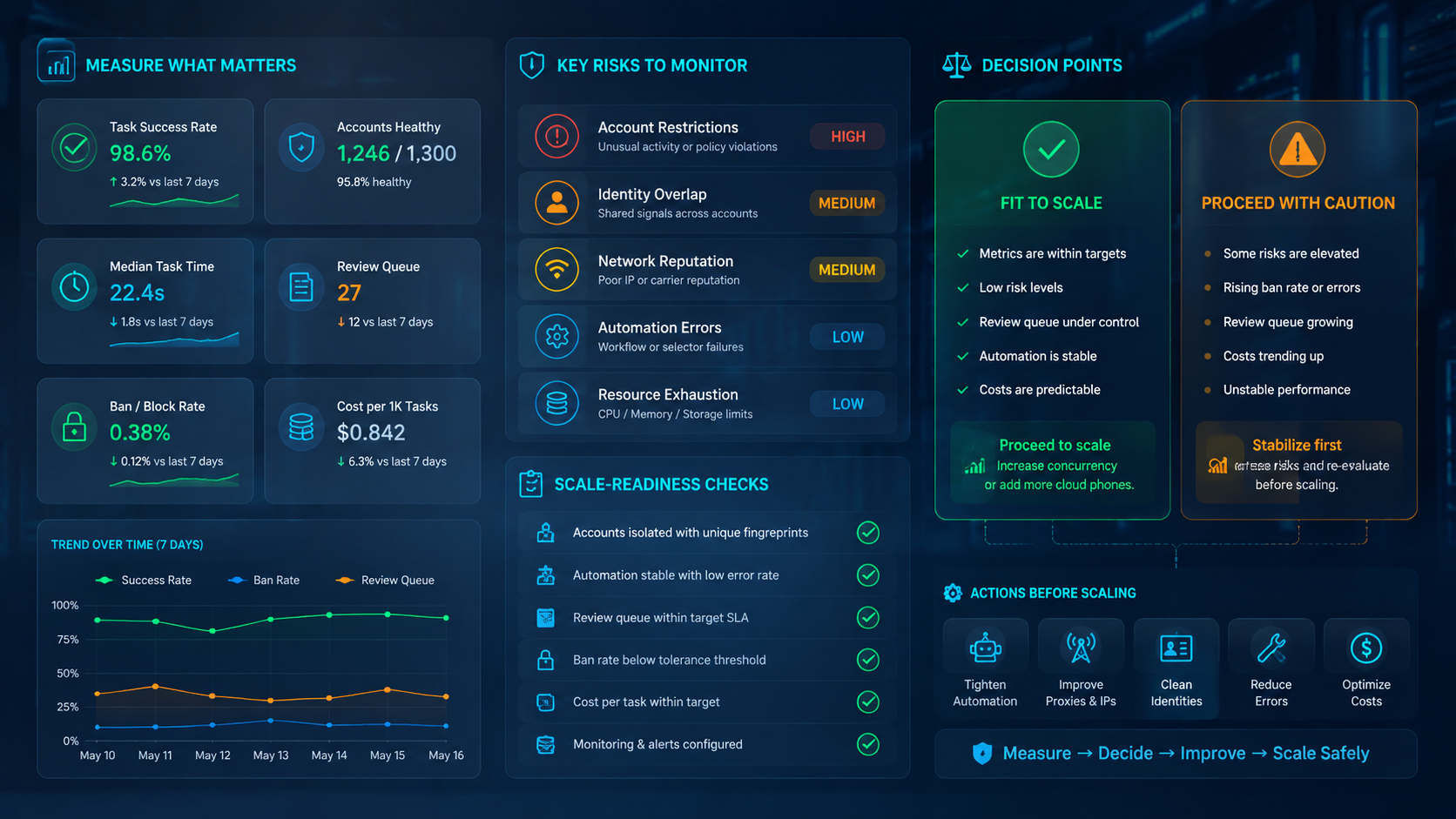
A cloud phone gives mobile AI automation a real place to work. It helps teams run app-based workflows without depending on one person's physical device.
The strongest use cases are controlled and reviewable: inbox summaries, reply drafts, content prep, app monitoring, competitor checks, and account reports.
MoiMobi turns cloud phones into part of a broader execution platform. Teams can combine mobile environments, browser profiles, account isolation, AI workflows, and human approval to run mobile operations with more structure and less manual repetition.