Key Takeaways
- A fingerprint browser helps teams separate account work into named browser profiles.
- The right use case is account workspace control, not careless bulk activity.
- Multi-platform teams need profile ownership, review, task records, and recovery rules.
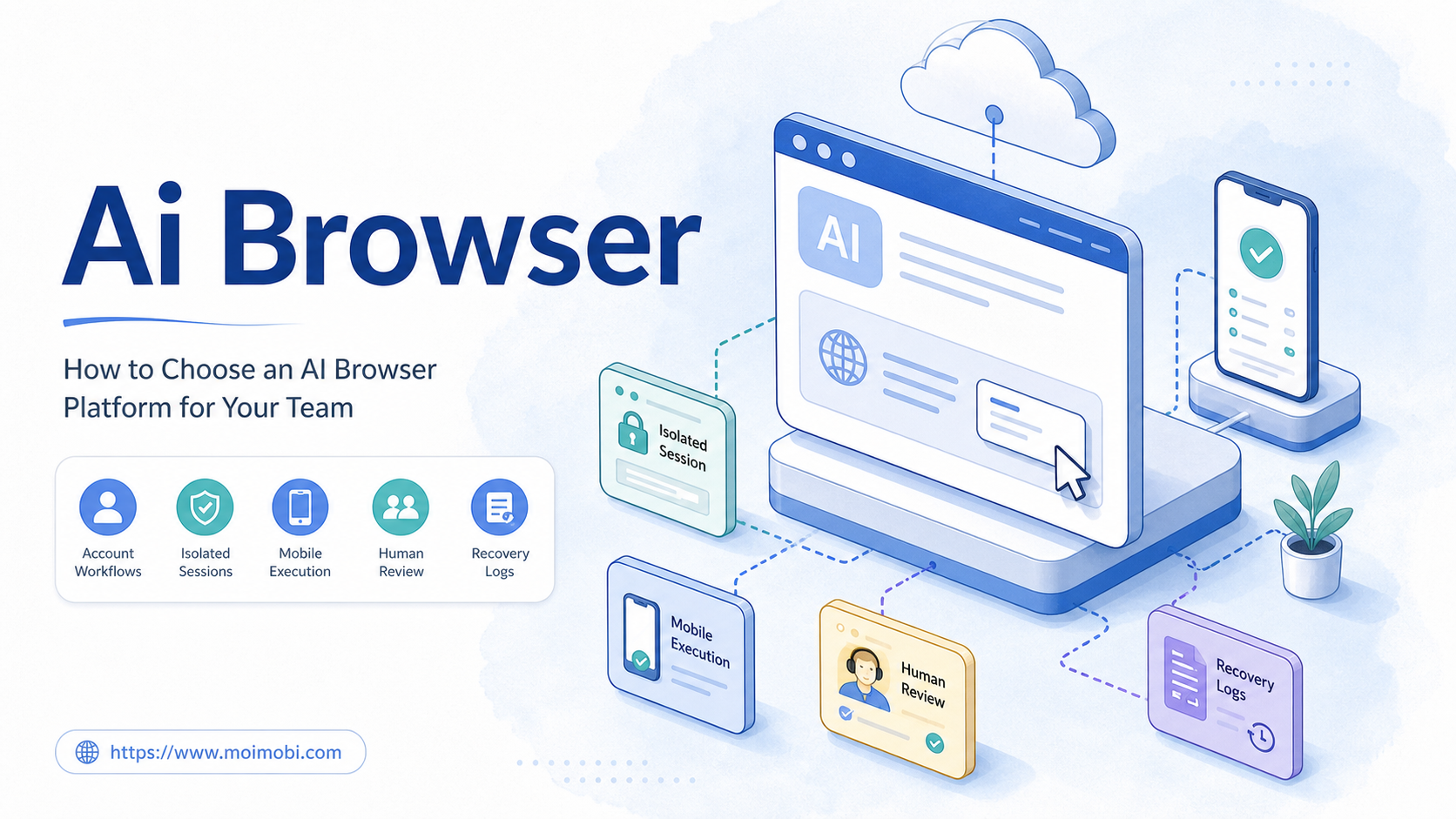
- MoiMobi connects browser profiles with AI workers, cloud phones, and mobile execution.
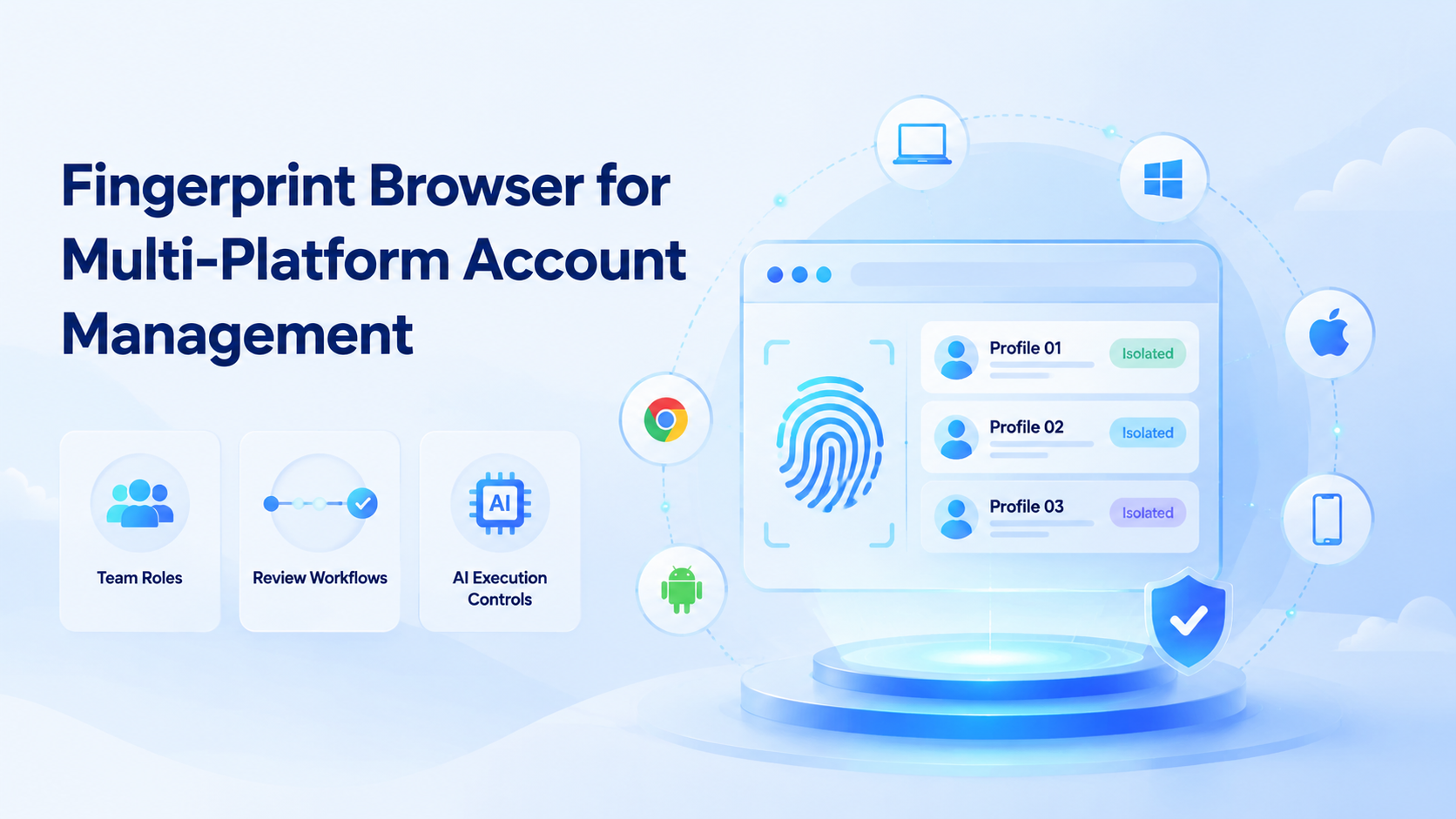
A fingerprint browser helps teams create separated browser environments for account-based work. Keep the goal simple. In multi-platform account management, each browser profile can map to an account group, team role, workflow, and review path.
That matters because teams rarely operate on one platform only. A social media agency may manage TikTok, Instagram, Facebook, Telegram, and YouTube accounts. An ecommerce team may move between marketplace dashboards, social apps, messaging tools, and internal systems. A shared browser state becomes difficult to manage when the work spreads across platforms.
MoiMobi treats the profile layer as one part of a broader execution platform. Browser profiles support web workflows, cloud phones support mobile app workflows, and multi-account management keeps the account model visible to the team.
What a Fingerprint Browser Means.
A fingerprint browser manages browser profiles with separated settings, sessions, and environment details. For operations teams, the value is not the label "fingerprint." The value is the ability to organize account work into clear, reviewable browser workspaces.
Mozilla's MDN glossary explains browser fingerprinting as identifying a browser or device based on information available to a website. Teams should understand this category carefully and avoid treating any tool as a promise that account risk disappears.
For business workflows, the practical question is simpler:
| Question | Why it matters |
|---|---|
| Which account group uses this profile | Keeps work separated |
| Who owns the profile | Makes handoff clear |
| Which task runs here | Prevents random use |
| What is the review rule | Adds control before sensitive actions |
| What evidence is saved | Helps managers inspect results |
| What is the recovery path | Reduces repeated guessing |
This is where a profile-based browser becomes useful for multi-platform teams. It gives every account lane a visible place to work.
Why Multi-Platform Account Teams Need Profiles.
Multi-platform account management has a coordination problem. Different platforms have different app flows, dashboards, inboxes, content formats, and account owners.
A browser profile gives the team a stable workspace for web-based parts of that work:
- Social dashboard checks
- Creator portal work
- Marketplace admin tasks
- CRM updates
- Lead research
- Content planning tools
- Web inbox review
- Analytics dashboards
Without profile ownership, teams drift into informal habits. One operator remembers the login, another keeps notes in chat, and a third person may not know which browser state is current. That works for a small task, but it breaks when a manager needs a clear work record.
The browser workspace helps turn account work into a system. The team can name the profile, assign the role, set the stop rule, and review the result.
Fingerprint Browser Profile Ownership.
Profile ownership is the first operating rule. Each profile should have a reason to exist and a person responsible for its use.
Use a profile map:
| Profile group | Platform lane | Account group | AI worker role | Human owner |
|---|---|---|---|---|
| Social web A | Instagram and TikTok web tools | Client A social accounts | Content prep worker | Account manager |
| Support web B | Facebook and web inboxes | Client B support accounts | Reply draft worker | Support lead |
| Ecommerce web C | Marketplace dashboards | Store C seller accounts | Listing check worker | Store operator |
| Growth web D | Research and CRM tools | Brand D outreach accounts | Lead research worker | Growth manager |
This map is more useful than a long profile list. It shows why each workspace exists.
The profile should not be shared casually across unrelated accounts. It should also not become a private memory box that only one operator understands.
Good ownership means a second teammate can inspect the profile record and understand its purpose in 30 seconds.
Fingerprint Browser vs Regular Browser.
A regular browser is fine for one person doing simple work. A profile-based browser becomes more useful when the work involves many account groups, multiple operators, and repeated workflows.
| Area | Regular browser | Fingerprint browser |
|---|---|---|
| Account separation | Manual | Profile-based |
| Team ownership | Usually informal | Can be mapped to roles |
| Workflow control | Depends on user habits | Can be tied to account lanes |
| Review | Often outside the browser | Can connect to task evidence |
| Scaling | More tabs and more confusion | More named profiles and rules |
| Best fit | Personal browsing | Team account operations |
The difference is operational. The profile tool helps the team manage browser environments as workspaces, not as random tabs.
This does not mean every task needs a special profile. Public research, one-off checks, and simple browsing may not need the extra structure.
Fingerprint Browser and AI Workers.
AI workers need execution environments. A managed browser profile can give an AI worker a workspace that matches its account role.
Example:
| AI worker | Browser profile | Task | Stop rule |
|---|---|---|---|
| Content prep worker | Client A social profile | Prepare post copy in web tools | Stop before publishing |
| Support draft worker | Client B inbox profile | Draft reply notes | Stop before sending |
| Marketplace check worker | Store C dashboard profile | Review listing status | Stop before account changes |
| Lead research worker | Growth research profile | Collect lead notes | Stop before outreach |
This structure keeps the AI worker from becoming a general browser agent with unclear authority. It has a profile, a task, and a boundary.
MoiMobi's browser automation layer works best when it is paired with this kind of profile mapping. The AI can act, but the team still controls where it acts and what happens next.
Multi-Platform Account Workflow Design.
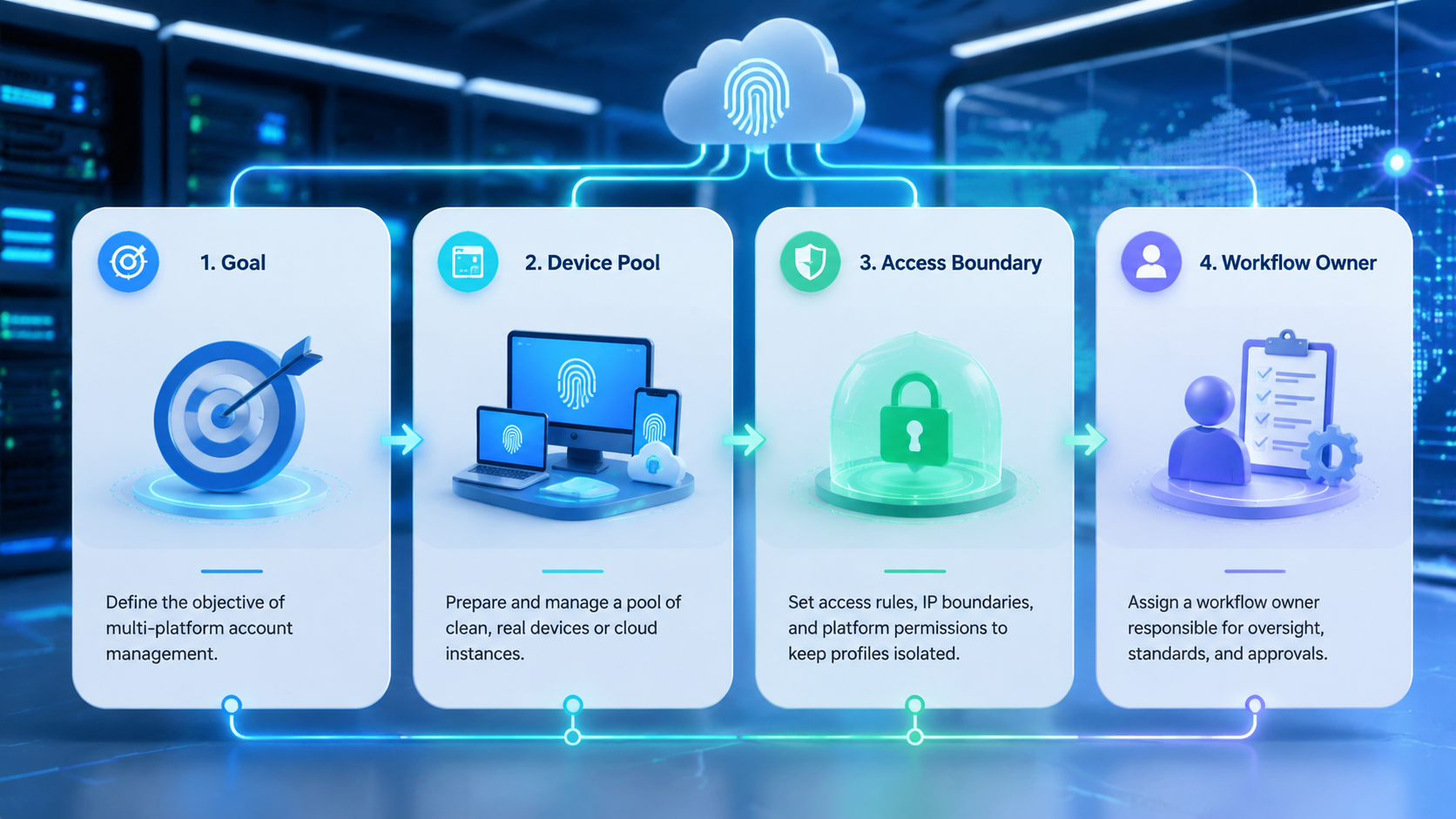
A multi-platform workflow should begin with the account lane, not the tool.
Use this sequence:
- Name the account group
- Choose the browser profile
- Choose the mobile environment if needed
- Define the AI worker role
- Write the first task
- Add a stop rule
- Save evidence
- Review the result
Example 2026 workflow:
| Step | Example |
|---|---|
| Account group | Client A social accounts |
| Browser profile | Client A social web profile |
| Mobile environment | Client A cloud phone lane |
| AI worker role | Content and inbox prep worker |
| Browser task | Review dashboard status and content queue |
| Mobile task | Check app notifications |
| Stop rule | Human approval before publishing or replying |
| Evidence | Screenshot, task note, next action |
This workflow shows why browser profiles and cloud phones often belong together. Some work happens in web dashboards. Some work happens in mobile apps. The account lane should connect both.
Fit and Not-Fit Guide.
This category is a good fit when teams need separated account workspaces for repeated browser-based operations.
Good fit:
- Agencies managing client accounts
- Ecommerce teams using seller dashboards
- Support teams with multiple inbox accounts
- Growth teams handling platform-specific workflows
- AI worker teams that need account profiles
- Operators who need handoff and review records
Weak fit:
- One-time open-web browsing
- Public pages with no account state
- Workflows with no account owner
- Tasks that happen only inside mobile apps
- Teams with no review process
- Projects that cannot define a successful run
The fit test is direct. If a task needs a known account, a known browser state, and a repeatable review path, profile-based browser work is worth designing.
Review and Recovery Rules.
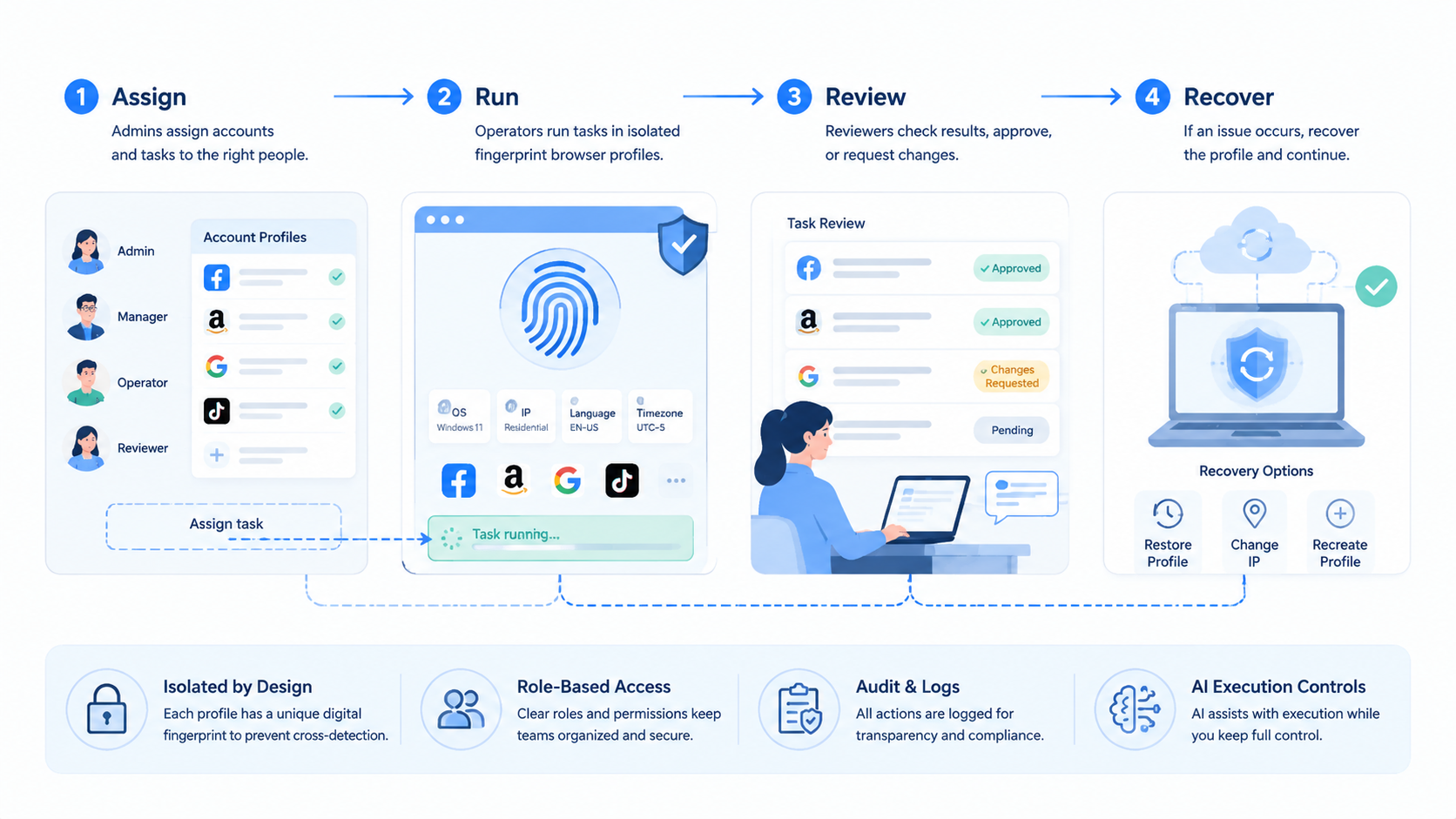
A profile system should support review and recovery. Teams need to know what happened when a task stops, a profile needs inspection, or an account lane needs handoff.
Use three result states:
| State | Meaning | Next action |
|---|---|---|
| Done | Task finished and evidence is saved | Reviewer checks result |
| Needs review | The worker prepared a decision | Human approves or edits |
| Blocked | Profile state is unclear | Owner inspects and decides |
Short recovery notes are enough:
- Profile name
- Account group
- Task attempted
- Current screen or state
- Evidence saved
- Person responsible for next action
These notes keep the profile useful after the first operator leaves the task. They also help managers see patterns when the same issue repeats.
Browser Profiles and Cloud Phones.
Multi-platform account management often crosses web and mobile. Browser profiles handle web-based work such as dashboards, CRM pages, and web inboxes, while cloud phones handle app-based work such as mobile inbox review, app checks, and phone-only screens.
Use a simple routing rule:
| Task | Environment |
|---|---|
| Web dashboard check | Browser profile |
| CRM update | Browser profile |
| Marketplace web admin | Browser profile |
| Mobile inbox review | Cloud phone |
| App notification check | Cloud phone |
| Mobile content prep | Cloud phone |
The point is not to force everything through one environment. The point is to keep the account lane clear across environments.
MoiMobi's device isolation model supports this by separating browser and mobile workspaces while keeping the team operating structure consistent.
Reporting for Multi-Platform Teams.
Reporting should connect account work to outcomes. A profile list does not tell the manager enough.
A useful report should include:
| Field | Example |
|---|---|
| Account group | Client A social accounts |
| Profile | Social web A |
| Mobile lane | Cloud phone A |
| Task | Dashboard check and notification review |
| Result | 5 items reviewed, 2 need approval |
| Evidence | Screenshot and note |
| Reviewer | Account manager |
| Next step | Approve reply drafts |
This record is simple, but it is actionable. It tells the team what ran, where it ran, who owns it, and what should happen next.
Google Search Central's guidance on helpful content focuses on usefulness for readers. The same principle applies to internal task records. A note should help a real teammate make the next decision.
Team Handoff Checklist.
Handoff is where many account workflows break. A profile may be set up well, but the next person still needs to know what happened, what changed, and what should happen next. Keep the note short.
Keep the handoff plain:
- Account group
- Profile name
- Platform lane
- Task run
- Result
- Evidence
- Reviewer
- Next step
This is enough for most daily work. A manager can read the note quickly. A second operator can continue the task. A client lead can see whether the work is done, blocked, or waiting for approval.
For a 2026 team rollout, use one profile lane for one week before adding another. Track 5 simple signals:
| Signal | What to check |
|---|---|
| Completion | Did the task finish |
| Review time | Did approval take less time than manual work |
| Confusion | Did anyone ask which profile to use |
| Blocked state | Did the same issue repeat |
| Handoff quality | Could another teammate continue |
Small checks keep the system honest. If the team cannot explain one lane, it should not add ten more. Fix naming, notes, and review first.
Plain words help here:
- Done
- Blocked
- Needs review
- Needs owner
Use names that a new teammate can read without asking for a private story. If a profile name is hard to explain, rename it. If a task note is vague, rewrite it before the next run.
Fingerprint Browser Buying Checklist.
Teams should evaluate profile tools through account operations, not only profile count.
| Buying question | Strong answer | Weak answer |
|---|---|---|
| How are profiles assigned | By account group and role | Flat profile list |
| How is access controlled | Operators, reviewers, and admins have roles | Everyone can use everything |
| How are results reviewed | Task evidence is saved | Review happens only in chat |
| How does recovery work | Stop rules and owners are visible | Operators guess |
| How does it connect to mobile work | Browser and cloud phone lanes can be mapped | Mobile work is separate |
| How does scaling work | Add lanes after proof | Add profiles first |
Ask for a demo with one account lane, one profile, one mobile handoff, one blocked state, and one review step. A clean demo is not enough for multi-platform operations.
Frequently Asked Questions
These answers focus on account operations and AI execution, not unsafe shortcuts.
What is a fingerprint browser?
A fingerprint browser is a browser tool that manages separated browser profiles and environment details. Teams use it to organize account-based browser work into distinct workspaces.
Why use a fingerprint browser for multi-platform account management?
It helps teams map account groups to browser profiles, owners, tasks, and review rules across several platforms that the same team must manage each week.
Is a fingerprint browser only for social media?
No. It can support social media, ecommerce, support, CRM work, and other logged-in browser workflows.
Can AI workers use fingerprint browser profiles?
Yes. An AI worker can use a profile as its account workspace, as long as the team defines the task, stop rule, and review path.
What should stay manual?
Publishing, sending sensitive replies, changing account settings, deleting records, and touching payment screens should usually require human approval.
Does a fingerprint browser replace a cloud phone?
No. Browser profiles are better for web workflows, while a cloud phone is better for mobile app workflows. Many teams need both when account work moves between dashboards and apps.
How many profiles should a team start with?
Begin with one account lane and one profile group. Add more only after the first workflow is repeatable and reviewable.
How does MoiMobi fit?
MoiMobi connects browser profiles, cloud phones, Android devices, AI automation, and multi-account management into one execution platform.
Conclusion.
This profile layer is useful when teams need separated browser workspaces for multi-platform account management. Profile count is not the win. The operating model around each profile is what makes the work easier to run.
Each profile should have an account group, owner, task scope, stop rule, review path, and recovery note. That turns browser profiles into usable workspaces for AI workers and human operators.
MoiMobi extends this model across browser and mobile execution. Teams can use browser profiles for web workflows, cloud phones for mobile app workflows, and one account management system to keep the work controlled.