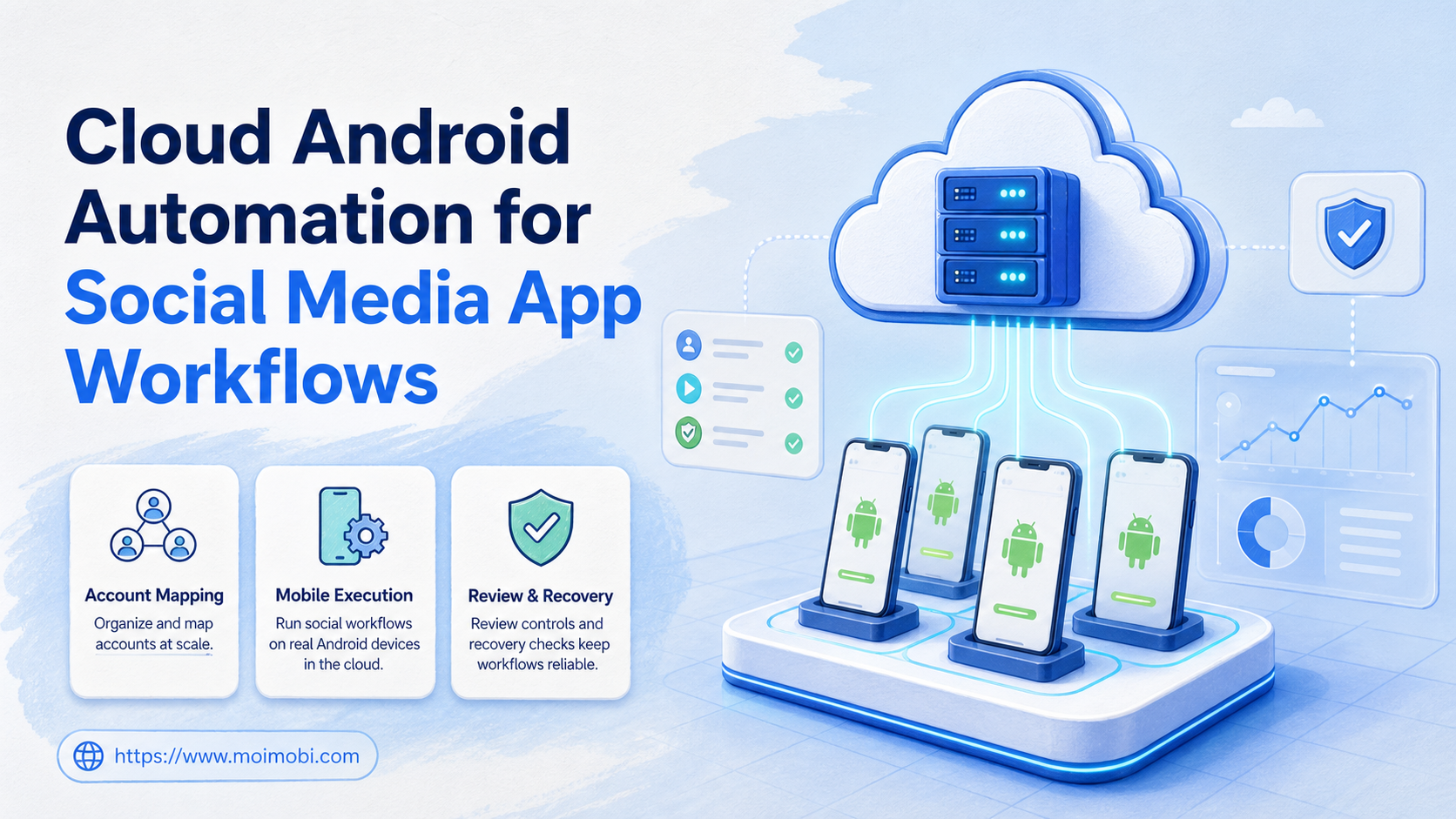
Cloud Android automation is the use of hosted Android environments to run repeatable mobile app workflows with assignment, review, and tracking. For social media teams, it means a task can move from AI planning to a controlled Android workspace instead of staying as text in a dashboard.
The reason teams search for this topic is simple: many social media workflows still happen inside mobile apps. Publishing short videos, checking notifications, replying to comments, reviewing app-only inboxes, and collecting screenshots may not fit a browser-only workflow. A cloud phone can provide the mobile execution layer, while AI helps prepare tasks and operators keep approval control.
This is not the same as using an Android Emulator for development checks. Android Developers describes the emulator as a tool for testing Android apps on a computer. That is useful for app development, but social operations often need persistent account environments, role control, and task history.
Key takeaways
- Cloud Android automation is useful when social workflows depend on mobile apps.
- It should be evaluated as an execution system, not only as remote Android access.
- The strongest setup maps accounts, tasks, roles, and Android environments together.
- Browser workflows and mobile workflows should connect instead of living in separate tools.
- Teams should pilot with one workflow before scaling many accounts.
- MoiMobi fits when cloud phones, account isolation, and workflow automation need one operating layer.
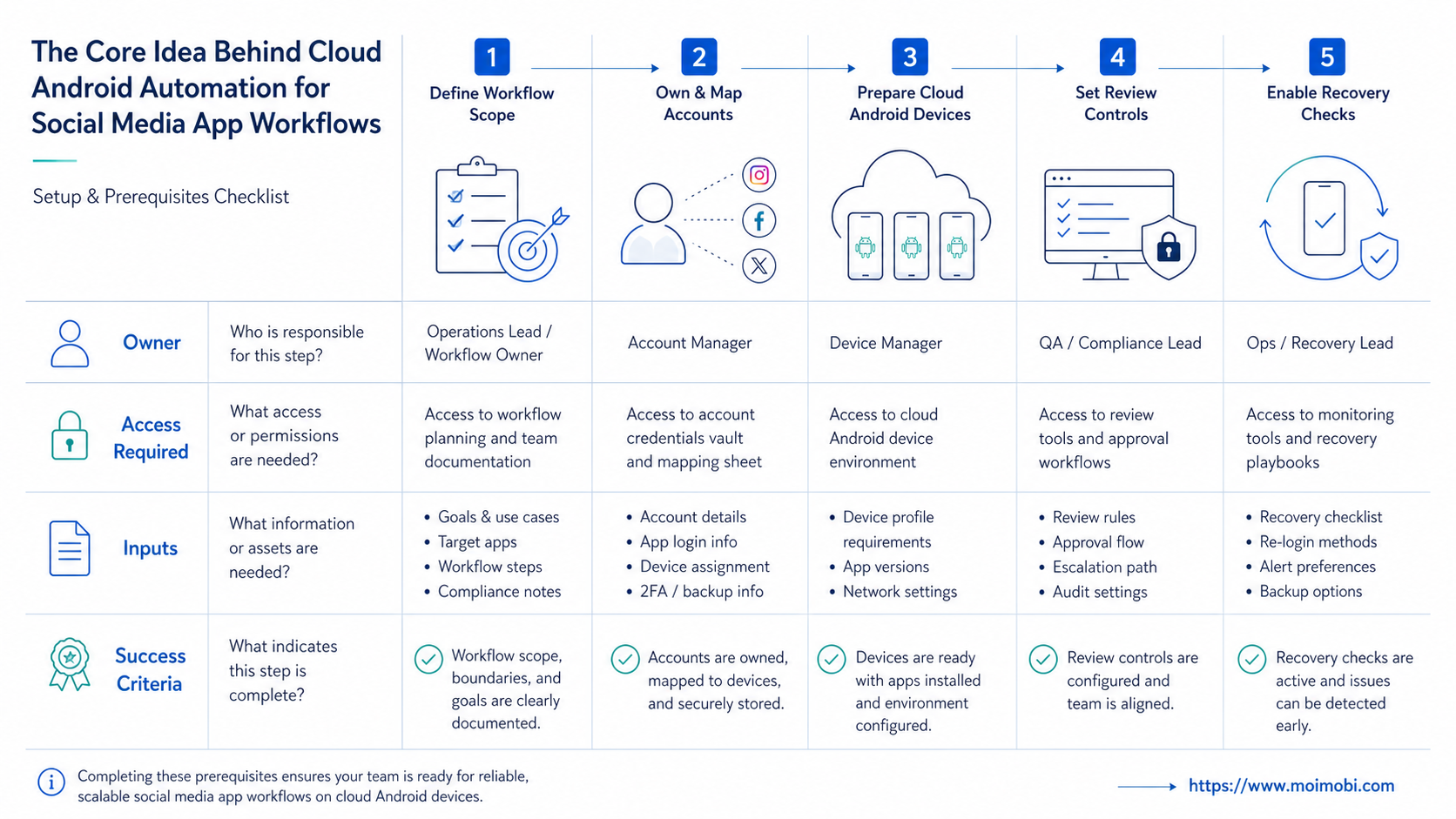
The Core Idea Behind Cloud Android Automation for Social Media App Workflows
The core idea is not "let AI tap around a phone." The workable model is task-driven mobile execution. A team defines the task, AI prepares the plan or draft, the platform opens the right Android environment, and a person can review or take over when needed.
Social media app workflows often include small repeated actions:
- open the right account;
- check comments or messages;
- prepare a reply;
- upload a video or image;
- verify a post state;
- collect task results;
- escalate exceptions.
Those actions become hard to manage when every operator uses a different phone, browser, screenshot folder, or spreadsheet. A cloud Android workspace gives the team one place to assign mobile work and track outcomes.
This is where mobile automation matters. Automation should not hide what happened. It should make the path visible: which account, which device, which app, which task, which result.
Why Teams Search for cloud Android automation
Teams usually search for cloud Android automation after browser-only tools stop matching the work. A social scheduler may publish planned content, but it may not handle mobile app notifications, app-only inboxes, or account-specific mobile sessions.
The search often starts from one of three problems:
- App dependency: the workflow only works well inside the mobile app.
- Account volume: the team manages too many accounts for shared physical phones.
- Review gaps: operators cannot prove who did what, where, and why.
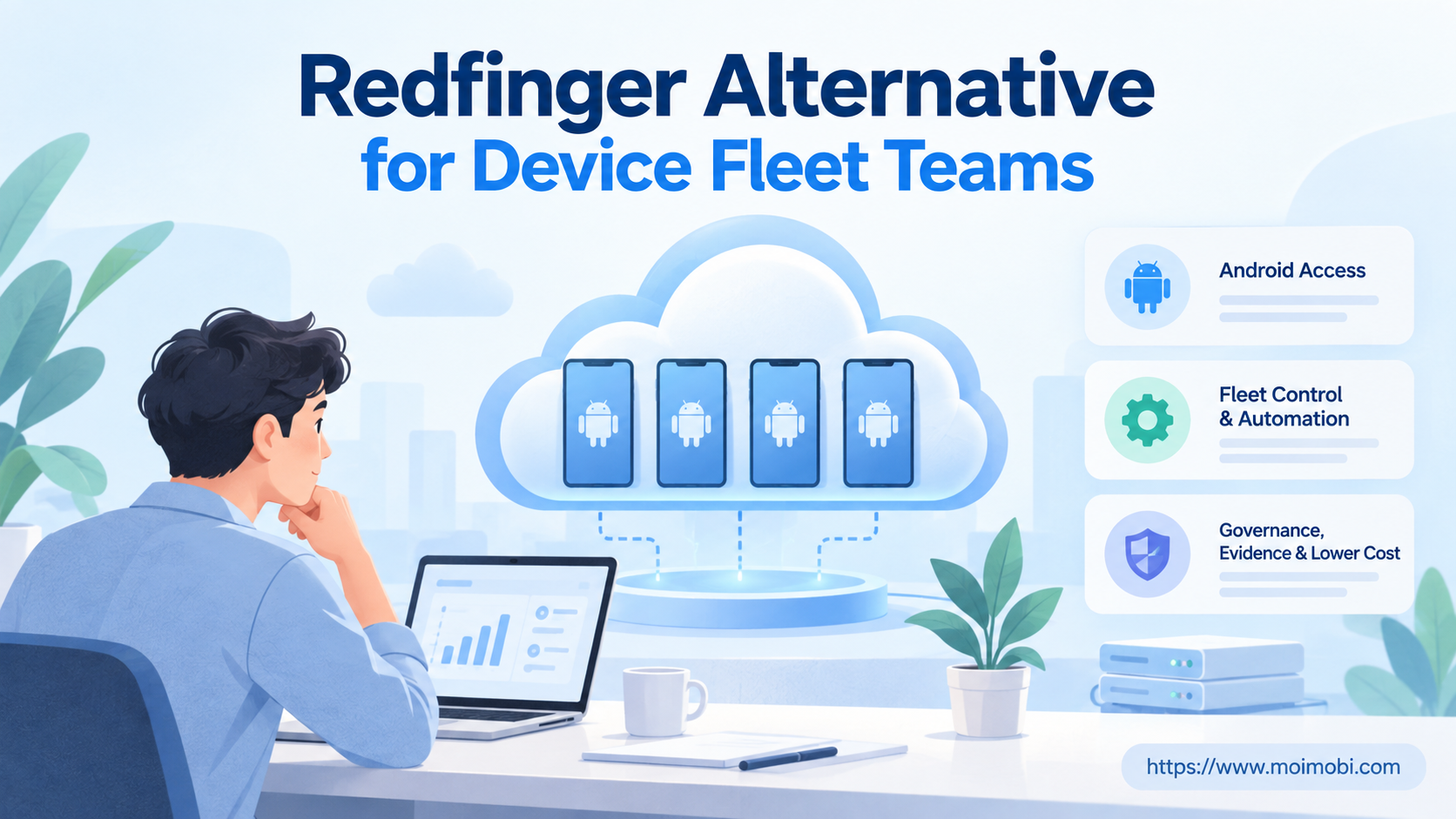
Real-device testing platforms show a related but different category. AWS Device Farm, BrowserStack App Automate, and Sauce Labs Real Device Cloud help teams test mobile apps across hosted devices. They are useful references for hosted mobile access and automation, but social operations need account mapping, approval, recovery, and ongoing workflow records.
The right question is not whether a hosted Android screen exists. The better question is whether that screen becomes a managed account workspace. For teams comparing device choices, the cloud phone vs emulator difference is a useful starting point.
Cloud Android Automation vs Testing Clouds, Emulators, and Phone Farms
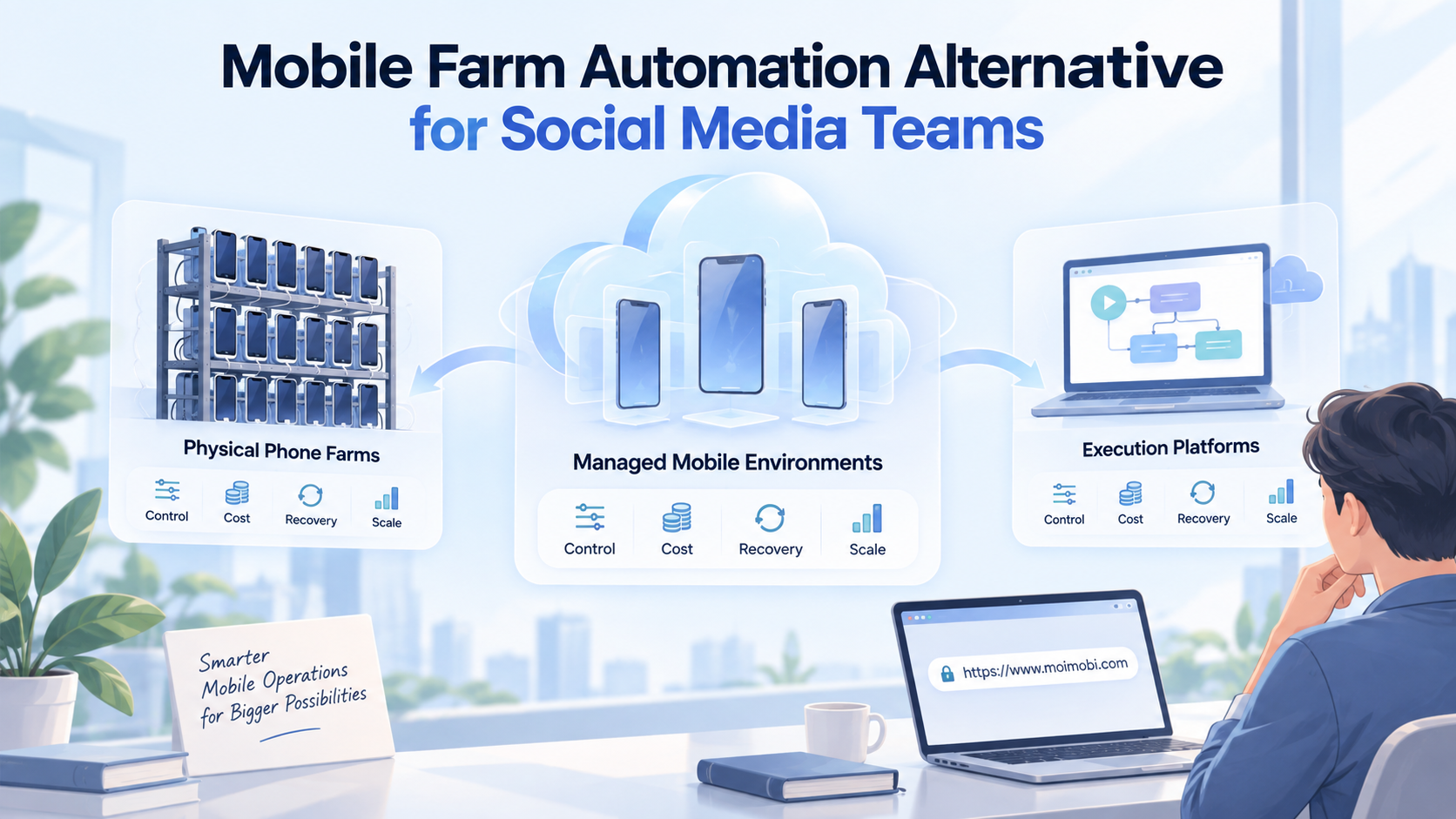
The phrase cloud Android automation can point to several different buying paths, so teams should separate the categories before choosing a tool. A development emulator is built for app builders who need to test layouts, APIs, permissions, and Android versions. A real-device testing cloud is built for QA teams that need broader device coverage, parallel test runs, and controlled test reporting. A physical phone farm is a hardware approach where a team owns or rents many phones and manages charging, network access, storage, replacement, and remote control. A social operations cloud phone setup is different again: it is judged by account continuity, workflow ownership, task review, and recovery.
This distinction matters because the wrong category creates operational drag. A QA cloud may have excellent device coverage but no natural concept of a social account owner. A local phone farm may feel familiar but can become hard to audit when many people share devices. An emulator may be fast for testing, but it may not represent the same operating model as an app-based social workflow that needs persistent sessions and team permissions.
For a social team, the decision should start with the job to be done:
| Option | Strong fit | Weak fit |
|---|---|---|
| Android Emulator | App development, layout checks, SDK testing | Ongoing social account operations |
| Real-device testing cloud | QA coverage, automated app tests, device matrix checks | Daily account ownership and approval workflows |
| Physical phone farm | Teams that need direct hardware control | Distributed teams that need clean assignment and audit trails |
| Cloud Android operations workspace | Repeatable mobile social workflows across accounts | One-off manual checks with no need for tracking |
This is also why "GeeLark vs cloud phone," "MoreLogin vs cloud phone," and "BitBrowser vs cloud phone" searches often hide a bigger question. Teams are not only comparing vendors. They are comparing execution environments. Browser-profile tools are stronger for web sessions. Cloud Android environments are stronger for app-specific mobile work. A combined stack is usually better when the same account workflow moves between a web dashboard and a mobile app.
Example Workflow: From Content Plan to Mobile Review
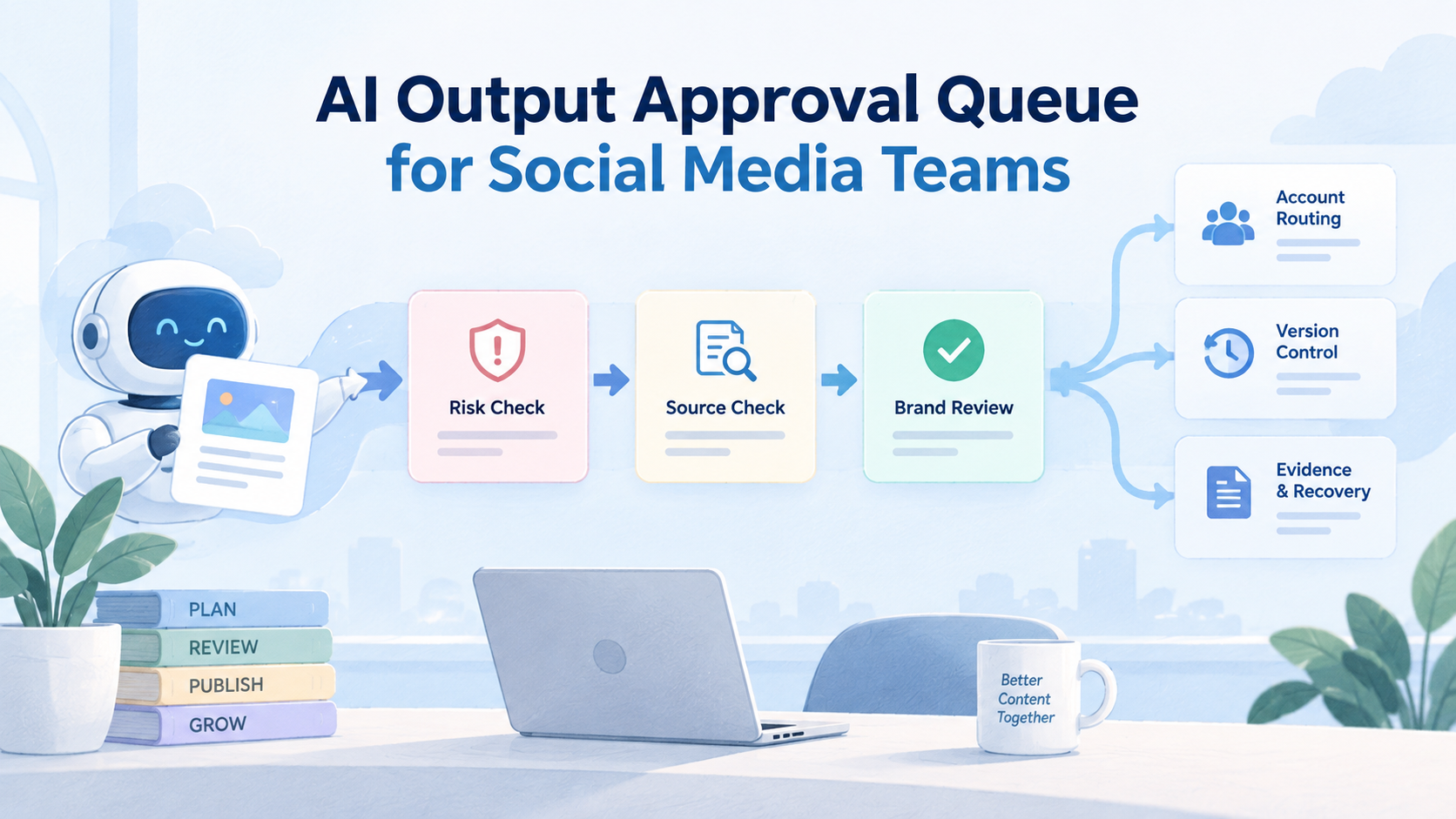
Consider a short video team that manages five regional accounts. The content manager prepares captions and post notes in a shared library. AI suggests caption variants and flags risky wording. A reviewer approves the final version. The task then moves to the correct Android environment, where the operator or automation flow opens the mobile app, verifies the account, prepares the post, and captures the result.
The key is not that every tap is automated. The key is that every stage has a named owner and a visible state. A good workflow can show "draft ready," "review approved," "mobile execution started," "manual takeover required," or "published and recorded." That status language is more useful than a vague message saying the phone is online.
In practice, the workflow should include these records:
- the account and Android environment used;
- the content asset or message template used;
- the reviewer and approval time;
- the operator or automation run that executed the task;
- the final result and failure reason if the task did not complete;
- any screenshot, app state, or note needed for later review.
Those records make the process trainable. New operators can follow the same path, managers can see where bottlenecks occur, and automation can focus on stable steps instead of guessing at the whole job.
Who Benefits Most and In What Situations
Cloud Android automation fits teams that run repeated mobile tasks across accounts. Agencies, cross-border sellers, customer support groups, and creator operations teams often reach this point when mobile app work becomes daily work.
| Team type | Common mobile workflow | What to measure |
|---|---|---|
| Social media agency | Post checks, comment replies, app notifications | Account assignment and review delay |
| E-commerce team | Seller app alerts, buyer messages, promotion checks | Response time and task completion |
| Creator team | Short video publishing, inbox triage, analytics checks | Publishing accuracy and escalation rate |
| Support team | Mobile inbox review, comment handling, issue routing | Manual takeover success and failure reasons |
It is a weaker fit when the team only needs occasional app testing. In that case, an emulator or real-device testing cloud may be enough. It is also a poor fit when the team has no account owner, no review process, and no stop rule. Automation cannot repair an unclear operating model.
A good fit usually includes one account workspace per important account, clear role permissions, and a task record. Device isolation becomes part of the operating design, not a decorative feature.
How to Evaluate or Start Using Cloud Android Automation for Social Media App Workflows
Start with checkpoints instead of a broad tool rollout. Each checkpoint should prove that the mobile workflow can be assigned, executed, reviewed, and recovered.
Checkpoint 1: Account mapping
Pass: each account maps to a specific Android environment, owner, and platform role.
Fail: operators choose devices manually with no record.
Checkpoint 2: Workflow boundary
Pass: the task has a clear start and stop condition.
Fail: AI is asked to "manage the account" with no specific task.
Checkpoint 3: Review control
Pass: sensitive actions require approval before posting, replying, or changing profile details.
Fail: write actions run without a reviewer or audit trail.
Checkpoint 4: Result capture
Pass: the system records status, screenshots when useful, and failure reasons.
Fail: the only proof is an operator message in chat.
Checkpoint 5: Recovery path
Pass: a human can pause, take over, retry, or mark a task as blocked.
Fail: the workflow keeps running after login, app, or context errors.
These checkpoints also help decide whether to use a managed cloud phone, an owned phone farm, or a testing cloud. If the workflow is daily social operations, the account workspace and review path matter more than raw device variety.
Mistakes That Reduce Results
The main mistake is treating cloud Android automation as a volume tool. More devices and more tasks do not help when account ownership, content review, and failure recovery are unclear.
Avoid these failure modes:
- Using one Android environment for many unrelated accounts. This makes ownership and troubleshooting harder.
- Skipping the browser side of the workflow. Some social work starts in dashboards, CRMs, or content libraries.
- Ignoring content assets. Publishing tasks need prepared files, captions, thumbnails, and account-specific notes.
- No escalation rule. Complaints, policy issues, pricing questions, and private data should move to human review.
- No platform policy check. Social platforms set rules around spam, automation, and data access.
- No pilot metrics. Without metrics, the team cannot tell whether automation improved the process.
For teams that also manage web dashboards, a multi-account management layer helps connect browser profiles, mobile environments, account roles, and task records.
Browser and Mobile Workflows Should Connect
Mobile execution rarely stands alone. A short video workflow may start in a content library, continue in a browser dashboard, move to a cloud Android device for app publishing, and finish in a report.
That chain needs clear boundaries. The content system prepares files and captions. The browser workspace handles web-based review or account data. The Android environment runs app-specific steps. The reporting layer records status and exceptions.
This is also where AI should be placed carefully. AI can draft captions, classify comments, summarize inboxes, or plan the next step. The execution layer should still decide where the action runs and how the result is checked.
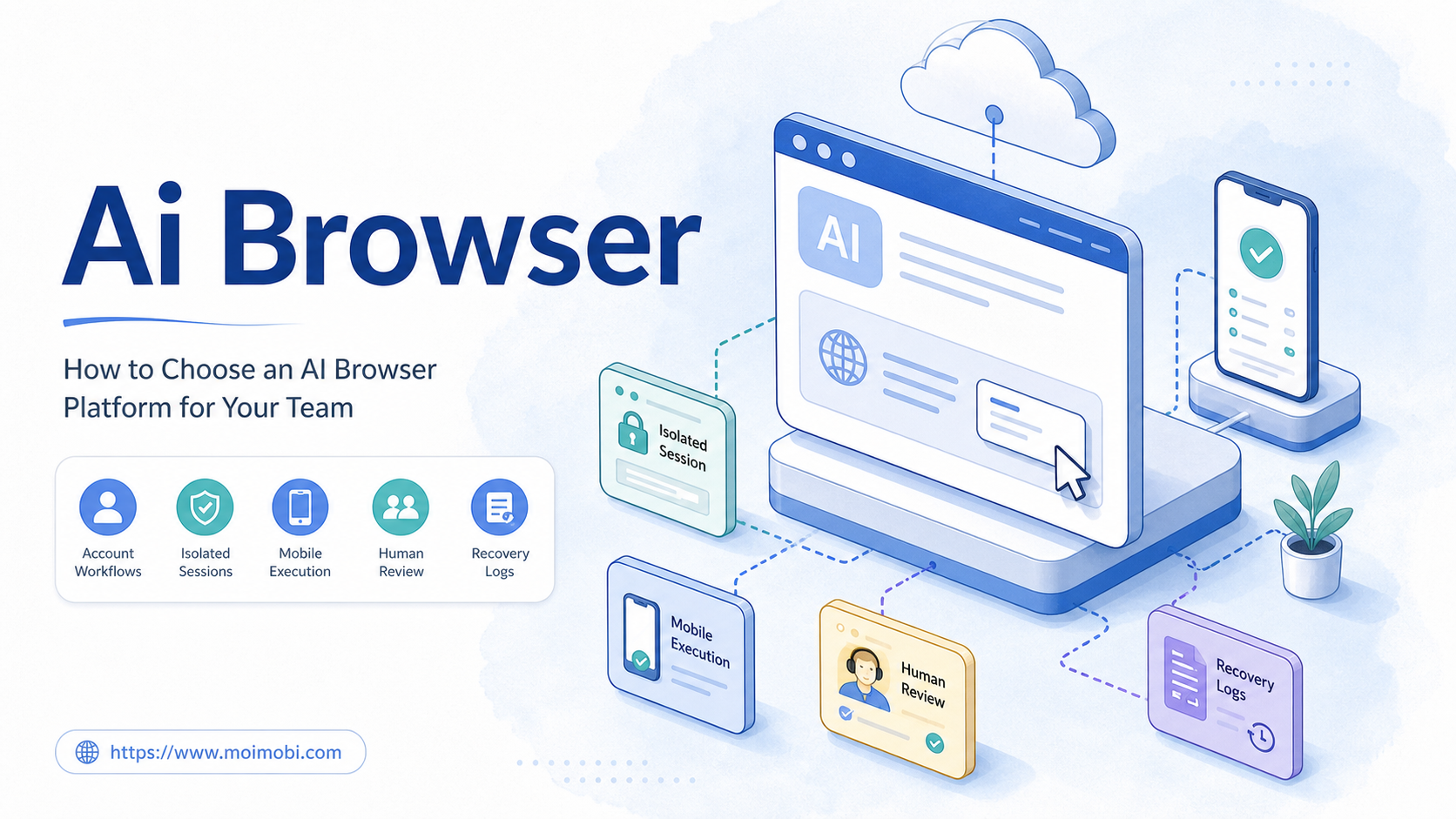
MoiMobi is positioned for this combined model. Teams can connect browser and mobile execution, rather than treating every cloud phone as an isolated screen. For social media teams, that matters because publishing, replying, monitoring, and lead follow-up often cross device types.
Pilot Rollout, Measurement, and Recovery Checks
The first pilot should be narrow. Choose one app, one account group, and one task type. For example, test comment monitoring across three accounts before adding publishing or DM follow-up.
Track these signals:
| Metric | What it tells you | Pass condition |
|---|---|---|
| Completion rate | Whether tasks finish without manual repair | Most routine tasks reach a final state |
| Review edits | Whether AI output fits the team standard | Edits are small and predictable |
| Account mismatch | Whether work opens in the wrong environment | No unexplained account switches |
| Recovery time | Whether failures are easy to inspect | A person can continue from the last state |
| Escalation quality | Whether risky tasks move to humans | Sensitive items do not auto-send |
A failed pilot is still useful if it shows the weak point. The issue may be missing content assets, poor account mapping, weak prompts, app login changes, or unclear review rules.
Scale only the part that passed. If monitoring works but publishing fails, scale monitoring first. If app execution works but review is slow, fix approval flow before adding accounts.
Frequently Asked Questions
What is cloud Android automation?
This approach uses hosted Android environments to run repeatable mobile app tasks with task control, review, and tracking.
Is cloud Android automation the same as an emulator?
No. The Android Emulator is mainly a development and testing tool. Cloud Android operations focus on hosted mobile environments for ongoing tasks.
Does every social media team need cloud Android automation?
No. Teams with one account and light posting may not need it. It becomes more useful when mobile app work is repeated across accounts.
What should AI handle in the workflow?
AI should prepare drafts, classify messages, summarize context, and suggest next steps. Sensitive actions should keep human review.
How many accounts should the pilot include?
Start with three to five accounts or one small account group. That is enough to test mapping, review, and recovery.
How does this relate to browser automation?
Browser automation handles web dashboards and browser sessions. Cloud Android automation handles app-specific mobile steps. Many teams need both.
What is the biggest risk in setup?
The biggest operational risk is unclear ownership. Every account, device, task, and reviewer should be mapped before scale.
Where does MoiMobi fit?
MoiMobi fits teams that need cloud phones, browser profiles, account isolation, and repeatable mobile workflows in one execution layer.
Conclusion
Cloud Android automation for social media app workflows is useful when mobile tasks become repeatable operations. It works best when the team defines the task, maps the account, assigns the Android environment, keeps review controls, and records the result.
Before scaling, run a small pilot. Check account mapping, task completion, review quality, manual takeover, and recovery time. If those checks pass, expand gradually into more accounts and more workflow types.
The practical next step is to map one current mobile workflow. Write down the account, app, content asset, reviewer, success condition, and failure path. That map will show whether the team needs a cloud phone, a browser profile, a testing cloud, or a combined execution platform.