AI browser automation for support teams is a workflow for preparing, reviewing, sending, and tracking social replies inside controlled browser environments. It helps support operators handle repeated reply work without losing account ownership, review history, or escalation context.
The goal is not to let AI answer every customer in public. The practical goal is to reduce repetitive preparation work while keeping sensitive replies under human control. A support team can use an AI browser to open the right account workspace, draft reply options, pull context from previous interactions, route the response to a reviewer, and record what happened after the reply.
Social replies are different from normal content scheduling. A post can be approved before publishing. A reply often reacts to a customer, complaint, question, or public thread. That makes identity, timing, tone, and escalation more important than raw automation volume.
Key takeaways
- AI browser automation should support reply preparation, review, and tracking, not uncontrolled auto-replies.
- Support teams need separated account workspaces, reviewer roles, and clear escalation rules.
- Public comments, DMs, and complaint replies should have stricter approval than routine tagging.
- Official platform rules and developer policies should define what automation is allowed to do.
- A pilot should measure reply quality, takeover success, and failure visibility before scaling.
- MoiMobi fits teams that need browser and mobile execution environments for multi-account support operations.
What Is AI Browser Automation for Support Teams Handling Social Replies?
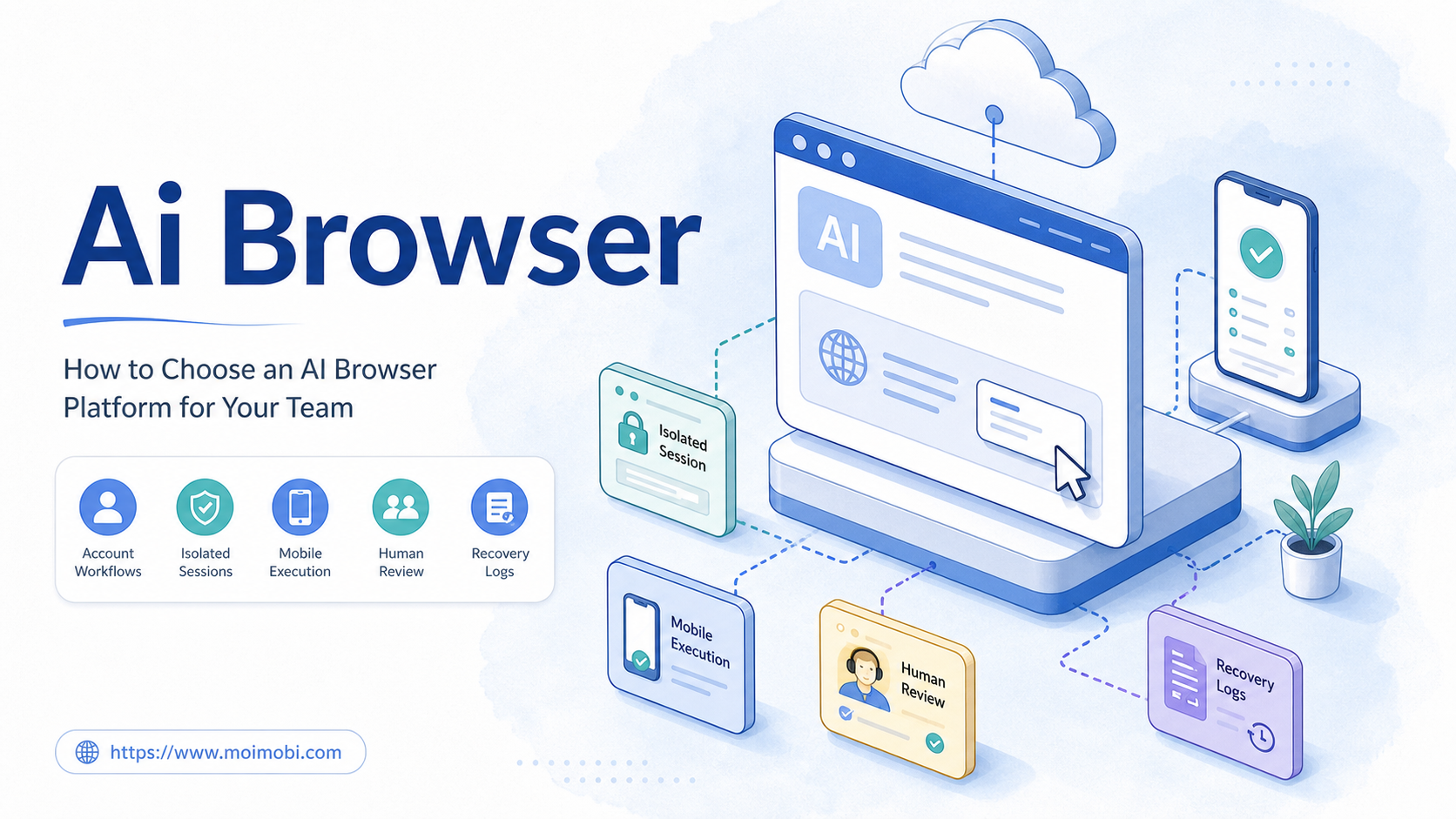
For support teams, this workflow combines AI-assisted drafting with browser-based task execution. The browser is the controlled workspace where the account is already logged in, the support queue is visible, and the operator can review the next action.
The workflow usually has four layers:
- Context collection: collect the post, comment, profile, ticket note, or previous message.
- Reply preparation: draft a response, classify urgency, and suggest next steps.
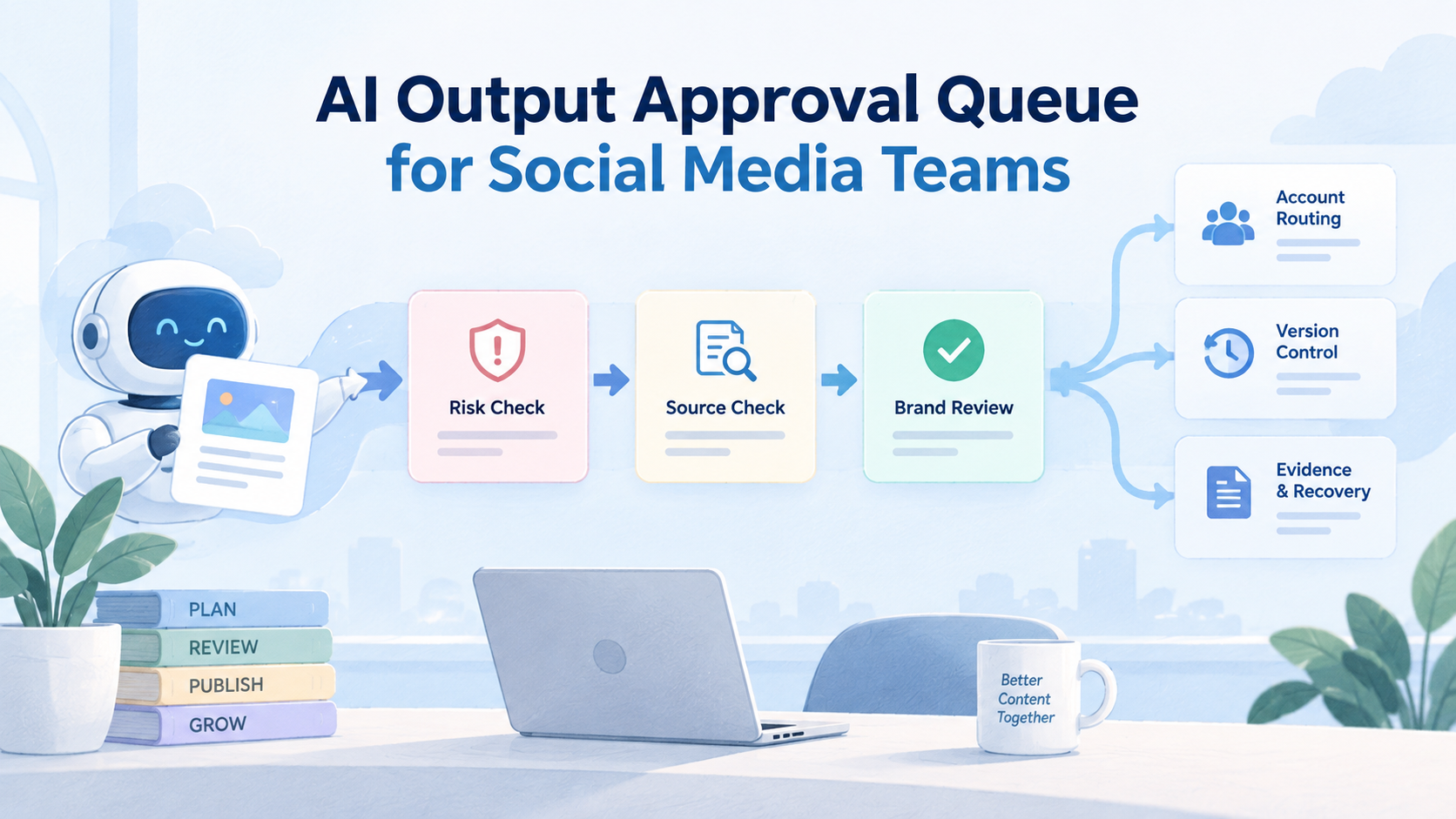
- Human review: approve, edit, escalate, or pause the reply.
- Execution record: store the account, operator, action, timestamp, and result.
This is different from a chatbot widget. A chatbot usually works inside one owned interface. Social support happens across platform pages, creator accounts, brand accounts, community posts, and inboxes. A browser workspace helps the team keep those sessions separated.
The same distinction matters for tooling. A generic AI writer may draft text. A scheduler may publish approved posts. Support reply work needs an execution environment, reviewer controls, and a recovery path when something goes wrong.
Reply Workflow Architecture for Support Teams
A practical reply system should separate preparation from execution. This prevents the AI layer from becoming the only control point in the workflow.
The architecture can be simple:
- Intake layer: collect comments, mentions, inbox items, and post URLs.
- Classification layer: label each item by intent, urgency, platform, and account.
- Draft layer: create a short suggested reply and a reason for the suggestion.
- Review layer: let a human approve, edit, reject, assign, or escalate.
- Execution layer: open the right account workspace and perform the approved action.
- Record layer: store the final reply, owner, status, and failure reason.
This split gives support managers a clearer control model. The AI can help with draft speed and routing, while the browser environment preserves the operational state. The reviewer still owns the public response.
The record layer should not be treated as optional. Without it, teams cannot tell whether a reply failed because the draft was poor, the browser session expired, the account was wrong, or the customer issue required escalation. A short failure reason is enough to make the next run better.
Why AI Browser Automation for Support Teams Matters
Support teams get overloaded when reply work is split across personal browsers, shared passwords, screenshots, and manual spreadsheets. The team may know what to say, but still lose time switching accounts and checking context.
This matters because reply work needs both language support and account context. The operator does not only get suggested text. They also get the correct account, the correct page, the task history, and the next review step.
| Support problem | What automation should handle | What humans should keep |
|---|---|---|
| Repeated questions | Draft answer variants and pull known guidance | Final tone and accuracy check |
| Multi-account queues | Route each reply to the right browser workspace | Account ownership and escalation decisions |
| Public complaints | Flag urgency and collect context | Decision to reply, hide, escalate, or defer |
| Team handoff | Record status, last action, and next owner | Judgment on customer value and risk |
Official platform rules also matter. X states that automated activity is subject to its rules and developer policy. Meta publishes rules around automated data collection and platform access. LinkedIn warns against third-party software that automates activity or scrapes its website. These rules do not mean teams cannot use automation at all. They mean the workflow must be designed around authorized access, review, and responsible use.
Preflight Checklist Before Starting
Do not start with the model prompt. Start with the operating map. A reply workflow fails quickly when the system does not know which account, operator, and environment owns the task.
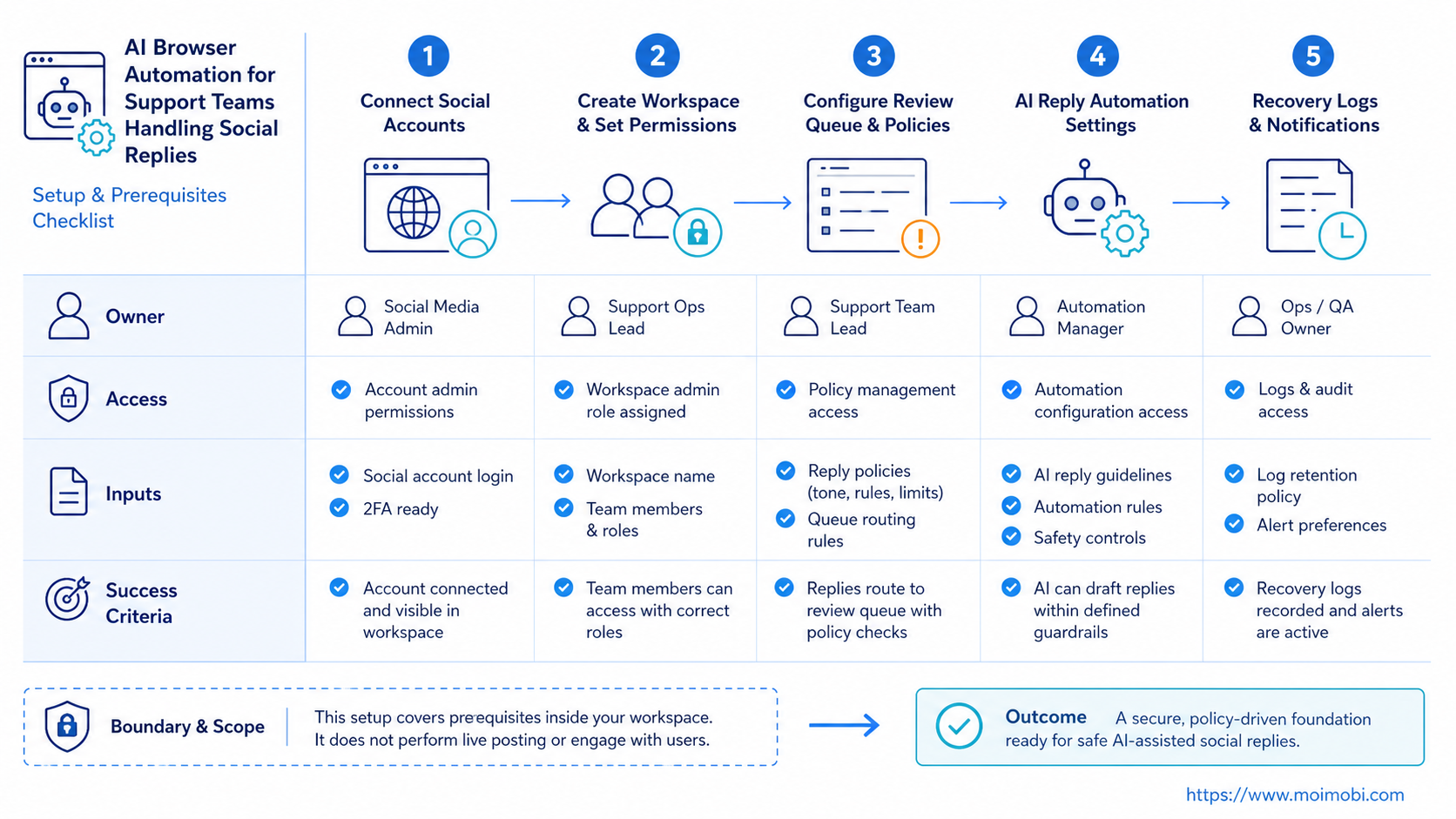
Use this checklist before building the first workflow:
- Account inventory: list every brand, region, client, and support account.
- Environment map: decide which accounts need browser profiles, cloud phones, or both.
- Reply categories: separate routine answers, sales leads, complaints, moderation, and policy issues.
- Approval rules: define which replies can be drafted, which need approval, and which must be escalated.
- Data fields: store source platform, account, post URL, customer handle, owner, status, and result.
- Stop rules: pause automation when login state changes, account ownership is unclear, or reply context is incomplete.
This setup is where a multi-account management system becomes useful. The team can map each account to a controlled workspace instead of asking operators to switch between scattered sessions.
How to Get Started with AI Browser Automation for Support Teams
Start with one narrow support workflow. A good first candidate is a routine public comment workflow, because the team can review short replies and measure quality quickly.
- Pick one platform and account group. Choose a small group, such as three brand accounts or one client account set.
- Create reply categories. Use labels like product question, order issue, complaint, spam, and sales lead.
- Define draft rules. Let AI draft short replies for routine categories. Require review for complaints, pricing, personal data, or refund issues.
- Attach the browser workspace. Each account should open in the right profile or execution environment before any action is taken.
- Add reviewer control. The reviewer can approve, edit, reject, or escalate the draft.
- Record the outcome. Store whether the reply was sent, edited, skipped, escalated, or blocked.
- Review the pilot. Compare reply quality, review time, missed context, and manual takeover events.
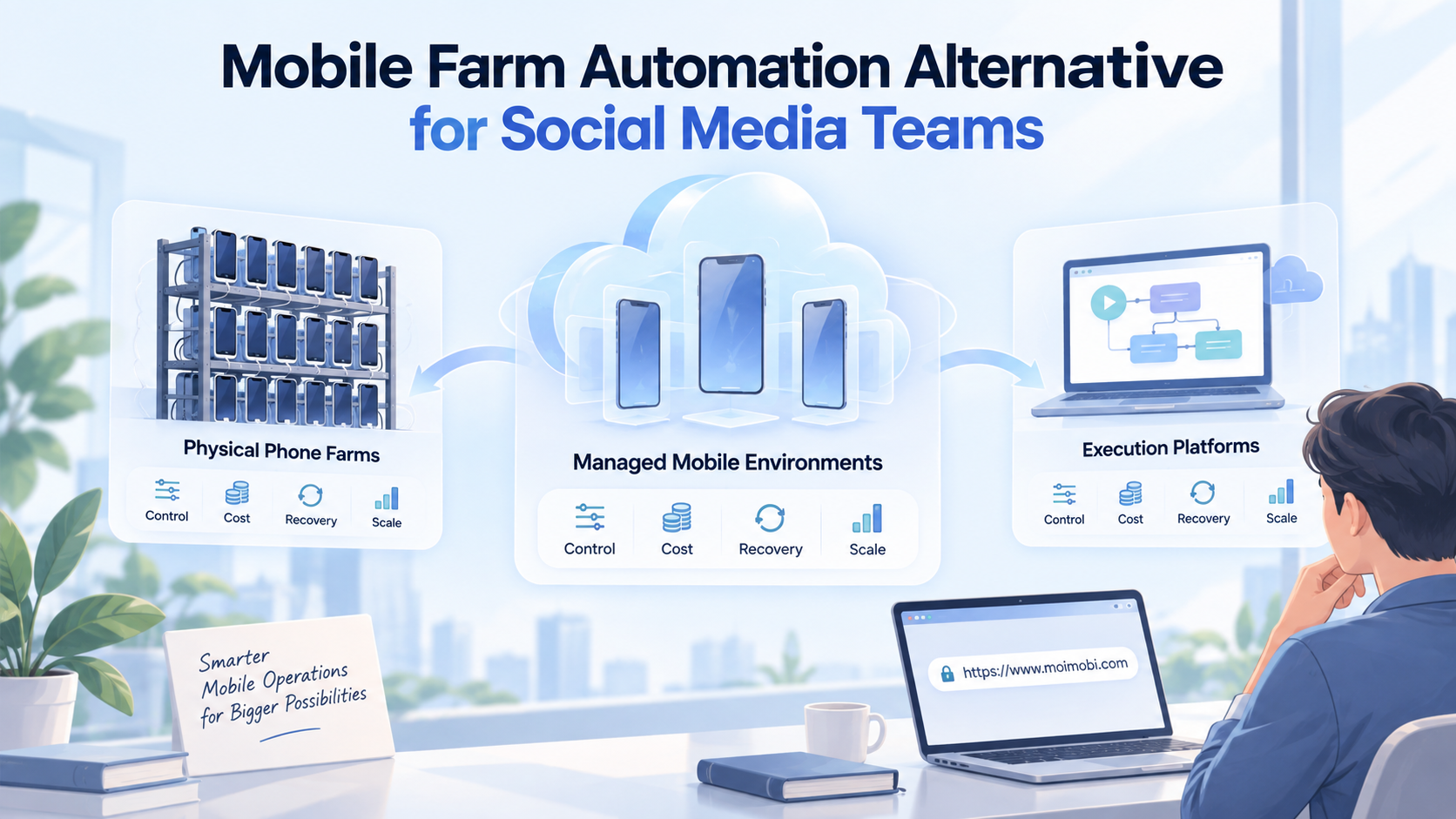
Teams that work inside mobile apps should add mobile automation or cloud phone capacity to the workflow. Browser automation is strongest for web dashboards and logged-in browser sessions. Mobile execution matters when the support process depends on app-only screens, notifications, or mobile inboxes.
One useful starter example is a product-question workflow. The system opens the account workspace, reads the comment context, drafts a short answer from approved guidance, and asks a reviewer to approve or edit it. Mentions of delivery, refunds, private data, or account access should move to escalation instead of routine sending.
Common Mistakes to Avoid
The biggest mistake is using AI browser automation as a shortcut for mass replies. Support replies carry brand risk, customer context, and platform policy risk. The safer model is assisted execution with review.
Avoid these failure modes:
- One shared browser for every account. This makes ownership and session history hard to audit.
- No difference between public comments and DMs. Private messages often need stricter context and escalation.
- AI replies without source context. The model needs the post, thread, order note, or customer history.
- No manual takeover. A teammate must be able to stop and continue the task.
- No record of edited drafts. Support managers need to see what AI suggested and what the human changed.
- No policy review. Platform rules around automated actions and data collection should be part of the SOP.
A controlled device isolation setup helps reduce operational confusion. It does not replace platform rules or human judgment. It gives the team a cleaner place to assign and review work.
Another mistake is skipping permissions. A support operator may be allowed to draft replies but not approve refunds or answer policy questions. The platform should reflect that difference. If every user can approve every reply, the team has automation without governance.
Who It Fits and When It Is a Strong Match
This workflow fits teams that already manage repeated support replies across multiple social accounts. Agencies, e-commerce teams, consumer brands, and creator teams often reach this point when social support becomes a daily queue.
It is a strong match when:
- support work spans multiple accounts or client brands;
- operators need different roles and review rights;
- public replies and inbox replies must be tracked;
- browser sessions need to stay separated;
- the team wants draft assistance but not blind auto-send behavior.
It is a weaker match when one person handles one account with low volume. A simple inbox or native platform tool may be enough. Automation adds value when coordination, review, account separation, and reporting are already hard to manage manually.
- Multi-account social support
- Routine replies with review
- Browser and mobile support queues
- Team handoff and audit needs
- One account with occasional comments
- No defined reply owner
- No review process
- Expectation of unlimited auto-replies
MoiMobi is most relevant when support work connects to broader social media marketing operations. Comments, replies, monitoring, and lead handoff should not live in separate tools with no shared record.
Pilot Rollout, Measurement, and Recovery Checks
Do not judge the pilot by reply count alone. A support workflow should be judged by accuracy, review speed, escalation quality, and recovery.
Track these metrics during the first pilot:
| Metric | What to check | Why it matters |
|---|---|---|
| Draft acceptance rate | How many drafts were approved with small edits | Shows whether AI suggestions match support style |
| Escalation rate | How many replies moved to a human owner | Shows whether risk categories are clear |
| Manual takeover success | Whether operators can pause and continue tasks | Proves the workflow is recoverable |
| Account mismatch events | Any task opened in the wrong account workspace | Exposes environment mapping problems |
| Reply outcome | Sent, skipped, edited, escalated, or blocked | Creates a usable support record |
Recovery checks should be explicit. An expired browser session should stop the task. Missing comment context should block sending. A rejected draft should keep the reviewer reason for later workflow improvement.
For teams using both browser and mobile channels, combine browser profiles with Android antidetect and routing reviews. The point is not to promise account safety. The point is to keep execution environments, task records, and account ownership clear.
Frequently Asked Questions
What is AI browser automation for support teams?
It is a workflow that uses AI and controlled browser sessions to prepare, review, execute, and record social support replies.
Can AI send every social reply automatically?
That is not a good operating model. Routine drafts can be assisted, but complaints, DMs, personal data, refunds, and sensitive topics need human review.
Why use a browser instead of only an API?
Some support work happens inside logged-in dashboards or web inboxes. A browser environment helps the team keep account sessions, context, and task ownership together.
When do cloud phones matter?
Cloud phones matter when reply work depends on mobile apps, app-only notifications, or mobile inbox behavior. Browser-only workflows may not cover those cases.
How should teams handle platform policies?
Teams should check official developer terms, automation rules, and data collection policies before automating any write action or data workflow.
What should the first pilot include?
Start with one platform, one small account group, clear reply categories, a reviewer, and outcome tracking. Avoid starting with DMs or complaints.
How does this help support managers?
It gives managers a record of drafts, approvals, edits, escalations, and failures. That makes quality review easier than scattered screenshots.
Where does MoiMobi fit?
MoiMobi fits the execution layer. It connects browser profiles, cloud phones, mobile automation, device isolation, and multi-account workflows.
Conclusion
The strongest version of this workflow improves the operating system around replies. It should route the right task to the right account, prepare a useful draft, keep a reviewer in control, and preserve the result.
Before scaling, test one support workflow with a small account group. Check whether account sessions stay separated, replies keep enough context, reviewers can intervene, and failures are visible. If those checks pass, expand gradually into more accounts, more reply categories, and more mobile execution paths.