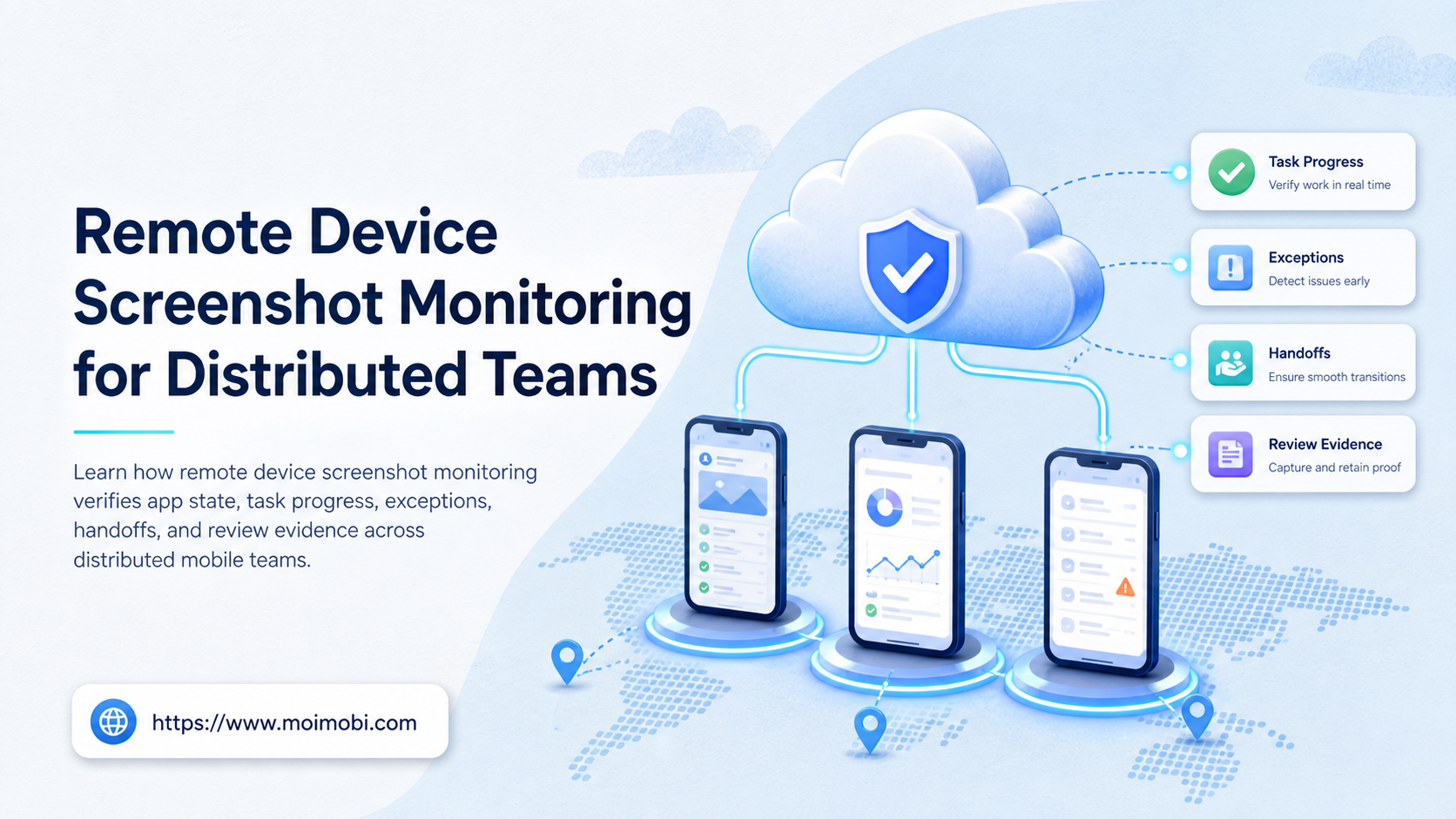
Remote device screenshot monitoring is the practice of collecting selected screenshots from remote mobile environments and connecting them to an account, task, operator, timestamp, and review decision. It helps a distributed team verify what the app displayed at a meaningful point in a workflow.
A screenshot is evidence, not a complete monitoring system. It may show the current screen while hiding permissions, network state, account ownership, queue status, or a previous failure. The useful design combines screenshots with structured task and environment records.
A cloud phone can provide one remote environment for this process. The monitoring rule should state when a screenshot is collected, what it proves, who reviews it, and what action follows an unexpected screen.
Key Takeaways
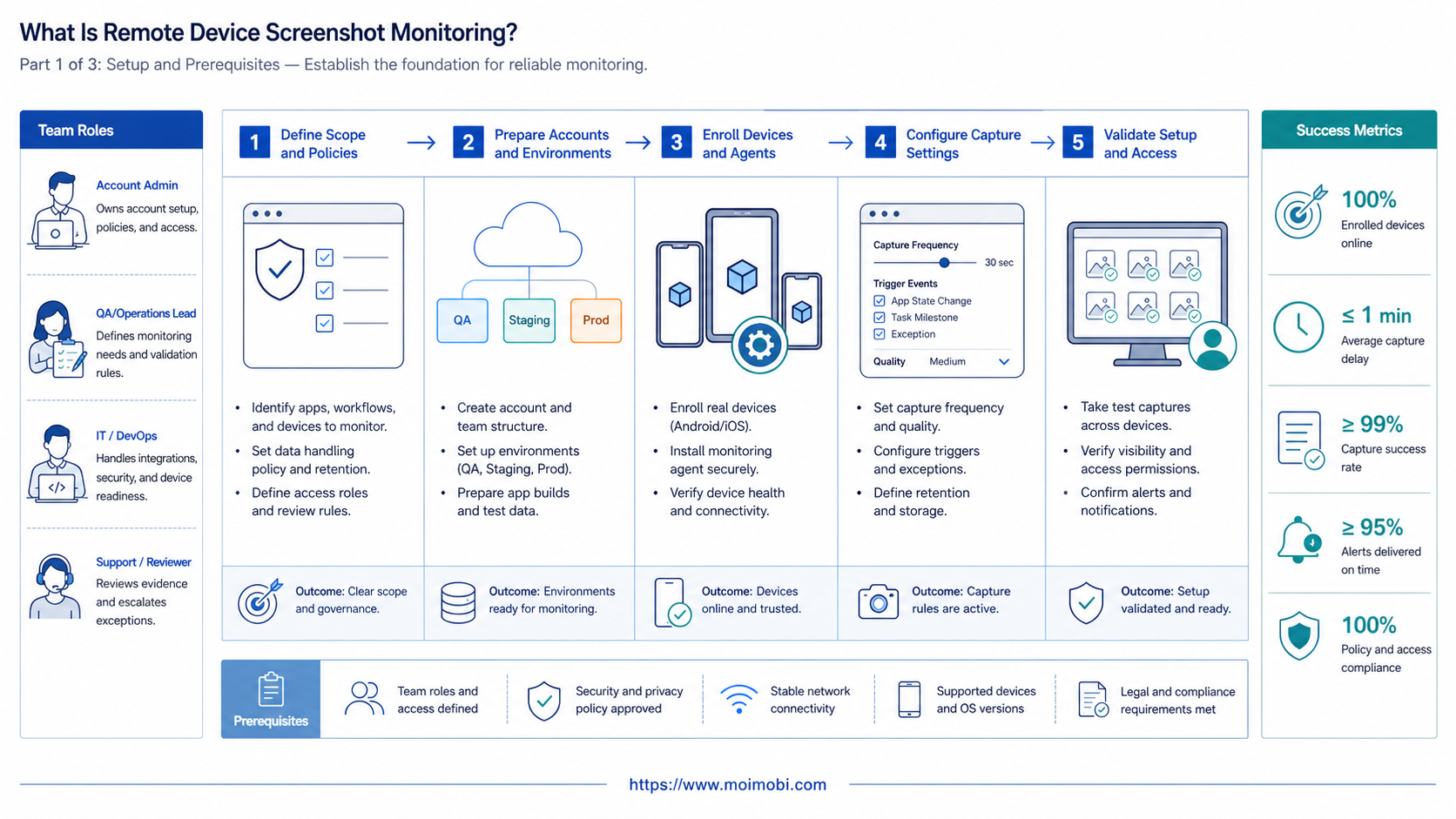
- Screenshots are most useful when tied to task, account, environment, operator, and time.
- Capture points should support a decision, such as preflight, approval, completion, or recovery.
- Do not treat a screenshot as proof of permissions, compliance, or task success by itself.
- Keep retention, access, redaction, and deletion rules clear before expanding collection.
What Is Remote Device Screenshot Monitoring?
In practice, screenshot monitoring is a workflow for capturing visual state from a device or cloud environment during remote operations. The screenshot becomes one evidence item in a task record rather than an isolated image in a chat or folder.
Useful capture points include the start of a task, a human approval checkpoint, an unexpected state, the final result, and a handoff. Continuous capture is not automatically better. It can create noise, storage cost, privacy exposure, and review work without improving decisions.
The monitor should store the context around the image:
- environment ID and platform;
- account or client lane;
- task ID and workflow stage;
- operator or service role;
- capture time and timezone;
- reason for capture;
- result or review state;
- retention and access category.
This context lets a reviewer answer, “What was happening when this image was captured?” without relying on the memory of the operator who created it.
Why Screenshot Monitoring Helps Distributed Teams
Distributed work creates gaps between execution and review. An operator may complete a mobile task while a manager is offline. A replacement operator may inherit a paused task without seeing the screen that caused the pause. A structured screenshot can reduce that gap when the capture point is chosen carefully.
The first use is state verification. A preflight image can show whether the expected app and task screen are open. The second is exception review. A screenshot can help distinguish an error dialog from an empty state or an account mismatch. The third is handoff evidence. A result image can show what the next operator needs to inspect before continuing.
AWS Device Farm documents remote access sessions with screenshots, video, and logs. Its product is designed for device testing, not for social or account operations. The evidence pattern is still relevant: a visual capture is stronger when it sits beside session and log context. See AWS Device Farm remote access.
| Capture point | What the image can show | What it cannot prove alone |
|---|---|---|
| Preflight | Expected app and visible workflow state | Correct permissions or account ownership |
| Approval | Screen presented for human decision | That approval was granted outside the record |
| Exception | Visible error, empty state, or unexpected page | The root cause of the error |
| Completion | Visible result or confirmation state | Backend persistence or downstream delivery |
| Handoff | Current screen and task context | That the next operator has authority |
The isolated mobile evidence workspace can provide a clearer environment boundary when screenshots from several accounts or client lanes are being reviewed. The image still needs a task and owner reference.
Screenshot Monitoring and Operational Context
The monitoring system should separate three layers: visual evidence, structured state, and human decision. The screenshot answers what was visible. Structured state explains where and when it happened. The human decision records what the team chose to do next.
This separation prevents a common mistake: using OCR or image matching as an unquestioned success signal. Visual matching may help find a button or detect a known dialog. It cannot determine whether the task was authorized or whether the visible account belongs to the right client lane.
A useful event might look like this conceptually:
| Field | Example |
|---|---|
| Event type | approval_checkpoint |
| Environment | android-cloud-07 |
| Account lane | client-a-support |
| Task | reply-review-1042 |
| Capture reason | before human approval |
| Evidence | Screenshot URL or storage reference |
| Decision | Approved, paused, rejected, or needs review |
| Owner | Named operator or reviewer |
The record should not expose secrets in the image or its metadata. Define which screens may be captured, who may view them, how long they remain available, and when they must be deleted or redacted.
Retention is part of the evidence design. A preflight image may be useful only until the task is approved, while an exception image may need to stay with an incident until the recovery review closes. Define those differences before capture volume grows. Also decide whether the review surface shows the original image, a redacted copy, or only a secure reference. The operator should be able to explain why the image exists without opening a separate private chat. This makes screenshot monitoring a review control rather than an uncontrolled archive of customer screens.
Android Management API documentation is another useful reference for separating device identity, policy state, enrollment, and operations. That distinction matters when a screenshot is attached to a device that may later be reset or reassigned. See the Android Management API reference.
Apple Business documentation also treats device assignment as an explicit assign, reassign, or unassign operation. For screenshot workflows, the practical lesson is to preserve environment assignment and change history beside each evidence event, even when the capture itself comes from an Android environment. See Apple Business device assignment guidance.
Remote Device Screenshot Monitoring Workflow
Use the following workflow for a distributed team. It favors deliberate capture points over constant recording.
1. Define the decision before the capture
Write down what the screenshot is meant to answer. Examples include “Is the correct app screen open before the task?” or “What visible state caused the task to pause?” If there is no decision, the capture may be unnecessary.
2. Register the environment and account lane
Attach the device or cloud environment to an account, client, platform, and task class. A remote device control reference can be a related technical reference for teams that connect device actions with control workflows, but the evidence record still needs task context.
3. Choose capture points
Start with preflight, exception, completion, and handoff points. Add approval capture when a human decision changes the next action. Avoid continuous capture until the team can demonstrate a review need.
4. Apply access and retention rules
Classify captures by sensitivity. Restrict access to people who need the evidence. Set retention by workflow and client requirement. Do not keep screenshots indefinitely because the storage system makes it easy.
5. Capture with metadata
Save the image with task ID, environment, account lane, operator, time, and reason. Avoid filenames that contain credentials, full customer messages, or uncontrolled personal data.
6. Review the image with state records
Compare the visible screen with the expected task state. Check task status, app result, and operator decision. If they disagree, pause the task and route it to recovery.
7. Close or hand off the task
Record the decision, next owner, and next action. A screenshot without a state transition leaves the team with evidence but no operating direction.
The event-based mobile execution layer can support the task execution side of this model. Screenshot capture should remain a controlled evidence step, not an automatic substitute for approval.
Architecture for Screenshot Evidence
A maintainable implementation can use five components:
- Capture trigger decides why an image is needed.
- Device adapter obtains a screenshot from the environment.
- Context builder attaches task, account, operator, and time fields.
- Evidence store keeps the image reference and retention metadata.
- Review surface presents the image beside state, logs, and next actions.
Keep the image reference separate from the task record’s business fields. If a capture fails, record the failed evidence event instead of marking the task complete. If the task is retried, link the new capture to the new attempt so a reviewer can distinguish the two runs.
The system should also handle client disconnects and partial results. A remote screen may disappear while the underlying task continues or stops. Record the transport event separately from the task result, then require a state check before closure.
Fit and Non-Fit Boundaries
Screenshot monitoring fits teams with remote handoffs, approval checkpoints, exception review, device pools, or tasks where the visible app state matters. It is useful when a manager cannot inspect every environment directly.
It is not a replacement for logs, task state, permissions, or platform rules. It may be unnecessary for a low-sensitivity workflow where a structured result is enough. It may also be inappropriate when screenshots contain information the team cannot protect or retain lawfully.
| Situation | Better starting point |
|---|---|
| One operator, low-sensitivity task | Result record and manual notes |
| Distributed operators with handoffs | Capture at handoff and exception points |
| Human approval before action | Approval checkpoint screenshot plus decision |
| Frequent app errors | Exception captures plus error categories |
| Sensitive customer data | Access, redaction, and retention review first |
| Continuous visual debugging | Add screenshots only after event-based capture is understood |
Do not claim that a screenshot prevents account issues or proves policy compliance. It is an evidence artifact that supports a specific operational decision.
Common Mistakes
Capturing everything
Continuous images can overwhelm reviewers and increase exposure. Start with event-based captures that answer a known question.
Storing images without task context
An image named with a timestamp is difficult to audit. Attach environment, account lane, task, operator, and capture reason.
Treating visual similarity as success
The expected screen may appear while the task input is wrong or the account is unauthorized. Check structured state and permissions too.
Sharing evidence in uncontrolled channels
Screenshots can contain customer data, account names, messages, or internal workflow details. Keep access within the review surface.
Ignoring failed captures
A missing image is an evidence failure. Mark it clearly and route the task to a review state instead of silently continuing.
Keeping screenshots forever
Retention should match the reason for capture. Delete or redact evidence when the review need ends.
Pilot Measurement and Recovery Checks
Pilot four capture points: preflight, exception, completion, and handoff. Use one task lane and a small environment group. Keep the capture rule stable for the first review cycle.
Track:
- percentage of captures with complete metadata;
- review time per capture;
- number of screenshots that changed the next action;
- false-positive visual alerts;
- failed capture rate;
- tasks paused because structured state disagreed with the image;
- access or retention exceptions;
- time from an exception capture to a named recovery owner.
If few images change a decision, reduce capture frequency. If reviewers need other context, improve the state record rather than adding more screenshots. If sensitive data appears unexpectedly, pause the capture rule and revise redaction or access controls.
Frequently Asked Questions
What is remote device screenshot monitoring?
It is the controlled capture of screenshots from remote mobile environments, linked to a task, account lane, operator, time, and review state.
Is a screenshot enough to prove task completion?
No. It shows visible state. Confirm task result, account context, backend or downstream state, and the recorded decision when those checks are required.
Can cloud phones support screenshot monitoring?
Yes. Treat the cloud phone as an identified environment and store captures with task and ownership context.
How often should a team capture screenshots?
Start at decision points such as preflight, approval, exception, completion, and handoff. Increase frequency only when the additional images support review.
Who should see the screenshots?
Only roles that need them for execution, review, support, or incident handling. Access should follow the sensitivity of the captured screen.
How long should screenshots be stored?
Use a retention period tied to the workflow, client requirement, and review purpose. Avoid indefinite storage by default.
Can screenshots replace logs?
No. Screenshots show visible state. Logs and structured events explain actions, errors, timing, and transitions.
What should happen when a screenshot is missing?
Record an evidence failure, pause or review the task according to its contract, and assign the next owner.
Does screenshot monitoring make account operations safe?
No. It improves visibility for selected workflow points. Teams still need platform rules, permissions, account separation, and human judgment.
Conclusion: Capture Evidence That Changes a Decision
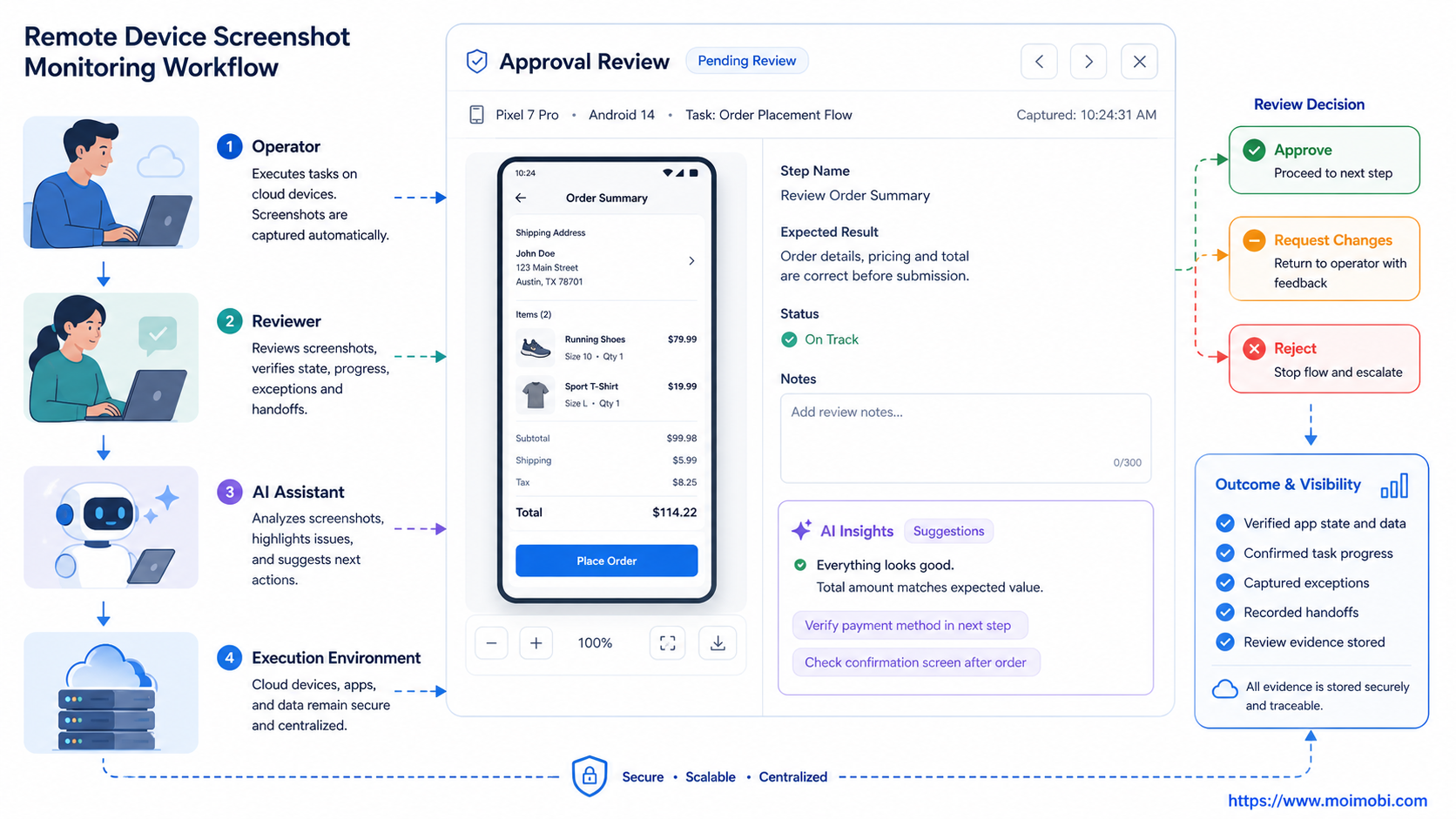
Remote device screenshot monitoring works when each image has a reason, context, reviewer, and next action. The goal is not to collect the largest image archive. It is to make a remote task easier to verify and hand off.
Start with four event points: preflight, exception, completion, and handoff. Attach each image to structured state, control access, measure review value, and remove captures that do not improve decisions. That keeps screenshot monitoring useful as the team grows.