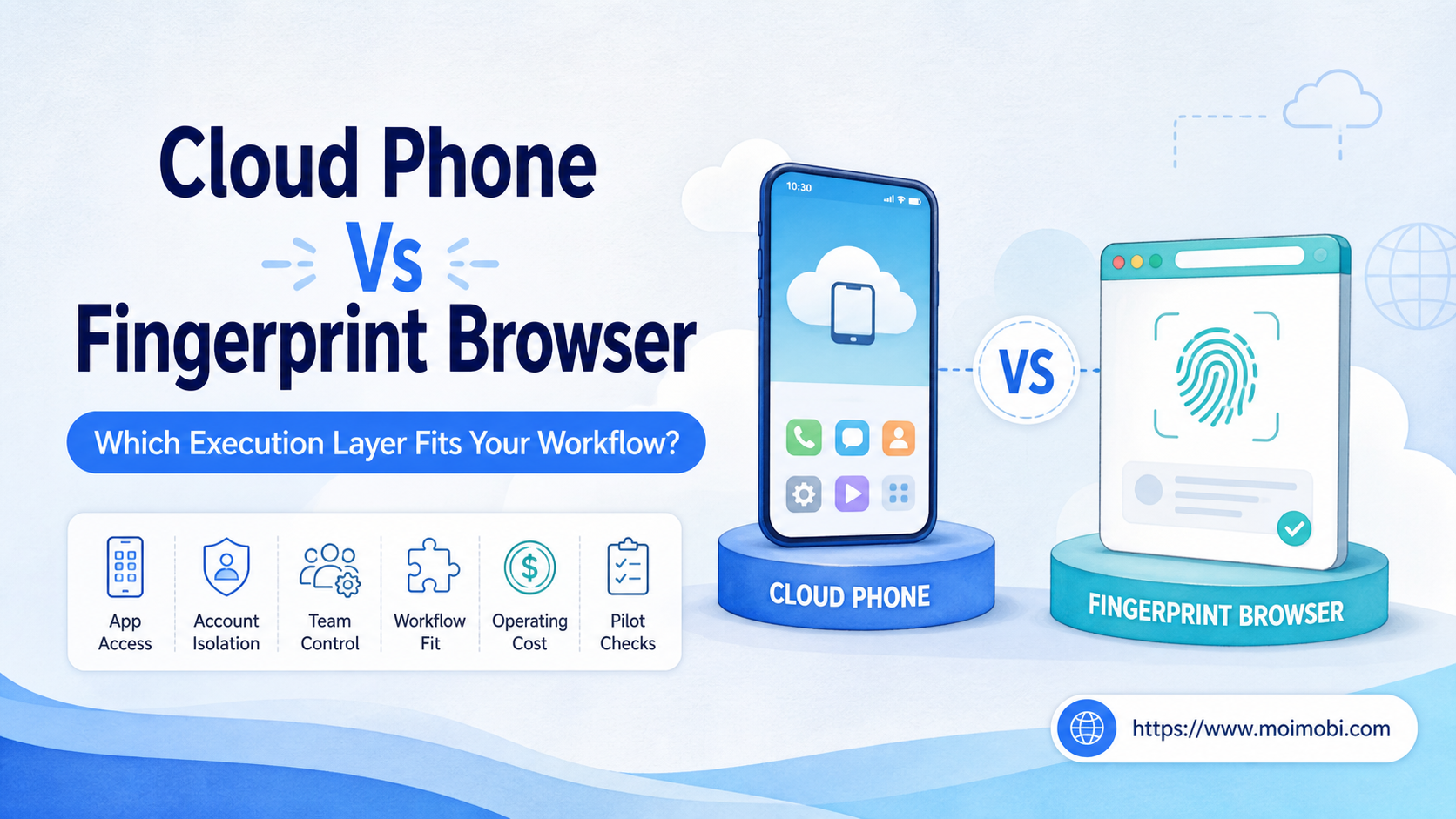
Key Takeaways
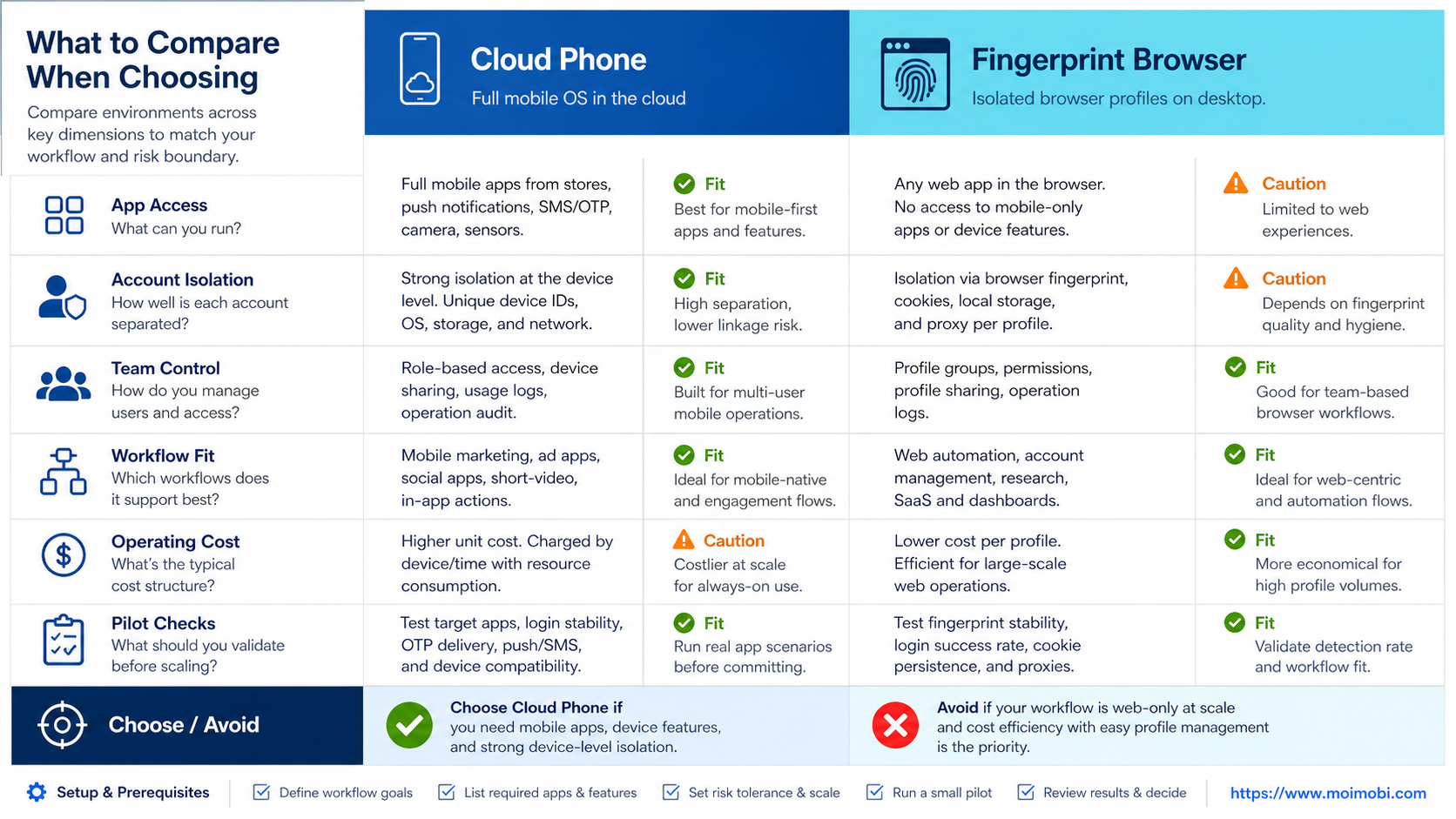
- Choose a cloud phone when the workflow depends on an Android app, mobile state, or device-level action.
- Choose a fingerprint browser when the work stays inside web apps and needs separated browser workspaces.
- Test the workflow, ownership, recovery path, and useful output before scaling either environment.
A cloud phone and a fingerprint browser solve different execution problems. A cloud phone provides a remote mobile environment for Android app work. A fingerprint browser provides separated browser workspaces for web-based account operations.
The cloud phone vs fingerprint browser decision is a choice between mobile and browser execution layers. Mobile-first workflows generally point to a cloud phone, while web-first workflows generally point to a fingerprint browser.
The practical verdict is simple. Choose a cloud phone when the task needs a mobile app, device state, notifications, or Android-only controls. Choose a fingerprint browser when the task stays in web apps and depends on persistent browser sessions or account-specific browser profiles. If a team works across both surfaces, the right design may use both layers with one task and ownership system.
This comparison is about workflow fit, not a universal winner. The right choice depends on the app, account model, review steps, and evidence the team needs after each run.
What to Compare When Choosing cloud phone vs fingerprint browser
Start with the action that must be completed. Do not begin with a device count or a feature list. A social operator publishing through an Android app has a different requirement from an analyst updating a browser dashboard.
Use these scenarios as a first filter:
- Mobile app publishing: A cloud phone is usually the closer fit when the content must be uploaded, edited, or reviewed inside an Android app.
- Web dashboard operations: A fingerprint browser is usually the closer fit when the work involves pages, forms, browser storage, and account-specific sessions.
- Mobile notifications: A cloud phone can support a mobile notification workflow when the app and environment expose the required state. The team still needs an escalation rule.
- Browser-based account work: A fingerprint browser can separate browser workspaces, but the exact isolation behavior depends on the product and configuration.
- Cross-channel operations: A combined design can place browser research and mobile execution in separate environments, then connect them through a task record.
The first decision is therefore about the execution surface. The second is about control. The third is about whether a different operator can understand and continue the task.
Key Differences in a cloud phone vs fingerprint browser comparison
The phrase fingerprint browser describes a category, not one uniform implementation. Products may differ in profile storage, browser version, session controls, team permissions, and supported automation. Treat those capabilities as items to verify during a pilot.
| Decision dimension | Cloud phone | Fingerprint browser |
|---|---|---|
| Primary surface | Android mobile apps and device actions | Websites and browser-based apps |
| Useful state | App state, device permissions, notifications, media | Browser session, cookies, local storage, profile settings |
| Account workspace | Separate mobile environment per task or account group | Separate browser profile or workspace per account group |
| Best starting use case | Mobile publishing, mobile inboxes, app checks | Web dashboards, browser research, account administration |
| Main operational question | Does the app work and remain recoverable? | Does the browser session stay identifiable and controllable? |
| Common limitation | Not every workflow needs a full mobile environment | It cannot replace an Android-only app interaction |
Android’s Emulator documentation is a useful reference for understanding virtual Android devices and their configuration. It also reinforces a key distinction: modeling an Android device is not the same as designing a team workflow. Account ownership, permissions, review, and recovery remain separate operating concerns.
Cloud Phone vs Fingerprint Browser Features, Workflow, and Trade-Offs
One common misconception is that both tools are interchangeable account containers. They are not. The environment changes which interface the operator can use and which failure modes the team must handle.
App execution versus browser execution
A cloud phone is valuable when the action is defined by an app screen. Examples include mobile-only publishing controls, app inboxes, device notifications, or a flow that depends on Android permissions. The team needs an app version check, a session check, and a way to capture the resulting state.
A fingerprint browser is valuable when the action is defined by a web page. Examples include web-based reporting, account settings, content research, and browser forms. The team needs profile naming, session ownership, browser version control, and a clear rule for profile changes.
Isolation versus access control
Separate environments can reduce accidental session mixing, but isolation does not replace account governance. An operator can still select the wrong account, use unapproved content, or repeat a task twice. The task record and review step must identify the account and expected output.
For multi account management, compare more than the number of profiles or devices. Check whether the team can assign an owner, restrict access, see the current task, pause work, and explain an exception. An Android browser workspace comparison can help frame that discussion without treating one environment as a substitute for the other.
Automation interface and recovery
Browser automation usually works through page-level actions and browser sessions. The W3C WebDriver specification documents a standard browser automation interface, which helps teams reason about commands, sessions, and remote control boundaries.
For a concrete browser-isolation reference, Playwright documents browser contexts as separate, isolated environments for browser sessions. That is useful when evaluating profile workflows, but it does not by itself define the account policy, review process, or capabilities of every fingerprint browser product.
Mobile automation adds app state and device behavior. A task may fail because an app changed, a permission was revoked, a notification was missed, or the device is in a different state. A good mobile runbook records the last known state before a retry.
Pricing and Operational Considerations
The cheapest environment on a monthly price sheet is not always the lowest-cost workflow. Compare the total operating work required to keep the task running and explain its results.
For a cloud phone, cost planning may include environment runtime, mobile app setup, account assignment, media handling, task review, and recovery work. For a fingerprint browser, cost planning may include profile management, browser updates, session troubleshooting, access permissions, and web workflow maintenance.
Use a cost worksheet with these fields:
| Cost area | Questions for a cloud phone | Questions for a fingerprint browser |
|---|---|---|
| Setup | How long does app and account setup take? | How long does profile and session setup take? |
| Daily work | Which steps still require an operator? | Which page changes need review? |
| Failure handling | How are app state and permissions restored? | How are sessions and profile settings restored? |
| Team control | Who owns each mobile environment? | Who owns each browser profile? |
| Exit cost | Can tasks and evidence be moved elsewhere? | Can profiles, records, and SOPs be migrated? |
Do not use a single “accounts per device” number as the buying decision. Capacity only matters after the workflow is repeatable and the team can separate normal work from exception handling.
Before approving a purchase, ask for a short proof of operation. Can the team create an environment, attach the intended account, run one approved task, pause it, and recover it? Can a manager see which operator owns the task without opening every environment? Can the team export or retain enough evidence for a support investigation? These checks reveal operational fit earlier than a feature checklist.
The answer may also differ by workflow stage. A browser workspace may be efficient for research and preparation, while a cloud phone may be needed for the final app action. In that case, budget for the handoff and review time instead of pretending that one environment covers both stages.
Which Option Fits Different Teams?
Choose a cloud phone first when
- The required action exists only in an Android app.
- The workflow depends on notifications, app state, or device permissions.
- Operators need a remote mobile workspace instead of a local handset.
- The team can assign each account and task to a named owner.
- The output can be verified after the mobile action completes.
Choose a fingerprint browser first when
- The work stays inside web apps and browser dashboards.
- Each account needs a separate browser workspace.
- The team needs browser-based research, forms, or administration.
- A browser session can be paused, reviewed, and resumed without a mobile app.
- The main maintenance work is profile and page workflow management.
Consider a combined model when
- Research and reporting happen in web apps, but publishing or replies happen in mobile apps.
- Different teams own browser preparation and mobile execution.
- A single task record can connect the source, approval, execution environment, and result.
- The team has enough operational maturity to prevent duplicate handoffs.
The combined model should not become two disconnected tool stacks. The task ID, account name, owner, review status, and final evidence should remain consistent across environments. A remote Android environment comparison can support vendor evaluation, while the final decision should come from the team’s own pilot data.
Fit and Not-Fit Boundaries
Both options are a poor fit when the task has no owner, no approval boundary, or no useful output definition. Adding a separate environment does not make an undefined process reliable.
| Situation | Better direction | Boundary to confirm |
|---|---|---|
| Mobile-only customer reply | Cloud phone | Human review for sensitive or ambiguous replies |
| Browser-only lead research | Fingerprint browser | Permission, session, and data-handling rules |
| App and web handoff | Combined workflow | One task record and one accountable owner |
| Unclear account ownership | Pause the rollout | Resolve access and approval before execution |
| Repeated unexplained failures | Stop and investigate | Record state, cause, retry, and recovery |
Avoid choosing a fingerprint browser because a team wants to avoid designing mobile operations. Avoid choosing a cloud phone because a team wants every task to look like an app task. The execution layer should follow the work.
Pilot Rollout, Measurement, and Recovery Checks
Run one workflow through both environments only when the task genuinely crosses web and mobile. Otherwise, compare like with like. Pick one account group, one operator, one reviewer, and one expected output.
Use this rollout sequence:
- Write the task and name the required execution surface.
- Create one environment and assign one account owner.
- Run a normal case with approved input.
- Run one controlled exception, such as a missing permission or expired session.
- Record the output, failure reason, retry decision, and reviewer result.
- Ask another operator to continue from the record.
- Decide whether to continue, adjust, or stop.
Measure outcomes rather than clicks. Track completed useful tasks, review rate, duplicate actions, recovery time, and unresolved exceptions. A successful pilot means the team can explain what happened and repeat the intended result. It does not mean every run can be unattended.
Review the pilot after a fixed period. If mobile failures come from app state, improve the cloud phone runbook. If browser failures come from profile ownership or page changes, improve the fingerprint browser workflow. If the problem is unclear approval, changing the device will not solve it.
Frequently Asked Questions
What is the main difference between a cloud phone and a fingerprint browser?
A cloud phone is a remote mobile execution environment. A fingerprint browser is a separated browser workspace. The first is app-oriented; the second is web-oriented.
Which option is better for social media operations?
It depends on the task. Use a cloud phone for app-native publishing, inbox, or notification work. Use a fingerprint browser for web dashboards and browser-based account administration.
Can a fingerprint browser run Android apps?
Not as a normal browser workflow. If the task requires an Android app, evaluate a cloud phone or another managed mobile environment.
Can a cloud phone replace a browser profile?
Not for every web task. A mobile environment may add unnecessary steps when the required work is fully available in a browser.
Which option is easier for multi account management?
Neither is automatically easier. Compare naming, ownership, permissions, task assignment, pause controls, and recovery records for the exact workflow.
Should a team use both environments?
Use both when the workflow genuinely crosses web and mobile. Keep one task record and one accountable owner across the handoff.
How should teams compare operating cost?
Include setup, maintenance, review time, recovery time, and migration effort. Do not compare only the monthly environment fee.
What should be tested before buying at scale?
Test the main task, a normal output, one exception, account assignment, review, and recovery. Ask a second operator to repeat the process from the recorded instructions.
Does environment isolation remove the need for review?
No. Isolation can separate workspaces, but it does not decide whether an action is correct or approved. The workflow still needs human ownership for consequential actions.
Conclusion
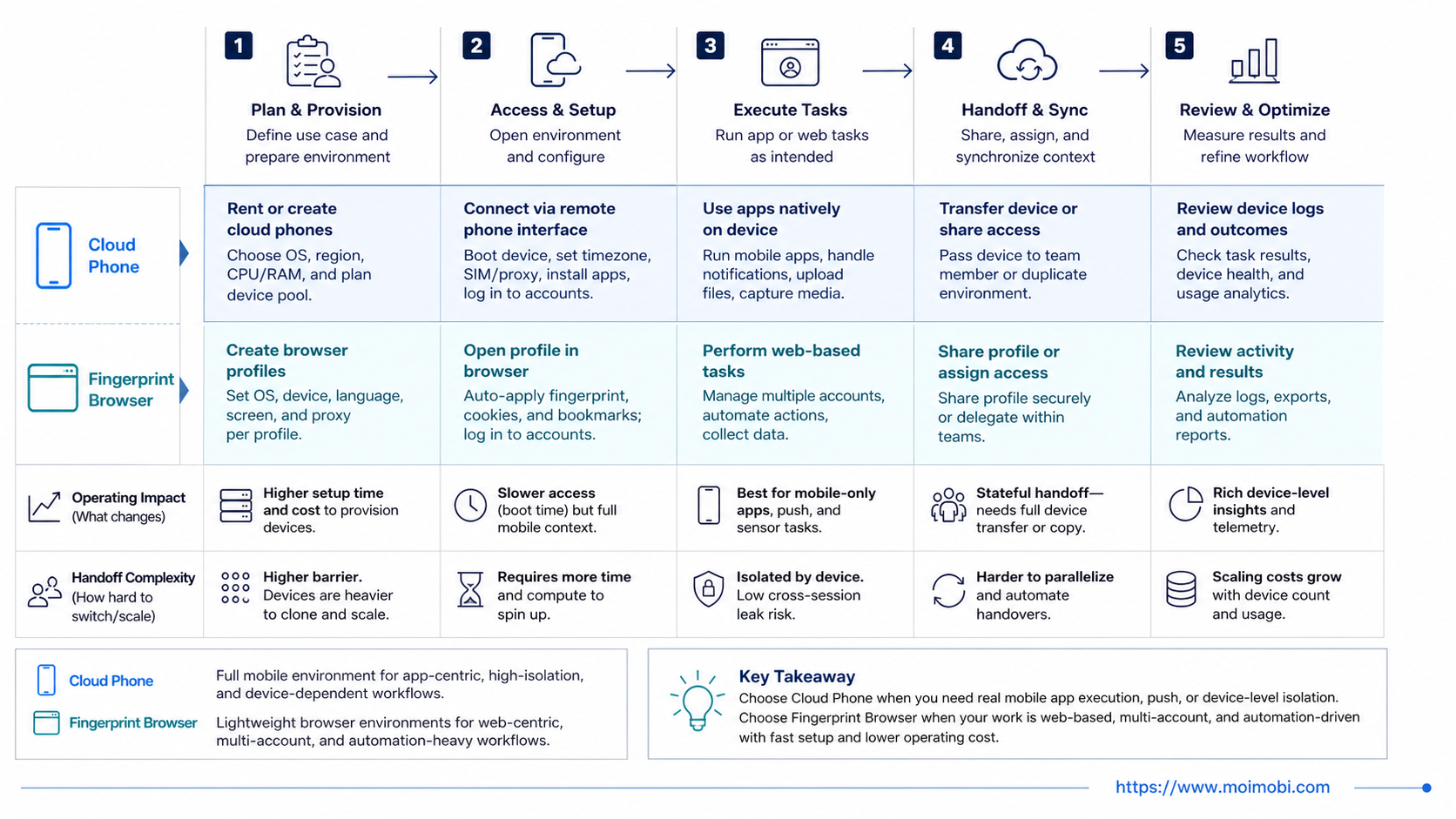
The choice between a cloud phone and a fingerprint browser starts with the execution surface. Select a cloud phone for mobile app state and device actions. Select a fingerprint browser for web apps and browser-specific account workspaces. Select a combined model only when the task crosses both surfaces and the handoff is observable.
Before expanding, run one controlled pilot. Record the account, environment, operator, review decision, output, and recovery result. That evidence will tell the team more than a generic feature comparison and will show which execution layer actually fits the workflow.