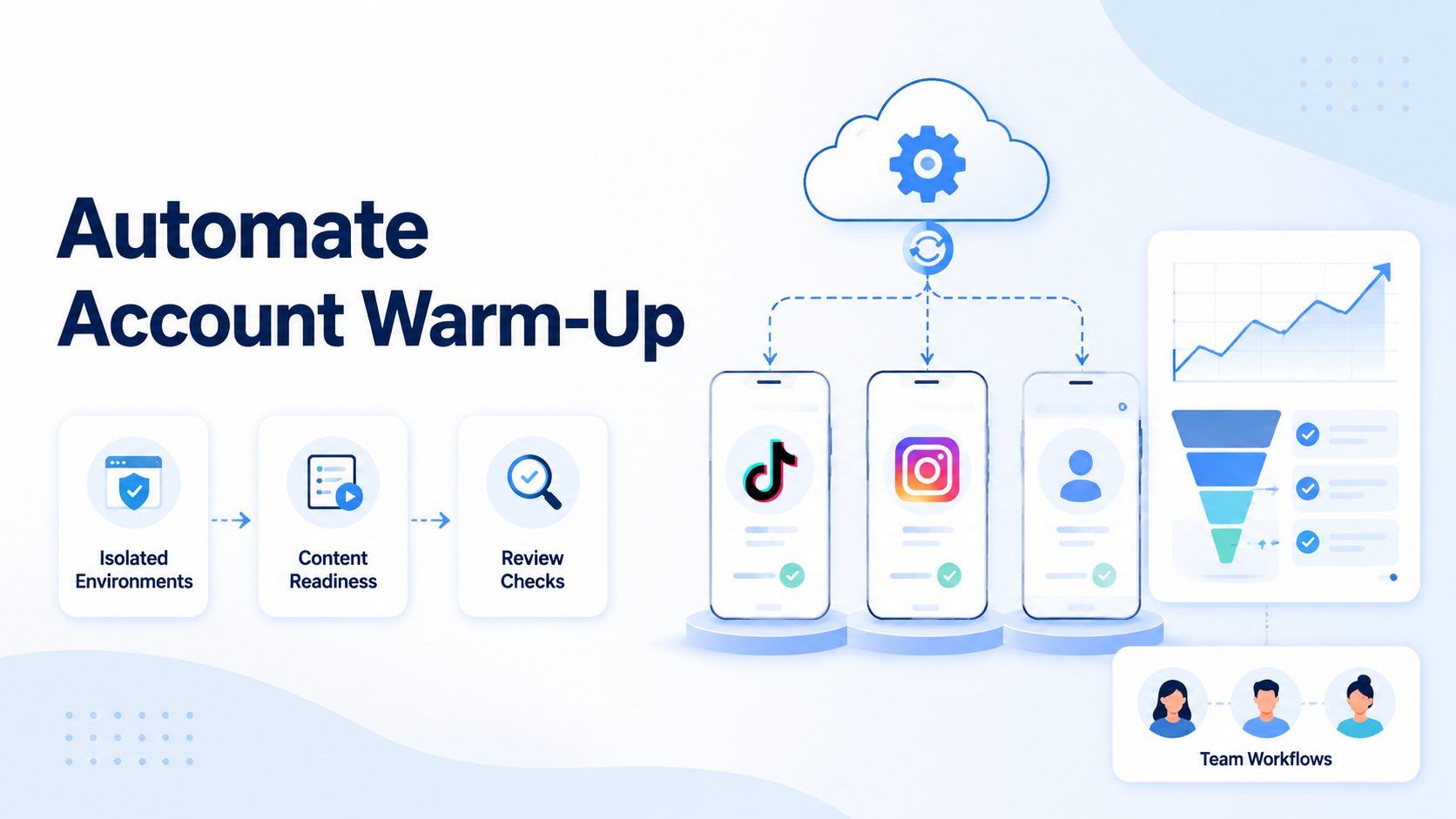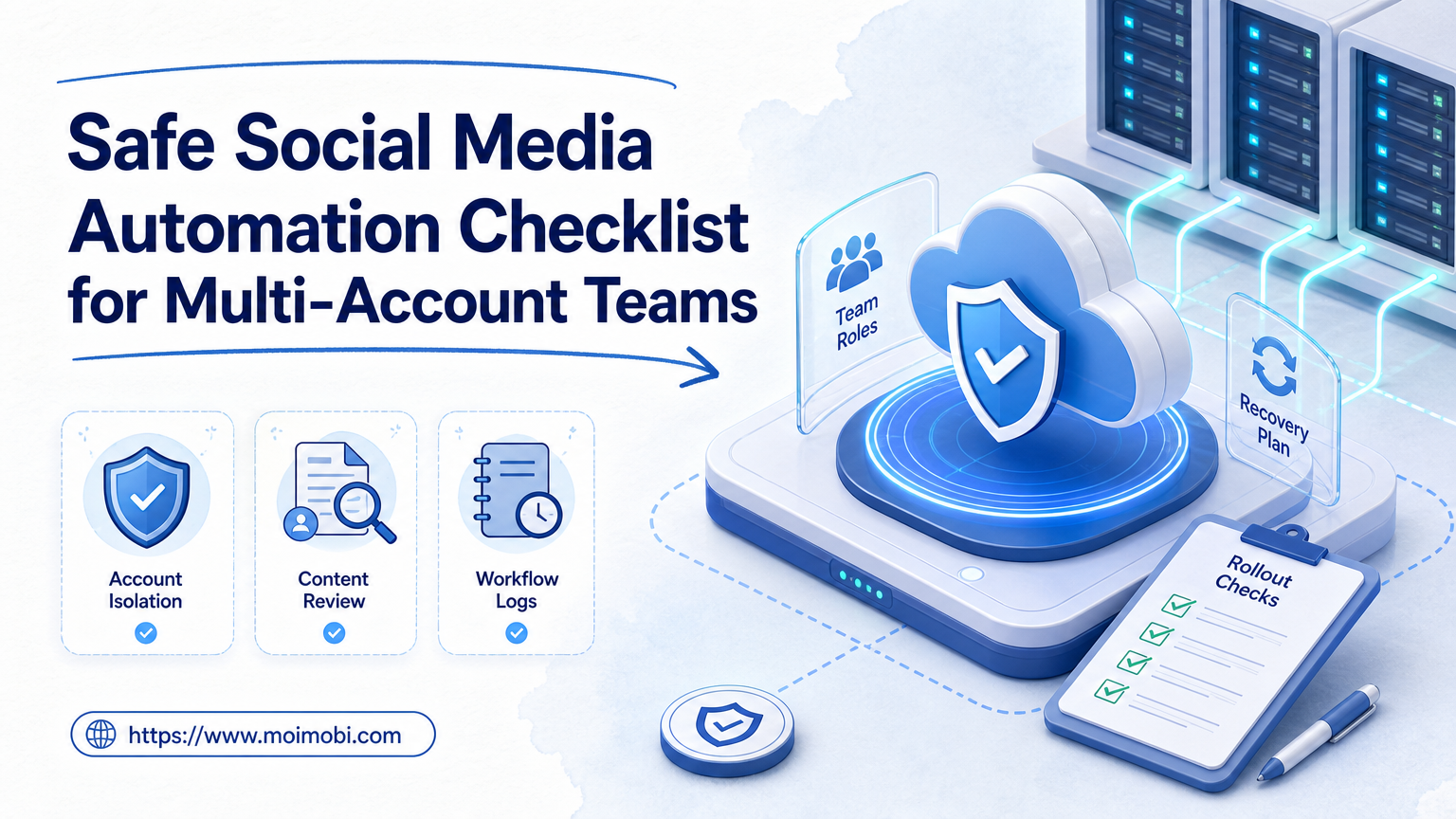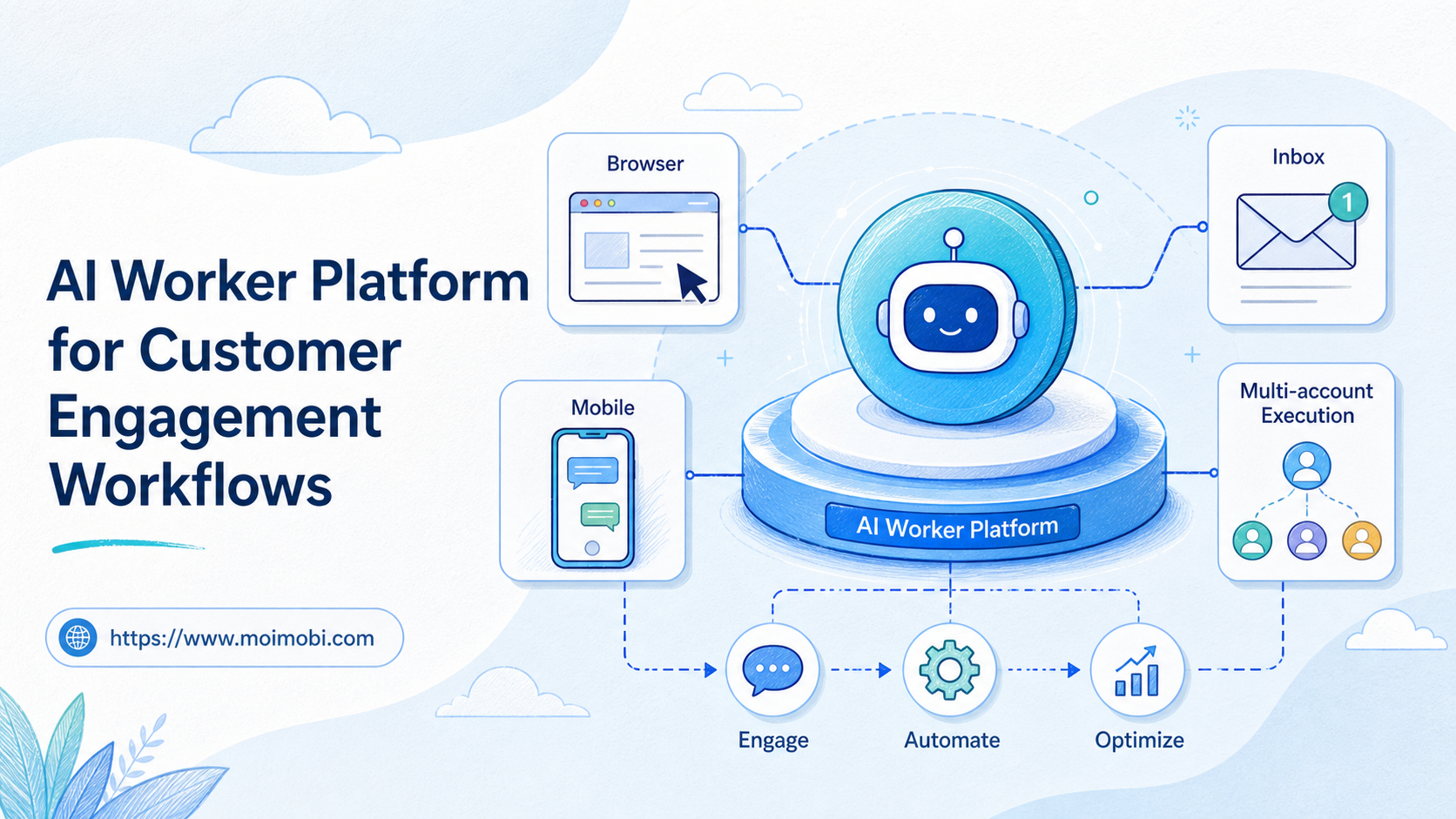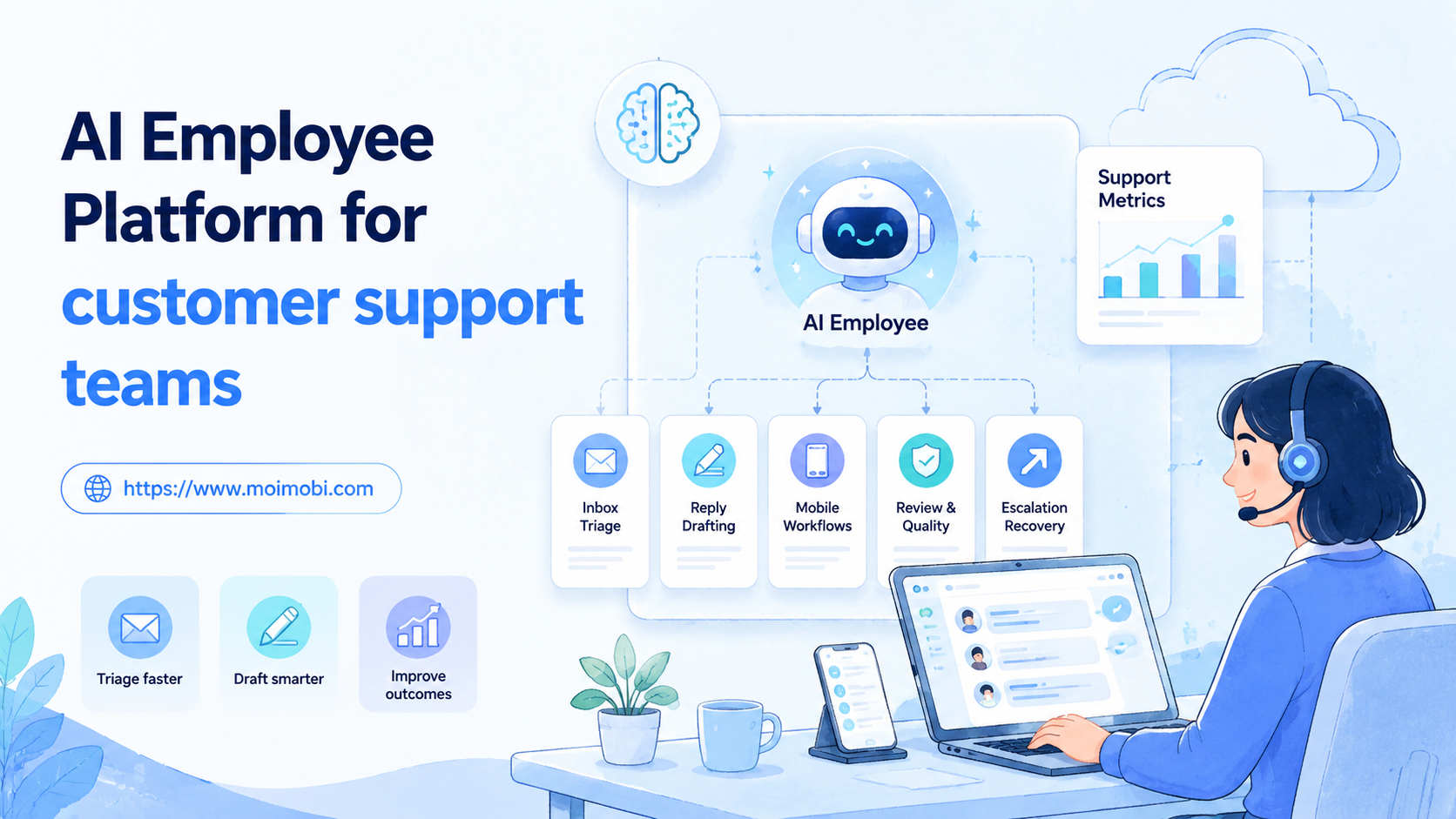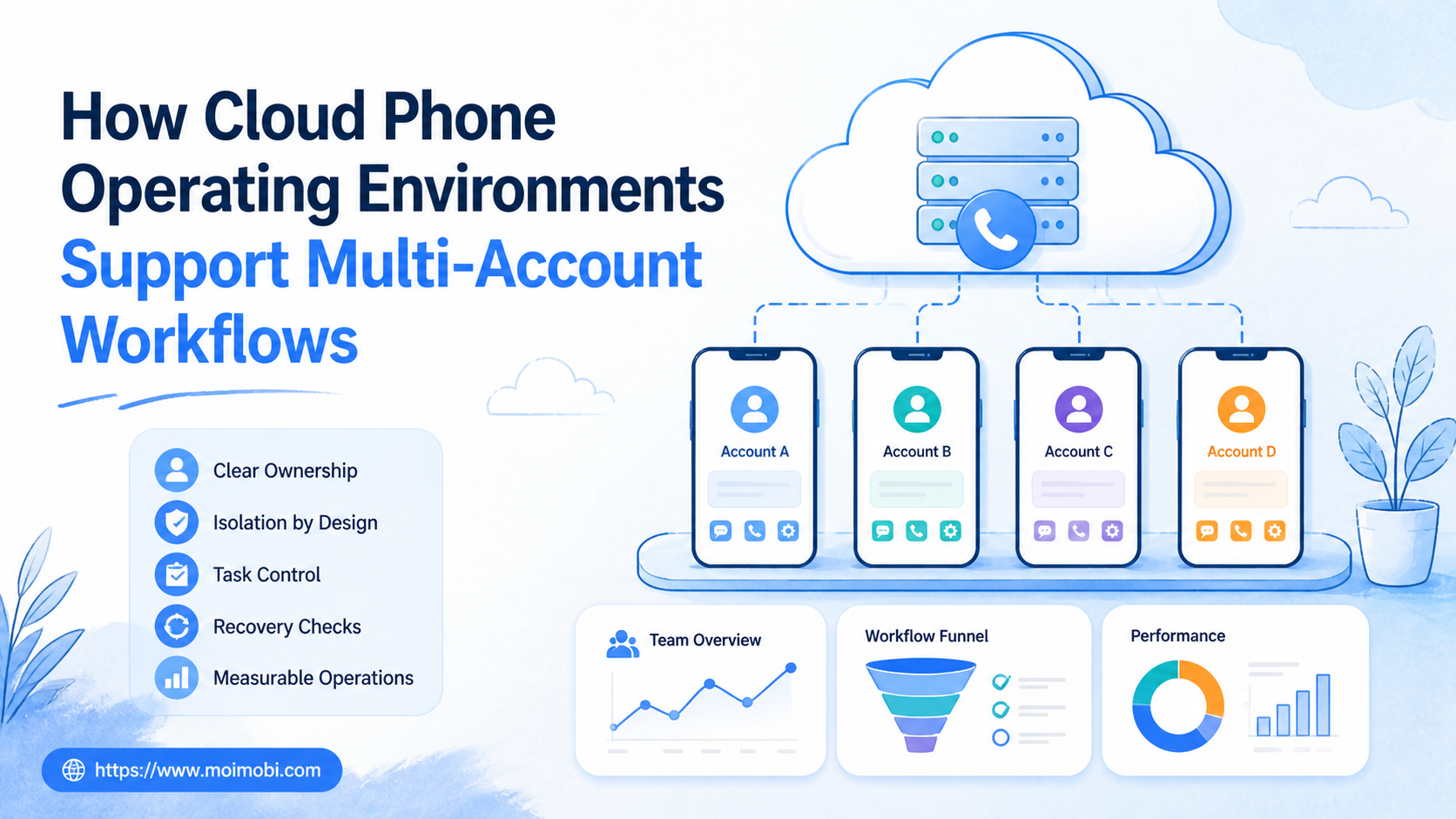
A cloud phone operating environment is a remote mobile workspace that combines an Android runtime, account state, network settings, task controls, and execution records. For multi-account workflows, the value is not simply opening more screens. The environment gives each operating lane a place, an owner, and a repeatable way to run work.
That distinction matters for social media, customer support, commerce, and other app-based operations. A team may need several accounts, but it also needs clear assignments, separate sessions, review steps, and recovery rules. Without those controls, more devices can create more confusion rather than more capacity.
Key Takeaways
- A cloud phone operating environment is a workflow boundary, not only a remote Android screen.
- Multi-account operations need account ownership, environment assignment, task scope, and review history.
- Isolation reduces state confusion, but it does not replace platform compliance or human judgment.
- The right design separates content preparation, execution, replies, monitoring, and recovery work.
- Start with one workflow family, measure failures, and expand only when the team can explain the results.
What Is a Cloud Phone Operating Environment?
The phrase describes the complete place where a mobile task runs. The Android instance is one layer. The surrounding controls determine whether a team can operate it repeatedly.
| Layer | Team question | Operational output |
|---|---|---|
| Runtime | Is this an emulator, virtual device, or real device? | Known app and hardware boundary |
| Account state | Which account, session, and app data belong here? | Clear ownership and reset rules |
| Network | Which route and connection settings apply? | Documented reachability and troubleshooting context |
| Task control | Who can start, pause, approve, or stop work? | Fewer unreviewed actions |
| Evidence | What is recorded after each run? | Logs, screenshots, status, and recovery clues |
| Capacity | How many workflows can run without contention? | Realistic concurrency planning |
The operating environment therefore sits between a device and a business process. It connects a mobile interface to a team’s operating rules. A provider may use different technical terms, so a buyer should inspect the actual runtime, persistence model, controls, and evidence rather than rely on the label “cloud phone.”
Android’s enterprise documentation makes a related distinction between device ownership and management controls. Its device-control guidance describes capabilities such as monitoring device health and remotely rebooting fully managed devices, subject to the device-management mode. That is a useful reminder: the control plane is part of the environment, not an optional dashboard decoration.
How Cloud Phone Operating Environments Separate Account Work
The common mistake is to treat multi-account work as a login problem. It is an assignment problem first.
Each account needs an operating contract. That contract can be small, but it should answer five questions:
- What is the account for?
- Which environment is assigned to it?
- Which tasks are allowed?
- Who reviews exceptions?
- What evidence must remain after execution?
Consider a team running several social accounts. One account may publish educational content. Another may handle customer questions. A third may monitor comments or collect lead signals. The workflows overlap, but the account roles do not. Assigning every account to one shared environment makes it harder to trace a wrong edit, a missed reply, or an unexpected session change.
Environment separation also helps with state management. A workflow can carry app data, cached sessions, drafts, notification state, and task history. When accounts share an unmanaged environment, a later operator may not know which state is current. A separated environment gives the team a clearer reset point and a narrower troubleshooting scope.
The goal is not to claim that a separate environment makes an account immune to platform review. It does not. The goal is to keep legitimate operations organized, auditable, and easier to pause when a workflow behaves unexpectedly.
Why Teams Use Mobile Environments for Account Workflows
Browser automation is useful for web dashboards and browser-first tasks. Some workflows still belong in mobile apps. The app may expose a different interface, a different approval step, or a capability that the web version does not provide.
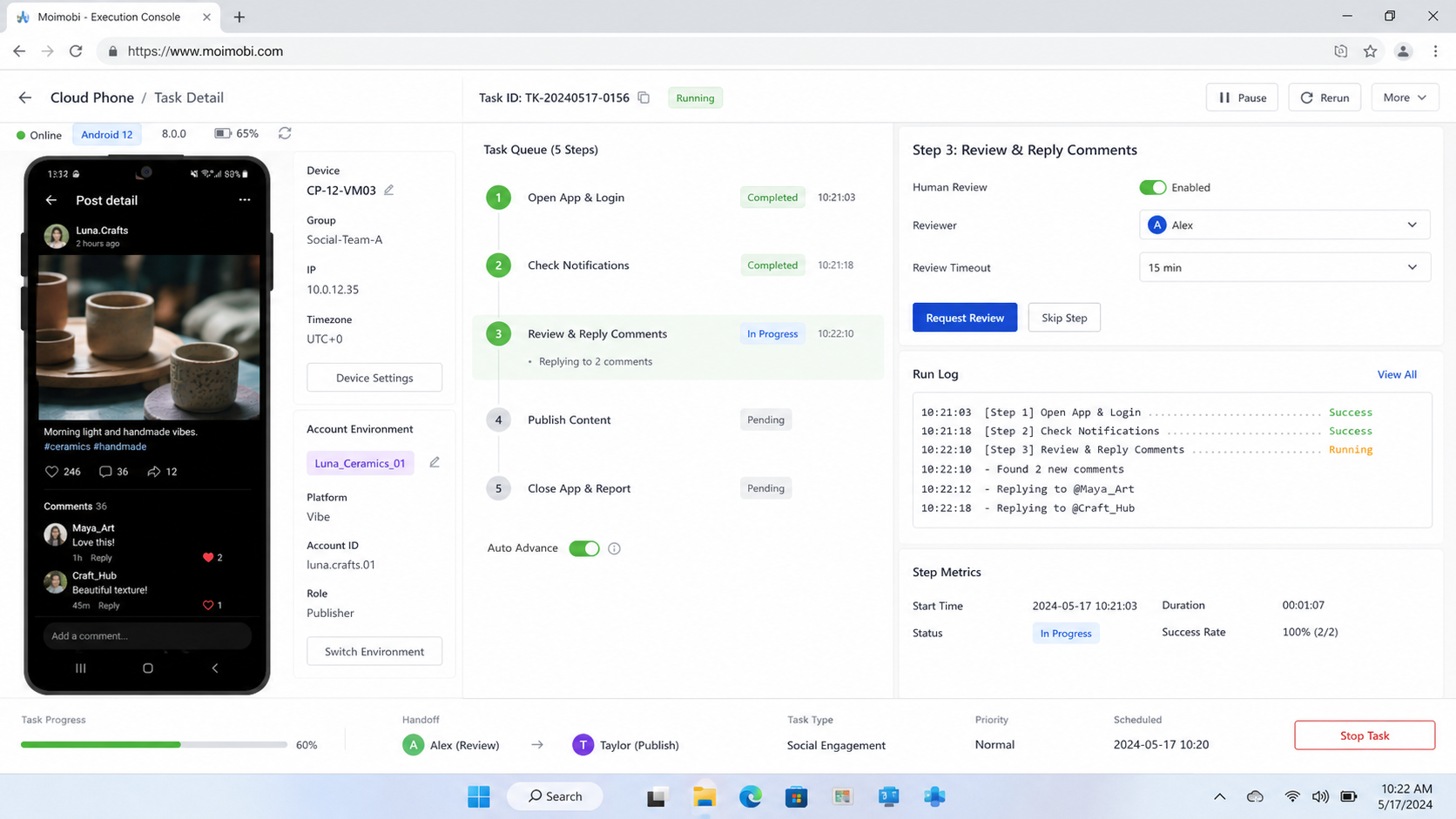
This is where a mobile execution layer supports the operating model. A team can prepare content in one place, assign an app task to a specific environment, require review before execution, and record the result after the task finishes. The workflow becomes a sequence instead of a collection of manual logins.
Typical use cases include:
- Publishing content to mobile-first social platforms.
- Reviewing comments and messages from a designated customer-support account.
- Checking mobile notifications that need a human decision.
- Running structured app workflows for commerce or lead follow-up.
- Testing a mobile content format before assigning it to a broader account group.
For platform-specific work, the TikTok account operations page is a more relevant next step than a generic automation page. The same principle applies to other platforms: define the app, account role, task boundary, and review point before adding execution capacity.
Mobile environments are also useful for teams with mixed responsibilities. A content operator should not automatically receive the same access as a support operator. A task queue can make that separation visible, while a shared unmanaged phone tends to hide it.
What the Environment Must Control
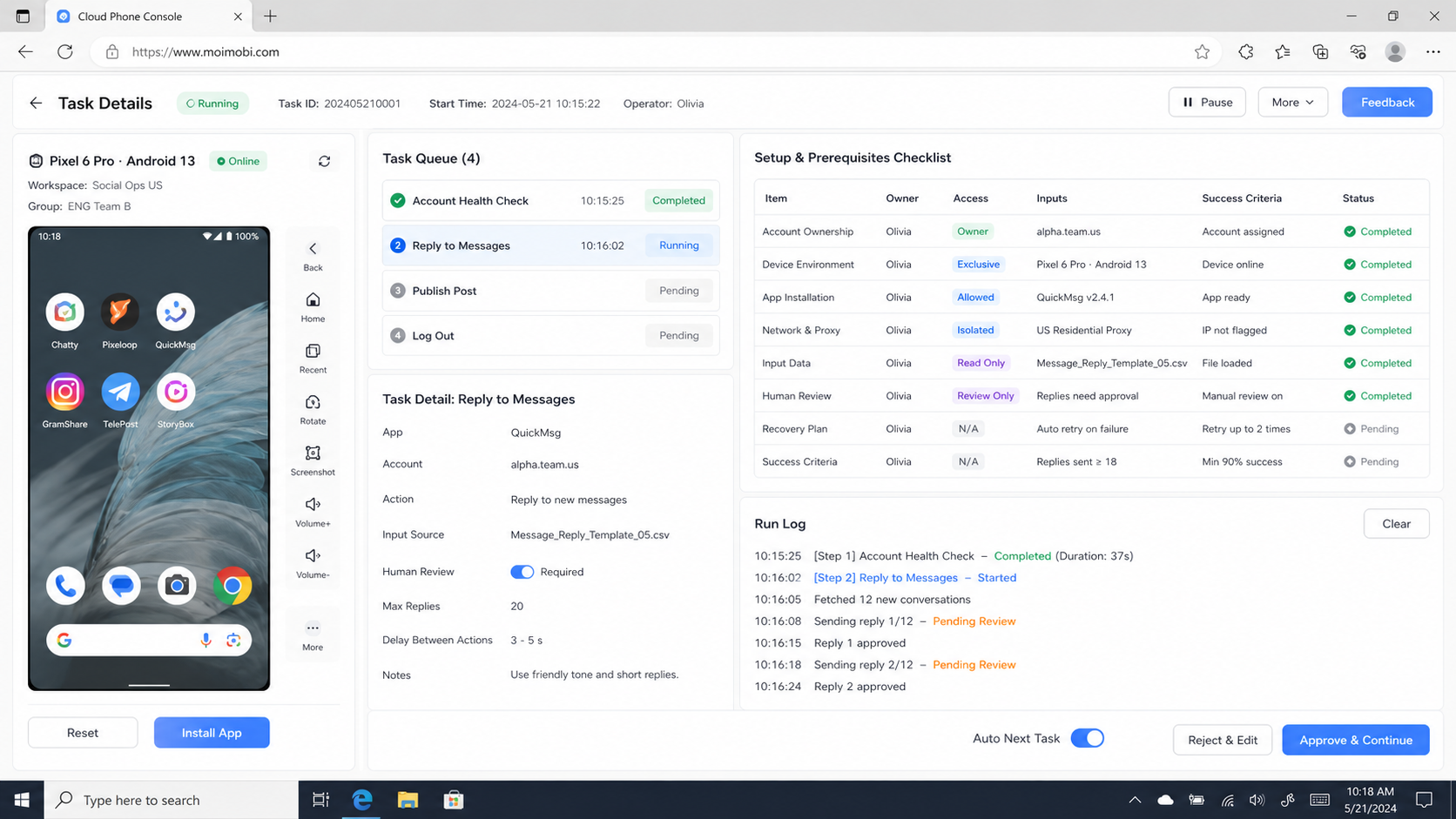
A usable cloud phone operating environment needs more than remote screen access. The following controls form the minimum evaluation set for a team pilot.
Account and environment mapping
Every account should map to an environment or an explicitly documented shared-use policy. The map should include the platform, account role, market, operator, and workflow owner. If an account changes hands, the record should show when and why.
Session and state handling
The team needs to know whether a session persists, when app data is reset, and how a failed task is recovered. A clean reset may be useful for testing. A persistent workspace may be better for a long-running support queue. Neither is universally correct.
Task permissions
Separate preparation from execution where the workflow needs approval. A writer can prepare a caption. A reviewer can approve it. An operator can run the mobile task. Those roles do not need identical permissions.
Routing and network context
Record the routing configuration that belongs to each operating lane. When a task fails, the team should be able to distinguish an app error from a connection issue or a workflow mistake. Avoid changing several variables at once during troubleshooting.
Evidence and recovery
Logs, screenshots, timestamps, task IDs, and error categories turn a vague failure into a reviewable event. A team does not need to store every screen forever. It does need enough evidence to decide whether to retry, pause, hand over, or investigate.
For a broader account-control model, a browser profile comparison can help teams understand where browser isolation ends and mobile execution begins. Browser profiles and mobile environments can work together, but they should not be treated as interchangeable state containers.
How to Start a Multi-Account Workflow
Begin with one workflow family, not an entire account pool. The sequence below keeps the first pilot measurable.
- Choose one task type. Start with publishing, reply handling, monitoring, or another clearly bounded task. Do not combine every action in the first run.
- Write the account charter. Record the account purpose, allowed actions, content boundary, operator, reviewer, and stop condition.
- Assign the environment. Attach the account to a mobile environment with a known runtime, state policy, network context, and access owner.
- Prepare the task. Store the content, target action, timing, required approval, and expected result before opening the app.
- Run with a visible status. Use states such as pending review, approved, running, completed, failed, paused, and unknown. Do not hide uncertainty inside a generic failure label.
- Record the result. Save the task ID, environment, operator, timestamp, result, evidence location, and next action.
- Review before expanding. Compare successful completion, recovery time, manual takeovers, and unknown outcomes. Expand only after the workflow is understandable.
This approach also protects the team from a common scaling error. Account count is easy to report. Workflow quality is harder, but it is the metric that determines whether the next account is manageable.
Fit and Not-Fit Boundaries
This model fits teams that have repeatable mobile tasks, more than one operating role, and a need to distinguish account state from task state. It is especially useful when the same workflow runs across a defined set of accounts and needs review records.
It is not a good first answer when the work is a one-time manual action, when no one owns the account map, or when the team cannot define what should happen after failure. A larger pool will not solve those gaps.
The model also needs adjustment when an app depends on physical hardware or device capabilities that the selected environment does not expose. Firebase Test Lab’s virtual Android device guidance documents limitations that can vary across virtual configurations, including ABI, graphics, Play Store, and augmented-reality support. A virtual environment may still be appropriate, but the team should identify the boundary before treating a passing run as complete evidence.
Choose a different or mixed model when:
- The workflow requires a camera, sensor, graphics behavior, or vendor-specific feature.
- The app must be tested across physical devices before a major release.
- The team needs a browser-first workflow with no meaningful mobile-app step.
- The account relationship or platform rule requires an explicit manual review.
- The team cannot maintain task records or respond to an abnormal result.
Pilot, Measurement, and Recovery Checks
The first pilot should answer whether the workflow is controllable. It should not be a race to maximize task volume.
Track these fields for every run:
| Field | Example value | Review question |
|---|---|---|
| Account role | Customer support | Did the task match the account’s purpose? |
| Environment ID | Android workspace 03 | Was the assigned environment correct? |
| Task state | Completed / failed / unknown | Is the result precise enough to act on? |
| Review state | Approved / manual takeover | Was the human checkpoint respected? |
| Evidence | Log, screenshot, timestamp | Can another operator reconstruct the event? |
| Recovery action | Retry, pause, handoff | Was the next action documented? |
Run the same task more than once under the same declared conditions. Then change one variable, such as the app version or account role, and compare the result. This makes the pilot useful for diagnosis rather than only for producing a success count.
Set a stop rule before execution. Pause the workflow when the environment is misassigned, evidence is missing, the task enters an unknown state, or the same failure repeats without a new hypothesis. A pause protects the quality of the data and keeps a small pilot from becoming uncontrolled bulk execution.
For teams that need real-device coverage, the AWS Device Farm documentation shows how physical devices can support remote access, parallel testing, logs, video, screenshots, and reports. Those capabilities illustrate the evidence standard to look for, even when the production workflow uses a different mobile platform.
Common Mistakes That Reduce Results
Mistake one: counting environments instead of lanes. Five devices do not mean five independent workflows if ownership and state are unclear. Count usable lanes after assignment, review, and recovery are defined.
Mistake two: sharing credentials without a task record. A shared login makes it difficult to separate operator error from account behavior. Use named ownership and event records where the workflow requires accountability.
Mistake three: treating isolation as a policy exemption. Environment separation helps organization. It does not authorize spam, unsolicited outreach, or actions that violate a platform’s rules.
Mistake four: using one status for every failure. “Failed” is not enough. Separate timeout, app error, missing permission, network issue, manual stop, and unknown result.
Mistake five: expanding before the review loop works. If a reviewer cannot understand one completed task, adding ten more accounts increases the backlog instead of improving operations.
Frequently Asked Questions
Does every account need its own cloud phone?
Not necessarily. The right boundary depends on the account’s state, task overlap, access policy, and recovery requirements. Use a shared environment only when that sharing is explicit and manageable.
Can a cloud phone operating environment replace a social media management tool?
It solves a different layer. A social media tool may organize content, scheduling, or analytics. A mobile environment provides the place where app-native work executes. Some teams need both.
Is account isolation the same as account safety?
No. Isolation reduces session and ownership confusion. It does not guarantee an account outcome or remove platform rules. Teams still need compliant workflows and human review.
What should happen when a task enters an unknown state?
Pause the task, preserve the available evidence, and assign a review owner. Do not blindly repeat an action when the team cannot tell whether it already completed.
Can the same workflow run across TikTok, Instagram, and WhatsApp?
The operating pattern can be similar, but the app steps, permissions, content rules, and evidence fields may differ. Keep platform-specific task definitions instead of copying one script everywhere.
How should a team measure a pilot?
Track completion, failure categories, recovery time, manual takeovers, missing evidence, and unknown outcomes. Device count alone does not show whether the workflow is improving.
When should browser profiles be added?
Add them when the workflow includes web dashboards, browser-based account work, or a browser step that mobile execution cannot provide. Keep browser and mobile state visible as separate layers.
What is the first control to add?
Start with the account-to-environment map. Without that map, later permissions, logs, and recovery records have no reliable ownership context.
Conclusion
A cloud phone operating environment supports multi-account workflows by giving mobile tasks a defined runtime, account boundary, task owner, and evidence path. It is not a shortcut around platform rules, and it is not useful merely because it increases the number of available screens.
Use this priority order: define account roles, assign environments, separate preparation from execution, record every result, then expand the workflow family. When the team can explain both a successful run and an unknown result, it has a stronger foundation for adding accounts or connecting browser and mobile execution layers.