A browser automation app for Windows is software that runs repeatable browser tasks from a Windows desktop or Windows-hosted environment. For social media workflows, the real question is whether the app can support account work, review steps, session separation, and recovery logs without turning daily operations into a fragile script collection.
Social media teams search for this topic when manual browser work starts to break down. A team may need to open dashboards, review comments, check inboxes, collect leads, publish approved content, or monitor competitors across several accounts. Basic clicking automation can help with repetitive steps, but it is not enough for multi-account operations.
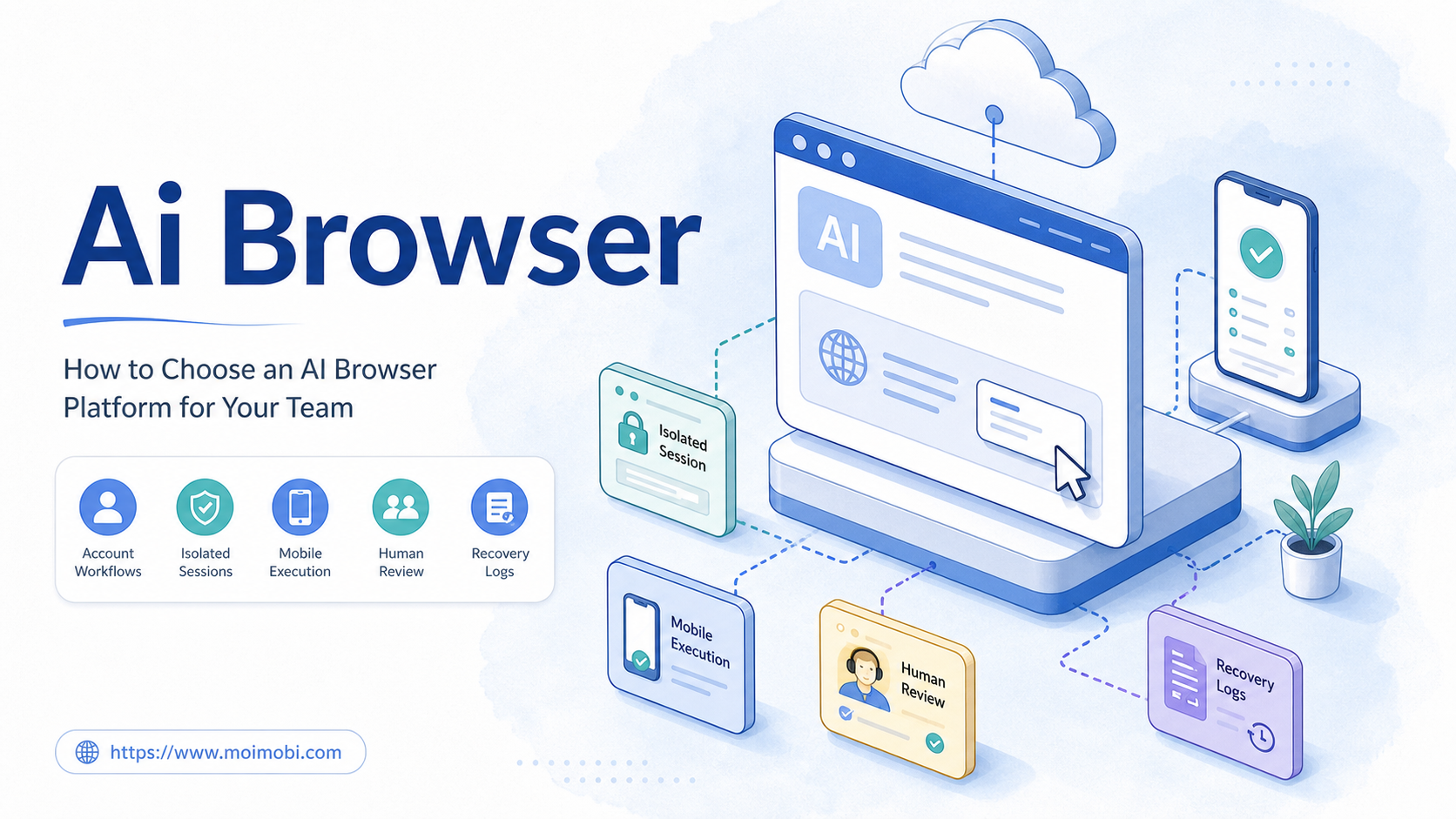
MoiMobi is not just a single Windows macro tool. It is an AI browser and cloud phone platform for teams that need real execution environments. Browser work can sit beside cloud phones, Android devices, account workspaces, proxy routing, and workflow records.
Key Takeaways
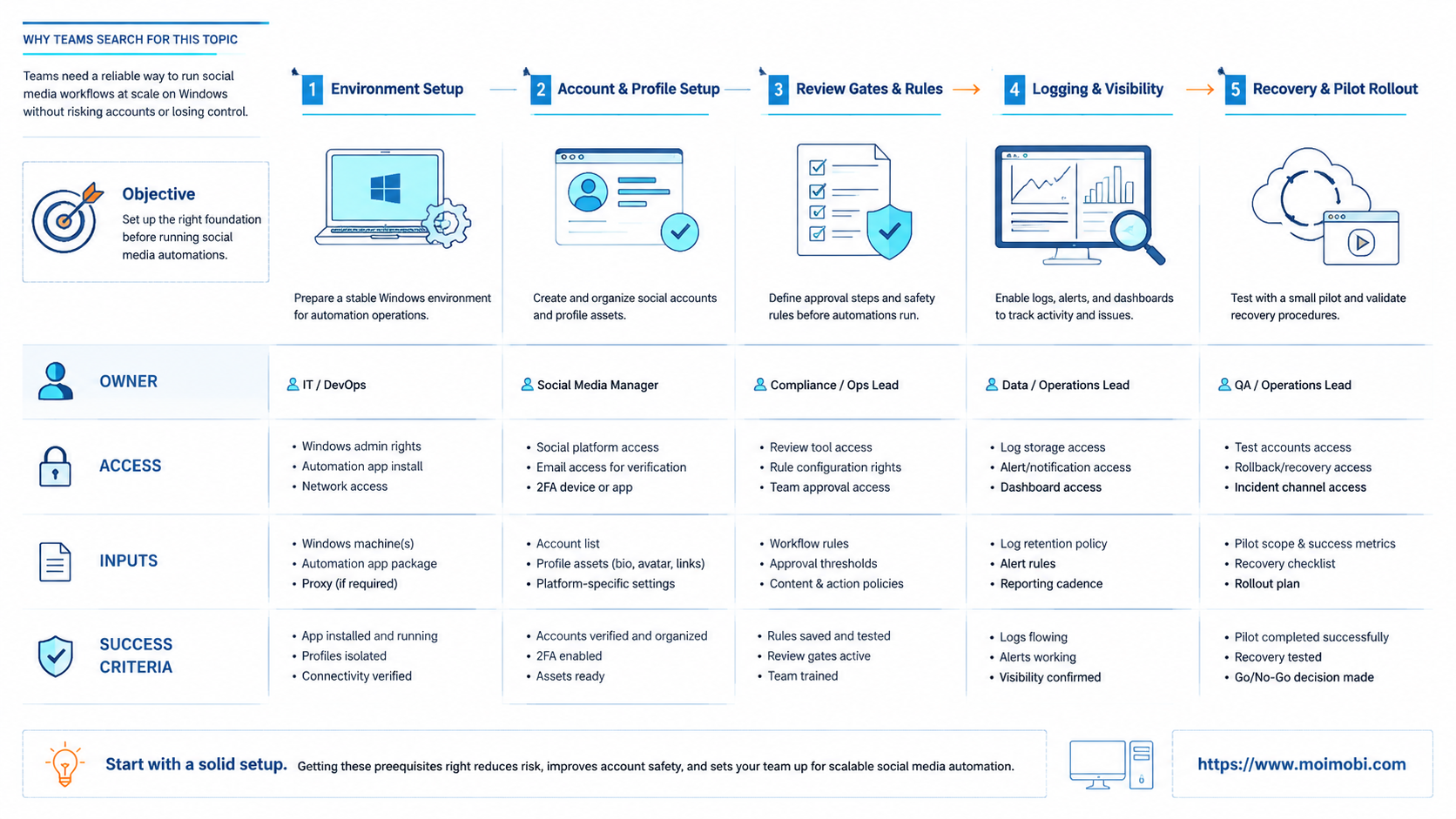
- A Windows browser automation app should be judged by workflow control, not only by click speed.
- Social media teams need account separation, task ownership, review gates, and logs.
- Use browser automation for web dashboards; use mobile execution when tasks happen inside apps.
- Start with one workflow and one account group before scaling.
- Treat failed tasks as useful evidence, not just errors to retry blindly.
The Core Idea Behind Browser Automation App for Windows for Social Media Workflows
The core idea is simple: automate repeated browser actions while keeping account operations reviewable. The tool may open pages, fill fields, click controls, collect information, or move through a dashboard. For social media teams, the stronger version also records which account, task, and operator were involved.
Windows matters because many operations teams still run daily tools from Windows desktops, remote Windows machines, or Windows-based virtual workspaces. Microsoft Power Automate for desktop is one official example of Windows desktop automation for repeated application and web tasks. Playwright and Selenium are more developer-oriented browser automation frameworks, while W3C WebDriver defines a browser automation protocol used across browser tooling.
The practical decision is not "Windows or not Windows." The decision is whether the automation layer can support the team's actual social media workflow. A simple bot may click faster. An operations-ready setup must show what happened, where it happened, who approved it, and what to do when it fails.
The operating model should also separate task execution from task judgment. A browser automation app can open the right dashboard, collect a list of pending comments, or move through a reporting page. It should not silently decide customer-sensitive actions without a review path. This distinction keeps automation useful without turning it into uncontrolled background activity.
| Need | What to check | Why it matters |
|---|---|---|
| Account work | Profiles, sessions, owners, roles | Social accounts need clean ownership |
| Task flow | Queue, status, retries, pause rules | Repeated work needs control |
| Human review | Approval before replies or publishing | Customer-facing actions need judgment |
| Recovery | Error reason and next owner | Teams need to repair failed runs |
Why Teams Search for This Topic
Teams usually search for Windows browser automation after spreadsheet-style coordination stops working. One person remembers the login, another person handles replies, and a third person checks campaign links. That model works until the team adds more accounts, clients, or platforms.
The myth is that browser automation means removing people from the workflow. The better model is controlled assistance. Automation handles repeatable page work, while humans still own judgment, escalation, account settings, and sensitive replies.
Social media workflows also cross surfaces. A team may review a post in a web dashboard, answer a message in a mobile app, and report the result in a client sheet. A browser-only tool can support part of this work. A broader execution system connects browser profiles with mobile automation and account records.
Platform rules also matter. Meta and TikTok both publish rules and terms that discourage spam-like behavior and platform abuse. A good operations setup should help teams control work, review outputs, and avoid blind volume increases. It should not encourage unsupported claims about restrictions or outcomes.
Windows-based automation is often attractive because teams already know the environment. Operators may already use Windows folders, spreadsheets, desktop apps, and browser windows as part of daily work. That familiarity helps adoption, but it can also hide weak process design. If the workflow depends on one person's desktop layout, it will be hard to scale.
Treat the Windows layer as an execution surface, not the whole system. The task still needs a source of truth for accounts, assets, approvals, and results. Otherwise, every operator builds a slightly different version of the same workflow.
Who Benefits Most and In What Situations
The strongest fit is a team that already has defined browser tasks. Examples include checking social dashboards, collecting post URLs, updating status records, reviewing comments in web views, or preparing reports. Those tasks have clear inputs and outputs.
Agencies benefit when account ownership is visible. Each client account needs a workspace, operator, reviewer, and activity record. A loose shared browser makes handoff harder.
E-commerce teams benefit when social media work supports customer engagement. For example, an operator may check campaign comments, collect product questions, and assign replies to support staff. Browser automation can reduce repeated navigation, but the team still needs review and routing.
Use this fit guide:
- Strong fit: web dashboards, account checks, lead collection, monitoring, reporting, and status updates.
- Partial fit: workflows that start in a browser but require mobile app confirmation.
- Weak fit: fully mobile app workflows, phone-only inboxes, or tasks that require rich visual judgment.
- Needs review: customer replies, outreach, publishing, account settings, and complaint handling.
When mobile apps are central, pair the browser layer with cloud phones. When many accounts are involved, plan the operating model around multi-account management.
Preflight Checklist for a Browser Automation App for Windows
Preflight work saves time later. It forces the team to decide what should be automated, what should be reviewed, and what should remain manual.
Check these items before building the first workflow:
- Account list: Which accounts are included in the pilot?
- Workspace rule: Which browser profile or environment belongs to each account?
- Login state: Who maintains access, and how is expiry handled?
- Task owner: Who is responsible for each workflow?
- Review owner: Who approves public or customer-facing actions?
- Data field: What result is collected, updated, or reported?
- Stop rule: When should the workflow pause instead of retrying?
- Recovery owner: Who repairs a failed run?
This checklist also helps compare tools. A tool that only records clicks may be enough for one-off desktop work. Social media teams usually need more context. They need account identity, task status, review decisions, and handoff notes.
Browser Automation App for Windows vs Broader Execution Platforms
Windows browser automation fits best when the task stays inside a web browser. A broader execution platform is useful when the workflow crosses browser profiles, cloud phones, Android apps, AI workers, and team review queues.
The difference becomes clear in daily operations. A browser app can open a social dashboard and collect pending replies. An execution platform can also assign the account, route the task to the right workspace, pause for review, and record the final outcome.
Use this decision split:
- Choose browser-only automation when the task is narrow, local, and browser-based.
- Choose an AI browser workflow when task instructions, review, and account context matter.
- Choose browser plus mobile execution when the same workflow touches web dashboards and app-only screens.
- Choose a multi-account execution setup when several accounts, clients, or operators share the same process.
MoiMobi is closer to the broader execution model. It is designed for teams that need browser work, mobile work, and account operations to stay connected. That matters when social workflows move from one operator to a repeatable team process.
How to Evaluate or Start Using Browser Automation App for Windows for Social Media Workflows
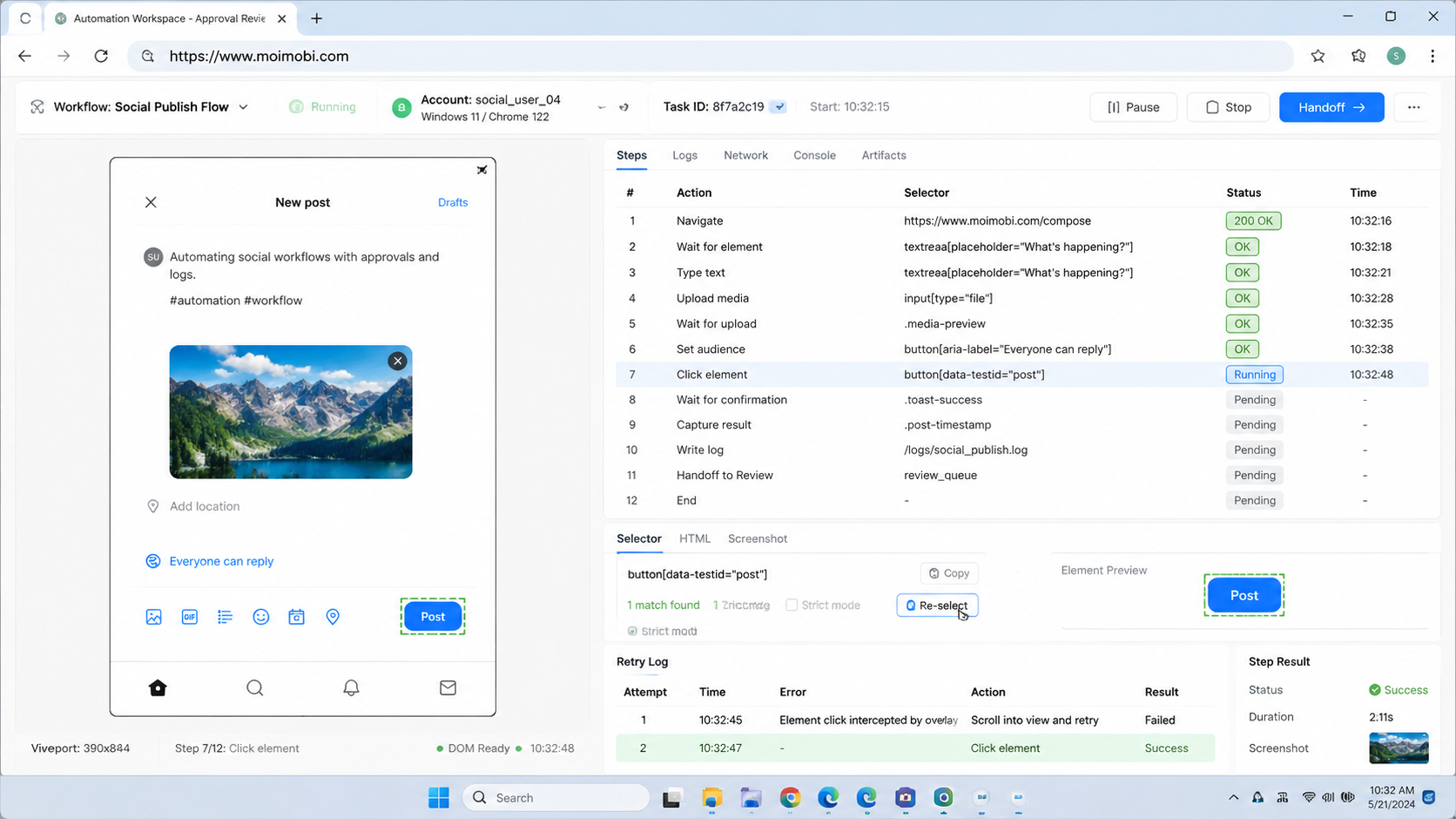
Do not start with every account. Start with one repeatable workflow where success and failure are easy to recognize. This keeps the pilot clear.
Follow this sequence:
- Choose one workflow. Pick a dashboard check, reporting task, or account review task.
- Define the account boundary. Assign the account, browser profile, operator, and reviewer.
- Map every step. List page open, login state, click path, data collection, and final status.
- Add review gates. Pause before replies, outreach, publishing, or profile changes.
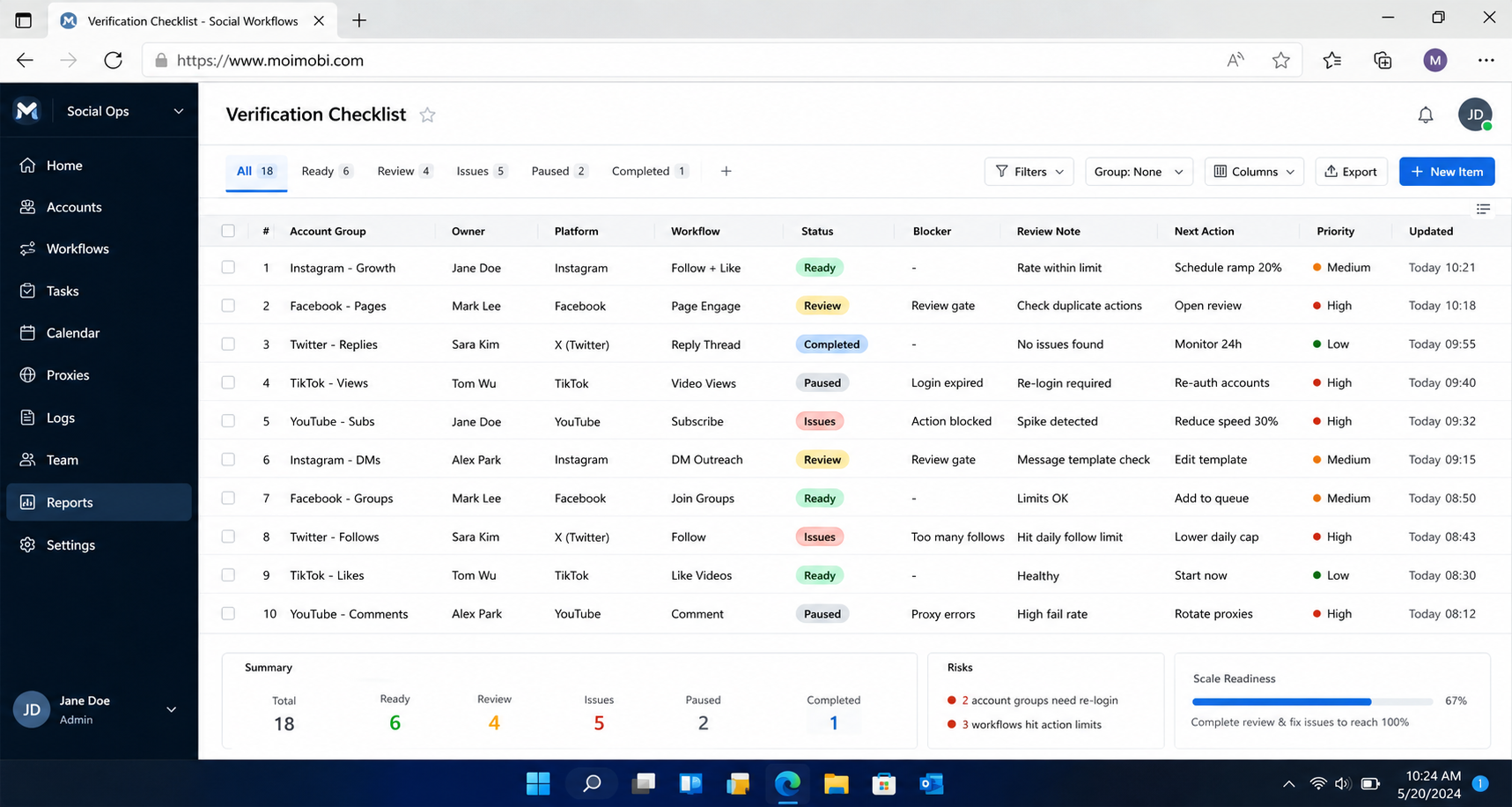
- Record task status. Track pending, running, reviewed, completed, failed, and paused.
- Label failures. Use account issue, page change, login issue, instruction issue, or review delay.
- Review before scale. Expand only after the team understands failure patterns.
This sequence also helps compare tool types. Power Automate for desktop may fit office-style Windows automation. Playwright or Selenium may fit engineering teams that build custom browser automation. MoiMobi fits teams that need browser and mobile execution tied to account operations and AI worker workflows.
Mistakes That Reduce Results
The biggest mistake is automating a messy workflow. If the team cannot explain who owns the account, what the task does, and where the result is stored, automation will make the confusion faster.
Another mistake is using one browser profile for many unrelated accounts. That makes sessions, ownership, and activity records harder to interpret. A better approach is to tie each account or client group to a controlled workspace.
Avoid these patterns:
- Click-first setup: building actions before defining the account owner.
- No stop rule: retrying failed tasks without inspecting the cause.
- No review queue: letting customer-facing actions run without approval.
- No mobile handoff: forcing app-only tasks into browser workflows.
- No audit record: finishing tasks without status, time, account, and reviewer notes.
A concrete example is comment monitoring. The tool can open the dashboard and collect pending comments. The AI worker can classify them. A reviewer approves sensitive replies. The workflow log records the final action.
Pilot Rollout, Measurement, and Recovery Checks
The pilot should prove control before volume. A workflow that runs ten times with clear logs is better than a workflow that runs one hundred times with unclear results.
Track these metrics:
- Tasks completed by account.
- Tasks paused for review.
- Failed tasks by reason.
- Average recovery time.
- Human edits to AI-generated drafts.
- Accounts with repeated login or session issues.
- Workflows that require mobile handoff.
Use a recovery checklist:
- Stop the workflow after repeated failures.
- Identify whether the issue is account, session, selector, page change, permission, or review queue.
- Assign a repair owner.
- Test the fix on one account.
- Resume the workflow only after logs are clean.
This process keeps browser automation from becoming invisible background activity. It also gives managers evidence for the next decision: improve the workflow, add accounts, or connect a mobile execution layer.
For teams planning broader social media marketing, the pilot should include both business outcomes and operational outcomes. Business outcomes show whether the work matters. Operational outcomes show whether the team can keep it controlled.
Review the pilot in a short meeting, not only in a report. Ask the operator what felt repetitive, what required judgment, and what broke the workflow. Ask the reviewer which outputs needed edits. Ask the manager whether the logs were enough to explain progress.
Those answers show whether the next step is more automation or better workflow design. Sometimes the fix is not another action script. It is a cleaner account map, a clearer review rule, or a better handoff between browser and mobile work.
Frequently Asked Questions
1. What is a browser automation app for Windows?
This type of app runs repeated browser tasks from a Windows environment. It can support navigation, clicks, forms, data collection, and workflow steps.
2. Is it enough for social media automation?
Some web-based workflows can run well in the browser. Mobile-first tasks, app inboxes, and phone-only actions may need cloud phones or Android execution.
3. Should teams use a no-code tool or developer framework?
Use no-code tools for simpler repeatable desktop workflows. Use developer frameworks when the team needs custom control, testing, or engineering ownership.
4. What should be reviewed by humans?
Review public replies, outreach, publishing, account settings, customer complaints, and any action that could affect account reputation.
5. How many accounts should be in the first test?
Start with one account group. Five to ten similar accounts are enough to expose workflow and ownership issues.
6. What if the page layout changes?
Pause the workflow, label the failure, repair the action path, and test on one account before expanding again.
7. Can Windows browser automation work with AI agents?
Yes, when the AI agent has defined tools, account context, review rules, and logs. Without those controls, the setup is harder to manage.
8. When should a team add cloud phones?
Add cloud phones when the workflow requires mobile apps, mobile notifications, app inboxes, or Android account environments.
9. What is the best next step?
Pick one browser workflow, define the account owner, add a review rule, and run a short pilot with clear failure labels.
Conclusion
A browser automation app for Windows can help social media teams reduce repeated browser work. The value depends on workflow clarity, account boundaries, review gates, and recovery records.
Start with one narrow workflow. Confirm that the team can see the account, environment, status, reviewer, and failure reason. If that works, expand the browser workflow or connect it to mobile execution where the task requires apps.
References