Key Takeaways
- Hosted mobile environments let teams access, assign, and reuse app workspaces.
- It is useful for mobile workflows that need parallel devices, app state, and clear ownership.
- The first pilot should test one workflow before the team scales to more accounts or devices.
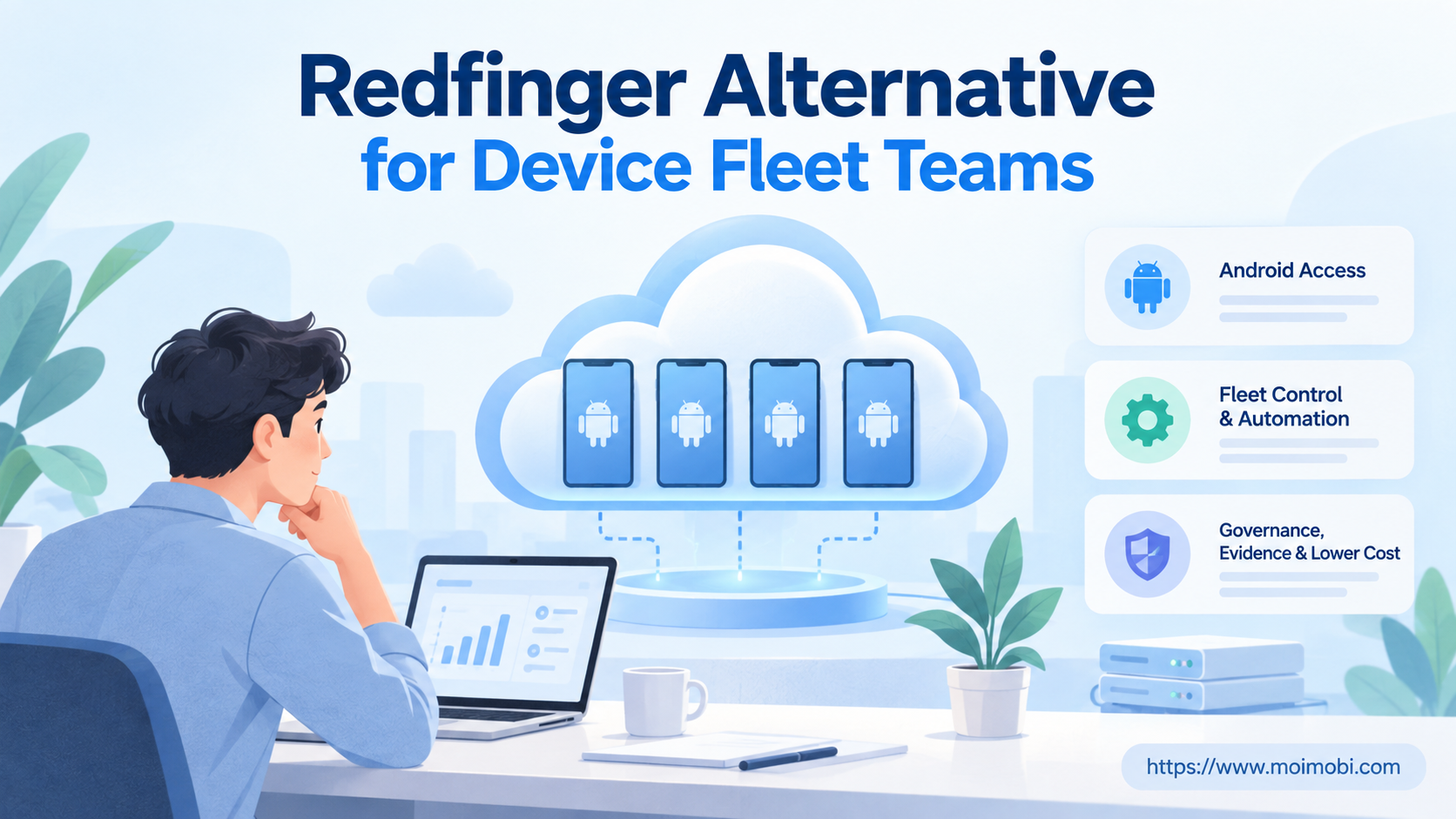
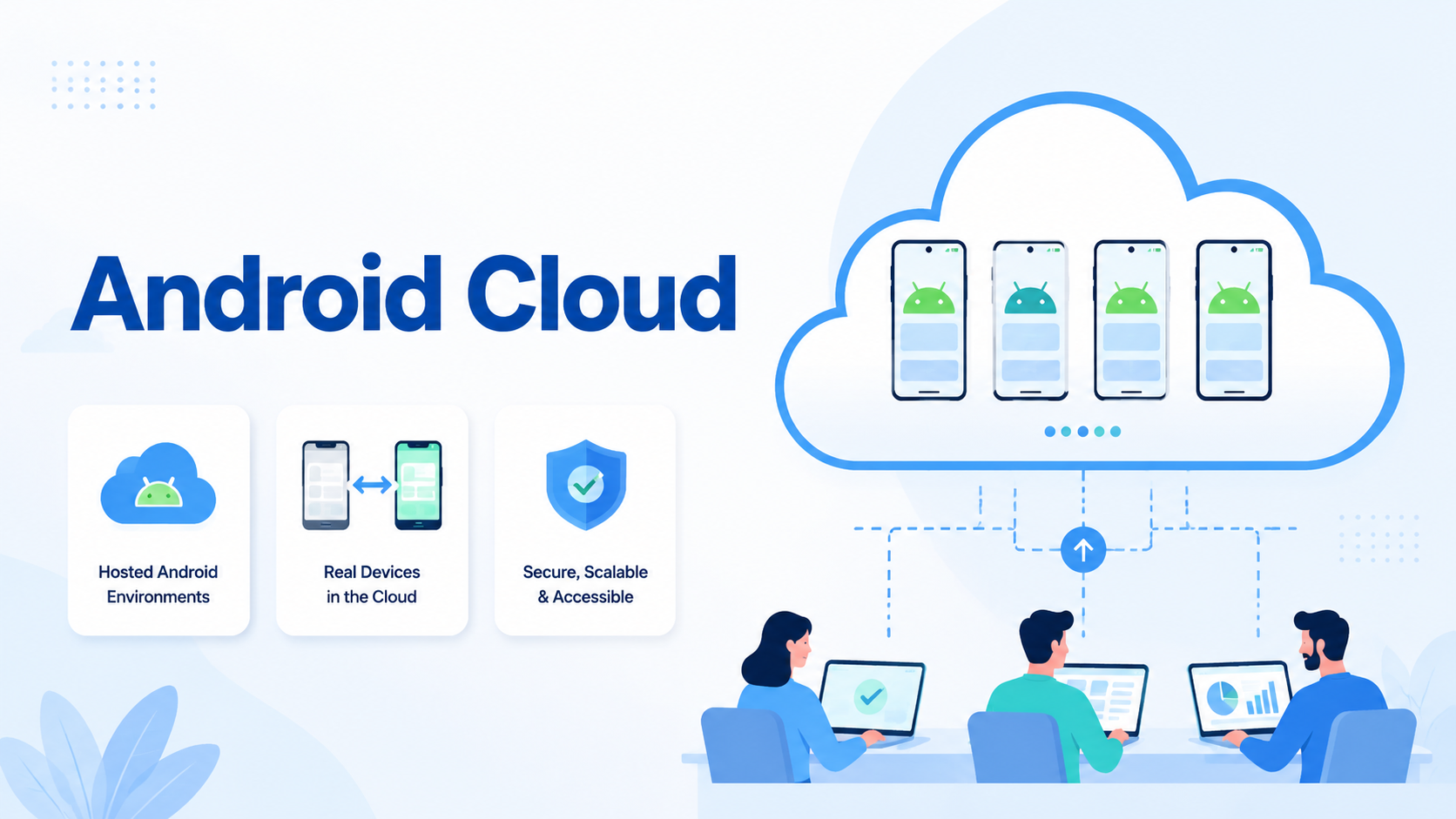
Android cloud is a remote Android environment that runs in cloud infrastructure instead of only on a local physical phone. Teams use it to access Android apps, test workflows, manage mobile tasks, and run repeated operations without passing devices around.
The term can mean different things by vendor. Some products behave like hosted emulators. Others provide remote phones that keep app state and connect accounts to clear owners. For work teams, the useful question is simple: can this workspace run the mobile task and leave enough detail for review?
The Core Idea Behind Android Cloud
The core shift is simple: the mobile workspace moves away from one local device and into a managed environment. A user opens the device through a dashboard, runs an app, performs a task, and records the outcome.
This changes the decision from "which phone do we buy?" to "which mobile workspace can repeat this task?" A cloud phone is one form of this setup when the goal is reusable mobile work, not just app preview.
Google's Android Emulator documentation describes emulator use for app testing. That covers one side of the category. Hosted devices for teams usually add access control, owner fields, shared review, and task routing.
Why Teams Search for Hosted Mobile Environments
Teams search for hosted mobile options when mobile work becomes hard to run from desks, laptops, and scattered physical phones. The problem is not only device access. It is task ownership.
Common searches come from three situations:
| Situation | What the team needs |
|---|---|
| App testing | Repeat checks across mobile environments |
| Social operations | Run publishing, reply, and monitoring tasks |
| Customer engagement | Keep mobile inbox workflows assigned and visible |
A cloud phone for TikTok automation or cloud phones for WhatsApp marketing should not be judged only by screen count. The better test is whether each account, app, task, and operator has a clean place to work.
Who Benefits Most and In What Situations
This category is a stronger fit for teams with repeated mobile tasks. Agencies, cross-border sellers, support teams, and social media teams often need multiple app sessions that are easy to review.
It is weaker for one-off tasks. A single app check, a personal phone backup, or a short manual test may not need a managed setup. In those cases, a local device or a simple emulator may be enough.
Use this fit rule before the first pilot:
| Fit signal | Decision |
|---|---|
| Repeated app tasks across many accounts | Strong fit |
| QA checks that need device access and evidence | Possible fit |
| Occasional personal use with no team review | Weak fit |
| No owner for the device, account, task, or failure note | Stop and redesign |
When account context matters, device isolation and multi-account management belong in the first design, not in a later cleanup plan.
Android Cloud vs Cloud Emulator
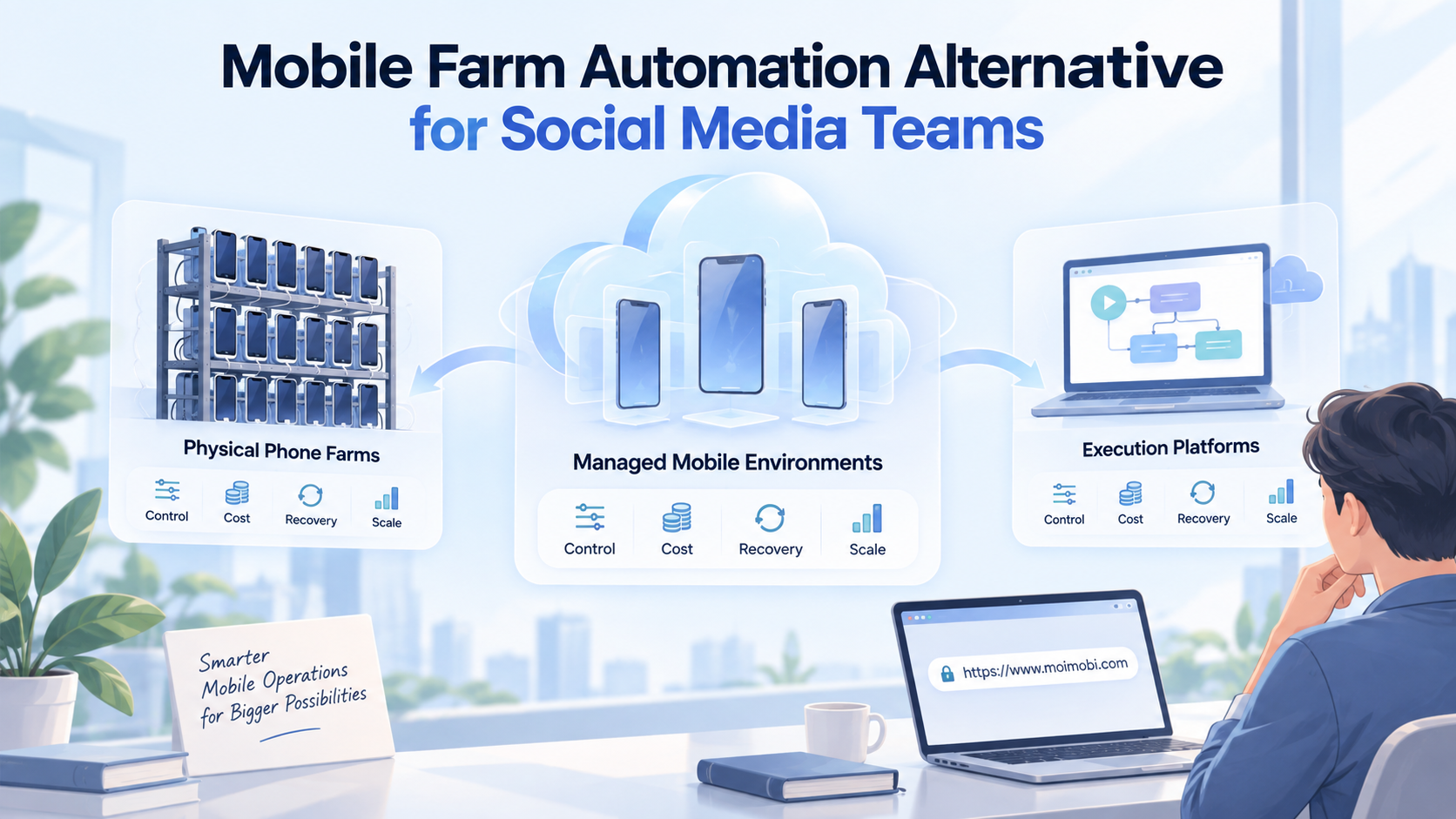
Cloud emulator is a narrower idea: it usually points to an Android-like test workspace used to run or inspect apps. A hosted mobile setup is broader when it keeps device state, account workspaces, team access, and task history.
The difference matters because work teams need more than app launch. They need reuse, ownership, logs, and recovery. An emulator may answer a test question. A remote phone fleet may answer an execution question.
| Question | Cloud emulator | Hosted mobile operations setup |
|---|---|---|
| Main use | App testing or preview | Repeated mobile workflow execution |
| State | Often temporary | Often persistent |
| Team control | Varies by provider | Usually central to the setup |
| Best fit | QA and development checks | Social, support, ecommerce, and app workflows |
For technical app work, the official Android Debug Bridge documentation is useful background on device communication. For business operations, the larger question is how tasks move through people, devices, and review.
How to Start Using Android Cloud Devices
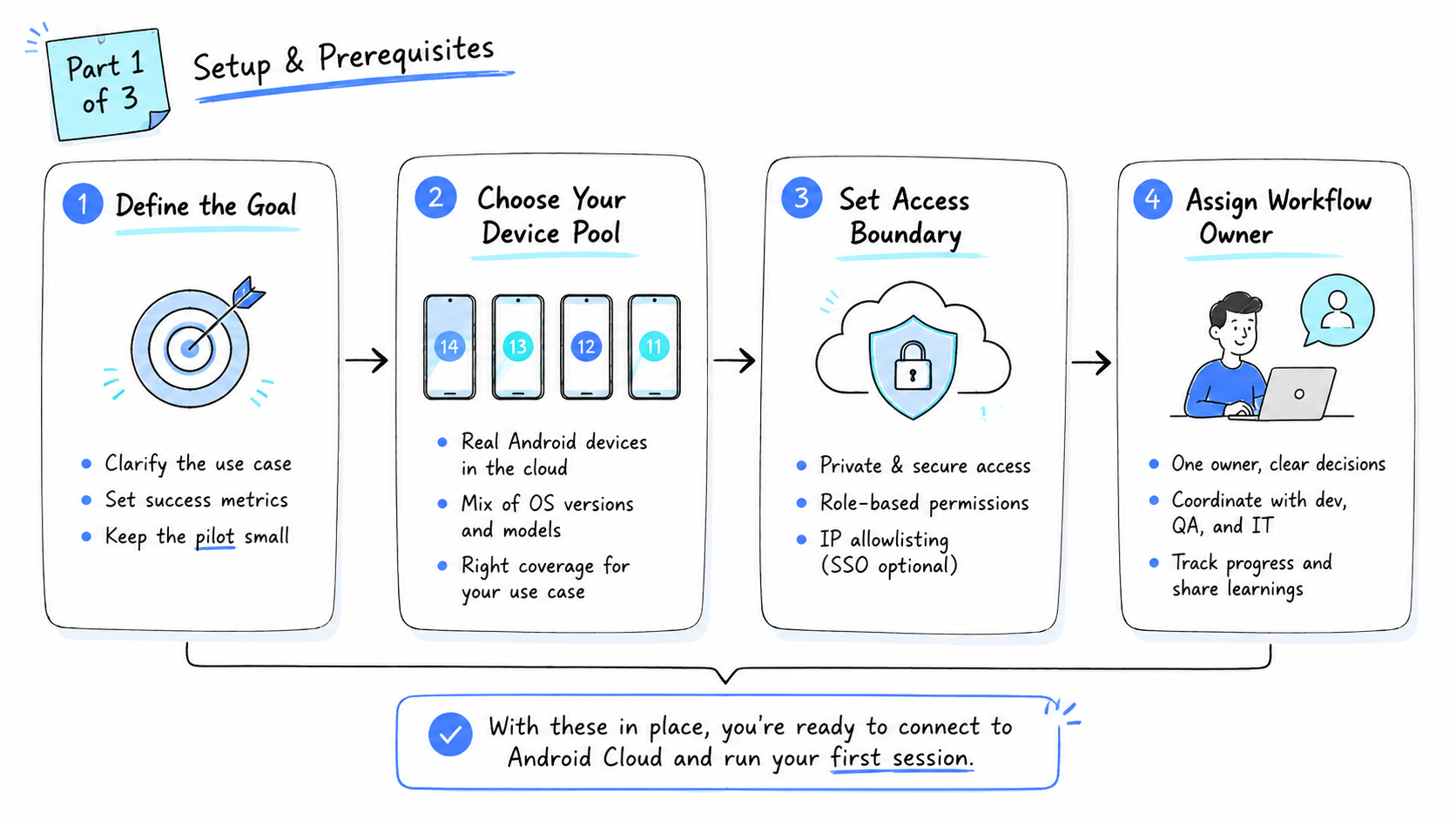
Start small. A pilot should prove that the workspace improves execution quality before the team adds more devices, accounts, or automation.
Use this pilot path:
| Step | What to do |
|---|---|
| Workflow | Choose content publishing, inbox review, app testing, or customer follow-up |
| Device group | Start with 3 to 5 hosted mobile workspaces |
| Ownership | Give each device one account context and one operator |
| Evidence | Capture screenshots, timestamps, notes, and failure reasons |
| Scale check | Add more workspaces only when failures are easy to explain |
Teams that plan to automate later should connect the pilot to mobile automation after the manual path is clear.
Mistakes That Reduce Results
Inventory is the wrong starting point. Device count does not solve unclear work; it only makes unclear work move faster. A team that cannot explain each workspace will add supervision, not capacity, even if the dashboard looks larger.
Avoid mixing unrelated accounts and tasks in the same workspace. It feels convenient during a test. Later, review becomes slow because app state, actions, and operator ownership are tangled together.
Policy review belongs in the setup stage, before workflow design hardens. Teams should read platform and app rules before they design workflows. The Google Play policy center is one official reference for app ecosystem expectations, and Google's helpful content guidance reinforces a broader review rule: output should help the person it is made for.
Frequently Asked Questions
What does the term mean?
The term means a hosted mobile environment that teams can access through remote infrastructure for app work, testing, or mobile operations.
Is it the same as a cloud phone?
Not always. A cloud phone is usually a persistent remote Android device with app state and repeat access. The broader category can also include emulator-style environments.
Is it only for developers?
No. Developers may use it for testing. Operations teams may use the same type of environment for publishing, replies, app checks, and account workflows.
What is the difference between cloud phone vs emulator?
An emulator is often used for testing. A cloud phone is usually better when the team needs app state, repeat access, account ownership, and daily work records.
Can teams use remote Android devices for social media work?
Yes, when the workflow needs mobile app access, account assignment, review notes, and controlled device environments. Start with one platform before adding more accounts.
How many environments should a team start with?
Start with 3 to 5. Expand only after one workflow produces repeatable results.
What should teams measure first?
Measure completed tasks, failed steps, review quality, idle time, and rescue minutes after failure.
Conclusion
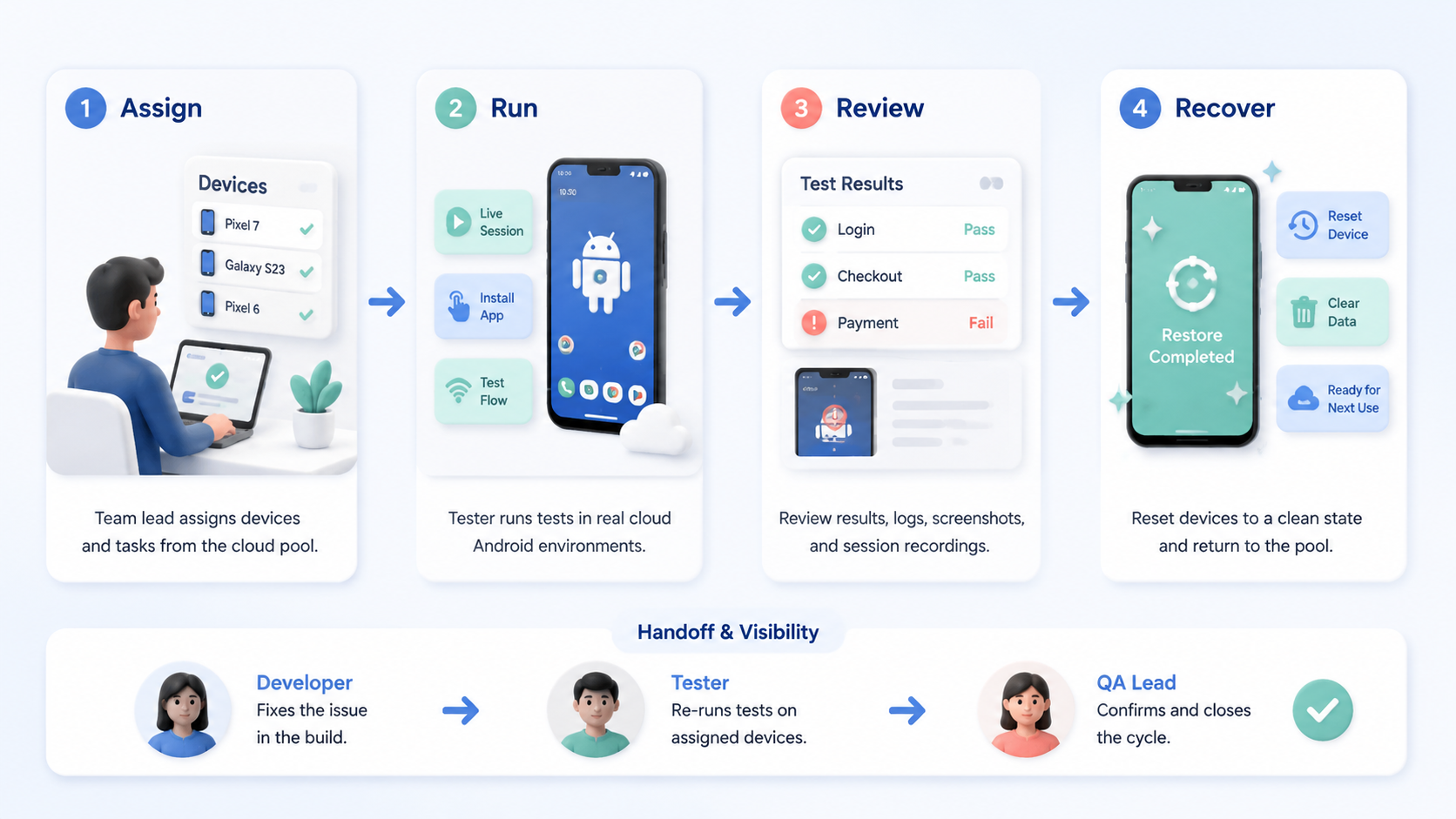
This setup is most useful when the team has repeated mobile work that needs ownership, review, and controlled execution. It is less useful when the task is occasional or does not need a persistent environment.
Start with one workflow and a small device group. If account ownership, task output, and failure review are clear after the pilot, the team can scale the remote Android setup with less guesswork.