Key Takeaways
- A cloud phone is a remote Android device that teams access through the internet.
- It is useful when mobile app work needs persistent state, account assignment, and review.
- The first pilot should test one workflow before the team adds more devices or automation.
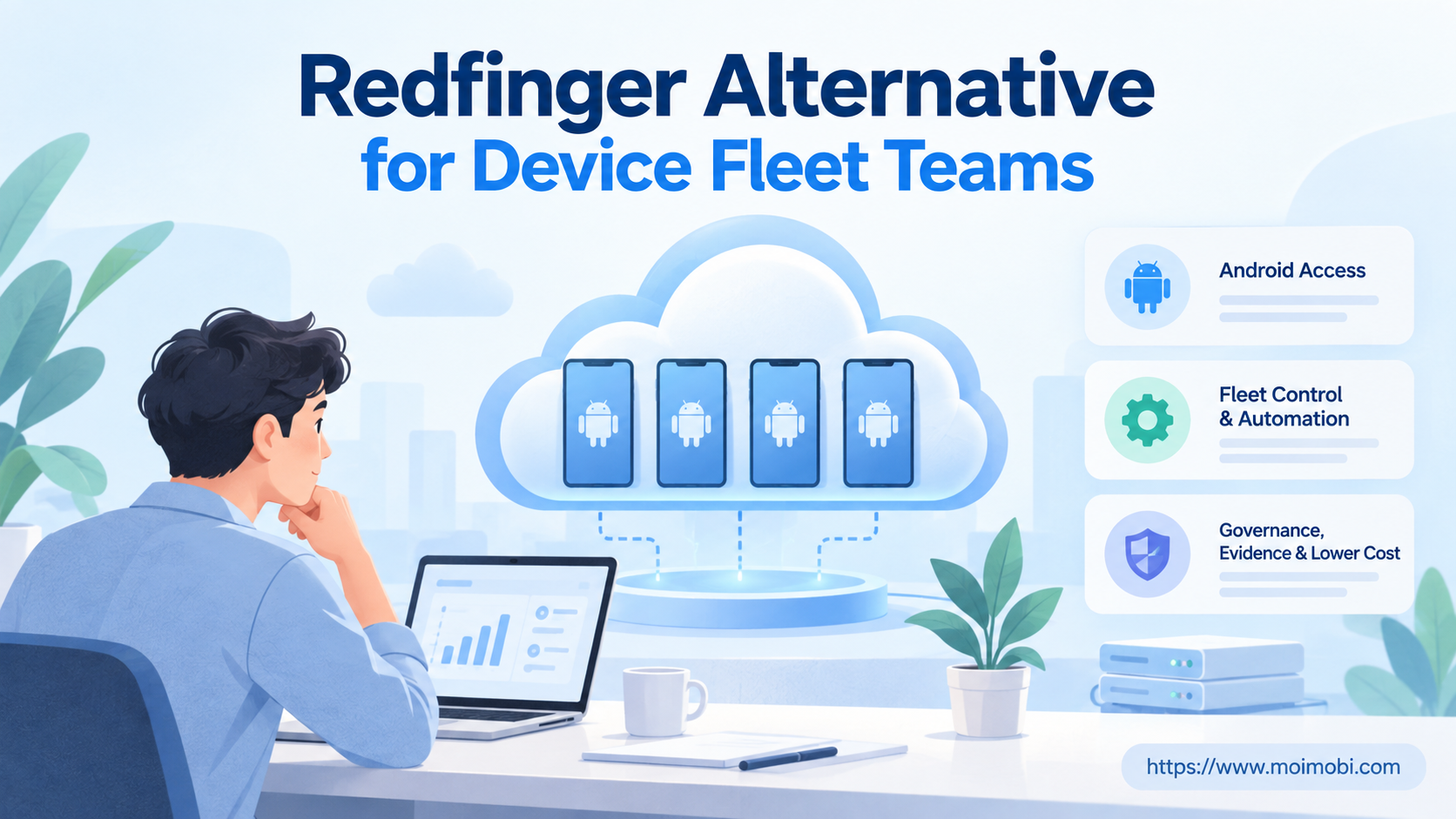
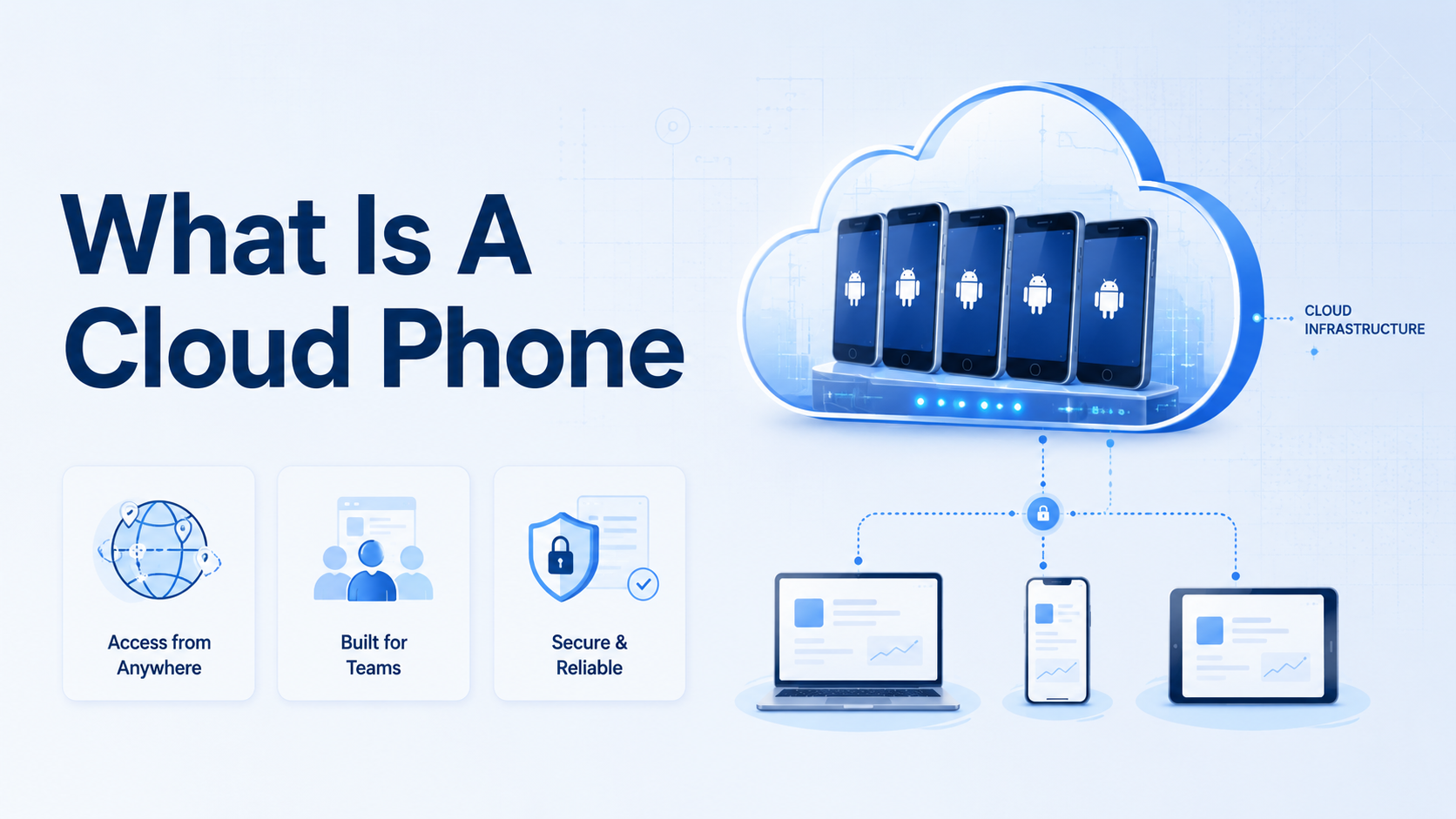
A cloud phone is a remote Android device that runs in cloud infrastructure while users control it from a browser or desktop app. Teams use it to open mobile apps, keep app state, run repeated tasks, and manage mobile workflows without passing physical phones around.
For operations teams, the real value is not only remote access. A cloud phone becomes useful when it connects accounts, devices, operators, and task records in one managed system. That is the difference between a rented screen and an execution environment.
What Is a Cloud Phone?
This hosted device gives users access to a remote mobile environment. The device runs Android, stores apps, keeps sessions, and supports a specific account or workflow. The user sees the screen remotely and controls it like a phone.
The setup usually includes three parts:
| Layer | What it does |
|---|---|
| Remote device | Runs Android apps and keeps app state |
| Control interface | Lets users operate the device from a computer |
| Team layer | Assigns accounts, tasks, logs, and review notes |
Google's Android Emulator documentation explains one way developers test Android apps. A hosted phone can serve a different role when the goal is persistent mobile operations rather than local development testing.
How Does a Cloud Phone Work?
The remote device runs on hosted infrastructure. A user opens it from a web or desktop control panel. Then the team can launch apps, perform the task, and review the result. The important part is persistence: app installs, login state, files, and task context can remain available between sessions.
For team work, assign one phone to one account or one account group. That map saves review time. It also gives managers a clearer trail when a task fails, because the device history points back to a known workflow.
For automation, the device can become one execution target. A task system can open an app, run steps, wait, collect evidence, and report a pass or failure. This is where mobile automation matters.
Why Remote Android Devices Matter for Teams
The mistake is thinking hosted phones are only cheaper physical phones. Price matters, but team control matters more. A workflow breaks when the team mixes accounts, operators, devices, and review notes.
Remote Android devices help when the team needs:
- multiple mobile environments running in parallel
- account-specific app state
- remote access for distributed operators
- task logs and screenshots
- mobile app workflows that do not work well in a desktop browser
- a cleaner handoff between operators and managers
For social, support, or ecommerce work, the device is only one layer. The team still needs process design, assignment, and recovery rules.
What Is a Cloud Phone Used For?
This setup is a good fit when work depends on mobile apps. Common examples include app testing, content publishing, customer message review, social account operations, and marketplace checks.
Judge a remote phone for TikTok automation or hosted phones for WhatsApp marketing by workflow control, not only screen count. Ask whether the platform can show which account ran, what task happened, and what changed.
Typical use cases:
| Use case | What the team should check |
|---|---|
| Social media operations | Account isolation and review notes |
| Customer replies | Inbox ownership and response logs |
| Ecommerce operations | Marketplace app access and status checks |
| App testing | Device state and repeatable evidence |
| Lead follow-up | Account assignment and handoff records |
Use multi-account management when different accounts need separate workspaces and owners.
Cloud Phone vs Emulator
A cloud emulator usually points to a virtual Android environment used for testing. A hosted phone is usually positioned as a persistent remote mobile device for real app workflows. The exact difference depends on the provider, so teams should test the workflow instead of relying on labels.
The practical difference is easier to see in a decision table:
| Need | Better fit |
|---|---|
| App testing or preview | Cloud emulator |
| Persistent mobile operations | Hosted phone |
| Hardware signals, carrier conditions, or sensors | Physical phone |
The official Android Debug Bridge documentation is useful background for technical device control. For operations teams, the bigger question is whether the platform supports ownership, review, and recovery.
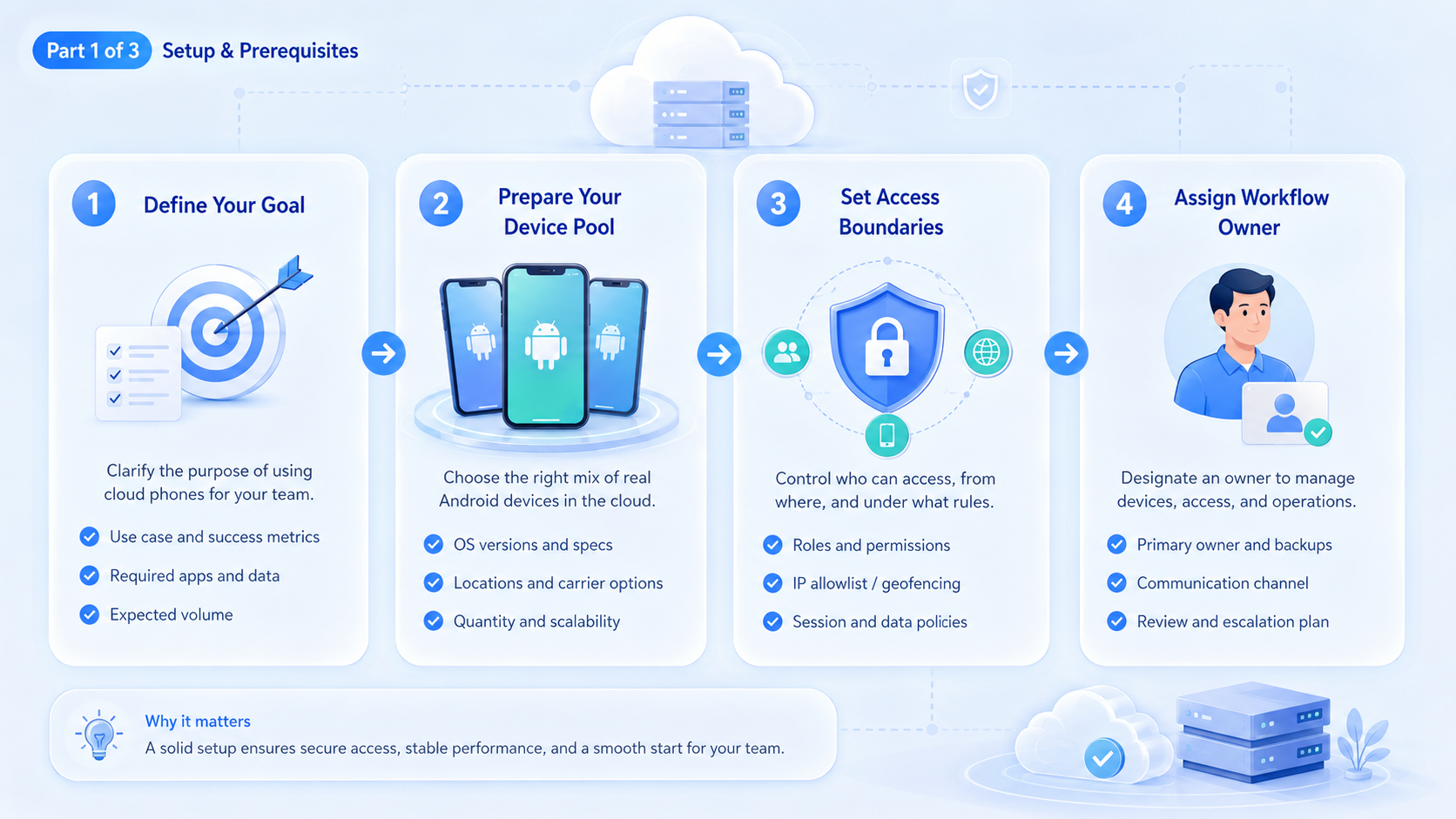
How to Start with a Hosted Phone
Start with one workflow. A large device pool hides setup mistakes during the first test.
| Step | Pass signal |
|---|---|
| Pick one app task | Publishing, reply review, app testing, marketplace checks, or customer follow-up is named |
| Assign a small device group | 3 to 5 devices are enough for the first run |
| Map accounts to devices | Each account has a clear workspace and owner |
| Record evidence | Screenshots, task status, notes, and failure reasons are captured |
| Review before scaling | More devices are added only when results are repeatable |
Use device isolation when account context needs to stay separate.
What Is a Cloud Phone Not Good For?
It is not a fix for unclear operations. More devices only help when the team can assign work, inspect results, and repair failures.
Use these stop signals before adding more devices:
| Stop signal | What to fix first |
|---|---|
| Device count is the main goal | Define the workflow and owner |
| Multiple accounts share one device | Separate account context before scaling |
| Automation starts before a manual path exists | Write the task steps and approval points |
| Policy review is missing | Review app and platform rules before launch |
If the work only happens in a website dashboard, an isolated browser profile may be simpler. If the platform fully supports the task through an API, a direct integration may be cleaner. The Google Play policy center is one official reference for app ecosystem expectations.
Frequently Asked Questions
What does the term mean?
It means a remote Android device that users access through the internet for app work, testing, or mobile operations.
How does it work?
It runs Android remotely, streams the screen to the user, and keeps app state for repeated use.
Is it the same as an emulator?
Not exactly. Developers often use an emulator for testing. Providers usually build hosted phones for persistent remote mobile use.
Who should use hosted phones?
Teams with repeated mobile app workflows, multiple accounts, or remote operators are the strongest fit.
How many devices should a team start with?
Start with 3 to 5 devices and one workflow. Expand after review and recovery are clear.
Can teams use hosted phones for social media work?
Yes, when the workflow needs mobile app access, account assignment, screenshots, and task records.
What should teams measure first?
Track completed tasks, failed steps, rescue time, device idle time, and review quality.
Conclusion
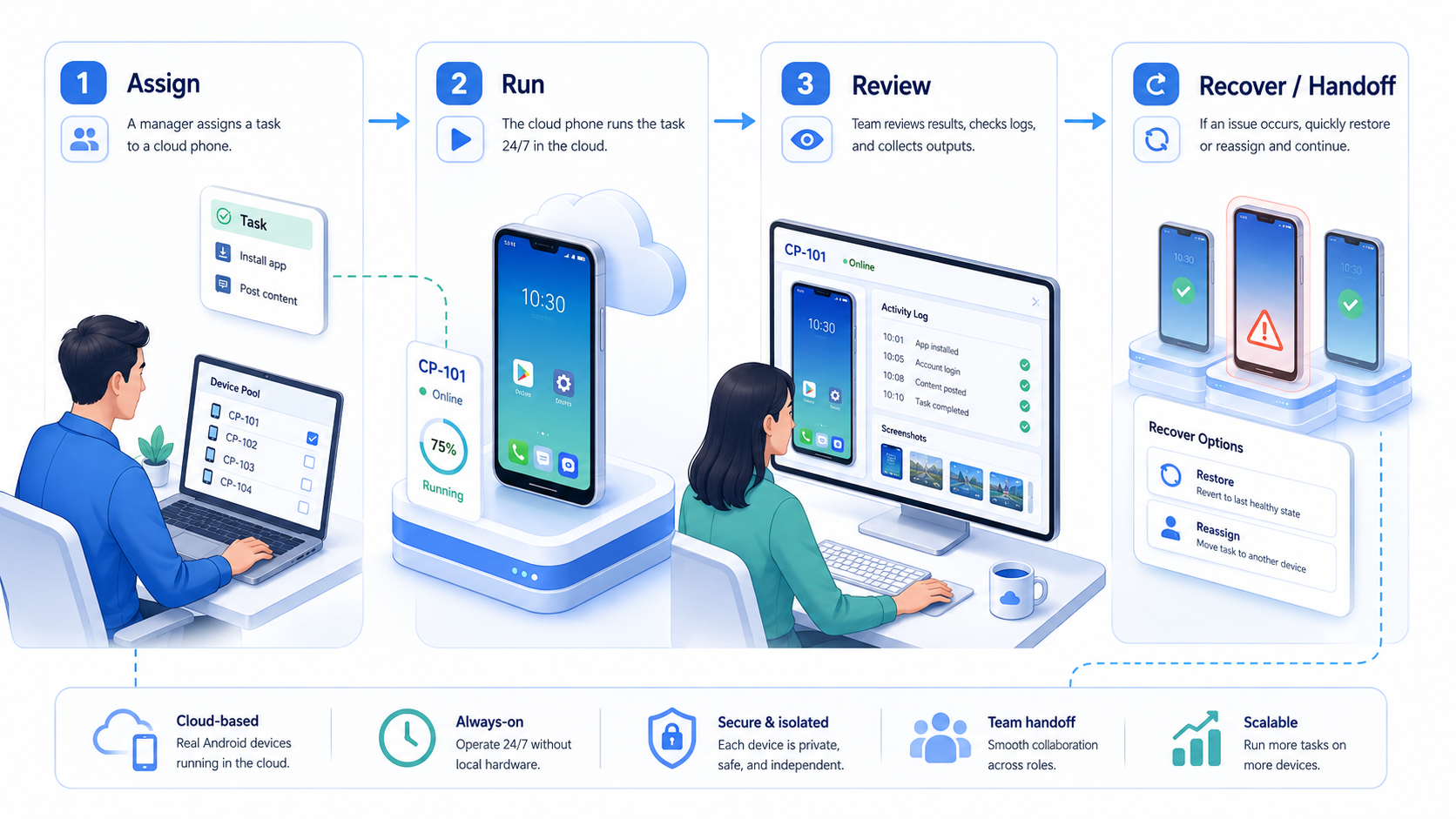
This environment delivers the most value when it becomes part of a controlled execution system. Each device should have an account, an owner, a task, and a review trail.
Before scaling, run one workflow on a small device group. If the team can explain success, failure, handoff, and recovery, the setup is ready for more devices.