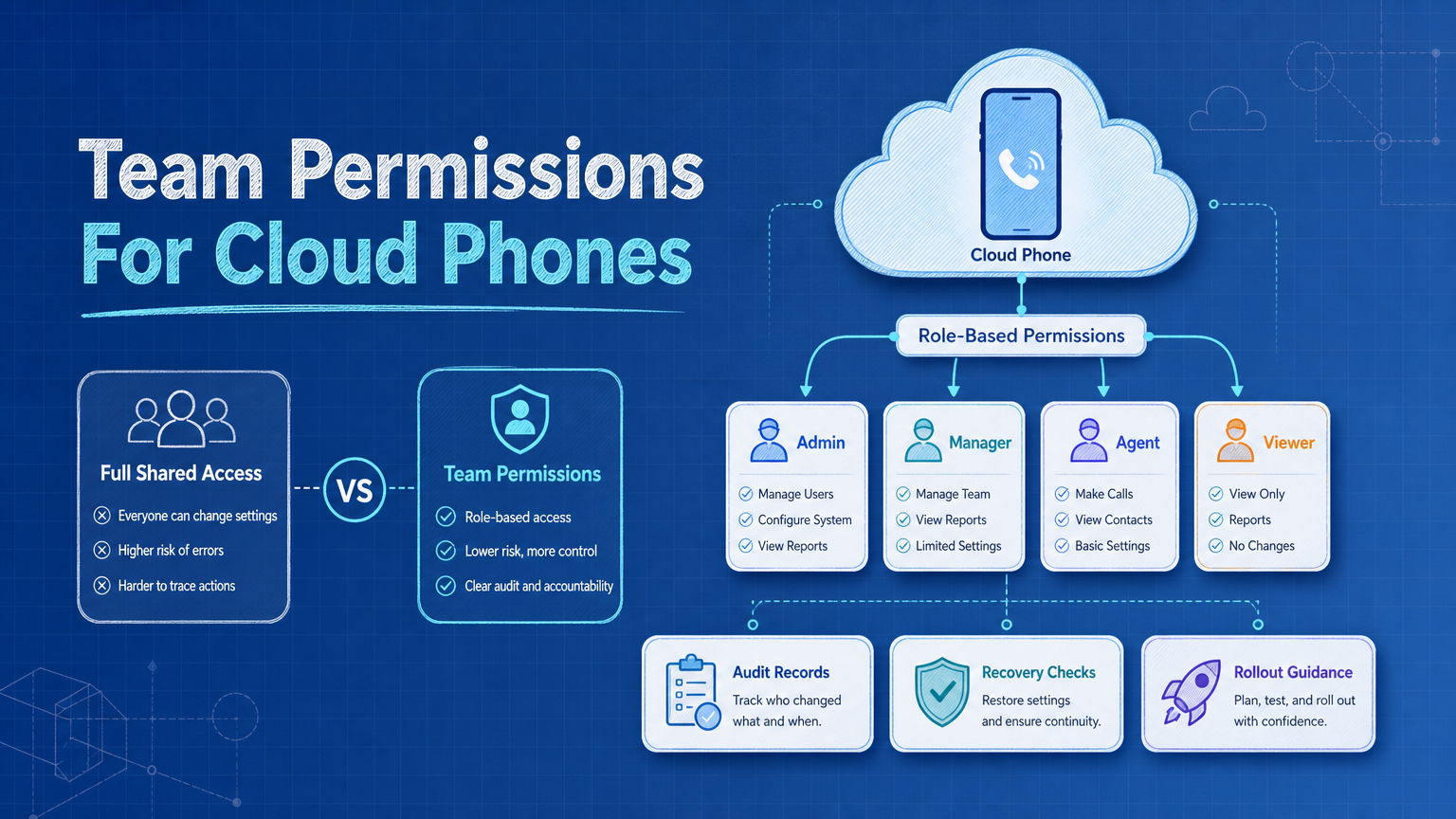
Team permissions for cloud phones are role-based rules that decide who can view, operate, approve, recover, or change a remote mobile environment. Full shared access means several people can use the same mobile lane with few boundaries.
The difference matters when a team uses cloud phones for account work, app checks, content preparation, or support workflows. A shared login may feel faster at the start. It becomes harder to audit when several operators touch the same account or device state.
The safer operating model is not to block teamwork. It is to give each person the access needed for the task, then record who did what and who approved the next step.
Key Takeaways
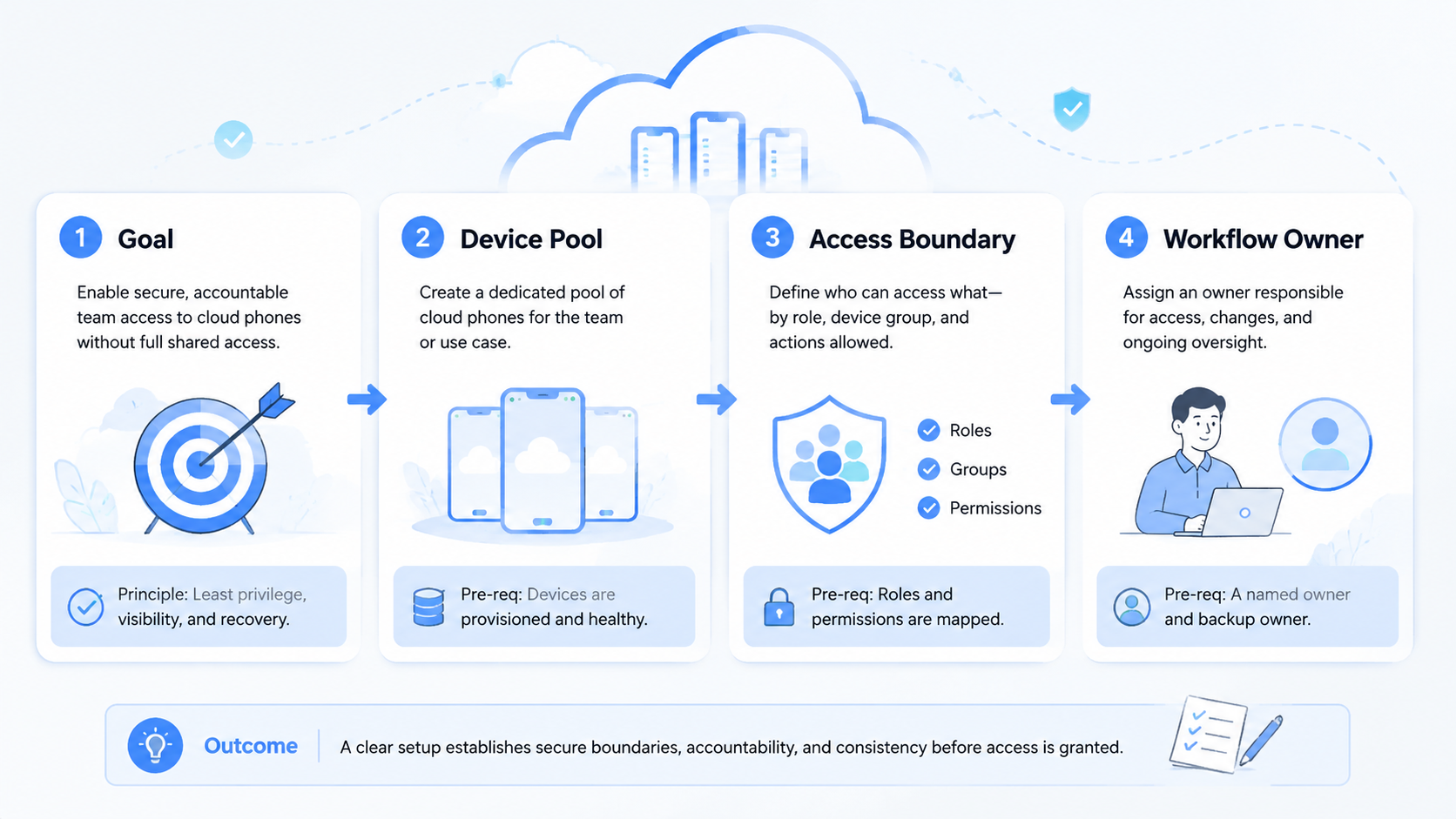
- Team permissions for cloud phones reduce confusion in shared mobile workflows
- Full shared access is faster to start but harder to review
- Role rules should separate operator, reviewer, owner, and admin actions
- Recovery needs named owners, not a shared group chat
- A small pilot should test permission gaps before account volume grows
What Team Permissions for Cloud Phones Mean
Team permissions for cloud phones define what each user can do inside a remote mobile environment. A person may be allowed to view a screen, run a task, upload approved media, pause a workflow, or approve a final action.
Cloud phone work becomes more sensitive when it involves multiple accounts. A device lane may hold app state, account sessions, notifications, media, and task history. Full shared access gives everyone broad control over that state.
Role-based permission design keeps the work easier to explain because each person receives a narrow responsibility instead of broad control over the whole device lane.
Operators run approved steps. Reviewers check proof before sensitive actions continue. Owners handle account decisions, while admins change devices, proxy routes, or workspace settings.
This is different from a simple password-sharing model. In full shared access, a mistake may be difficult to trace because several people can make the same change. With clear permissions, the task record can show who opened the device, what action happened, and which review decision followed.
| Role | Common Access | Should Not Control |
|---|---|---|
| Operator | Run assigned tasks and capture proof | Permission settings |
| Reviewer | Inspect screenshots and approve next step | Device routing |
| Account owner | Decide account-sensitive actions | Platform-wide admin controls |
| Admin | Manage devices, routes, and workspace rules | Unreviewed public actions |
The exact role names can vary. The principle should not. Shared mobile work needs visible boundaries.
Team Permissions vs Full Shared Access
Full shared access is attractive because it is simple. Give everyone the same login, and work can start quickly. The cost appears later when something fails.
A permission model takes more setup because the team must define roles, device ownership, approval points, and recovery rules before work starts. The benefit is auditability: a manager can see who touched the task and why a decision happened.
Use this comparison as a practical filter:
| Decision Area | Team Permissions | Full Shared Access |
|---|---|---|
| Startup speed | Slower first setup | Fast first setup |
| Accountability | Named user and role | Often unclear |
| Recovery | Owner can be routed | Group must investigate |
| Sensitive actions | Can require approval | Easier to act too early |
| Scaling | Easier to add operators | Harder to control |
| Training | Role-specific | Everyone learns everything |
The choice is not only technical. It changes team behavior. Full access encourages informal fixes. Permission rules encourage task ownership.
For small experiments, full access may be acceptable for a short window. For recurring account workflows, it becomes a weak base because nobody can separate normal work from accidental changes.
Which Access Model Fits Better?
Choose team permissions when the work repeats, touches more than one account, or needs review before the final action. Choose full shared access only when the task is temporary, low impact, and owned by one person.
The access model should match the cost of confusion. If the wrong person changes account state, uploads media, resets a device, or approves a public action, the team needs role controls. If the task is only a short read-only test, shared access can be acceptable for a limited period.
Use this decision check before choosing. Weekly tasks should move toward team permissions. One-time tasks can stay temporary. Shared devices need separate actions, while single-owner tests may not need a full role model yet.
Public actions need review. Retry-heavy work needs a recovery owner. Media workflows need approved folders so operators do not pull random files into a cloud phone.
A useful rule is simple. If 3 or more rows point to the permission side, the team should not use full shared access as the default.
Why Permission Control Matters in Multi-Account Work
Multi-account operations create overlapping risks. A person can select the wrong account, open the wrong app state, use the wrong media folder, or approve an action before the account owner checks it.
Multi-account management depends on clear assignment. The account, device, proxy route, operator, and reviewer should connect before the task starts.
Team permissions reduce the number of decisions each person must make. An operator does not need admin access to finish a task, a reviewer does not need device routing rights to approve a screenshot, and an account owner does not need to manage every workspace setting.
The model also helps with recovery. Login challenges should route to the account owner, route errors should route to an admin, and missing evidence should route back to the operator.
Google Play's policy center is a useful reminder that app-related work can be governed by platform rules. Teams should avoid letting broad shared access turn reviewed actions into casual clicks that nobody can explain during the next handoff.
Fit and Not-Fit Cases
Permission controls are a strong fit when more than one person touches a cloud phone workflow, especially when the task has public impact, account risk, or a required review step.
They are less urgent when one trusted person is testing a temporary workflow with no account-sensitive action. Even then, the test should have an end date so full access does not become permanent.
- Teams with operators and reviewers
- Cloud phones assigned to many accounts
- Workflows with media uploads or public actions
- Tasks that need screenshots and approval
- One-person tests with no handoff
- Short research work that will be deleted
- Tasks that never touch account state
- Workflows with no named owner
The boundary is repetition. If a task happens every week, give it permissions. If several people touch it, give it permissions sooner.
How to Set Up Team Permissions for Cloud Phones
Do not start with a complex access matrix. Start with the actions that would create confusion if the wrong person performed them.
First, list what people do inside the cloud phone: viewing screens, opening apps, uploading media, changing account settings, approving content, and resetting device state.
Next, split roles by decision type. Operators run tasks, reviewers approve proof, owners decide account-sensitive actions, and admins manage infrastructure settings.
Then add approval gates. Public actions, account changes, and media uploads should not depend on memory. A task state should force review before the action continues.
Proof comes next. Screenshots, task notes, and before-after states help the next person understand what happened. Android's quality guidance is useful when mobile work touches app behavior or test flows.
Finally, test recovery with a fake failure such as a login pause, missing media file, wrong route, or unclear screenshot. The test should show whether the task reaches the right owner without a manager reading the chat history. After one week, remove broad access that was only needed for setup.
Common Mistakes to Avoid
The first mistake is giving admin access to everyone. It may reduce questions during setup, but it makes later incidents harder to explain.
The second mistake is hiding recovery inside chat. A chat message can help, but the task record should show who paused the run, why it paused, and who can continue.
The third mistake is using the same permission model for every workflow. A content upload task needs different controls from a read-only app check. A support reply task needs a different review gate from a device cleanup task.
The fourth mistake is ignoring media control. If anyone can upload any asset to a cloud phone, the reviewer may not know which file was approved. Approved folders should be visible in the task.
The fifth mistake is failing to remove temporary access. Setup access should expire. Otherwise, the team slowly returns to full shared access.
Use this stop rule before scaling:
- No unnamed shared operator accounts
- No public action without a reviewer
- No media upload without an approved folder
- No device reset without an admin owner
- No failure recovery hidden only in chat
Another mistake is treating routing as a separate issue from permissions. A user may have the right role but still be assigned to the wrong mobile lane. For larger teams, phone farm planning and permission planning should be reviewed together.
Network controls also need ownership. When a task depends on region or account separation, a proxy network route should be visible in the task record. Operators should not change routes casually just to finish a task faster.
Team Permissions for Cloud Phones: Pilot Checks
A permission pilot should use one team, one account group, and one repeated workflow. The goal is to find permission gaps before the model expands.
Track the pilot for one week. Count how many times people request extra access, how many tasks pause correctly, and how often reviewers find missing evidence.
Watch 5 signals during the pilot: access requests with a clear owner, review gates before public action, recovery routes that reach the right person, evidence that matches task state, and cleanup of temporary setup access.
Recovery is the best test because paused work exposes unclear owners faster than a normal successful run. A permission model is working when a paused task routes cleanly without guessing.
After the pilot, adjust roles carefully instead of adding more access by default. First decide whether the workflow, evidence, or owner route needs improvement.
Keep one extra review for temporary access. Setup work often needs broader rights for a few hours, but those rights should not survive into daily operations. A weekly cleanup prevents permission creep.
Team Permissions for Cloud Phones: Fields to Track
A permission model becomes practical when the task record is easy to inspect. It should show what the user could do, what the user actually did, and who can approve the next action.
Start with these fields:
Track the user role first because it shows action scope. Track the device lane next because it connects the action to mobile state. Add account owner, task type, approved folder, review gate, recovery owner, and access expiry.
These fields answer the questions that matter after a failure: who had access, which mobile lane was used, what work was allowed, what proof was expected, and when temporary rights should end.
These fields do not need a complex system on day one. A simple task record can work if people update it consistently. The important part is that access decisions leave a trail.
The same fields help when work crosses browser and mobile environments. Android antidetect or device separation controls only help if the team also knows who is allowed to operate each lane.
The field list should be reviewed after every incident. If a failed task cannot be explained from the record, add the missing field or change the workflow so the field is captured automatically. This keeps the permission model practical instead of decorative.
Scenario: Agency Handoff With 12 Cloud Phones
Consider an agency team with 12 cloud phones, 4 operators, 2 reviewers, and 1 workspace admin. The team prepares mobile content drafts during the day and asks reviewers to approve any public action before publishing.
Full shared access looks easy in week 1 because every operator can open every device, reviewers can fix small issues, and the admin does not need to answer many setup questions.
The weak point appears after the first failed handoff. One operator uploads the wrong media file, another sees an old app state and retries the same task, and the reviewer cannot tell which person changed the device because every user had the same access.
Team permissions make the handoff slower at the start but clearer after failure. Operators can run assigned tasks and upload only from an approved folder. Reviewers approve or reject the work without changing device routing. The admin can reset device state, while the task still records who requested the reset.
Use a compact review sheet:
| Item | Required Record | Failure Example |
|---|---|---|
| Device lane | cloud-phone-07 | Wrong phone opened |
| Operator | user-03 | Shared login hides actor |
| Approved media | folder-campaign-b | Old image uploaded |
| Reviewer decision | approved at 16:20 | Approval missing |
| Recovery owner | admin-01 | Retry happens in chat |
This scenario gives a practical threshold. Once more than 3 people share a mobile workflow, full shared access becomes difficult to defend. Once the same workflow runs across 10 or more cloud phones, role permissions should become the default.
Frequently Asked Questions
What are team permissions for cloud phones?
They are rules that define what each team member can view, operate, approve, recover, or administer inside cloud phone workflows.
Is full shared access ever acceptable?
It can be acceptable for a short test with one trusted owner and no sensitive account action. It should not become the default for recurring account work because the audit trail becomes weak.
Which roles should be separated first?
Separate operator, reviewer, account owner, and admin roles first. These roles make most mobile handoffs clearer because they match the decisions that usually happen during a task.
Do permissions slow down the team?
They can slow the first setup. They usually reduce confusion when more accounts, people, and tasks are added because fewer people need broad access.
What should require approval?
Public actions, account changes, media uploads, and repeated retries should usually require a review gate.
How should failures be handled?
Failures should route to a named owner. Login issues go to account owners, route issues go to admins, and missing proof goes back to operators.
How does this connect to device isolation?
Permissions control people, while device isolation controls environments. Teams need both when account workflows span many devices and reviewers must understand who touched which lane.
What should be checked before scaling?
Check access requests, approval stops, recovery routing, proof quality, and temporary access cleanup.
Conclusion
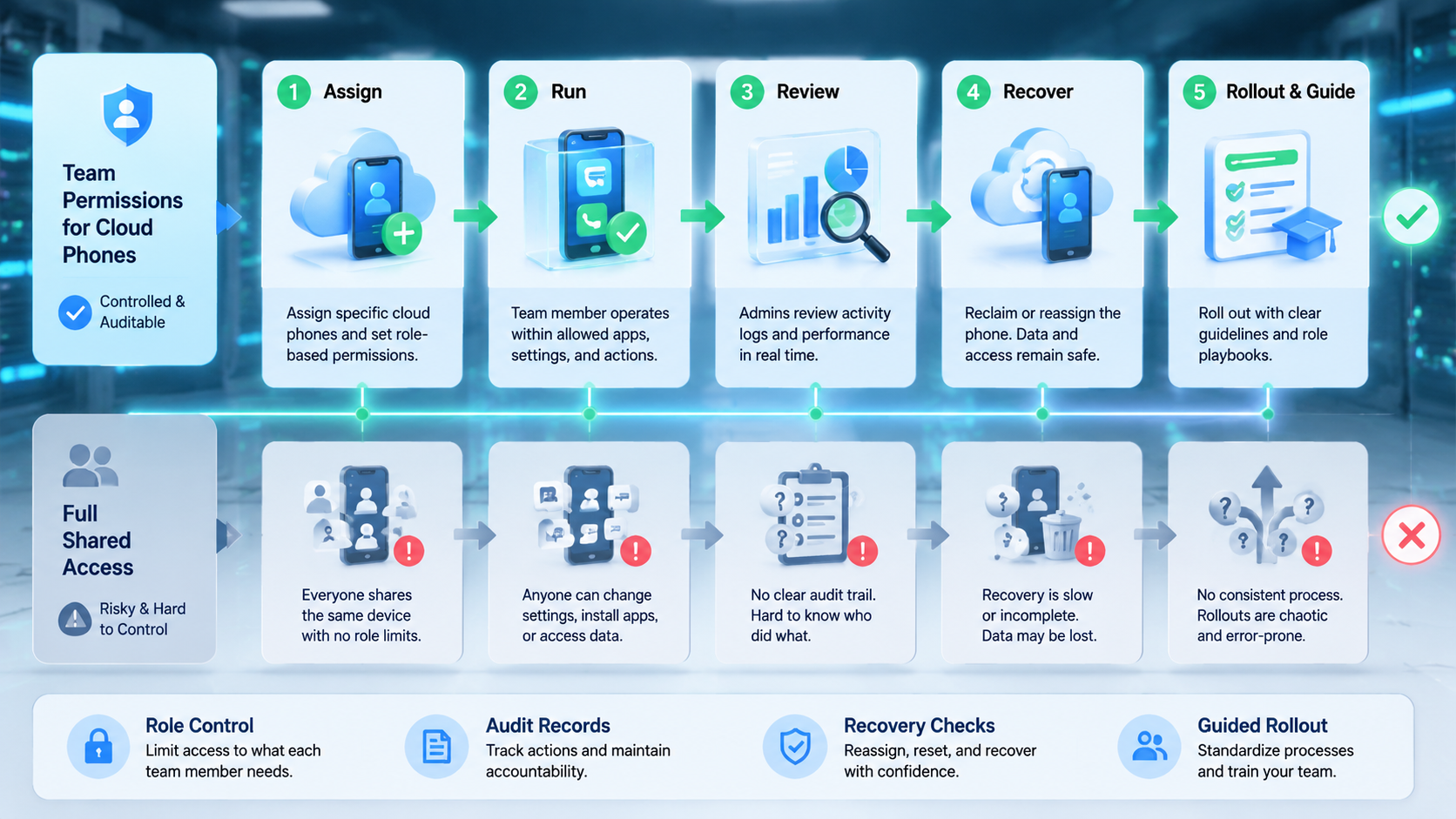
Team Permissions for Cloud Phones vs Full Shared Access is a decision about control, not convenience. Shared access may start faster, but role-based access is easier to audit when mobile workflows involve accounts, media, reviewers, and recovery.
Start small. Pick one cloud phone workflow, define operator and reviewer roles, add proof capture, and test one failure. Then remove setup access that is no longer needed.
The next step is to list every action people perform inside your cloud phones. Mark which actions are safe for operators, which need review, and which belong only to admins. That simple map is the first version of a permission model.