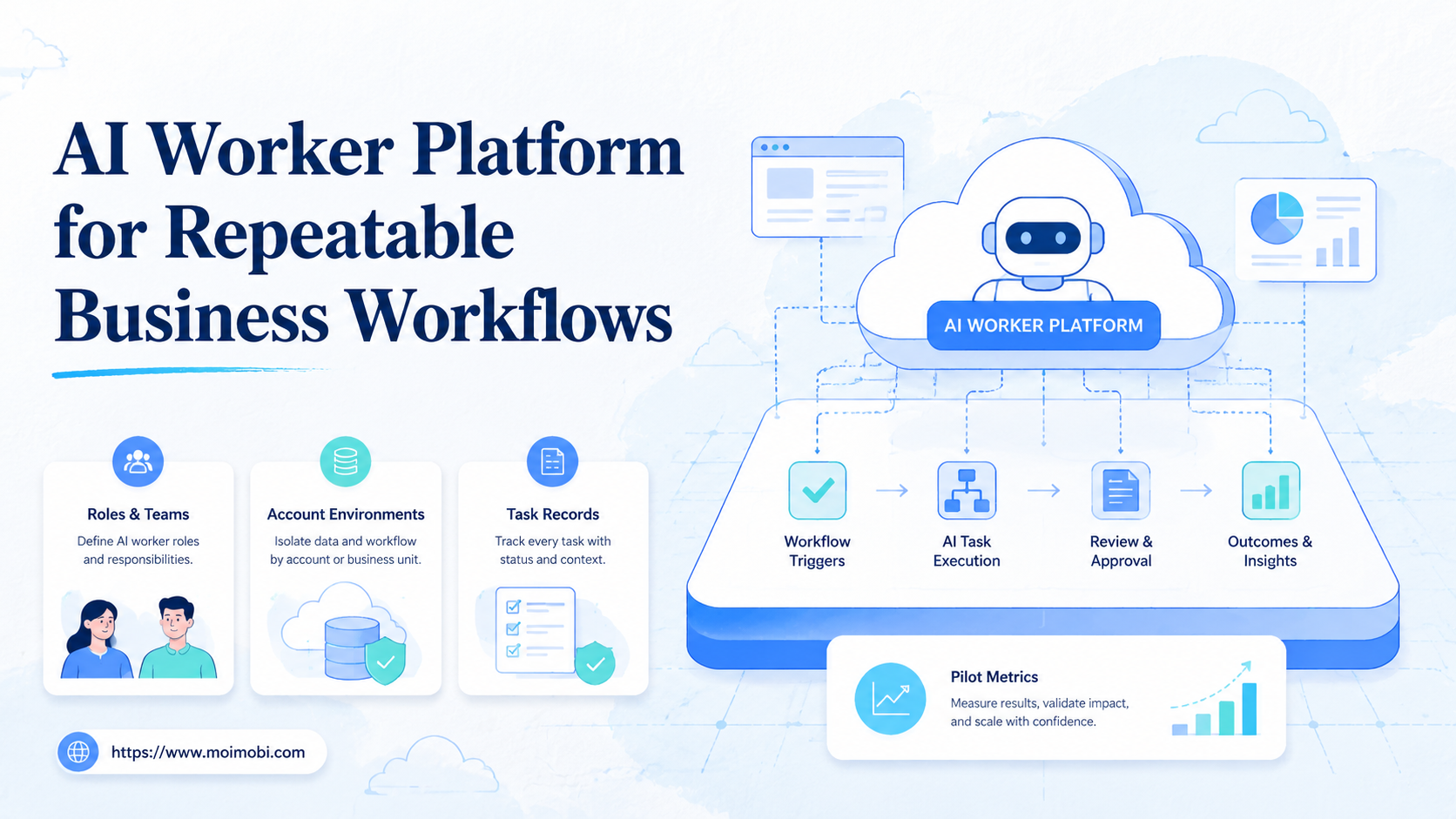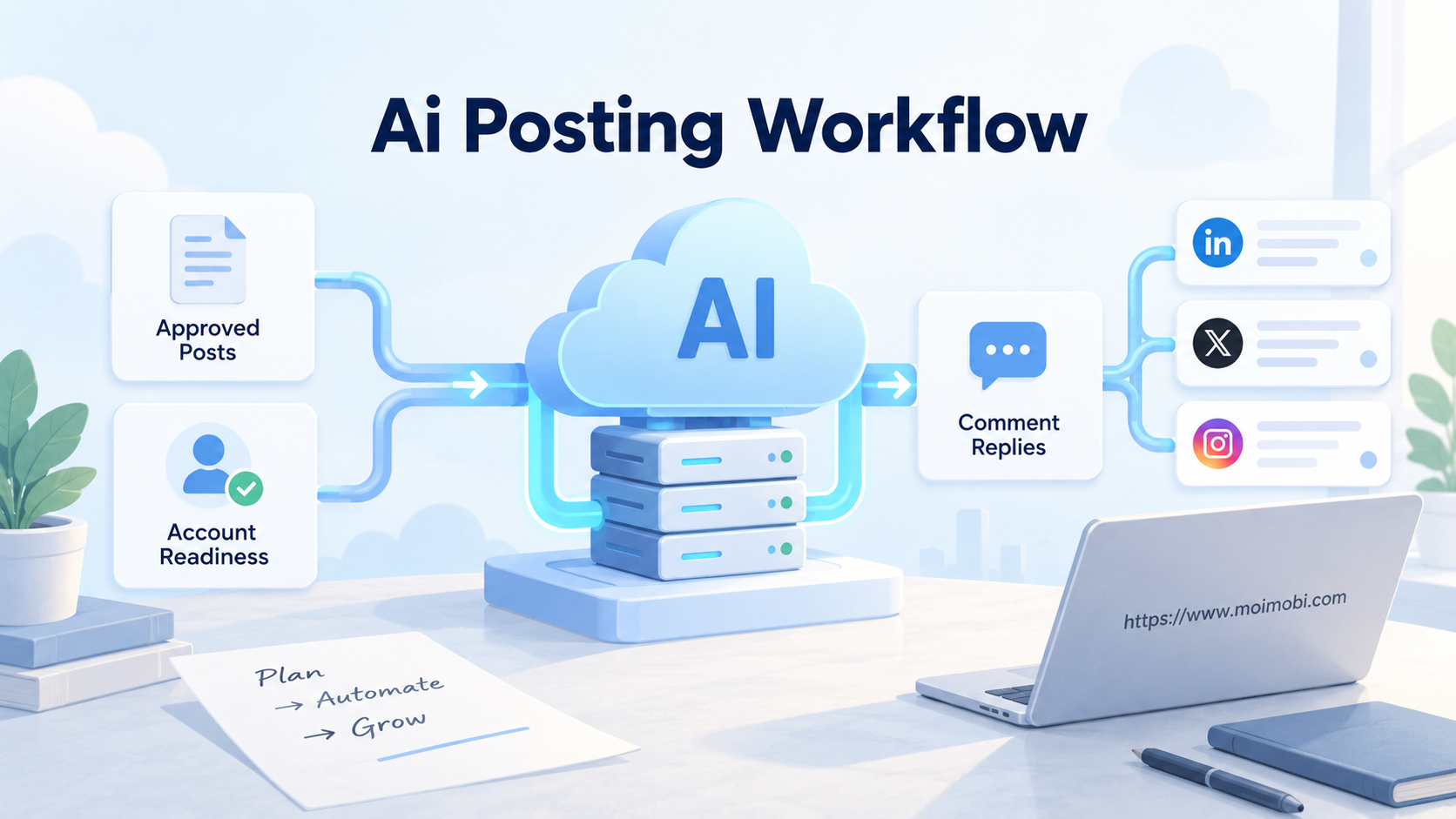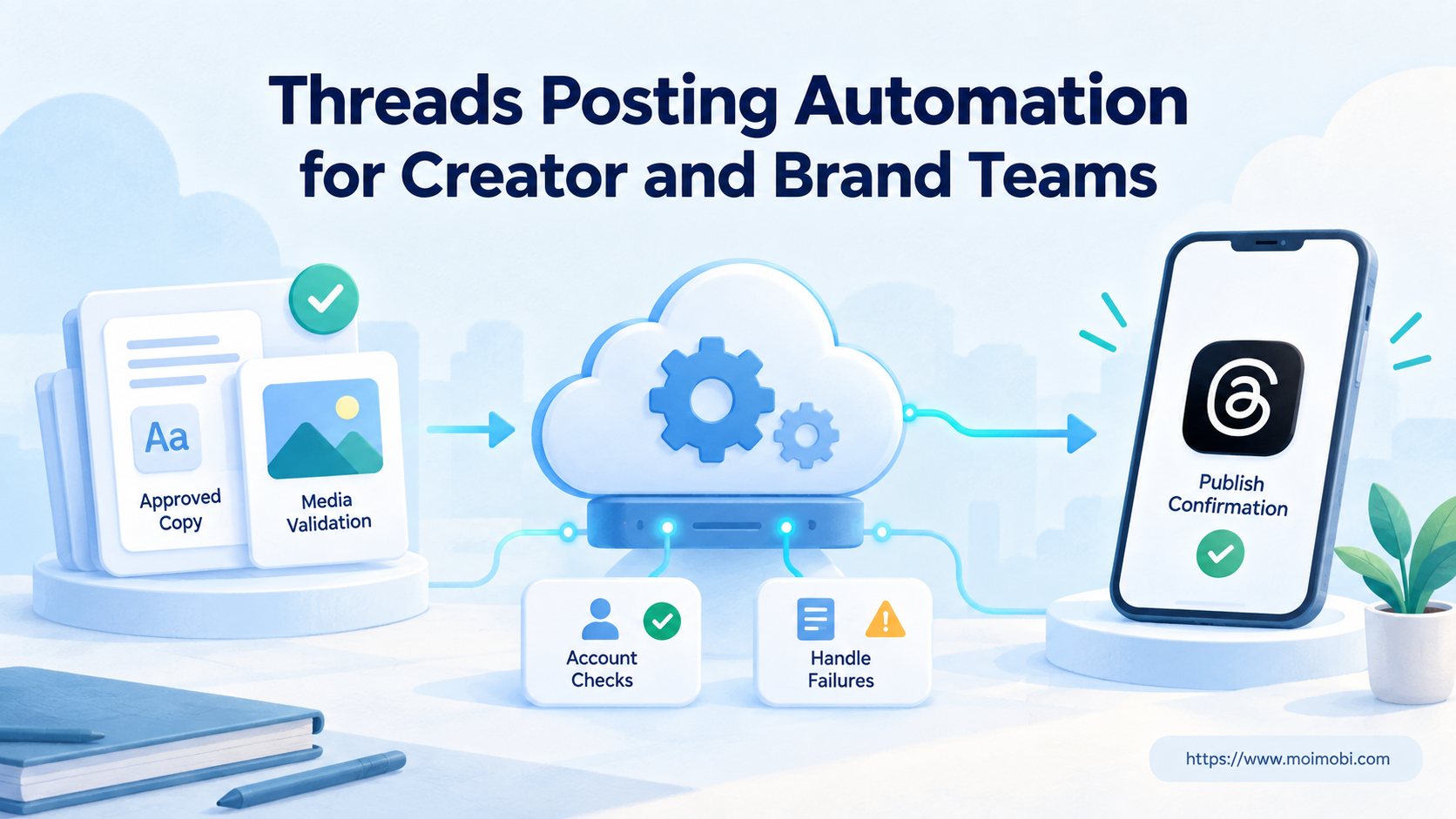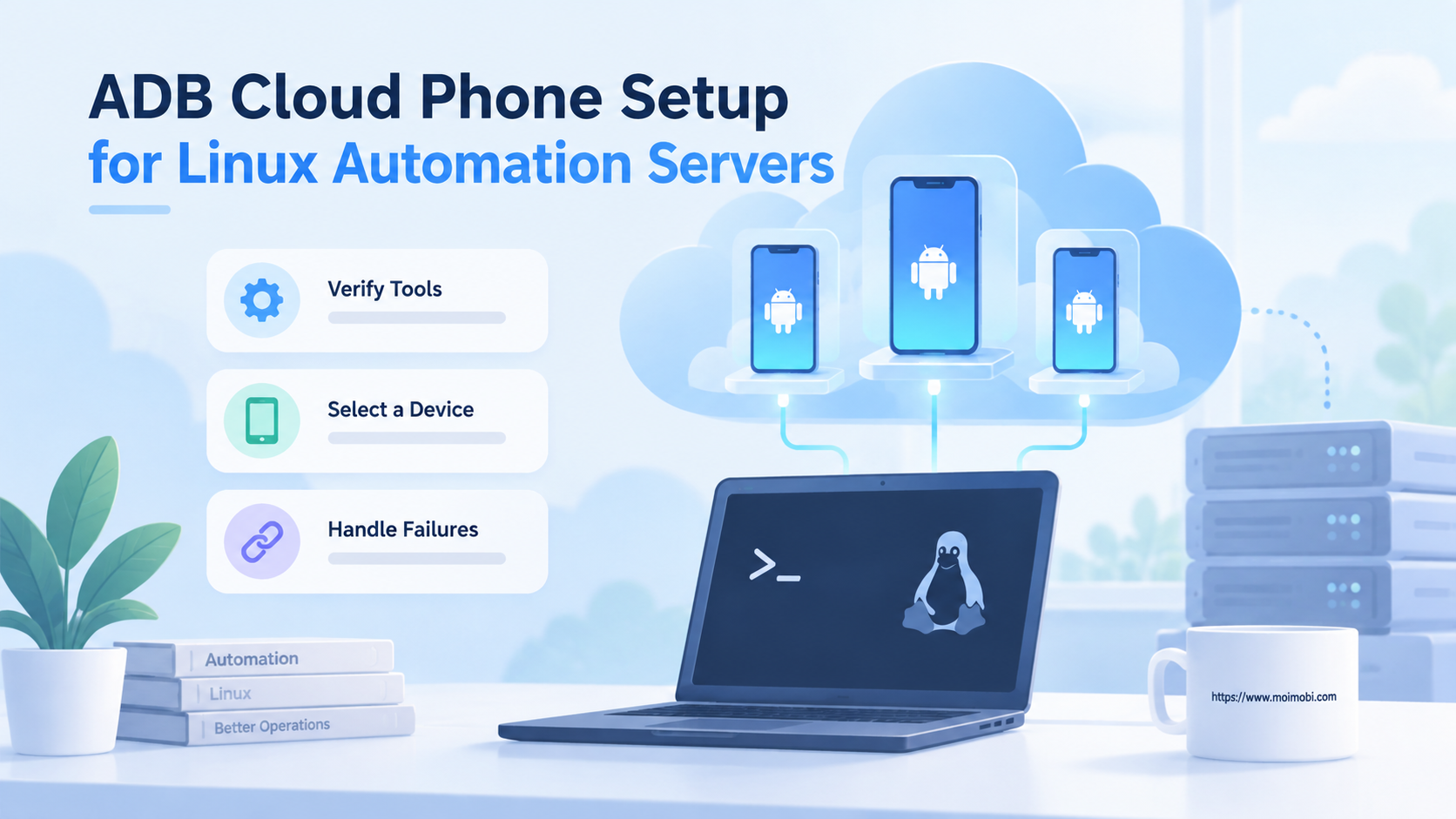
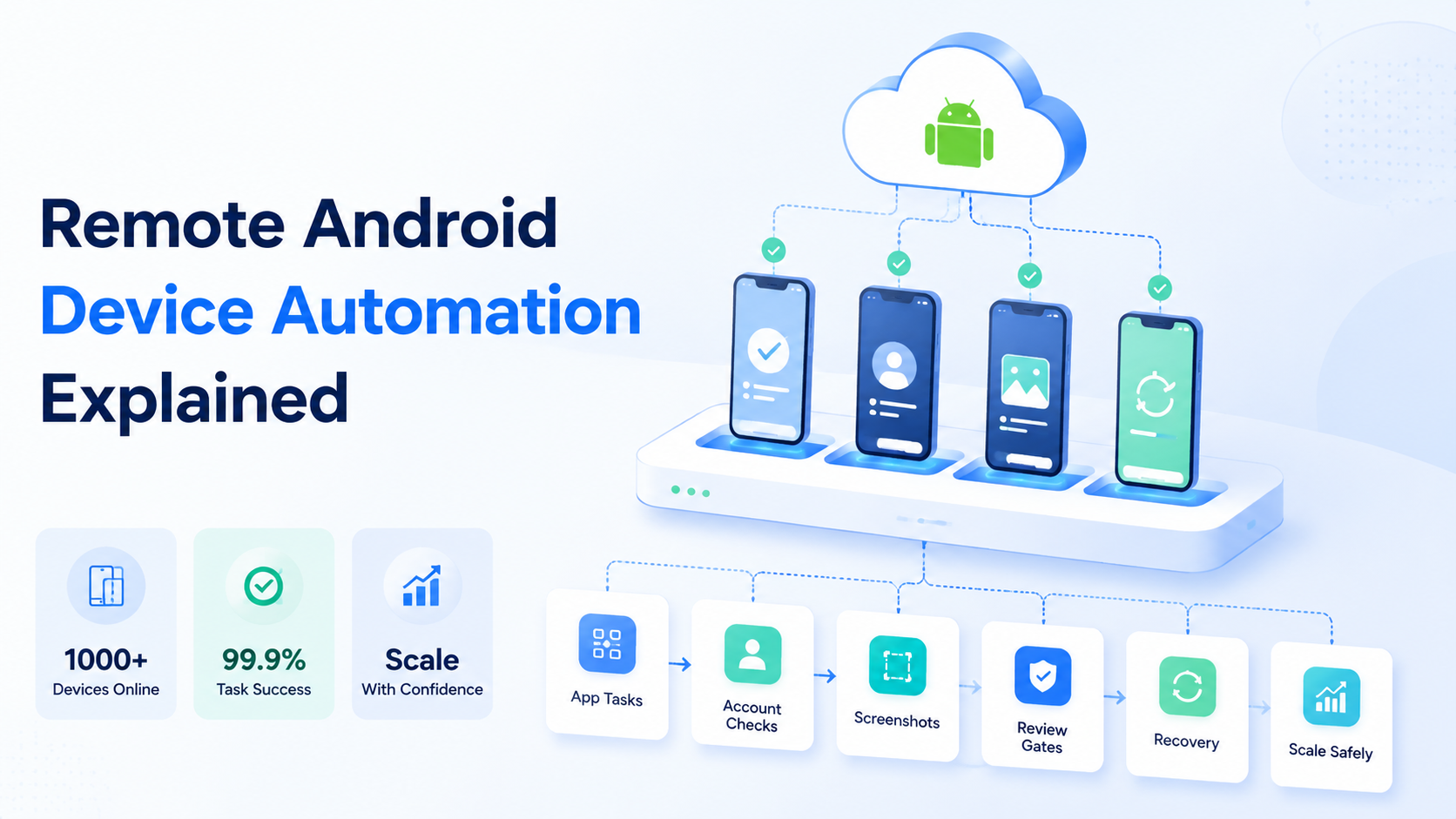
Remote Android device automation is a team workflow for running Android device automation through assigned remote devices, account routes, task rules, proof capture, review, and recovery. It turns mobile app work into an inspectable execution process instead of a loose remote-control session.
The practical goal is controlled mobile execution. A team should know which account ran, which Android lane was used, what screen appeared, what proof was captured, and who can approve the next step.
For teams, Android device automation becomes valuable when mobile work repeats across accounts or operators. Without a workflow layer, more devices can create more confusion instead of more capacity.
Key Takeaways
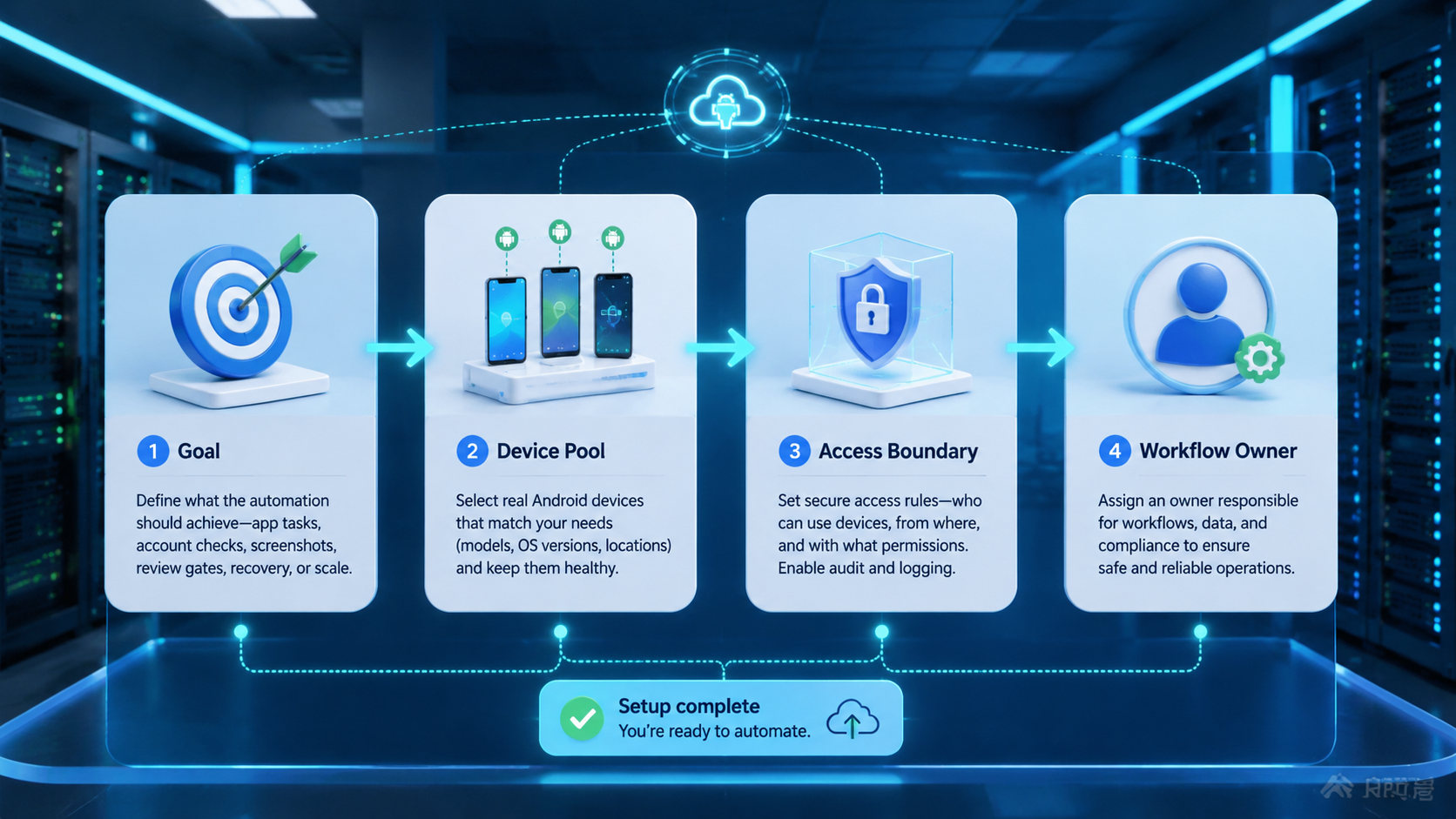
- Android device automation should include device state and account routing
- Remote Android work needs proof capture, review gates, and recovery rules
- A cloud phone can provide the remote Android lane for team workflows
- The first pilot should use one app, one task type, and one reviewer
- Scaling should wait until failed runs are easy to explain
What Android Device Automation Means
Android device automation means running structured actions inside an Android environment. The environment can be a physical device, a remote Android device, or a cloud phone lane.
The automation may open an app, check a screen, collect data, capture a screenshot, prepare a draft, or pause for review. The system should also record what happened.
The important difference is ownership. A solo script may only care whether a step completed. A team workflow needs account owner, device lane, evidence, retry count, and reviewer decision.
| Layer | What It Handles |
|---|---|
| Device lane | Where the Android task runs |
| Account route | Which account belongs to the task |
| App state | Login, version, screen, permissions |
| Task rule | Allowed steps and stop points |
| Evidence | Screenshots, logs, output notes |
| Recovery | Owner and next action after failure |
Android's quality guidance is a useful reference because mobile execution depends on real app behavior. Teams should test against actual screens, not only assumptions.
How Remote Android Device Automation Works
The process starts with environment assignment. Each run chooses a device lane, account, app, allowed workflow, proof requirement, reviewer, and recovery owner before it reaches the queue. A human or scheduler then sends the task into the queue.
State confirmation comes next, before the queue is allowed to touch the app. The system checks whether the app is open, the account is correct, and the screen matches the expected starting point, because a wrong state should pause the run before any action happens.
Execution comes after confirmation. The workflow may click, read, capture, draft, or compare. Keep public actions behind review gates.
Proof comes last, and this is where weak remote-control habits usually fail. Before completion, the run should store a screenshot or output note that makes the result inspectable by a reviewer.
Remote Android automation should also know when to stop. Login prompts, unknown screens, missing media, route mismatch, and repeated retries should not become silent loops that hide operational risk from the reviewer.
Android Device Automation Fields to Track
Every Android device automation workflow needs a small record that explains the run. Without that record, a completed task may look successful while the operator still cannot prove which account, app state, or device route was used.
The record does not need to be complicated. It needs to be consistent. A support check, app QA pass, content preparation run, or screenshot collection task can share the same field set even when the action itself changes.
| Field | Why It Matters |
|---|---|
| Device lane | Shows which Android environment performed the task |
| Account ID | Connects the run to the correct account owner |
| App package | Prevents confusion between similar apps or test builds |
| App version | Explains layout changes, bugs, and policy prompts |
| Login state | Confirms whether the run started from a usable account |
| Proxy or region route | Keeps regional assumptions visible during review |
| Media folder | Shows which assets were available to the task |
| Starting screen | Proves the workflow began from the expected state |
| Final screen | Shows the result before the task is closed |
| Reviewer | Names the person responsible for approval |
| Retry count | Separates a clean run from a rescued run |
These fields also help a team compare manual work with automated work. If manual operators already capture account, screen, and result notes, the automation should preserve those same signals instead of replacing them with a vague success status.
A useful rule is to design the record before designing the clicks. The fields define what the team will trust. The automation only becomes valuable when the final record is easy to inspect.
Why Teams Use Remote Android Automation
Teams use remote Android automation when app work becomes repeated and shared. A single operator can open a phone manually. A team needs assignment, visibility, and handoff.
Common workflows include app QA, listing checks, account health review, mobile content preparation, support reply drafting, and screenshot collection. These tasks are easier to manage when the team can inspect the device state and proof.
Mobile automation becomes useful when the team wants repeatable execution instead of casual device access. The workflow should name what can run and what must wait.
The strongest reason is not speed alone. It is consistency. A task that runs across 20 accounts needs the same fields, evidence, and recovery rules each time.
Google Play's policy center is relevant when automation touches app distribution, app behavior, or account actions. Review and policy awareness should stay visible.
Strong Fit and Weak Fit
Remote Android automation is a strong fit when a mobile workflow repeats and the output is easy to verify. It is weaker when the task depends on open-ended judgment or unclear goals.
- Repeated app screen checks
- Screenshot-based review flows
- Mobile QA after app changes
- Account checks with clear proof
- Draft preparation before approval
- One-time research without reuse
- Public actions with no approval
- Tasks with unstable app screens
- Workflows with no recovery owner
- Judgment-heavy replies or negotiations
The fit rule is simple. Automate where the task can be described, checked, and stopped. Keep work manual when the team cannot define the safe boundary.
Pilot Setup for Android Device Automation
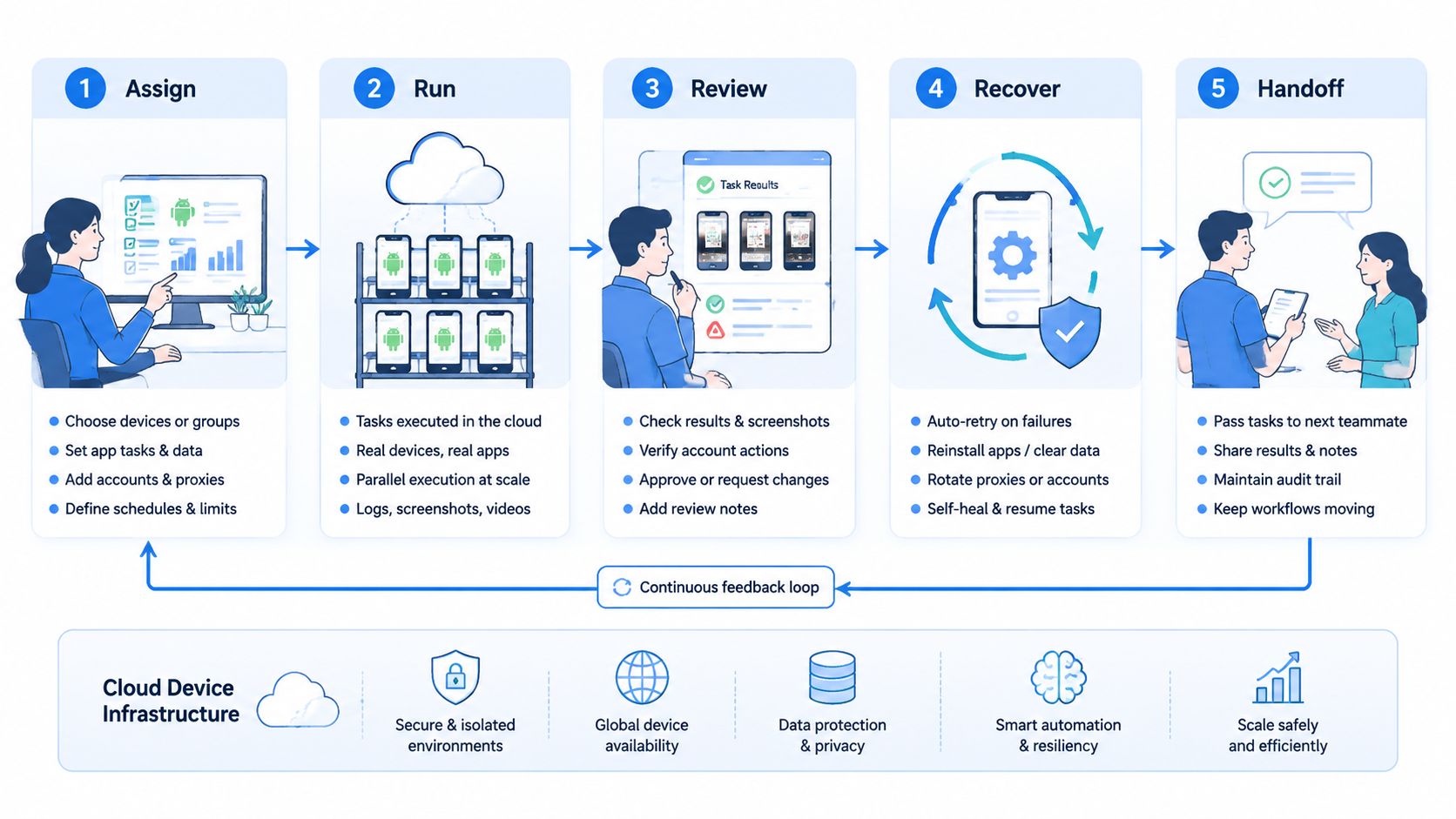
A remote Android pilot should be small enough to inspect by hand. Start with 5 to 10 accounts, 1 app, 1 task type, 1 reviewer, and 1 recovery owner.
Define the starting state first. The workflow should know the expected app screen, account, device lane, and media folder. Missing state should stop the task.
Define allowed actions next. Reading a screen, capturing proof, and saving a draft are good first actions. Public posting, payment, account changes, or repeated retries should require review.
Define evidence before the run. Each task should store device lane, account ID, app version, starting screenshot, final screenshot, and result state.
Define recovery last, and write the owner directly into the runbook before the pilot begins. Login prompts route to account owners, device-state mismatches route to infrastructure, and missing proof returns to the operator or task owner.
Use one weekly review. Look at completed runs, failed runs, manual rescues, and rejected outputs. A pilot is ready to expand when another operator can understand the result without private chat, missing screenshots, or a private explanation from the original operator.
Scenario: Remote Android QA Across 10 Accounts
Consider a team that needs to verify a mobile app workflow across 10 accounts after every weekly release. The team has 2 operators, 1 reviewer, and a shared account owner. Each account has a preferred Android lane, a region route, and a known login state.
The old process is simple but fragile. Operators open whichever device is available, run the app, take a screenshot, and send a chat message. When a layout looks different, nobody knows whether the account, app version, region, or device state caused the result, so every exception becomes a small investigation.
With Android device automation, the team starts by creating one task per account. Each task contains the assigned lane, app version, start screen, test action, and required proof. Device choice moves out of the operator's hands because the queue routes the work to the correct lane.
During the run, the workflow checks the login state before doing anything else. A signed-out account should immediately pause, record the screen, notify the account owner, and wait for explicit recovery before the workflow continues. An old app version routes to the device owner. When the start screen matches, the workflow captures the baseline screenshot and continues.
The reviewer sees 10 records at the end: completed, paused, or failed. Completed records include before-and-after screenshots, result notes, and enough context for a reviewer who did not watch the run. Paused records explain the reason. Failed records show the safe stop point, retry count, and owner for the next action.
This changes the review conversation. Run records answer who ran the check and which phone was used, so the review can focus on whether the app behavior is acceptable.
The same pattern also works for mobile content preparation. A workflow can open the app, load the right draft, collect a screenshot, and pause before any public action. Approval remains human, but preparation becomes repeatable.
Common Mistakes to Avoid
The first mistake is treating remote access as automation. Viewing a remote Android screen is not the same as running a controlled workflow.
The second mistake is skipping account routing. If operators choose devices during the task, the team may not know why an account used a specific lane.
The third mistake is ignoring app state. Version changes, permission prompts, login screens, and unexpected layouts should pause the workflow.
The fourth mistake is hiding proof. A task should not be marked complete when the reviewer cannot see the before-and-after state.
The fifth mistake is scaling too soon. More devices can multiply unclear failures. Device isolation helps separate environments, but the team still needs task records.
Measurement and Recovery Checklist
Use this checklist before adding more accounts or devices:
| Check | Pass Signal | Weak Signal |
|---|---|---|
| Account route | Account and device are named | Operator chooses manually |
| App state | Version and screen are recorded | State is guessed |
| Evidence | Screenshots prove result | Reviewer asks for context |
| Review | Sensitive action pauses | Action happens too early |
| Retry | Failure stops at safe point | Task loops silently |
| Cleanup | Device returns to known state | Old media remains |
Recovery ownership should be specific. App prompts belong to the workflow owner, especially when a new screen changes the expected step order. Login issues belong to the account owner. Device route issues belong to the admin or infrastructure owner.
The strongest signal is boring handoff. A new operator should understand what happened from the task record alone.
Recovery Rules for Android Device Automation
Recovery rules keep Android device automation from becoming a hidden loop. Each failure should have a named owner and a safe next step.
Level 1 covers temporary state mismatch. The app may open on the wrong screen, a permission prompt may appear, or a network delay may block the next step. After capturing proof of the state, the workflow can retry once.
Account or login trouble is Level 2. Password prompts, session expiry, verification screens, and account warnings should not be solved by the automation itself. Route these cases to the account owner with the screenshot attached and keep the device lane unchanged.
Device or route failure is Level 3. A missing Android lane, mismatched region, broken proxy route, or outdated app build belongs to the admin or infrastructure owner. Keep the run paused until the environment is corrected.
Policy or public-action risk is Level 4. Posting, messaging, payment, profile editing, and account setting changes should stop for human approval unless the team has a documented approval rule for that exact action.
Good recovery rules also prevent blame. When a task fails, the team can see whether the issue came from task design, account health, app state, or device infrastructure. That makes the next improvement specific.
The operational target is not zero failures. A better target is explainable failure. If every stopped run has a reason, owner, and screenshot, the team can scale with less private coordination.
Remote Android Automation and Multi-Account Teams
Multi-account work makes remote Android automation harder because every task has 2 identities: the device lane and the account. Both must stay visible.
Multi-account management helps when the team needs assignment, separation, and review across many accounts. The automation workflow should inherit that structure instead of creating a separate shadow process.
For example, an operator should not pick a phone because it is free. The assigned lane should come from the workflow. When that lane is unavailable, the run should pause or request reassignment instead of quietly borrowing another environment.
This keeps account history easier to explain. It also prevents device cleanup from becoming a private habit that only one operator understands.
Frequently Asked Questions
What is remote Android device automation?
It is the use of remote Android environments to run app tasks with device assignment, workflow rules, proof, review, and recovery.
Is it different from remote control?
Yes. Remote control gives access to a screen. Automation adds repeatable task rules, evidence, and stop conditions, which makes the result easier for a second person to verify.
What should be automated first?
Start with app checks, screenshots, mobile QA, and draft preparation. These tasks have clear outputs, lower ambiguity, and easier review than open-ended account operations.
When should a task pause?
Pause on login prompts, unknown screens, missing media, route mismatch, failed proof, or any public action that was not approved in the workflow.
How many devices should a pilot use?
Use a small number first. Five to ten accounts and one app task can expose most workflow gaps before the team adds more devices.
Does device isolation replace permissions?
No. Device isolation separates environments. Permissions and task records control who can operate, approve, and recover work when the workflow moves across people.
How should success be measured?
Measure proof coverage, account match, retry count, manual rescue rate, review time, and cleanup quality.
How does this connect with browser work?
Browser and Android workflows should share account ownership when they support the same operation. Otherwise, the team loses context between environments and cannot explain which side produced the final result.
Conclusion
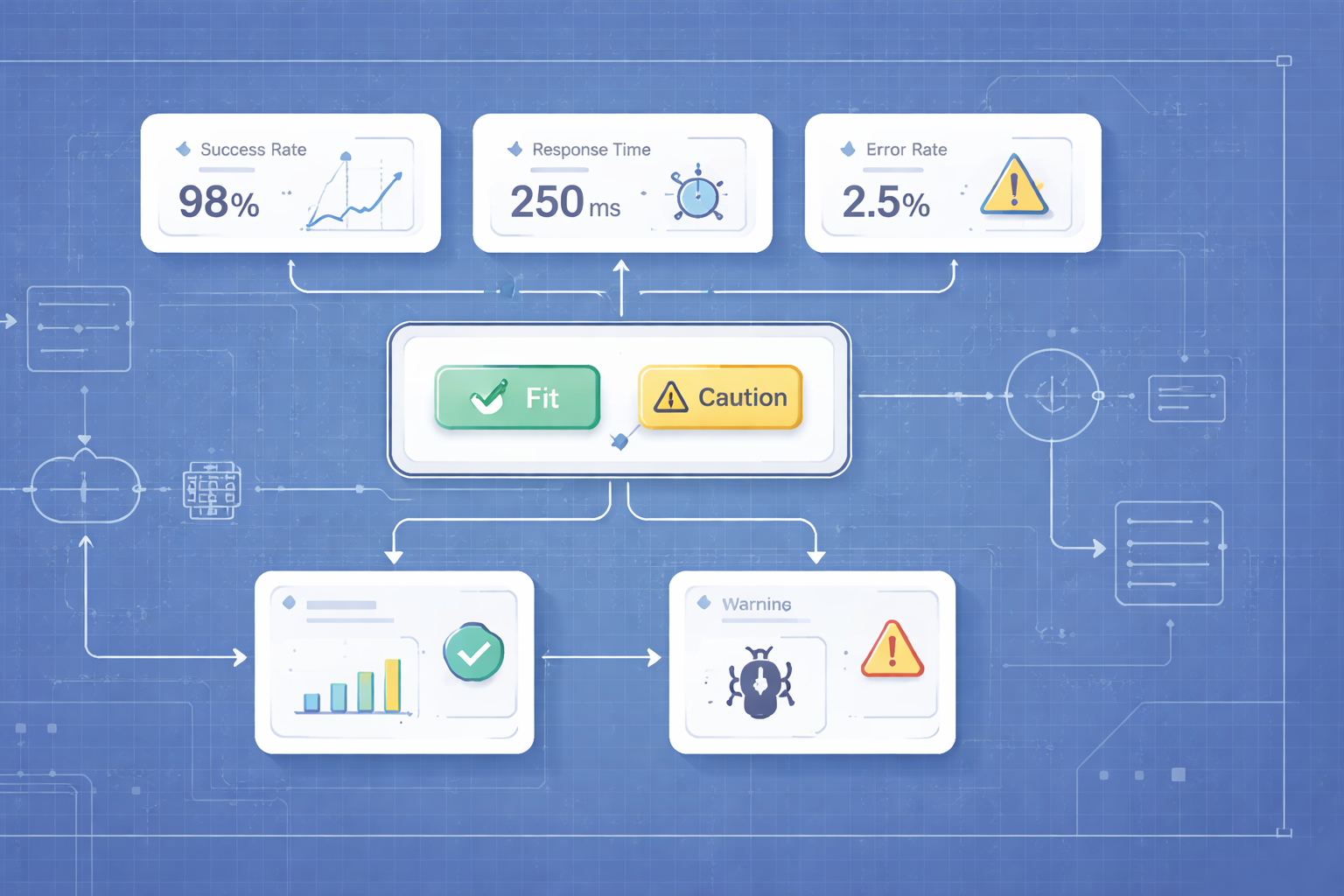
In practice, Remote Android Device Automation Explained is about controlled mobile execution. The remote device is only the lane, while the useful system keeps account routing, state checks, allowed actions, evidence, review, and recovery visible in one operating record.
Start with a narrow pilot. Choose one repeated app task, one account group, one reviewer, and one recovery owner. Capture proof for every run, review failures weekly, and expand only after handoff becomes easy.
Map current mobile tasks next. Mark which ones repeat, which ones need screenshots, and which ones should pause before public action. The best first automation is the task that can be routed, checked, and recovered without private memory.