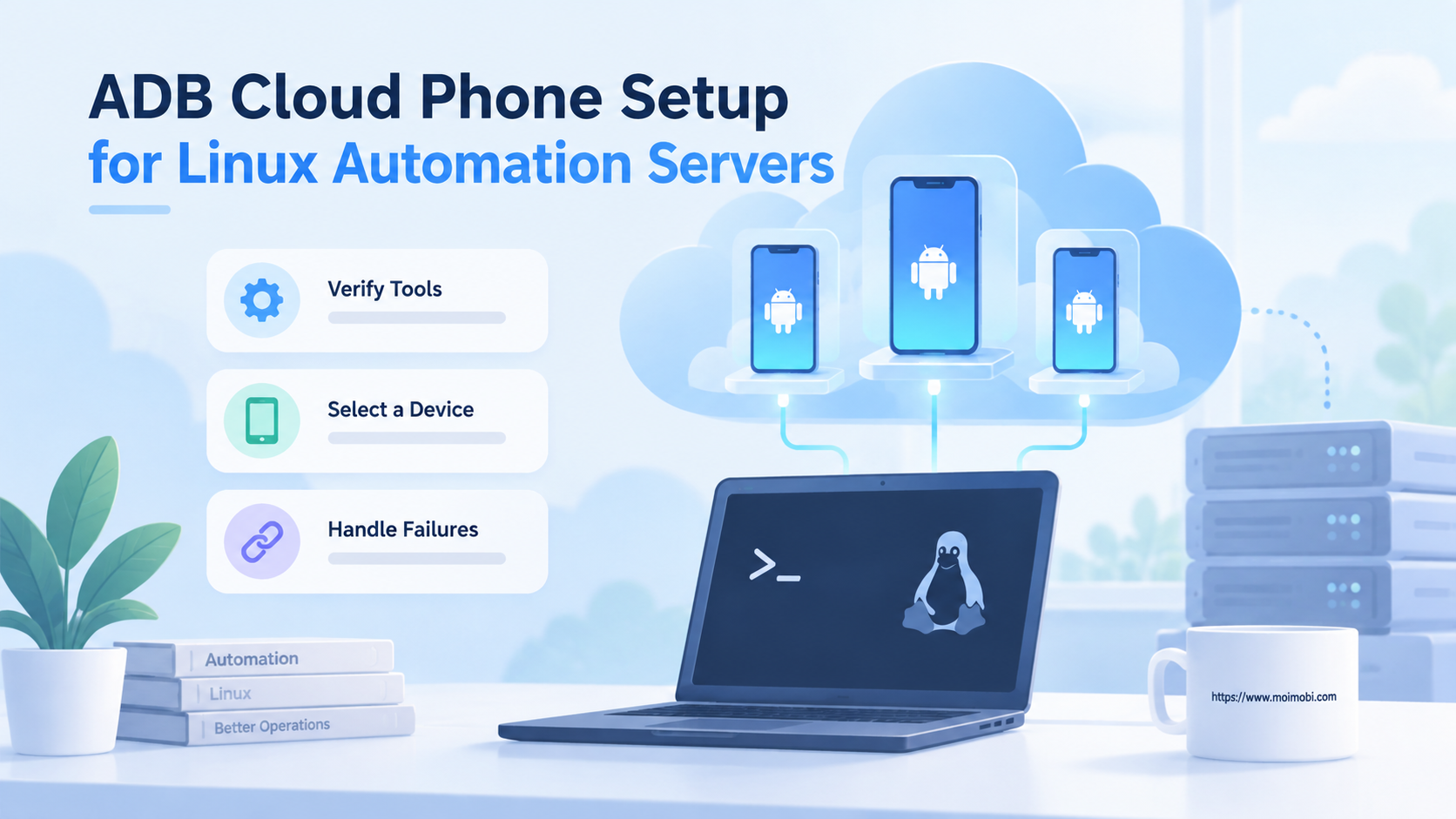
A cloud phone is a remote mobile environment that lets teams run app-based work without keeping every task inside a desktop browser. It extends AI browser automation by giving AI agents a phone lane for mobile apps, account state, notifications, and device-specific workflows.
AI browser automation is strong when the work happens on websites. It can open pages, read interfaces, fill forms, and route data through browser sessions. The gap appears when the same operation moves into a mobile app or depends on phone state.
Cloud phones fill that gap. They do not replace browser automation. They add a controlled mobile surface so teams can decide whether a task belongs in a browser profile, a phone environment, or a handoff between both.
Key Takeaways
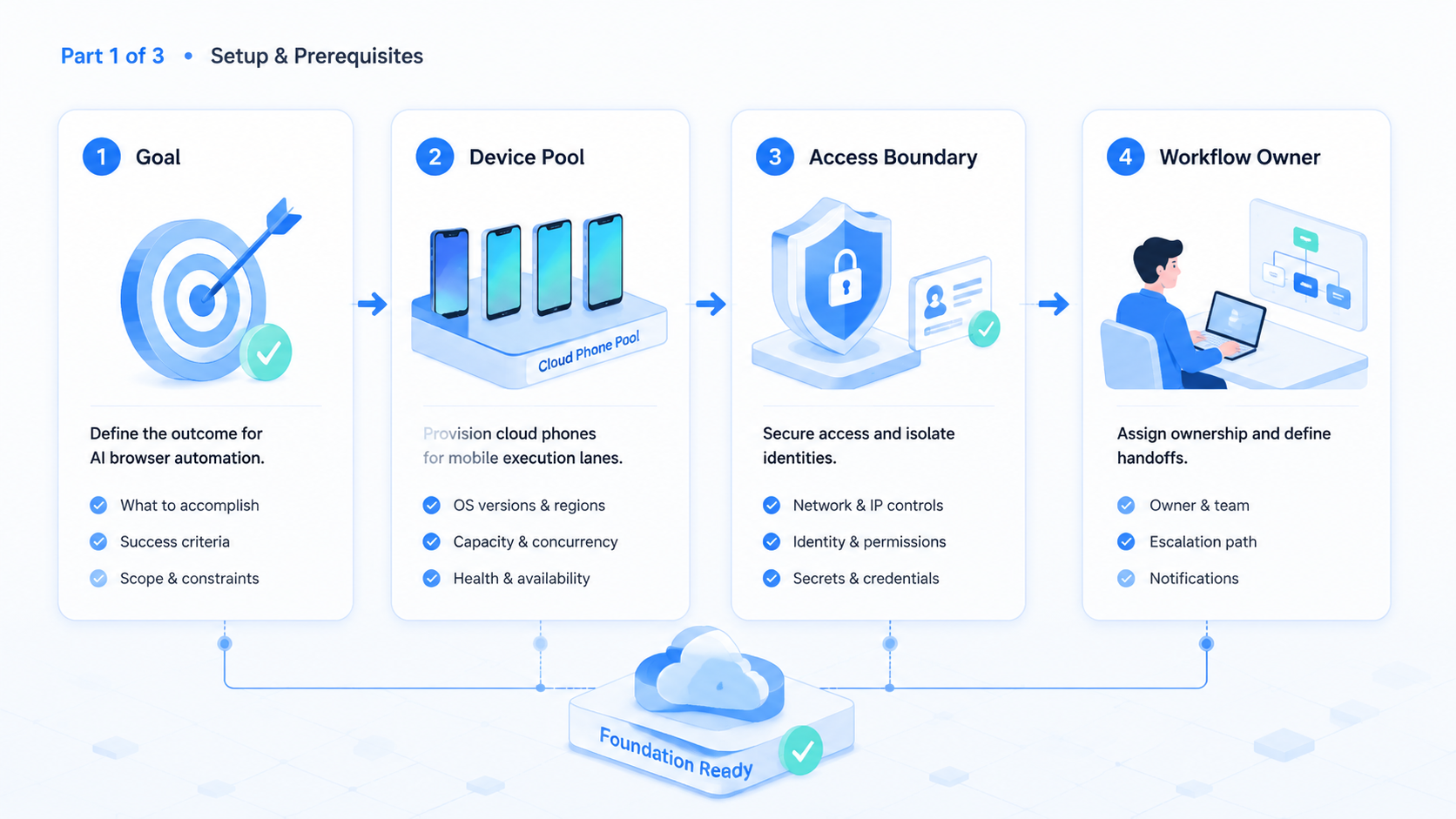
- Cloud phones extend AI browser automation when work moves from websites into mobile apps
- The main value is controlled mobile execution, not only remote screen access
- Teams need account routing, device state, evidence capture, and recovery rules
- A hybrid browser-plus-phone workflow is strongest for repeated mobile operations
- Pilots should measure failure clarity before adding more device lanes
What a Cloud Phone Adds to AI Browser Automation
The basic distinction is simple. Browser automation works inside web sessions. A remote mobile device works inside app sessions. Daily operations often need both.
A browser agent may collect lead data from a web dashboard, prepare a reply, or update a CRM field. The same task may then require opening a mobile app, checking an in-app notification, viewing a phone-only screen, or confirming account state. Without a mobile lane, the workflow stops or becomes a manual handoff.
That is where a remote mobile device layer changes the operating shape. The team can keep browser work in browser lanes and route app work to phone lanes. Each side keeps its own state, evidence, and recovery path.
Do not blur the lanes.
The right model is not "everything in a browser" or "everything on a phone." It is a split execution model:
| Work type | Better lane | Reason |
|---|---|---|
| Website login and dashboard review | Browser lane | Web UI and profile state are enough |
| App notification check | Phone lane | The signal lives in a mobile app |
| Account profile review | Depends on source | Use the lane where the profile is active |
| Reply drafting | Browser or review lane | Human approval may still be needed |
| Mobile regression check | Phone lane | App behavior and device state matter |
Google Search Central frames quality around helpful output for people. The same idea applies to automation evidence. A finished run should help a reviewer understand what happened.
Why Teams Need Mobile Lanes for AI Agents
The common mistake is treating AI browser automation as a complete operations layer. It may be enough for web-only work. The gap appears when the task depends on app interfaces, mobile account state, push alerts, camera flows, or phone-only settings.
Mobile teams also face a practical capacity issue. One physical device can only support so much repeated work. A shared device may carry stale state from the previous operator. A local device may be offline when a remote teammate needs it.
Access matters.
Cloud phones give teams a way to separate mobile lanes. A worker can be assigned to a known phone environment, run a known app path, capture evidence, and return a result. That makes the handoff easier to review.
Start small.
A support team might use a browser agent to read a ticket and a phone lane to verify the matching in-app state. A QA team might use browser automation for a dashboard check, then run a mobile smoke path on Android. A growth team might keep web research in one lane and app account checks in another.
This does not remove human judgment. It gives human reviewers better context. They can see which lane ran, which account was used, and where the workflow stopped.
AI Browser and Cloud Phone Workflow Design
A useful hybrid workflow has one owner, one trigger, and one evidence package. Without those three parts, the team may only create a faster version of an unclear process.
The owner decides who can edit the workflow. The trigger decides when work enters the queue. The evidence package decides what a reviewer sees after the run. These small rules prevent many operational problems.
Use this sequence:
- Classify the task. Decide whether the first action belongs in a browser, a phone, or a review queue.
- Bind the account. Route the task to the right account group before execution starts.
- Select the lane. Use browser profiles for web work and phone environments for app work.
- Capture evidence. Record result state, screenshots, logs, and exception reasons.
- Close the loop. Send clear failures to a person, not to another blind retry.
The phone lane should not be a dumping ground for every hard task. Use it when mobile state is part of the answer. Keep browser work in the browser when a web session is enough.
For app-focused workflows, mobile automation can help standardize repeated steps. The value improves when automation is paired with stop rules, account routing, and review evidence.
Keep the split visible.
Use Cases Where Cloud Phones Extend Browser Work
The first use case is mobile account review. A browser agent may prepare account context from a dashboard, while a phone lane confirms app-side status. This helps when the app shows information that the web dashboard does not expose.
Good handoffs are specific.
The second use case is notification-driven work. Browser automation cannot see a mobile push notification unless the signal is mirrored somewhere else. A phone environment gives the workflow a place to observe app-side events.
Check the app.
The third use case is mobile QA. Teams can run a web-side setup, then send the app flow to phone lanes. Google's Android app quality guidance is a useful reference because mobile quality depends on real user journeys, app behavior, and repeatable checks.
The fourth use case is multi-account operations. Account groups should not share one messy mobile state. Multi-account management needs clear ownership, device assignment, and logs that show which worker touched which account.
Ownership first.
The fifth use case is review-heavy work. An AI agent may collect signals, draft a result, and stop before final action. The phone lane supplies evidence; the human reviewer supplies judgment.
Stop there.
Small workflows teach faster. Start with one repeated app path before adding more accounts, more devices, or more actions.
Common Mistakes to Avoid
The first mistake is using cloud phones as simple remote screens. Screen access is useful, but operations need more than viewing. A team also needs account routes, worker ownership, logs, and recovery paths.
Screens are not systems.
The second mistake is mixing account state. If several workers use the same phone environment without clear reset rules, review becomes harder. Use device isolation when account state, app state, or browser state must stay traceable.
Separate state early.
The third mistake is running every failed task again. A retry may fix a temporary issue. It may also hide a broken workflow. A changed screen, expired login, or missing permission should create a failure label.
Name the failure.
The fourth mistake is skipping network context. Some mobile workflows need clean routing between account groups and environments. A proxy network can be part of that design, but it should be managed as infrastructure rather than a last-minute patch.
The fifth mistake is adding more lanes before the review loop works. Capacity makes weak process problems larger. Fix evidence and recovery first.
Operating Architecture for Browser-to-Phone Work
The operating architecture should be simple enough for a reviewer to explain. A task starts in one queue, moves through one assigned lane, records one evidence package, and ends with one next action. Complexity can grow later.
Keep the first version plain.
The browser side should handle web context: dashboards, web forms, admin panels, account pages, and research tabs. The phone side should handle mobile context: app screens, app notifications, Android state, and mobile-only flows. A review queue should handle uncertain decisions.
This separation prevents a common failure. When one tool tries to handle every surface, the team may not know which state caused the problem.
Was the browser profile stale? Did the mobile app freeze? Did the account lack access? A split architecture makes those questions easier to answer.
Use this routing map:
| Workflow signal | Route first | Review note |
|---|---|---|
| Web dashboard state | Browser lane | Record page and account |
| App-only screen | Phone lane | Capture app state |
| Push notification | Phone lane | Record time and account |
| Draft response | Review queue | Require approval if sensitive |
| Changed UI | Stop rule | Label the changed surface |
| Expired login | Recovery queue | Re-auth before retry |
Do not retry blindly.
The review queue is not a failure. This control point keeps agents from pushing through unclear states. When a task reaches the review queue, the output should say what happened, where it happened, and what the next person should check.
Google Play's developer policy resources are a reminder that app operations need context and care. Teams should write platform and account boundaries into the workflow, not rely on workers to infer them during execution.
One useful design rule is to separate action from approval. The agent can collect evidence, prepare a draft, or run a check. A person can approve sensitive changes. That split keeps automation useful without pretending every mobile task is ready for unattended execution.
Evidence Fields for Cloud Phone Runs
Evidence should be small, consistent, and easy to compare across runs. A long report is rarely needed for every task. A missing field, however, can make a failed run hard to diagnose.
Collect these fields:
| Field | Why it matters |
|---|---|
| Task ID | Connects the run to the queue item |
| Account group | Confirms routing was correct |
| Lane type | Shows browser, phone, or review path |
| Start state | Explains what the worker saw first |
| Result state | Shows pass, fail, retry, or escalate |
| Exception reason | Prevents vague error handling |
Make evidence boring. Boring records are easier to audit, compare, and hand off.
This matters when several teams share the same operation. QA may care about app state. Support may care about account outcome.
Operations may care about lane readiness. One small evidence record can serve all three if the fields are chosen before the run.
One record helps.
Who Cloud Phone Automation Fits
This model fits teams that already run repeated work across browser and mobile surfaces. It becomes especially useful when web dashboards, mobile apps, account groups, and review queues all touch the same operation.
It also fits teams with distributed operators. A phone in one office is hard to share across time zones. A controlled remote phone lane is easier to assign, review, and reset.
The model fits less well when each task is unique. If the work requires long human negotiation or sensitive decisions, use AI to prepare context instead of executing the action. Let the phone lane collect evidence, not make the final call.
Strong fit
- Repeated app workflows
- Mobile account checks
- Distributed review teams
- Browser-to-app handoffs
- QA smoke paths
Weak fit
- One-off judgment work
- No account owner
- No review evidence
- No reset rules
- Unclear policy boundaries
Fit is not permanent. A weak task can become a strong task after the team writes rules, evidence fields, and stop conditions.
Pilot Rollout and Recovery Checks
A pilot should prove that browser and phone lanes work together without creating confusion. Run one repeated workflow. Keep the scope narrow. Review every result.
Use a simple scorecard:
| Pilot signal | What to check | Good result |
|---|---|---|
| Lane routing | Browser work and app work go to the right place | Few manual lane changes |
| Account match | Account group matches the task | No unclear ownership |
| Evidence | Reviewer can inspect the run | Screenshots or logs explain state |
| Recovery | Failed run has a next step | Retry, escalate, or stop is clear |
| Reset | Phone lane returns to known state | Next run starts cleanly |
Recovery checks should be designed before the pilot starts. What happens when an app freezes? What if a login expires?
What if the browser step succeeds but the app step fails? Each case needs a label and an owner.
Review first.
The pilot is ready to expand only when failed runs are easy to explain. If the team cannot tell whether the browser, account, phone lane, or app state caused the failure, adding more devices will only increase noise.
Frequently Asked Questions
1. What does a cloud phone add to AI browser automation?
It adds a controlled mobile environment for app workflows, notifications, phone state, and mobile account checks. Browser automation stays useful for web work.
2. Does this replace browser automation?
No. The best model is usually hybrid. Browser lanes handle web tasks, while phone lanes handle app-side work.
3. When should a task move to a phone lane?
Move it when the answer depends on a mobile app, push signal, device state, or app-only screen. Keep web-only work in browser lanes.
4. Do teams still need human review?
Yes. Human review is needed for unclear results, sensitive actions, policy questions, and workflow changes. Automation should make review easier.
5. What should a pilot measure?
Measure routing accuracy, evidence quality, account match, failure clarity, reset effort, and reviewer confidence. Do not measure only task count.
Measure handoffs too.
6. What is the biggest mistake?
The biggest mistake is adding more phone lanes before the review loop works. More capacity without evidence creates more cleanup.
7. Are physical devices still useful?
Yes. Physical devices may still matter for hands-on testing, hardware-specific behavior, or local debugging. Cloud phones fit repeated remote operations.
8. What is the first step?
Pick one browser-to-app workflow, define the account route, assign the phone lane, and record the evidence needed for review.
Conclusion
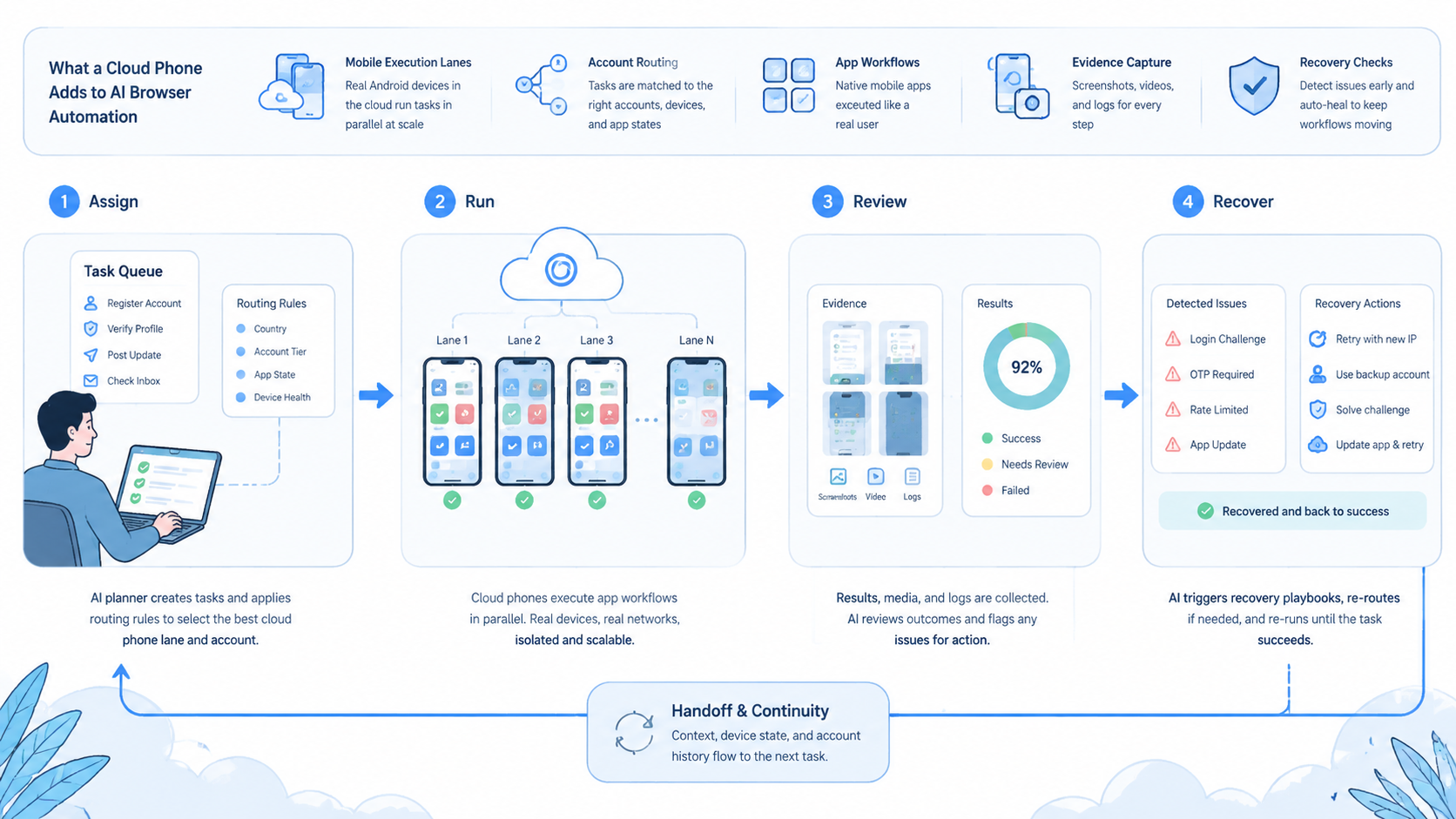
Cloud phones extend AI browser automation by adding a mobile execution layer. The value is not only remote access. The stronger value is the ability to route app work, preserve account context, capture evidence, and recover when a run is unclear.
Start with one workflow that already crosses web and app surfaces. Decide which steps belong in the browser, which steps belong on the phone, and which steps require human review. If the pilot produces clear results and clear failures, the team can add more lanes with less confusion.