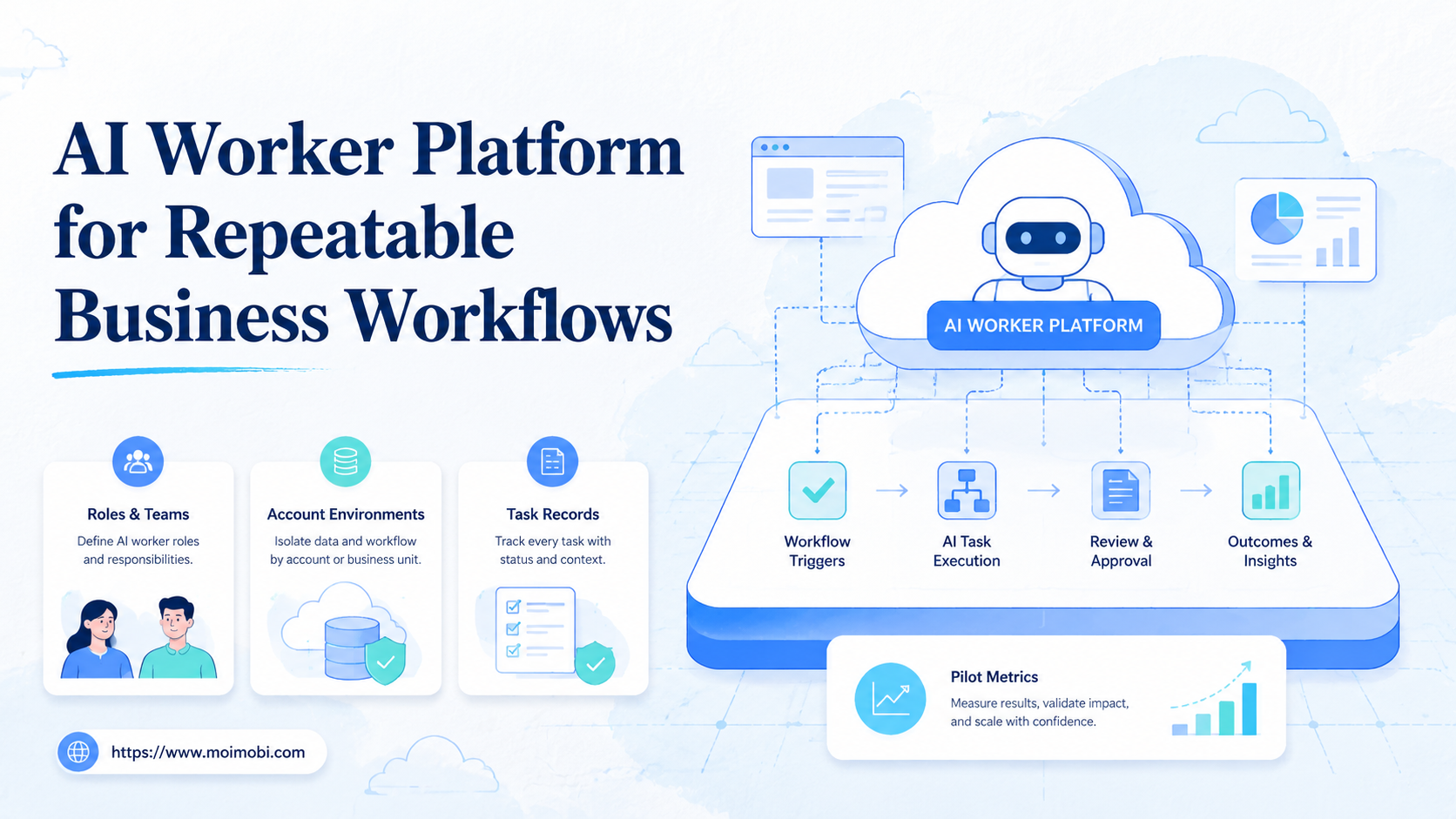
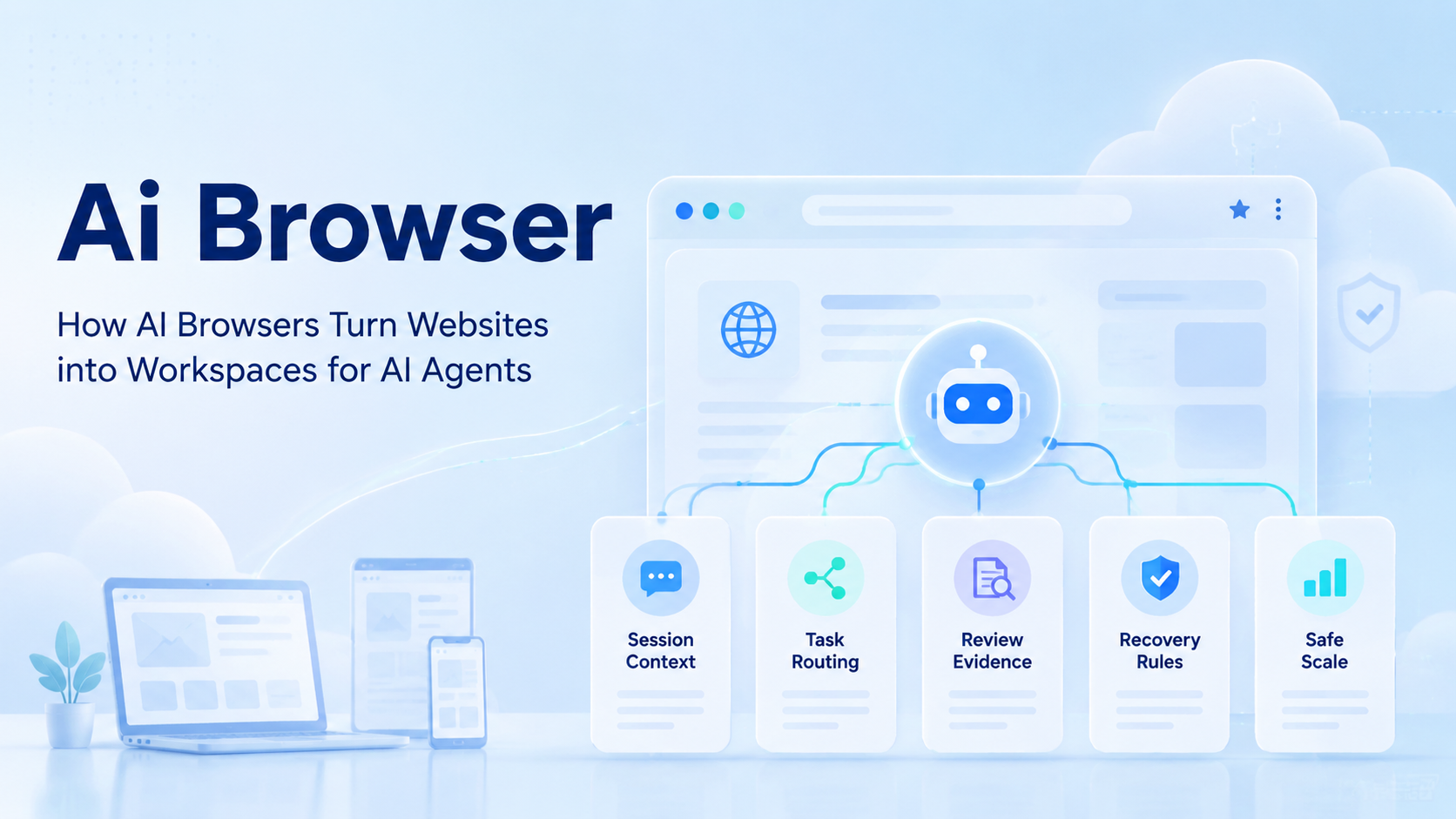
An AI browser is a controlled browser environment where AI agents can read web pages, use accounts, follow task rules, and return evidence for review. It turns websites into workspaces by adding session context, execution lanes, account routing, and recovery checks around normal web interfaces.
This matters because most business tools still live inside websites. Dashboards, inboxes, admin panels, support queues, analytics pages, and content systems all require context. A model can suggest an answer, but an agent needs a place to act.
The workspace gives that action a boundary, so the agent does not treat every visible button as permission to continue.
That controlled environment becomes the working place. It gives the agent a workspace instead of a loose prompt. The team can decide which account it may use, which page it may open, which action needs approval, and what evidence must come back.
Key Takeaways
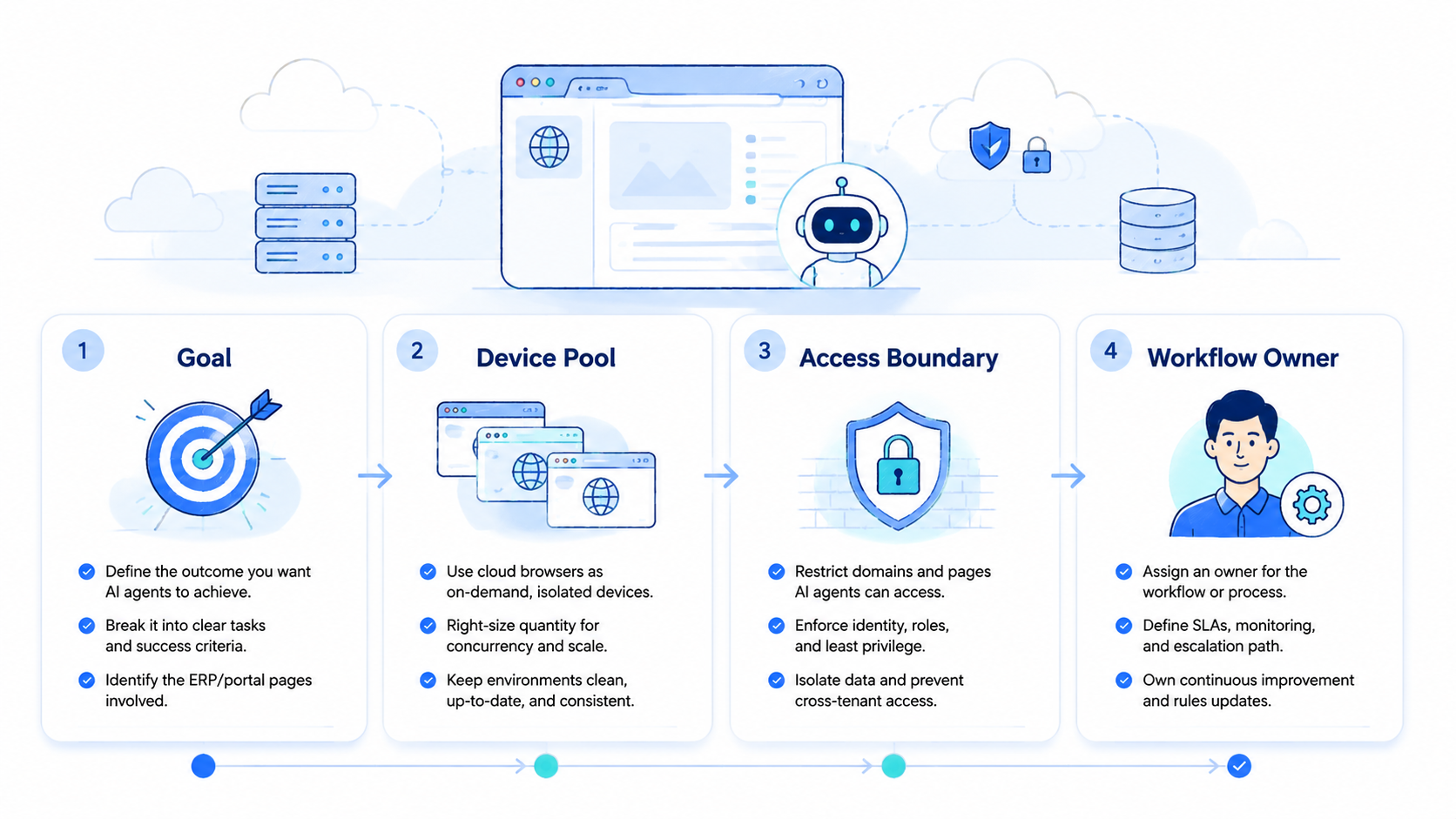
- AI browsers turn web apps into controlled execution spaces for AI agents
- The value is session context, account routing, evidence, and recovery control
- Teams should separate reading, drafting, acting, and approval
- Browser work may need mobile or device lanes when tasks move into apps
- A pilot should prove review clarity before scale
What an AI Browser Adds to Websites
A normal browser is built for a human operator. The person decides where to click, which account to use, and when to stop. This setup adds an execution layer so an agent can operate inside the same web surface with rules and records.
The difference is control.
Without a controlled browser, an agent may only read copied text or act through an API. That can be enough for some jobs. It falls short when the task requires page context, session state, visual layout, or a logged-in tool.
A controlled browser workspace should keep four facts visible:
| Workspace fact | Why it matters |
|---|---|
| Account identity | Shows which login or profile was used |
| Page context | Shows what the agent saw before action |
| Task rule | Shows what the agent was allowed to do |
| Result evidence | Shows why the run passed, failed, or stopped |
Google Search Central encourages clear, useful output for real people. The same standard fits agent work. A run should produce evidence a reviewer can use, not only a vague completion message.
Why Websites Become Workspaces for AI Agents
Websites become workspaces once the agent needs more than text generation. A support agent may need to open a ticket, inspect customer history, draft a reply, and stop for approval. A sales agent may need to review a profile, capture notes, and enrich a lead record.
The website is where the work already happens. Moving every task to a new tool is usually slow. Letting an agent operate inside the existing interface can be more practical when the team already trusts that workflow.
Use caution.
No browser workspace should turn every website into an unattended action surface. Some pages are read-only sources. Some pages are draft spaces.
Some pages allow low-impact edits. Sensitive pages should require human approval.
A useful AI agent browser setup defines those boundaries before execution starts. It should know which pages are allowed, which accounts are assigned, and which actions create a stop condition.
For teams running many accounts, multi-account management becomes part of the workspace design. The browser is not only a window. This workspace is also where identity, task state, and review evidence meet.
AI Browser Workflow Design for Daily Operations
The best workflow starts with a narrow task. Avoid telling an agent to "handle the website." Give it a trigger, account group, page path, allowed action, evidence rule, and stop rule.
Keep the unit small.
For example, a daily support workflow might ask the agent to open a queue, read new tickets, classify issue type, draft a response, and stop before sending. A content workflow might ask the agent to check a CMS page, compare fields, and flag missing items.
Use this operating sequence:
- Assign the account. Bind the task to the right browser profile or account group.
- Open the workspace. Load the website path where the task should happen.
- Read the state. Capture the page, record, status, or queue item before action.
- Run the allowed step. Draft, classify, copy, update, or stop based on the rule.
- Return evidence. Store the result, exception reason, screenshot, or review note.
Do not mix rule design with live execution. Write the rule first. Then test it on a small queue.
For repeated clicks, form steps, or page checks, mobile automation principles still apply on the web side: consistent steps, stop rules, and clear evidence matter more than raw speed.
Where Browser Work Needs Device or Mobile Context
The browser lane is not the only execution lane. Some workflows start on a website and finish in a mobile app. Others depend on a phone notification, device state, or app-only screen.
That handoff should be explicit.
If an agent reads a web dashboard but the final status lives in an app, the browser should pass the task to a phone lane. If the website provides enough context, keep it in the browser. The rule should depend on the surface that contains the evidence.
A remote mobile device can extend the workspace when app state matters. A phone farm model may help when many phone lanes are needed, but capacity should follow review quality.
The same principle applies to device identity. If account state, browser profile, or app session must stay separate, use device isolation instead of sharing one messy environment.
One system, many lanes.
Use the browser as the workspace for web tasks. Use the phone as the workspace for app tasks. Keep the review queue as the workspace for judgment.
Common Mistakes with AI Browser Workspaces
The first mistake is treating a browser workspace as a free-action zone. A website may contain buttons that should not be clicked by an unattended agent. Allowed actions must be written before the run.
Do not leave permission to memory, because the person reviewing tomorrow may not know what the builder assumed today.
The second mistake is hiding account ownership. If several agents use the same login or profile, review becomes difficult. Account routing should be visible in every run record.
Name the owner.
That single ownership field prevents a later reviewer from guessing which person, account group, or browser profile shaped the result.
The third mistake is retrying unclear failures. A changed page, blocked login, missing field, or unexpected modal should stop the workflow. Retrying without a label can hide the real problem.
Stop cleanly.
The fourth mistake is ignoring network and region context. For multi-account operations, proxy network design may matter. It should be treated as infrastructure with ownership, not a quick fix after problems appear.
Infrastructure choices should appear in the run record, not only in a setup note that nobody reads during recovery.
The fifth mistake is skipping human approval. Agents can read, draft, classify, and prepare. Sensitive decisions should stay in a review queue until the team has clear rules.
Approval is a control.
The approval point should be visible in the task record, because hidden approvals turn routine work into a private habit that cannot be audited.
Evidence Fields for AI Browser Runs
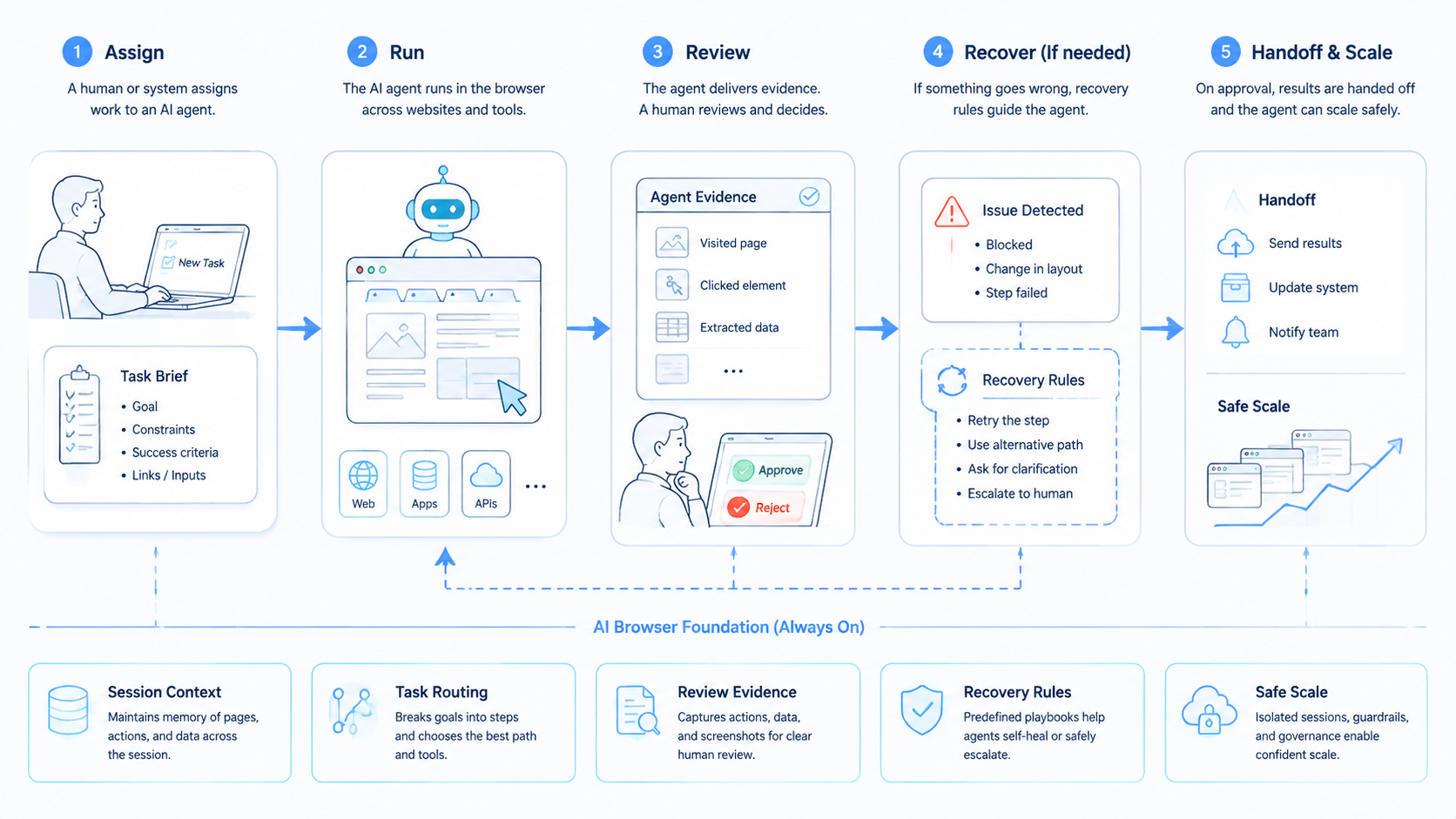
Evidence should answer a simple question: can another operator understand the run without repeating it? If not, the workspace is incomplete.
Collect a compact record:
| Field | Purpose |
|---|---|
| Task ID | Links the browser run to the queue item |
| Account profile | Shows which session was used |
| Website path | Shows the workspace entered |
| Start state | Shows what the agent saw first |
| Action taken | Shows draft, update, copy, classify, or stop |
| Exception reason | Explains failed or unclear runs |
Keep it short.
Evidence fields should not become a second job. They should be simple enough for daily use and consistent enough for weekly review.
Source Quality and Policy Boundaries
Agent work still needs source discipline. A browser workspace can open many pages, but not every page deserves the same trust. Teams should separate official sources, internal systems, user-generated pages, and low-confidence pages before the agent acts on the information.
Write that rule plainly.
Google Search Central's SEO starter guide is written for website owners, but one principle applies to agent work too: structure and clarity help people understand what is happening. A browser run should make the source path clear enough for a reviewer to inspect.
For app or platform-adjacent work, Google's Play policy resources are a reminder that rules and context matter. Agents should not turn vague instructions into actions that operators would normally review.
Use a policy boundary map:
| Boundary | Low-control setup | Better setup |
|---|---|---|
| Source trust | Agent treats pages equally | Workflow labels source type |
| Account access | Any profile may be used | Account group is assigned |
| Action level | Read and edit are mixed | Read, draft, edit, and approve are separated |
| Evidence | Only final result is saved | Start state and result state are saved |
| Review | Human sees only failures | Human sees sampled passes and all unclear runs |
This map is not bureaucracy. It keeps browser work explainable. When a reviewer cannot see the source, account, and action boundary, the workflow should stay small.
Operating Roles for Agent Browser Work
A browser workspace needs roles, even for a small team. One person should own the workflow rule.
That owner should know which pages, accounts, and actions belong in scope before the agent touches the first queue item.
Another person may review outputs. A third person may handle account or environment readiness.
Those roles can be lightweight, but they should be written before the first production queue begins.
Role clarity prevents a quiet failure. Without an owner, small page changes can break a task for days. Without a reviewer, a wrong draft can look complete. Without environment ownership, stale sessions and expired logins can waste every run.
Small teams still need names.
A simple role map saves time when a page changes, because the team already knows who edits the rule and who reviews the next run.
Keep roles light.
The rule owner decides what the agent may do. The reviewer decides whether output is acceptable. The environment owner keeps profiles, accounts, and lanes ready. In a small team, one person may hold two roles, but the roles should still be named.
| Role | Daily responsibility | Stop signal |
|---|---|---|
| Rule owner | Defines allowed pages and actions | Workflow reaches an undefined state |
| Reviewer | Checks output and sampled passes | Evidence does not explain the result |
| Environment owner | Keeps accounts and profiles ready | Login, profile, or routing state is unclear |
This role split also helps when work crosses into mobile execution. A browser owner may not own app state. If a workflow moves to a remote mobile device, the handoff should name the phone lane and the reviewer.
Fit Boundaries for AI Browser Agent Work
The model fits teams that already do repeated work inside websites. Support queues, internal dashboards, content systems, lead research pages, ad review tools, and admin panels are common examples.
The fit is weaker when each case requires new judgment. For negotiation, sensitive policy interpretation, or high-impact decisions, use the browser to prepare context and keep final approval with a person.
Strong fit
- Repeated web workflows
- Known account groups
- Clear approval rules
- Visible page evidence
- Routine queue work
Weak fit
- One-off judgment tasks
- No account owner
- No stop rule
- Unclear page permissions
- No review process
Fit can improve. A weak task becomes stronger after the team writes rules, separates accounts, and defines evidence.
The review habit decides the pace. A team that reviews ten clear runs can expand with more confidence than a team that rushes one unclear workflow across every account group. Clean evidence beats volume.
Pilot Rollout and Recovery Checks
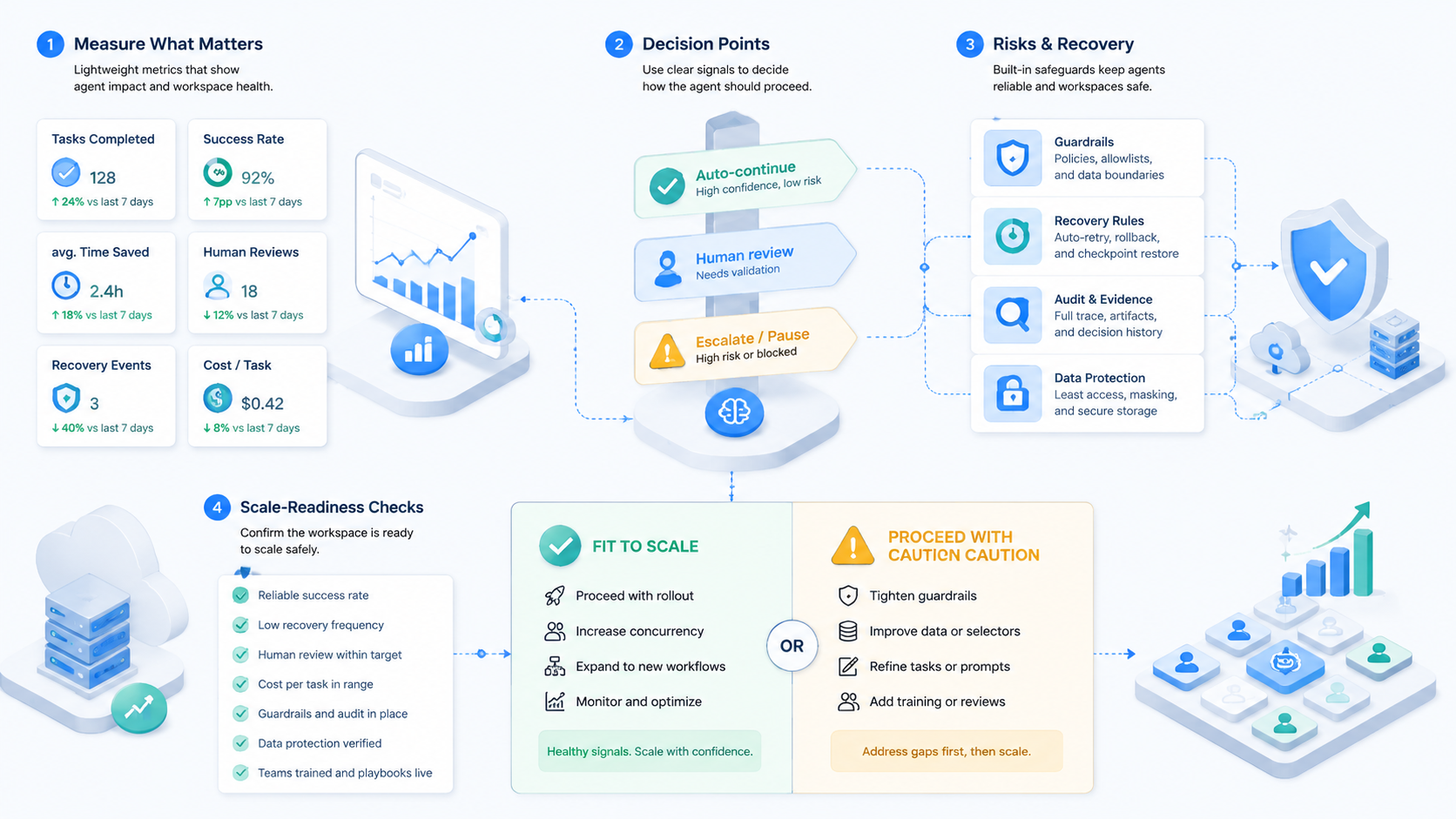
A pilot should prove that the browser workspace makes work clearer. It should not start with the most sensitive action. Pick a repeated web task with a safe stop point.
The safest pilot is narrow enough to inspect by hand, but real enough to expose stale sessions and missing evidence.
Run a small queue. Review every result. Label each run as pass, fail, retry, or human review.
Short queues expose weak rules faster than broad launches, because every failed run can still be inspected by the same reviewer.
Use this scorecard:
| Pilot signal | Good sign | Hold sign |
|---|---|---|
| Account route | Correct profile used | Account choice is unclear |
| Page state | Start state is visible | Reviewer cannot see context |
| Action rule | Agent stops at boundary | Agent continues after uncertainty |
| Evidence | Result can be reviewed | Output only says completed |
| Recovery | Failure has owner | Error sits in a generic queue |
Recovery checks matter before scale. What happens when a session expires? What if a page changes?
What if the agent finds two possible records? Each case needs a label.
Review first.
The recovery label should be short enough for daily use, but specific enough to separate a session issue from a rule issue.
Expand only after failed runs are easy to explain. If the team cannot tell whether the account, page, rule, or browser state caused a failure, adding more agents will add confusion.
Frequently Asked Questions
1. What is an AI browser?
It is a controlled browser environment where agents can use web sessions, follow task rules, and return evidence for review.
2. How does it turn a website into a workspace?
It adds account context, page state, allowed actions, evidence capture, and recovery rules around normal web interfaces.
3. Does this replace APIs?
No. APIs are useful when available and stable. AI browsers help when work depends on web interfaces, sessions, and page context.
4. When should a task stop for review?
Stop when the page changes, the account state is unclear, the action is sensitive, or the result cannot be explained from evidence.
5. Can AI browsers work with mobile tasks?
Yes, but mobile tasks may need a phone lane. Use browser lanes for web work and mobile lanes when app state matters.
Route by surface.
6. What should a pilot measure?
Measure account routing, page evidence, action accuracy, failure clarity, recovery speed, and reviewer confidence.
Measure review effort too.
7. What is the biggest risk?
The biggest risk is letting agents act without written boundaries. Define allowed pages, actions, stop rules, and approval points.
Boundaries first.
This one rule protects the rest of the workflow.
It also gives reviewers a clear reason to stop a run instead of debating intent after the fact.
8. What is the first step?
Choose one repeated website workflow, write the task rule, bind an account group, and test it with a small queue.
Conclusion
AI browsers turn websites into workspaces for AI agents by adding execution control around normal web interfaces. The value is not just page access. Stronger value comes from account routing, page context, action boundaries, evidence, and recovery.
Start with one repeated website task. Define the account, page path, allowed action, stop rule, and evidence package. Once the pilot makes both success and failure easy to review, the workspace is ready for broader agent work.