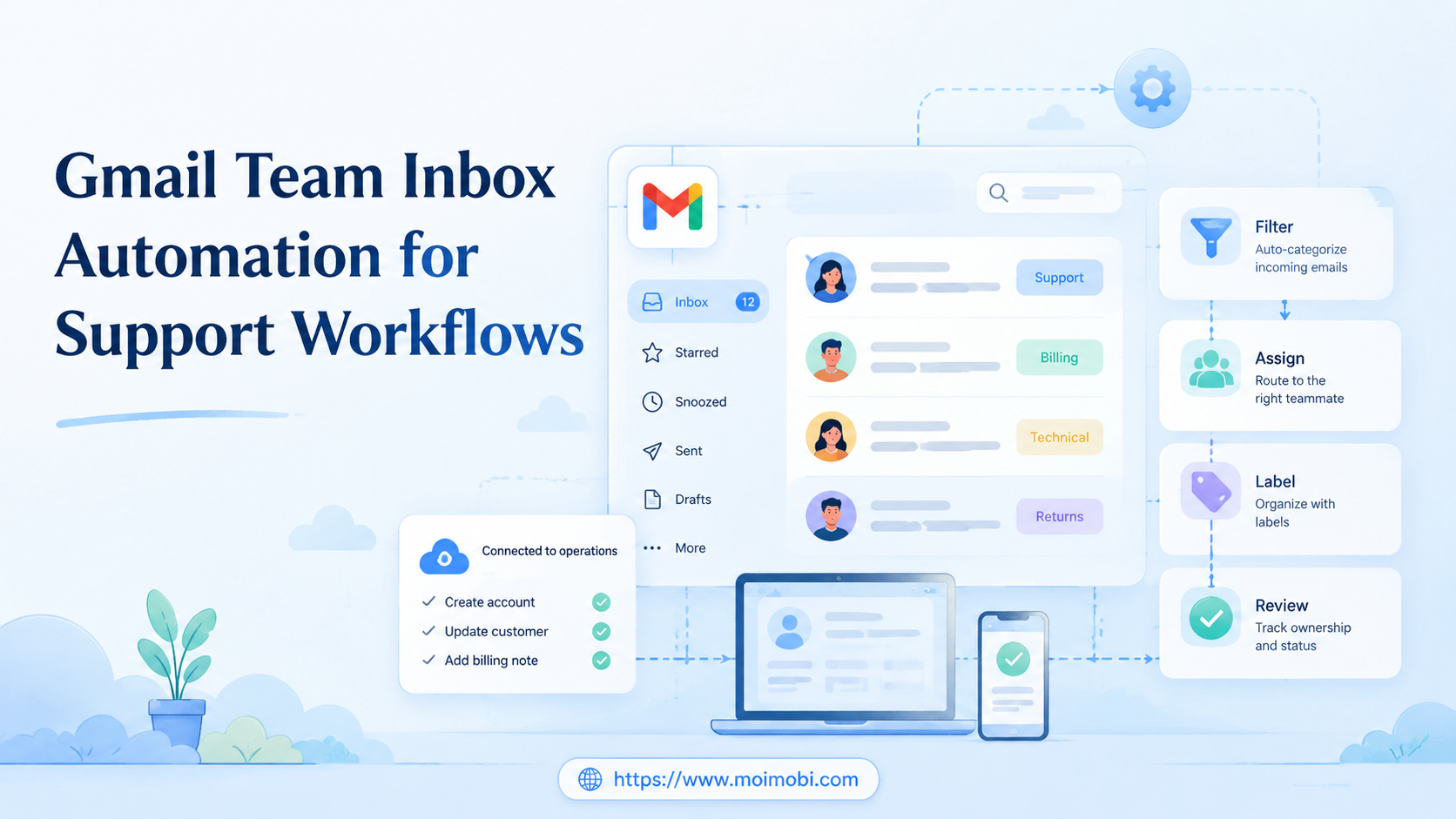
Gmail team inbox automation is the use of shared inbox structures, labels, filters, assignments, notifications, and review workflows to help support teams manage email without losing ownership. It works best when automation supports triage and follow-up, not when it hides human responsibility.
Support teams search for this topic when Gmail becomes more than a personal inbox. A shared support address, partner inbox, or multi-account operation needs routing, labels, response ownership, and recovery checks. The goal is not only faster replies. The goal is fewer missed messages and clearer accountability.
Key Takeaways
- Gmail automation should start with ownership, not rules.
- Labels, filters, delegation, and Collaborative Inbox each solve different problems.
- Support teams need assignment and resolution records, not only email forwarding.
- API-based automation needs technical ownership and monitoring.
- Multi-channel teams should connect Gmail work to broader account operations.
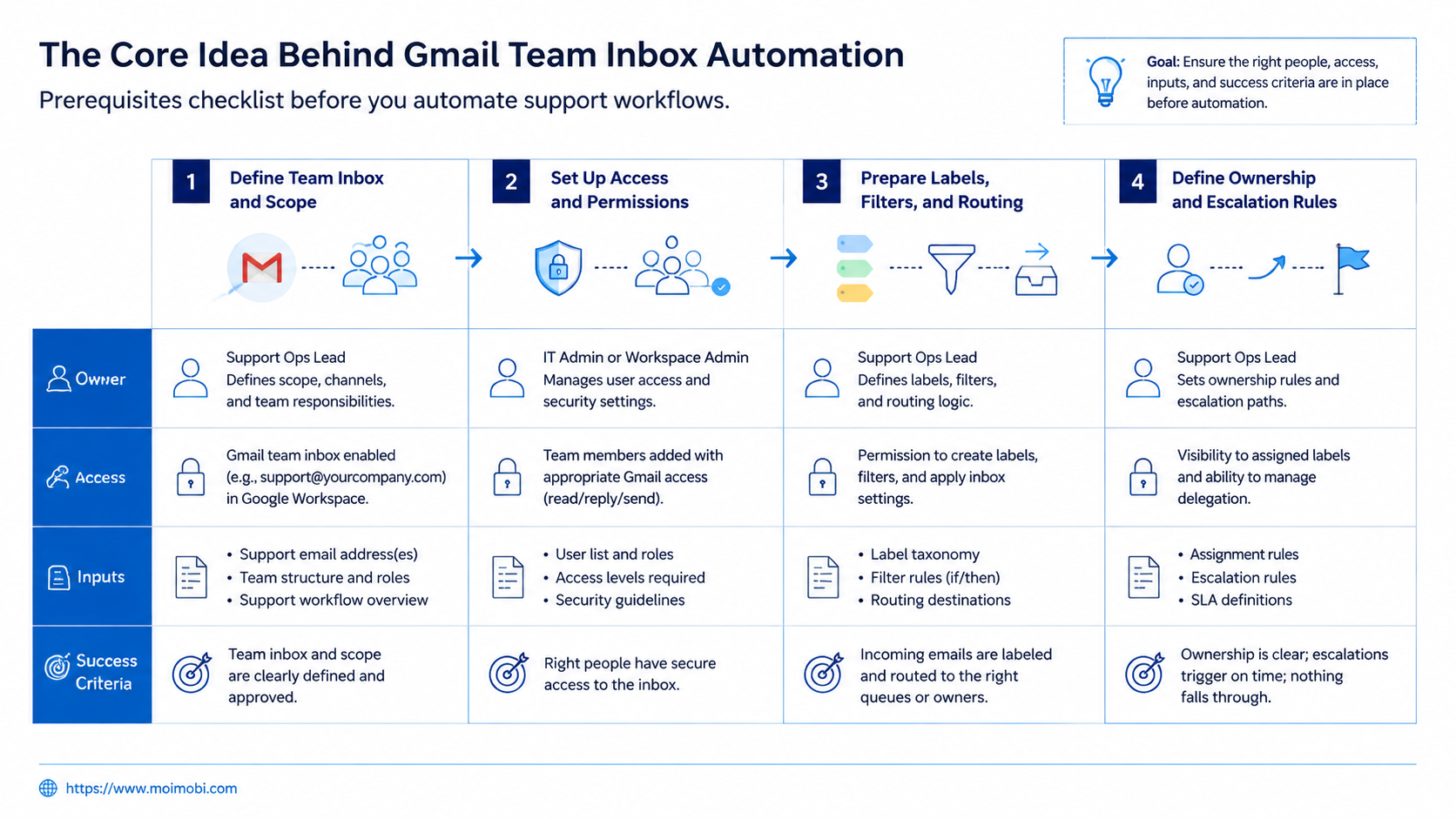
The Core Idea Behind Gmail Team Inbox Automation
A team inbox workflow connects incoming messages to support ownership. The workflow should show which mailbox received the message, who owns the reply, which status applies, and what happens next.
Google provides several building blocks. Gmail filters can apply labels, archive, delete, star, or forward incoming mail based on rules. Google Groups Collaborative Inbox can help teams assign conversations, use labels, and mark topics as resolved. Gmail delegation lets someone read, send, and delete emails for another account, with limits and visibility rules described in Google Help.
These features are useful, but they do not automatically create a support workflow. A team still needs naming rules, response ownership, escalation paths, and review habits. Without those rules, automation may only move messages faster into a confusing queue.
Treat Gmail as the inbox layer. The operating layer sits above it. That layer decides who handles billing questions, who handles complaints, who follows up on leads, and how unresolved work is reviewed.
Why Teams Search for Gmail Team Inbox Automation
Teams usually search for Gmail team inbox automation after one of four problems appears.
First, messages get missed. A customer sends a request, but nobody owns the reply. Second, multiple people answer the same thread. Third, important emails sit in a label with no resolution state. Fourth, managers cannot tell whether response delays come from volume, routing, or unclear responsibility.
Google's Collaborative Inbox guidance is useful because it describes assignment, labels, and resolved status as part of group message management. Those functions are closer to support operations than simple forwarding.
For more technical workflows, the Gmail API supports push notifications through Pub/Sub. Google explains that push notifications can watch Gmail mailbox changes and reduce polling. That can help a support system react to new messages, but it also requires engineering ownership, monitoring, and error handling.
Comparing Gmail Options for Support Teams
The right setup depends on the team's support shape. A small team may use filters and labels. A larger support workflow may need Collaborative Inbox, delegation, or a help desk system.
| Option | Best for | Watch out for |
|---|---|---|
| Gmail filters and labels | Simple routing and categorization | No built-in accountability by itself |
| Gmail delegation | Assistant or shared mailbox access | Delegates need clear responsibility |
| Google Groups Collaborative Inbox | Team assignment and resolved status | Process design still matters |
| Gmail API automation | Custom routing or backend triggers | Requires technical maintenance |
| External help desk | SLA, reporting, omnichannel support | May add cost and migration work |
This table is not a ranking. It is a fit map. A lightweight setup may be enough for a support@ inbox with low volume. A support team with multiple products, regions, and channels needs stronger assignment and reporting.
What to Automate First
Do not automate every inbox action on day one. Start with routing and visibility.
Preflight checklist
- Define the inbox purpose: support, sales, billing, partner, or operations.
- Decide who owns first response and who owns escalation.
- Create labels for status, topic, urgency, and owner.
- Define when a message is considered resolved.
- Decide which messages should never be auto-closed.
- Create a review rhythm for unresolved or unassigned messages.
Then build the first workflow:
- Use filters to classify incoming mail by sender, keyword, alias, or topic.
- Apply labels that match real support queues.
- Assign an owner or group when human follow-up is needed.
- Escalate sensitive, billing, legal, or complaint messages.
- Mark a conversation resolved only after the next action is complete.
- Review unresolved labels daily or weekly.
- Adjust filters after reviewing false positives and missed messages.
This sequence keeps automation close to support work. It avoids a common failure: creating clever rules that nobody reviews.
Fit and Not-Fit Guidance
This setup is a strong fit for teams that already use Google Workspace and want a practical support workflow before adopting a full help desk.
Account-based teams may also benefit. For example, a growth team may handle Gmail inquiries, social inbox replies, and mobile app messages in one broader account workflow.
Use this fit guide:
| Team situation | Fit level | Recommended starting point |
|---|---|---|
| Two-person support team | Medium | Filters, labels, simple ownership |
| Shared support@ address | Strong | Delegation or Collaborative Inbox |
| Product support team | Strong | Labels, assignment, escalation rules |
| Multi-region support | Strong | Owner, region, and language labels |
| High-volume omnichannel support | Mixed | Gmail plus help desk or workflow layer |
| No clear support owner | Poor | Fix ownership before automation |
For teams that manage email alongside mobile channels, MoiMobi can help connect inbox planning with multi-account management. Gmail handles email. The broader workflow may also need browser sessions, mobile devices, and account-level task records.
Permission and Channel Boundaries
Good inbox automation starts with permission boundaries. A teammate who triages email may not need the same access as the person who changes account settings, manages a billing case, or approves a refund.
Google's delegation model is useful for some shared-mailbox cases because it lets a delegate act inside another mailbox. Collaborative Inbox fits a different model, where messages flow through a group and can be assigned or marked resolved. Filters solve a smaller routing problem. Each option carries a different ownership model.
Support teams should write these boundaries before adding more rules:
- who can read messages
- who can send replies
- who can close or mark resolved
- who can escalate billing, legal, or abuse issues
- who reviews unresolved conversations
- who owns messages that move to another channel
Channel boundaries matter because Gmail is often only one support surface. A customer may email first, then ask the same question through a social account or mobile messaging app. The team needs one owner for the customer issue, not one owner per tab.
This is where Gmail multi-account management becomes an operations problem. The inbox layer can sort messages, but the support operation still needs account ownership, context transfer, and review logs.
How to Evaluate Gmail Automation Pricing and Tool Fit
Gmail automation pricing depends on the setup. Native Gmail filters do not add a separate tool cost. Google Workspace licensing, delegated mailboxes, Groups features, external help desks, or custom Gmail API systems may change the total cost.
Do not compare pricing only by seat count. Compare the cost of missed messages, duplicated replies, unclear ownership, and manual review.
A practical evaluation scorecard looks like this:
| Criteria | Question | Why it matters |
|---|---|---|
| Ownership | Can one person see who owns each message? | Prevents missed replies |
| Triage | Can messages be labeled by type and status? | Improves queue review |
| Escalation | Can sensitive messages move to the right person? | Reduces support mistakes |
| Auditability | Can managers review unresolved work? | Supports training and recovery |
| Integration | Can the inbox connect to other account workflows? | Helps multi-channel teams |
The best Gmail automation tool for support teams is the one that matches the current operating problem. If the issue is simple sorting, filters may be enough. If the issue is ownership, Collaborative Inbox or a help desk may fit better. If the issue spans Gmail, social accounts, and mobile messaging, a broader execution system becomes more relevant.
Pilot Rollout, Measurement, and Recovery Checks
A pilot should prove that the team can find, own, and close support work. It should not only prove that a rule can move emails into a label.
Choose one inbox and one workflow. For example, run a two-week pilot for product support or sales follow-up. Track only the fields needed for review.
Measure these signals:
- unassigned message count
- duplicate reply count
- unresolved message age
- escalation time
- false-positive filter matches
- missed messages found during review
Recovery checks are important. If a rule mislabels a message, record the cause. If a delegate replies without context, update the ownership rule. If an API integration stops receiving updates, check monitoring before relying on the workflow again.
Gmail API push notifications can help custom systems react to mailbox changes. They are not a replacement for human review, queue ownership, or support policy.
Keep the pilot review fields simple:
| Review field | Why it matters |
|---|---|
| Owner | Shows who should act next |
| Status | Separates new, waiting, escalated, and resolved work |
| Source | Distinguishes direct email, group inbox, delegated mailbox, or API trigger |
| Last action | Prevents repeated replies |
| Next step | Keeps the queue from becoming a passive archive |
These fields make the inbox easier to audit. They also give managers a practical training record for new support operators.
Common Mistakes That Reduce Results
The first mistake is using forwarding as a shared inbox. Forwarding spreads messages, but it does not create ownership or resolution status.
The second mistake is building too many labels. A long label tree can hide urgent work. Start with simple status and topic labels, then add detail only when review shows a real need.
The third mistake is treating filters as permanent. Support workflows change. Review filters after false positives, missed messages, product launches, and support volume shifts.
The fourth mistake is ignoring other channels. A customer may email support, then send a social message or app message. If teams operate channels separately, the customer history becomes fragmented.
MoiMobi helps teams connect Gmail support workflows with mobile automation, browser execution, and device isolation when support work crosses accounts or mobile-first channels.
How MoiMobi Fits Support Workflows
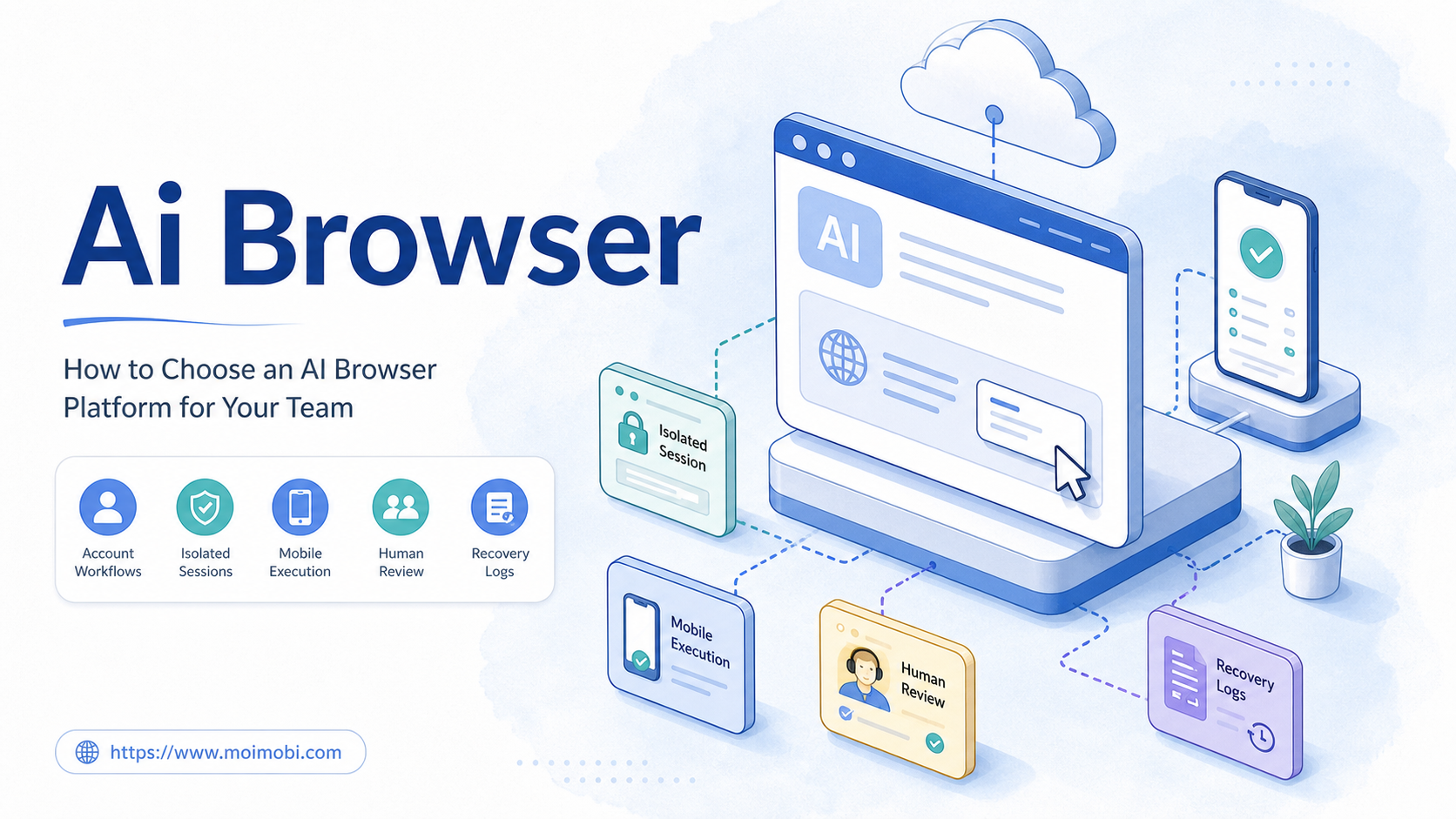
MoiMobi is not a Gmail replacement. It is an execution layer for teams that need AI planning, browser environments, mobile devices, account workspaces, and review records.
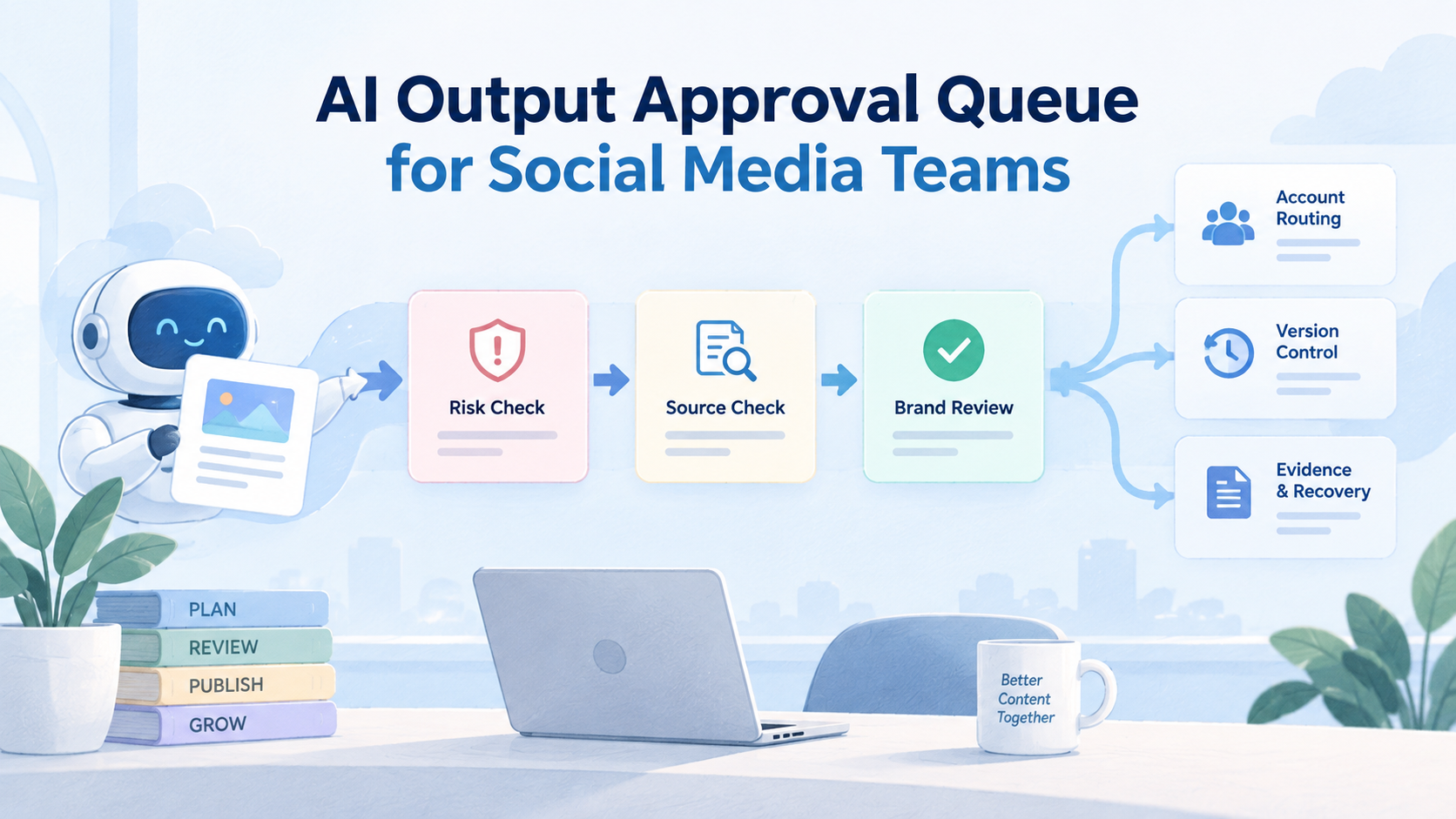
In a support workflow, AI can draft reply suggestions, summarize issues, or prepare escalation notes. The execution side can connect that work to account environments and task logs. That matters when teams also manage social accounts, mobile app messages, or regional support workflows.
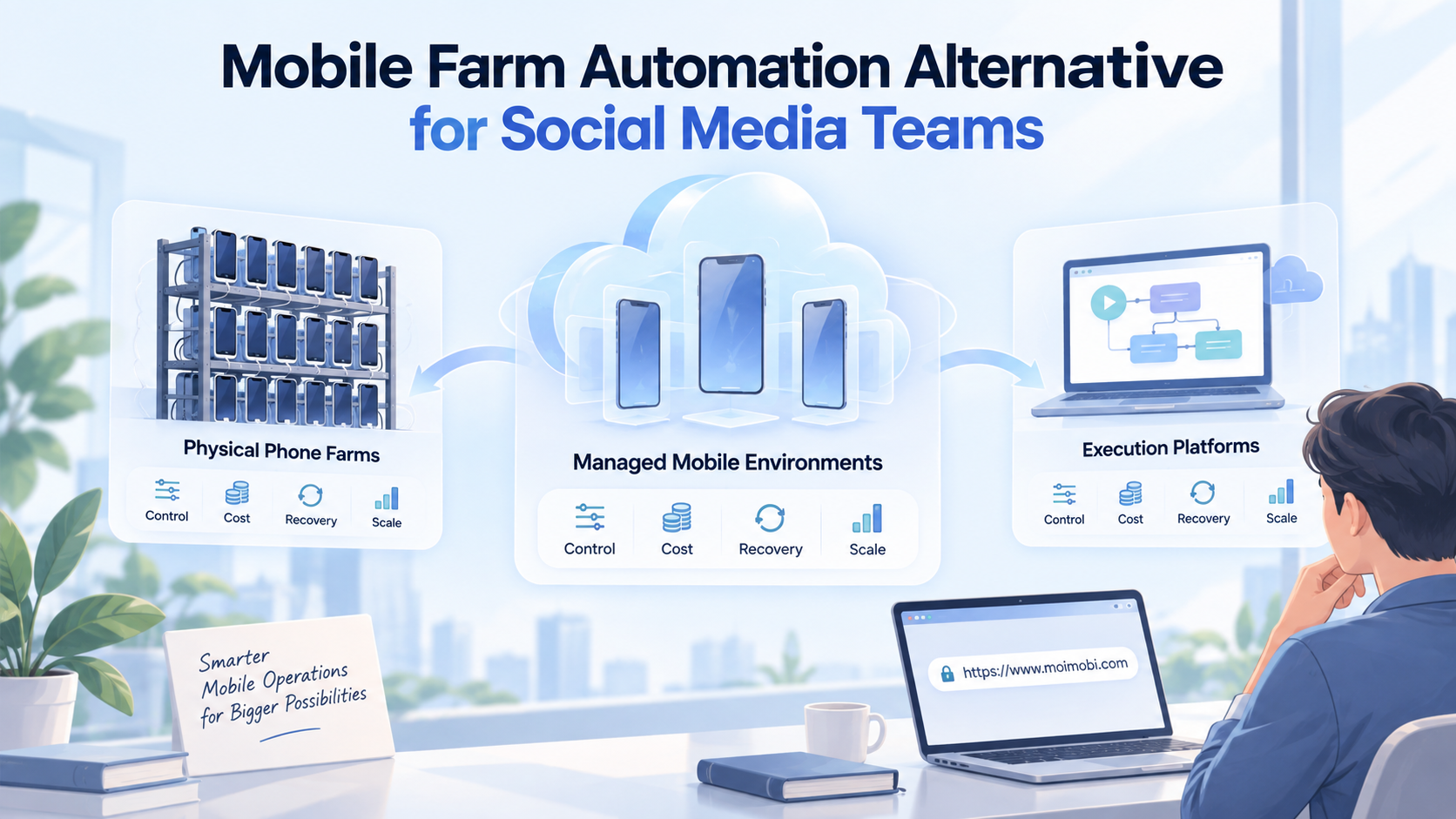
For teams comparing Gmail multi-account management with WeChat multi-account message management, the same principle applies. Each account needs ownership, environment separation, reply state, and review history. A cloud phone layer may be useful when the support channel is mobile-first and needs a persistent app environment.
MoiMobi's role is to keep the wider support operation visible. Gmail remains the inbox. MoiMobi helps when inbox work becomes part of a larger browser and mobile execution system.
Frequently Asked Questions
What is Gmail team inbox automation?
This workflow uses Gmail, Google Groups, labels, filters, delegation, APIs, and review habits to manage shared support email.
Is Gmail enough for a support team?
It can be enough for small teams. Larger teams may need a Collaborative Inbox, help desk, or broader workflow layer.
What should support teams automate first?
Start with labels, filters, ownership rules, and unresolved-message review. Do not begin with auto-closing messages.
Can Gmail filters replace a help desk?
Usually no. Filters sort mail. A help desk adds stronger queues, reporting, SLAs, and omnichannel workflows.
When is the Gmail API useful?
The Gmail API is useful when a team needs custom notifications, integrations, or backend workflows tied to mailbox changes.
How does MoiMobi relate to Gmail automation?
MoiMobi connects AI planning and execution environments around support workflows that extend beyond Gmail.
What should a pilot measure?
Measure unassigned messages, duplicate replies, unresolved age, escalation time, and missed messages found in review.
Conclusion
Shared inbox automation should make support ownership clearer. Start with labels, filters, assignment, and unresolved-message review before adding complex integrations.
The next step is a small pilot. Pick one inbox, define the owner and labels, and measure missed messages, duplicate replies, and escalation time. Expand only when the workflow improves support visibility.
Document the pilot result before adding more inboxes.