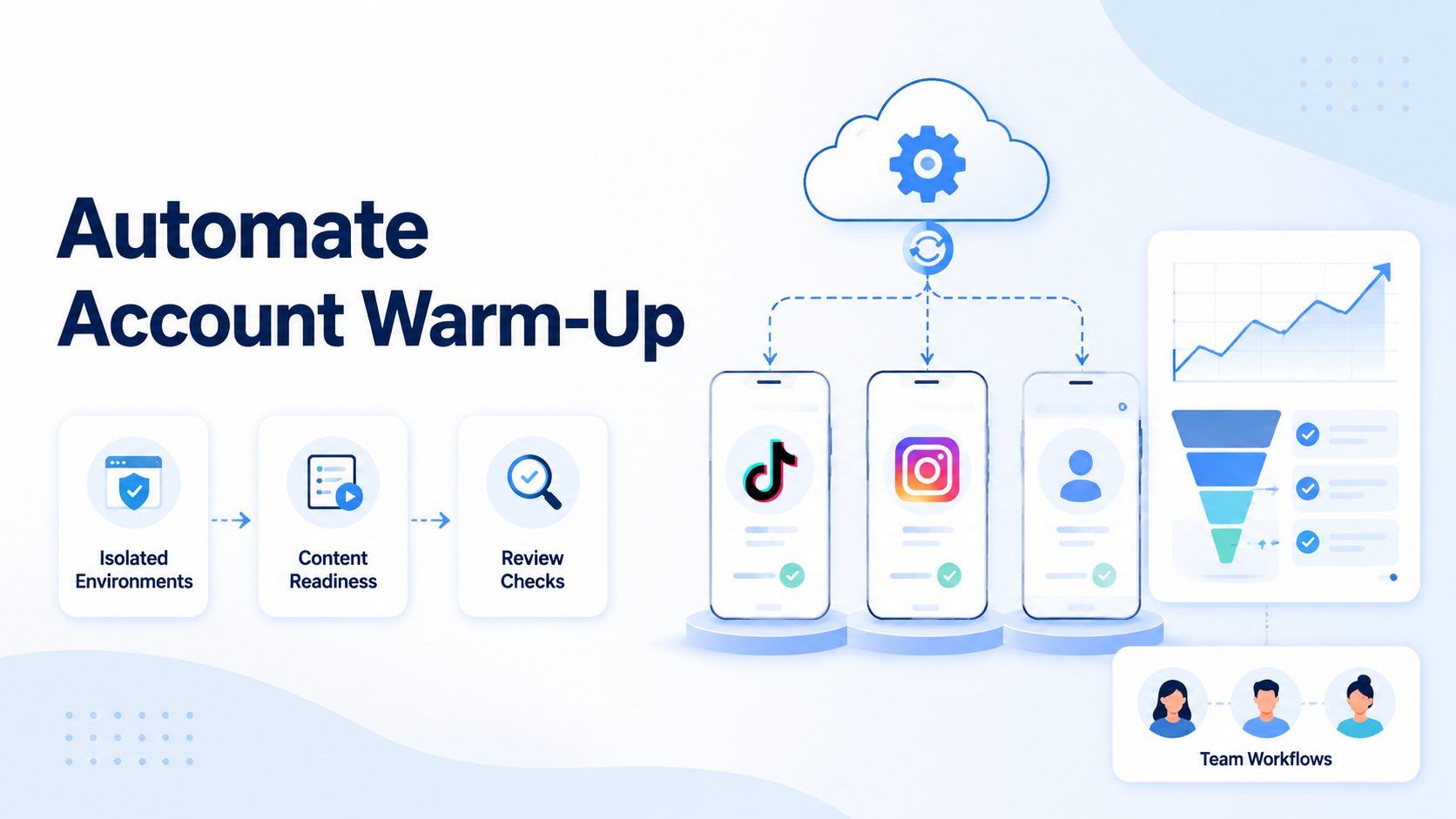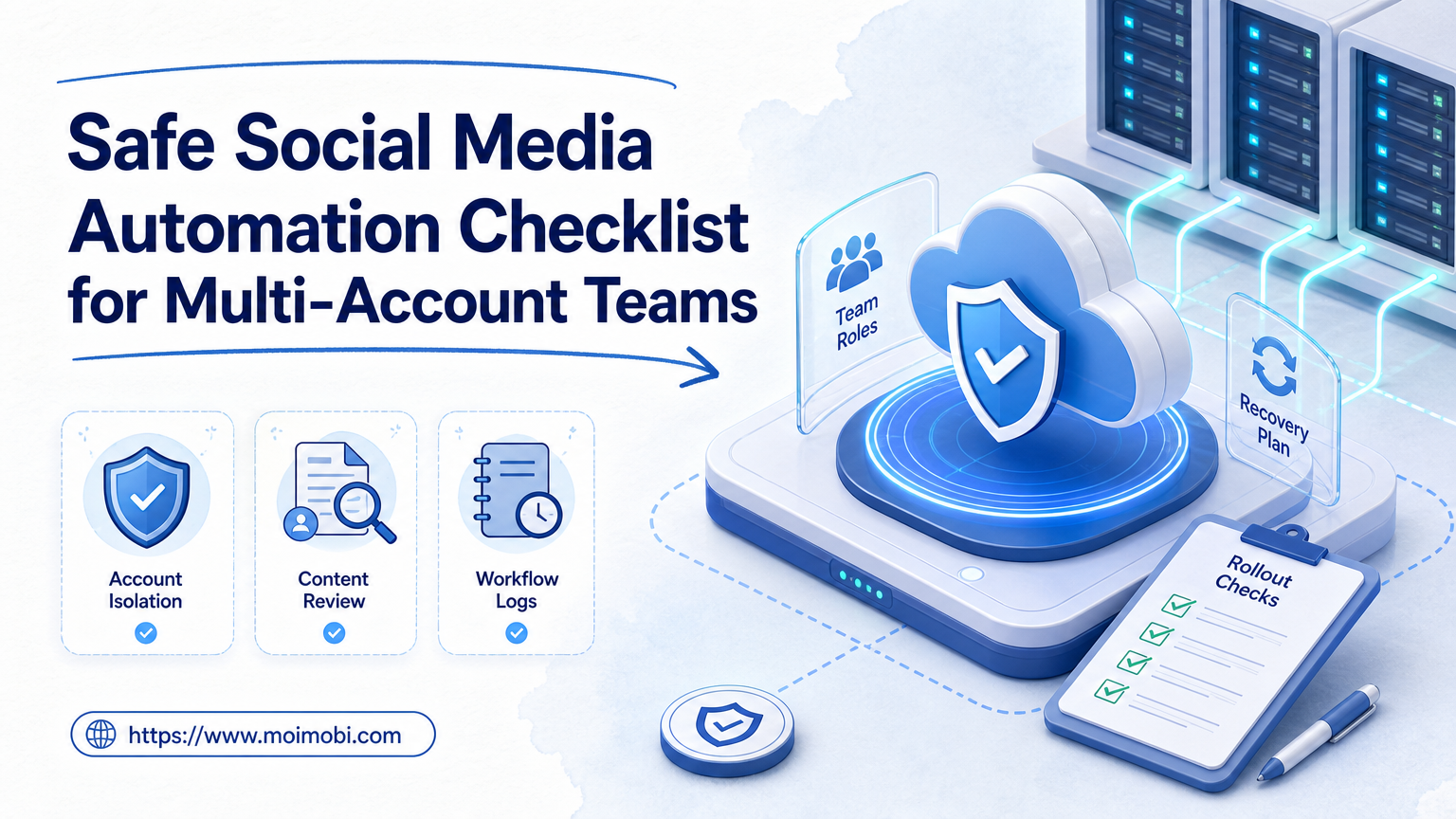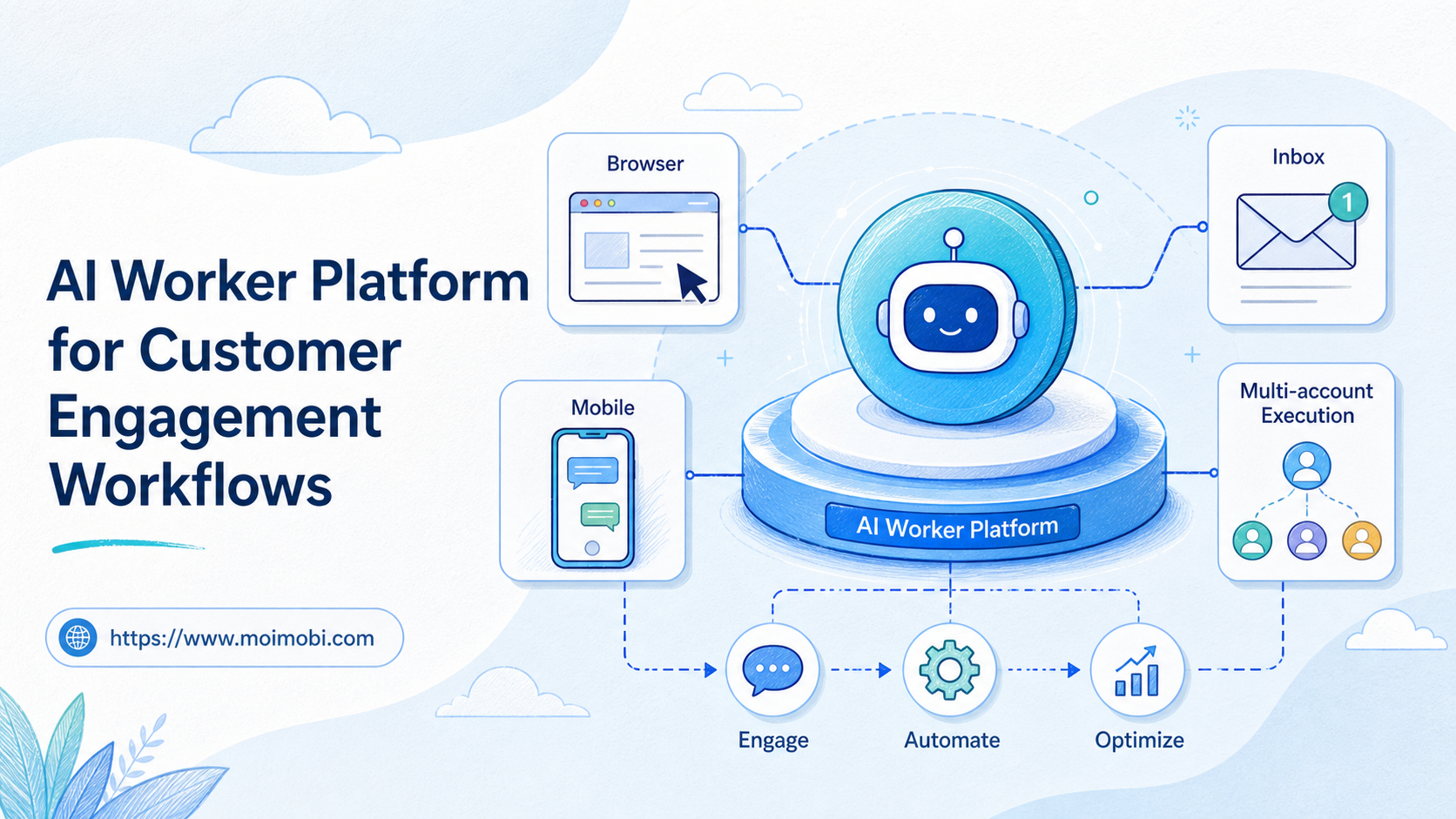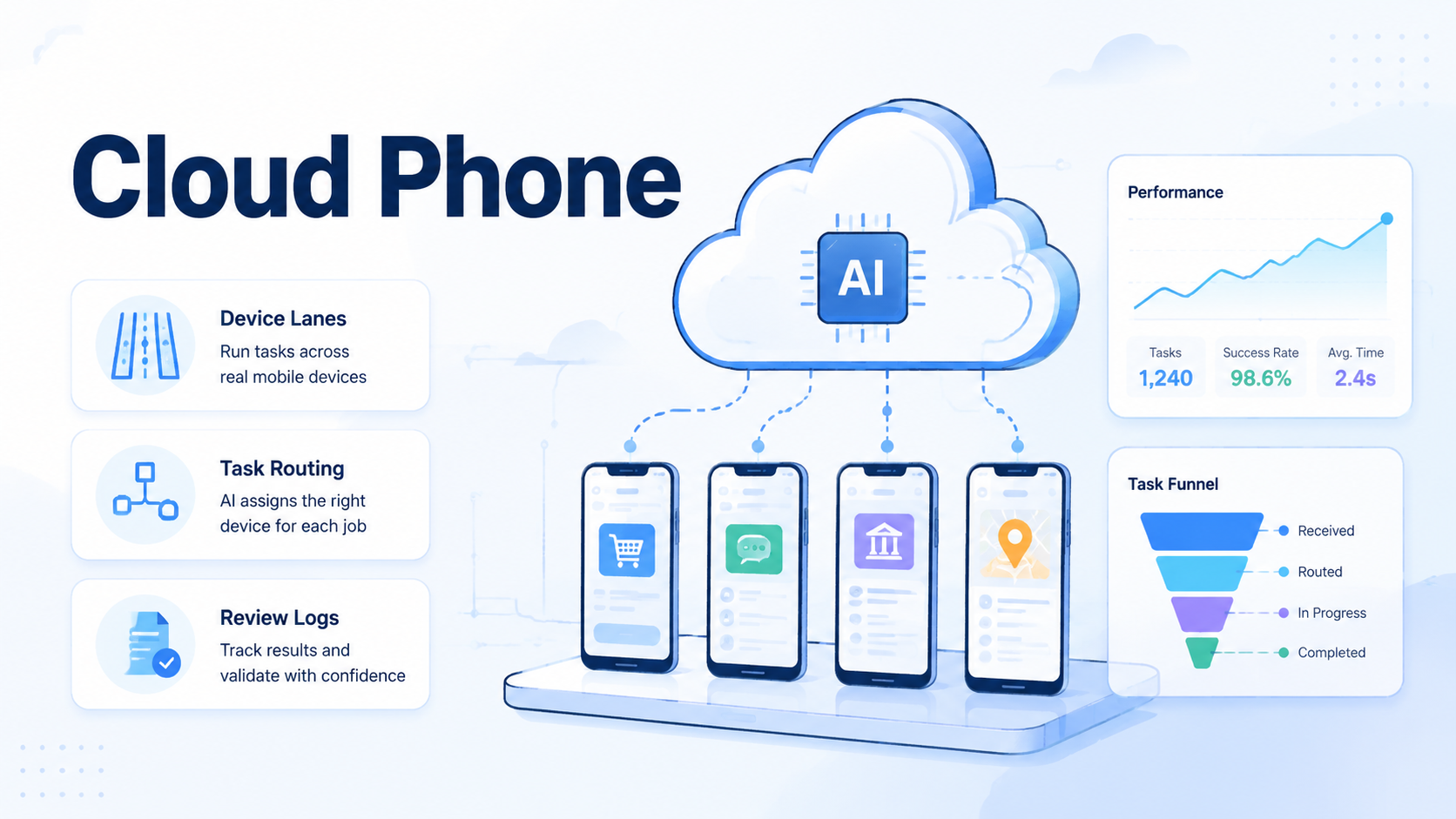
A cloud phone is a remote mobile execution environment that lets teams run app-side workflows without passing around local devices. It extends AI browser automation by giving agents and operators a controlled mobile lane after the web task ends.
Keep the lane visible.
Key Takeaways
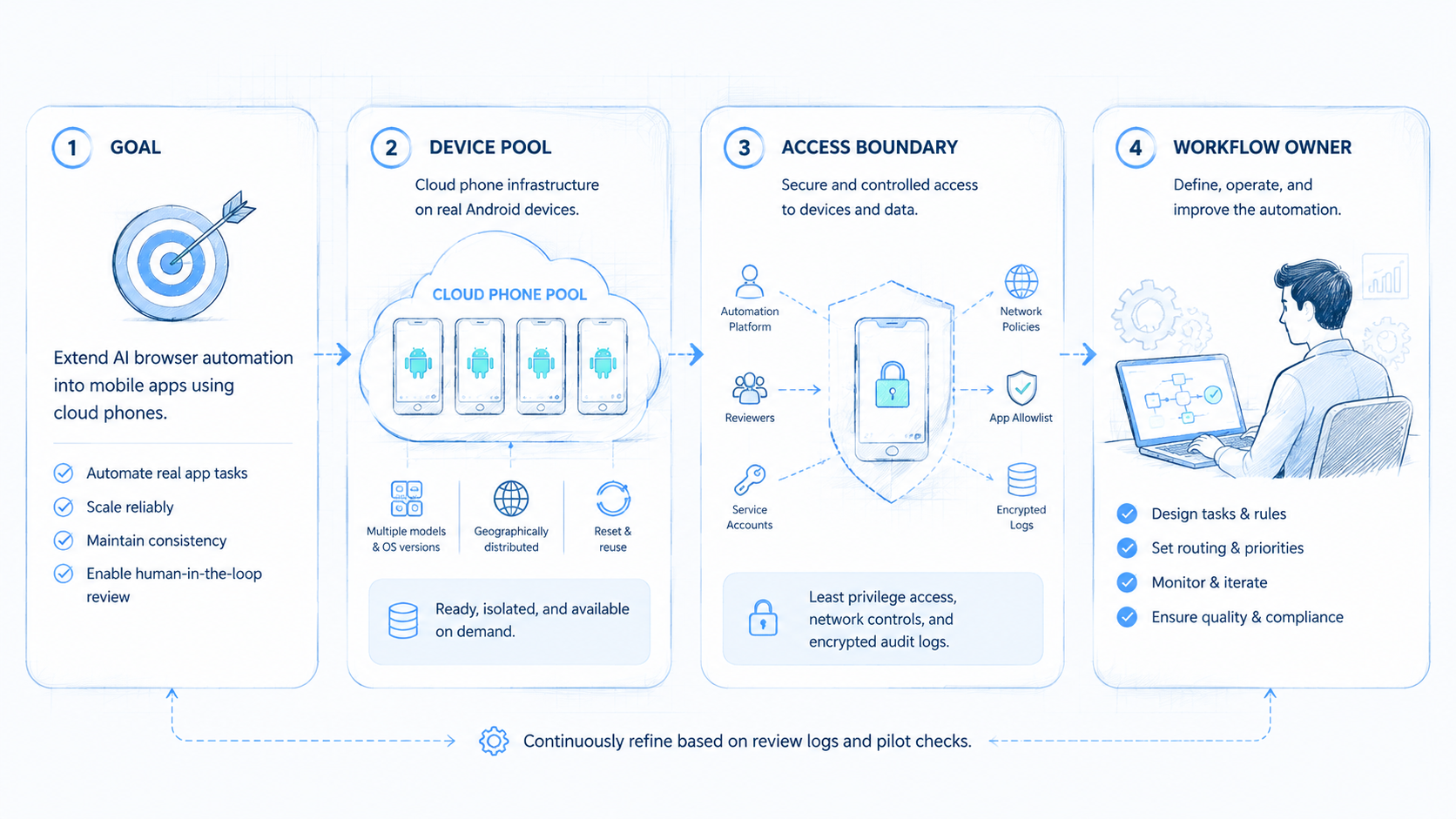
- AI browser automation handles web pages, dashboards, forms, and browser-based SOPs
- Cloud phones extend that work into mobile apps, device state, app sessions, and mobile review
- The best setup keeps browser lanes and mobile lanes separate but connected through task logs
- Teams need stop rules, account ownership, routing notes, and human review before scaling
- A pilot should measure handoff quality, failed app steps, review time, and recovery clarity
The Core Idea Behind Cloud Phones and AI Browser Automation
The common mistake is assuming browser automation can cover every digital workflow. Many operations start in a browser but finish in a mobile app. A marketplace dashboard may show a warning, but the mobile app may hold the account state that needs review.
Cloud phones solve the runtime gap. A browser agent can inspect a web system, create a task record, and hand the mobile step to a remote phone lane. The phone lane then runs the app-side check with its own device state and review trail.
This is not about turning every phone into a fully autonomous worker. The practical goal is controlled execution. A task should say which account, which device lane, which app, which action, and which stop rule applies.
That split is important. Web work and app work have different signals, screens, and failure modes. Combining them without a handoff rule makes errors harder to trace.
Think of the browser as the planning surface and the phone as the app execution surface. The shared task record is the bridge. Without that bridge, operators have to reconstruct the reason for a mobile action after the fact.
Why Teams Search for This Topic
Teams search for this topic when browser automation stops at the edge of the web. The agent can read a dashboard, but the next step may require app login, app notifications, in-app content, device permissions, or mobile session state.
Three operating problems usually appear:
- Broken handoff: the web task creates a mobile follow-up, but the owner is unclear
- Uncontrolled devices: local phones or emulators are shared without a review trail
- Weak recovery: when the app shows a warning, nobody knows which task caused it
Cloud phone infrastructure gives teams a place to route these mobile steps into a shared operating surface. A mobile automation workflow can run from a defined device lane instead of a personal handset, while a device isolation layer keeps mobile environments separated for account-based work.
That is the gap.
Google Search Central's helpful content guidance says systems should serve real user needs instead of optimizing for a machine alone. The same logic fits automation design: build around the operator, reviewer, and customer outcome. Source: Google Search Central.
Who Benefits Most and In What Situations
The strongest fit is a team with both browser SOPs and mobile app SOPs. If the work is web-only, a browser automation stack may be enough. If the work is app-only, the browser may not be the control point.
| Team situation | Browser side | Mobile side |
|---|---|---|
| Marketplace operations | Check seller dashboard and warnings | Verify app prompts or account state |
| Social commerce | Review campaign data and content queues | Check app inboxes, notifications, or posting state |
| QA teams | Open test records and compare expected flow | Run app flow and capture failed screen |
| Support teams | Read ticket context and customer history | Confirm app-side issue before escalation |
For multi-account management, this model keeps web account profiles and mobile device lanes aligned. The account owner should see both sides of the workflow.
How to Evaluate or Start Using Cloud Phones for Mobile App Automation
Do not start by connecting every browser task to every device. Start with one web-to-mobile path that already exists in daily work.
- Name the workflow: define the web trigger, mobile app step, owner, and expected output
- Separate lanes: keep the browser profile and mobile device lane distinct
- Set routing rules: document account, region, route, and proxy network assumptions when they matter
- Write stop rules: pause on login checks, unknown app screens, customer-sensitive actions, or account warnings
- Capture evidence: save browser result, mobile screen state, device lane, time, and reviewer note
- Review the handoff: ask another operator to continue the task from the notes
NIST's Cybersecurity Framework treats access, identity, detection, response, and recovery as ongoing functions. That model is useful here because mobile execution needs review and recovery, not just task launch. Source: NIST Cybersecurity Framework.
Cloud Phone Fit and Not-Fit Rules
Use cloud phones when mobile state matters. Avoid using them to hide unclear ownership or skip platform rules.
Strong fit
- Browser tasks that lead to mobile app checks
- Teams that need remote app access across shifts
- Account workflows that require device lanes
- QA, support, marketplace, or social commerce operations
Weak fit
- Pure browser work with no app-side step
- Tasks with unclear account ownership
- Automation that ignores platform or customer terms
- Device pools with no logs or recovery owner
Fit should be checked before tool rollout. A clear mobile lane is more valuable than a large device pool that nobody can audit.
Mistakes That Reduce Results
The first mistake is merging browser and mobile state into one vague workflow. A task may include both runtimes, but the evidence should stay separate. The reviewer needs to know what happened in the browser and what happened inside the app.
Split the evidence.
The second mistake is using local phones for production-like handoff. A personal phone may work for a small test, but it creates hidden context when the owner is offline or the handset leaves the desk. A remote lane gives the team a shared view of device state for later verification.
The third mistake is over-automation. Sensitive app steps need human approval before the workflow moves forward. Publishing, payment, recovery, customer commitments, and policy-sensitive actions should not be buried inside a silent run.
Logging needs balance. OWASP recommends recording useful security events without exposing secrets or private data. Mobile workflow logs should follow the same principle. Source: OWASP Logging Cheat Sheet.
Pilot Rollout, Measurement, and Recovery Checks
A good pilot proves that the team can recover from failure. Choose one browser-to-mobile workflow and run it for two weeks.
Track these metrics:
- Browser tasks that created mobile follow-ups
- Mobile runs completed without manual rescue
- Runs stopped by known stop rules
- Unknown app screens or login prompts
- Review minutes per run
- Handoffs completed without a live call
- Repeated account or route issues
Recovery notes should be specific. The note should name the browser profile, mobile device lane, account, screen reached, stop reason, and next safe step.
Start small. Five device lanes with clean review notes are better than fifty lanes that nobody can explain.
Cloud Phone Architecture for AI Agent Mobile Automation
A practical architecture keeps each layer small. Browser work should not pretend to own mobile state. The phone layer should not guess why the web task existed.
| Layer | Primary job | Review question |
|---|---|---|
| Browser profile | Reads web context, dashboards, tickets, or forms | What triggered the mobile step? |
| Task router | Creates the mobile task with account, owner, and stop rule | Was the handoff complete? |
| Cloud phone lane | Runs the app-side check in a defined mobile environment | Which screen appeared, and what changed? |
| Reviewer | Approves output, records exception, or sends work back | Can the next person continue safely? |
This architecture also makes capacity planning clearer. A team can add more phone farm capacity only after it knows which workflows need parallel mobile lanes. More devices are not useful when the handoff record is weak.
Handoff Checklist Between Browser and Cloud Phone
Every browser-to-mobile task should carry a small packet of context. Long notes slow the team down, but missing fields create rework.
Use this checklist before a mobile run starts:
- Browser profile or account that created the task
- Mobile device lane assigned to the app step
- Account owner and reviewer
- App name, start screen, and expected result
- Stop rules for login, warning, payment, or unknown screens
- Evidence required after the run
- Next action if the mobile step fails
The checklist should be visible to both the browser operator and the mobile reviewer. When the task fails, nobody should have to ask why the phone was opened.
Example Web-to-Mobile Workflow
Picture a social commerce team reviewing campaign replies after a promotion goes live across several markets. The browser agent reads a campaign dashboard, finds a reply pattern, and creates a mobile follow-up task.
The mobile lane opens the app account assigned to that market. The operator or agent checks the relevant inbox, captures screen state, and stops if an account warning appears before any reply is sent.
The reviewer sees both records. Browser-side evidence shows why the follow-up exists. The mobile side shows what the app displayed and what action was taken.
This example is simple, but it contains the full operating model. The team can inspect the trigger, app state, owner, and recovery path without relying on a private chat thread.
Frequently Asked Questions
Does AI browser automation need cloud phones?
Not always. It needs cloud phones when the workflow moves from web pages into mobile app state, such as an app inbox, account prompt, notification screen, or mobile-only review step.
Is a cloud phone the same as an emulator?
No. A cloud phone is a remote mobile execution environment with an operating model for assigned lanes, access control, app state, and review. Emulators may be useful for testing, but they do not automatically solve team handoff or production review needs.
Can AI agents run mobile app steps?
Yes, when the task is narrow, approved, logged, and reviewable. Sensitive actions still need human control, especially when the app step affects publishing, payment, recovery, or customer communication.
How should teams split browser and mobile work?
Use the browser for web context and the mobile lane for app state. Connect them through task records that name the owner, account, device lane, expected result, and stop rule.
What should be logged?
Log profile, device lane, account, screen reached, output, stop reason, and reviewer decision. Keep secrets, private customer data, and unnecessary screenshots out of the log.
Where do proxies fit?
Routing should be documented when account, region, or network context matters. Hidden route assumptions are difficult to recover during incident review.
When is the pilot ready to scale?
Scale when failures are explainable, review time is predictable, and another operator can continue from the notes.
Conclusion
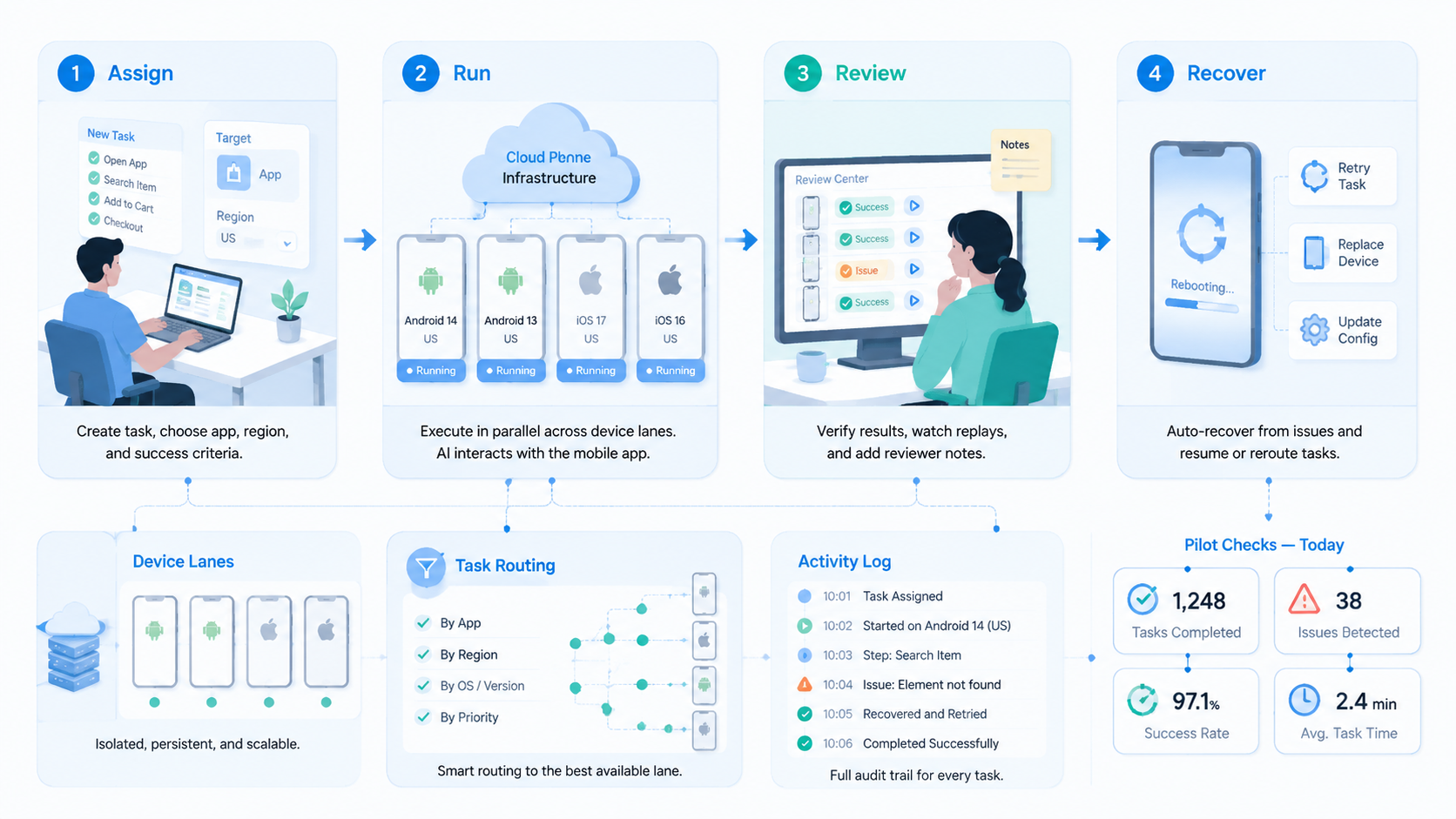
Cloud phones extend AI browser automation by giving teams a controlled mobile execution lane. The right model keeps browser context, mobile app state, account ownership, routing, and review evidence connected without blending them into one unclear runtime.
Before scaling, test one workflow that starts in a browser and ends in a mobile app. If the team can explain every stop, recover from failed screens, and hand off the task without a live call, the system is ready for the next mobile workflow.