Key Takeaways
- A hosted Android emulator can help with remote app access, app testing, and light mobile workflows.
- Teams should compare emulator behavior, persistence, account routing, review needs, and recovery options.
- Remote phones may fit better when the workflow needs persistent account workspaces and mobile operations.
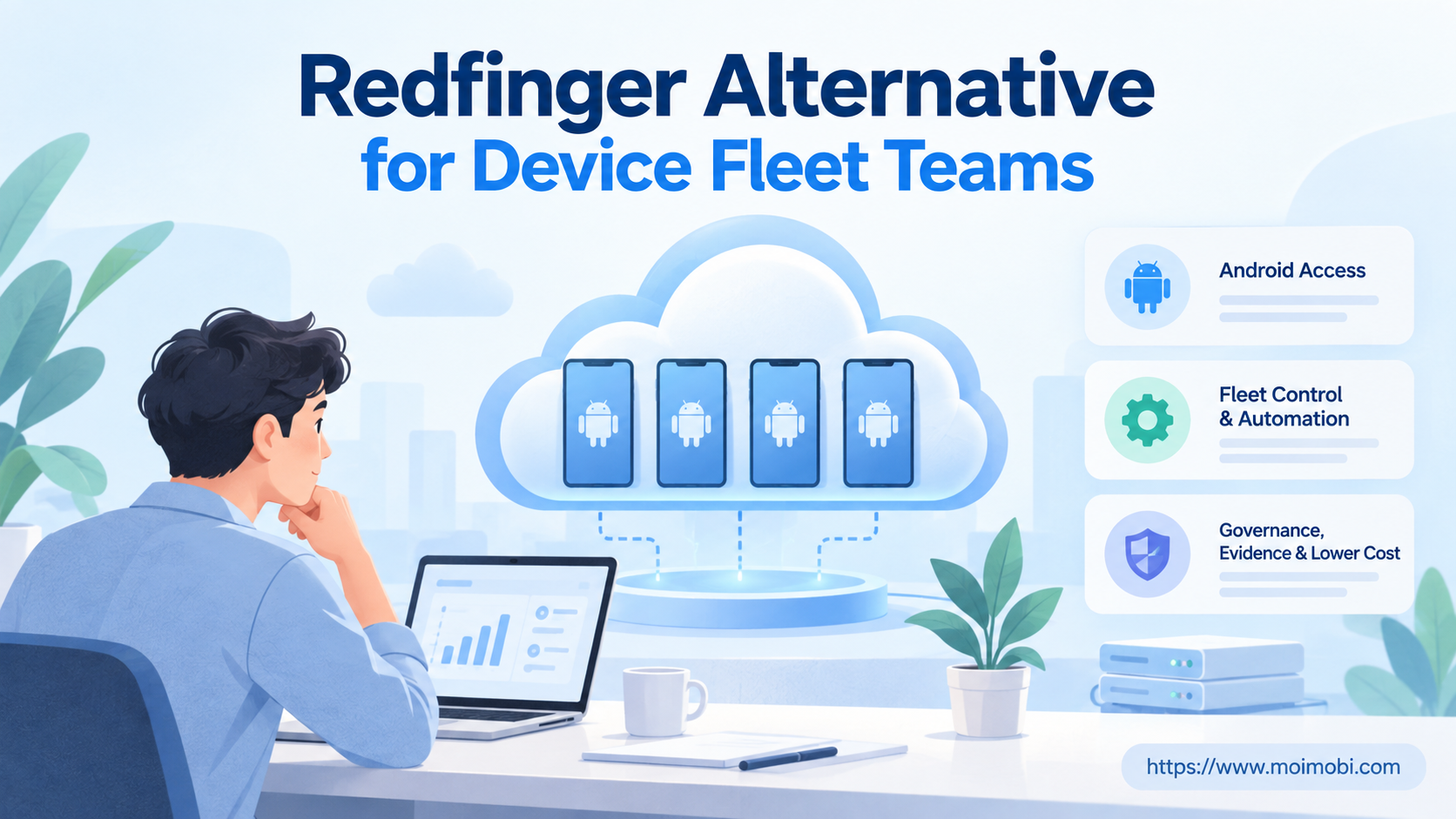
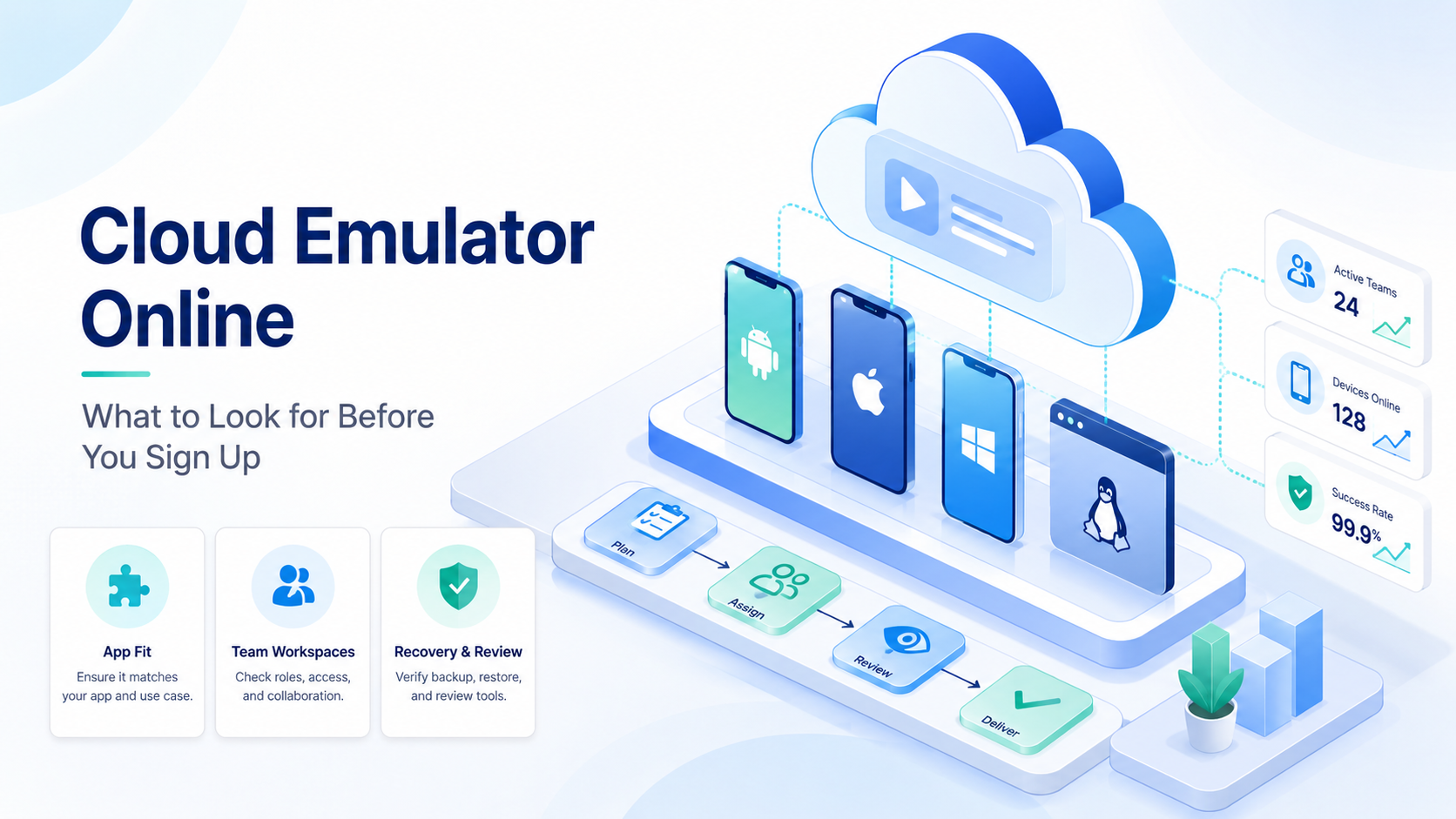
A cloud emulator online is a hosted Android-style environment that users access through the internet instead of running locally. Teams search for it when they need mobile app access, remote testing, or a controlled way to run app-based work from a computer.
The key question is not whether the tool opens an Android screen. The better question is whether it fits the workflow: testing, social app review, customer replies, account checks, or team operations.
The Core Idea Behind Cloud Emulator Online
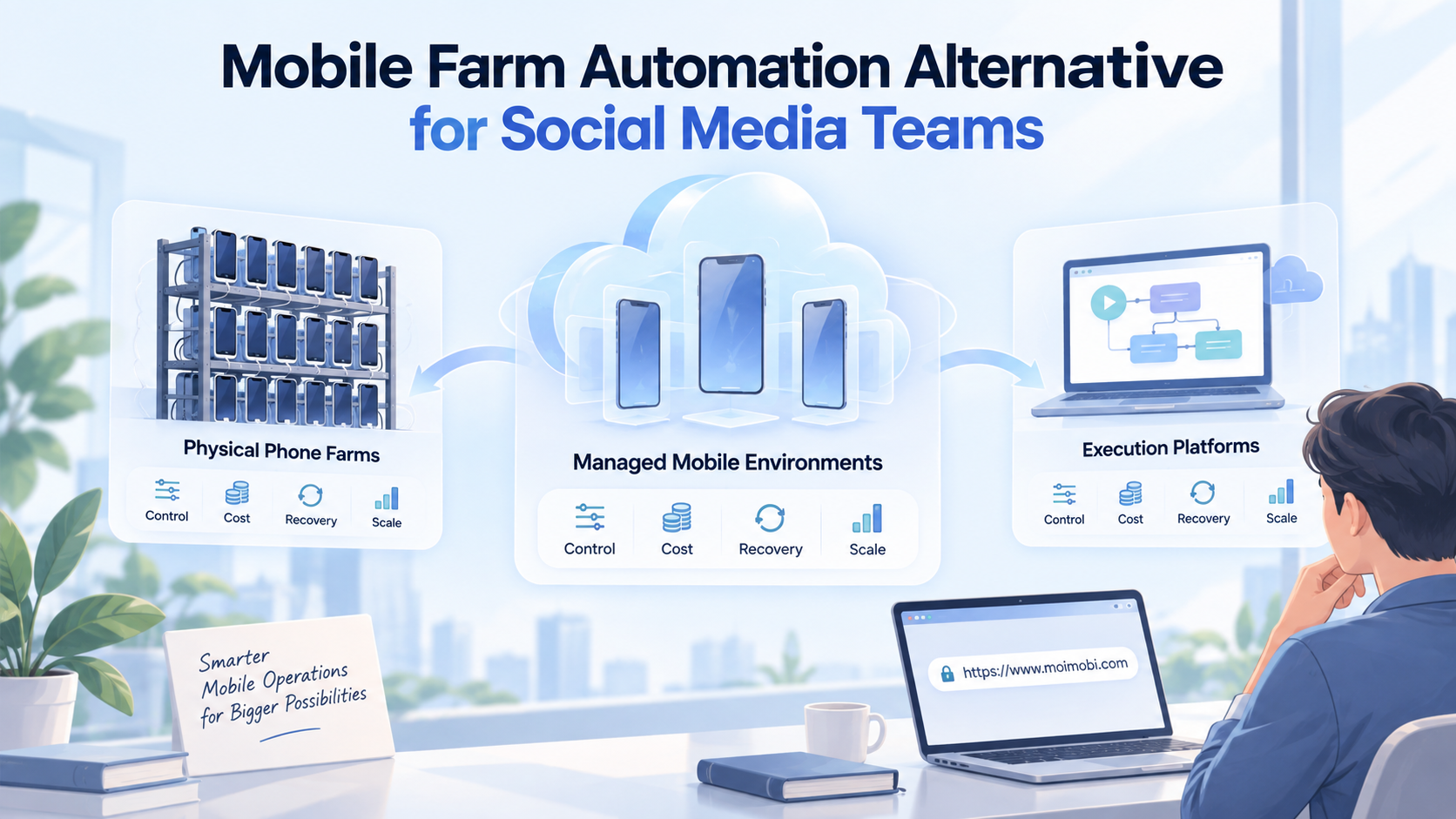
The common misunderstanding is that every hosted Android option serves the same purpose. A local emulator, a cloud emulator, a cloud phone, and a physical device can all show an Android screen, but they solve different problems.
Google's Android Emulator documentation describes a developer-focused tool for testing apps. A hosted emulator may extend access to a remote environment, but teams still need to test whether app state, login sessions, files, and task records persist in the way their workflow requires.
Use this first split:
| Need | Stronger starting point |
|---|---|
| App preview or test work | Emulator |
| Remote Android access | Cloud emulator |
| Persistent account operations | Cloud phone |
| Hardware-specific checks | Physical device |
Why Teams Search for Cloud Emulator Online
Teams usually search for hosted Android access because local setups become inconvenient. A laptop emulator may be enough for one developer, but it is harder to share across operators, reviewers, and managers.
Social and ecommerce teams often have a different need. They may need a mobile app environment tied to a store, account, region, or task queue. In that case, a simple emulator may not be enough because the workflow depends on ownership and review, not only app access.
MoiMobi treats cloud phone environments as part of an execution layer. In that model, the device connects to an account, task, owner, and review path.
Who Benefits Most and In What Situations
This category fits teams that need remote Android access but do not yet require a full mobile operations stack. App teams, QA teams, training teams, and lightweight social review teams may all use it as a first step.
The fit changes when the work becomes account-based. If the team needs the same account to keep state over time, or several operators need clean handoff, a cloud phone or mobile automation layer may fit better.
Use this fit check:
- Choose a cloud emulator for testing, app preview, or short sessions.
- Choose a remote phone when accounts, app state, and review trails matter.
- Choose a physical device when the workflow depends on sensors, hardware, or carrier conditions.
How to Evaluate a Cloud Emulator Online
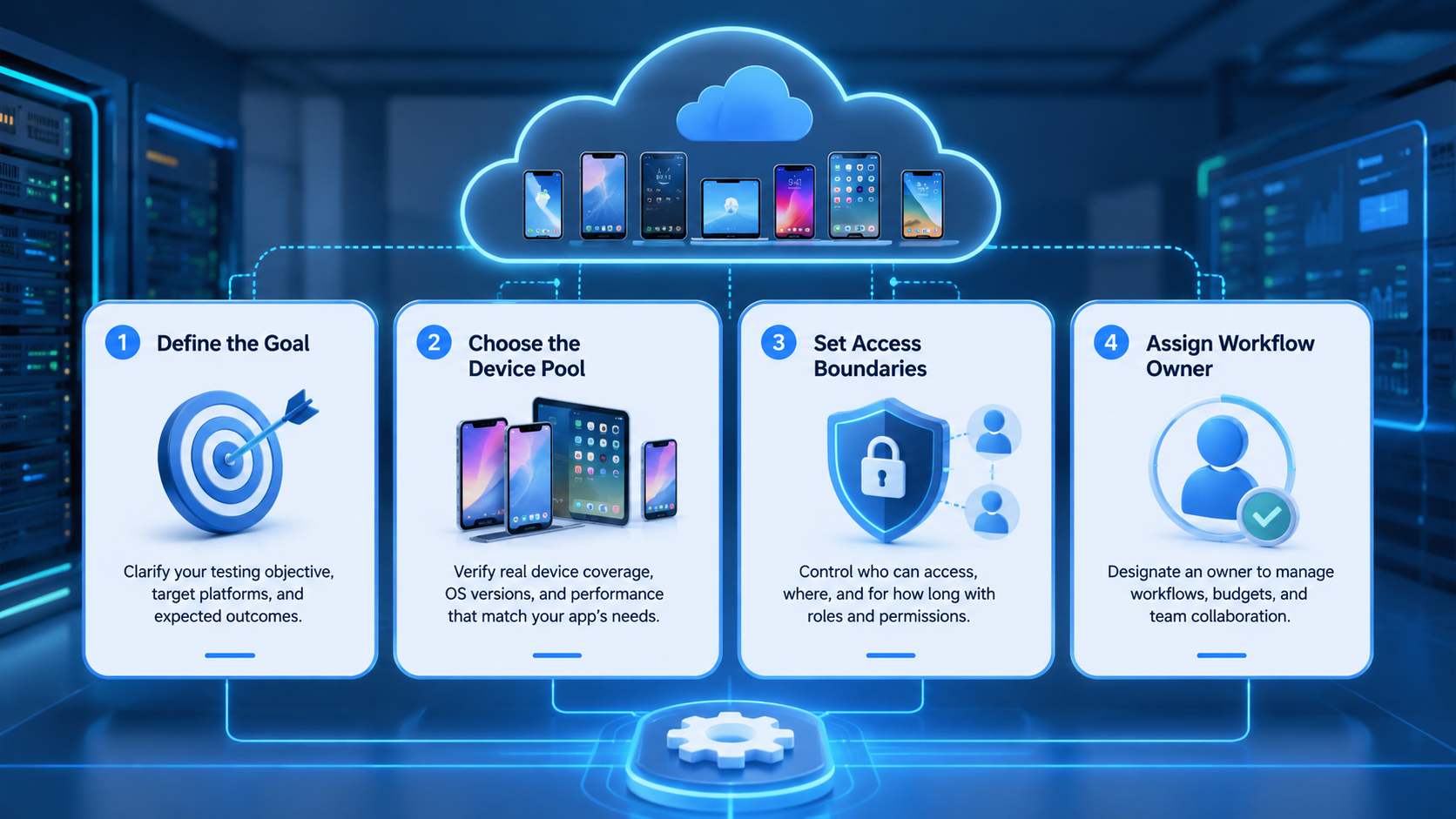
Start with the workflow, not the feature list. A long feature page does not prove the tool will handle your daily task.
- Check persistence. Confirm whether apps, sessions, and files stay available between sessions.
- Check app behavior. Open the exact apps your team will use, not only a demo app.
- Check account routing. Decide whether one environment maps to one account or one task group.
- Check review evidence. Look for screenshots, notes, status logs, and failure reasons.
- Check recovery. Test what happens after app updates, login prompts, or blocked steps.
For social media teams, multi-account management becomes the deciding layer. The emulator screen is only one part of the operating system.
Hosted Android Emulator vs Cloud Phone
A hosted Android emulator is often closer to remote Android access or app testing. A cloud phone is usually evaluated as a persistent mobile workspace for real operations. Providers use terms differently, so test the workflow instead of relying on the label.
The practical difference is ownership. A remote phone workflow should answer which account used the device, which operator touched the task, what proof was captured, and who reviews the result. A basic emulator may not include that operating layer.
For TikTok, Instagram, WhatsApp, or ecommerce apps, this distinction matters. Teams may start with a cloud emulator, then move to cloud phones when they need repeatable account workspaces.
Mistakes That Reduce Results
Do not choose a tool only because it is cheap or easy to open. Low setup effort can hide missing persistence, weak review logs, or poor recovery when app state changes.
Avoid mixing unrelated accounts inside one environment. That shortcut makes later review harder and weakens ownership. A team should be able to explain which account belongs to which environment.
Do not automate before the manual route is clear. Google Search Central's guidance on helpful content is about content, but the operating lesson still applies: solve a real user problem first. Automation should support a known workflow, not create activity for its own sake.
Frequently Asked Questions
What is a cloud emulator online?
It is a hosted Android-style environment accessed through the internet for app testing, app access, or light mobile workflows.
Is it the same as a cloud phone?
Not always. A remote phone usually focuses more on persistent mobile workspaces and account operations.
Can teams use it for TikTok or Instagram?
They can test app access and workflows, but they should review platform rules and avoid risky automation claims.
When is a cloud phone better?
A remote phone is usually better when account state, handoff, review proof, and long-running workflows matter.
What should teams test first?
Test app behavior, session persistence, account mapping, screenshots, failure recovery, and reviewer notes.
Is a free option enough?
It may be enough for exploration. Team workflows usually need stronger control, logs, and support.
How many environments should a team start with?
Start with 3 to 5 environments and one workflow. Expand only after review and recovery are clear.
Conclusion
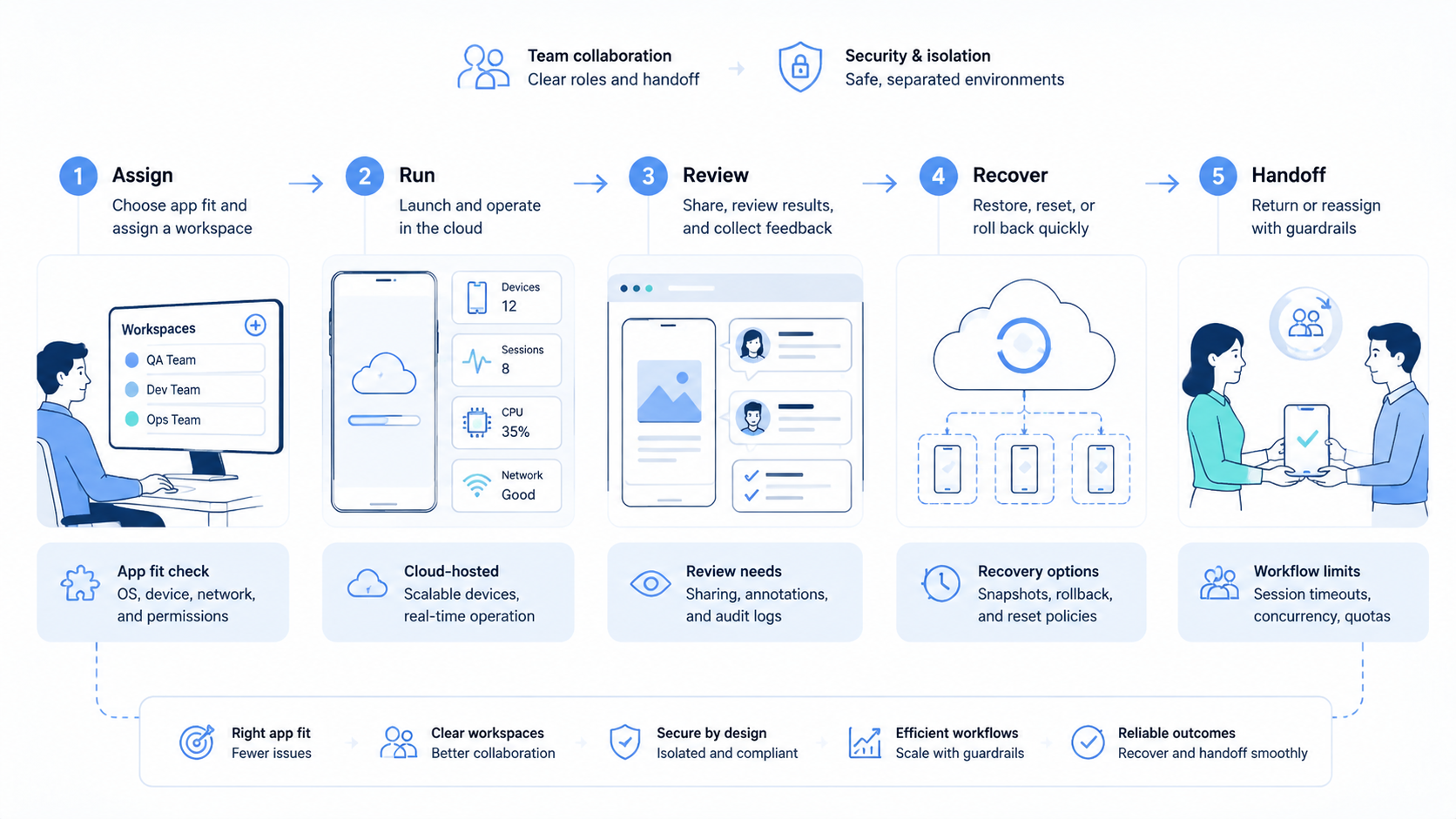
Evaluate hosted Android access in this order: app fit, persistence, account mapping, review evidence, and recovery. The screen itself is not enough.
Before signing up, run one real workflow with a small account group. If the team can explain the task, account, owner, proof, and failure path, the tool is worth deeper evaluation.