Key Takeaways
- Automated phone testing is useful when repeated app checks need consistent devices, logs, and review.
- Cloud Android environments help teams test mobile workflows without passing physical phones around.
- The best first pilot is one app, one task path, and a small device group with clear failure notes.
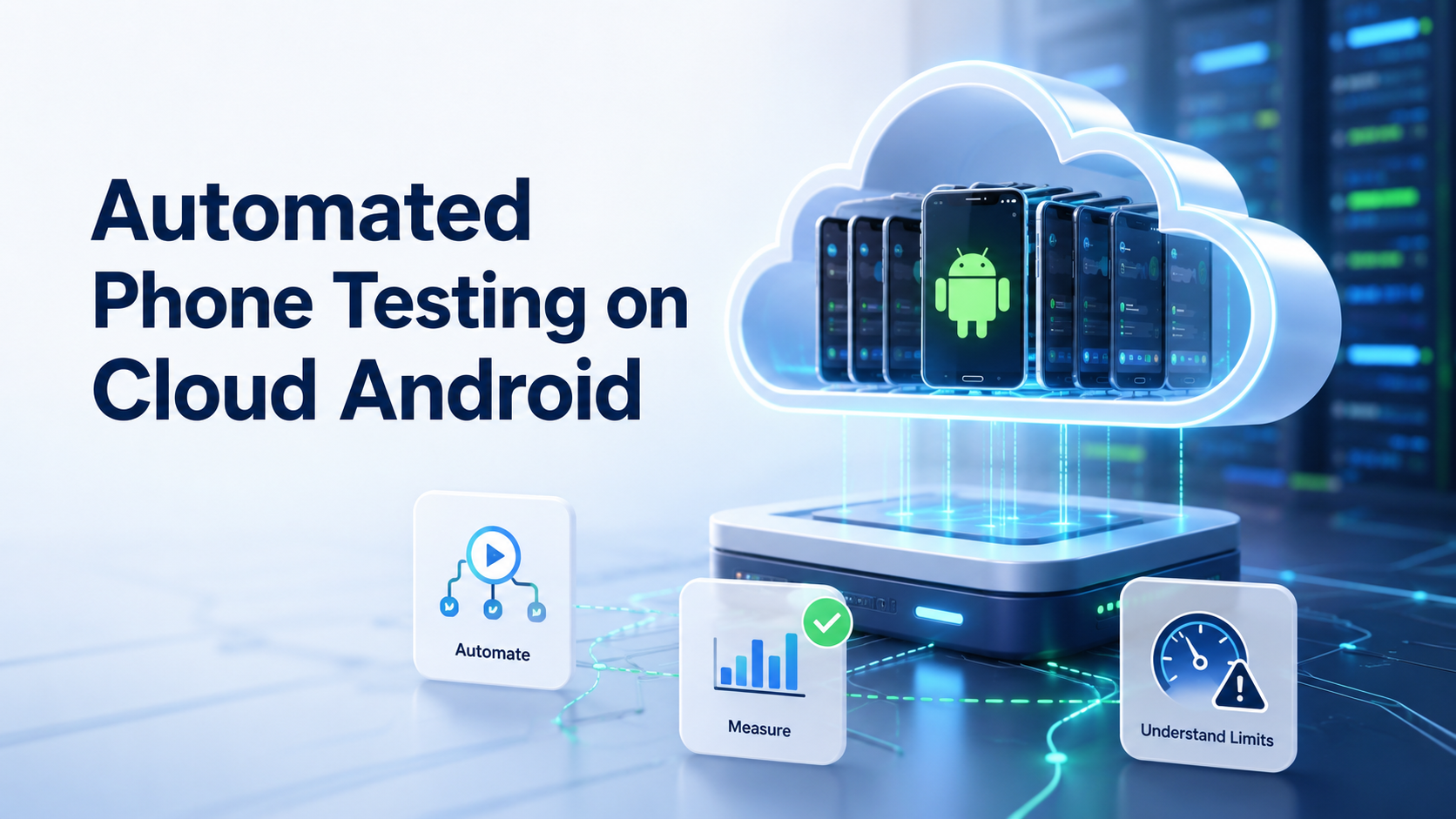
Automated Phone Testing is the use of repeatable checks to verify mobile app workflows on Android devices without doing every step by hand. On cloud Android, those checks run inside remote device environments that teams can open, assign, review, and reuse.
The main value is operational control. A team can test login flows, publishing steps, message handling, app updates, or customer journeys across multiple Android environments. A cloud phone setup is not only a remote screen. It becomes a place where mobile app testing can be repeated with cleaner ownership and better review notes.
The Core Idea Behind Automated Phone Testing on Cloud Android
Automated phone testing should start with the workflow, not the tool. The team first decides which app path matters, which device state is required, and what counts as a pass or failure.
For example, a support team may test whether a reply template works across Android app versions. A social operations team may check whether a publishing workflow loads correctly after an app update. An ecommerce team may review checkout screens or message notifications.
Use a simple three-part model:
| Layer | Decision | Example |
|---|---|---|
| Device | Where does the test run? | Cloud Android device or virtual Android device |
| Task path | What steps must happen? | Login, open app, publish, capture result |
| Review | What evidence is stored? | Screenshot, log, pass/fail note |
Google's Android Emulator documentation explains how emulated Android devices are used for app testing. Cloud Android adds a team operations layer around similar mobile environments.
Why Teams Search for Automated Phone Testing
Teams usually search for automated phone testing after manual checks become too slow. One person can test a few devices. A team running many accounts, apps, regions, or versions needs a more structured process.
The search also appears when the cost of missed defects rises. A broken login path, failed message flow, or unstable posting step can waste operator time. In customer-facing workflows, the damage may appear as delayed replies or missed updates.
Cloud phones for mobile app testing fit best when the workflow needs repeated device access. They are especially useful when the team needs parallel sessions, persistent app state, and a clear owner for each environment.
Who Benefits Most and In What Situations
The common misunderstanding is that every mobile task needs heavy automation. It does not. Some checks are better handled manually, especially when judgment, creative review, or unusual account context matters.
Automated testing is a stronger fit when the task is repetitive and has a clear expected result. Examples include opening an app after release, checking notification behavior, verifying a form, confirming a content publishing path, or testing a customer reply workflow.
Use this fit boundary:
- Good fit: repeated app path, clear pass/fail result, many devices, stable review need.
- Weak fit: one-time task, subjective review, unclear account state, no failure log.
- Stop signal: automation runs but nobody reviews failures or updates the test path.
Teams that already use mobile automation should still keep human review in the loop for workflows that affect customer experience or account operations.
How to Evaluate or Start Using Automated Phone Testing
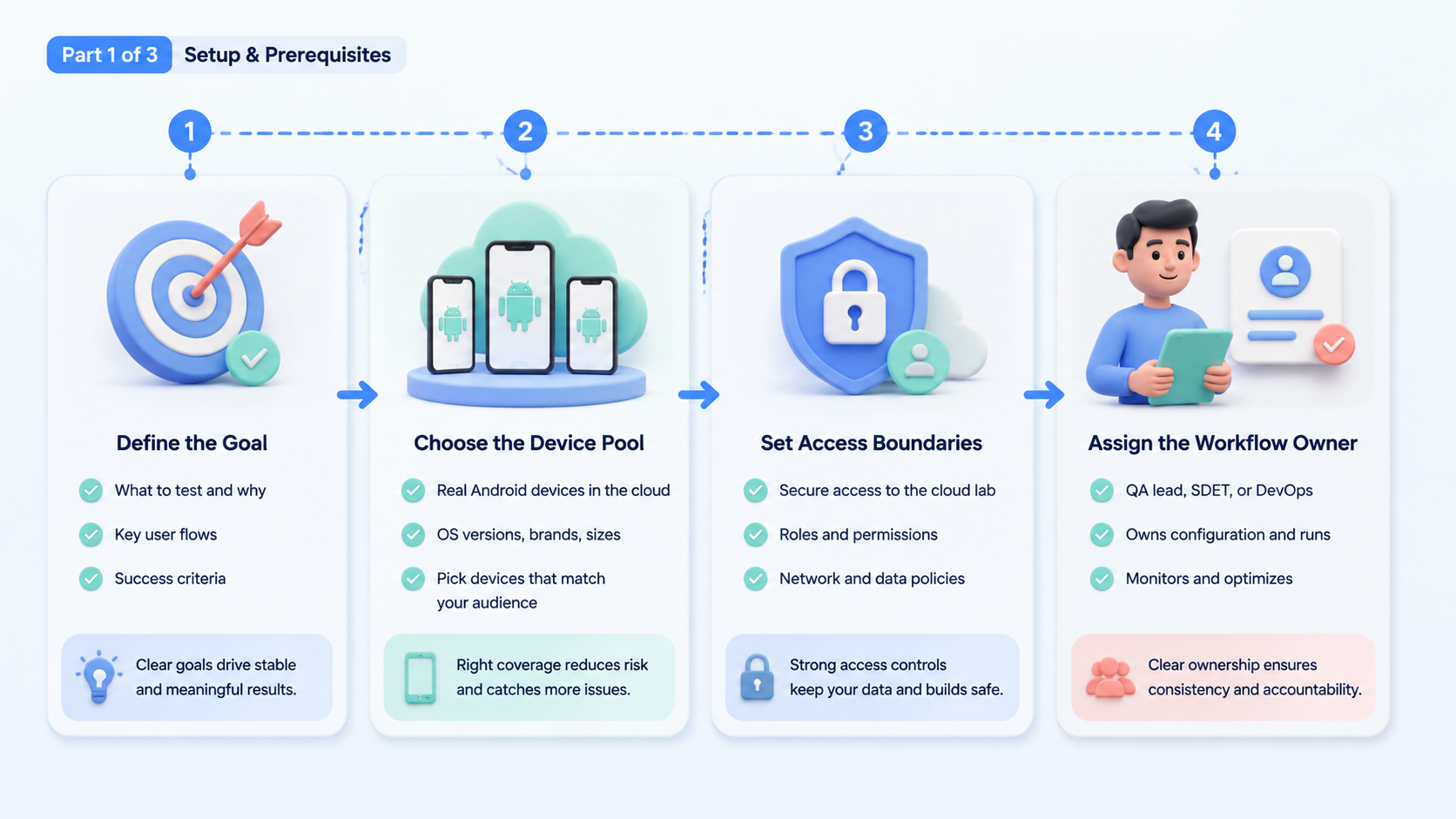
Start small. A test system that is hard to review will not improve just because it runs on more devices.
-
Pick one app workflow.
Choose a path with a visible result, such as login, publish, reply, checkout, or notification review. -
Assign a small device group.
Use 3 to 5 environments first. More devices can hide design problems during the first week. -
Define the evidence.
Require screenshots, timestamps, device names, and short failure notes. -
Track rescue time.
Measure how long it takes to understand and fix a failed run. -
Expand only after review improves.
Scale the device group after results are repeatable and failures are easy to explain.
For command-driven Android workflows, the official Android Debug Bridge documentation is a useful reference for understanding device communication concepts.
Mistakes That Reduce Results
The first mistake is testing too many workflows at once. A broad first pilot makes failures hard to interpret. Keep the first run narrow, then expand one workflow at a time.
The second mistake is treating device count as the success metric. A larger device pool only helps when the team can see which tests ran, which failed, and who owns the next action. For team work, device isolation helps separate environments and reduce mixed context.
The third mistake is ignoring policy and user experience. App testing should respect platform rules and the app's intended behavior. Google's guidance on creating helpful content is about search, but the same review principle applies here: the output should be useful to the person evaluating it.
Pilot Scorecard for Cloud Android Testing
Use a scorecard before adding more devices.
| Metric | What to record | Why it matters |
|---|---|---|
| Pass rate | Successful runs out of total runs | Shows workflow reliability |
| Failure reason | Login, UI change, network, app state | Shows what needs repair |
| Rescue minutes | Time to understand and fix failure | Shows manager workload |
| Device reuse | Whether the same environment can run again | Shows persistence quality |
| Evidence quality | Screenshot and note clarity | Shows review readiness |
A multi-account management workflow should add account owner and platform fields to this scorecard. Testing without ownership creates confusion later.
Frequently Asked Questions
What is automated phone testing?
It is repeatable testing of mobile workflows on Android devices, usually with scripts, task runners, or guided automation.
Is cloud Android the same as an Android virtual device?
Not exactly. A virtual Android device is a test environment. Cloud Android adds remote access, team assignment, persistence, and fleet review.
Can automated phone testing replace manual QA?
No. It can reduce repeated checks, but manual review is still needed for judgment-heavy workflows and unusual failures.
What should teams test first?
Start with one high-frequency workflow, such as login, message reply, notification review, or content publishing.
How many devices should a pilot use?
Use 3 to 5 devices first. Expand after failures are clear and review notes are useful.
What is the biggest risk?
The biggest risk is running tests that create output nobody reviews. Automation without review can hide process problems.
When should a team use physical phones instead?
Use physical phones when hardware signals, sensors, camera behavior, or carrier conditions are central to the test.
Conclusion
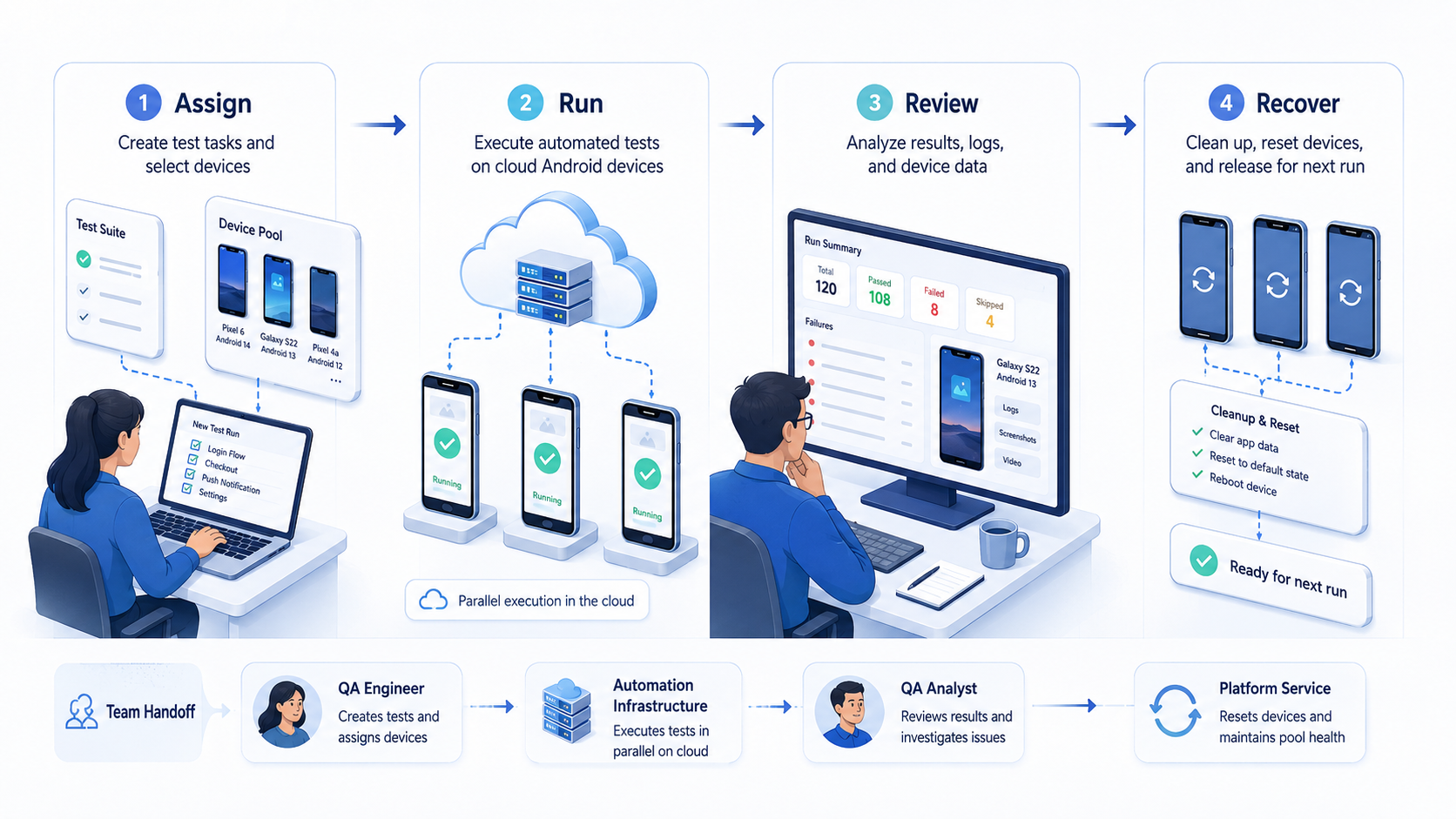
Rank the first setup in this order: workflow, device group, evidence, failure review, then scale. Automated phone testing works best when the team can explain every pass and every failure.
For the first week, test one mobile workflow on a small cloud Android group. If results are repeatable and rescue time drops, add more devices in controlled batches.