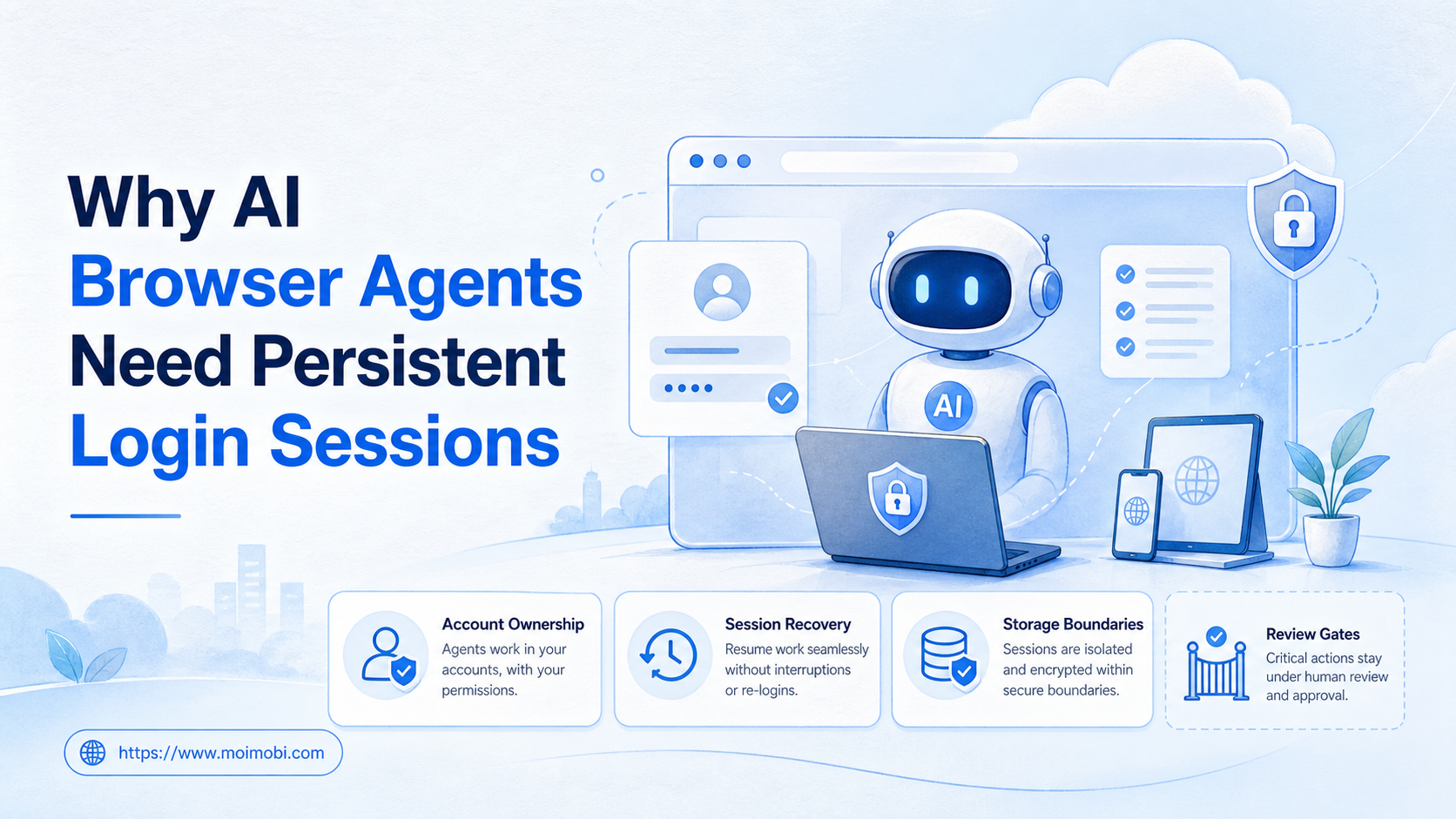
Key Takeaways
- Persistent login sessions let an AI browser agent resume an authorized, account-scoped task without repeatedly rebuilding routine context.
- Persistence must be paired with ownership, isolation, expiry, and a clear process for sign-out, reauthentication, and human takeover.
- A saved session is an execution detail, not permission to widen a task or share an account.
Persistent login sessions are controlled browser workspaces that let an AI browser agent resume repeated, authorized work for the same account. They retain the normal context required to resume a task, such as the relevant login state and browser storage. They should make routine work more reliable without changing who owns the account or what actions the task may take.
Without persistence, a team may spend more time reopening dashboards, restoring intended state, and confirming that the correct account is active than it spends on the actual task. With uncontrolled persistence, however, the team can lose track of who has access or which account a task is using. The right design keeps the session attached to a named workspace and a limited purpose.
Playwright documents browser contexts as isolated environments with their own cookies and storage. Playwright browser contexts explain the technical separation. Operations teams still need their own rules for session ownership, expiry, evidence, and human review.
What Persistent Login Sessions Mean for an AI Browser Agent
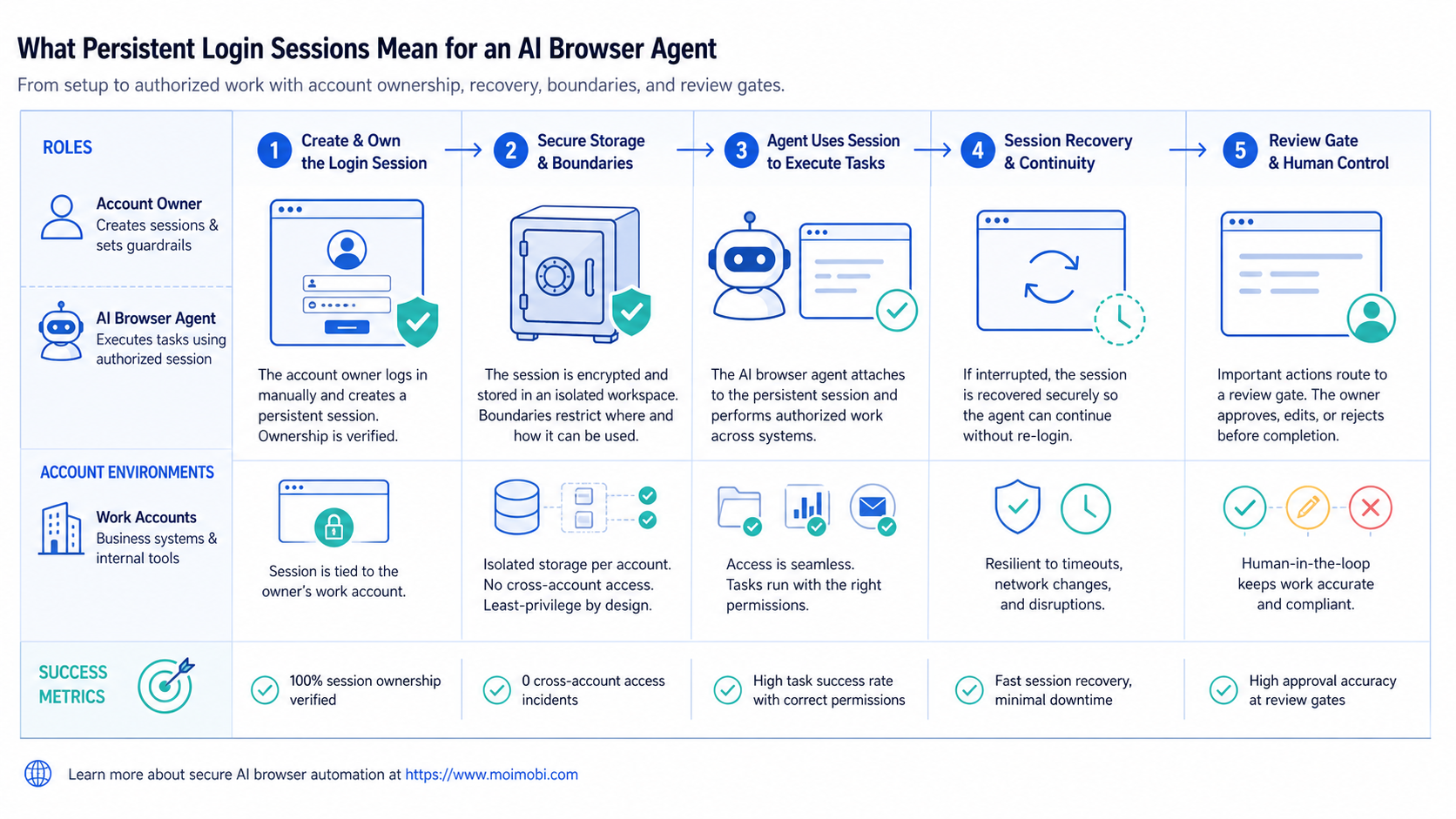
A persistent session is not simply a browser that stays open. It is a controlled record of the state needed for an approved browser workflow to continue. That can include a login state, a selected organization, a saved workspace preference, and task-specific navigation context. It should not include a vague instruction to reuse any available session.
The agent should receive the session through an account assignment. A task references one workspace, one allowed URL family, and one purpose. If the workspace is no longer valid, the agent pauses and requests a human reauthentication rather than attempting to find another account.
| Session property | Operational purpose | Control to require |
|---|---|---|
| Named account workspace | Connects tasks to the correct owner | Account identifier and access policy |
| Stored browser state | Reduces repeated routine setup | Encrypted storage and limited access |
| Task binding | Prevents broad reuse across unrelated work | Allowed page and action list |
| Expiry and sign-out | Limits stale or orphaned access | Reauthentication and cleanup rule |
| Run record | Supports recovery and audit | Last confirmed result and next owner |
The distinction matters because a session can be technically valid while the assigned task is no longer appropriate. A changed client instruction, an expired approval, or a different account owner should stop the workflow even if the browser is still logged in.
Why Repeated Login Friction Causes Operational Errors
Repeated sign-in steps create more than lost time. They encourage informal shortcuts, such as sharing credentials, using a colleague's active tab, or keeping unclear browser profiles alive indefinitely. None of these shortcuts tells the team which account was intended for a given task.
Persistent login sessions can reduce that pressure when they are designed as managed workspaces. The task starts in the appropriate environment, the operator can see the account assignment, and the run record captures the last confirmed action. This is more reliable than relying on memory during a shift handoff.
Browserless describes reconnectable sessions and state persistence as separate lifecycle concerns. Browserless session management and its state-persistence guide are useful technical references. A team should still decide whether reconnecting is appropriate after a business action is uncertain.
How to Use Persistent Login Sessions Safely
- Assign the account. Create one workspace for the owned account and state who may use it.
- Define the task scope. Record the allowed page, expected result, and actions that require human approval.
- Persist only needed state. Keep the session context required for the approved workflow, not unrelated browser history or personal data.
- Set an expiry rule. Require reauthentication after a defined event, access change, or period set by the organization.
- Capture a run record. Store the task reference, workspace, start time, result, and any pause reason.
- Use human takeover. Stop for a person when a verification prompt, unknown account state, or customer-impacting choice appears.
Start with a read-only task. For example, the agent may open an authorized reporting dashboard, collect a documented status, and prepare a result for a manager. Once the team can prove that the right session and evidence are used, it can consider more complex tasks with separate approval gates.
Moimobi can connect task instructions with AI browser automation and multi-account management. The useful outcome is a clear account-to-task relationship, not an unattended browser session.
Scenario: Weekly Reporting Across Client Workspaces
An agency runs a weekly reporting process for several owned client accounts. Each account has a different dashboard workspace, report format, and account manager. The reporting task needs to collect a small set of agreed metrics, prepare a summary, and place it in the correct review queue.
With a persistent login session, the agent can open the assigned client workspace without an operator rebuilding the normal account context each week. The task still checks the visible organization name and report date before it reads any fields. If either value does not match the task record, the run stops.
The agent records the report source, capture time, and values it found. It does not make recommendations to the client, change campaign settings, or switch to another client account. The account manager reviews the summary and decides what to communicate.
This use case shows the value of persistence: it makes a stable, repetitive task less fragile. It also shows the boundary: the saved session does not grant a general right to act for the client.
Session Recovery and Reauthentication Rules
Every persistent session eventually becomes invalid or uncertain. A platform may request a new verification, an account owner may revoke access, a user may sign out, or a dashboard may show an unexpected organization. The workflow must recognize these events and stop cleanly.
Write a recovery rule before the first pilot. When the session is expired, the agent records the task and state, then asks an authorized person to reauthenticate. When the account identity is uncertain, the agent does not choose another profile. When a browser disconnects after a possible change, the team checks the last confirmed business result before any retry.
Use a short recovery record: task ID, workspace ID, visible account label, last confirmed page, error or verification event, and next owner. This record prevents a new operator from treating a technical reconnect as proof that an earlier action did not occur.
For mobile-first approved tasks, a cloud phone can provide an assigned Android environment. The same rules apply: the session belongs to an owned workspace, the task is limited, and an uncertain result requires review.
Persistent Session Rules for a Multi-Account Team
The session policy should be easy for operators to follow. It does not need to expose security implementation details. It needs to tell the team which workspace can be used, how a task starts, what ends the session, and who can restore access.
Use a workspace register. The register can list the account label, accountable team, approved tool or platform, current owner, last access review, and reauthentication contact. The browser agent reads the workspace identifier from the task. It does not select a convenient profile by name.
Set triggers that require a fresh human decision. Examples include an unexpected login challenge, a changed organization label, a new device authorization request, a role change, or a task that would create a customer-facing effect. A session may still appear active after one of these events, but the task should stop because the business context changed.
During a shift handoff, the outgoing operator should record whether the work completed, paused, or needs a reviewer. The incoming operator should not infer the status from open tabs. The run record is the source of truth. This prevents a persistent session from becoming an invisible queue of unfinished work.
Practical Examples of Allowed and Paused Work
An allowed task might open a client-owned analytics workspace and collect the value shown beside an agreed metric label. The task returns the label, value, capture time, and page reference. The account manager then decides whether the number changes a campaign plan.
Another allowed task might open an internal review dashboard, find drafts with a missing approval label, and create a reminder for the assigned editor. It does not send content, publish a post, or move a draft to a new account. Its role is to make the review queue visible.
A paused task might encounter a request to verify a phone number, enter a one-time code, or select an organization that was not named in the task. In that case, the agent records the visible event and stops. An authorized operator handles the verification through the team's normal process.
Another pause is needed when a task sees evidence that an earlier action may already have happened. For example, a browser reconnects after a possible publish or settings save. The agent should check the resulting business state and ask for review, rather than repeat the action because the technical run was interrupted.
These examples give the team a simple test: can the action be described with an account, page, result, and stop condition? If not, it needs more planning before it uses a saved session.
The same test also improves training. New operators learn the intended workflow from the task contract and examples, instead of learning account behavior by trial, error, and undocumented browser state.
Fit Boundaries and Common Mistakes
Persistent sessions fit teams that repeat authorized browser tasks and need predictable handoffs. They are valuable for routine reporting, approved content preparation, dashboard checks, and assigned back-office workflows where account context must remain stable.
They do not fit shared credential pools, unapproved account access, attempts to bypass authentication requirements, or work that has no named owner. A persistent session should reduce routine friction, not weaken the platform's security controls.
Common mistakes include saving every browser profile without an expiry rule, letting one session serve unrelated teams, storing sensitive page content in prompts, and automatically retrying after an uncertain customer or account action. Each mistake can be avoided by binding the workspace to a task and giving people a clear pause-and-review path.
Pilot Metrics and Operational Review
Run a pilot with one account type and one repeated task. Measure how often the agent reaches the intended workspace, how much time it saves from routine reauthentication, how often a human takeover is required, and whether every run has a confirmed result record.
Review exceptions weekly. Look for stale account assignments, frequent verification prompts, unclear task instructions, and errors that the team cannot explain from the saved record. If a session produces repeated uncertainty, shorten its lifetime or move that workflow back to manual execution.
The key measure is not how long a browser stays logged in. It is whether the team can resume approved work with less friction while retaining control over identity, permission, and recovery.
Frequently Asked Questions
What is a persistent login session?
It is controlled browser state that lets an authorized workspace resume a routine task without signing in from scratch each time.
Does persistence mean shared credentials are acceptable?
No. Each workspace needs a named account owner and access policy. Persistence should not hide who is authorized to use the account.
When should a browser agent reauthenticate?
Reauthenticate after an expiry event, an account ownership change, a platform verification request, or any state that the task cannot confirm safely.
What should happen after a disconnect?
Record the last confirmed business action and inspect the result before retrying. A reconnection does not prove that no change occurred.
Can persistent sessions support multi-account work?
Yes, when each account has a separate owned workspace and every task explicitly references the correct workspace.
What is a safe first use case?
Choose an approved read-only reporting or dashboard-check task with a visible success condition and a human reviewer.
Should session data be placed in an AI prompt?
No. Give the model only the task context and approved references it needs. Keep login state and sensitive account data inside the controlled environment.
Conclusion
AI browser agents need persistent login sessions when a team must resume a stable, authorized workflow without rebuilding routine account context. Persistence works when it is attached to a named workspace, a limited task, an expiry rule, and an evidence record.
Build the session rules before expanding browser automation. If the team cannot identify the account owner, last confirmed result, and next reviewer, the session is not ready to be reused.