Key Takeaways
- Typing delays automation is a pacing method for mobile input workflows, not a shortcut for hidden or abusive activity.
- Use delays to reduce UI race conditions, form errors, and overloaded task queues.
- Pair delays with explicit waits, retries, stop rules, and human review.
- Track failed fields, repeated prompts, slow screens, and manual takeovers during pilots.
- Avoid using typing delays to mask spam, fake engagement, or policy-violating behavior.
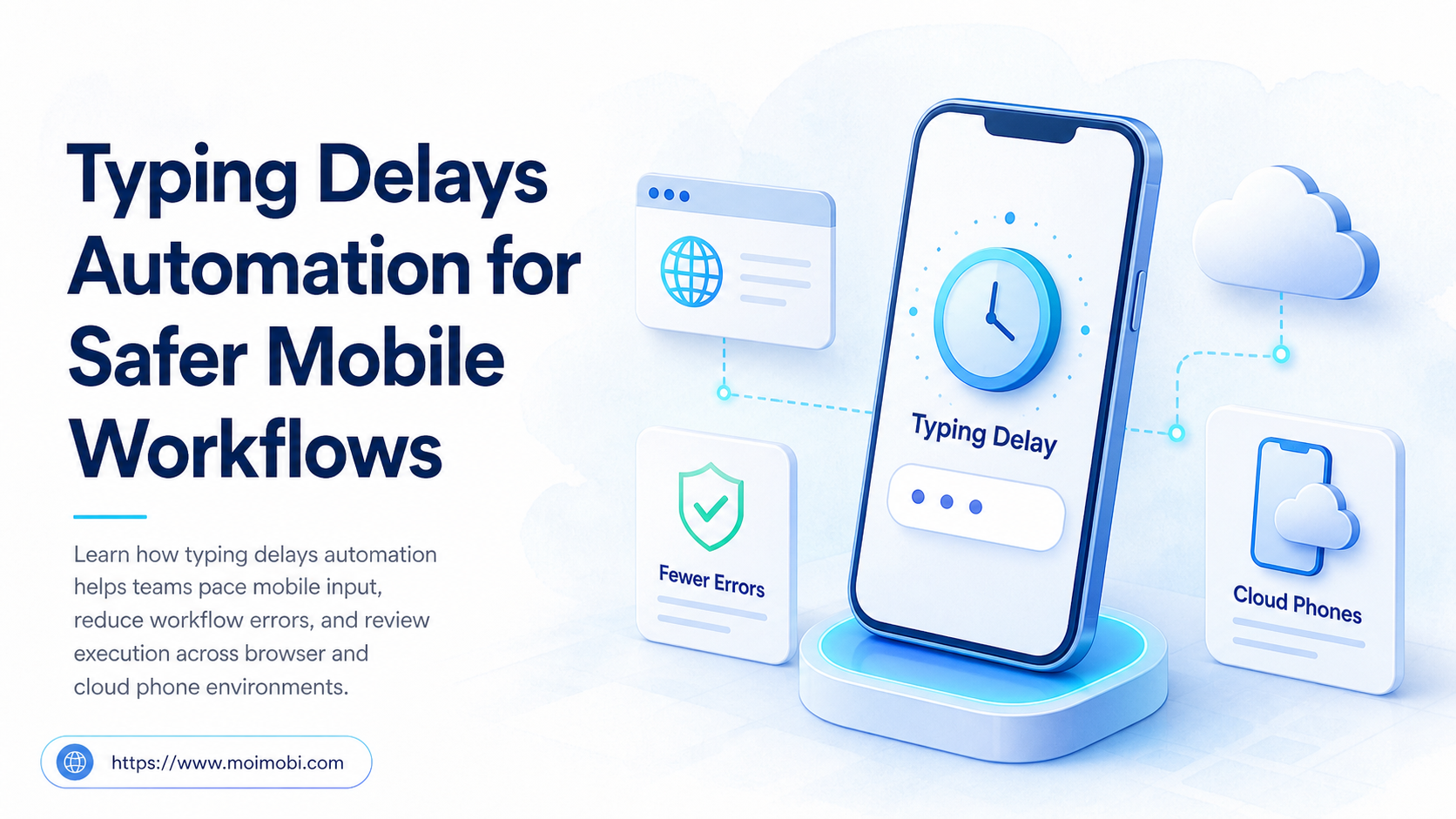
Typing delays automation is the controlled use of pauses between text-entry actions inside automated mobile workflows. It helps teams avoid brittle task execution when mobile apps need time to render fields, validate input, switch screens, or respond to network delays.
The point is reliability, not deception. A serious workflow uses typing delays with observable state checks, retry limits, and logs. It should not use timing tricks to imitate people, send unsolicited messages, or push actions that violate platform rules.
For teams running many app-based tasks, timing errors are common. A command may type before a field is ready. A save button may be disabled for a moment. A mobile app may re-render after the first few characters. Delays are one control in a broader mobile automation system.
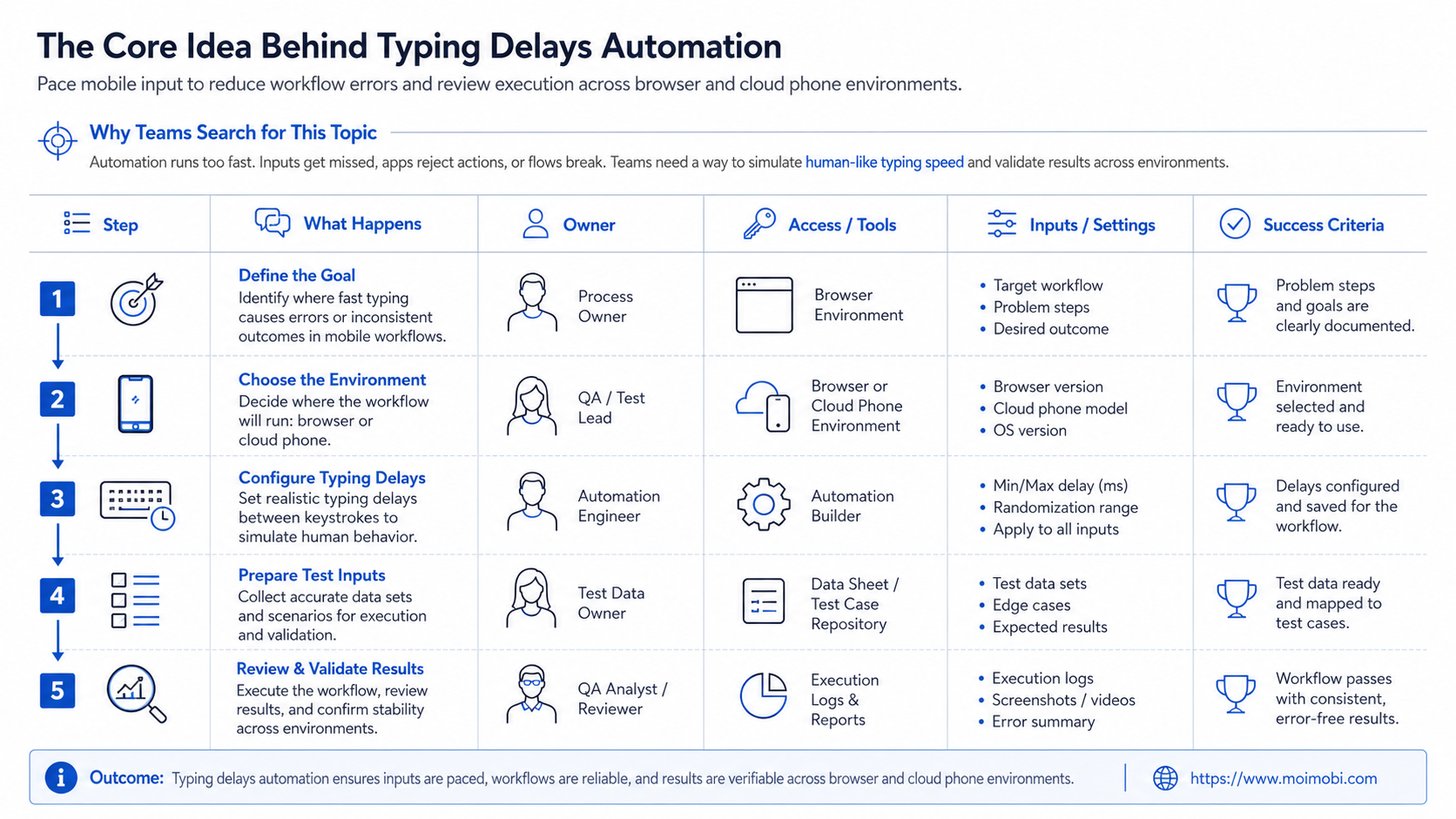
The Core Idea Behind Typing Delays Automation
A delay-aware execution layer needs a pacing policy. Instead of sending a whole string instantly and hoping the app accepts it, the workflow can insert short pauses after focus, after each field, after submission, or after a validation message appears.
This does not replace proper waits. Playwright’s documentation explains that it performs actionability checks before actions, and Android’s UI Automator guidance focuses on writing robust UI tests across Android surfaces. Those official docs point to a broader principle: reliable automation should wait for the interface to be ready before acting.
Typing delays fit into that model as a last-mile input control. They are useful when a mobile app behaves differently from a web form, when soft keyboards create timing issues, or when device performance varies across sessions.
| Delay Location | What It Protects | Better Paired With |
|---|---|---|
| After field focus | Keyboard opening and field readiness | Visible-field check |
| Between fields | Validation and screen reflow | Error message detection |
| Before submit | Disabled buttons and pending validation | Button enabled check |
| After submit | Navigation, toast, or result state | Completion assertion |
Why Teams Search for This Topic
Teams usually search for this topic after scripts become flaky. The task works in a demo, then fails when more accounts, more devices, or slower app states enter the workflow. The failure looks small, but the operational cost is high.
A single typing error can break a post caption, a reply template, a search query, or a customer note. Across many accounts, one broken timing assumption creates repeated cleanup work. That is why pacing should be treated as a workflow setting, not a hidden magic number inside a script.
For app-based work, a cloud phone can provide persistent mobile execution, but the device alone does not solve timing. Teams still need task rules, state checks, logs, and review paths. Device capacity and automation pacing have to work together.
Who Benefits Most and In What Situations
The best fit is a team that executes repeated text-entry tasks on mobile apps. Examples include content publishing, comment reply drafts, customer support templates, lead follow-up notes, profile updates, and campaign field checks.
It is less useful for workflows that already have strong API access, server-side validation, or official scheduling endpoints. In those cases, direct API or platform-supported workflows may be cleaner. Timing controls matter most when the workflow must operate through a real app surface.
Use this fit boundary before adding delays:
- Mobile screens render at different speeds.
- Soft keyboard timing affects input fields.
- Operators need consistent retry and pause rules.
- Tasks require review before more accounts are added.
- The task can be done through an official API.
- The team wants to hide mass messaging behavior.
- No one reviews failed or paused tasks.
- The workflow has no clear completion state.
For broader account operations, typing delays should sit inside multi-account management, not in isolated scripts owned by one operator.
How to Evaluate or Start Using Typing Delays Automation
Start with observable waits. Delays are helpful only when the workflow knows what it is waiting for. A fixed pause before every action may reduce some errors, but it can also hide the real failure.
Use this rollout path:
- Map the input steps. List every field, button, keyboard transition, and confirmation screen.
- Add readiness checks. Confirm field visibility, button state, or expected screen text before typing.
- Set delay ranges. Use small bounded pauses around known unstable points, not long pauses everywhere.
- Limit retries. Stop after a small number of failed attempts and mark the task for review.
- Record field-level results. Capture which field failed, not only that the task failed.
- Review before scaling. Expand only after the pilot shows fewer repeated input errors.
Selenium’s Actions API documentation and the W3C WebDriver model both show that pauses can be part of controlled action sequences. That does not mean every workflow should depend on sleep calls. It means timing belongs in the execution plan, where it can be inspected and changed.
Preflight Checklist for Mobile Input Workflows
Run a preflight before adding typing delays to production workflows. The checklist keeps the team from using delays as a patch for unclear task design.
- The app screen and target field are known.
- The expected keyboard state is defined.
- The workflow knows what success looks like.
- The workflow has a timeout for each step.
- The account environment is assigned and documented.
- Manual takeover rules are written.
- Logs show field-level failure reasons.
- The task can be stopped without losing ownership.
For teams that combine browser dashboards and mobile app actions, device isolation and environment assignment matter. A timing fix is easier to trust when the account, device, and workflow are traceable.
Typing Delays Automation Policy Examples
A delay policy should be readable by operators, not only by developers. If only the script author understands the timing rules, the team cannot review or improve them.
One simple policy is field-based pacing. The workflow waits for a field to become visible, focuses it, pauses briefly for the keyboard, types the value, then checks whether the expected text is present. This works well for profile fields, search boxes, or reply drafts.
Another policy is screen-transition pacing. The workflow types or submits, then waits for a known next state. The next state might be a toast, a confirmation page, a changed button, or a visible draft preview. This policy is better than guessing that every app screen needs the same pause.
A third policy is failure-based pacing. The system starts with short delays. After the same field fails several times, it marks that field for review instead of increasing the delay forever. This keeps the workflow from hiding a broken selector, missing permission, or changed app layout.
| Policy Type | Best Use | Stop Condition |
|---|---|---|
| Field-based | Forms, captions, replies, profile edits | Field text does not match expected value |
| Screen-transition | Submit, save, publish, or next-page steps | Expected screen does not appear |
| Failure-based | Repeatedly unstable app screens | Same step fails more than the allowed retry count |
These policies are easier to operate when they live in a shared workflow layer. A team lead can inspect why a task paused. A support operator can take over from the last known field. A developer can tune the policy without rewriting the whole workflow.
Where Typing Delays Fit in Account Warm-Up and Pricing Decisions
Typing delays are sometimes discussed alongside account warm-up pricing, but they are not the same thing. A warm-up package may include account preparation, content planning, review workflows, environment setup, and reporting. Typing delays are only one execution detail inside that broader system.
For buying decisions, ask what the vendor is charging for. A price that only covers action volume may still leave the workflow weak. Pricing that includes environment separation, logs, pilot review, and recovery handling points to a more complete operating layer.
The same logic applies to developer automation. Cloud phones for developer automation can provide persistent Android environments, but developers still need pacing rules, screenshots, device logs, and failure states. A device fleet without workflow policy simply moves the timing problem to more devices.
For social media teams, pricing should also reflect review work. A lower-cost tool that creates extra cleanup may be more expensive in practice. A controlled workflow should reduce repeated fixes, not just run more actions.
Mistakes That Reduce Results
The first mistake is using delays instead of checks. If a button is disabled, a longer wait may help once, but the better fix is to detect when it becomes enabled.
The second mistake is making every delay the same. Mobile apps do not fail at the same point. One field may need keyboard settling. Another may need server validation. A third may only need a post-submit confirmation check.
The third mistake is hiding failures. A task that silently retries ten times is not safer. It is harder to diagnose. A controlled workflow should expose repeated failures and let an operator decide whether to continue.
The fourth mistake is using typing delays for the wrong purpose. They should not be used to run spam, mass unsolicited replies, or fake engagement. For social media automation, the safer model is approved workflows, clear ownership, and reviewable logs.
Pilot Rollout, Measurement, and Recovery Checks
A pilot should test one task on one platform first. Choose a workflow with clear input fields and an observable success state. Good examples include updating a profile field, preparing a caption draft, or filling a support reply template for human review.
Measure the pilot with execution metrics:
- field error rate
- retry count
- task timeout count
- manual takeover count
- average completion time
- repeated screen or keyboard failures
- number of tasks paused by stop rules
Recovery checks are just as important. When the task fails, the system should preserve the account, screen, field, last action, and next recommended step. Without that record, the operator has to guess what went wrong.
Expand only after failures become explainable. A workflow that is slower but predictable is usually better than a fast workflow that creates hidden cleanup work.
Frequently Asked Questions
What is typing delays automation?
This method controls pauses around text input steps. It helps workflows avoid acting before a mobile screen or field is ready.
Is it the same as pretending to be human?
No. In a proper operations workflow, the goal is pacing and reliability. It should not be used to hide abusive or policy-violating activity.
When should teams use typing delays?
Use them when mobile input fails because of keyboard timing, screen re-rendering, validation delay, or inconsistent device performance.
Are fixed delays enough?
Usually not. Fixed delays should be paired with visible state checks, completion assertions, retry limits, and failure logs.
Can typing delays improve social media workflows?
They can reduce input mistakes in approved workflows. They should not be used for duplicate posting, unsolicited messages, or fake engagement.
How should a pilot be measured?
Track field errors, retries, timeouts, manual takeovers, and repeated screen failures. These metrics show whether timing changes actually helped.
Do cloud phones remove the need for delays?
No. Cloud phones provide mobile execution environments, but app screens can still load, validate, and re-render at different speeds.
Where does Moimobi fit?
Moimobi helps teams coordinate browser and mobile execution environments, account separation, task logs, and controlled workflow review.
Conclusion
This approach works best when it is part of a larger execution policy. Treat it as a pacing layer for mobile input, not as a substitute for app-state checks or human review.
The next step is simple: choose one mobile workflow, map the fields, add explicit waits, place bounded delays only where timing fails, and review the logs before scaling. A task that becomes easier to explain and recover is moving in the right direction. A task that only hides failures needs redesign.