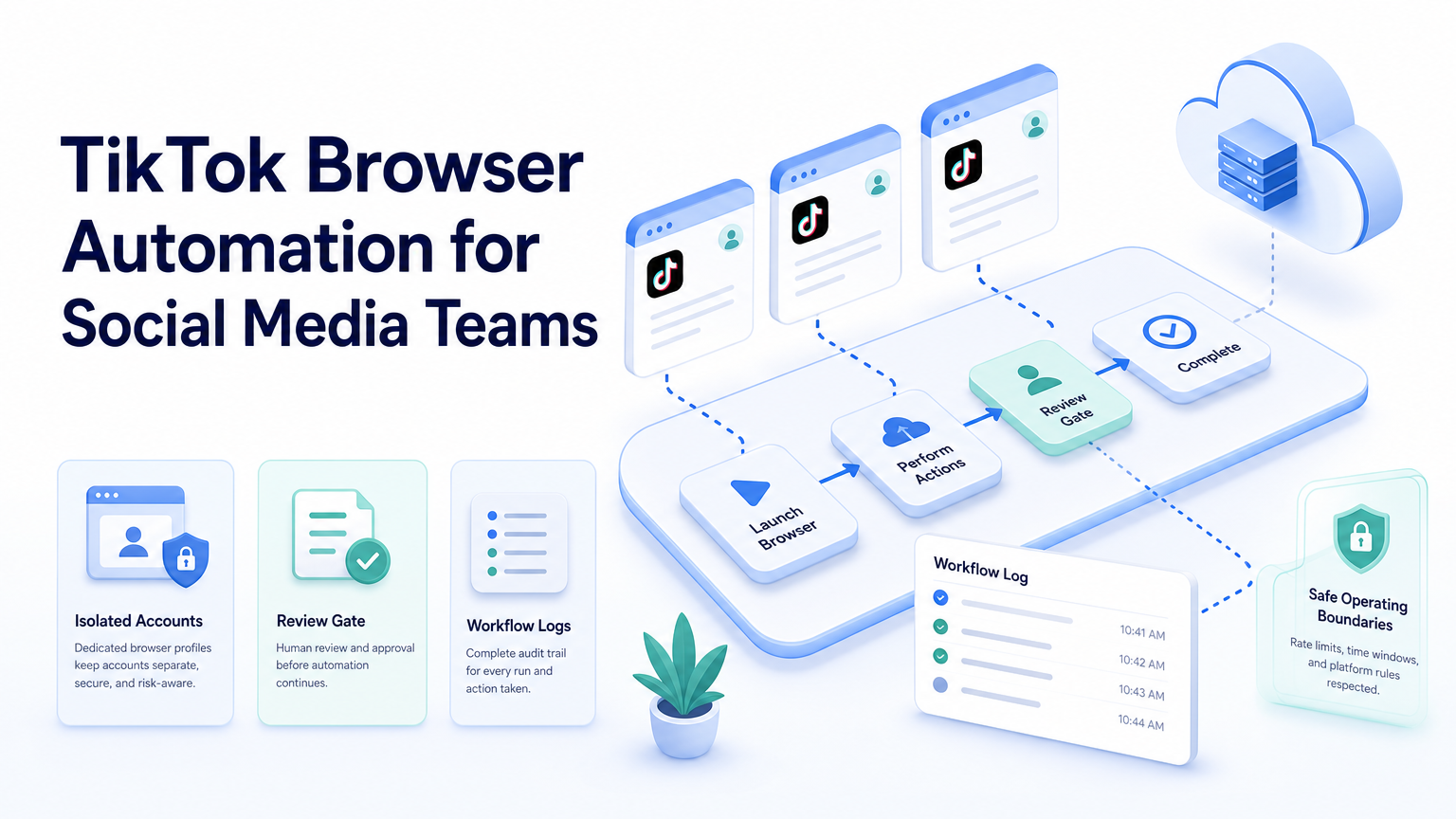
TikTok browser automation is the use of controlled browser workflows to help teams manage TikTok-related web tasks such as research, reporting, draft preparation, and account review. It should not be treated as a shortcut for fake engagement or uncontrolled mass actions.
For social media teams, the decision is operational. The team needs to know which account is used, which task is allowed, who reviews the output, and what happens when the page changes or a session fails.
TikTok also provides official developer paths for specific use cases. Its Content Posting API is designed for approved posting workflows. Browser automation should sit beside official APIs, not replace them when an API is available and appropriate.
Key Takeaways
- TikTok browser automation is best for repeatable web tasks, not blind mass activity.
- Teams should separate browser-based work from official API publishing workflows.
- Account isolation, logs, and human review matter more than click volume.
- A strong pilot starts with reporting, research, or draft preparation.
- Mobile app workflows may require cloud phones or Android execution, not only a browser.
What Is TikTok Browser Automation for Social Media Teams?
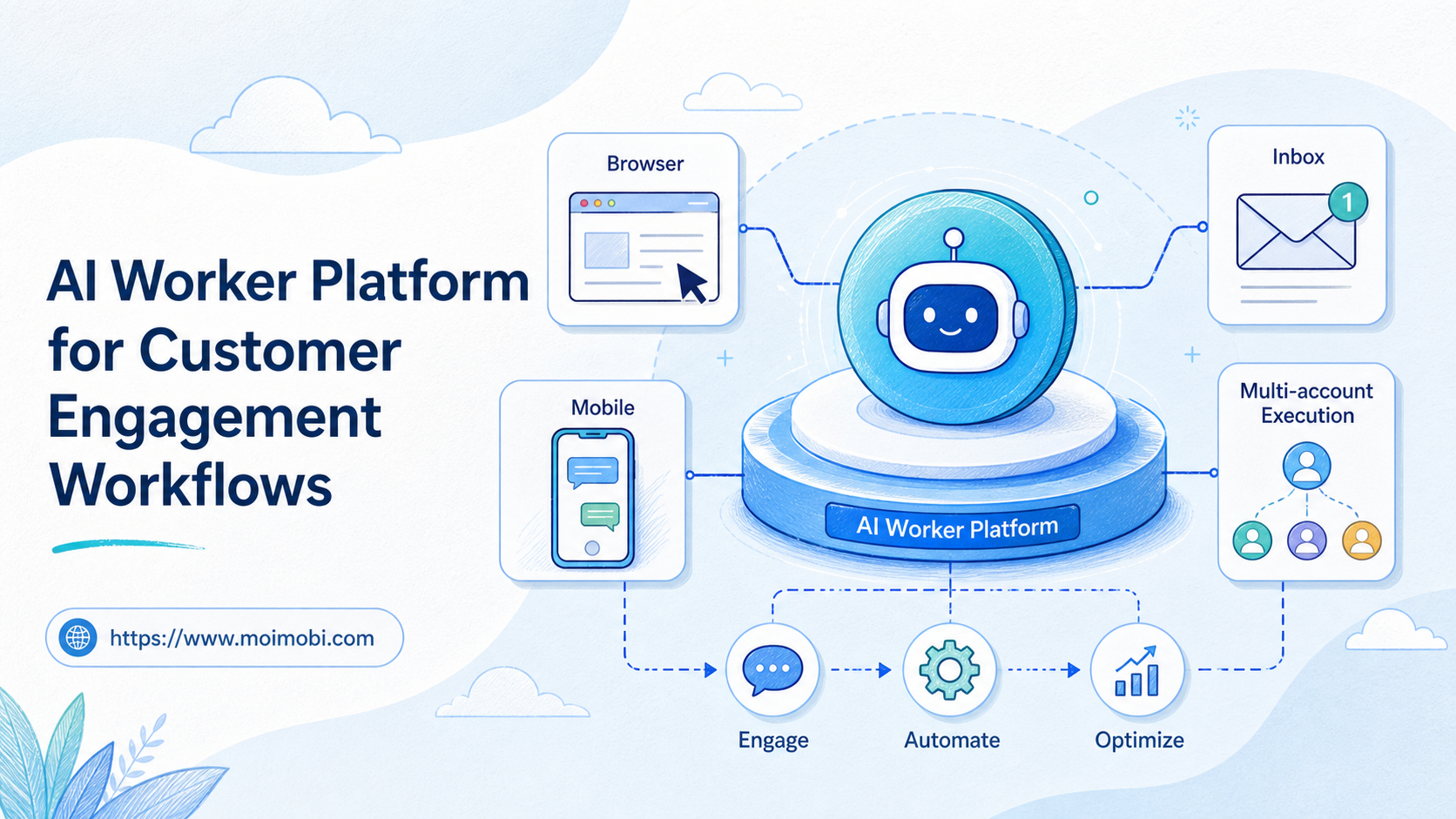
TikTok browser automation for social media teams means using a managed browser environment to support web-based TikTok operations. A workflow may open a dashboard, collect status information, summarize comments, prepare a posting checklist, or route items for review.
The phrase can be misunderstood. It does not mean that every TikTok action should be automated. It also does not mean that a team should ignore platform rules. A better model is controlled assistance for repeatable tasks.
Browser automation has a technical foundation. The W3C WebDriver specification describes a remote control interface for web browsers. Playwright documentation explains browser automation across modern browsers for testing and web app workflows. A team workflow adds role rules, account context, and review gates on top of that technical layer.
For example, a browser task may collect campaign metrics from a web dashboard and generate a manager summary. A human can then decide what content, reply, or account action should happen next.
Why TikTok Browser Automation for Social Media Teams Matters
TikTok work becomes complex when a team manages multiple accounts. A single person can remember a few account states. A team needs a system.
The risk is not only wasted time. The larger risk is unclear ownership. If operators share logins, switch accounts manually, and record results in different places, managers cannot easily reconstruct what happened.
TikTok browser automation matters when it reduces those gaps:
- It opens the right browser workspace for the right account group.
- It turns repeated checks into a known sequence.
- It produces a task record.
- It routes public or sensitive actions to a reviewer.
- It helps managers see where work stopped.
For broader account operations, review multi-account management. The browser layer should support account control, not add another disconnected tool.
Key Benefits and Use Cases
The strongest use cases are structured and reviewable. A browser can help teams collect, organize, and prepare work before a human makes the final decision.
Useful workflows include:
- Checking account dashboards before a campaign.
- Collecting comments for triage.
- Preparing response drafts for review.
- Recording content publishing status.
- Comparing competitor posts and formats.
- Updating campaign trackers.
- Creating daily account health notes.
Use social media marketing as the broader operating context. The goal is not simply to automate a page. The goal is to make content, engagement, and reporting easier to control.
When the work is mobile-first, cloud phone or mobile automation may be a better execution layer than a browser alone.
TikTok Browser Automation vs API-Based Workflows
The first decision is not "browser or no browser." The better decision is "which execution path fits this task?"
API workflows are stronger when TikTok provides an approved endpoint, permission model, and stable data contract. Browser workflows are stronger when the team is working inside web dashboards, review pages, research tools, or internal systems that do not map cleanly to an API.
Use a simple rule:
- Use an API when the task is officially supported, permissioned, and repeatable.
- Use browser automation when the task is a human web workflow that needs structure.
- Use mobile execution when the task only exists inside the TikTok mobile app.
- Use human review when the result is public, sensitive, or brand-facing.
This split prevents a common mistake. Teams sometimes use browser automation for everything because it feels flexible. Flexibility is useful, but official routes are usually easier to monitor when the task fits them.
Team Roles for a TikTok Browser Workflow
A team workflow needs ownership. Without roles, automation creates more ambiguity.
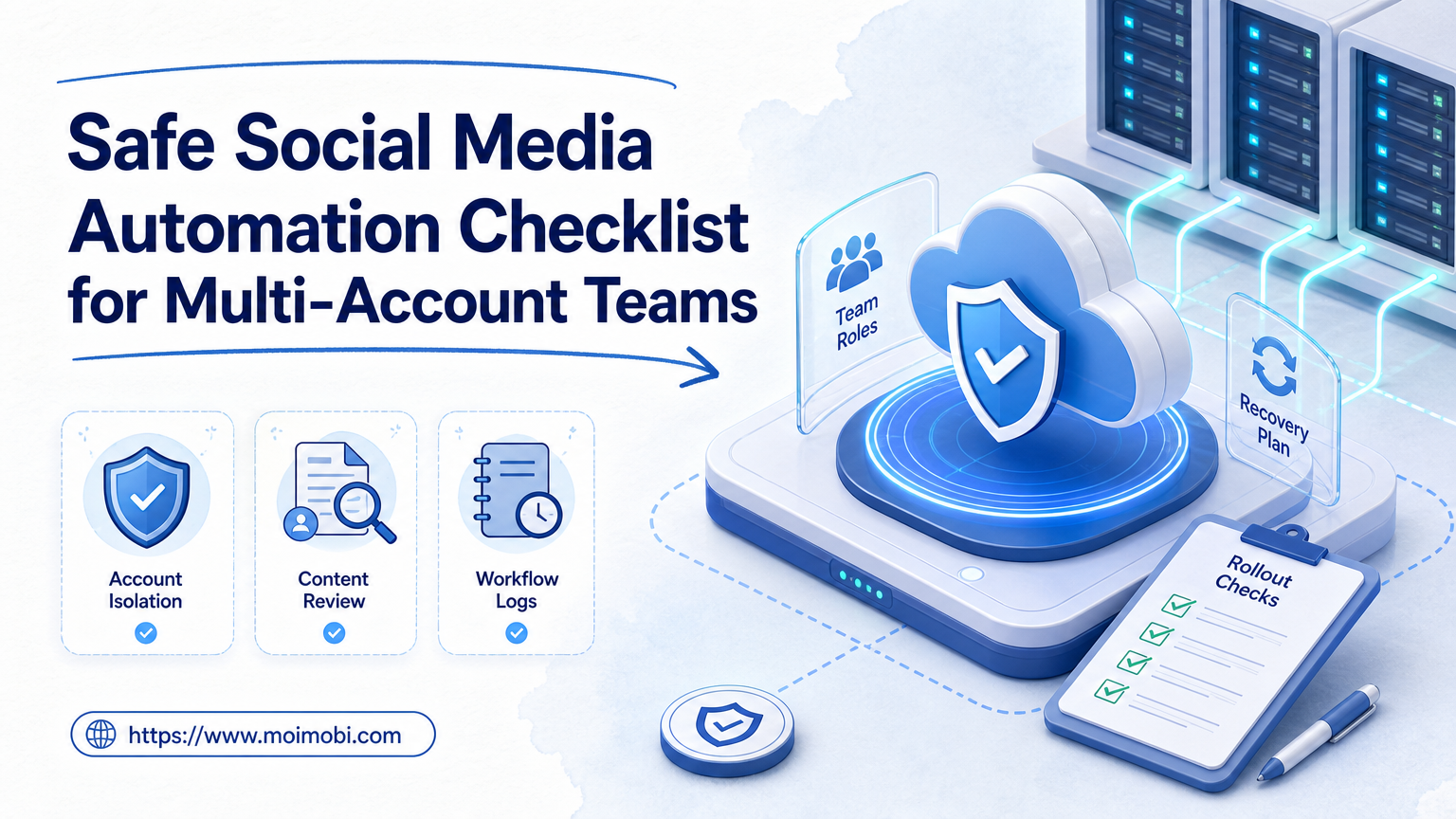
The account owner decides which account belongs to which campaign or client. The operator runs the daily workflow and handles exceptions. The reviewer approves public-facing content. The manager checks reports and decides whether the workflow should expand.
For a small team, one person may hold more than one role. The roles still need to be written down. A shared checklist is enough for the first pilot.
The most important handoff is between operator and reviewer. A browser workflow should give the reviewer enough context to approve, reject, or edit a draft without reopening every page.
How to Get Started with TikTok Browser Automation for Social Media Teams
Start with a workflow that does not post or reply automatically. This keeps the pilot measurable and easier to review.
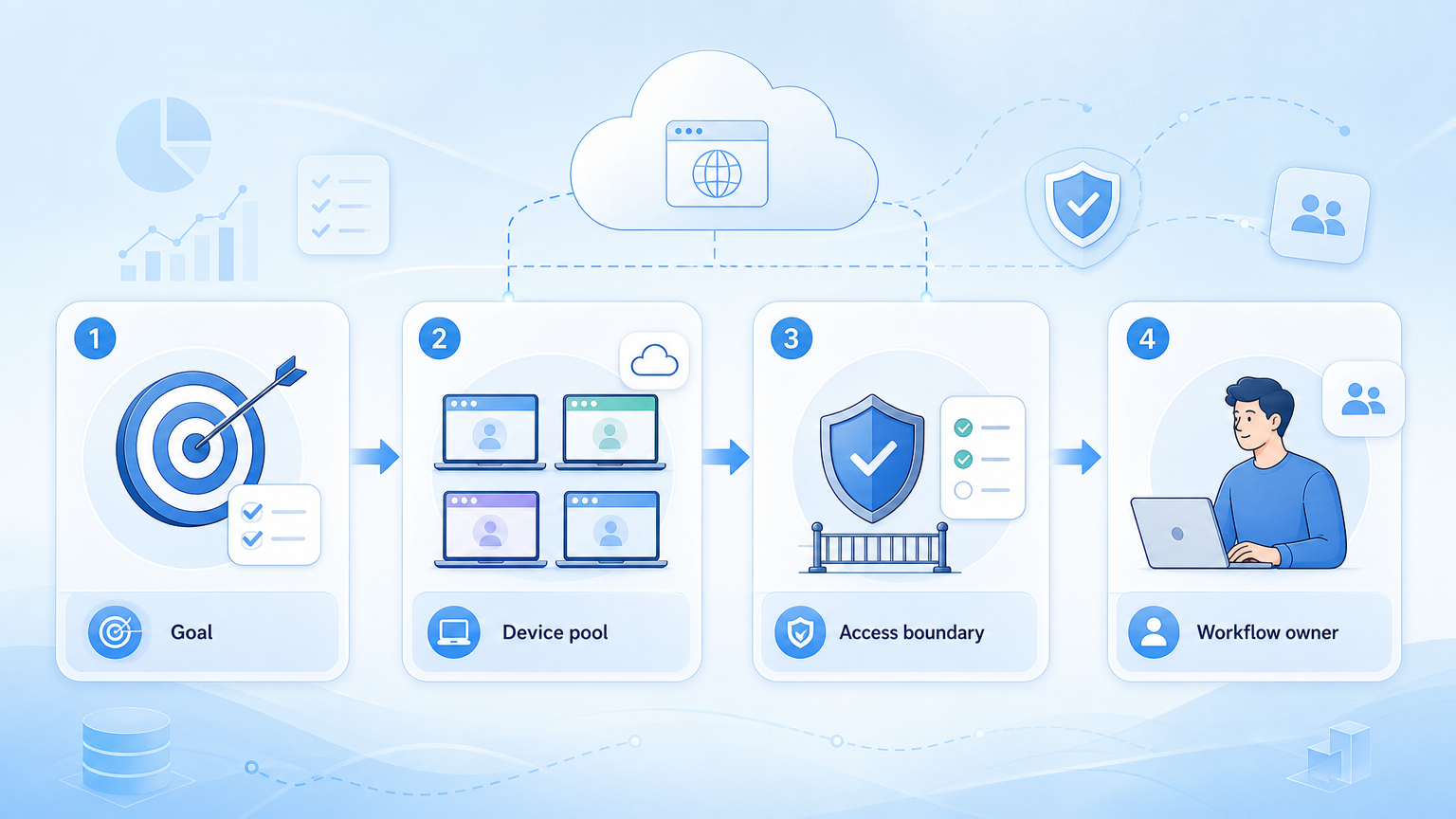
- Pick one workflow. Choose reporting, comment collection, or draft preparation.
- Map the account owner. Every account should have a clear responsible person.
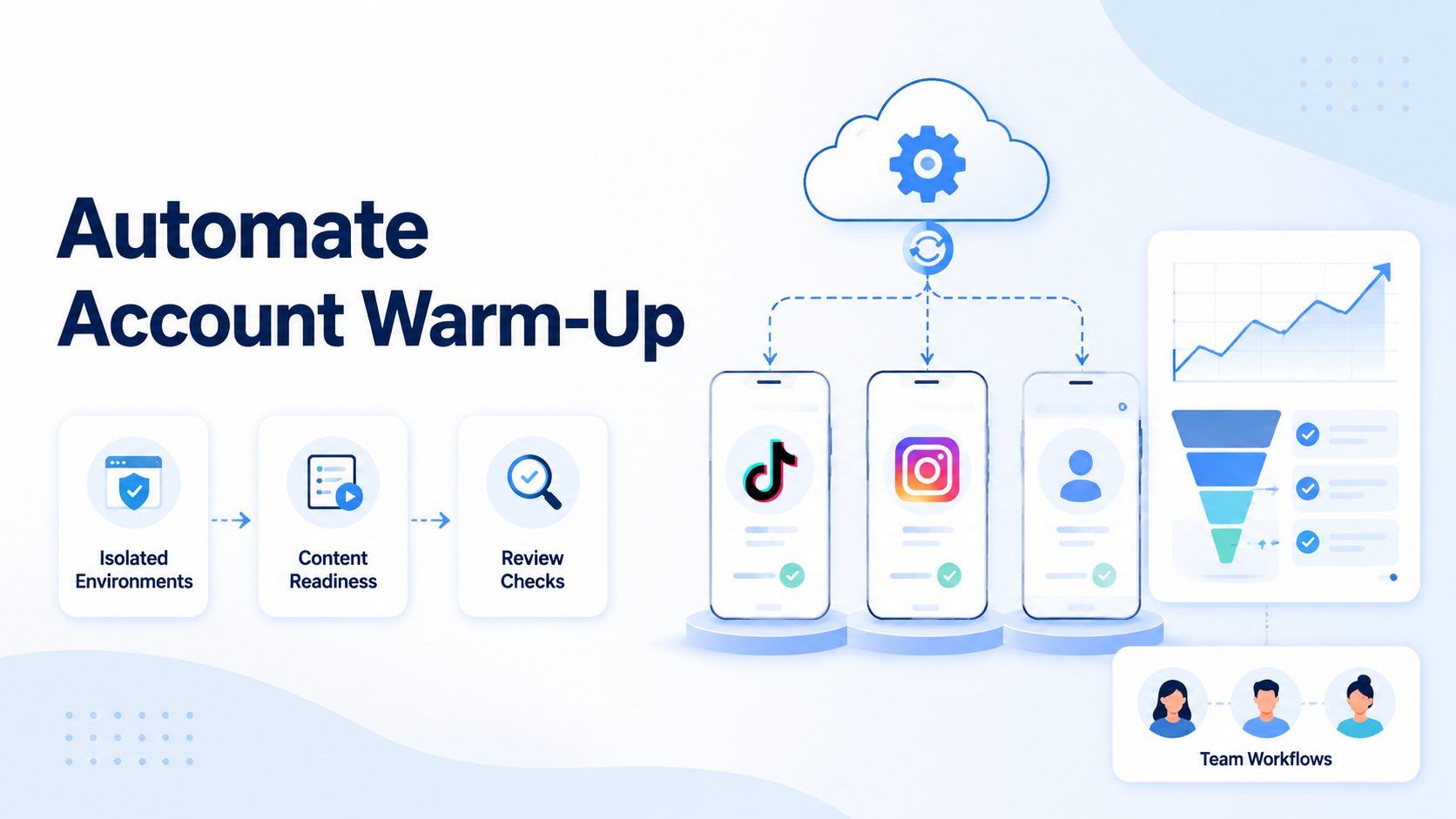
- Use isolated browser sessions. Avoid mixing account environments in one shared profile.
- Write allowed actions. Reading, collecting, summarizing, and drafting are safer first actions.
- Write restricted actions. Posting, replying, profile changes, and account settings should need approval.
- Add logs. Record account, task, result, reviewer, and exception.
- Review weekly. Look at failures before adding more accounts or actions.
This sequence also helps teams compare tools. A tool that cannot separate account environments or export task records may not fit serious multi-account operations.
Add one stop rule before the pilot starts. For example, pause the workflow if the account workspace is unknown, if the page shows a security prompt, or if the task output lacks the account name. A simple stop rule prevents small failures from becoming messy team incidents.
Common Mistakes to Avoid
The first mistake is using automation before the workflow is clear. If the team cannot describe the manual process, automation will copy the confusion.
The second mistake is measuring success by activity count. More browser actions do not prove better operations. Better signals include fewer account mix-ups, faster review, cleaner reports, and shorter recovery time.
The third mistake is ignoring official platform routes. TikTok's developer documentation exists for approved API workflows. Use those paths where they fit. Use browser automation for work that legitimately happens in browser-based tools and dashboards.
The fourth mistake is skipping human review. Public replies, published posts, and account-level changes affect brand trust. A controlled system should pause before those actions.
Avoid workflows that promise to hide behavior, create fake popularity, or bypass platform rules. Those claims create business risk and usually make team operations less trustworthy.
Who It Fits and When It Is a Strong Match
TikTok browser automation fits teams with repeatable TikTok work and clear review needs. Agencies, creators with support teams, e-commerce sellers, and cross-border operators often fall into this group.
A strong match has these traits:
- More than one account or operator.
- Repeated checks across dashboards or web tools.
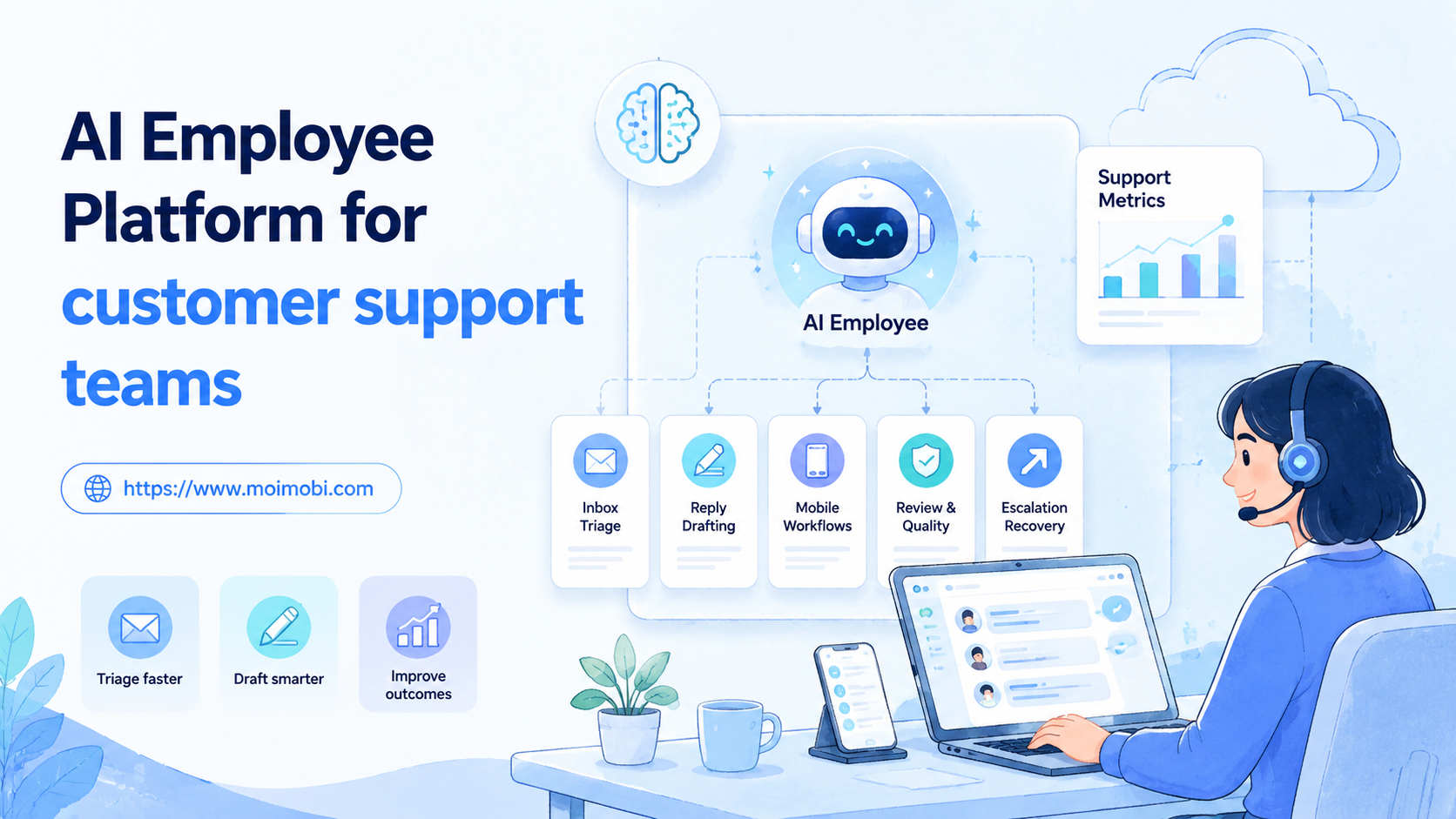
- A need for comment or message triage.
- Manager review before public actions.
- Reporting requirements for clients or internal teams.
- A plan for exceptions and manual takeover.
It is a weak match when the team wants instant growth, fake engagement, or unsupervised account actions. It is also weak when all useful tasks already happen through a stable official API.
For account separation, device isolation should be part of the evaluation. A browser workflow is easier to trust when each account workspace is clear.
Pilot Rollout, Measurement, and Recovery Checks
A pilot should test the operating model. Do not start by connecting every account.
Use one account group and one workflow. A good first workflow is "collect recent comments and prepare a response review sheet." The task creates useful output, but the public response still waits for approval.
Measure these items:
| Metric | What to check | Good sign |
|---|---|---|
| Account accuracy | Was the right account opened? | No wrong-account incidents |
| Task quality | Was the output usable? | Reviewer edits are small |
| Review speed | Did approvals move quickly? | Public actions are not blocked |
| Failure logging | Were errors captured? | Each failed run has a reason |
| Recovery time | Could a human resume work? | Operators know the next step |
Recovery matters because TikTok pages, permissions, and sessions may change. The workflow should stop cleanly, record the issue, and let a human continue.
The pilot should also compare manual effort. Ask how long the old process took, how much cleanup the automated output needed, and whether the reviewer trusted the result. If the team saves time but loses confidence, the workflow is not ready.
Frequently Asked Questions
Is TikTok browser automation allowed?
It depends on the action and platform rules. Use official APIs where available, and keep sensitive browser actions under review.
Can it post TikTok content?
Posting should follow approved platform routes when possible. Browser-based posting should be reviewed carefully and logged.
What is the safest first use case?
Start with reporting, research, draft preparation, or comment triage. Avoid automatic public replies in the first pilot.
Does a team need isolated browsers?
Yes, if multiple accounts are involved. Isolation makes ownership and recovery easier.
When do cloud phones matter?
Cloud phones matter when the workflow must run inside TikTok's mobile app or Android-only screens.
How should agencies use it?
Agencies should separate client accounts, define reviewer roles, and keep clear logs.
What should be measured?
Measure account accuracy, output quality, review time, failures, and recovery speed.
Is this a replacement for social media managers?
No. It supports repeatable execution, while managers still own strategy, review, and escalation.
Conclusion
TikTok browser automation is useful when the team needs structured execution around TikTok web workflows. It is not a substitute for policy judgment, account ownership, or human review.
Start with one low-risk workflow. Confirm the right account opens, the task output is usable, and exceptions are traceable. After that, expand slowly into more accounts, more workflows, or mobile execution where the browser layer is not enough.