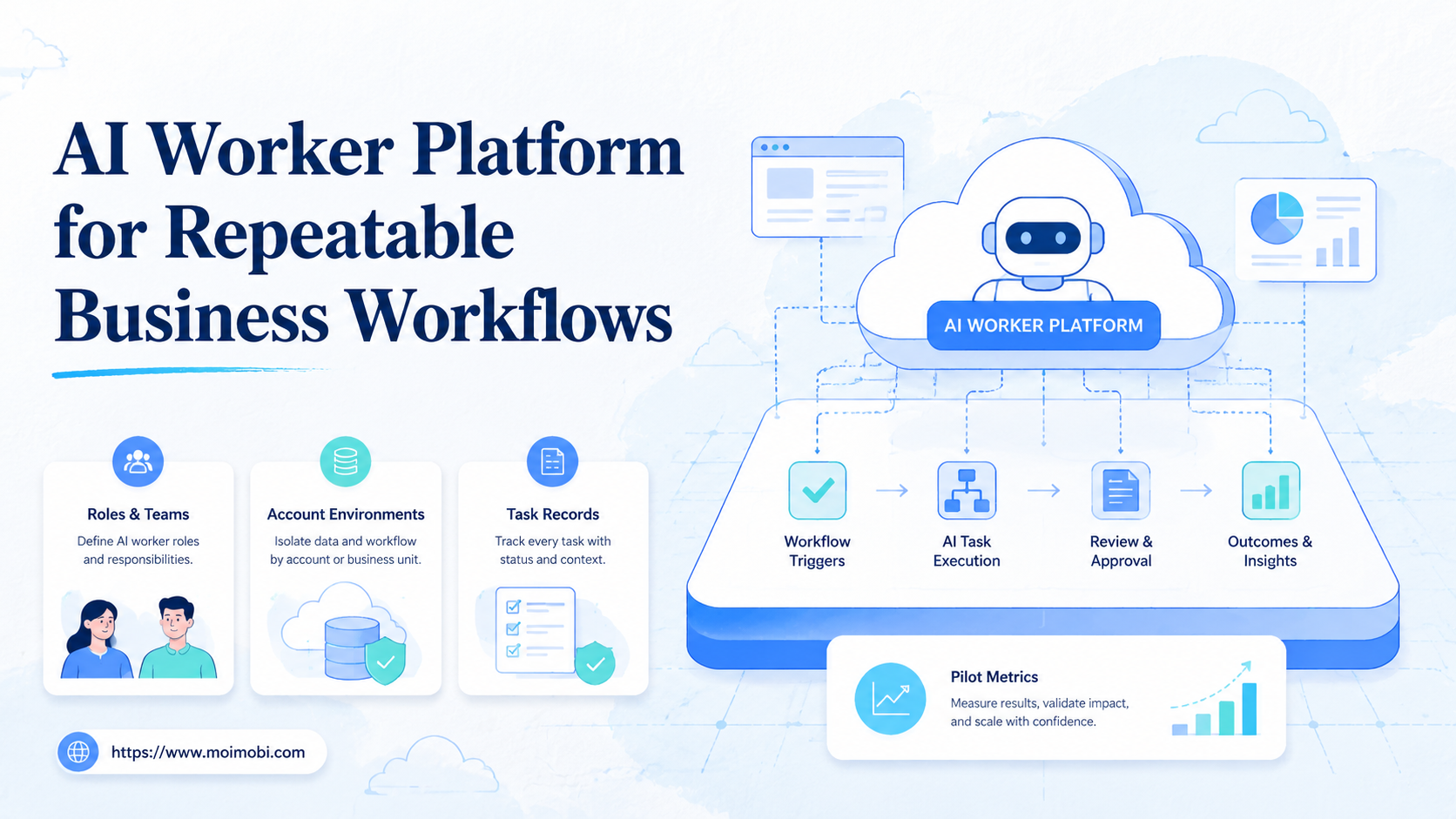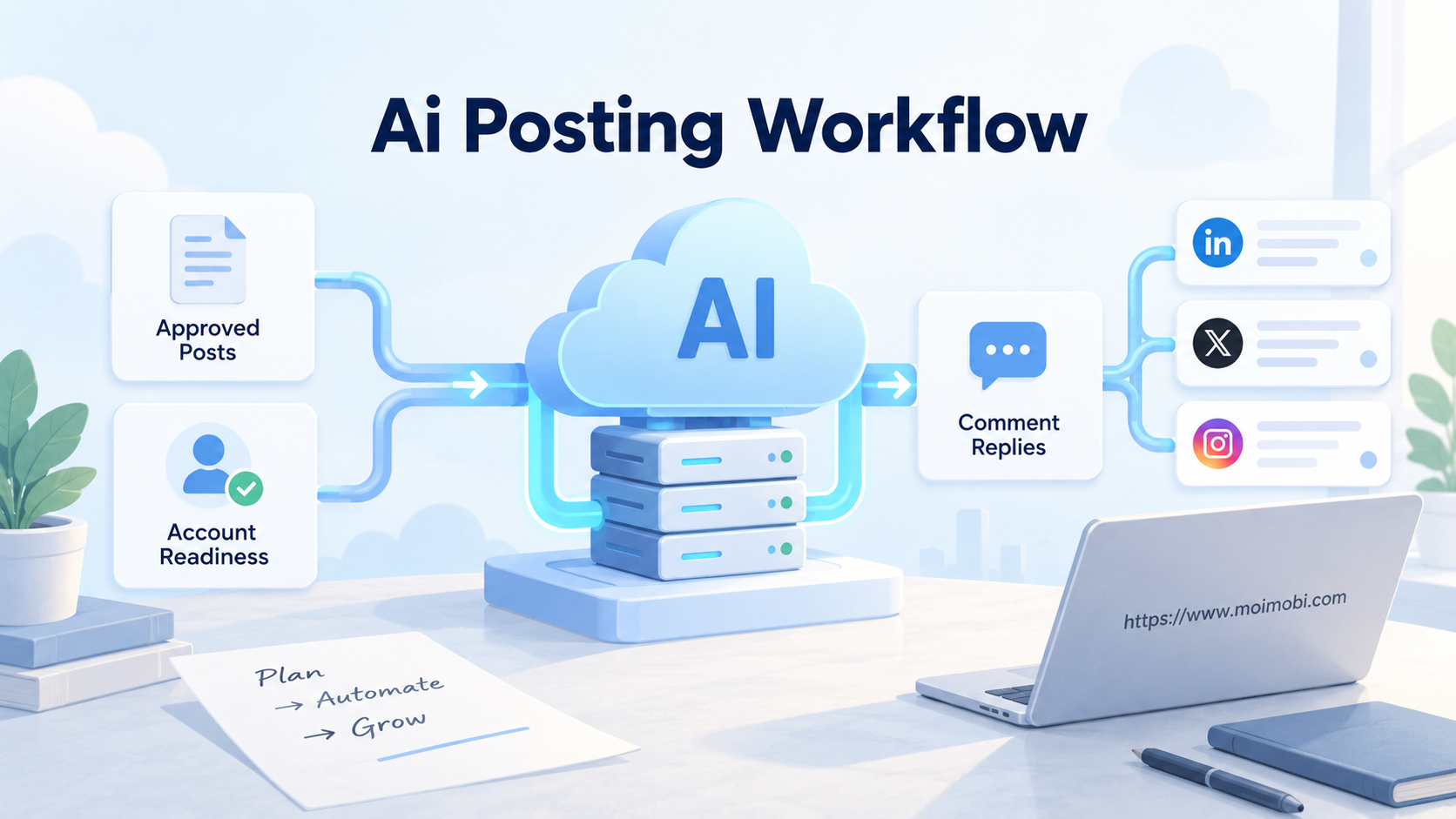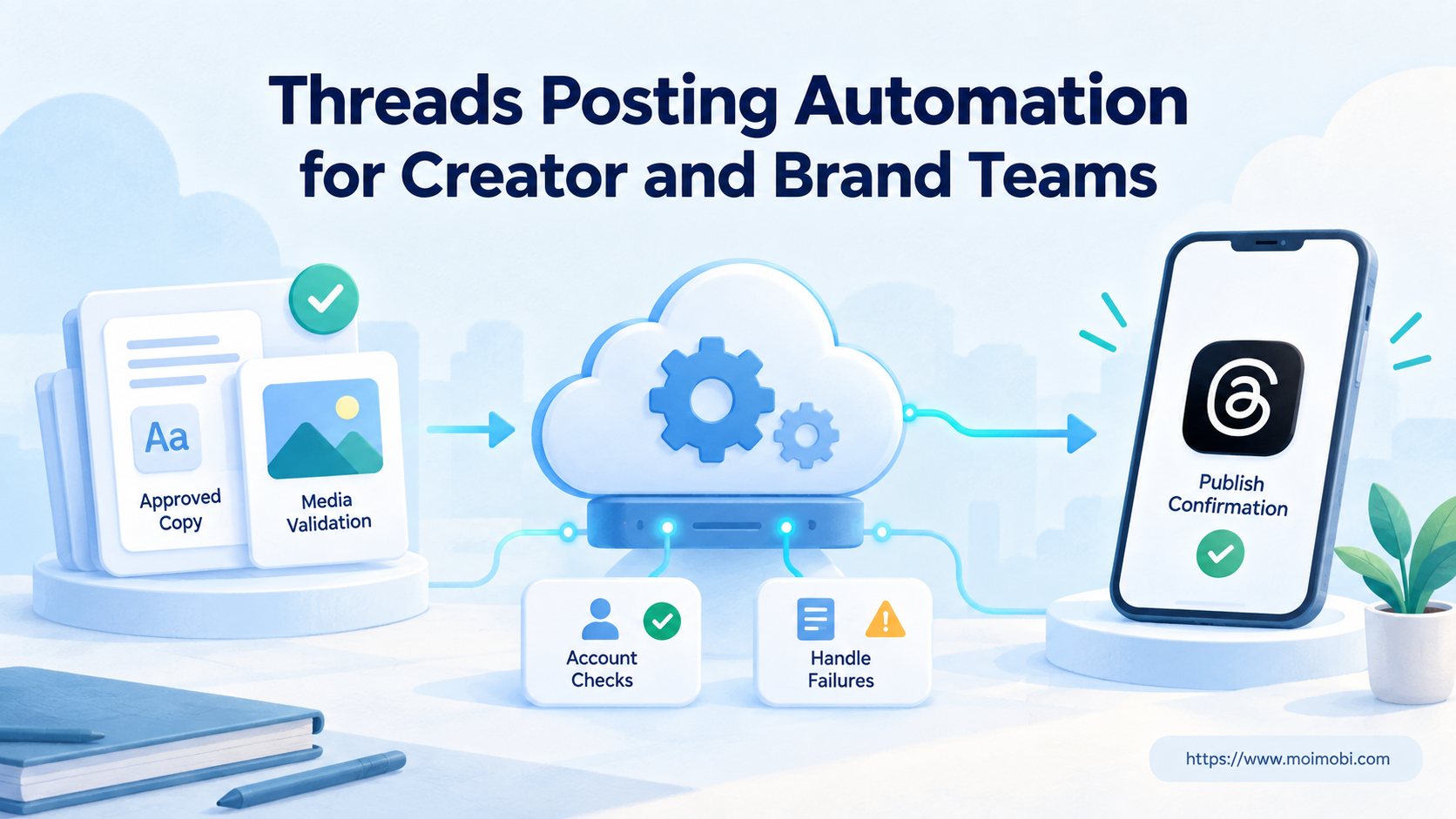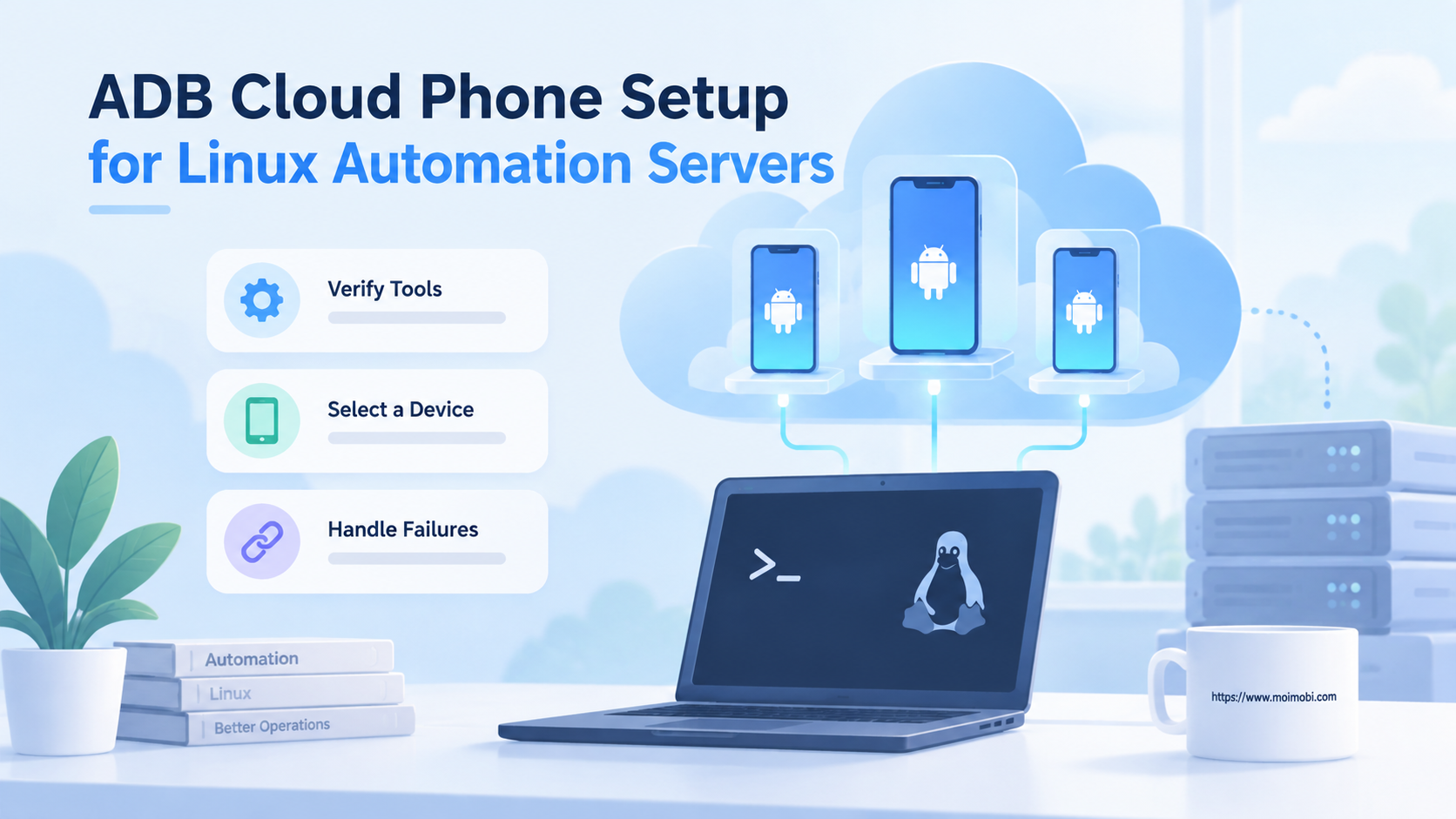
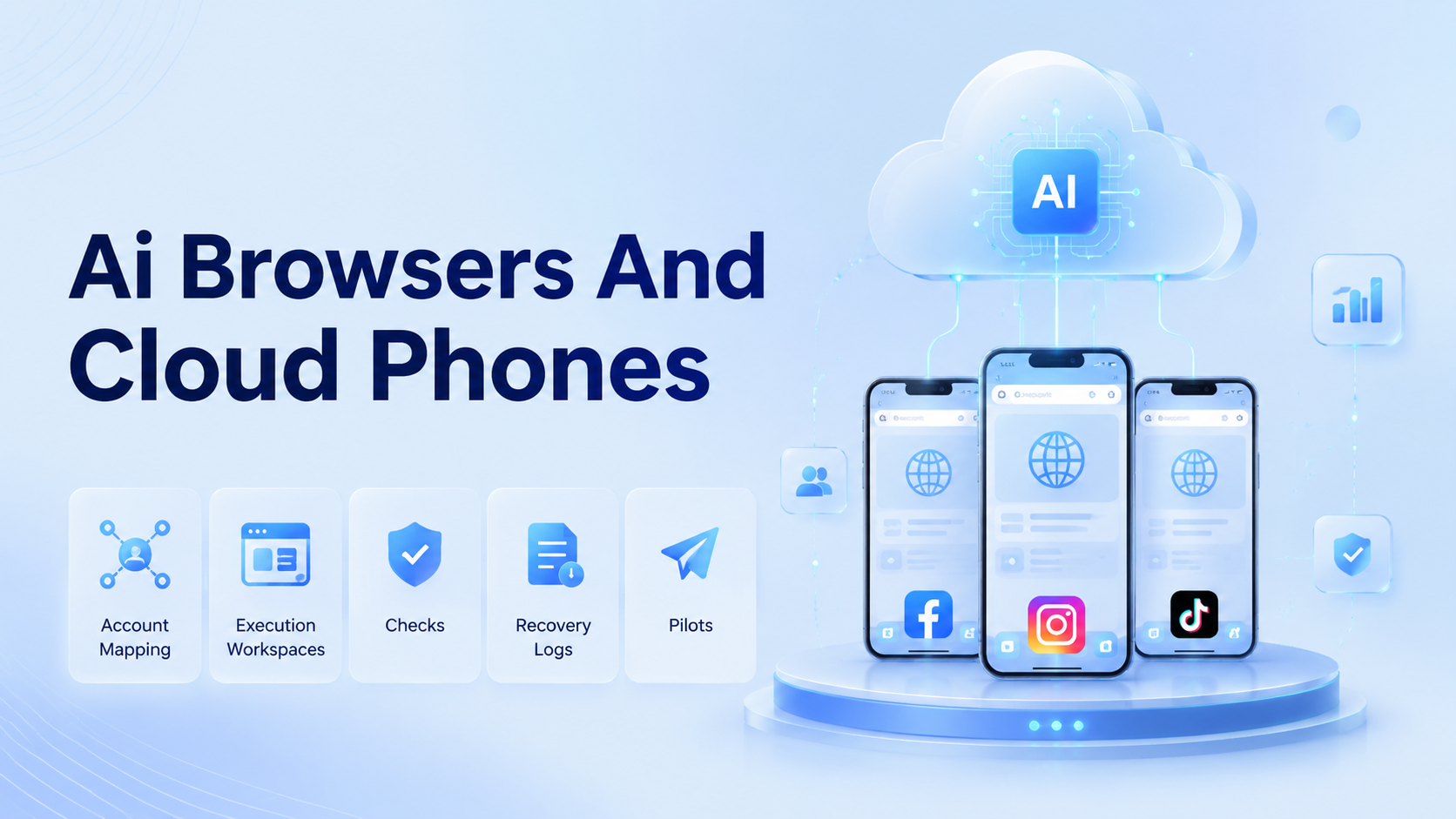
Running social media accounts with AI browsers and cloud phones means assigning each account to a controlled browser or mobile workspace, then using AI to prepare and guide repeatable tasks. The goal is not blind automation. The goal is cleaner execution, review, monitoring, and recovery.
This workflow fits teams that manage multiple accounts across platforms. Browser work may cover dashboards, inboxes, analytics, and web tools. Cloud phone work may cover mobile-first apps, app state checks, media handling, and post verification.
Moimobi connects these layers through multi-account management, device environments, and task workflows. The setup works best when every account has a clear owner and workspace.
Key Takeaways
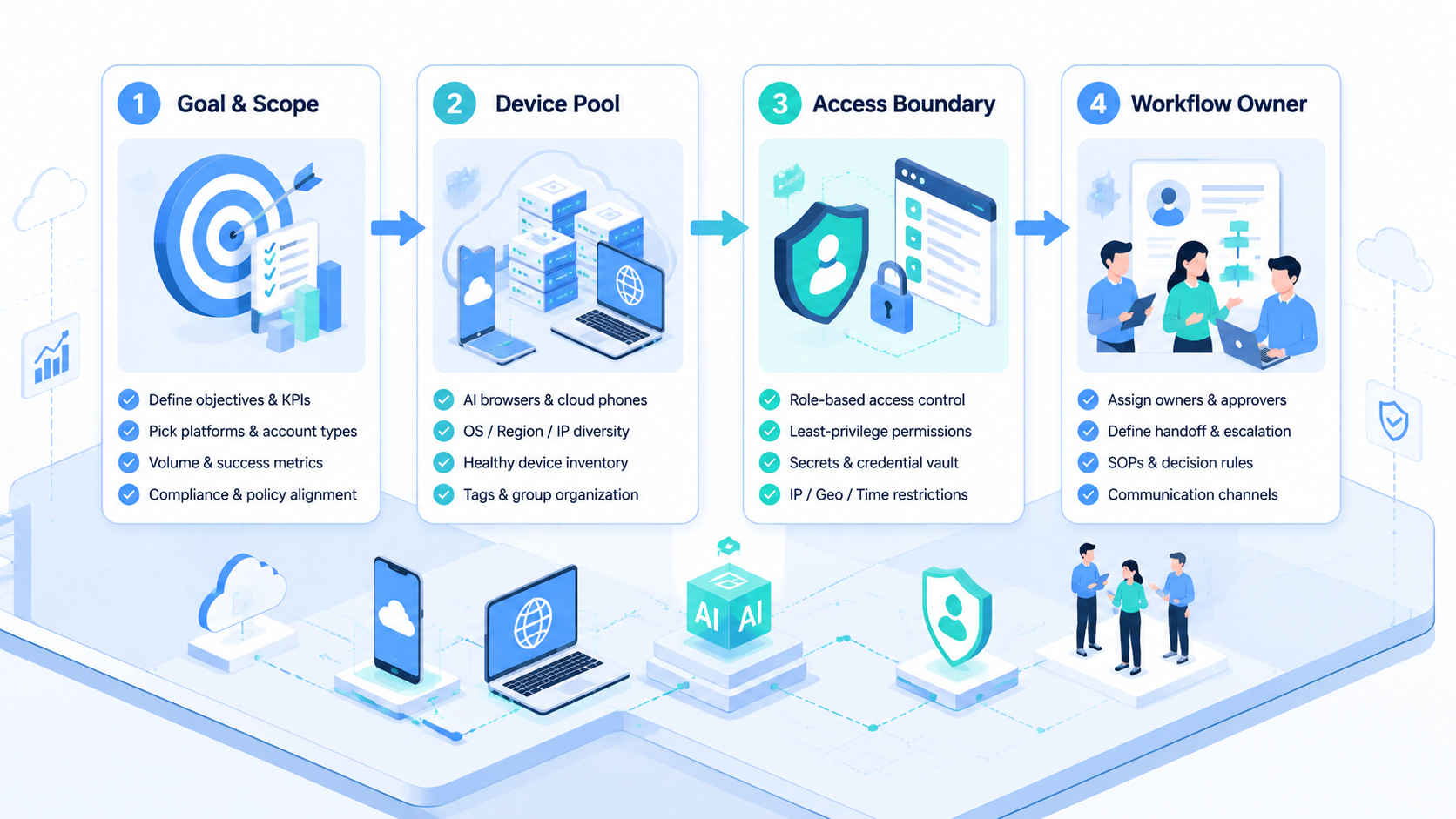
- AI browsers and cloud phones should be mapped to accounts before tasks begin.
- Browser work and mobile work need a shared task record.
- Verification checks matter more than action count.
- Start with a small account group and measure failures before scaling.
Pre-Setup Requirements for AI Browsers and Cloud Phones
Start with the account map. List every account, platform, owner, backup owner, region, and work type. Do not create workspaces until this map exists.
Next, decide which environment fits each task. Browser dashboards work well for reporting, web inboxes, account settings, and campaign tools. Cloud phones are better for app-first steps, mobile media checks, and workflows where app state matters.
Browser isolation has a known technical pattern. Playwright's browser context documentation describes separate cookies and local storage per context. W3C's WebDriver specification documents browser automation as a remote-control model for user agents.
Mobile execution also needs device context. Android's official testing documentation lists multiple tool families for repeatable Android app testing and automation work in Android Studio testing tools. For social operations, that means mobile tasks should keep app state, account state, and result logs visible.
Before the first run, prepare:
- account-to-workspace mapping;
- operator permissions;
- content asset storage;
- approval states;
- task stop rules;
- recovery notes;
- monitoring ownership.
The Core Workflow for How to Run Social Media Accounts with AI Browsers and Cloud Phones
Use one workflow record for both browser and mobile work. Splitting records creates confusion when a task starts in a dashboard and finishes in an app.
- Assign the account. Choose the platform account and owner.
- Choose the workspace. Use an AI browser for web tasks or a cloud phone for app tasks.
- Prepare the task. Let AI draft captions, summaries, replies, or monitoring notes.
- Run review. Check brand voice, content readiness, and account context.
- Execute the step. Publish, reply, monitor, or collect data only within the assigned workspace.
- Record the result. Mark live, failed, paused, repaired, or escalated.
- Review the workflow. Update prompts, stop rules, and ownership after real failures.
TikTok's Content Posting API shows that posting workflows can include direct post, upload, and status paths. That is a useful reminder: each platform has its own execution details.
How to Verify the Setup Is Working
Verification should happen before scale. A clean setup produces explainable results.
Use this pass/fail checklist:
| Check | Pass signal | Fail signal |
|---|---|---|
| Account mapping | Every account has one workspace | Operators ask which profile to use |
| Task state | Draft, approved, live, failed are visible | Status lives in chat messages |
| Workspace match | Browser and phone link to the same account | Mobile task uses an unclear account |
| Human review | Sensitive replies pause for approval | Agent replies without review rules |
| Recovery | Failed task shows reason and owner | Failure disappears after retry |
| Monitoring | Post-publish checks are assigned | Team only tracks publish attempts |
Verification should also include policy boundaries. Meta's Inauthentic Behavior policy is a reminder that teams should not design systems around deceptive account behavior or fake engagement.
Where Teams Usually Get Stuck
The common failure is starting with tools instead of account logic. A team buys browser profiles or cloud devices, then later tries to decide which account belongs where.
Another failure is mixing web and app workflows. A content manager may approve a post in a browser. An operator may verify it in a mobile app. If the records do not connect, the team cannot audit the task.
Troubleshooting usually starts here:
- Wrong workspace: rename and remap accounts before adding tasks.
- Unclear owner: assign one primary operator and one backup.
- Repeated failed uploads: record the asset, platform, app state, and failure reason.
- Unreviewed replies: add a human approval point for sensitive topics.
- No monitoring: assign post-publish checks as a separate task.
- Too much scope: reduce the pilot to one platform and one workflow.
Treat every failure as workflow evidence. The answer is not always more automation. Sometimes the answer is a clearer stop rule.
Next Steps After the First Pass
After the first pass, improve the workflow before adding more accounts. Scaling a messy setup multiplies confusion.
Use this sequence:
- Review failed tasks. Group failures by account, workspace, asset, and step.
- Fix naming. Make profile and device names readable to operators.
- Tighten approvals. Decide which tasks AI can prepare and which need review.
- Add monitoring. Track comments, DMs, live status, and campaign notes.
- Create templates. Standardize task briefs, reply reviews, and recovery notes.
- Expand carefully. Add one platform, one account group, or one workflow type at a time.
For mobile-heavy teams, device isolation is the layer that keeps account environments easier to reason about. For web-heavy teams, browser profile control matters more.
Who It Fits and When It Is a Strong Match
This workflow fits teams that already run repeatable social operations. It is not necessary for one person managing one account manually.
Strong fit
- Agencies managing client accounts.
- Brands with regional TikTok or Instagram accounts.
- E-commerce teams publishing and monitoring campaigns.
- Support teams triaging comments and messages.
Weak fit
- Single-account manual publishing.
- Teams without approval rules.
- Workflows designed for fake engagement.
- Operations with no owner for each account.
The strongest match is a team that needs social media marketing workflows across browser and app environments. The system should make ownership clearer, not hide operator responsibility.
Pilot Rollout, Measurement, and Recovery Checks
A pilot should use a small account group. Five to ten accounts are enough to test mapping, approvals, and recovery.
Choose one workflow. A good first test is post-publish monitoring or comment triage. It has clear inputs, clear outputs, and useful review points.
Measure:
- account-workspace accuracy;
- task completion rate;
- failure reason count;
- manual repair time;
- review escalation rate;
- wrong-account events;
- monitoring completion after posting.
Recovery checks decide whether the system is ready. A failed task should show the platform, account, workspace, step, owner, and next action. If that record is missing, do not scale yet.
After the pilot, update the account map and task templates. Expansion should follow proof, not optimism.
How AI Browsers and Cloud Phones Work Together in One Account System
AI browsers and cloud phones should not be managed as separate tool piles. They should be two execution options inside one account system. The account record decides which environment is used for each task.
A simple split works well:
| Task type | Better environment | Reason |
|---|---|---|
| Dashboard review | AI browser | Web sessions, reports, exports, and account settings are easier to inspect. |
| Mobile app verification | Cloud phone | App state, mobile media, and account routines stay in a mobile environment. |
| Comment triage | Either | Use the environment where the team can review context fastest. |
| Publishing check | Cloud phone or API path | Platform workflow decides the route. |
| Client reporting | AI browser | Screens, exports, and dashboards are usually web-based. |
The account record should link both environments when both are needed. For example, a TikTok account may have one browser workspace for dashboards and one cloud phone for app-side checks. The task record should show which side handled each step.
This prevents a common failure: the browser team thinks the task is complete, while the mobile team still sees an unresolved prompt. A shared record keeps both sides aligned.
Operating Rules Before Scaling More Accounts
Set operating rules before adding more accounts. Tool capacity is not the same as workflow readiness.
Use these rules as a baseline:
- One account has one primary owner.
- One account has one assigned browser workspace when browser work is needed.
- One account has one assigned mobile workspace when app work is needed.
- Every task has a status before execution starts.
- Every sensitive action has a human review point.
- Every failed task gets a reason before retry.
- Every account group has a weekly review.
These rules reduce guesswork. They also help new operators join the workflow without memorizing hidden habits.
The rules should be written in operational language. Avoid vague labels like "safe account" or "ready profile." Use visible states such as approved, scheduled, live, paused, failed, repaired, and monitored.
When a team reaches that level of clarity, scaling becomes less risky operationally. The next account group can follow an existing map instead of starting from zero.
Add a handoff note for every shared account. The note should say who last used the browser workspace, who last used the mobile workspace, and what state the task is in. This small habit prevents the next operator from starting with a guess.
Frequently Asked Questions
What are AI browsers and cloud phones?
AI browsers support browser-based task execution. Cloud phones provide remote mobile environments for app workflows.
Do teams need both?
Teams need both when social work crosses web dashboards and mobile apps.
What should be set up first?
Set up the account map before creating browser profiles or cloud phone workspaces.
Can AI run every task?
No. Sensitive replies, account prompts, and unclear states should pause for human review.
What is the best first pilot?
Start with one platform, one account group, and one workflow such as monitoring or comment triage.
How does Moimobi help?
Moimobi connects browser and mobile execution environments with account-based workflows.
What should teams avoid?
Avoid fake engagement, unclear account ownership, and unreviewed bulk actions.
Conclusion
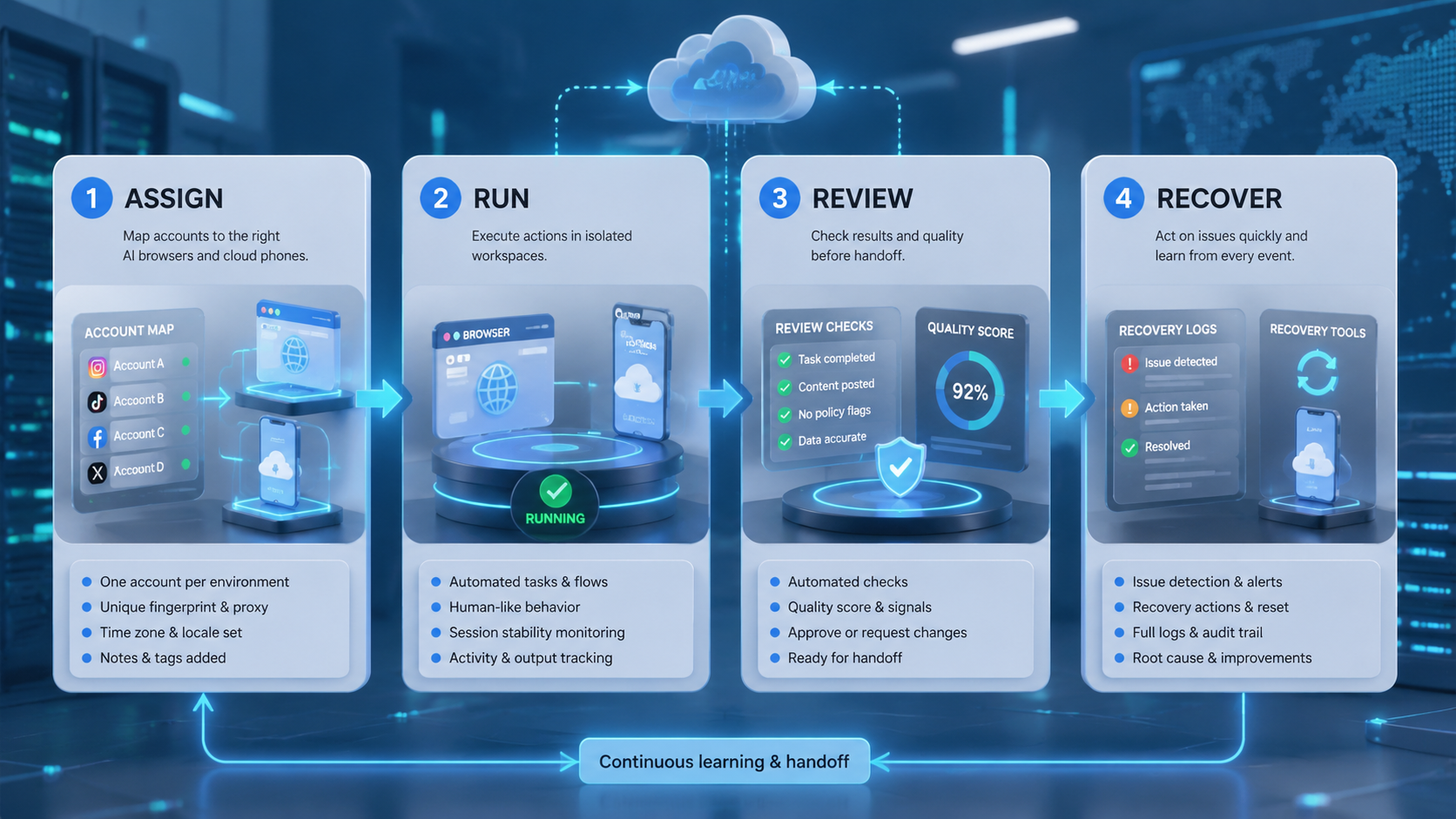
Run the system from the account map outward. Assign each account, choose the right environment, define review rules, and record every result.
Before scaling, check three things: can operators find the right workspace, can managers explain failures, and can the team recover tasks without guessing? If the answer is yes, add the next account group.