Key Takeaways
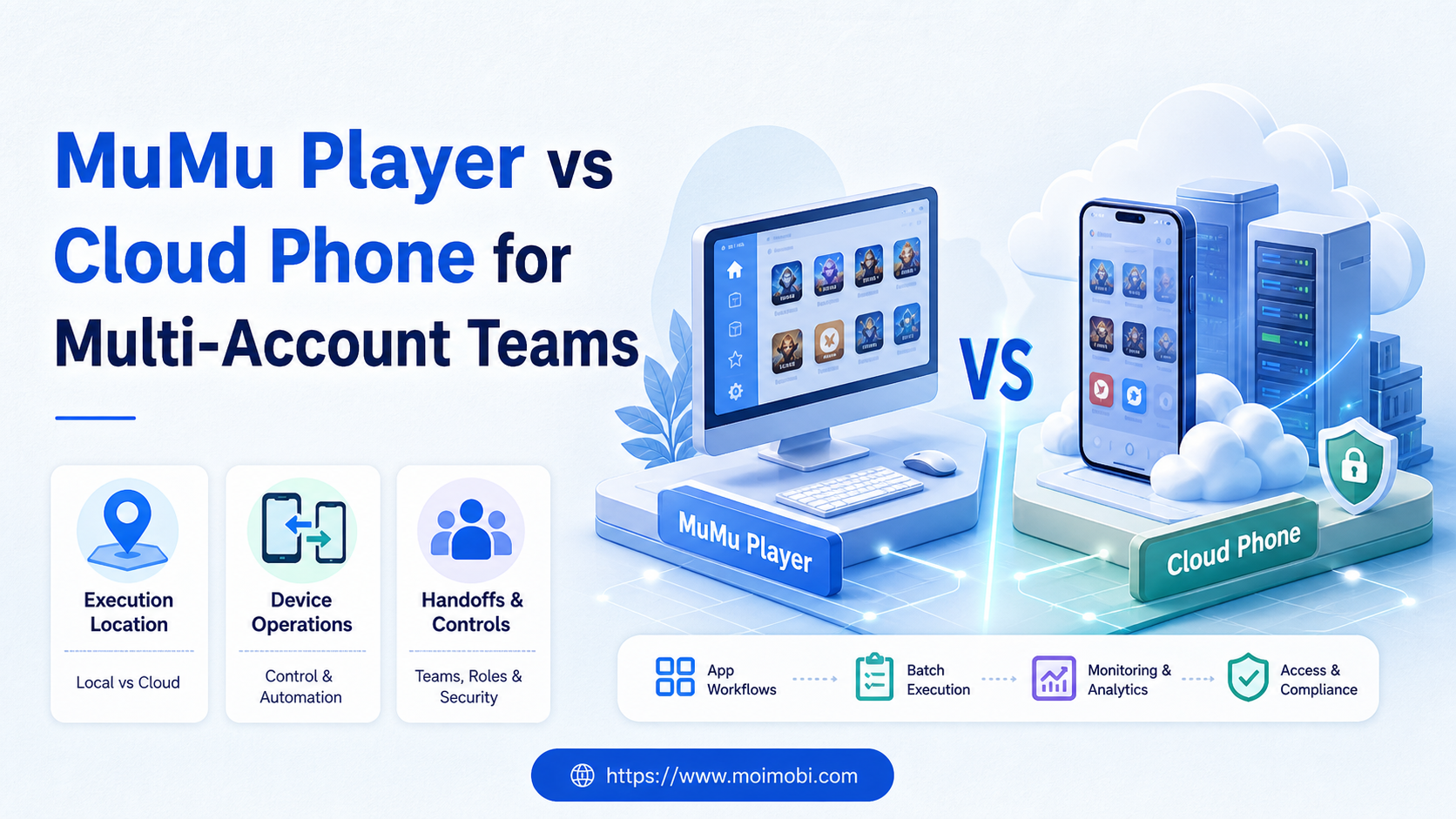
- MuMu Player is a local Android emulator approach, while a cloud phone provides a remotely managed Android execution environment.
- The better fit depends on where work runs, who needs access, how handoffs work, and whether the workflow is mobile-app based.
- Teams should decide from operational requirements, not from a promise that either option changes platform rules or account responsibilities.
MuMu Player vs cloud phone is a comparison between a local Android emulator workflow and a cloud-hosted Android execution workflow. For multi-account teams, the important difference is usually operational: who manages the environment, where it runs, how a task is assigned, and how the team records the result. Neither choice removes the need for account ownership, permissions, or platform compliance.
For a single operator doing local app testing, MuMu Player is typically the simpler starting point. For a distributed team that needs assigned devices and documented handoffs, a cloud phone is usually the stronger operating model. The rest of the comparison explains the conditions behind that decision.
An emulator can be practical for local development, testing, or work controlled by one operator. A cloud phone can be useful when a team needs remotely available mobile workspaces, clearer assignment, and handoff across operators. The right choice follows the task shape rather than a generic feature list.
Android Developers describes the Android Emulator as part of the Android Studio testing environment. Android Emulator documentation is useful context for its intended development and testing role. Teams should test their specific app workflow before deciding that any execution environment fits production operations.
MuMu Player vs Cloud Phone: The Core Operating Difference
MuMu Player normally runs as software on a local computer. The local machine supplies the operating system, storage, network route, and access model. That can be convenient for an individual who needs to open an Android app during a focused task.
A cloud phone runs in a managed remote environment. The team reaches the device through a browser or control client, then assigns it to an approved workflow. This can improve availability for distributed teams because the workspace is not tied to one employee's laptop. It also creates a clearer place to record which task used which device.
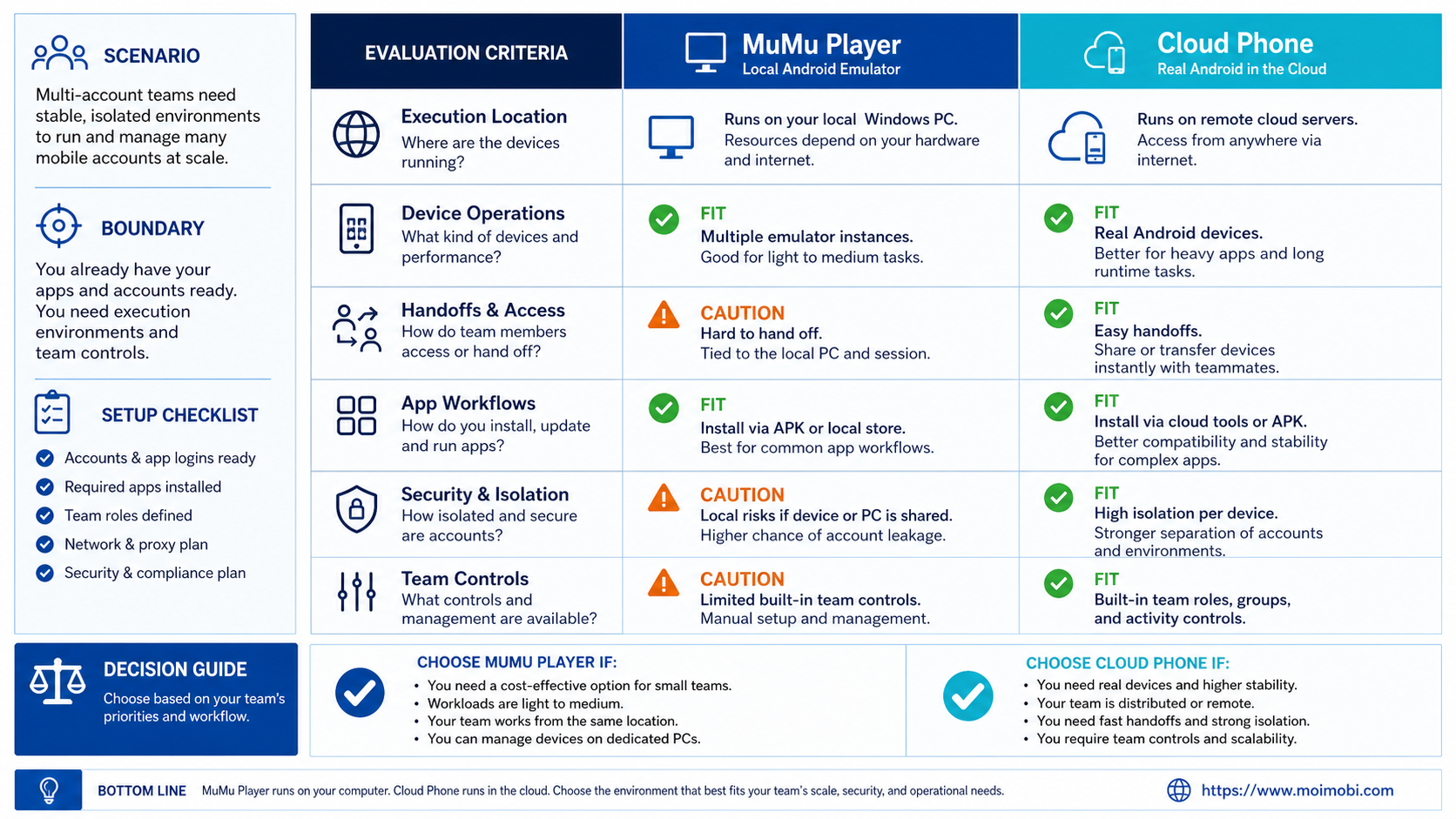
| Decision dimension | MuMu Player | Cloud phone |
|---|---|---|
| Where it runs | On an operator's local computer | In a remotely managed Android environment |
| Primary fit | Individual app use, local testing, focused work | Assigned team tasks, remote access, ongoing operations |
| Handoff model | Depends on the local machine and its operator | Can use device-to-task assignment and shared records |
| Environment management | Local installation, updates, and storage | Centralized device inventory and operational controls |
| Decision boundary | Still needs account ownership and policy | Still needs account ownership and policy |
The table is a starting point, not a universal scorecard. A small local team may prefer a local emulator. A distributed support or social operations team may value a remote workspace more. The business requirement decides.
Choose by Workflow, Not by Feature Marketing
Start by listing the actual mobile task. Is the work a local test run, a recurring app-based support step, a client-owned content review, or a distributed operational handoff? Then list who must access the device and what evidence is required after the task completes.
For local testing, an emulator may be enough. The operator can install the app, reproduce a known scenario, and record the result. For example, Android's development tools support emulator-based testing, while Firebase Test Lab offers a separate cloud testing service for supported testing workflows. These are testing choices, not a substitute for an operational account workspace.
For ongoing mobile operations, a cloud phone may fit better when the team needs a named device, remote availability, and a run record. The environment can be assigned to a task such as preparing a mobile inbox for review, checking a documented app status, or handing an approved item to the next shift. A cloud phone should be treated as the workspace layer; the task policy still governs what a person or agent can do there.
MuMu Player vs Cloud Phone for Multi-Account Teams: Setup Checklist
- Define the work. State the app, approved account, purpose, expected outcome, and actions that require human review.
- Map access. Name who installs or manages the environment, who performs the task, and who can take over during a handoff.
- Choose the location. Use local execution when local control is the requirement; use a remote workspace when availability and assignment matter.
- Prepare recovery. Document how the team handles app updates, sign-outs, verification prompts, and uncertain results.
- Capture evidence. Record the device or workspace, account assignment, last confirmed action, and next owner.
- Run a small pilot. Test one app workflow before moving several accounts or teams into the same operating model.
This checklist keeps the comparison grounded. “Supports multiple instances” alone does not explain how an agency will handle ownership, logs, or a staff handoff.
Scenario: Distributed Content Operations Team
Consider a content operations team with three people working in different time zones. Each person needs to review mobile-first content drafts and record whether a client has approved the next step. The issue is not simply that the team needs Android. The issue is that the next operator needs the correct account context and a visible task history.
With a local emulator, the organization may rely on the operator who owns the computer. The next person must coordinate access, recreate context, or wait until the original operator is available. That can work for a small internal test, but it creates friction for a recurring shift-based process.
With a cloud phone, the team can assign a named workspace to the task. The outgoing operator records the last confirmed action and pause reason. The incoming operator opens the same assigned workspace and follows the documented next step. A manager can review the task record without asking everyone which device they used.
The scenario does not mean every team needs cloud phones. It shows the decision point: when the workflow depends on remote access and repeatable handoffs, a remote workspace may be more valuable than a local emulator.
Account Boundaries, Storage, and App Updates
Every Android environment needs maintenance. Local emulators need host-machine updates, local storage oversight, and access controls. Cloud environments need device inventory, workspace assignment, and a process for planned resets or app updates. The operational question is whether the team can perform that maintenance without losing track of active work.
Keep each account in an assigned environment and avoid treating any device as a generic pool. A task should identify the target workspace, not tell an operator to “use any phone.” For a web-side part of the same workflow, device isolation can help preserve a similar account-to-environment relationship.
Never assume that a saved app login remains valid forever. A verification prompt, changed account role, or unexpected organization screen requires a human decision. The environment should pause and record the state rather than attempting to choose a different account or bypass a prompt.
Cost and Team Capacity Questions
Compare total operating cost, not just an initial software price. Local execution may require operator time for installation, computer maintenance, availability, and handoffs. Remote execution may require planned device capacity, shared access rules, and operational management. The cheaper option depends on how often the task occurs and how costly a delayed handoff becomes.
Ask practical questions during evaluation. How many people need concurrent access? Does the task need to run outside one employee's computer hours? Does the team need a record of which environment handled a task? Can the team explain a reset or sign-out without losing the next action? These questions produce a better decision than a generic “best emulator” comparison.
Avoid claiming that either option makes account activity automatically safe or policy-compliant. Teams remain responsible for the accounts they operate and for the platform rules that apply to their use case.
MuMu Player vs Cloud Phone: Which Setup Fits Your Team?
Choose MuMu Player when the work is local, the same operator controls the computer, and the task looks like development testing, app exploration, or a temporary internal procedure. The local model keeps setup close to the person doing the work. It also means that maintenance, storage, and shift coverage stay close to that person's computer.
Choose a cloud phone when the work is recurring, mobile-first, and shared across a team. A remote device can be assigned to a documented task, opened by an authorized operator, and handed to a colleague without moving a physical laptop. This is useful when the team must keep an operational record of device use and task outcomes.
Use a hybrid approach when both needs exist. Developers may use a local emulator to reproduce an app behavior. Operations can use a remote mobile workspace for approved daily execution. The two environments serve different jobs, so forcing one to replace the other can create unnecessary friction.
Before migrating a workflow, list every dependency: installed app version, account owner, required files, notification path, task records, and recovery contact. Then move one low-impact workflow and compare the handoff quality with the current process. Do not migrate a busy or customer-sensitive process merely because a new environment is available.
Migration and Handoff Checklist
When a team moves a recurring app task from a local emulator to a remote workspace, the first goal is continuity. The team needs to reproduce the task with the same approved inputs and make the next owner visible.
- Capture the current task. Record the app, account owner, expected result, and the local steps that operators currently repeat.
- Create the target workspace. Assign the cloud phone to the owned account and confirm access with the responsible operator.
- Move approved resources. Transfer only the required app assets, support links, or task references through the team's normal process.
- Test a read-only run. Confirm that the workspace opens the correct app state and can return a documented result.
- Run a supervised handoff. Have one operator pause the task and another continue from the recorded state.
- Review the exception path. Make sure the team knows what to do after a sign-out, update, or uncertain app result.
For a team that chooses the remote path, mobile automation is the relevant next product area. It should be evaluated as a way to organize approved tasks, not as a way to remove account or platform responsibility.
Pilot Metrics and Recovery Checks
Run a pilot with one application and one recurring task. Measure the time to assign a workspace, time to complete the approved step, number of handoffs, number of session or app interruptions, and whether the team captured a clear result. Review pauses, not just completed tasks.
When an app state is uncertain, record the last confirmed business action before any retry. For example, if an operator sees an incomplete upload state, they should check the documented result rather than submit the same content again. The recovery step belongs to the task owner.
If the pilot shows that local access meets the need with low handoff overhead, an emulator can remain the simpler choice. If the pilot shows repeated access delays or unclear ownership, a cloud phone workflow may justify the additional operational layer.
Frequently Asked Questions
Is MuMu Player the same as a cloud phone?
No. MuMu Player is a local Android emulator product, while a cloud phone is a remotely managed Android environment. Their operational models differ.
Which is better for a multi-account team?
Choose based on access, handoff, task records, and maintenance needs. A remote workspace may fit distributed recurring operations; a local emulator may fit focused local work.
Can a cloud phone replace Android testing tools?
Not automatically. Use Android development and testing tools for their intended test workflows. Use a cloud phone when the requirement is an assigned mobile execution environment.
Should several accounts share one device?
Use a documented account-to-environment assignment. Shared, unclear device use makes ownership and recovery harder to manage.
What should the task record contain?
Include the workspace, account owner, task purpose, last confirmed action, result, and next owner or pause reason.
How should a team handle verification prompts?
Pause the task and let an authorized person handle the platform's normal verification flow. Do not automate around the prompt.
What is a good first pilot?
Choose one mobile app and one repeatable, low-impact task with a clear outcome and a named operator.
Conclusion
MuMu Player vs cloud phone is mainly a decision about operating model. Local emulation can suit focused local work. A cloud phone can suit assigned, remote, and repeatable mobile workflows where handoffs and task records matter.
Choose after testing one real workflow. The right environment is the one that lets the team preserve account ownership, recover from interruptions, and explain what happened after every task.