Key Takeaways
- Multiple profile management is an operating model for separating approved workspaces, not a shortcut for bypassing platform rules.
- Each profile needs a declared purpose, named owner, permitted task scope, and recovery record.
- Teams avoid confusion by assigning tasks to profiles deliberately and reviewing exceptions before switching environments.
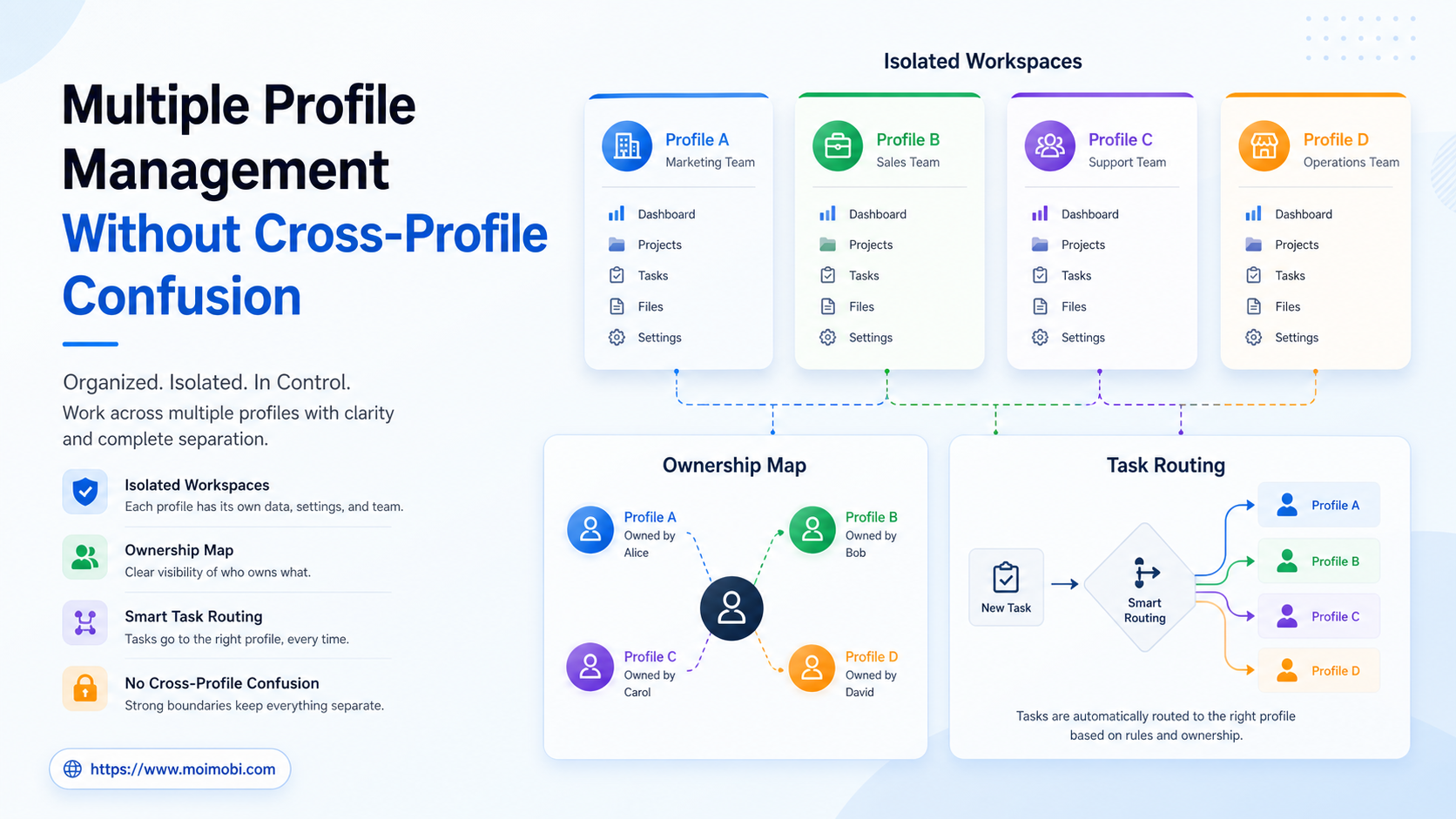
Multiple profile management helps a team keep unrelated workspaces distinct. A profile can represent an approved role, client, brand, market, testing context, or workstream. The practical goal is simple: an operator should know which environment belongs to a task before they open it, and a manager should be able to see which person owned the next action when something goes wrong.
Problems start when profiles become anonymous containers. If people use whichever workspace happens to be available, task evidence gets separated from the task record, handoffs become unreliable, and access reviews become harder. The team may still finish routine work, but it cannot confidently explain what happened during an exception.
The security principle is well established. The OWASP Authorization Cheat Sheet recommends least privilege and consistent authorization checks. NIST SP 800-53 includes controls for access enforcement and account management. Multiple profile management applies those ideas to day-to-day operations: use the smallest approved workspace scope, maintain ownership, and review access changes.
What Multiple Profile Management Means for an Operations Team
The term does not have to mean “many accounts.” A profile is first an operational boundary. It defines what the environment is for, which task types are allowed, which role can use it, and where evidence should be recorded. Some teams use profiles for browser-based work. Others use them to separate mobile execution, client queues, or quality-assurance tasks.
| Profile attribute | Why it exists | Example |
|---|---|---|
| Profile reference | Identifies the approved workspace | client-north-content-01 |
| Business purpose | Prevents vague reuse | Content review for one declared workstream |
| Authorized role | Limits who can enter | Community manager and designated backup |
| Task scope | Defines allowable work | Review approved posts and record feedback |
| Evidence location | Preserves audit context | Task record and approved document reference |
| Recovery owner | Makes exceptions actionable | Operations lead for access, editor for content |
The profile label should be stable and readable. It should not contain passwords, customer details, or a misleading description of what the environment can do. A label gives the team enough context to select the right workspace without exposing sensitive data.
Start With a Profile Inventory
Before creating more profiles, inventory the ones already in use. Many teams discover that two profiles serve the same purpose, an old workspace still has access, or a profile has no current owner. The inventory is not busywork. It is how the team reduces accidental cross-profile work.
For each profile, record the purpose, status, current owner, backup owner, last access review, permitted applications, and linked operating procedure. Mark profiles that are temporary, inactive, or awaiting retirement. Do not delete a record merely because a project ended; retain enough history to understand past task evidence, then remove access according to the documented retention policy.
This is also a good time to link each workspace to the team’s multi-account management view. The goal is not a larger dashboard. It is a reliable mapping between a work request, its authorized profile, and the person responsible for the outcome.
Assign Tasks Before Opening a Profile
A simple rule prevents most profile confusion: assign the task and its environment before the operator starts work. The task record should state the profile reference, current owner, expected result, evidence requirement, and stop condition.
For example, a content-review task might be assigned to brand-video-review-02 with an editor as the current owner. The expected result is an approval or a documented revision request. The stop condition is any issue requiring legal, product, or customer-support input. The operator does not switch to a different profile just because it looks similar or has an active session.
If a task is moved, record the reason. A move can be legitimate when a workspace is unavailable, an owner changes shift, or the scope changes. What matters is that the next person sees the decision. Silent switching turns a profile inventory into a list that cannot be trusted.
Use Access Rules That Match the Profile Purpose
Not every profile needs the same access. Give a content reviewer the permissions needed for review. Give a support role the tools needed for approved follow-up. Do not solve a coverage gap by giving everyone the highest level of access.
Use named roles, temporary coverage windows, and a periodic access review. When someone moves teams, remove access that no longer matches their role. When a contractor finishes a project, close the temporary assignment and review whether any tasks remain open. These steps make recovery faster when an operator is unavailable or an unexpected action needs investigation.
For browser-side work, device isolation can help keep the workspace boundary visible. It is not a substitute for authorization. The process still needs an owner, a task scope, and a record of the change.
Keep Browser and Mobile Profile Rules Consistent
Teams often maintain different habits for browser profiles and mobile workspaces. One side has task records; the other depends on chat messages. That inconsistency creates gaps during handoffs. Use the same core fields across both: workspace reference, role, task scope, current owner, evidence, exception category, and next review time.
When an approved mobile workspace is required, the first natural cloud phone reference in the task should identify the selected environment, not simply state that a phone is available. If the team is evaluating capabilities or capacity, use the more specific cloud phone platform context. This keeps broad operational routing separate from product-selection decisions.
Consistency does not mean identical screens or tools. It means a manager can understand a task regardless of whether it happened in a browser, a managed Android workspace, or a support queue.
A Daily Profile Review Workflow
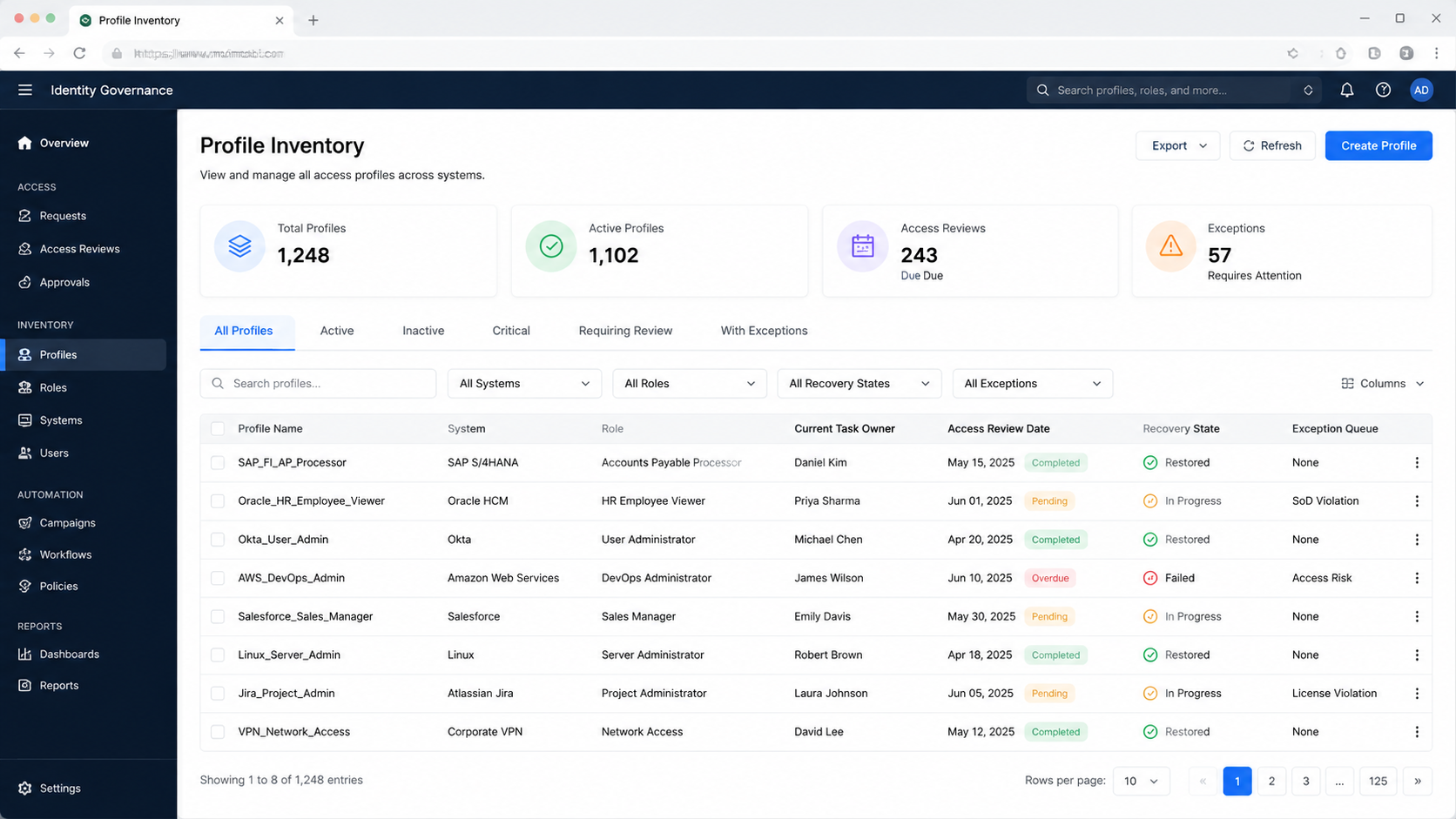
Use short, repeatable reviews instead of waiting for a quarterly cleanup. At the start of a shift, confirm the profiles assigned to live work and note any temporary coverage. During the shift, record profile changes only when the task scope or owner changes. At the end, review paused or escalated work and confirm that every item has a next owner.
The daily review can answer five questions:
- Which profiles are actively assigned today?
- Does every active task name one current owner?
- Did any task move to a different profile, and why?
- Are there pending access removals or expiring coverage assignments?
- Which exceptions should change the SOP or profile design?
This routine is lightweight enough for a small team and useful enough for a larger one. It turns profile management from a setup exercise into a working control.
Scenario: Avoiding a Client Workspace Mix-Up
Consider an agency that supports two brands with similar content schedules. An operator receives a request to review a post. Without an assignment record, they may open the most recently used workspace and assume it is correct. The result could be a review in the wrong context, a missed deadline, or a confusing audit trail.
With multiple profile management, the work request includes the client reference, approved profile, owner, deadline, and evidence rule. If the named profile is unavailable, the operator pauses the task and asks the operations owner to assign an approved alternative. The team does not improvise a switch.
After the task is complete, the reviewer records the result and closes the item. If the same mix-up risk appears again, the team improves labels, intake fields, or queue routing instead of blaming the individual operator.
Multiple Profile Management Recovery Rules
Profile confusion should have a predictable recovery path. The first rule is to stop the active task when the operator cannot confirm that the selected workspace matches the assignment. Do not continue because the task appears routine or the profile was used recently. A fast incorrect action creates a larger correction problem later.
Next, preserve the last confirmed action in the task record. State what was reviewed, what was not changed, and what evidence is available. Then send the item to the named operations owner or backup owner. That person can confirm the correct profile, reassign the task, or close the item if the request was invalid.
Use distinct exception labels. “Wrong workspace selected” is different from “workspace unavailable.” “Task scope unclear” is different from “access review required.” Clear categories produce better weekly data because the team can see whether it has a labeling problem, an access problem, or an intake problem.
At the weekly review, sample resolved profile exceptions. Ask whether the profile purpose was clear, whether the queue selected the right workspace, and whether the operator had a practical way to pause. If a similar incident appears more than once, update the label, task form, or SOP. Do not add a new profile unless the work truly needs a separate boundary.
This recovery discipline is what makes multiple profile management usable at scale. It lets people stop and correct safely without hiding an error or creating an unexplained profile switch.
Document the recovery decision in plain language. For example: “Task paused before any change; correct profile confirmed by operations lead; reassigned to the content-review queue.” A later reviewer should understand the outcome without opening several chat threads. This also makes training easier because real exceptions become examples of the intended process.
Finally, review whether the profile itself is still necessary. A recurring mix-up may reveal that two workstreams should be combined under one clearer role. The answer is not always more profiles. It is the smallest structure that keeps the task context and ownership clear.
Keep the decision date, reviewer, and revised scope with the profile record for later audits.
Common Mistakes
The first mistake is using generic names such as “main,” “backup,” or “new profile.” Those labels have no stable business meaning. Use a role and workstream reference instead.
The second mistake is allowing a profile to outlive its purpose. Inactive environments should move through a retirement process with access removal and retained records where needed.
The third mistake is treating profile access as task assignment. A person may be allowed to open a workspace but still not own a particular customer, content, or operational decision.
The fourth mistake is storing private information in labels or broad operational notes. Keep the profile reference meaningful but non-sensitive, and put private details only in the approved system of record.
Frequently Asked Questions
What is multiple profile management?
It is the practice of defining and governing separate workspaces with a clear purpose, access scope, task ownership, and recovery path.
Does each profile need one permanent owner?
No. A profile can support a role group, but each active task inside it should have one current owner and a documented backup path.
How do teams prevent cross-profile confusion?
Assign the profile in the task before work begins, use stable labels, record any approved move, and pause when the required environment is unclear.
Should inactive profiles be deleted immediately?
Remove access promptly when it is no longer needed. Retain a limited record according to the organization’s policy so past task evidence remains understandable.
What is the best first audit field?
Start with profile purpose and current owner. Those two fields make it easier to spot orphaned environments and unassigned work.
Conclusion
Multiple profile management is most useful when it keeps context separate without making the team slower. Build an inventory, assign tasks before access, keep browser and mobile rules consistent, and treat profile changes as reviewable events. The result is clearer work ownership and fewer preventable cross-profile mistakes.