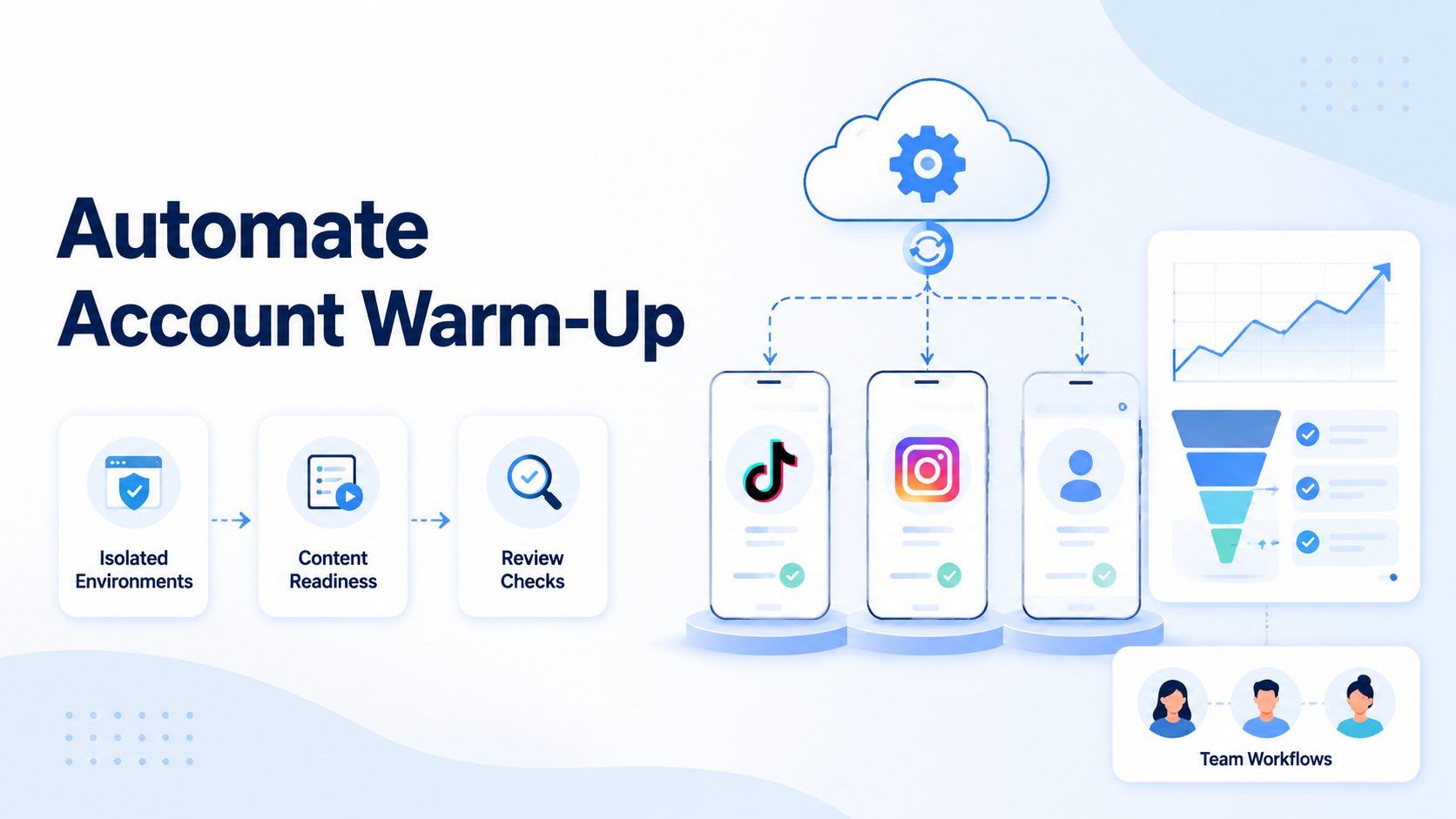
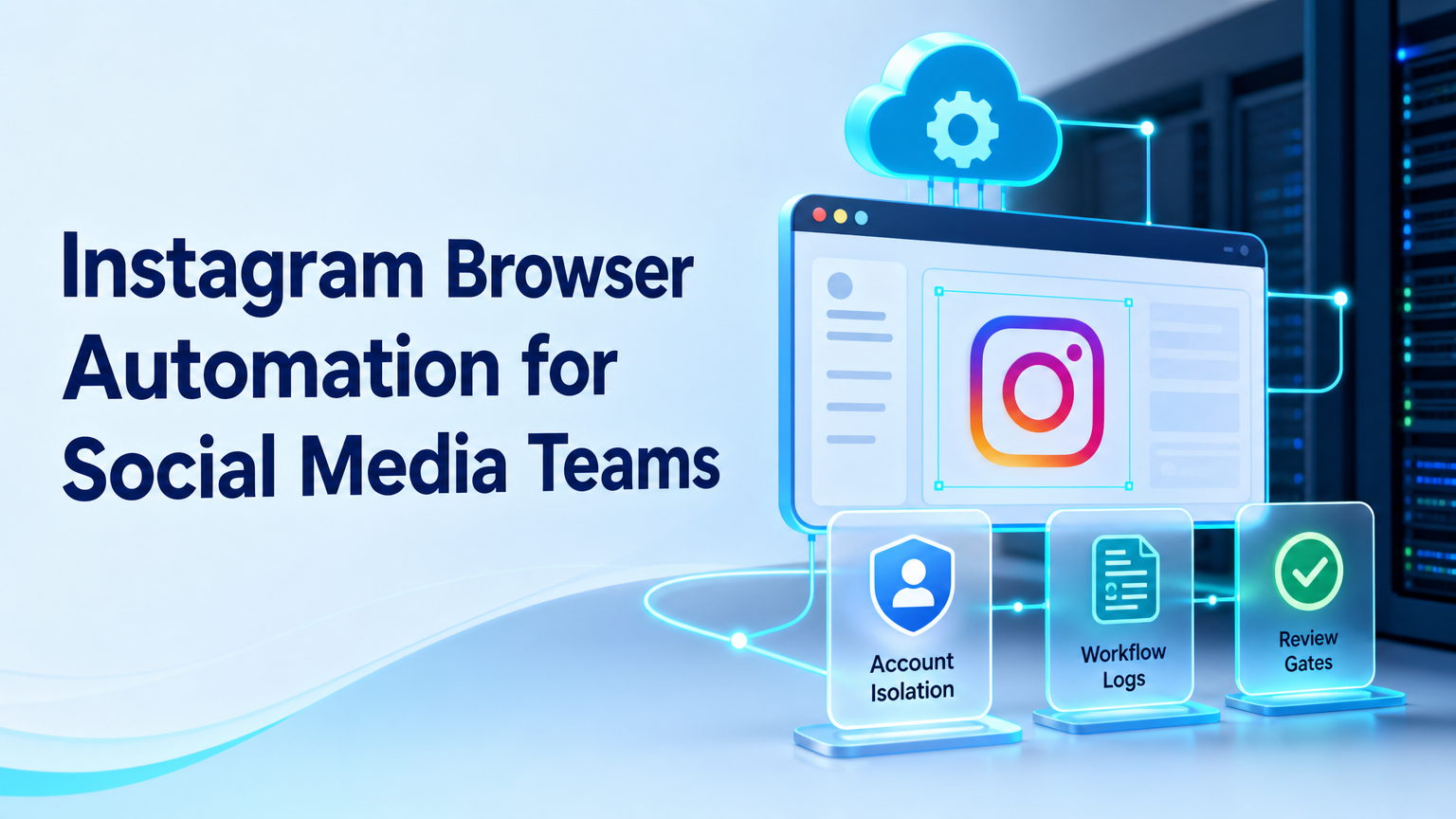
Instagram browser automation is the use of controlled browser workflows to help teams manage Instagram-related web tasks such as research, inbox triage, draft preparation, and reporting. It should be designed around account control, not around unsupervised public actions.
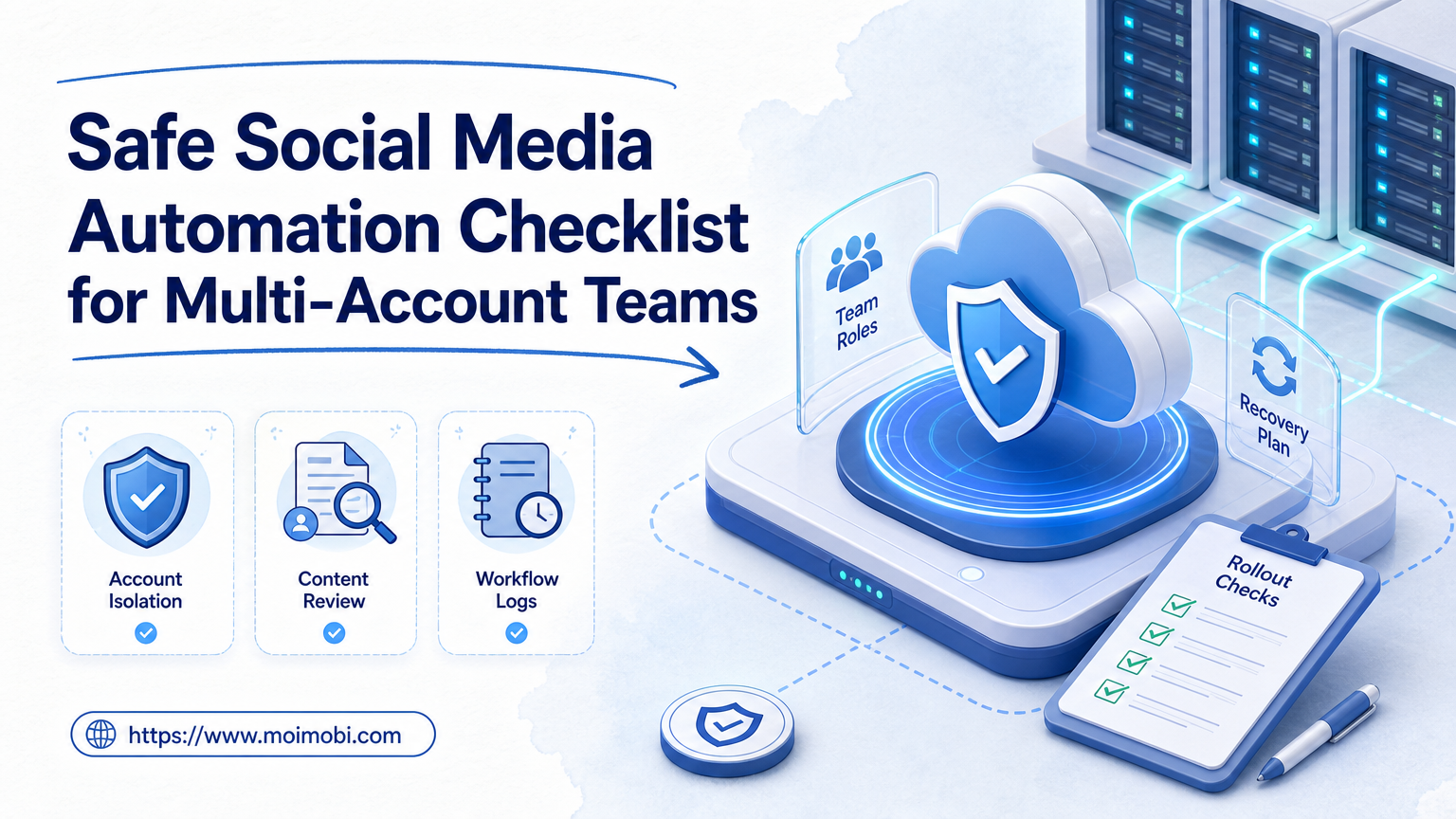
For social media teams, the key question is whether the workflow is safe to operate at team scale. A useful setup needs account isolation, task boundaries, human review, and recovery logs.
Meta provides official Instagram platform documentation for API-based workflows, including account and permission models. Browser automation should be evaluated as a workflow layer beside those official routes, not as a way to ignore them.
Key Takeaways
- Instagram browser automation works best for structured, reviewable team workflows.
- Official platform APIs should be used where they fit the task and permission model.
- Isolated browser profiles reduce confusion across accounts and clients.
- Human review should remain in place for public replies, publishing, and account changes.
- A pilot should measure account accuracy, review quality, and recovery time.
What Is Instagram Browser Automation for Social Media Teams?
Instagram browser automation for social media teams means using browser-controlled workflows to support Instagram operations. The workflow may gather account notes, prepare content checklists, collect comments for review, or update a campaign tracker.
The useful version is not a hidden growth trick. It is an execution pattern. The browser opens a known workspace, follows a defined task, and returns an output that a team can review.
Technical browser automation has standards and tooling behind it. The W3C WebDriver specification defines remote browser control, while Playwright documentation explains modern browser automation across Chromium, Firefox, and WebKit. Social media operations add another layer: account assignment, approval rules, and logs.
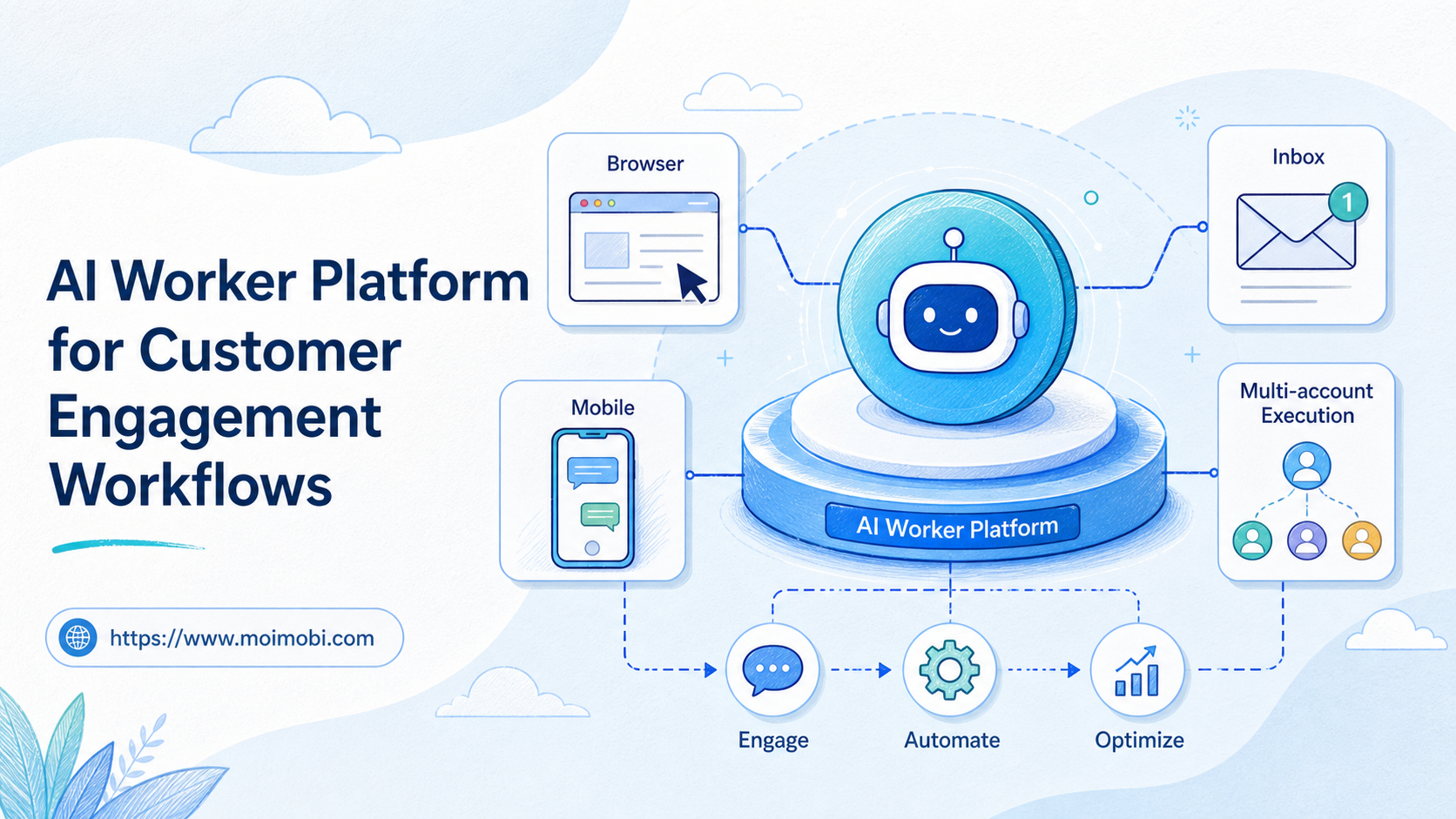
For a team running multiple accounts, Moimobi should be understood as execution infrastructure. The browser is one part of a system that may also include mobile devices, cloud phones, account routing, and workflow memory.
Why Instagram Browser Automation for Social Media Teams Matters
Instagram operations become harder when more people and accounts are involved. One person can manually track a small account. A team managing many client or brand accounts needs clearer control.
The practical problem is handoff quality. A manager may ask an operator to check comments, draft replies, review profile updates, or collect campaign notes. Without a structured workflow, each step depends on memory.
Instagram browser automation matters when it turns those repeated actions into a visible process:
- Open the correct account workspace.
- Read the assigned page or dashboard.
- Collect the requested information.
- Draft a response or task note.
- Pause before public action.
- Log the result and exception.
For teams that manage many accounts, multi-account management is the broader requirement. Browser automation should make account work easier to audit.
Key Benefits and Use Cases
The biggest benefit is consistency. A controlled workflow helps operators do the same task in the same order across accounts.
Useful Instagram workflows include:
- Collecting comments for response review.
- Preparing captions and asset checklists.
- Checking profile fields before a campaign.
- Recording publishing status.
- Monitoring competitor content formats.
- Summarizing inbox themes for support teams.
- Updating client reports.
The myth is that automation must mean full hands-off posting. The stronger model is assisted execution. AI can draft text, the browser can collect context, and a person can approve public actions.
When work moves into mobile-only screens, browser automation may not be enough. Use cloud phone or mobile automation for app-based workflows that require Android execution.
Instagram Browser Automation vs Official API Workflows
The browser is not the only execution path. Teams should compare browser workflows with official API workflows before they automate a task.
Use the API path when the task is supported by Meta's platform, has clear permission requirements, and can be monitored through structured responses. Use a browser workflow when the work is closer to a human review task, such as collecting notes, checking pages, or preparing a manager summary.
This split keeps the system easier to audit:
- API workflow: publishing, data exchange, or account actions that match official platform capabilities.
- Browser workflow: research, review, checklist completion, and web dashboard tasks.
- Mobile workflow: app-only screens, mobile inbox checks, or Android execution.
- Human workflow: final approval, sensitive replies, brand voice, and escalations.
A browser tool that ignores this split may look flexible at first. The team will later struggle to explain which actions happened through which route.
Team Roles and Account Ownership
Instagram workflows need clear owners because public actions affect brand trust. Even internal actions need a traceable account path.
Assign four roles before the pilot. The account owner controls the account record and campaign context. The operator runs the workflow. The reviewer approves any public output. The manager checks workflow results and recovery quality.
Small teams can combine roles, but they should not erase them. If one person runs and approves everything, the workflow still needs a log that shows the decision.
Ownership also affects client work. Agencies should separate clients by workspace, reviewer, and report. That prevents one client's comments, drafts, or campaign notes from mixing with another client's process.
How to Get Started with Instagram Browser Automation for Social Media Teams
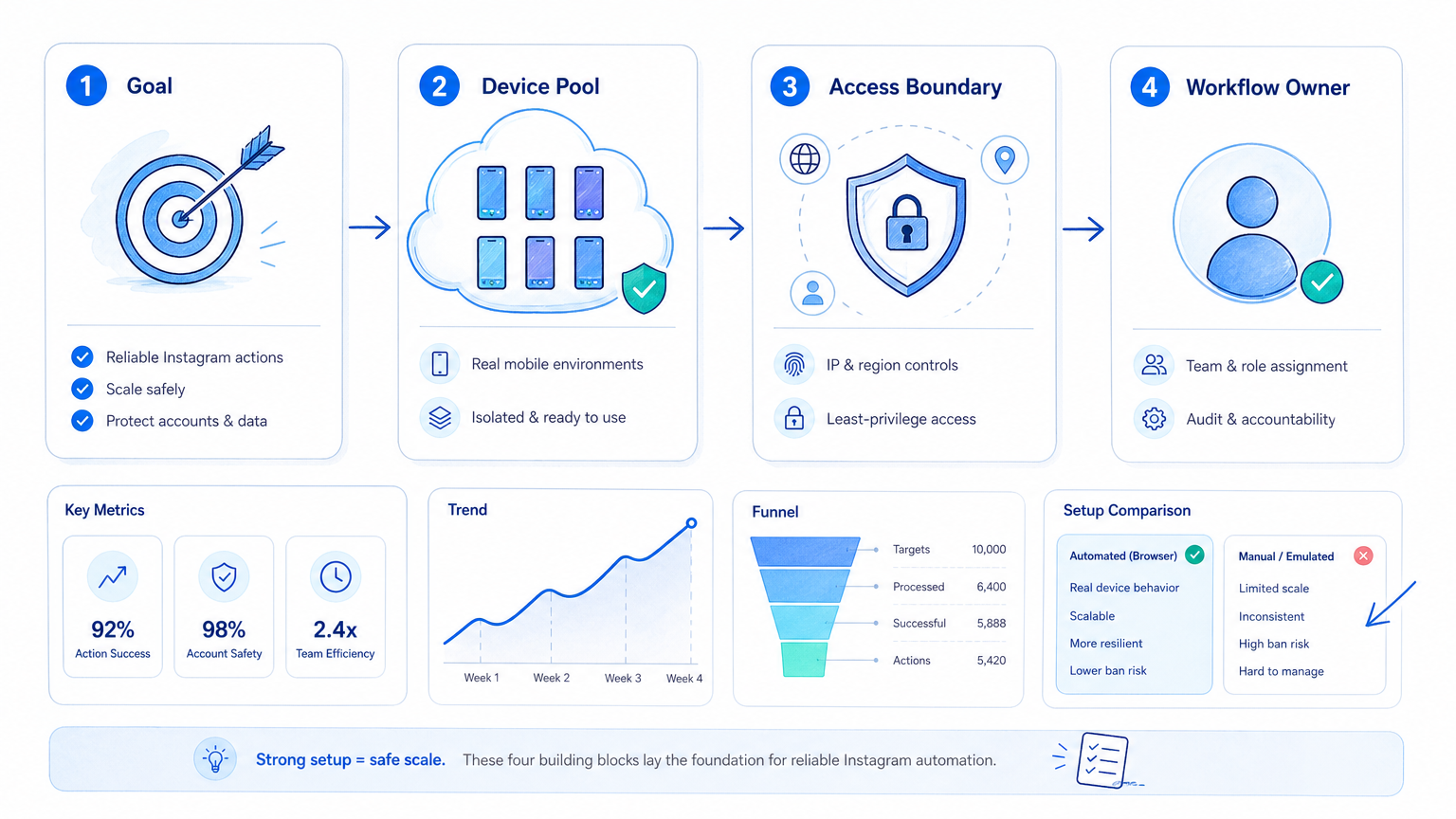
Start with a workflow that creates internal output. Do not begin with automatic public replies or profile edits.
- Choose the account group. Start with a small set of accounts under one manager.
- Create isolated profiles. Keep account sessions, cookies, and task history separate.
- Select one workflow. Good pilots include comment collection, campaign checks, or report updates.
- Define allowed actions. Reading, collecting, summarizing, and drafting are good first actions.
- Define review gates. Require approval for replies, posts, account changes, and sensitive customer issues.
- Track every run. Record account, task, output, reviewer, and exception.
- Review failed runs. Improve instructions after seeing real errors.
The setup should make ownership obvious. If a manager cannot tell which account ran which workflow, the automation is not ready to scale.
Before adding more accounts, run one manual comparison. Ask an operator to complete the same task without automation. Compare output quality, time spent, missing fields, and review effort. That check shows whether the workflow improves real work.
Common Mistakes to Avoid
The first mistake is mixing account sessions. Shared browser profiles make it harder to trace work. They also create confusion when multiple operators work on similar accounts.
The second mistake is treating browser automation as a replacement for official APIs. If Instagram or Meta provides an approved API path for a task, evaluate that path first. Use browser workflows for operational work that belongs in the browser.
The third mistake is removing review too early. Instagram comments, DMs, captions, and profile changes are public or customer-facing. A review gate protects brand voice and reduces avoidable mistakes.
The fourth mistake is skipping recovery planning. Pages change, sessions expire, permissions fail, and content needs escalation. A workflow should stop cleanly and tell the operator what happened.
Avoid tools or prompts that claim to bypass platform controls. Teams need durable operations, not brittle shortcuts.
Who It Fits and When It Is a Strong Match
Instagram browser automation fits teams with repeatable account work. Agencies, cross-border sellers, social media support teams, and creator teams often have this need.
It is a strong match when:
- The team manages multiple Instagram accounts.
- Operators repeat the same checks each day.
- Managers need review before replies or posting.
- Account work must be logged for clients.
- Browser dashboards and web tools remain part of the process.
- The team also needs mobile execution for app-only tasks.
It is a weak match when the team has one account, few repeated tasks, or no review process. It is also weak when the goal is mass engagement or hidden activity.
For profile separation and safer account handling, review device isolation and social media marketing as part of the planning process.
Pilot Rollout, Measurement, and Recovery Checks
A pilot should prove that the workflow improves control. It should not only prove that a browser can click through pages.
Use one workflow first. A good pilot is "collect recent comments from selected accounts, group them by intent, and prepare review notes." The workflow creates value without posting public replies.
Track a small scorecard:
| Check | Question | Pass condition |
|---|---|---|
| Account selection | Did it use the right workspace? | No wrong-account runs |
| Output quality | Did the notes help review? | Manager can act on them |
| Review gate | Did public actions pause? | Replies and posts wait for approval |
| Exception logging | Were failures visible? | Each error has a reason |
| Recovery | Could a human resume? | Operator knows the next action |
Recovery is part of the system. A good workflow does not hide failed actions. It records the issue and routes the task to a person.
The recovery note should be short but specific. "Login failed" is better than a silent failure. "Reviewer rejected draft because account context was missing" is even better, because it tells the team what to fix.
Add one owner to the recovery note. A failed workflow without an owner becomes backlog noise. A failed workflow with an owner becomes a task that can be fixed, retried, or escalated.
What to Document Before Scaling
Documentation does not need to be heavy. The team needs a short operating sheet that explains how the workflow runs and where it must stop.
Record the account group, browser profile, allowed pages, restricted actions, reviewer, and recovery owner. Add one example of a successful run and one example of a failed run. That gives new operators a concrete reference.
Keep the document close to the workflow. If the instructions live in a separate folder that nobody opens, the team will drift back to memory-based work.
Frequently Asked Questions
Is Instagram browser automation the same as an Instagram bot?
No. A team workflow should focus on controlled execution, review, and logging, not blind mass activity.
Can it publish posts?
Publishing should follow approved platform paths where available. Browser-based publishing needs careful review and logs.
What is the best first workflow?
Start with comment collection, campaign checks, reporting, or draft preparation.
Do agencies need isolated profiles?
Yes, client accounts should have clear separation and ownership.
When are cloud phones needed?
Cloud phones are useful when work must happen inside Instagram's mobile app or Android environments.
What should managers review?
Managers should review public replies, captions, account changes, and escalated customer messages.
How do teams measure success?
Measure correct account use, reviewer effort, task completion, failure reasons, and recovery time.
Is this useful for one account?
Usually less so. The value grows when tasks repeat across accounts or operators.
Conclusion
Instagram browser automation should be evaluated as a team execution layer. The priority order is account isolation first, review gates second, logs third, and mobile execution only when the browser is not enough.
Start with one account group and one internal workflow. If the team can trace every run, review every public action, and recover failed tasks quickly, it can expand with more confidence.