Key Takeaways
- An AI browser agent can assist with defined dashboard work when every task has an owner, account scope, allowed action, and reviewable result.
- Begin with read-only monitoring and prepared actions before allowing any account or customer-facing change.
- A task is complete only when the business result is confirmed, not when a browser tab happens to open.
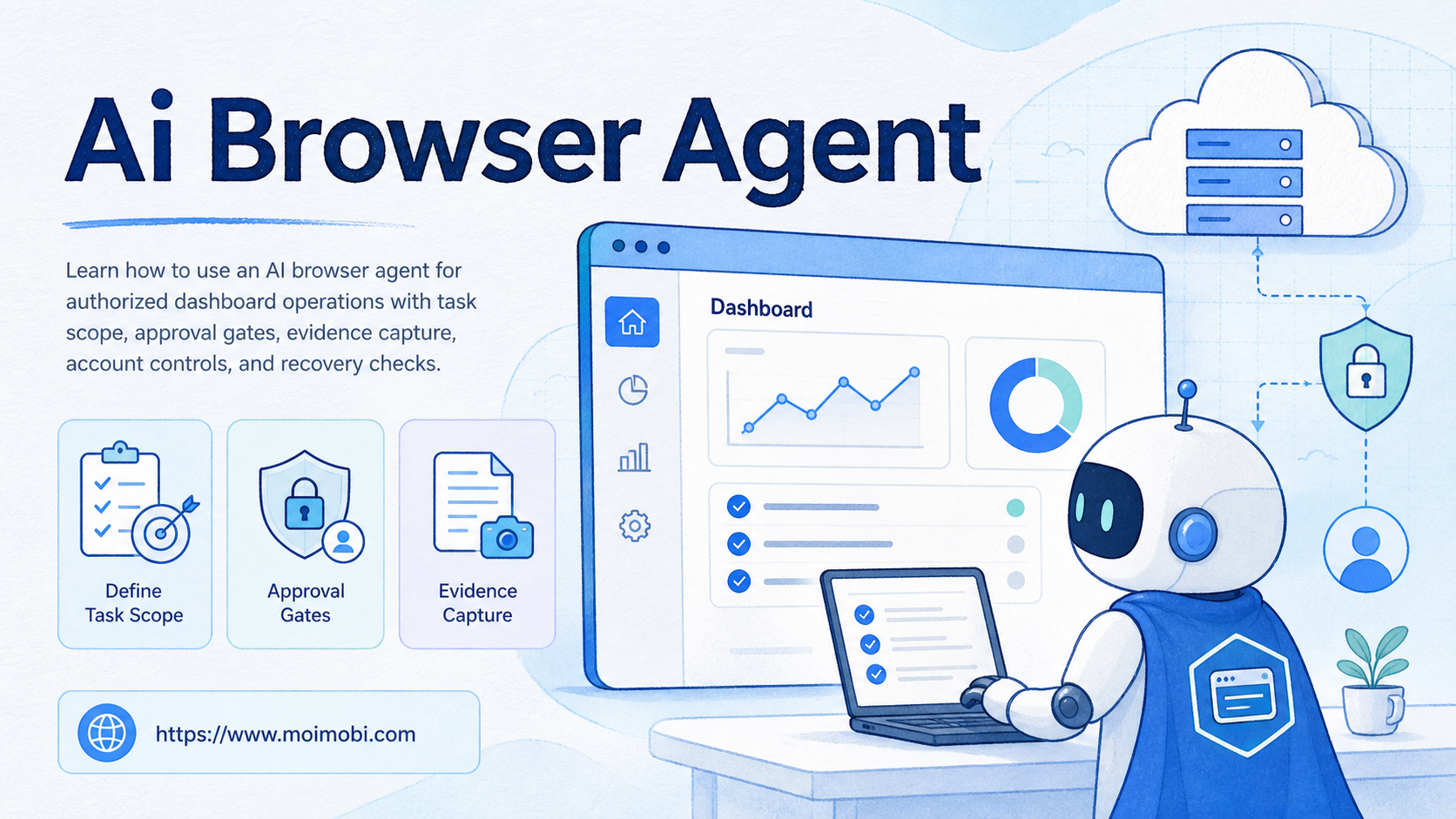
An AI browser agent is software that follows a defined task plan inside a browser session. For dashboard operations, it can help teams open an approved workspace, read named status fields, prepare a report, or place a task in a review queue. It should not receive unrestricted authority over every page, account, or action available in a logged-in browser.
The useful question is not whether the agent can click through a dashboard. The useful question is whether the team can explain the task boundary, the account owner, the evidence captured, and the safe next step when something changes. That operational framing is what turns browser control into a dependable workflow.
The W3C WebDriver specification describes a protocol for remote browser control. W3C WebDriver provides useful technical context, but a standard control protocol does not define business approval or account ownership. Teams need those controls around the browser layer.
What an AI Browser Agent Should Do in a Dashboard
Start with tasks that have a stable input and a visible result. Examples include checking a named order status, collecting a metric from an approved report, confirming whether a draft is waiting for review, or comparing a documented field with an expected value. The agent can return a structured result with the page, time, field label, observed value, and any exception.
Avoid broad goals such as “manage the dashboard” or “fix account issues.” They do not tell the system which account is in scope, what change is allowed, or when a person must take over. A narrow task is easier to test and easier to stop.
| Task type | Agent role | Human decision point |
|---|---|---|
| Read a status | Open an approved page and return a named field | Decide whether the status requires action |
| Prepare a report | Collect allowed metrics and format a draft | Validate interpretation before sharing |
| Prepare a change | Navigate to a saved draft or assigned setting | Approve any change that affects customers or spending |
| Recover from an error | Capture the current state and pause | Choose retry, escalation, or stop |
This approach prevents a common mistake: treating a successful login as proof that a task was correctly completed. The result needs a business-level check.
Set the Account and Session Boundary First
Each dashboard task should identify the account workspace before the browser opens. The task record can include account name, responsible team, permitted URL family, action allowlist, source data, approval requirement, and timeout. If a task cannot identify those fields, it is not ready for browser execution.
Session isolation matters because browser state carries cookies, local storage, and active login context. Playwright documents browser contexts as isolated environments with separate storage state. Playwright browser-context guidance supports the technical principle; an operations team should pair it with a named account owner and access policy.
For multi-account work, connect the workflow to multi-account management rather than using an anonymous shared session. The agent then receives a task bound to a workspace, not a loose instruction to search through logged-in tabs.
How to Use an AI Browser Agent for Dashboard Operations
- Write the task contract. State the account, approved page, allowed action, input references, expected result, and stop condition.
- Choose a read-only pilot. Begin with a status check or report-preparation task that cannot change a customer-facing setting.
- Assign the workspace. Bind the task to an owned browser environment with the correct access boundary.
- Use an action allowlist. Permit only the navigation, read, capture, and preparation steps required for the task.
- Require review for changes. Publishing, spending, settings updates, and customer actions should pause for the designated reviewer.
- Store evidence. Save the task ID, page reference, observed result, timestamp, and exception reason.
- Run a recovery check. If the outcome is uncertain, inspect before retrying rather than repeating an action.
The sequence works because it separates planning from execution. The agent receives a bounded action. The team retains the decision about whether the action is appropriate.
Scenario: Daily Marketplace Dashboard Review
Imagine an operations team that checks a marketplace dashboard every morning for orders needing attention. The task is not “run the marketplace.” It is “open the assigned seller dashboard, read the documented order-status panel, return the count of items in the exception state, and attach the page reference to the daily queue.”
The task owner defines the accepted status label in advance. The browser agent opens the approved dashboard workspace and reads that label. If the label is absent or the account does not match, it returns a pause result. It does not choose a refund, contact a buyer, alter inventory, or guess what a new dashboard layout means.
An operator then reviews the exception count and chooses the next action. They may assign a human follow-up, compare the count with an order-management system, or decide that a dashboard change needs technical review. The browser agent has saved time on repeated navigation while preserving the business decision for a person.
This scenario also shows why screenshots and field labels matter. A number without its dashboard context can be misread. A report with the source page, timestamp, and named field is easier to verify during a shift handoff.
Data Handling and Audit Fields
Treat browser-derived information as operational data, not as a free-form memory store. The system should retain only what the task needs: task identifier, account workspace, source reference, observed field, result, reviewer decision, and error context. Do not dump the full dashboard page, credentials, or unrelated customer information into an AI prompt or general log.
Use an audit record that answers four questions after every run:
- Which approved task started the session?
- Which account workspace and page scope were used?
- What was the last confirmed business result?
- Who can decide the next action?
That record makes the workflow supportable. A new operator can understand a paused task without reconstructing browser history. An administrator can review access or close a workspace without searching through personal devices.
Moimobi can connect AI task instructions with AI browser automation. For a mobile-first approved dashboard step, a cloud phone can provide a separate app environment. In either case, the environment does not replace the task contract.
Dashboard Task Examples That Stay Within Scope
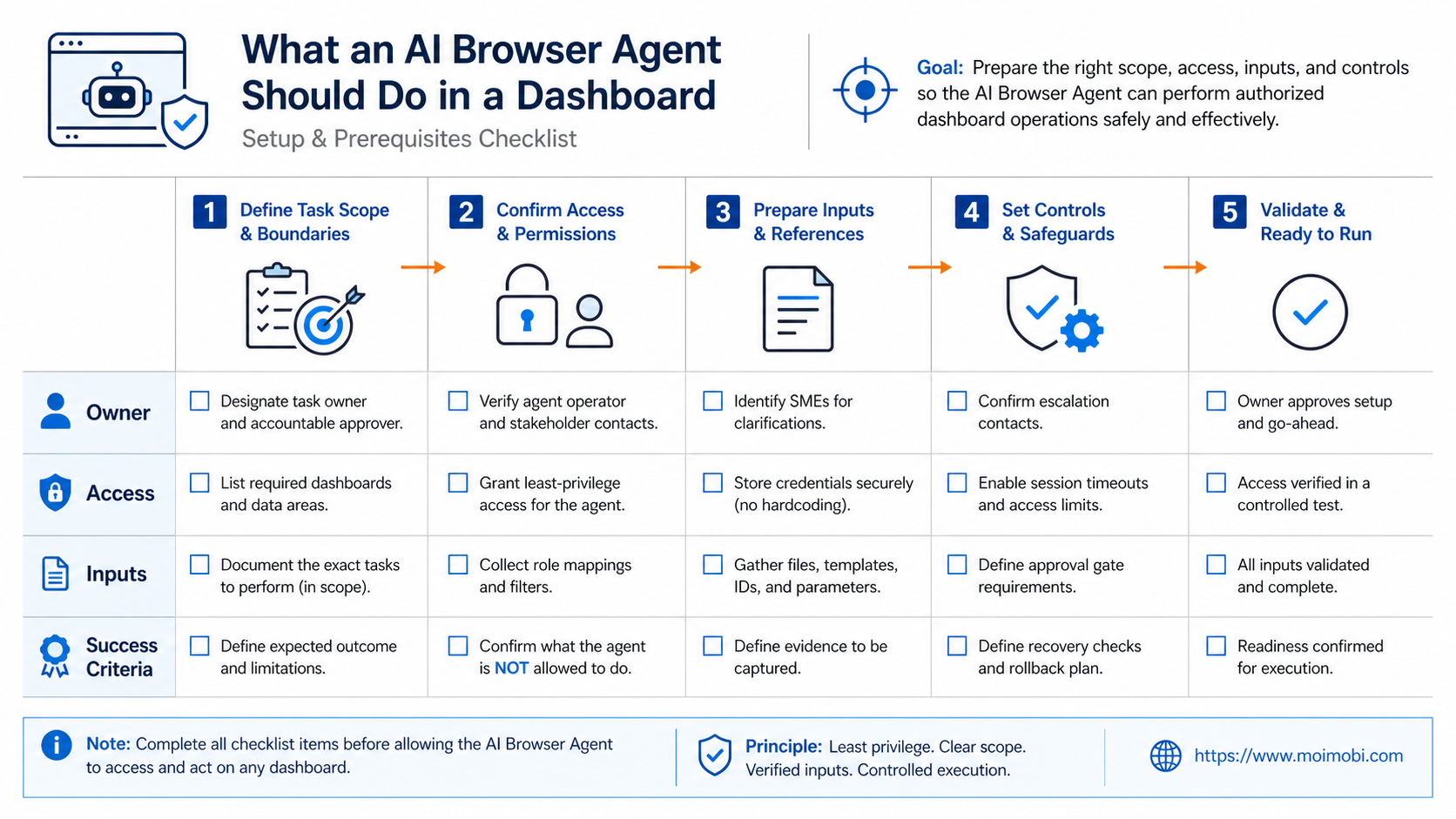
Teams often begin with generic requests because the dashboard has many features. A better approach is to convert a useful request into a bounded task that can be checked after completion.
For a finance operations dashboard, the task might be: “Open the account assigned to the finance team. Read the status of invoices in the documented exception view. Return the invoice reference, the visible exception label, and the capture time. Do not alter payment settings or send reminders.” The success condition is a structured evidence record, not a change in the dashboard.
For a content operations dashboard, the task might be: “Open the approved campaign workspace. List drafts whose required review status is missing. Create a report item for each one. Do not publish, delete, or edit a draft.” This makes the AI browser agent a preparation tool that surfaces work for the content owner.
For an internal support dashboard, the task can be: “Read the current count in the escalation queue and compare it with the documented threshold. If the count exceeds the threshold, create a notice for the support lead. Do not contact customers or reassign tickets.” The team decides the policy threshold and owns the escalation decision.
Each example includes a named page, a permitted read or preparation action, a result shape, and forbidden actions. That level of detail keeps a browser agent useful without turning it into an unrestricted operator.
Verification Checklist Before Adding a Write Action
Before allowing any setting, content, or customer record to change, verify the task design with a small checklist:
- Confirm the business owner. A named person must own the result and approve the change category.
- Confirm the account scope. The task must target one approved workspace and an allowed URL family.
- Confirm the source of truth. The input should come from an assigned record, not a free-form prompt instruction.
- Confirm the evidence. Define the screenshot, field value, receipt, or platform status that proves the intended result.
- Confirm the recovery path. State who decides what happens if the browser disconnects, the page changes, or the result is unclear.
If any item is missing, keep the workflow read-only. A short delay to add a contract is cheaper than undoing a change that cannot be explained later.
Document the final review outcome in the same task record. That way, a later operator can see whether the change was approved, deferred, rejected, or returned for more evidence. The decision history is part of the dashboard operation, not a separate administrative chore, and it supports future audits reliably.
Fit Boundaries and Common Mistakes
This workflow fits teams that repeat the same dashboard checks across authorized accounts and need a clear handoff between operators. It is valuable when the current process relies on copy-pasting status notes or asking several people which tab contains the answer.
It is not a fit for unapproved data collection, attempts to evade platform controls, broad credential sharing, or instructions to make customer-impacting changes without review. The agent should never be a reason to relax an existing permission boundary.
Three mistakes cause avoidable failures. First, a team gives the agent an open-ended goal instead of a task contract. Second, the team stores only a technical event, such as “page loaded,” rather than a business result. Third, the team retries a failed action without checking whether the earlier action already took effect.
Use a pause state for all three cases. A pause is evidence that the operating model needs a person, not a failure to hide.
Pilot Metrics and Recovery Review
Run the pilot with one dashboard and one task type. Measure task completion with confirmed evidence, time spent collecting routine status, number of human takeovers, and number of runs that stopped for a valid reason. A lower manual-navigation time is useful only if the evidence quality remains strong.
Review every uncertain task during the first two weeks. Check whether the task contract was complete, whether the account workspace was correct, whether a page change confused the agent, and whether the operator understood the pause reason. Improve the task specification before adding more actions.
Browserless describes session lifecycle and reconnection as distinct technical concerns. Browserless session management is useful background for teams designing persistence, but reconnection alone does not prove the business task is safe to repeat. The recovery rule must use the last confirmed result.
Frequently Asked Questions
What is an AI browser agent?
It is software that performs bounded browser tasks from a task plan. A reliable implementation uses a defined account, action list, evidence record, and stop condition.
Can an AI browser agent change dashboard settings?
Only when the task, account permissions, and approval process explicitly permit the change. Sensitive or customer-facing changes should remain behind a review gate.
Why does browser session isolation matter?
It reduces accidental mixing of login state and task context across accounts. It should be paired with an ownership and access policy.
What is a good first dashboard task?
Choose a read-only check with a clear field and result, such as a documented exception count or a review-queue status.
What should happen if a page changes?
The task should pause and capture evidence. A reviewer decides whether to update the task contract, correct the page selector, or move the work back to manual review.
Does this replace a platform API?
No. Use an official API when it supports the authorized action. Browser execution is a separate path for valid interface-based work.
What evidence should be stored?
Store the task reference, account workspace, source page or field, observed result, timestamp, and the decision that follows.
Conclusion
To use an AI browser agent for dashboard operations, define the task before opening the browser. Start with a read-only workflow, bind it to an authorized workspace, save evidence, and require human review for any material change.
When a team can explain the account, task, result, and recovery path for every run, it has a practical base for expanding browser automation.