Key Takeaways
- Cloud-based testing for mobile works best when device state, account state, and test inputs are separated.
- A stable test run needs clear setup, logs, pass/fail checks, and a recovery rule.
- Cloud phones are useful when tests need app state, mobile sessions, or repeatable Android environments.
- Teams should start with a small test group before expanding device coverage.
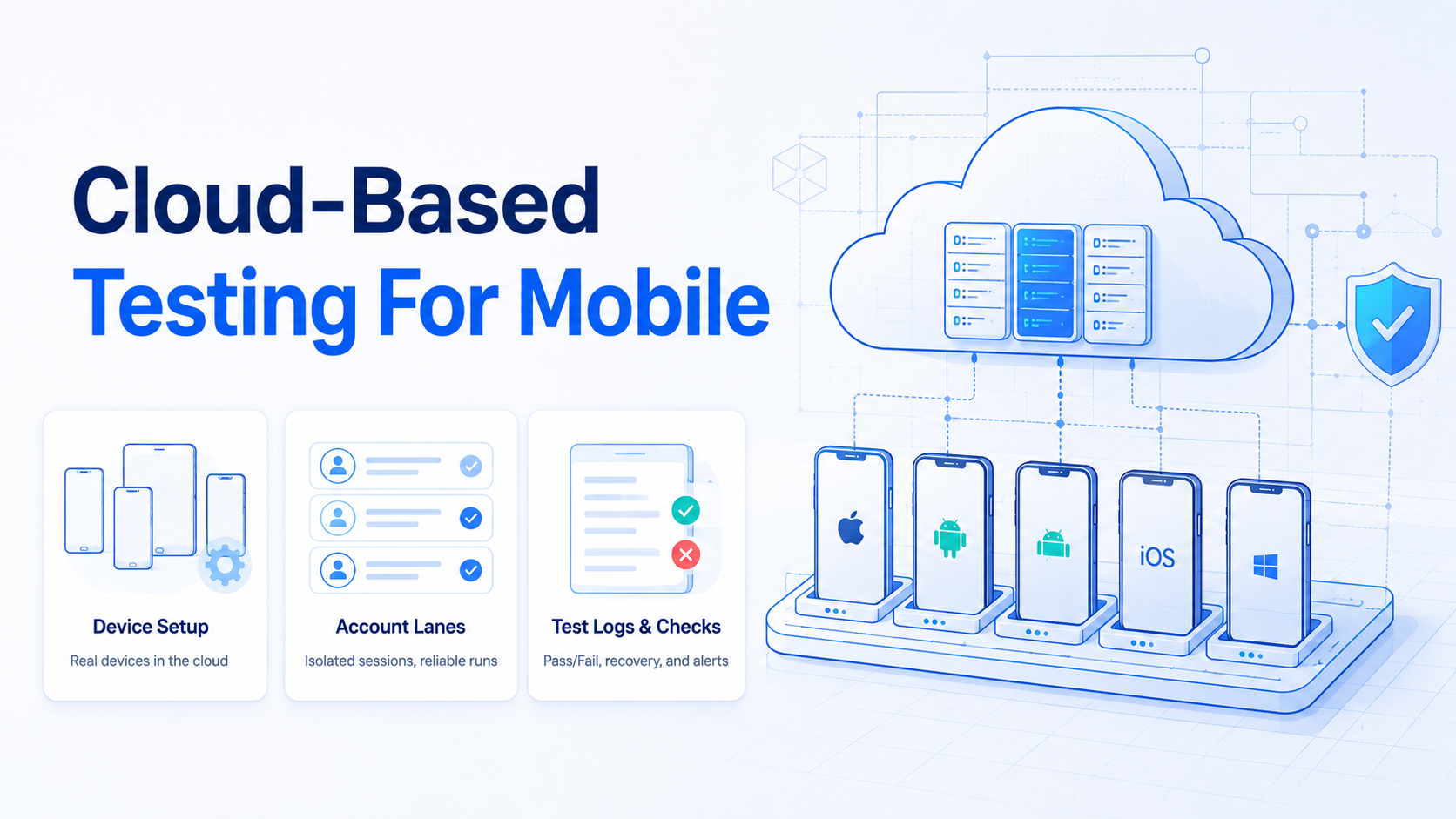
Cloud-based testing for mobile lets teams run mobile app checks on remote phone environments instead of relying only on local devices.
The goal is not just more devices. The goal is a test process that shows which app build ran, which account was used, which device state existed, and what the team should do after a failure.
Pre-Setup Requirements for Cloud-Based Testing for Mobile
Start with the test facts. A team should know the app build, test account, device type, target region, network route, and expected output before the run begins.
For app teams, this means keeping a simple run sheet:
| Setup Item | Example |
|---|---|
| App build | v2.8.1-beta |
| Test account | qa_account_03 |
| Device lane | Android 13 cloud phone |
| Test type | Login, checkout, inbox, or publish flow |
| Stop rule | Pause after two repeated failures |
Android's official testing documentation is a good baseline for test thinking. Cloud execution adds another layer: remote device state must be visible and repeatable.
Core Workflow for Stable Mobile App Testing
Do not start by running every test on every phone. That hides the first failure.
- Pick one app build and one test case
- Assign one account to one remote mobile environment
- Record the expected start state
- Run the task once manually
- Run the same task through the cloud workflow
- Save screenshots, logs, and error codes
- Repeat only after the failure state is understood
Cloud phones help when the test depends on mobile app state, Android sessions, or app-only screens. For web dashboards, a browser test may be enough; for app-first workflows, a remote phone environment is usually closer to the real task.
How to Verify Cloud-Based Testing for Mobile Is Working
Verification should be simple enough for a support or QA operator to read. A pass does not only mean "the script finished." It means the team can explain the result.
Use this table after each test run:
| Check | Pass | Fail |
|---|---|---|
| Device state | Correct phone and app version | Wrong device or stale app |
| Account state | Expected account is logged in | Mixed or expired login |
| Test input | Input matches the run sheet | Missing or stale input |
| Result | Output matches expected screen | Unknown screen or warning |
| Recovery | Owner knows next action | Team reruns blindly |
MoiMobi's mobile automation layer fits this model because mobile tasks need logs, device control, and recovery paths, not only screen access. Appium's mobile automation documentation is also useful when teams need app-level automation concepts.
Where Teams Usually Get Stuck
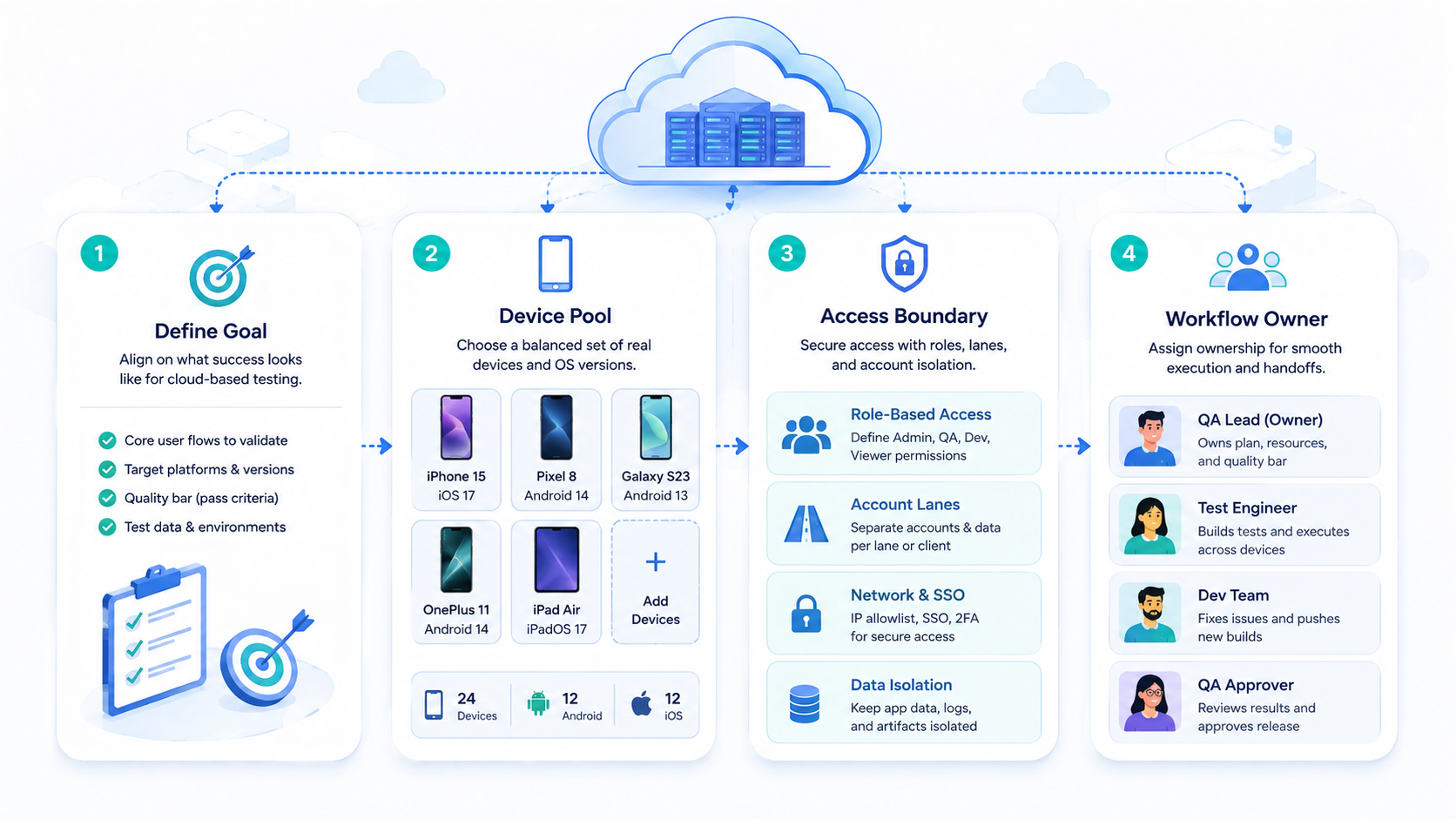
The first stuck point is unclear device state. Teams struggle to debug a failed run when no one knows whether the app, account, network, or input changed.
The second stuck point is shared accounts. If several tests use one account, a failure in one run can change the next run. Device isolation helps separate mobile workspaces when accounts or app state should not mix.
The third stuck point is weak logs. A screenshot alone may not show the real cause. Track run_id, device_id, account_id, app_build, test_case, status, and error_code.
Cloud-based testing for mobile should also keep tool expectations realistic. Google Play's pre-launch report can help developers understand automated checks, but team workflows still need their own account lanes, run notes, and repair owners.
Next Steps After the First Cloud-Based Testing for Mobile Pass
Move slowly after the first clean run. Stable testing grows from a known baseline.
- Add one test case: expand from login to one core business flow
- Add one device lane: compare only one new phone profile at a time
- Add one account group: keep account ownership clear
- Add review notes: record what changed after each failed run
- Add scheduled runs: only after manual recovery is proven
Teams that run many app accounts can connect the testing workflow to multi-account management. That keeps test accounts, business accounts, and app workspaces easier to separate.
Fit and Not-Fit Signals
Cloud-based testing for mobile fits teams that need repeatable app checks across remote Android environments. It also helps operators, developers, and support staff review the same run history.
It fits poorly when the team only needs one local smoke test. It is also a poor fit when the test cases are not written down yet.
Strong fit
- Mobile app state matters
- Test accounts need separation
- Runs repeat every day
- Failures need clear repair notes
Weak fit
- Only one local device is needed
- No test case exists yet
- Results are not reviewed
- The team only wants screenshots
Frequently Asked Questions
What is cloud-based testing for mobile?
It is mobile app testing that runs on remote phone environments with shared logs and repeatable setup.
Is it the same as using an emulator?
No. A virtual Android device may help with some checks, but cloud phones are used when app state and remote device access matter.
What should teams test first?
Start with a short high-value flow, such as login, checkout, message handling, or content publishing.
How many devices should the first run use?
Start with one or two device lanes. Add more only after failure handling is clear.
What should be logged?
Log the run ID, app build, device ID, account ID, test case, status, and error code.
Can this support social workflows?
Yes, when app testing overlaps with social posting, replies, inbox checks, or account workflow validation.
When should the team stop a run?
Stop when the account is wrong, the app state is unknown, or the same error repeats.
Conclusion
Stable mobile testing starts with a narrow run: one build, one account lane, one remote device, and one visible result. Expand only when the team can explain both success and failure.
Before scaling, check the basics: app build, account state, device state, logs, and recovery owner. If those are clear, the next device lane is easier to trust.