

Content Type: guide
Page Role: howto
Intent Type: procedural
How to manage multiple Gmail accounts with browser profiles means assigning each authorized mailbox or work role to a clearly named browser context, then controlling who may use it and how work is handed off. The goal is not to multiply logins. It is to prevent the wrong account, identity, tab, or saved setting from being used during routine work.
The right setup depends on the job. One person checking several personal accounts may only need Google's account switcher. A support team sharing one inbox should usually evaluate Gmail delegation. Separate browser profiles are most useful when bookmarks, extensions, history, saved sessions, and work context must remain distinct.
Key Takeaways
- Choose between account switching, Gmail delegation, and separate browser profiles before creating anything.
- Give every profile a business owner, purpose, label, and recovery path.
- Never make password sharing the default team workflow.
- Verify the active Gmail address before sending, deleting, exporting, or changing settings.
- Treat profiles as workspaces, not as proof that an account is secure or compliant.
- Pilot the model with a small set of authorized accounts before scaling it.
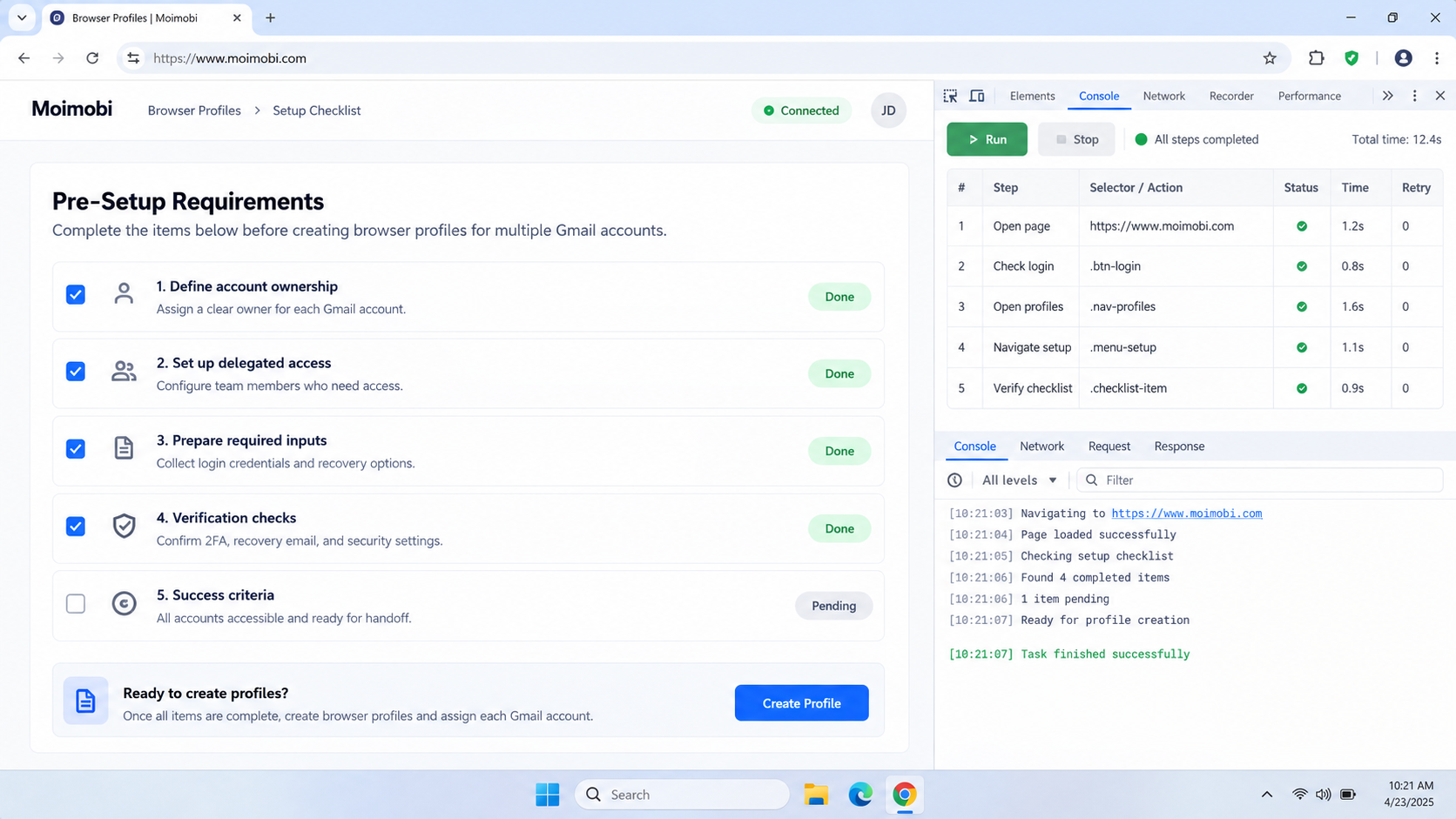
Pre-Setup Requirements for How to Manage Multiple Gmail Accounts with Browser Profiles
Start with an account inventory. List each Gmail or Google Workspace address, its business purpose, owner, backup owner, required applications, and permitted actions. A profile named only “Gmail 2” will fail as soon as another operator takes over. Use names such as “Support - North America” or “Finance - Read Only” instead.
Next, decide whether the mailbox belongs to one person or represents a shared business function. Personal mailboxes should remain under their owners. Shared functions such as support@, sales@, or billing@ need an approved collaboration model. Google's Gmail delegation guidance explains that delegates can read, send, and delete mail while lacking access to the owner's password and broader account settings.
Prepare these fields before creating profiles:
| Field | Required decision | Why it matters |
|---|---|---|
| Account owner | Named employee or business role | Establishes accountability |
| Access method | Switcher, delegation, or separate profile | Prevents unnecessary complexity |
| Profile label | Role, region, or client name | Reduces wrong-account actions |
| Permitted actions | Read, reply, archive, export, settings | Defines the operating boundary |
| Recovery owner | Person responsible for sign-in recovery | Avoids improvised credential sharing |
| Offboarding step | Remove delegation, profile, or device access | Closes access when work changes |
| Audit evidence | Ticket, task ID, or approval record | Supports review and handoff |
Use only accounts that the team is authorized to operate. Browser profiles do not replace Google Workspace administration, identity policies, two-step verification, or internal approvals. They organize browser state; they do not grant permission.
Choose the Correct Gmail Access Model First
Three models solve different problems. Choosing the simplest adequate model reduces maintenance and account confusion.
Model 1: Google account switching
Google allows users to sign in to multiple accounts at once and switch from the profile menu. This works well for one trusted operator handling a small number of their own accounts. It is fast, but several accounts still share one browser profile and its local browser context.
Google also notes that the first account signed in is commonly the default. That matters when a link opens in a new tab or a service cannot determine which identity the user intended. Operators must check the active account instead of trusting the visible tab title.
Model 2: Gmail delegation
Delegation is better when several authorized people need to work in one shared mailbox. Each person uses their own Google identity and opens the delegated inbox. The mailbox owner can add or remove delegates without distributing the primary password.
Delegation is scoped to email work. It is not a substitute for access to Drive, billing, security settings, or unrelated Google services. That narrower boundary is useful because it matches permission to the actual task.
Model 3: separate browser profiles
Separate profiles are useful when teams need distinct browser history, bookmarks, extensions, saved settings, and login sessions. Google states that Chrome profiles keep this browser information separate. A profile can therefore represent a client, department, region, or account workspace.
For larger operations, connect the profile decision to an account-to-workspace ownership model. The profile name, account owner, and task queue should agree. A profile without ownership becomes a shared mystery session.
The Core Workflow for How to Manage Multiple Gmail Accounts with Browser Profiles
Follow one controlled sequence. Do not create dozens of empty profiles before the naming and ownership rules are ready.
- Classify every mailbox. Mark it as personal, role-based, client-owned, delegated, or temporary. Record the approved operator and permitted actions.
- Select the access method. Use account switching for a small personal set, delegation for shared email work, and separate profiles when browser context must stay distinct.
- Create one profile for one defined role. Give it a readable name, color, and optional desktop shortcut. Avoid codes that only one administrator understands.
- Sign in through the approved path. Use the owner's normal sign-in or an accepted delegation invitation. Do not pass passwords through chat or spreadsheets.
- Install only required extensions. Each extension expands the profile's data and permission surface. Maintain an approved list and remove tools that are no longer needed.
- Add role-specific bookmarks. Link the task queue, support policy, escalation form, and account record. Do not bookmark a delegated inbox through a brittle direct URL; use Gmail's account switcher as Google recommends.
- Attach the profile to an owner and queue. The operator should know which tasks belong to this workspace and which actions need approval.
- Run a test task. Open Gmail, confirm the address, read a test message, draft a response, and verify the sender before saving or sending.
- Record the result. Note profile name, account, operator, test date, outcome, and any exception. This becomes the baseline for support.
For teams that also use managed browser environments, an account-isolated device workspace can add operational separation and centralized assignment. It should still follow the same authorization and ownership rules.
How to Verify the Setup Is Working
Verification should test identity, context, permissions, and recovery. A profile that merely opens Gmail has not passed.
Use this pass/fail checklist:
- Active identity: Gmail shows the intended address before any message action.
- Profile identity: The browser profile name and color match the account register.
- Permission scope: The operator can complete assigned work but cannot access unapproved settings.
- Sender check: A test draft shows the correct From address and signature.
- Bookmark check: Operational links open inside the intended profile.
- Extension check: Only approved extensions are enabled.
- Handoff check: A second authorized operator can identify the account and next task without asking for a password.
- Recovery check: The named owner knows how to recover access through the approved process.
- Offboarding check: The team can state how to remove the delegate or profile when access ends.
Fail the setup if the operator cannot tell which account is active, if passwords are shared, or if a profile has no named owner. Also fail it when a delegated inbox is accessed through an untracked personal profile that mixes unrelated client work.
A browser profile operating guide can help teams compare profile assignment and device-context needs. Use it as an infrastructure reference, not as a reason to add complexity to a simple Gmail workflow.
Where Teams Usually Get Stuck
The most common problem is choosing a profile before choosing an access model. A separate profile does not improve collaboration when the real requirement is shared mailbox delegation. Conversely, delegation alone does not separate unrelated browser extensions, bookmarks, and sessions.
Watch for these failure modes:
- One profile for every address without a register. The profile chooser becomes a wall of nearly identical names.
- One shared password for a whole team. Ownership, revocation, and individual accountability become difficult.
- Assuming the open tab proves identity. Gmail may look identical across accounts; verify the address before high-impact actions.
- Mixing client extensions and data. A tool approved for one workspace may not belong in another.
- Leaving departed operators assigned. Remove delegation and local profile access through the offboarding process.
- Deleting a profile without checking local data. Google warns that removing a Chrome profile erases its local bookmarks, history, passwords, and settings from the computer.
- Automating before the manual path is stable. Automation can repeat an account-selection mistake faster; it cannot define ownership.
Use a stop rule. Pause work when the active identity, sender, account owner, or approval state is unclear. Route the task to a human owner rather than guessing.
Fit and Non-Fit Boundaries
Browser profiles fit workflows where browser state must be separated and operators need a recognizable workspace. They are especially useful for client service, regional support, campaign review, or role-based operations with distinct bookmarks and extensions.
They are not the best answer to every multi-account problem:
| Situation | Better starting point | Reason |
|---|---|---|
| One person uses two personal Google accounts | Google account switcher | Lowest setup overhead |
| Several staff work in one shared inbox | Gmail delegation | Individual identities and scoped mail access |
| Client sessions need distinct browser context | Separate browser profiles | Keeps local browser state apart |
| Team needs managed assignments and handoffs | Controlled profile workspace | Adds ownership and task routing |
| Need to bypass verification or platform controls | Do not proceed | Browser profiles do not authorize evasion |
| Need full Workspace administration | Google Admin controls | Browser organization is not identity administration |
Moimobi should be evaluated when profile assignment must connect to task ownership, execution records, and team handoff. Its role is an operating layer for authorized work, not a replacement for Google's identity and security controls.
Next Steps After the First Pass
Pilot the setup with three to five representative mailboxes rather than migrating the full account list at once. Include one personal account, one delegated shared inbox, and one account that genuinely needs an isolated browser context.
Track a small set of operational measures for two weeks:
- wrong-account drafts caught before sending;
- tasks delayed by unclear ownership;
- sign-in or recovery escalations;
- time required for a handoff;
- profiles with unapproved extensions;
- accounts without a current backup owner;
- offboarding actions completed on time.
Review exceptions instead of celebrating profile count. If operators still open the wrong account, improve naming and verification. If most profiles exist only to view one shared mailbox, replace them with delegation where appropriate. If handoffs fail, connect each profile to a task record and owner.
Once the pilot is stable, document a reusable profile template. Define the name pattern, required bookmarks, approved extensions, owner fields, validation steps, and deletion procedure. Keep credentials and recovery codes outside the template.
Teams that need broader browser workflow execution can then evaluate an AI browser operations layer. Start with bounded tasks and explicit approvals. Do not grant an automated worker more account authority than the human role it supports.
Frequently Asked Questions
Can I use one Chrome profile for several Gmail accounts?
Yes. Google's account switcher supports multiple signed-in accounts. This is practical for a small personal set, but the accounts share the same Chrome profile context. Check the active identity before sending or changing settings.
Is a browser profile the same as a Gmail account?
No. A browser profile stores browser-level context such as history, bookmarks, extensions, passwords, and settings. A Gmail account is a Google identity and mailbox. One profile can contain several signed-in accounts.
Should a support team share one Gmail password?
Password sharing should not be the default. For a shared inbox, Gmail delegation gives authorized users scoped mailbox access through their own identities. Workspace administrators should apply the organization's access policy.
When should each Gmail account have its own browser profile?
Use a separate profile when the account needs distinct sessions, bookmarks, extensions, client context, or task ownership. Do not create one merely because another email address exists.
Do separate profiles prevent all account mistakes?
No. They reduce context mixing but cannot replace identity checks, permissions, training, or approvals. Operators can still choose the wrong profile or send from the wrong address.
Can teams automate work across Gmail profiles?
Automation may assist with approved, repeatable tasks after the manual workflow is stable. Keep human review for sensitive messages, account changes, exports, deletions, and unclear identity states.
How should profile names be structured?
Use a consistent pattern such as department, region, client, and role. A good label remains clear to a new operator. Avoid personal nicknames and unexplained numeric codes.
What happens when a Chrome profile is deleted?
Google says deletion removes that profile's local bookmarks, history, passwords, and other settings from the computer. Confirm what is synced or backed up before removal, then follow the organization's offboarding process.
How often should access be reviewed?
Set a cadence based on staff turnover and account sensitivity. Also review access after role changes, client transitions, incidents, and failed handoffs. High-impact mailboxes usually need more frequent review.
Conclusion
The reliable way to manage multiple Gmail accounts is to match the access model to the work. Use account switching for a small personal set, delegation for shared inbox collaboration, and separate browser profiles when browser context must remain distinct.
Before expanding, confirm five things: every account has an owner, every profile has a clear purpose, no workflow depends on shared passwords, operators verify the active sender, and offboarding can remove access cleanly. Scale only after the pilot passes those checks and handoffs work without hidden knowledge.


