
Content Type: guide
Page Role: longtail
Intent Type: problem-solving
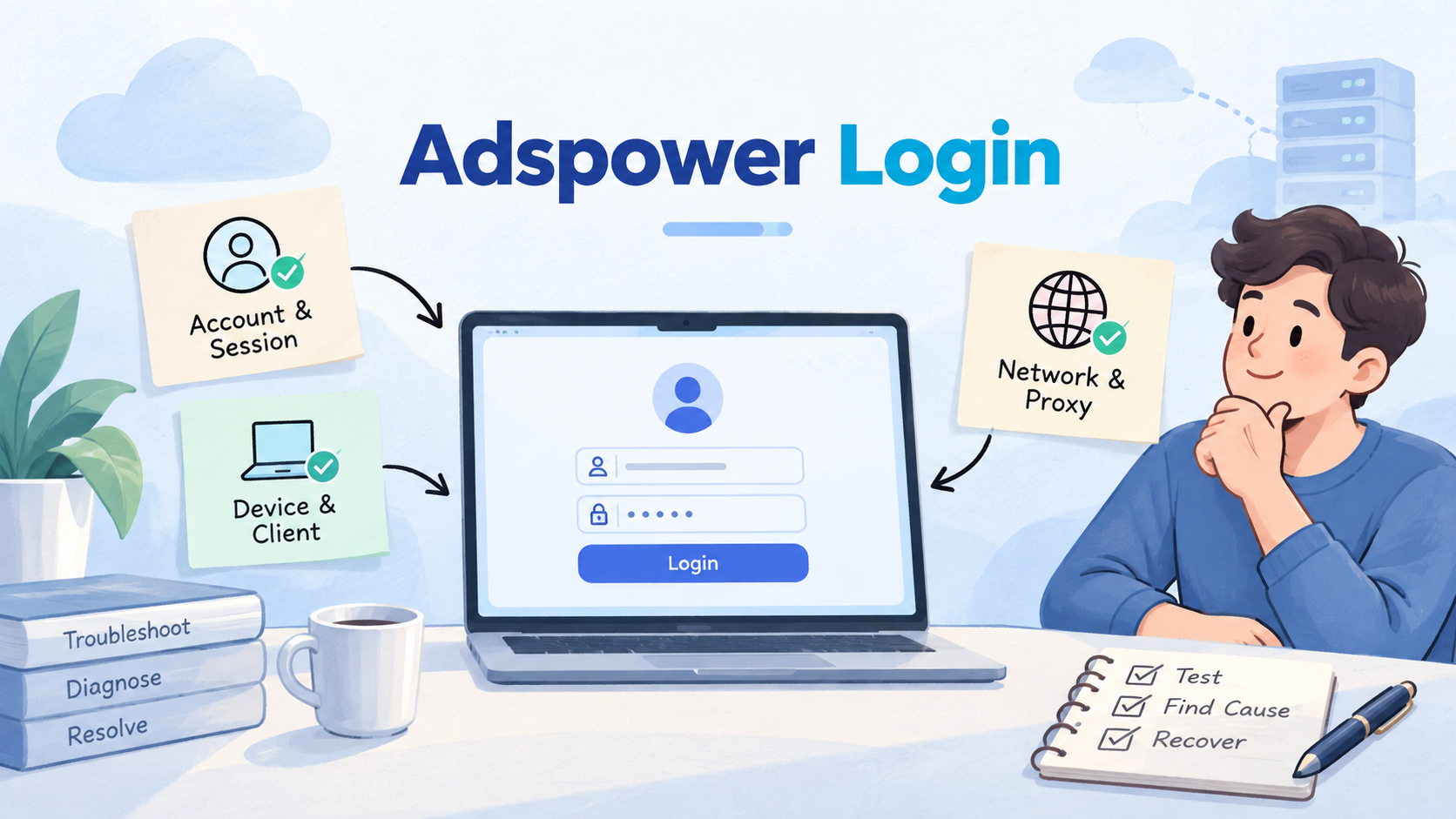
AdsPower login issues are failures that occur before, during, or after a profile reaches a target account. The cause may be the AdsPower client, local device, profile session, target platform, network route, or proxy. Troubleshooting works best when those layers are tested separately.
Do not respond by changing every setting at once. That destroys the evidence needed to identify the cause and can create a second problem. Preserve the affected profile, record the exact error and time, then run the smallest safe test at each layer.
This checklist is for accounts and environments your team is authorized to use. It does not explain how to bypass identity checks, security challenges, platform limits, or account enforcement. When a platform requests verification, use its official recovery process.
Key Takeaways

- Identify whether the failure is client startup, profile launch, network connection, or target-account authentication.
- Preserve the existing profile and session before clearing files or recreating the environment.
- Test proxy details, local network, system proxy, and provider status in a fixed order.
- Treat platform verification as an account-recovery event, not a proxy-tuning problem.
- Record changes and outcomes so the team can restore the last known working state.
Classify AdsPower Login Issues Before Changing Settings
“Cannot log in” is not a useful error class. First locate the last successful boundary. Did AdsPower start? Did the profile open? Could the browser load a neutral site? Did the proxy test pass? Did the target site's login page load? Did submitted credentials fail, or did the site ask for verification?
| Observed symptom | Likely layer | First safe check |
|---|---|---|
| AdsPower client will not start | Client or local device | Version, resources, permissions, logs |
| Profile will not open | Profile process or cache | Exact launch error and another authorized profile |
| No sites load | Local network or proxy | Neutral URL and built-in connection test |
| Neutral sites load, target does not | Target route, DNS, TLS, or platform | Status, browser error, official support |
| Login page works, credentials fail | Account authentication | Official password and recovery flow |
| Session was logged in but is now signed out | Cookie/session expiry or security event | Recent changes and account security notices |
| Verification appears | Platform account control | Stop automation and complete official verification |
Keep the original error message. Capture the profile ID, client version, operating system, proxy type, affected domain, and time. Do not include passwords or full proxy credentials in screenshots or shared tickets.
Run one test, record the result, and return to the same baseline. If you update the client, change the proxy, clear cache, and reset credentials together, a later success will not reveal which change mattered.
Check the AdsPower Client and Local Device
Start below the browser profile. AdsPower's official service startup checklist recommends checking the program and patch versions, local files, required permissions, VPN or proxy conflicts, system resources, and support logs. Follow the current official instructions for your platform because menu names and file locations can change.
Confirm free disk space and memory before assuming an account problem. A profile process may fail to start when cache storage is full or the machine is under pressure. Compare one affected profile with another authorized profile on the same client. If all profiles fail, investigate the client or device first.
Check system date and time. Incorrect time can disrupt certificate validation, proxy authentication, and signed sessions. AdsPower's network diagnostic guidance includes a time synchronization check. Use automatic time and timezone settings, then restart only the affected application components.
Review endpoint security without disabling it broadly. Check whether the firewall or security product logged a blocked AdsPower process or connection. A temporary test should be approved, narrow, and reversible. Do not leave protection disabled as a permanent workaround.
Verify the Profile Session Without Destroying It
A browser profile holds cookies, storage, extensions, settings, and other session data. Clearing all data may remove the evidence and the session you are trying to recover. Back up or snapshot the profile according to your team's procedures before destructive changes.
Open the profile and test a neutral site. If the browser launches and general browsing works, the profile process is healthy enough for deeper checks. Next, inspect whether extensions, startup pages, or injected settings create errors. Disable only a suspected component and document the change.
Do not copy cookies between unrelated profiles as a repair method. Session data may be bound to account security state, browser storage, or current platform controls. Use the target service's official sign-in flow when reauthentication is required.
An isolated browser-profile operating model helps teams keep account context separate and makes diagnosis easier. The useful principle is stable ownership: one profile maps to one approved account context, with changes recorded.
Choose the environment that matches the task. A browser profile suits web sessions, extensions, and desktop login flows. A cloud phone is relevant when an authorized workflow must run inside an Android app. Moving a web login problem to a mobile environment is not a repair unless the platform and business process genuinely require the app.
Troubleshoot AdsPower Proxy Failures in Order
AdsPower's official proxy failure guide starts with proxy details and validity. It then checks device-level proxy or VPN conflicts, tests another network or device, and directs unresolved provider failures to the proxy provider or AdsPower support.
Use this sequence:
- Confirm the intended route. Verify whether the profile should use direct access or a proxy. Do not add a proxy simply because login failed.
- Check the entered fields. Match host, port, protocol, username, and password with the provider's current record.
- Confirm validity. Check subscription, traffic allowance, IP status, and provider notices without exposing credentials.
- Run the built-in test. Record the exact result and outbound IP when the test succeeds.
- Check system conflicts. Look for an unintended VPN, system proxy, environment variable, extension, or security rule.
- Change one boundary. Test the same authorized proxy from another approved network or device, or test another known-good proxy in the same profile.
- Escalate to the owner. A proxy that fails everywhere belongs with the provider. A proxy that works elsewhere but not in AdsPower needs client diagnostics.
Do not rotate routes repeatedly to force a target platform login. If the proxy test passes but the platform requests verification, the issue has moved beyond basic connectivity. Repeated route changes can make the incident harder to understand.
A managed proxy inventory should record provider, endpoint, protocol, assigned profile, renewal state, last test, and owner. Store secrets in a protected credential system rather than operations notes.
Use Network Diagnostics for AdsPower Login Issues
AdsPower's official Network Diagnostics guide describes checks for version information, system time, local network, system proxy, proxy details, and log upload. Use the built-in report before manual guesswork because it captures several layers in one consistent view.
Save the diagnostic output with the incident. Include:
- incident ID and affected profile ID;
- first observed time and last known successful time;
- AdsPower and patch versions;
- operating system and device identifier;
- proxy type and redacted endpoint;
- local and outbound network test results;
- affected target domain and browser error;
- changes attempted and their outcomes;
- current owner and next action.
Logs should not be posted publicly. Review them for credentials, cookies, personal data, and internal paths before sharing. Use the vendor's approved support channel and follow your organization's data-handling rules.
Compare the failing run with a known-good run. Differences in version, time, route, extension set, profile assignment, or target response often narrow the cause faster than scanning a large log without context.
Separate Platform Authentication From Environment Failure
Once the profile opens and network access works, treat target-site authentication as a separate layer. Check the account's official security notices, password recovery, multi-factor method, trusted devices, and active sessions. Do not assume that changing the fingerprint or proxy will resolve an account-owned challenge.
Stop automated actions when the platform asks for identity, phone, email, captcha, device confirmation, or security review. Route the case to the account owner. Record that the environment reached the verification screen, but do not store sensitive verification content in general logs.
An account may be signed out because its session expired normally. It may also have been revoked after a password change, logout-all-sessions action, platform security event, or policy enforcement. Only the platform and account owner can establish the authoritative reason.
For teams, use an account ownership and handoff register. It should identify who may reauthenticate, where recovery methods are held, which profile is assigned, and who approves environment changes.
Safe Recovery Workflow for AdsPower Login Issues
- Freeze the affected profile. Stop scheduled tasks and prevent another operator from making simultaneous changes.
- Record the incident. Capture the error, time, profile, account, client version, route, and last known success.
- Locate the failing layer. Test client start, profile launch, neutral browsing, proxy connection, target page, and account authentication in order.
- Preserve session data. Snapshot or back up according to policy before clearing cache, storage, or profile files.
- Apply one reversible fix. Update the client, correct time, remove a conflict, repair proxy details, or use official account recovery.
- Retest the same boundary. Confirm whether that single change resolved the observed failure.
- Verify account and route. Check that the restored session belongs to the intended account and uses the approved network path.
- Resume a low-impact task. Run a read-only or draft action before restoring scheduled publishing or replies.
- Close with evidence. Record cause, fix, validation, owner, and preventive action.
Use a task-state recovery workflow so queued work does not resume merely because a profile can open. Every task should recheck account, environment, payload version, approval, and remote state.
If the cause remains unknown, keep the profile paused and escalate with diagnostics. “It works now” is not a strong closure when no one knows which setting changed or whether the issue will recur.
What Not to Change During Troubleshooting
Avoid destructive changes before evidence collection. Do not delete the profile, clear all browsing data, overwrite its proxy, reinstall every extension, and reset credentials in one attempt. Each action expands the incident and removes rollback options.
Do not import session data from another account or profile. Do not use verification bypass services. Do not change location repeatedly to test whether a security screen disappears. These actions do not establish the root cause and may conflict with platform rules.
Do not share credentials in screenshots, tickets, or chat. Redact proxy passwords, cookies, recovery codes, phone numbers, and personal identifiers. Give support only the data needed for diagnosis through an approved channel.
Finally, do not resume automation on a profile that only passed a network test. Validate the account identity and run a low-impact task first.
Fit, Pilot, and Prevention Checks
This checklist fits legitimate team operations that need repeatable incident handling across profiles, devices, and network routes. It is not a guide for recovering accounts the team does not own or for avoiding platform enforcement.
Turn repeated incidents into preventive checks. At profile assignment, verify client compatibility, time sync, proxy validity, account owner, recovery owner, and available storage. Before scheduled work, run a light health check and pause tasks when the environment is unhealthy.
Review incidents by failure layer:
- client startup and update;
- device resource or permission;
- profile process or data;
- local network and DNS;
- proxy credential or provider;
- target availability;
- account authentication or verification;
- operator configuration error.
Track recurrence, time to isolate the layer, destructive changes avoided, successful recovery, and tasks safely resumed. These measures improve operations more than counting how many profiles were reopened.
Frequently Asked Questions
Why does AdsPower open but the target account does not load?
Test a neutral site and the built-in proxy check. If those work, inspect the target domain response, DNS or TLS errors, service status, and official support guidance.
Should I clear cookies when a login session expires?
Not first. Clearing cookies removes the session. Preserve the profile, check account security notices, and use the platform's official reauthentication flow.
How do I know whether the proxy is the problem?
Verify fields and validity, run AdsPower's proxy test, then test the same authorized proxy on another approved network or device. Record each result.
Can incorrect system time cause connection problems?
Yes. AdsPower includes time synchronization in its network diagnostics. Correct the device time and timezone, then retest the same connection.
Should I switch proxies when verification appears?
No. A platform verification request is an account-security event. Stop automation and complete the official process through the account owner.
What logs should I send to support?
Use the logs requested by AdsPower support and include the incident context. Review and redact secrets or personal data according to your policy.
When should a profile stay paused?
Keep it paused when account ownership is uncertain, verification is unresolved, the route is unstable, the root cause is unknown, or queued actions could duplicate external work.
How can teams prevent repeated login incidents?
Use stable profile ownership, controlled changes, client updates, route inventory, health checks, documented recovery roles, and incident review.
Conclusion

AdsPower login issues become manageable when the team isolates the failing layer. Start with the client and device, then profile launch, neutral connectivity, proxy health, target access, and account authentication. Preserve the original profile and change one variable at a time.
Close the incident only after the correct account and approved route are verified and a low-impact task succeeds. If verification or enforcement appears, stop technical experimentation and use the target platform's official account process.


