

Remote android screen control should separate seeing a device from sending input to it. Prepare the assigned device reference, authorized connection and permitted task before opening a session. The output should identify the viewer, current controller and actions actually checked, not simply show a screen marked online.
Someone checking a display fault may only need to look. They need not tap, type or move files. A person sending input needs a clear task, not open-ended access. This guide proposes mode checks and a handoff process. No device was connected, command executed or Moimobi mobile workflow tested.
Key Takeaways
- Mirroring and input control are separate capabilities.
- Observation mode still exposes whatever the permitted screen shows.
- Limit clipboard transfer separately from the intended task.
- A client setting does not revoke access from other connected tools.
- Resolve the controller and current screen before resuming interrupted input.
Prepare remote android screen control access
Ask the device owner for the supported connection method. A remotely hosted Android environment may offer a proprietary client, an approved ADB connection or neither. Don't infer a public ADB endpoint from a device dashboard.
Android's ADB reference describes a tool with device command and shell access, not just a screen viewer. For USB access, debugging must be enabled. Android 4.2.2 and later presents an RSA authorization prompt requiring the device to be unlocked and acknowledged. Cloud-provider access needs its own documented procedure.
Prepare a short access checklist:
- Device reference matched to its assigned owner.
- Named operator and approved screen to inspect.
- Allowed input, if any, and changes outside the task.
- Supported client mode and installed version.
- Person to contact when the target or screen differs.
Use device-to-operator assignments when client accounts share a team. Don't identify a phone by its window position.
Before proceeding, confirm the installed tool and version against the documentation used. Stop if the expected mode or target cannot be established. Don't disable authorization, reset the device or select a different available phone merely to open a screen.
Choose viewing or input, not a generic remote-access label
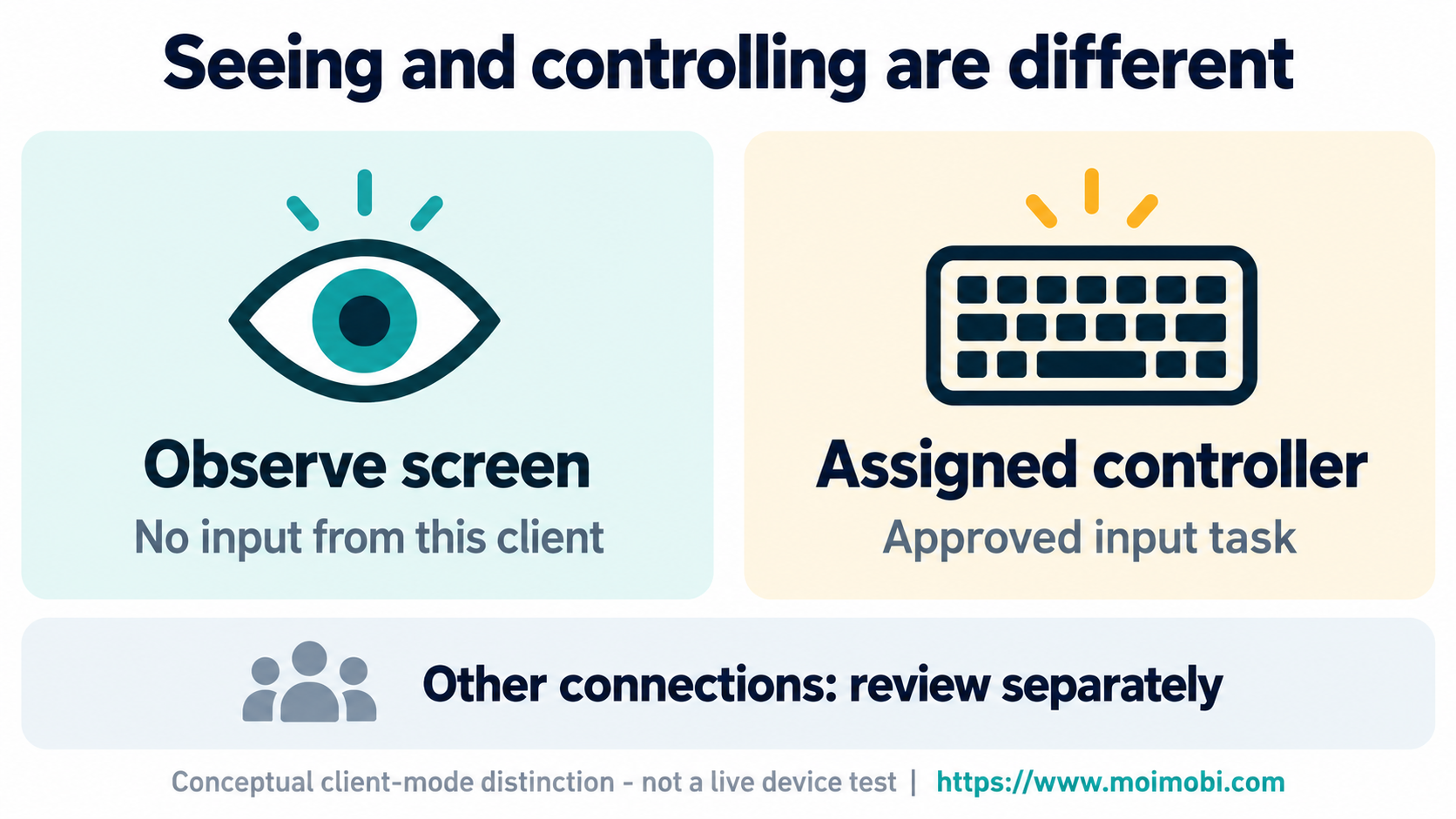
The scrcpy control documentation documents --no-control for disabling interactions such as keys, mouse events and file drag-and-drop. Its separate --no-video --no-audio example controls without mirroring; that is not an observation-only mode. It also documents --no-clipboard-autosync for disabling automatic clipboard synchronization.
Use these documented distinctions when evaluating a client. A viewer role in a team policy and a command-line option are different controls. Neither should be inferred from a video thumbnail.
| Intended task | Proposed mode | Check before use |
|---|---|---|
| Inspect a permitted app screen | Observation without input | Client cannot alter the test form |
| Enter approved test text | Assigned controller | Exact target and input destination |
| Investigate a frozen stream | Hold interaction | Screen freshness and connection state |
| Hand over unfinished work | Explicit controller change | Previous controller has stopped |
These are proposed operating decisions, not a feature matrix for every remote-access product. A view-only client does not prove that another ADB client cannot send commands. Review separated device workspaces without treating separation as a universal access-revocation mechanism.
Understand what an IDE mirror can do
Android Studio's hardware-device guide describes mirroring through Running Devices, including interactions with apps, rotation and volume changes. It also notes device encoding limitations that can cause mirroring errors. Display availability and input capability therefore need distinct checks.
An IDE mirror is a documented development tool, not evidence of a deployed fleet-control service. Likewise, a clear screen does not establish that an account action completed. Check the underlying task result before interpreting a visible button or notification as success.
Moimobi's current workflow scope is browser-focused; mobile workflow integration is paused. Use the phone-workflow evaluation reference to frame questions about support. This guide does not establish an installed phone-control connector.
Steps to verify the selected mode
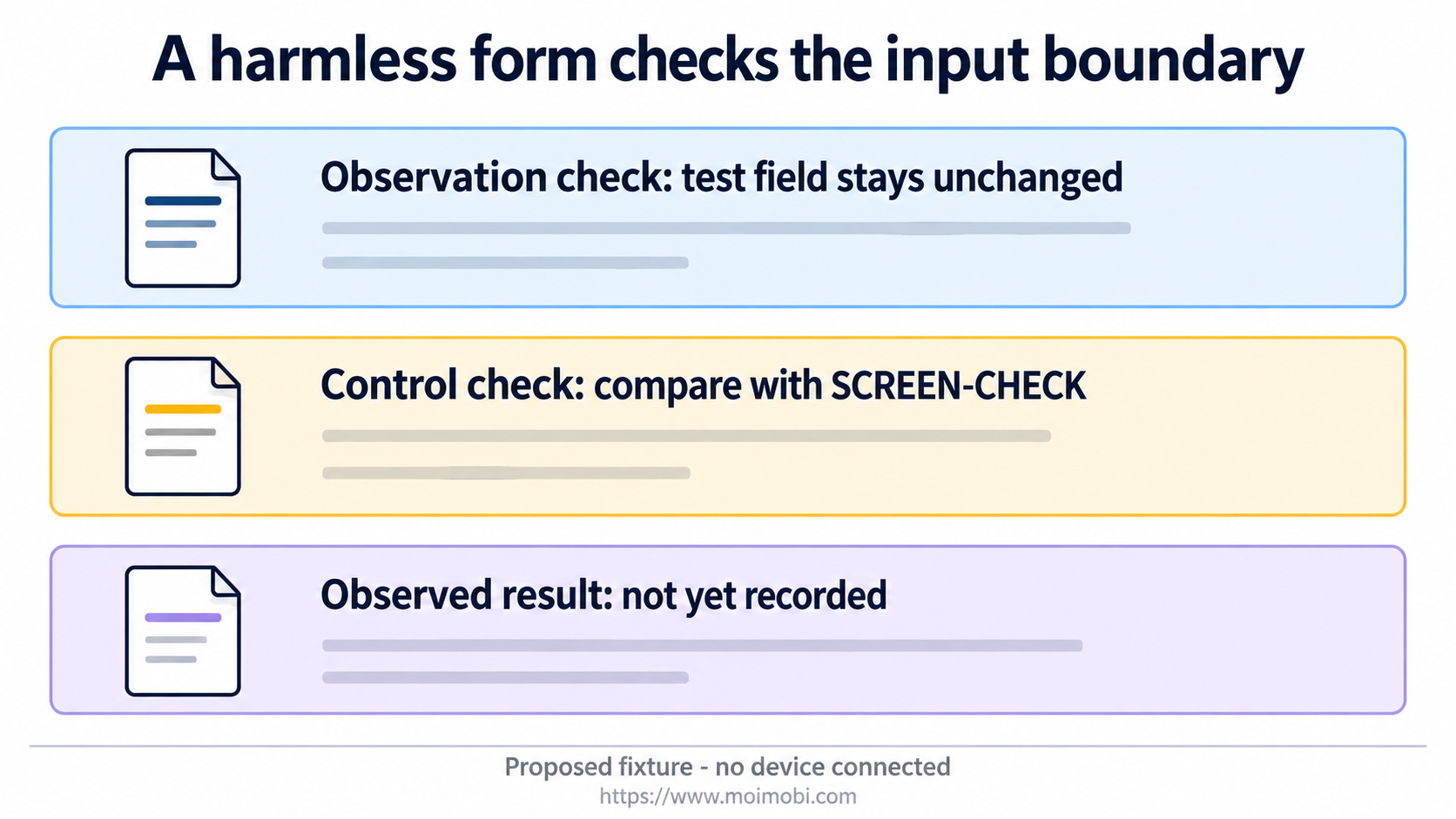
Use an approved test device with an empty form and no private data. For example, reserve the nonsecret text SCREEN-CHECK for its test field. The sequence below is a proposed fixture, not a completed test.
- Identify the target. Match the device reference with the owner's assignment and client selection. Stop on a mismatch before opening sensitive content.
- Begin with observation. Select the documented no-input mode. Confirm that an authorized person can identify the intended test screen.
- Check the boundary. In the harmless fixture, verify that the observing client cannot change its text field or activate its test button. Record the observed behavior rather than writing an assumed pass.
- Assign a controller if needed. End the observation check before authorizing a specific input task. Confirm who may send input and what field they may change.
- Verify the resulting state. For the input test, compare the field with
SCREEN-CHECK. Record the actual value, target and reviewer. If the field differs, keep the discrepancy rather than recording a pass. - Close the assignment. Stop the controlling client and record unfinished work. Review broader connection revocation separately if that is part of the owner's access procedure.
This checks one client configuration and device at a particular time. It does not establish every host's permissions or whether an unrelated application may control the device.
Troubleshoot a frozen screen or unexpected input

If the stream freezes, stop sending input. Ask the authorized local operator or provider to inspect the current device state. Repeated clicks against a stale frame can leave the team unsure which actions were attempted. Resolve the pending action before retrying it.
If an observer can change the test field, stop that session. Record the selected mode, installed version and actual behavior. Review the client configuration before repeating the harmless check. Don't relabel it as observation-only because the launch shortcut had that name.
Keep clipboard handling explicit. Avoid transferring passwords through a shared clipboard. If a task needs text, use a nonsecret fixture value first and inspect where it appears. A screen-sharing review should not become an archive of customer conversations or recovery codes.
Frequently Asked Questions
Is screen mirroring automatically view-only?
No. Inspect the tool's documented input behavior and verify the selected configuration.
Does no-control revoke all ADB access?
Don't infer global revocation from a setting on one client. Other connections need separate review.
Is control without video useful for an observer?
It is a different mode. Don't substitute hidden input control for screen observation.
Can a screenshot prove an input action completed?
Not by itself. Check the relevant task state and recorded outcome.
What if the wrong device opens?
Stop without interacting. Resolve selection with the owner before continuing.
Should another operator take over after a disconnect?
Only after the assigned controller and unfinished action are resolved. Don't guess from a disconnected window.
Was this procedure tested on a fleet?
No. It is a documented-tool review and proposed acceptance fixture, not a live fleet result.
Start with an observation boundary
Choose one approved device and one harmless screen. Verify observation separately from input, then record any control handoff explicitly. Expand only after the owner can explain what each client could see, what it could change and what remains unresolved.


