Content Type: guide
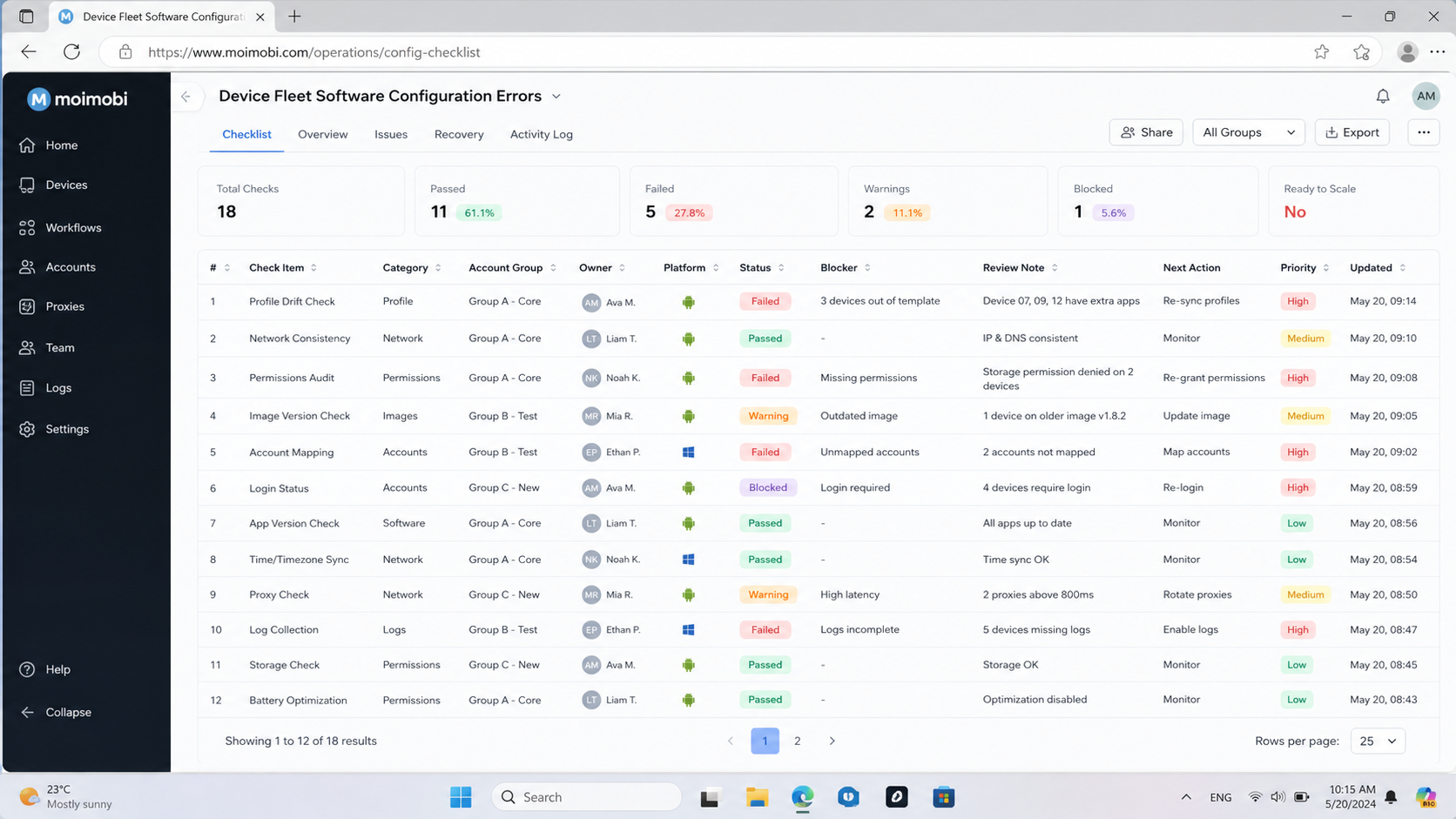
Device fleet software configuration errors are setup mistakes that make a group of cloud devices, real devices, or managed Android environments behave differently from the workflow the team expects. The error may look like a failed login, a stuck task, a proxy mismatch, a missing permission, or a device that cannot reproduce the same app state twice.
For operations teams, these errors are expensive because they hide inside repeated work. One device may run the task correctly. Another may fail because its region, proxy, app version, account owner, storage state, or permission profile is different. That is why fleet work needs configuration records, not just more devices.
The goal is not to blame the tool first. The safer process is to check the fleet contract: device image, account assignment, network route, permission set, app version, automation state, and recovery log. A good device fleet software process makes those fields visible before the team scales.
Key Takeaways

- Device fleet software errors usually come from configuration drift, weak ownership, or missing diagnostics.
- Teams should separate device image, account, proxy, app version, permission, and task state checks.
- A cloud device fleet needs repeatable setup records before large operations.
- Logs should show what changed, who changed it, and which workflow failed.
- Pilot failures are useful when they reveal a configuration field that was not tracked.
The Core Idea Behind Device Fleet Software Configuration Errors
The core idea is drift. A fleet starts with a standard setup, but small differences appear over time. One device gets a new app version. Another keeps old cache. A third uses the wrong proxy. A fourth still belongs to a former operator.
In a cloud phone or remote Android workflow, drift can be harder to notice because the device is not sitting on a desk. The dashboard may show the device as online, but the task still fails because the runtime state is wrong.
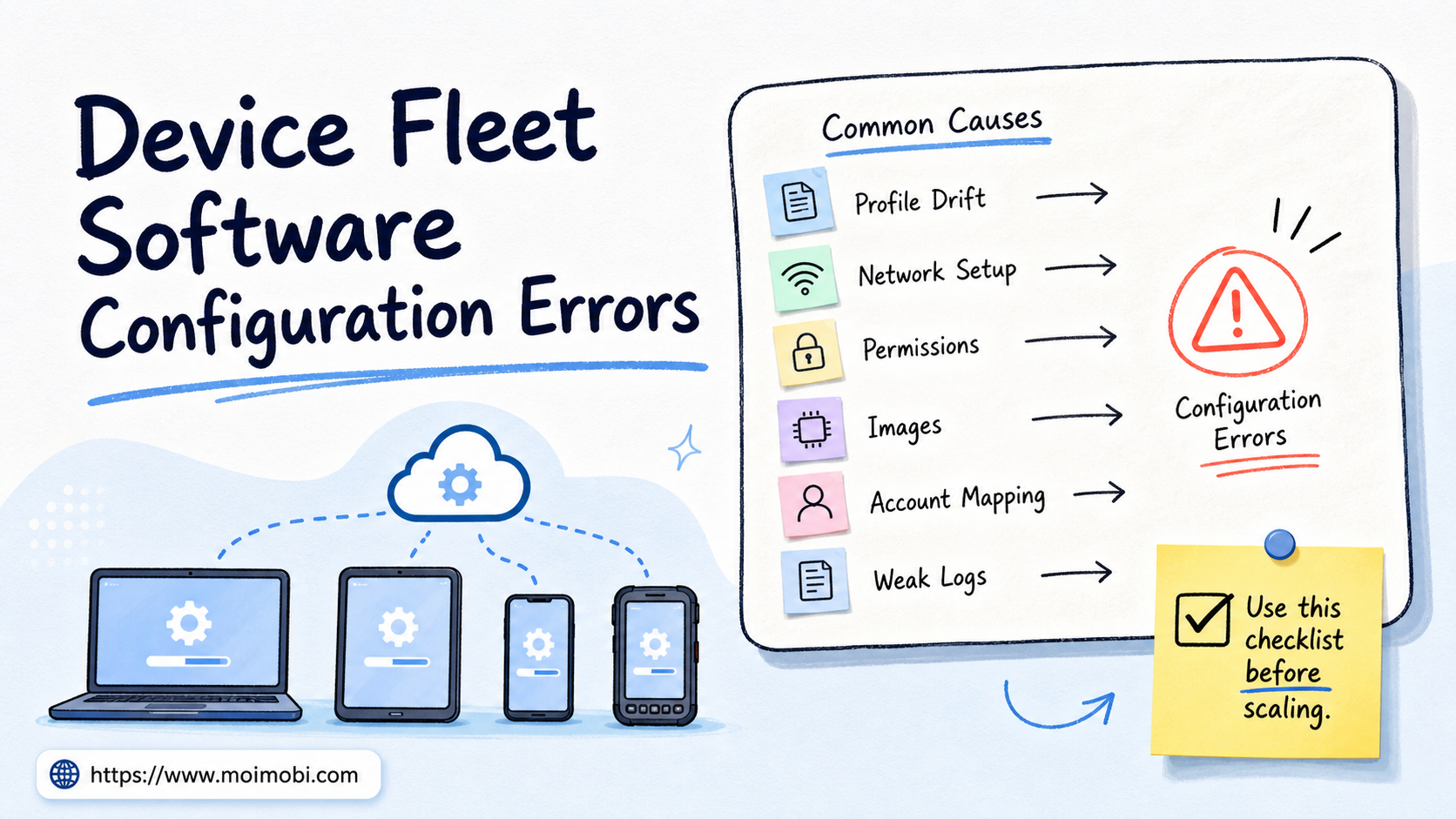
Think of configuration as six layers:
- Device image and operating profile.
- Network, proxy, and route.
- App version and app permissions.
- Account identity and owner.
- Automation task state.
- Logs and recovery notes.
AWS Device Farm documentation describes device testing as running apps on real devices in a managed environment. Microsoft Intune documentation describes device configuration profiles as settings used to manage device behavior. These are different product categories, but both show the same operational principle: configuration must be explicit and repeatable.
Why Teams Search for This Topic
Teams search for device fleet software errors when scale exposes inconsistency. A single device test may pass. A fleet run may fail across a subset of devices with no obvious pattern.
Common symptoms include:
- Device is online, but task execution fails.
- App launches, but login state is missing.
- Proxy is assigned, but traffic uses the wrong route.
- Automation starts, but required permission is disabled.
- Account is correct, but the device profile is not.
- A failed task has no useful error log.
These symptoms often lead teams to retry the same task. Retrying may hide the root cause for a while. It does not fix configuration drift.
The better response is classification. Decide whether the error belongs to device state, app state, account state, network state, automation state, or logging state. Once the team has a category, the recovery path becomes easier.
Device Fleet Software Error Categories
Use a category table before changing the fleet. A broad label such as “device failed” is not enough for repair.
| Error Category | Typical Signal | First Check |
|---|---|---|
| Image drift | Devices have different system state, settings, or baseline apps. | Compare image version and initialization notes. |
| Network mismatch | Device connects, but traffic route or region is wrong. | Check proxy, route, DNS, and assigned region. |
| Permission gap | App opens, but camera, storage, notification, or accessibility flow fails. | Compare permission profile with workflow requirements. |
| Account mapping error | Task runs under the wrong account or owner. | Check account-to-device assignment and operator notes. |
| Automation state error | Task starts from the wrong screen or stale session. | Reset app state or restore a known checkpoint. |
| Logging gap | Team knows something failed but cannot explain why. | Review event logs, screenshots, task IDs, and timestamps. |
For larger operations, a fleet baseline and recovery plan should define these categories before the first production batch.
Who Benefits Most and In What Situations
This guide fits teams that run repeated work across many Android environments. Social media operators, app QA teams, e-commerce teams, and customer engagement teams may all need a fleet that behaves consistently.
A social team may use devices for posting, monitoring, inbox review, or account checks. An e-commerce team may use devices for marketplace app workflows. A support team may use devices to reproduce customer issues.
The workflow is less useful for a team that only uses one or two devices manually. In that case, a checklist may still help, but the overhead should stay small.
The strongest fit is a team that already sees repeated errors. If the same task fails on different devices for different reasons, the team needs a configuration model before buying more capacity.
How to Evaluate or Start Using Device Fleet Software
Start with a baseline. Do not add more devices until the current fleet has a known standard.
Use this sequence:
- Define the fleet purpose. Separate QA, social operations, support, and account management devices.
- Record the baseline image. Save system version, app version, default settings, and initialization date.
- Map accounts to devices. Add account owner, backup owner, platform, and allowed task types.
- Verify network routing. Check proxy, route, region, and any app-specific network requirements.
- Confirm permissions. Compare app permissions with the workflow before running tasks.
- Run a small test batch. Use five to ten devices before scaling.
- Capture failure evidence. Save screenshots, logs, task IDs, and recovery notes.
- Freeze changes during diagnosis. Do not update apps, proxies, and scripts at the same time.
BrowserStack's real device documentation explains that testing on real devices helps validate behavior across device and OS combinations. That point applies to operations too. The team must know which device and app state created each result.
Batch Supervision Fields for a Phone Farm

A phone farm or remote device fleet needs batch supervision fields before daily execution starts. Device count alone does not explain whether the fleet is ready.
Use a batch sheet with these fields:
- Batch name and purpose.
- Device group and image version.
- Account pool and account owner.
- App version and required permissions.
- Proxy group and region rule.
- Task type and allowed schedule.
- Expected start screen.
- Failure screenshot rule.
- Recovery owner and retry limit.
This field set keeps the team from mixing unrelated problems. If five devices fail in the same batch, the operator can compare device group, app version, proxy group, and account pool first.
The same model also helps managers decide when to pause. A batch with missing logs should not continue just because some devices still work. A batch with one isolated device issue may continue while that device is repaired.
Teams evaluating a phone farm operating model should check whether the system makes these fields visible. A dashboard that only shows online status is not enough for serious operations.
Ownership Rules for Configuration Changes
Configuration changes need owners. A fleet can become unstable when several people update app versions, proxies, scripts, and account assignments without a shared change record.
Use three simple ownership rules:
- One change owner: one person owns the current configuration change.
- One change window: changes happen during a known window, not during active diagnosis.
- One rollback note: the team knows how to return to the last working setup.
These rules are not heavy process. They stop the team from creating invisible drift. When a task fails, the operator can check what changed before assuming the device itself is broken.
For production operations, keep a short change log. Record the date, device group, changed field, owner, reason, and observed result. A five-line record can save hours of guessing later.
Common Mistakes That Reduce Results
The first mistake is treating all devices as interchangeable. Devices may look similar in a dashboard, but app state, permissions, routing, and ownership can differ.
Another mistake is changing too many variables during repair. If the team changes proxy, account, app version, and script in one pass, the next result is hard to interpret. Change one layer at a time when possible.
Teams also fail when logs are too thin. A status such as “failed” is not a diagnostic record. A useful log includes device ID, account, task, time, app version, network route, screenshot, and error message.
Finally, do not let a phone farm business plan focus only on device count. A larger phone farm without clean configuration records can create more unresolved errors. Capacity matters after the setup model works.
Recovery Workflow for Fleet Configuration Errors
Recovery should be boring and repeatable. Start by protecting the current evidence. Then isolate the layer that changed.
Use this recovery path:
- Pause the affected batch. Keep healthy devices running only if their setup is clearly separate.
- Tag failed devices. Add error category, task ID, account, and owner.
- Compare against a known good device. Check image, app version, proxy, permissions, and account state.
- Fix one layer. Change only the most likely cause.
- Run the same test again. Do not change the task during validation.
- Record the result. Mark fixed, unresolved, escalated, or excluded.
- Update the baseline. Add the lesson to the fleet setup checklist.
This recovery loop is more valuable than repeated manual retry. It turns a failure into a better operating rule.
Verification Checklist Before Scaling
Before a team expands the fleet, check whether the operating model is ready.
- Every device has a purpose and owner.
- Every account has a mapped device or allowed device pool.
- App versions are recorded.
- Network route and proxy are visible.
- Permissions match workflow needs.
- Failed tasks include evidence.
- Recovery notes are readable by another operator.
- The team can reproduce one success and one failure.
If any item is missing, scale more slowly. The missing field will likely become a larger problem when the fleet grows.
Frequently Asked Questions
What is device fleet software?
It is software used to manage multiple devices, environments, tasks, accounts, and operational records from one system.
What causes most configuration errors?
Common causes include image drift, network mismatch, missing permissions, account mapping errors, stale app state, and weak logs.
Is a cloud phone farm the same as a device fleet?
It can be part of a device fleet. A fleet may include cloud devices, physical devices, browsers, and management software.
How should a team debug a failed device?
Compare it with a known good device. Check image, app version, permissions, proxy, account state, and task history.
Should teams reset devices after every task?
Not necessarily. Reset only when the workflow needs a clean state. Some tasks need persistent sessions.
What should be logged?
Log device ID, account, owner, task, app version, route, timestamp, screenshot, error, and next action.
When should a device be removed from a batch?
Remove it when the error cannot be diagnosed quickly or when its state differs from the batch baseline.
What is the first step before scaling a phone farm?
Create a baseline checklist and prove that a small batch can run, fail, and recover with clear records.
Conclusion
Device fleet software configuration errors are usually workflow visibility problems before they are capacity problems. Check the layers: image, network, permissions, account mapping, automation state, and logs.
Before adding more devices, run one controlled batch. Confirm that the team can reproduce success, diagnose failure, and update the baseline. If that loop works, scaling becomes easier to manage.
References