Key Takeaways
- A cloud phone for multiple accounts should start with account mapping, not device buying
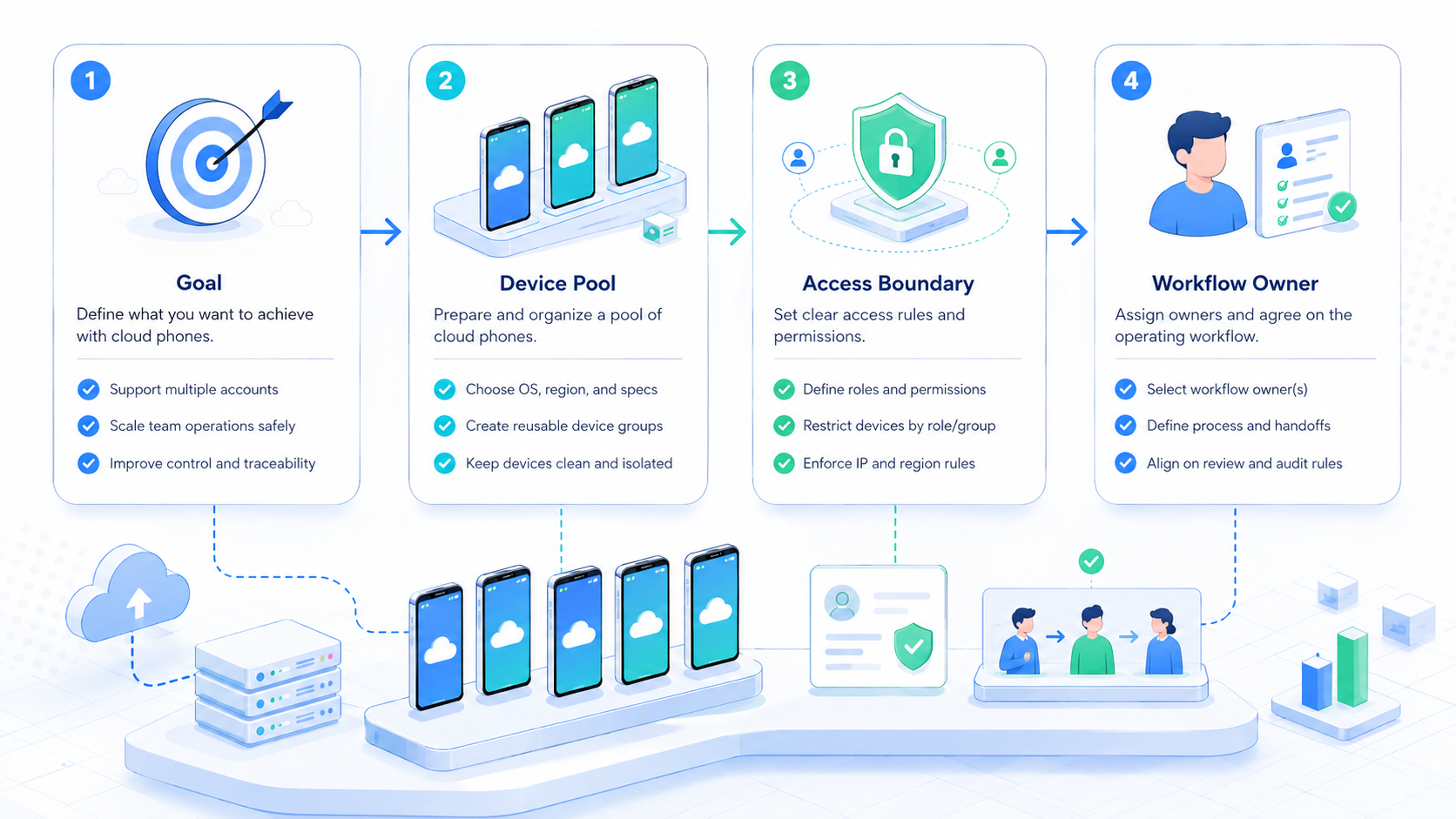
- Each account needs a named owner, Android workspace, route rule, and task scope
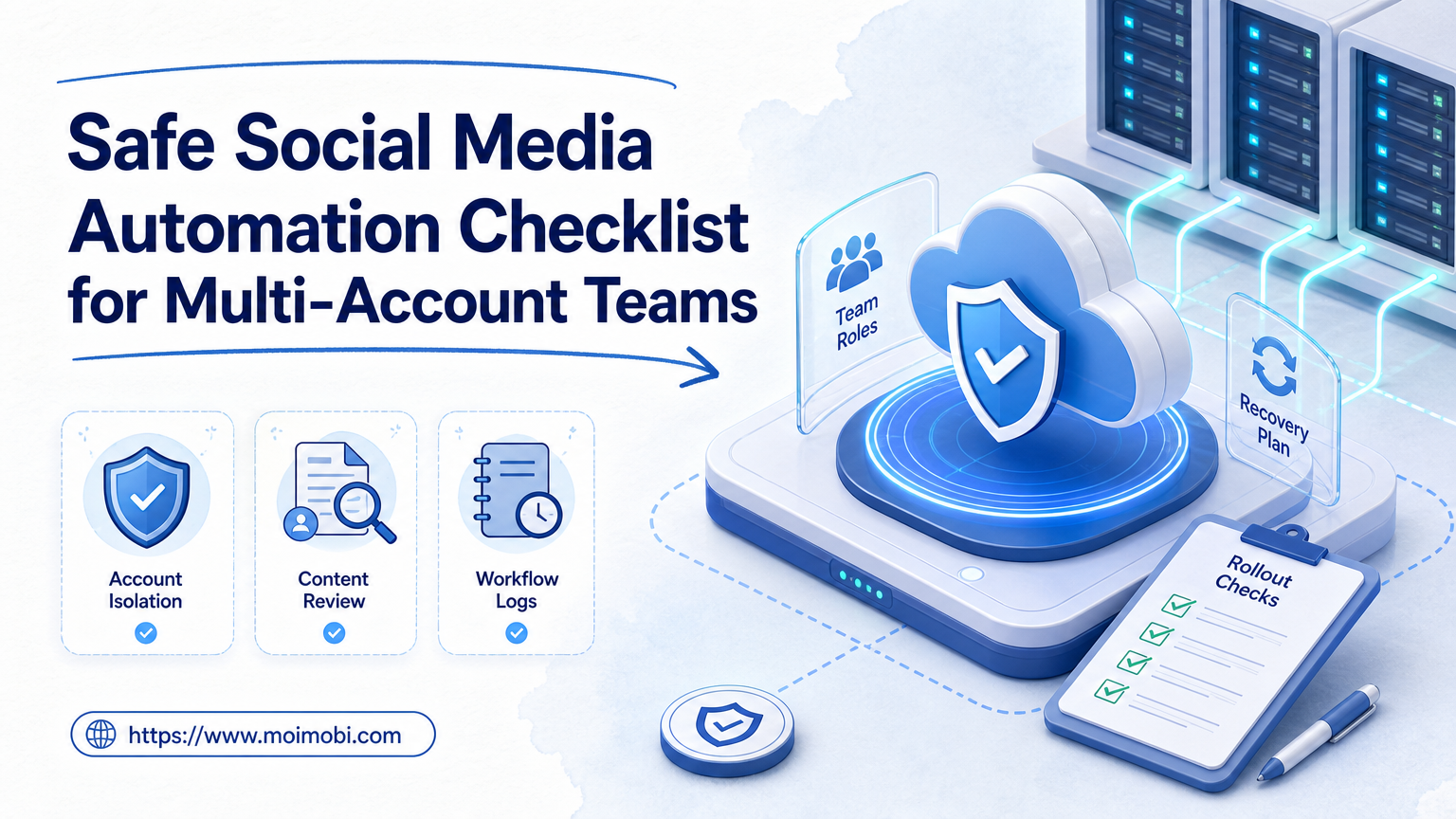
- Review gates matter more than speed during the first setup
- A small pilot should prove the workflow before the team adds more accounts
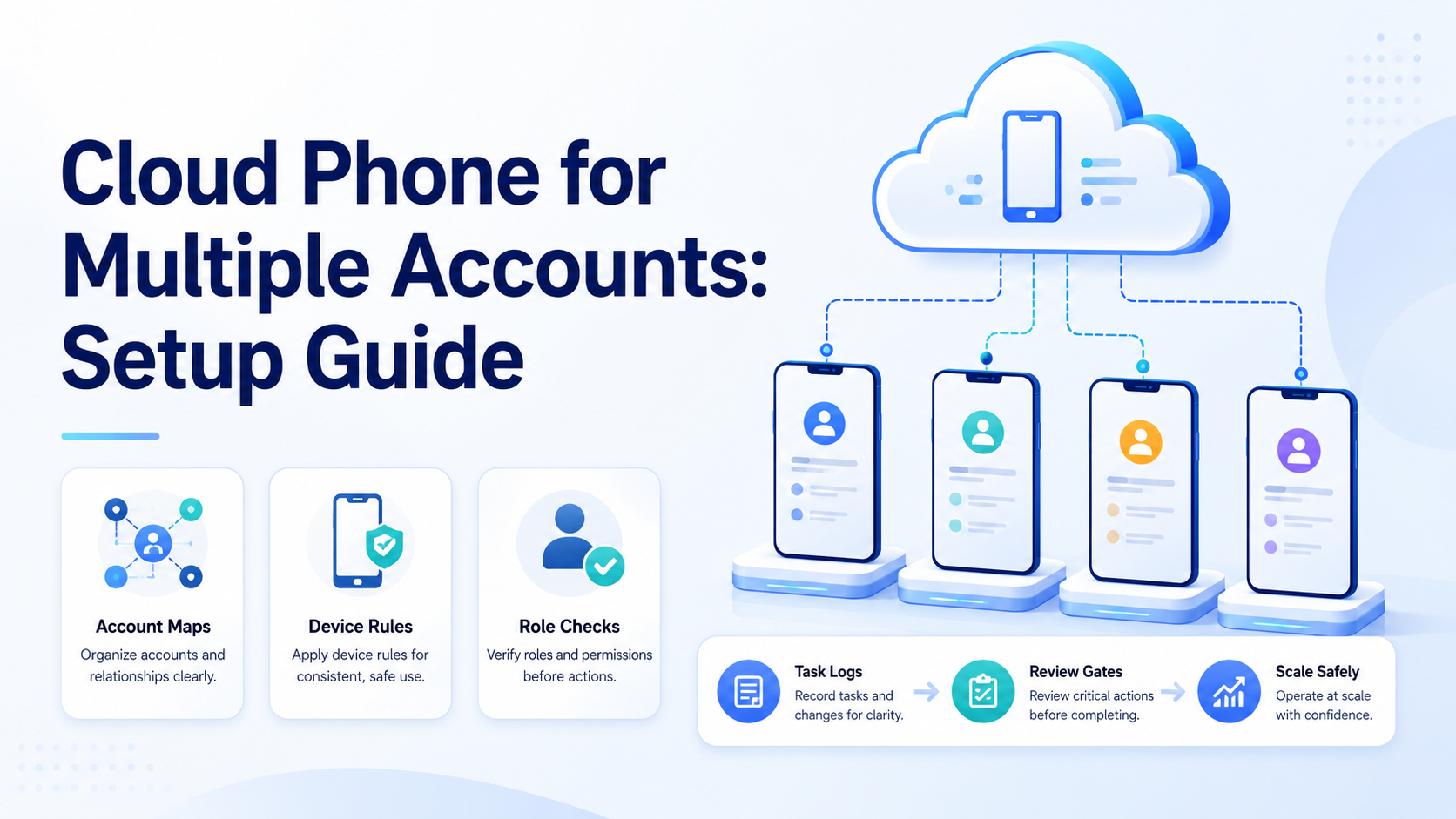
A cloud phone for multiple accounts is a remote Android workspace model where each account gets a controlled mobile environment, task scope, and review trail. It helps teams separate mobile app work instead of running every account on one shared phone.
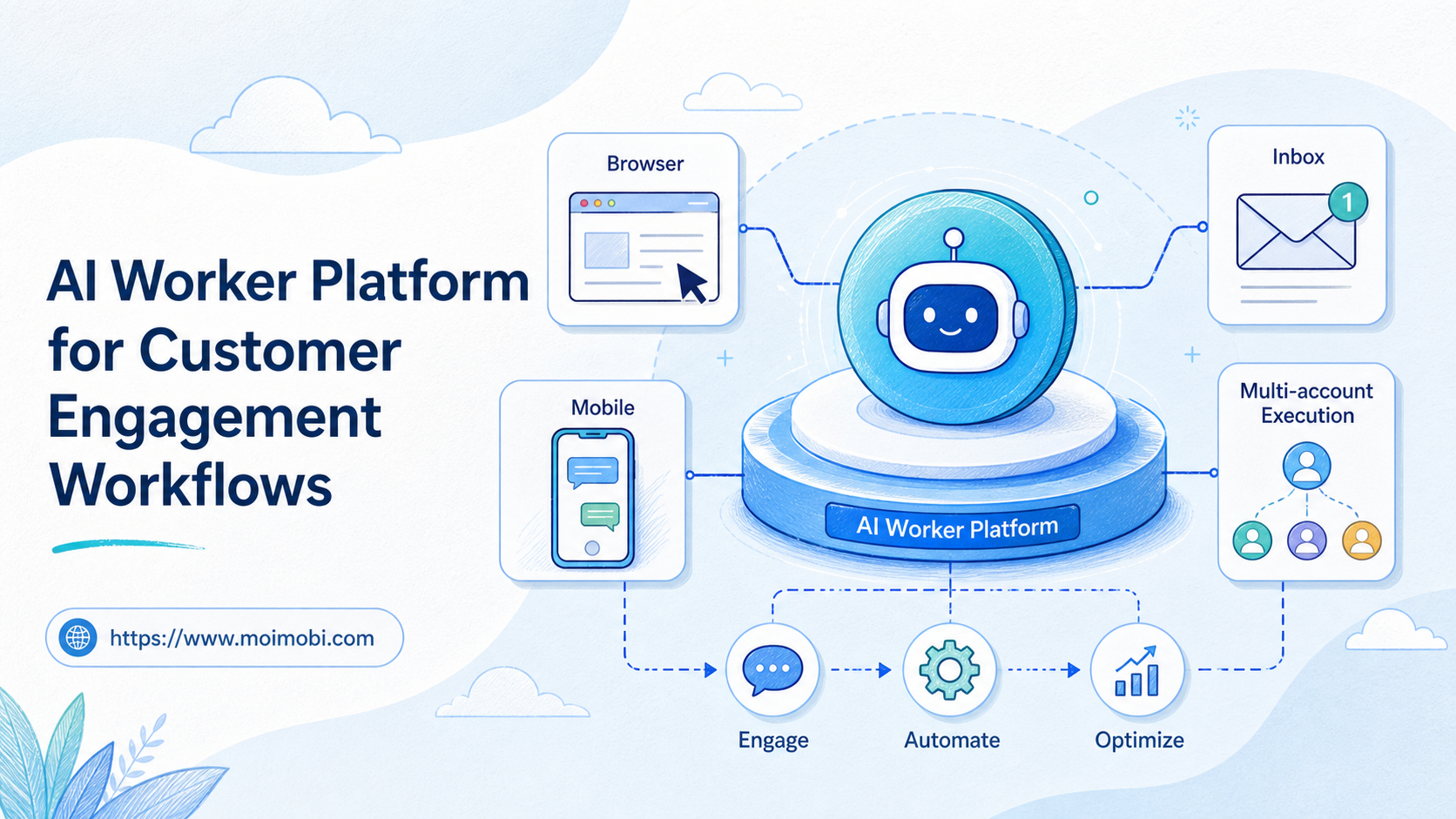
The setup is not just technical. Treat it as an operating plan. Teams need account ownership, task limits, proof capture, and a way to stop unclear work before it spreads across more devices. Moimobi provides cloud phone execution infrastructure for teams that run mobile work at account scale.
The Core Idea Behind Cloud Phone for Multiple Accounts
The basic rule is simple: one account should map to one clear workspace. That workspace may include an Android phone, route rule, operator, and task list.
Use this setup map before adding automation:
| Setup field | Example | Check |
|---|---|---|
| Account owner | Mia, support lead | A person is accountable |
| Phone ID | cp-118 | The phone is not shared casually |
| Task scope | inbox check | The action is narrow |
| Route note | US support route | The team knows the path |
| Review gate | approve before reply | Risky steps pause |
AWS Device Farm's remote access docs describe real device sessions that can be used through a browser, with screenshots, video, and logs available during the session: AWS Device Farm remote access. A multi-account team can use the same idea: every phone run needs evidence, not only a final status.
Why Teams Search for Cloud Phone for Multiple Accounts
Teams search for this topic when local phones stop matching the scale of the work. One operator may need to check many app inboxes, store alerts, or platform messages. A shared device makes that work hard to trace.
The stronger reason is control. A team can decide which accounts are active, which tasks are allowed, and which results need review. For social or commerce workflows, connect the device layer with multi-account management so account ownership stays visible.
Cloud phones should not replace official APIs or web dashboards. Use the cleanest path for the task. Use phones when the task depends on app state, mobile login, mobile alerts, or a phone-only screen.
Who Benefits Most and In What Situations
This model fits teams that manage many mobile-first accounts, customer channels, creator accounts, app inboxes, or cross-border store workflows. It also fits agencies that need to separate client work.
The model is not the first tool for a single account with no mobile task. A normal browser dashboard may be enough for that case. The setup is also a poor fit when the manual SOP is unclear.
Shopify's roles documentation explains that roles group permissions for different business areas: Shopify roles. The same logic helps mobile operations: assign each phone to a role and account owner, not just a device label.
How to Set Up Cloud Phone for Multiple Accounts
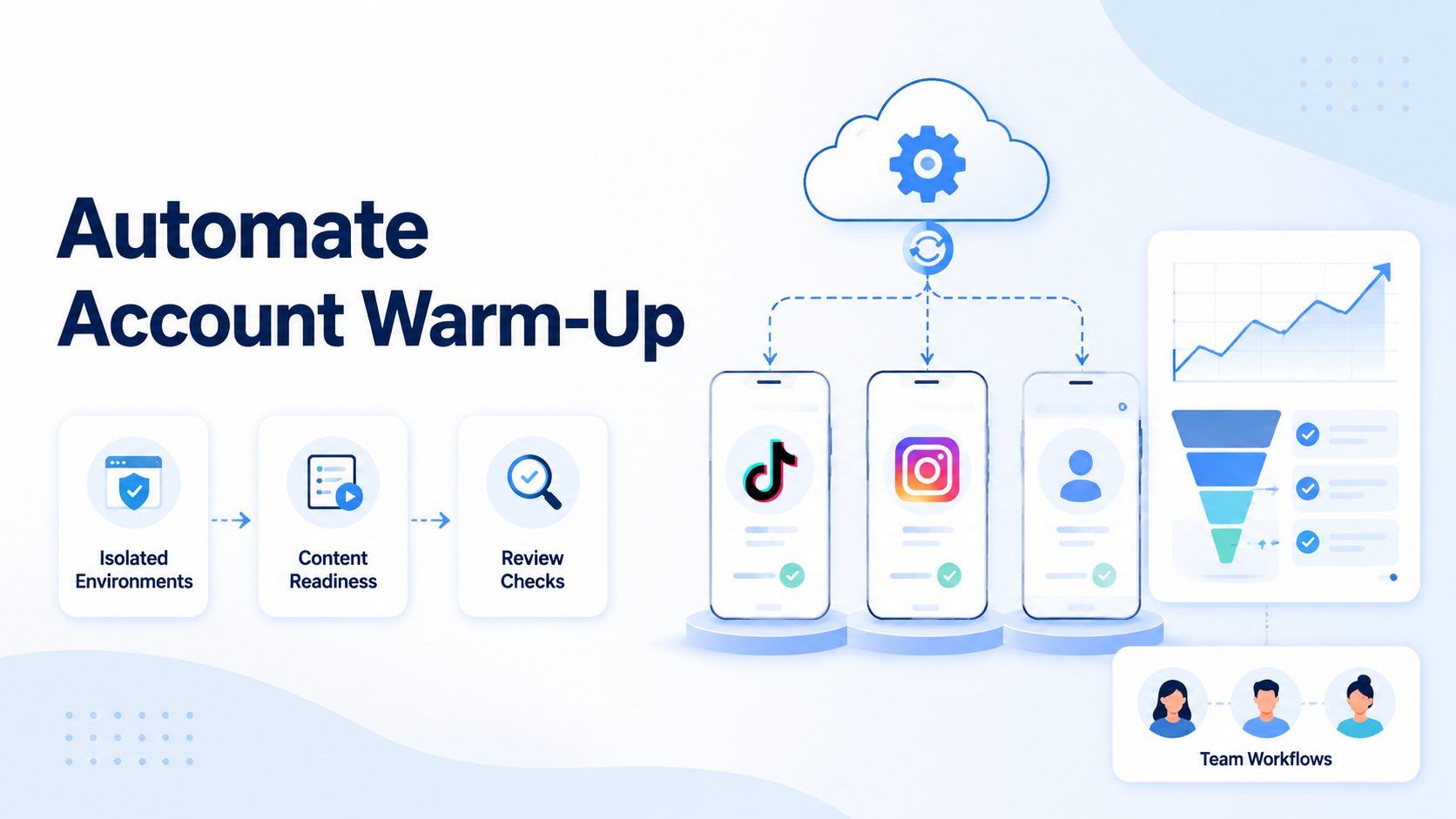
Start with a small, controlled setup; do not import every account on day one.
-
Pick one account group and one task type before setting up more phones.
-
Create a phone workspace for each account.
-
Assign an owner and backup reviewer.
-
Define allowed actions before opening the app, including what must pause for review.
-
Record proof for each completed task so another person can check the result.
-
Add mobile automation only after the manual task is stable.
BrowserStack's App Automate API docs describe device lists and sessions through API endpoints for mobile app testing: BrowserStack Appium API. Operations teams do not need to copy a testing stack, but they should copy the habit of naming sessions and checking device state.
Mistakes That Reduce Results
The common mistake is treating cloud phones as a pile of rented devices. That creates more capacity, but it does not create control.
Avoid these setup errors:
- Sharing one phone across unrelated accounts
- Running edits before read-only checks work
- Letting operators skip proof notes
- Using the same task rule for every platform
- Scaling before failures have names
For Android workspace separation, device isolation gives the team a clearer boundary. For profile-level mobile work, Android antidetect belongs inside the workflow plan, not outside it.
Pilot Rollout, Measurement, and Recovery Checks
Run the first pilot for one week. Use three to five accounts, one task type, and one review owner. Keep the work boring on purpose.
Track four signals:
| Signal | What to record |
|---|---|
| Done rate | Was the task finished correctly |
| Review load | Which steps needed approval |
| Failure reason | Login, app state, missing data, or judgment |
| Fix time | How long it took to understand the issue |
Recovery is part of the setup. If one account fails twice, pause that phone and inspect the account map, route note, app state, and task rule. Do not add more accounts until the team can explain the failure in plain words.
Frequently Asked Questions
What is a cloud phone for multiple accounts
This is a remote Android workspace setup where accounts run in separated mobile environments.
Should every account use a separate cloud phone
For account-sensitive work, one account per workspace is easier to audit. Low-risk tests may use a looser setup.
Can cloud phones replace browser dashboards
No. Use browser dashboards or official APIs when they fit the task better.
When should automation start
Start after the manual task works, has proof, and can be reviewed by another person.
What should the first task be
Pick a read-only task such as inbox checking, alert review, or status capture.
How does Moimobi fit this setup
Moimobi connects cloud phones, device isolation, task runs, and account workspaces for team execution.
What is the biggest setup risk
The biggest risk is unclear ownership. A phone without an owner is hard to audit.
Conclusion
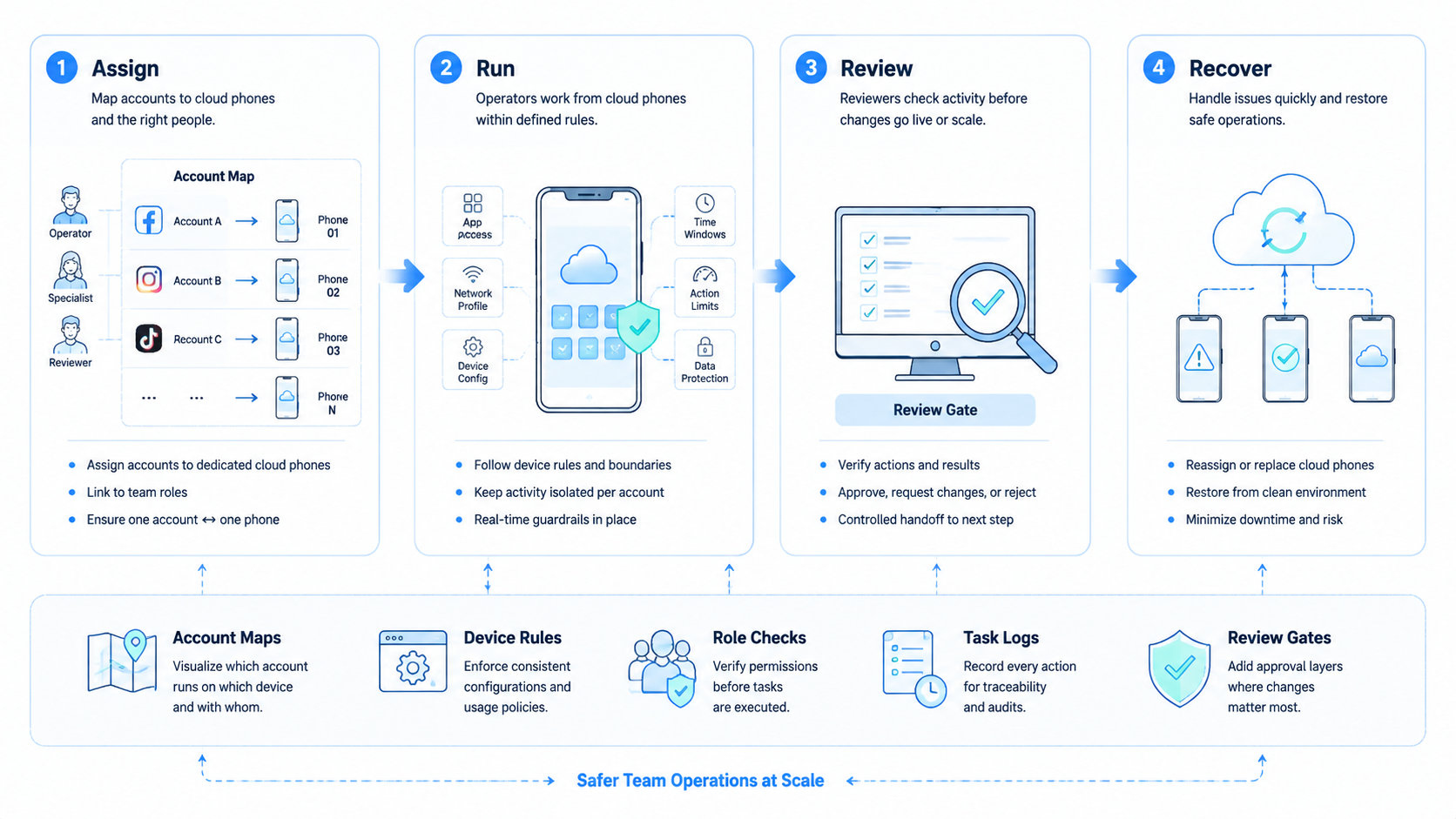
A cloud phone for multiple accounts works best when it is treated as an account workspace, not a spare device. Start with a map, bind accounts to phones, define allowed tasks, and record proof.
The next step is simple: pick one account group, one phone per account, and one read-only task. If that pilot is clean for a week, expand slowly.