Key Takeaways
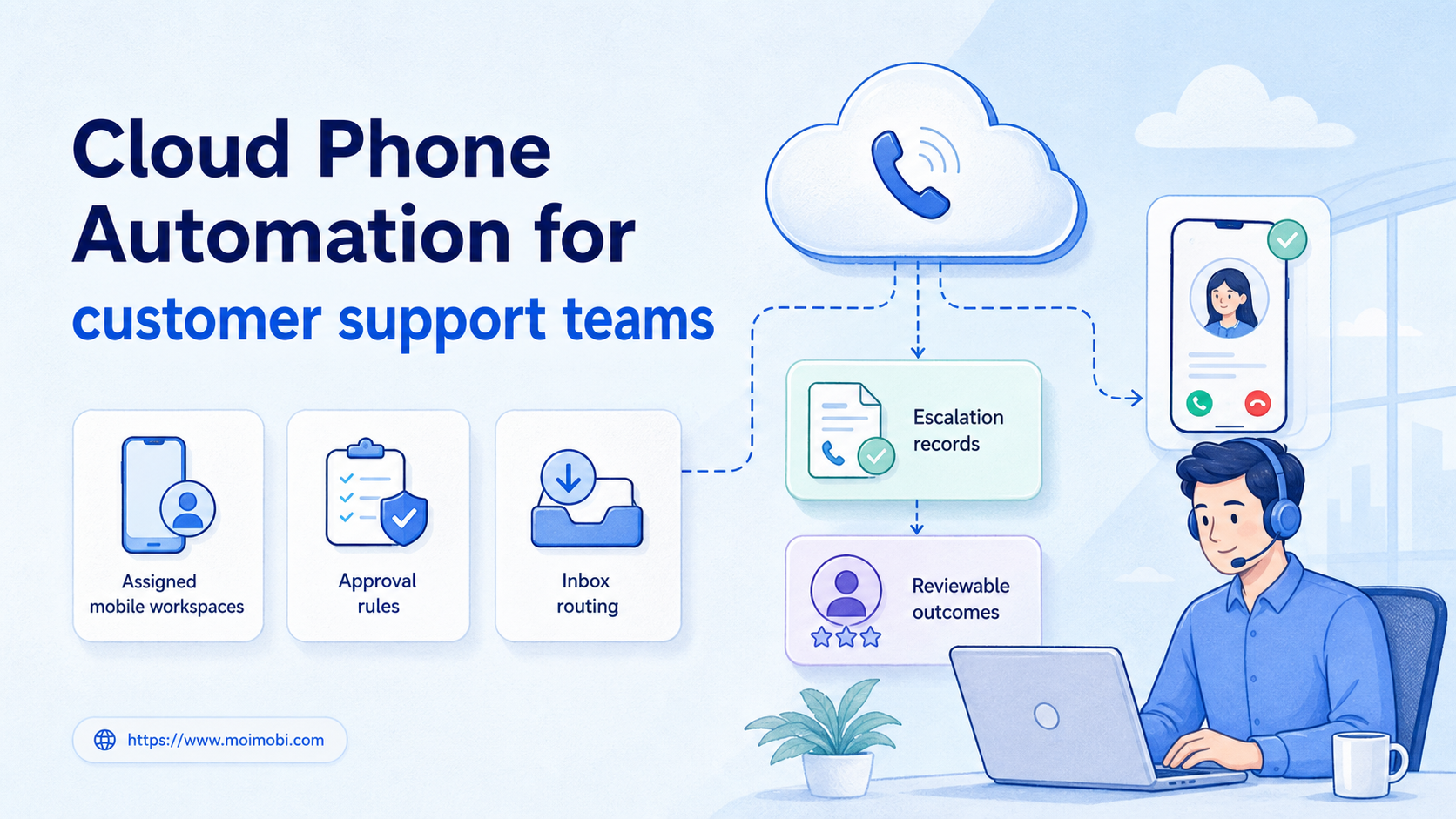
- Cloud phone automation for customer support teams assigns a controlled Android workspace to a documented support task.
- The best first use is preparation, routing, and evidence capture, while sensitive customer replies retain an explicit human decision.
- A useful implementation records the account owner, task purpose, last confirmed action, and pause reason.
Cloud phone automation for customer support teams is a way to run approved mobile-app support steps in assigned cloud Android environments. It helps when a customer channel or support application is mobile-first and a team needs a repeatable task record. It does not mean that every customer conversation should be answered automatically.
The operational benefit is a clean handoff. A support lead can assign one task to one approved mobile environment, an operator can review the required context, and the team can record what happened. That is more useful than a shared device with unclear ownership.
Start with the platform's supported integration when it exists. For example, Meta documents business messaging capabilities and permissions separately from general product access. Meta for Developers is the right starting point for any supported Meta messaging workflow. A cloud phone should only cover a valid app-based step that the team has approved.
What Cloud Phone Automation for Customer Support Teams Can Handle
Good early tasks are operational rather than persuasive. The environment can open a designated inbox for review, surface a ticket with required account context, collect a status for a support report, attach a pre-approved resource, or prepare a handoff to a specialist. These actions reduce repetitive switching without deciding a sensitive answer on the team's behalf.
Keep the customer-facing action separate. A refund decision, a complaint response, a pricing exception, or a security question needs a named owner. Automation can categorize the task and present approved information, but a person should decide when the message has material customer impact.
| Support task | Useful mobile automation | Required control |
|---|---|---|
| Inbox triage | Open the assigned thread and collect context | Named owner and no automatic send |
| Status follow-up | Check an authorized app status and prepare a note | Source link and capture time |
| Resource sharing | Prepare an approved help link or template | Human review before customer delivery |
| Escalation | Route a tagged issue to the correct queue | Reason, priority, and next owner |
The rule is simple: automate the repeatable preparation around a support interaction before automating the interaction itself.
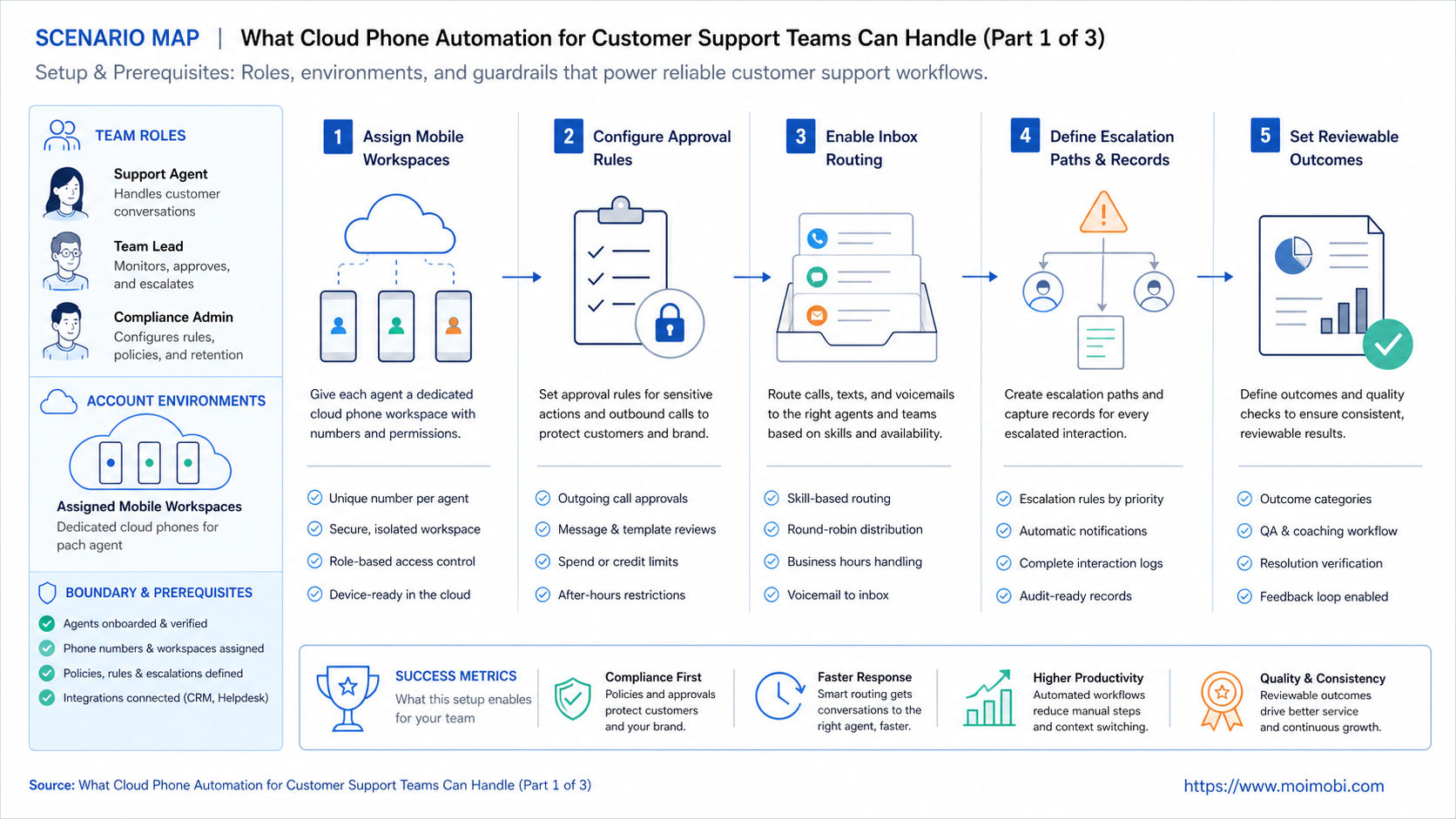
Assign a Mobile Workspace to Each Support Task
Treat the cloud phone as an assigned workspace, not a shared device pool. The task record should state the target channel, account owner, operator, purpose, permitted action, and stop condition. When the task ends, the result should identify the last confirmed business action.
This approach is particularly helpful when a team manages several client or brand accounts. A support operator does not need every account on one device. They need access to the workspace assigned to the active task. Device isolation gives the operating model a clear boundary, while the support process decides who may enter that boundary.
Avoid putting credentials, personal data, or unstructured customer histories into an AI prompt. The model can receive a narrow task summary and approved knowledge references. The actual account session remains in the controlled environment, and the full customer context stays available only to authorized staff.
Customer Support Scenario: Shift Handoff in a Mobile-First Inbox
Consider a support team that receives product questions through a mobile-first messaging application. The day team has already reviewed a conversation, requested a screenshot from the customer, and tagged the issue for a product specialist. Before the evening shift begins, the new operator needs to know which account is involved, what the customer has already received, and whether a reply is waiting for approval.
Without a task record, the incoming operator may open the wrong account, repeat a question, or assume that a draft reply was sent. A cloud phone workflow gives the handoff a defined shape. The ticket creates an assigned mobile workspace, the account owner is visible, the last confirmed action is recorded, and the operator sees a short summary with links to approved knowledge.
The operator can then perform a narrow task: open the assigned thread, confirm whether the requested information arrived, and route the item to the correct queue. If a customer reply needs a judgment call, the task pauses for a human reviewer. If the outcome is clear and policy permits it, the operator records the status and closes the handoff.
This scenario is not about sending more messages. It is about preventing repeated work and ambiguous ownership. The same pattern applies to marketplace support, app-store reviews, or community moderation when the team has an authorized account and a written support policy.
Roles, Knowledge, and Escalation Boundaries
Mobile support work becomes easier to manage when each role has a limited responsibility. The support lead maintains the playbook and decides which task types can use automation. The account owner confirms that the workspace belongs to the correct brand or client. The operator handles the assigned step. A specialist or manager decides sensitive outcomes such as refunds, account recovery, legal concerns, or product exceptions.
Do not make the mobile workspace the source of truth for policy. Keep response rules, product guidance, and escalation criteria in an approved knowledge base. The task can link to the relevant material, but it should not ask an AI system to invent a policy from old chat history.
Escalation rules should be observable. A task may be escalated because the customer reports a payment issue, a security concern, repeated failed troubleshooting, a threat of harm, or a claim that requires specialist review. The exact categories vary by business. What matters is that the operator can select a reason and the next owner can see it without reopening the entire conversation.
For teams handling several owned channels, mobile automation can organize the execution side of these handoffs. The support workflow still determines the permitted action, the owner, and the review point.
Build a Support Task Template That Prevents Rework
A short template creates consistency across shifts. It should include the fields that operators repeatedly need and omit fields that do not affect the next action. Begin with customer or ticket reference, account workspace, issue category, last confirmed action, current evidence, required next step, owner, and due time.
Add an approval field only when there is a meaningful decision to approve. A generic “approved” label creates confusion in support work. Instead, name the decision: response wording approved, refund decision approved, policy exception approved, or specialist review complete. That makes the audit trail useful during a later complaint or quality review.
The template should also include a stop reason. Typical stop reasons are missing customer evidence, account ownership unclear, response requires a specialist, platform state uncertain, or customer request outside policy. Operators should be able to pause work without feeling pressured to produce a guess.
Use a separate field for closure evidence. “Resolved” may mean the customer received the answer, the app status changed, the issue was escalated, or the customer did not respond. Record the actual outcome, along with the time and owner. This helps managers distinguish a healthy queue from one that only looks complete.
Success Metrics for Mobile Support Workflows
The first success metric is not message volume. Measure whether the team can complete assigned tasks with less context switching and clearer recovery. Useful metrics include average time from assignment to reviewed result, the percentage of tasks with a named owner, the number of handoffs that need extra clarification, and the share of closed tasks with evidence.
Look at quality signals too. Sample a small group of completed tasks each week. Check whether the account was correct, whether the operator followed the escalation rule, and whether the closing note explains the business outcome. If the team keeps finding incomplete records, fix the template or training before increasing automation.
The best measure of a cloud phone workflow is operational clarity. A new operator should be able to tell what happened, what is allowed next, and who owns the decision. If they cannot, the workflow has not yet reduced risk or rework.
Decision Matrix for Support Escalations
Use a small decision matrix to keep operators from improvising. The categories below are examples for an internal support SOP. Each business should adapt the categories to its own policy and legal requirements.
| Observed condition | Operator action | Required evidence | Next owner |
|---|---|---|---|
| Customer asks for a documented feature explanation | Prepare the approved help resource | Ticket reference and knowledge-base version | Support operator |
| Customer reports an account-access problem | Pause the thread and verify identity workflow | Issue category and approved verification state | Account specialist |
| Customer requests a refund or exception | Do not promise an outcome; route for review | Order or case reference and policy clause | Billing or support lead |
| Application status is unclear | Capture the visible state and stop retrying | Timestamp, workspace, and last confirmed action | Technical support owner |
This matrix gives the automation a concrete stop rule. It can prepare the right evidence and route the item, but the final decision remains with the role that owns the policy.
Cloud Phone Automation for Customer Support Teams: Setup Checklist
- Choose one channel. Start with a mobile-first support application that the team already uses with clear permissions.
- Define the task boundary. Specify which actions are allowed, which require review, and when the task must stop.
- Assign ownership. Name the account owner, support operator, escalation owner, and reviewer for customer-facing messages.
- Prepare approved resources. Link the current help articles, response templates, and escalation rules rather than relying on memory.
- Record evidence. Save the ticket reference, last confirmed action, result, and pause reason.
- Review exceptions weekly. Use failed or paused tasks to improve the workflow, not to add wider permissions.
For mobile work that is tied to a specific account, use cloud phone as the first natural platform anchor and keep product-level evaluation links for a specific cloud phone platform discussion. That distinction helps the team separate a broad execution environment from a buying decision.
Fit Boundaries and Common Mistakes
This workflow fits support teams that have repeatable app steps, multiple controlled accounts, and a need to hand work between shifts or specialists. It is especially useful when the team loses time switching between devices or cannot see who last handled an app-based request.
It is not a fit for unsolicited outreach, bulk replies, unapproved account access, or attempts to bypass platform controls. It is also not a replacement for a customer-support policy. The policy defines what the team may say and do; the mobile workspace helps the team perform approved steps consistently.
Common mistakes include assigning several unrelated accounts to one vague queue, treating “opened” as “resolved,” and retrying an uncertain customer-facing action without checking the actual result. A clear pause state is better than a confident but unverified reply.
Pilot Metrics and Recovery Checks
Run a small pilot with one app, one task type, and a limited number of authorized operators. Measure time from assignment to reviewed result, the number of escalations, repeated context collection, paused tasks, and confirmed resolutions. These figures show whether the workspace is reducing support friction.
When a task fails, check the account assignment, ticket reference, last confirmed action, and app status before retrying. Do not repeat a reply or transaction just because a session disconnected. A recovery decision belongs to the support owner, not to a background process.
Use the pilot review to tighten the task templates. If operators keep asking for the same missing detail, add it to intake. If a category produces sensitive replies, move it back to manual review. This is how mobile automation becomes a durable support workflow.
Frequently Asked Questions
Can cloud phone automation answer customer messages automatically?
It can prepare context and approved material, but customer-facing messages should retain the review level required by the team's policy and platform rules.
Why use separate mobile workspaces?
They make the account, operator, and task connection easier to inspect. That improves handoff and avoids accidental context mixing.
What is the safest first support task?
Choose a low-impact task such as status collection, ticket preparation, or routing to a specialist. Expand only after the team can review outcomes clearly.
Does the cloud phone replace an official integration?
No. Use an official integration when it supports the authorized action. A cloud phone is an execution environment for valid app-based steps.
What should be recorded after a task?
Record the account workspace, task owner, last confirmed business action, result, and any reason the task paused.
How often should the workflow be reviewed?
Review exceptions weekly during the pilot. After the workflow stabilizes, use the same review whenever policy, app behavior, or account ownership changes.
When should a task be stopped?
Stop when the account is unclear, the request needs a human decision, a permission is missing, or the prior action has an uncertain result.
Conclusion
Cloud phone automation for customer support teams works when it gives approved mobile tasks a clear environment, owner, and result record. Start with preparation and handoff work, preserve human judgment for sensitive replies, and use pauses as evidence that the process needs improvement.