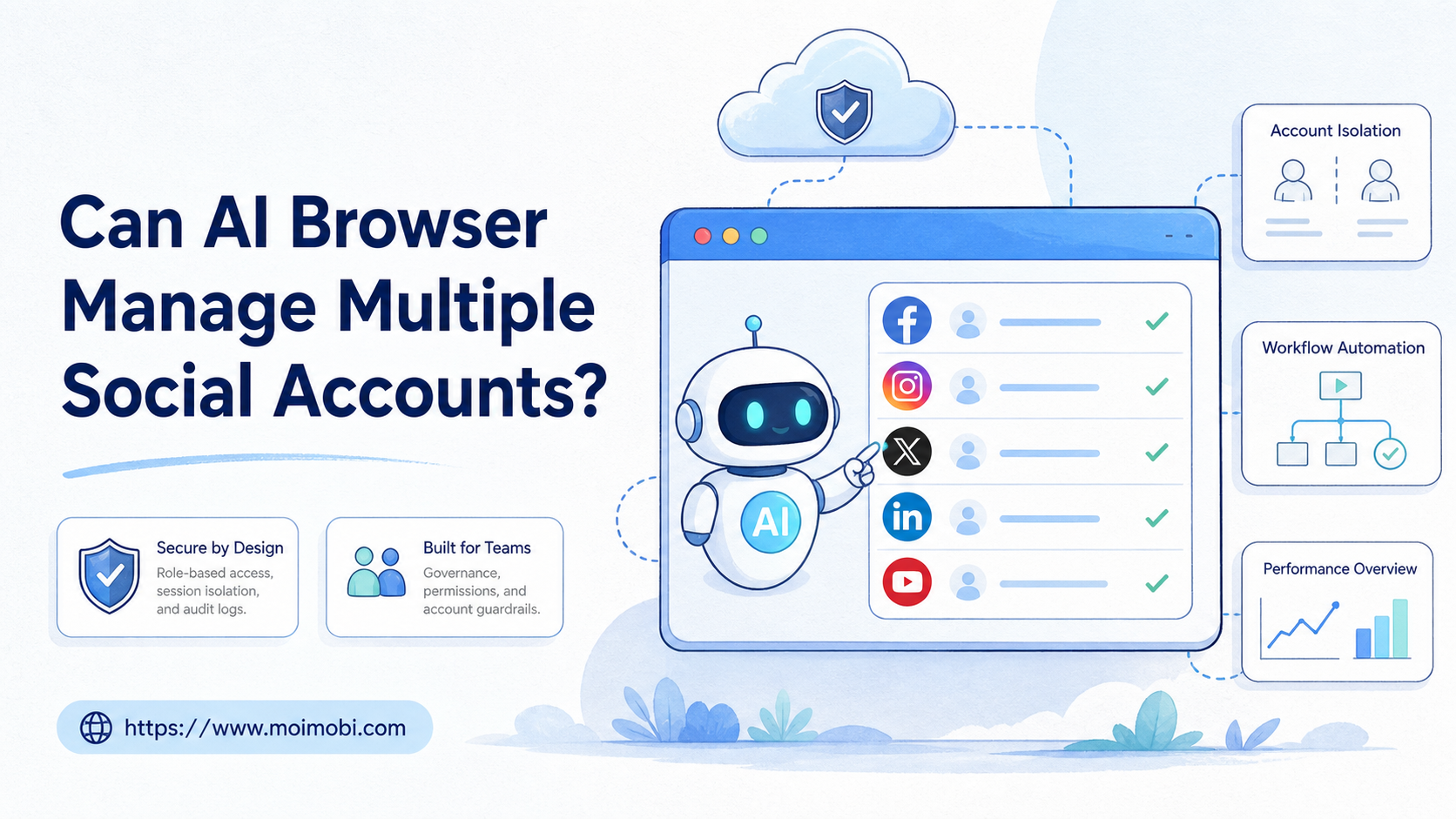
Can AI browser manage multiple social accounts means asking whether an AI-controlled browser can operate account work across separate social profiles, sessions, and task queues. The short answer is yes for many workflows, but only when each account has a controlled environment, clear permissions, and review rules.
Teams should not treat an AI browser as a magic operator that can freely click through every account. It is better understood as an execution layer. It can help research, prepare drafts, monitor dashboards, organize replies, and run repeatable browser tasks when the team defines boundaries first.
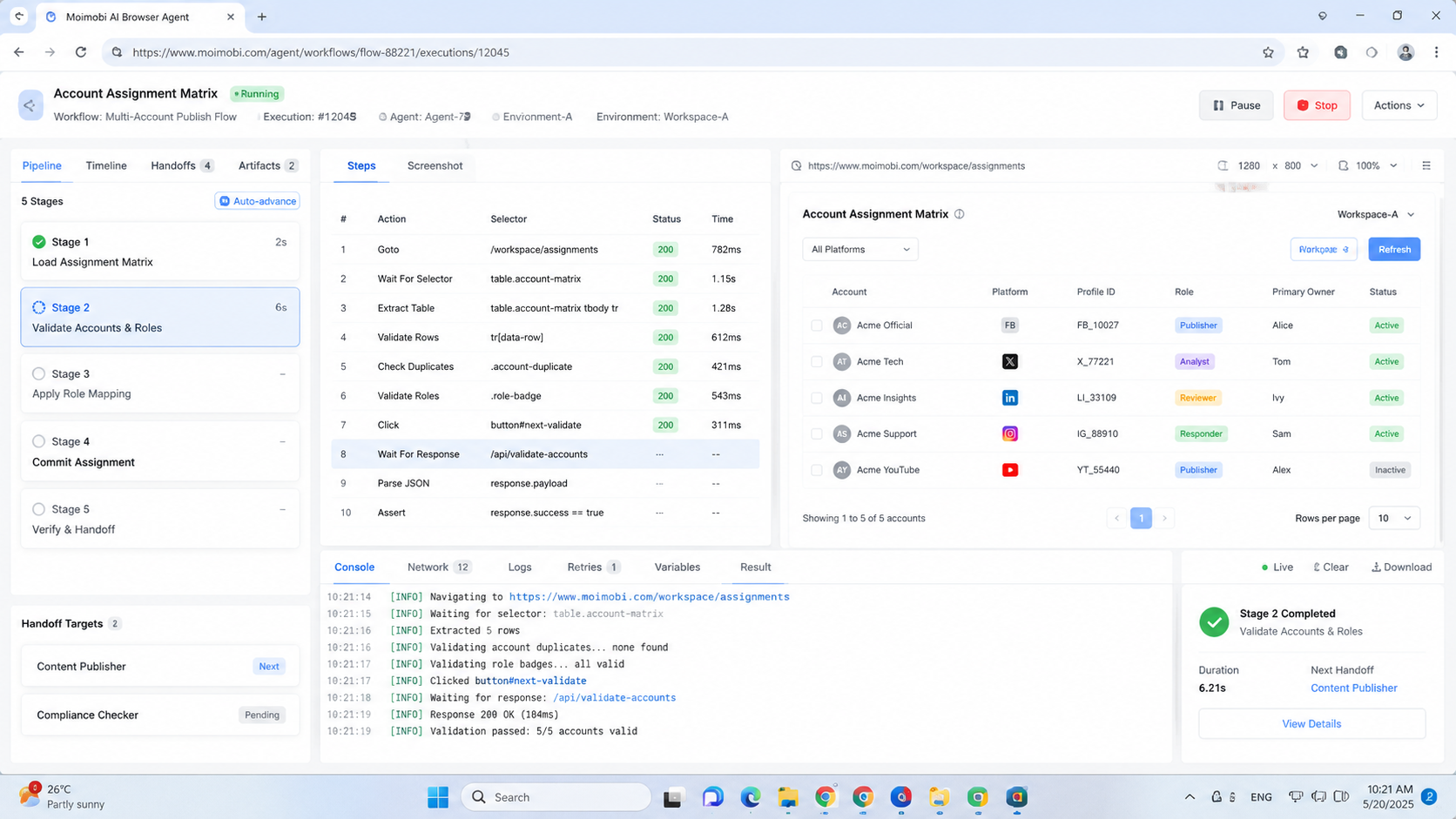
MoiMobi is built around this execution view. It connects an AI browser with browser profiles, cloud phones, proxy routing, and account workspaces. That matters because social account work is not only about browser control. It is about keeping account context, team ownership, and task outcomes visible.
Key Takeaways
- An AI browser can manage multiple social accounts only when account environments are separated.
- Browser profiles fit web dashboards; cloud phones fit mobile-first app workflows.
- Teams need approval rules for public replies, outreach, account settings, and client-sensitive actions.
- A good workflow records account, environment, task status, failure reason, and next owner.
- Start with monitoring or draft preparation before allowing higher-impact execution.
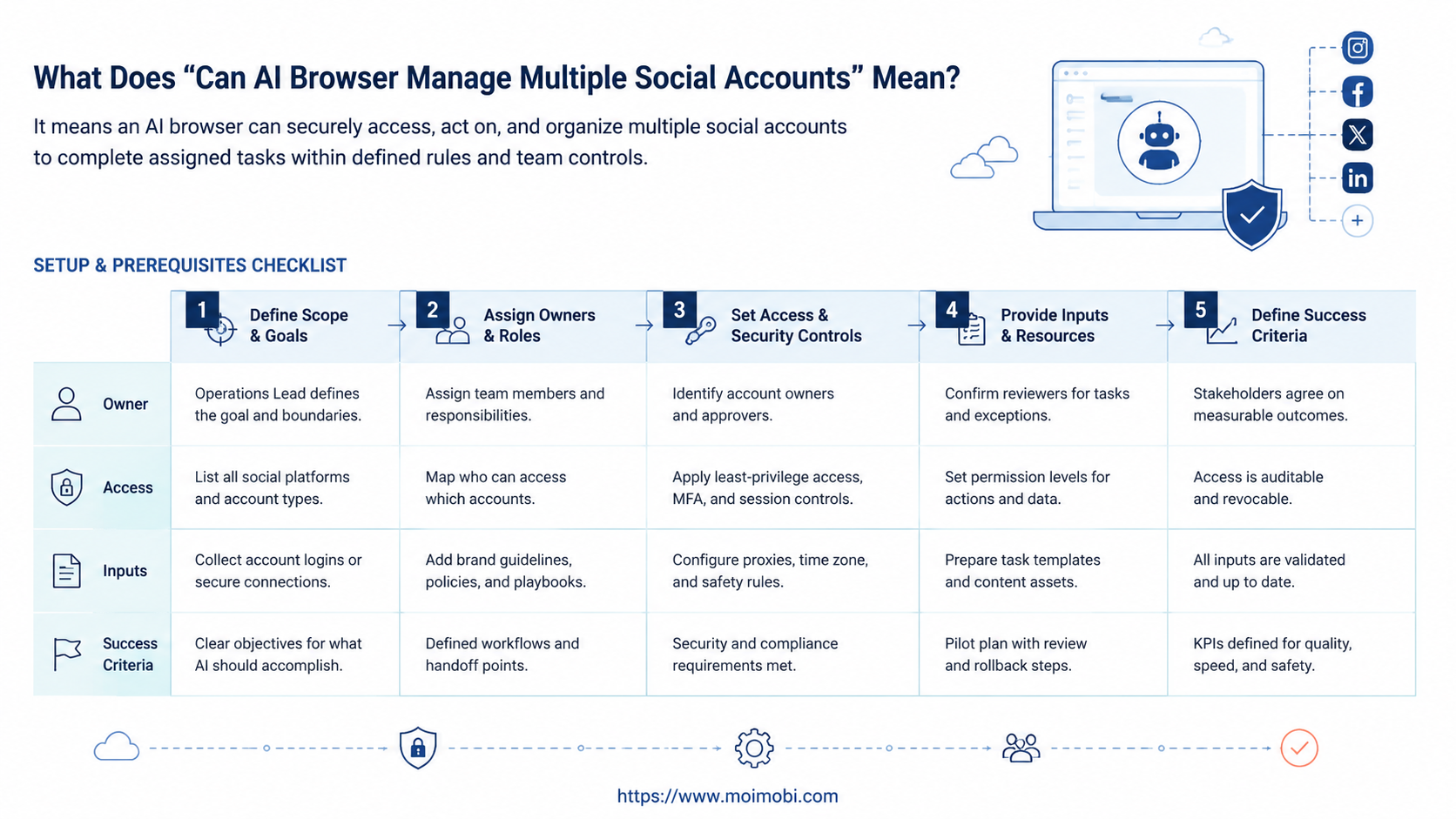
What Does Can AI Browser Manage Multiple Social Accounts Mean?
The common misunderstanding is that an AI browser is simply a bot inside Chrome. That framing misses the operational problem. Teams do not only need clicks. They need account work to happen in the right environment, with the right account, under the right review rules.
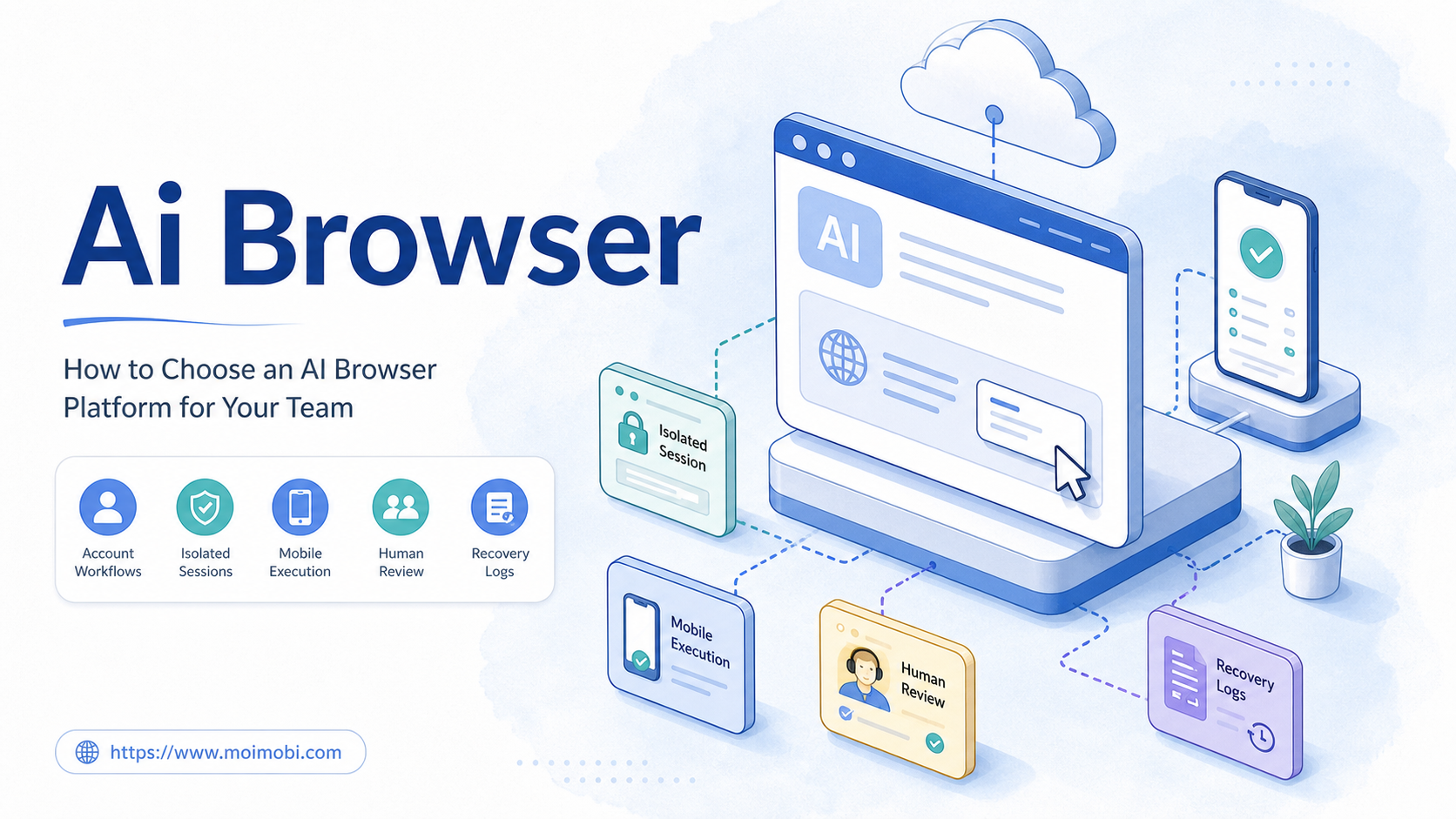
In practice, an AI browser is a browser execution environment that an AI agent can use to observe web pages, follow instructions, fill forms, navigate dashboards, and complete browser-based steps. Technical standards help explain the model. The W3C WebDriver specification describes automation through browser sessions and commands. Playwright documents browser contexts as isolated environments with separate state.
Those ideas matter for social accounts. A single browser context may not be enough when each account needs its own cookies, local storage, login history, route, and role. A team managing ten brand accounts needs ten clear workspaces, not one shared session.
The practical answer is therefore conditional. Yes, an AI browser can manage multiple social accounts for tasks such as monitoring, dashboard checks, content status review, draft preparation, and structured replies. It should not handle sensitive public actions without review. It also should not mix unrelated accounts inside the same browser profile.
| Workflow type | AI browser fit | Required control |
|---|---|---|
| Dashboard monitoring | Strong | Account profile and task log |
| Content status checks | Strong | Clear success criteria |
| Draft preparation | Strong | Human approval before posting |
| Comment or DM reply | Conditional | Review gate and stop rules |
| Account settings | High caution | Admin approval and audit trail |
| Mobile-only app work | Limited | Cloud phone or Android environment |
This is why account isolation is central. The browser must know which account it is operating, which profile it is using, and what task it is allowed to complete.
Why Can AI Browser Manage Multiple Social Accounts Matters
The question matters because social account work is becoming more operational. Teams no longer manage only one brand account from one laptop. Agencies, e-commerce sellers, creators, and support teams often handle many accounts across several platforms.
Manual switching creates mistakes. A person may open the wrong profile, reply from the wrong client account, or forget which inbox was checked. AI can reduce repeated work, but it can also multiply errors if the execution environment is unclear.
Browser automation works best when context is explicit. Chrome DevTools Protocol and WebDriver both assume a controlled browser session. Playwright's context model shows the same principle in developer tooling: separate work benefits from separate state. Social teams can apply this concept without becoming engineers.
A real example makes the point. A team wants to monitor comments across six client accounts. The safer first workflow is not auto-replying to every comment. It is opening each account workspace, checking comment queues, classifying items, drafting suggested replies, and sending anything sensitive to review. The AI browser does the repetitive browser work. The team keeps judgment where it matters.
Platform rules also matter. Meta's terms and TikTok's community guidelines discuss platform misuse, spam, automated behavior, and inauthentic activity. A browser-based workflow should be designed around compliant operations, not around volume alone.
Key Benefits and Use Cases
The first benefit is repeatability. A task that happens every day can be turned into a checklist. The AI browser can run the same sequence inside the assigned account workspace and return a clear result.
The second benefit is cleaner handoff. A strategist may define the task, an operator may supervise execution, and a reviewer may approve the final action. Without a shared task record, each handoff becomes a message thread.
The third benefit is better recovery. When a workflow fails, the team can inspect the account, environment, step, and failure reason. This is more useful than a vague note that says the automation did not work.
Common use cases include:
- Checking content publishing status across brand accounts.
- Collecting comment or mention queues for review.
- Preparing reply drafts for support teams.
- Monitoring competitor pages or public updates.
- Updating web dashboards with account-specific data.
- Opening client approval tasks for posts or messages.
- Recording failed login, missing element, or changed page states.
For browser-first workflows, multi-account management is the core layer. For app-first workflows, cloud phones add mobile execution capacity. Most serious social operations eventually need both surfaces because social platforms do not expose every task through a clean web dashboard.
How Can AI Browser Manage Multiple Social Accounts in Practice?
Start with account inventory. List the accounts, platforms, account owners, current login method, task types, and risk level. Do not start by asking the AI to “manage everything.”
Use this preflight checklist:
- Account owner: Who is responsible for each account?
- Environment: Which browser profile, cloud phone, or device belongs to the account?
- Route: Which proxy or network path should the account use?
- Task type: Is the task monitoring, drafting, publishing, replying, or reporting?
- Permission: Which actions can run, pause, or require approval?
- Evidence: What result must be saved after the task?
- Recovery: Who handles login prompts, failed steps, or unexpected screens?
Then run a narrow workflow:
- Choose one platform and two or three accounts.
- Assign one browser profile to each account.
- Define one repeatable task, such as comment review.
- Let the AI browser observe and collect items first.
- Add draft generation only after collection works.
- Add human review before any public reply.
- Record outcome, reviewer, failure reason, and next step.
The workflow should prove control before speed. If the team cannot explain what the AI browser did, which account it used, and why it stopped, the setup is not ready for broader execution.
MoiMobi supports this model by combining browser workspaces with device isolation, proxy assignment, and task records. The result is not a free-running bot. It is a controlled account workflow.
Fit Boundaries: Where an AI Browser Works and Where It Does Not
Browser-based account work is the strongest fit. It can cover dashboards, browser inboxes, admin tools, content libraries, analytics pages, and review queues. These tasks benefit from persistent sessions and repeatable page sequences.
It is a weaker fit for mobile-only actions. Some social workflows depend on app screens, push notifications, Android permissions, or mobile drafts. A browser cannot fully replace a phone when the platform experience is app-first. In those cases, mobile automation or cloud phones should carry the mobile part of the workflow.
The fit also depends on action sensitivity. Monitoring, classification, draft preparation, and reporting are lower-risk starting points. Public replies, outreach messages, account settings, payment actions, and client commitments require tighter review.
Use a simple decision rule:
- Use AI browser first when the task is browser-based, repeatable, and easy to verify.
- Use cloud phones when the task depends on mobile app state.
- Use human approval when the task affects public communication or account settings.
- Do not automate yet when the team cannot define ownership, stop rules, or recovery paths.
This boundary keeps the system useful. It also prevents teams from mistaking access for readiness. Just because an AI browser can open an account does not mean it should execute every action inside that account.
Common Mistakes to Avoid
The first mistake is using one shared browser profile for many accounts. Shared profiles mix cookies, local state, and account context. That makes errors harder to diagnose. A separate profile per account is easier to review.
The second mistake is letting the AI choose accounts at runtime. Account assignment should be explicit. A task should know which account, profile, route, and approval rule it belongs to before it starts.
The third mistake is over-automating replies. Social replies carry tone, customer context, and platform policy risk. A better first step is draft generation with review. The AI browser can gather context and prepare suggestions, while humans approve what goes public.
The fourth mistake is ignoring failure records. A failed task should not disappear into a retry loop. It should create a clear status: login needed, page changed, approval missing, environment unavailable, or manual review required.
The fifth mistake is evaluating only speed. Teams should also measure quality, recovery time, review load, and account clarity. A fast workflow that creates confusion is not a good system.
Pilot Rollout and Verification Checklist
A pilot should answer one operational question: can the team trust the workflow record? The goal is not to run every account on day one.
Run the pilot in three phases:
- Observe: Let the AI browser open accounts and collect status without taking public actions.
- Prepare: Allow draft replies, task summaries, or report notes.
- Execute with review: Permit approved actions only after reviewers understand the record.
Track these signals:
- Task completion rate.
- Number of review edits.
- Failed login or changed-page events.
- Time to recover after failure.
- Accounts with unclear ownership.
- Tasks that required mobile execution instead of browser execution.
The pilot passes only when the team can explain each result. A manager should be able to ask, “Which account ran this, where did it run, what did it do, and who reviewed it?” If the answer requires searching chat history, the workflow needs better logging.
For teams that need routing consistency, proxy network should be part of the account plan. Routing is not the whole system, but it is one field in the account environment.
Add one review meeting after the first pilot week. Bring the operator, reviewer, and account owner into the same discussion. Compare completed tasks with failed tasks, then decide whether the next change should be a better prompt, a clearer approval rule, a separate account profile, or a mobile execution lane. This keeps the pilot focused on workflow quality instead of raw task volume.
Frequently Asked Questions
Can AI browser manage multiple social accounts without human review?
It can run some low-risk tasks without review, such as monitoring or status checks. Public replies, outreach, settings, and customer issues should keep human approval.
Is an AI browser the same as a social media scheduler?
No. A scheduler focuses on planned posts. An AI browser works inside logged-in browser sessions and can support broader account workflows.
Do I need one browser profile per account?
For serious multi-account work, yes. Separate profiles keep session state, cookies, and account history easier to manage.
Can an AI browser replace cloud phones?
No. A browser is useful for web tasks. Cloud phones are better for app-first workflows, mobile screens, and Android account environments.
What should teams automate first?
Start with monitoring, content status checks, reporting, and draft preparation. Add execution only after approvals and logs are clear.
What external rules should teams consider?
Teams should review platform terms and community guidelines. Meta and TikTok both publish rules that affect automation, spam, and account behavior.
How do I know the setup is working?
Check whether each task has an account, environment, owner, status, and failure reason. If those fields are missing, the setup is not mature.
How does MoiMobi help with this workflow?
MoiMobi connects AI browser sessions, cloud phones, proxy routing, account isolation, and task workflows so teams can run controlled multi-account operations.
Conclusion
An AI browser can manage multiple social accounts when the work is structured. It needs account-specific browser profiles, clear permissions, review gates, and recovery logs. It also needs a realistic boundary between browser tasks and mobile app tasks.
Before expanding, run one small pilot. Pick a few accounts, assign environments, choose one repeatable task, and verify the record after each run. If the team can explain every action and failure clearly, the AI browser is ready to support more social account workflows.
References