Content Type: comparison
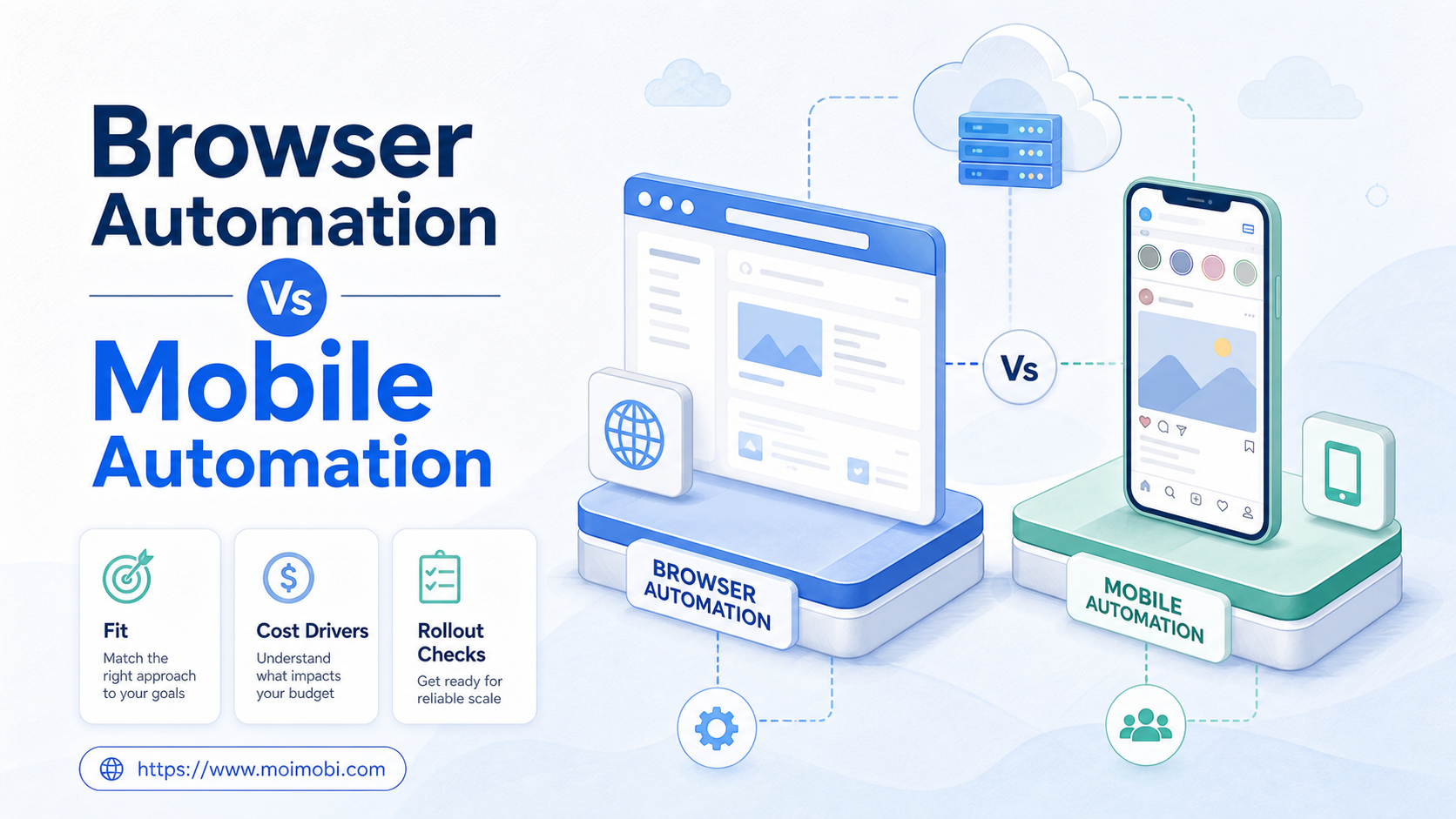
Browser automation vs mobile automation is the choice between web-session control and mobile-app execution. For social media accounts, choose browser automation for web-native admin work, choose mobile automation for app-native actions, and combine them when the same account needs both surfaces.
Use browser automation when the workflow mainly lives in web dashboards, creator portals, inbox tools, ad consoles, analytics pages, or logged-in admin panels. Use mobile automation when the workflow depends on the mobile app, app-only features, mobile identity, push notifications, device state, or repeated Android task execution.
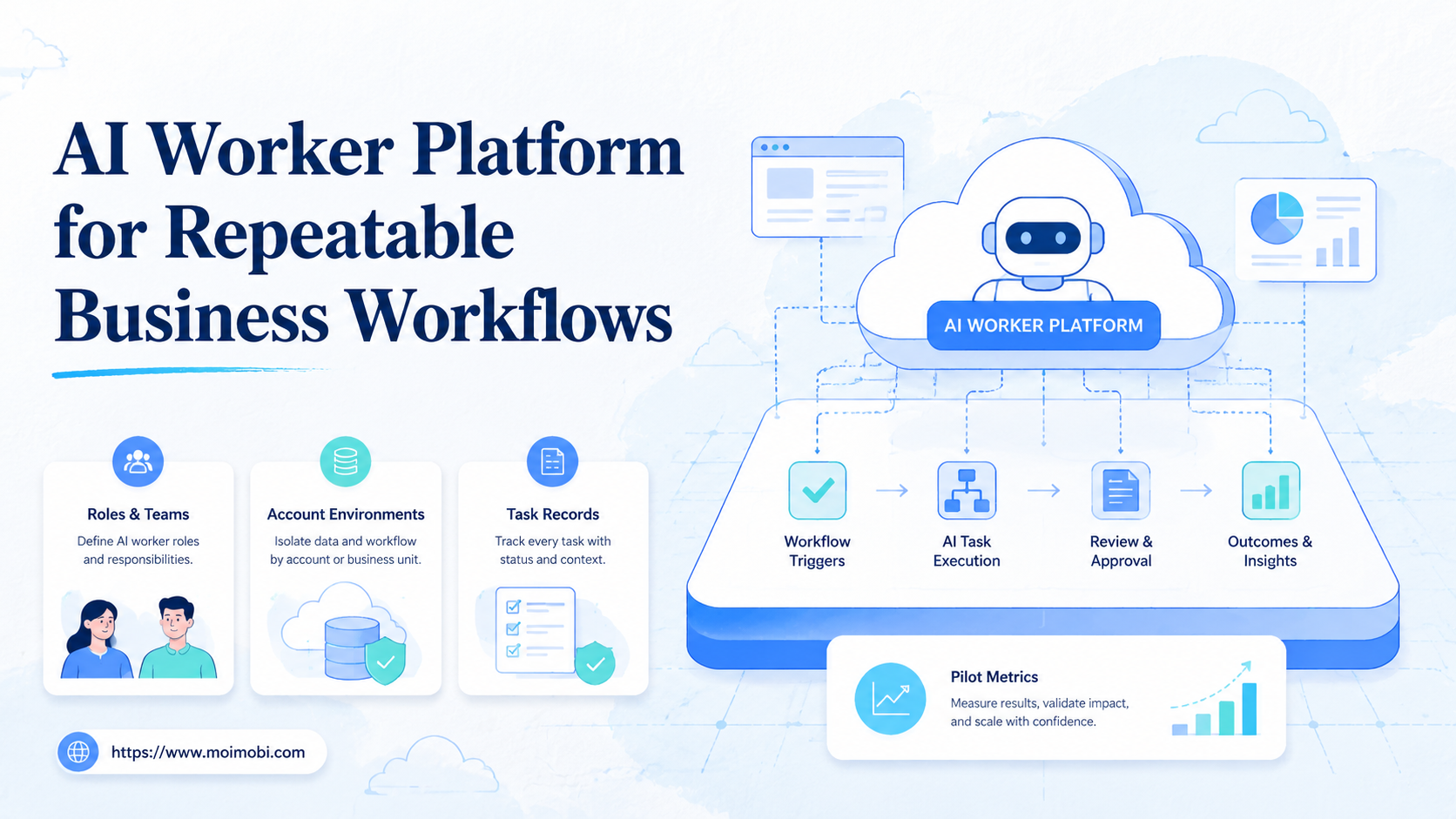
The practical verdict is not "browser wins" or "mobile wins." A social media operation often needs both. The decision is which environment owns each task: browser for web-side control, mobile for app-side execution, and a shared operations layer for logs, account ownership, and human review.
Key Takeaways
- Browser automation fits web dashboards, profile management, reporting, and admin workflows.
- Mobile automation fits app-first actions, mobile inbox work, notifications, and Android task execution.
- Teams should compare workflow location before comparing tool features.
- Multi-account operations need ownership, logs, and recovery paths in either model.
- A small pilot is better than moving every account into one automation stack at once.
A Practical Comparison Framework for browser automation vs mobile automation
Start by mapping the task, not the tool. A workflow that begins in a web dashboard and ends in a spreadsheet does not need the same environment as a workflow that starts from an app notification and requires a mobile reply. The comparison becomes clearer when each task is assigned to its native operating surface.
The W3C WebDriver specification describes browser automation as a remote control interface for user agents. That makes it relevant for browser sessions, web pages, forms, and dashboards. Android Enterprise documentation focuses on managed Android devices and app environments, which is a different layer of control.
| Decision Axis | Browser Automation | Mobile Automation |
|---|---|---|
| Primary workspace | Web apps, dashboards, browser profiles, admin tools | Android apps, mobile inboxes, app notifications |
| Typical tasks | Login flows, reporting, profile updates, content review | App posting, app replies, mobile verification, account activity |
| Team control | Easier to inspect web sessions and form states | Closer to the mobile environment used by the account |
| Common risk | Assuming a web task covers app-only behavior | Using mobile execution without logs or ownership |
This framework keeps the decision operational. A browser session can be excellent for account workspace management. A mobile device can be necessary for app-first work. Neither removes the need for policy boundaries, rate control, and human review.
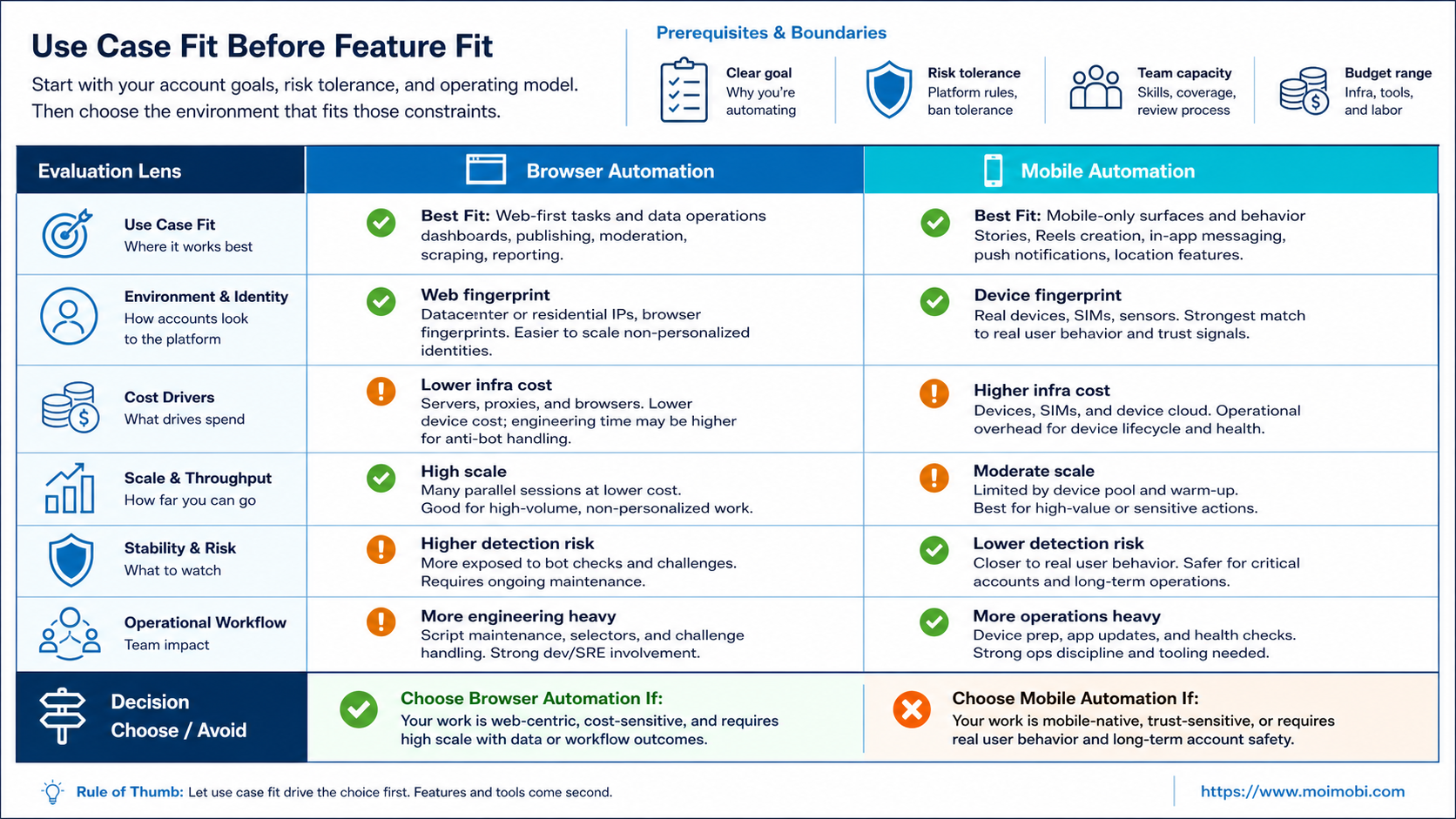
Use Case Fit Before Feature Fit and browser automation vs mobile automation
The common mistake is buying features before mapping use cases. A tool may support proxies, profiles, devices, schedules, and scripts, but those features do not tell the team where the actual account work should run.
For example, a team managing social bios, reports, login records, and content calendars may get more value from browser profiles. The web surface is visible, easier to audit, and closer to the admin workflow. In that case, browser automation can reduce repetitive dashboard work without pushing everything into a mobile device.
Another team may handle TikTok replies, Instagram mobile checks, WhatsApp follow-up, or app-only posting. That workflow has different constraints. The team needs mobile state, app access, device routing, and a way to recover failed actions inside a mobile environment.
Moimobi should be evaluated as an execution stack, not only as one environment choice. Browser work can connect with web profile and Android workspace comparison decisions, while app-side execution can connect with mobile automation guide planning.
Operational Trade-Offs and Team Workflow
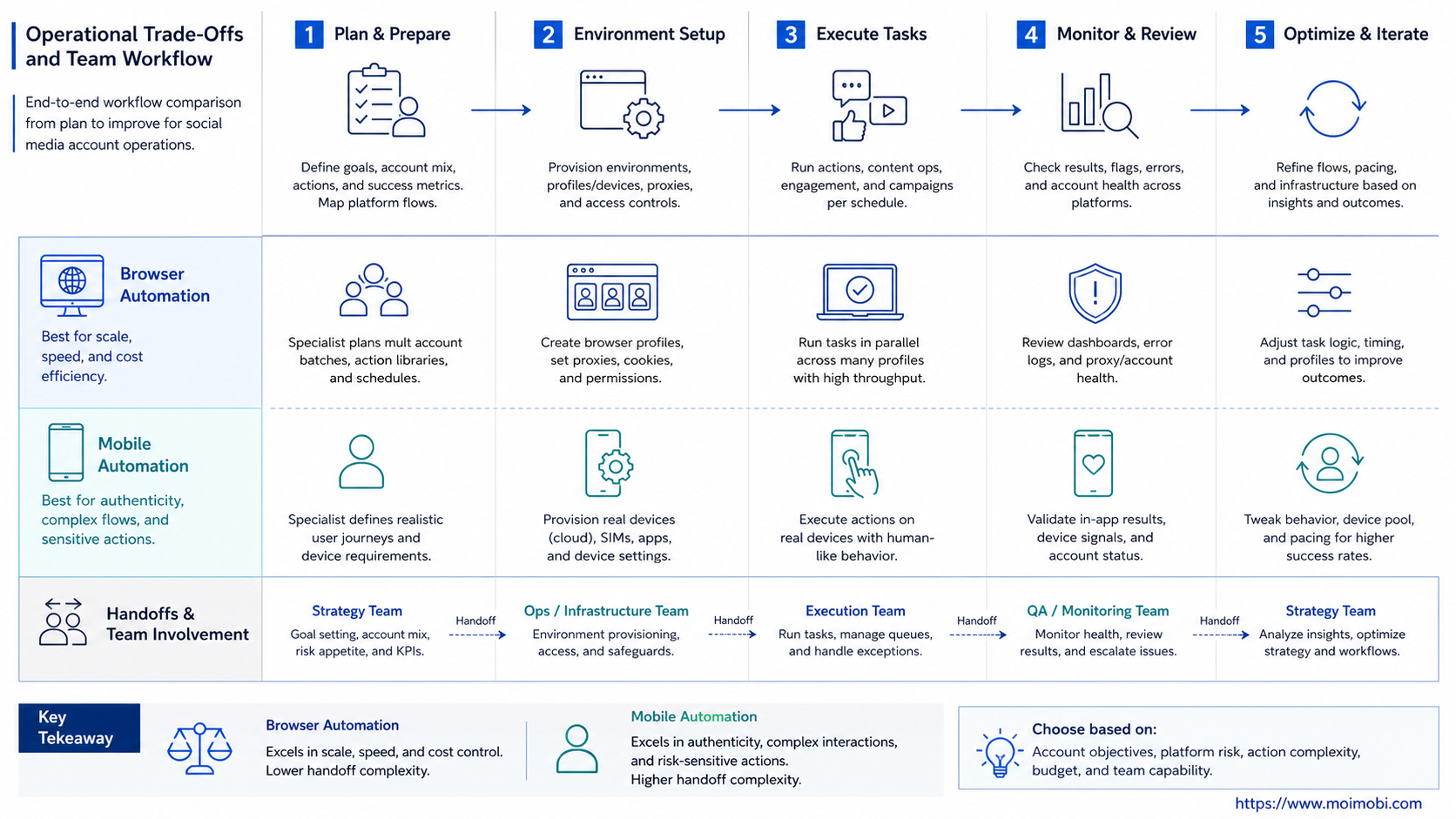
Browser automation usually gives teams a clearer web workspace. Operators can inspect the active session, see page states, verify forms, and review task logs. That fits workflows where the browser is already the team's daily control panel.
Mobile automation gives teams a closer execution environment for app-side work. It is useful when the mobile app is the source of truth. Examples include mobile-first comments, app notifications, mobile verification, WhatsApp conversations, and social apps that behave differently from web dashboards.
The trade-off is management overhead. Browser profiles need profile hygiene, session ownership, proxy rules, and clear login boundaries. Mobile environments need device allocation, app state checks, notification handling, and recovery when an Android task fails.
Do not centralize everything into one shared account. Social account operations become easier to review when one account has one owner, one environment, and one task log. This applies whether the environment is a browser profile or a mobile workspace.
Setup Cost, Ongoing Cost, and Management Overhead
Cost is not only subscription price. The larger cost is operational effort: setup time, failed tasks, account confusion, handoff problems, and manual recovery. A cheap tool can become expensive when operators spend hours checking what happened.
Browser automation often has lower setup friction for web workflows. Teams already know how to inspect pages, copy URLs, and verify dashboard states. The hidden cost appears when the target work is actually app-first and the browser becomes a workaround.
Mobile automation often adds more environment management. Devices, apps, task queues, and routing rules need structure. That overhead is reasonable when the team truly needs Android execution, but it is wasteful for tasks that only require a web dashboard.
For social teams, cost review should include four fields: account count, task frequency, review requirement, and recovery effort. A workflow that needs human review after every run may not benefit from aggressive automation. A workflow with simple repeated checks may justify more parallel capacity.
Which Option Fits Different Teams Best
Choose browser automation when the work is web-native. This includes profile updates, dashboard checks, content library review, account documentation, web inbox handling, and reporting. It also fits teams that need strong visibility into page state and session records.
Choose mobile automation when the work is app-native. This includes mobile-only post formats, app notifications, social replies inside mobile apps, Android account checks, and device-specific workflows. A cloud phone can be part of that operating model when teams need remote Android environments instead of local phones.
Choose a combined model when a social account uses both surfaces. A content operator may prepare posts in a browser, while a mobile worker checks app state and handles replies. The combined model needs one shared task record so people do not duplicate actions.
Browser Automation Fits
- Web dashboards and admin panels
- Browser profile workspaces
- Reporting and content review
- Account data maintenance
Mobile Automation Fits
- Android app workflows
- App notifications and mobile inboxes
- Mobile-first social actions
- Remote device execution
Combined Model Fits
- Multi-account social operations
- Teams splitting web and app tasks
- Workflows with review and handoff
- Campaigns needing browser logs and mobile checks
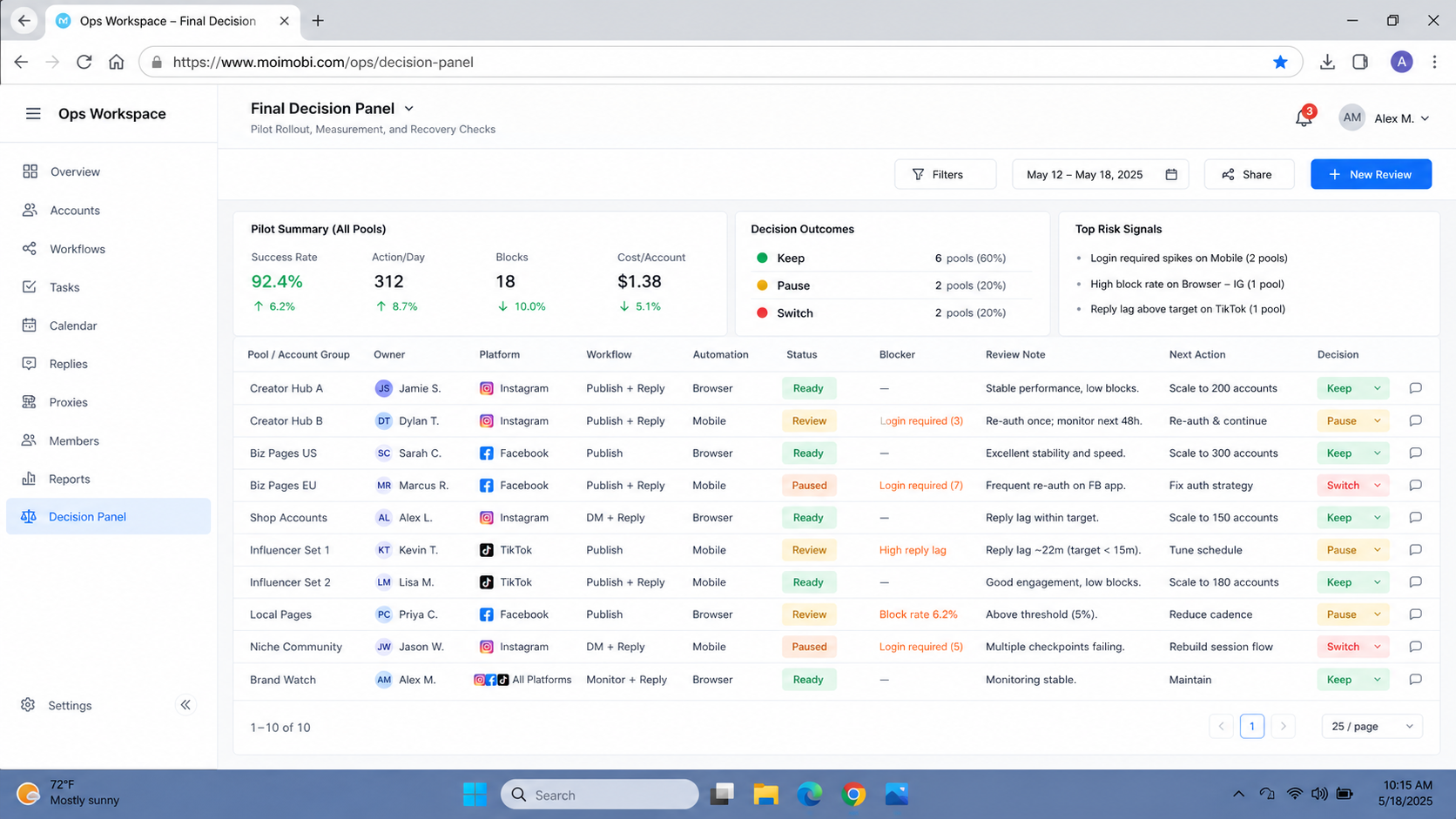
Pilot Rollout, Measurement, and Recovery Checks
Run a pilot before changing the whole account operation. Pick five to ten accounts, one task type, one owner, and one environment model. The goal is to see whether the model reduces confusion, not to maximize task volume.
Use this rollout checklist:
- Define the task boundary. Decide whether the task starts and ends in browser, mobile, or both.
- Assign account ownership. Each account needs one responsible operator or queue.
- Record every task outcome. Track completed, skipped, failed, edited, escalated, and repeated tasks.
- Measure recovery effort. Count how often people must manually inspect the account after automation runs.
- Review account conflicts. Check whether multiple tools, people, or environments touched the same account.
- Pause on abnormal patterns. Stop the pilot if failures repeat or account behavior becomes hard to explain.
Measurement should focus on decision quality. Did the team reduce manual checking? Did handoff get cleaner? Did failed tasks become easier to diagnose? Did browser and mobile responsibilities stay separate?
If the answer is unclear, keep the pilot small. Expanding a confusing workflow usually creates more cleanup work. A good pilot should produce a repeatable operating rule: which tasks go to browser, which tasks go to mobile, and which tasks require a combined process.
Add one recovery drill before the pilot ends. Pick a failed login, a missed mobile notification, a duplicate comment reply, or a stale browser session. Ask the assigned operator to find the task record, identify the environment, and explain the next action. If that takes more than a few minutes, the workflow is not ready for wider rollout.
Review the tool boundary after the drill. Browser tasks need session state, page evidence, and profile ownership. Mobile tasks need device state, app version, notification visibility, and operator assignment. Combined tasks need a handoff note that says which environment finished the last step.
Best for Social Media Account Scenarios
For TikTok-style mobile workflows, mobile execution often deserves the first test. App state, notifications, and account behavior may be closer to the mobile environment. If the work involves routing or region-specific account preparation, use a dedicated TikTok account environment guide rather than a generic browser-only model.
For Instagram, Facebook, or LinkedIn admin workflows, browser automation may fit the back-office side. Teams can manage profiles, reports, CRM checks, content calendars, and web inboxes without forcing every step through a phone.
For messaging-heavy workflows, decide by app dependency. If the account activity mainly happens in WhatsApp, Telegram, or another mobile-first channel, mobile execution may be required. If the team only needs lead review and reporting, browser automation may be enough.
For Tinder multi-account management or Tinder automation topics, the same rule applies. Do not choose an environment because the platform is trendy. Choose based on whether the account task needs mobile app state, browser access, or a controlled handoff between both.
Migration Notes When browser automation vs mobile automation Changes
Changing environments should be treated as a migration, not a quick tool swap. Start by freezing one account group. Export or record the current owner, login method, proxy rule, device rule, task schedule, and failure history before moving that group.
Move low-risk workflows first. Reporting, account notes, and simple dashboard checks are easier to validate than public replies or app-side posting. Keep the old workflow available until the new environment produces the same records with less manual checking.
Do not migrate all accounts at once. A staged migration makes account conflicts easier to find. It also gives operators time to learn which tasks belong in browser sessions, which tasks belong in mobile workspaces, and which tasks need a shared review queue.
The final sign is operational clarity. A teammate should be able to open one account record and see the current environment, task owner, last run, failed actions, and recovery note. If that record is unclear, the migration is not finished.
Frequently Asked Questions
Is browser automation better than mobile automation?
Not generally. Browser automation is better for web-native workflows. Mobile automation is better when the task depends on mobile app state.
Can one team use both approaches?
Yes. Many social teams split work by surface. Browser sessions handle admin tasks, while mobile environments handle app-side execution.
Is mobile automation the same as an emulator?
No. Mobile automation describes task execution in a mobile environment. The environment may be a cloud phone, managed Android device, emulator, or another remote device model.
Does browser automation reduce account management work?
It can reduce web dashboard work. It does not replace account ownership, review rules, session hygiene, or task records.
When should a team avoid mobile automation?
Avoid it when the task is only a web workflow. Mobile execution adds overhead if the mobile app is not part of the real task.
What should a pilot measure first?
Measure failed task rate, recovery effort, owner clarity, and duplicate account actions. Speed matters after the workflow is understandable.
How should teams handle platform rules?
Use official platform guidance for each channel. Avoid spam, fake engagement, unauthorized access, and workflows designed to manipulate platform behavior.
What is the safest way to scale?
Scale by task category, not by account count alone. Add one workflow type at a time and keep review logs visible.
Conclusion
Browser automation vs mobile automation is a workflow placement decision. Browser automation fits web control surfaces. Mobile automation fits Android app execution. A combined model fits teams that run social accounts across both surfaces.
Use this priority order before buying or migrating. First, list the account tasks. Second, mark the real execution surface for each task. Third, assign ownership and logs. Fourth, run a small pilot. If the pilot makes task state easier to inspect, expand it. If it creates more unclear work, fix the operating model before adding more accounts.
References