A browser automation desktop app is a team-facing workspace that helps people run approved, repeatable browser tasks without writing a script for every action. It does not replace judgment, access control, or platform rules. Its value comes from turning a documented process into a visible sequence with owners, inputs, evidence, and recovery steps.
Non-developer teams usually need less code, not less control. Marketing, operations, support, and e-commerce teams still need to know which account ran a task, what data was used, who approved a change, and how to stop a workflow when the result is unclear. A useful desktop app makes those checks part of daily work instead of leaving them in a separate engineering ticket.
The practical goal is simple: move reliable browser work out of copy-and-paste routines while keeping the task reviewable. Start with one narrow SOP. Make the first version observable. Expand only after the team can explain both a normal run and a failed run.
Key Takeaways
- A browser automation desktop app should expose the workflow, owner, input, and result.
- Non-developers need guardrails around permissions, approvals, and exception handling.
- The strongest first use cases are repetitive, low-ambiguity tasks with a clear completion state.
- A pilot should measure recovery quality as well as time saved.
- Desktop automation supports permitted work; it does not authorize activity that violates a platform’s rules.
What Is a Browser Automation Desktop App?
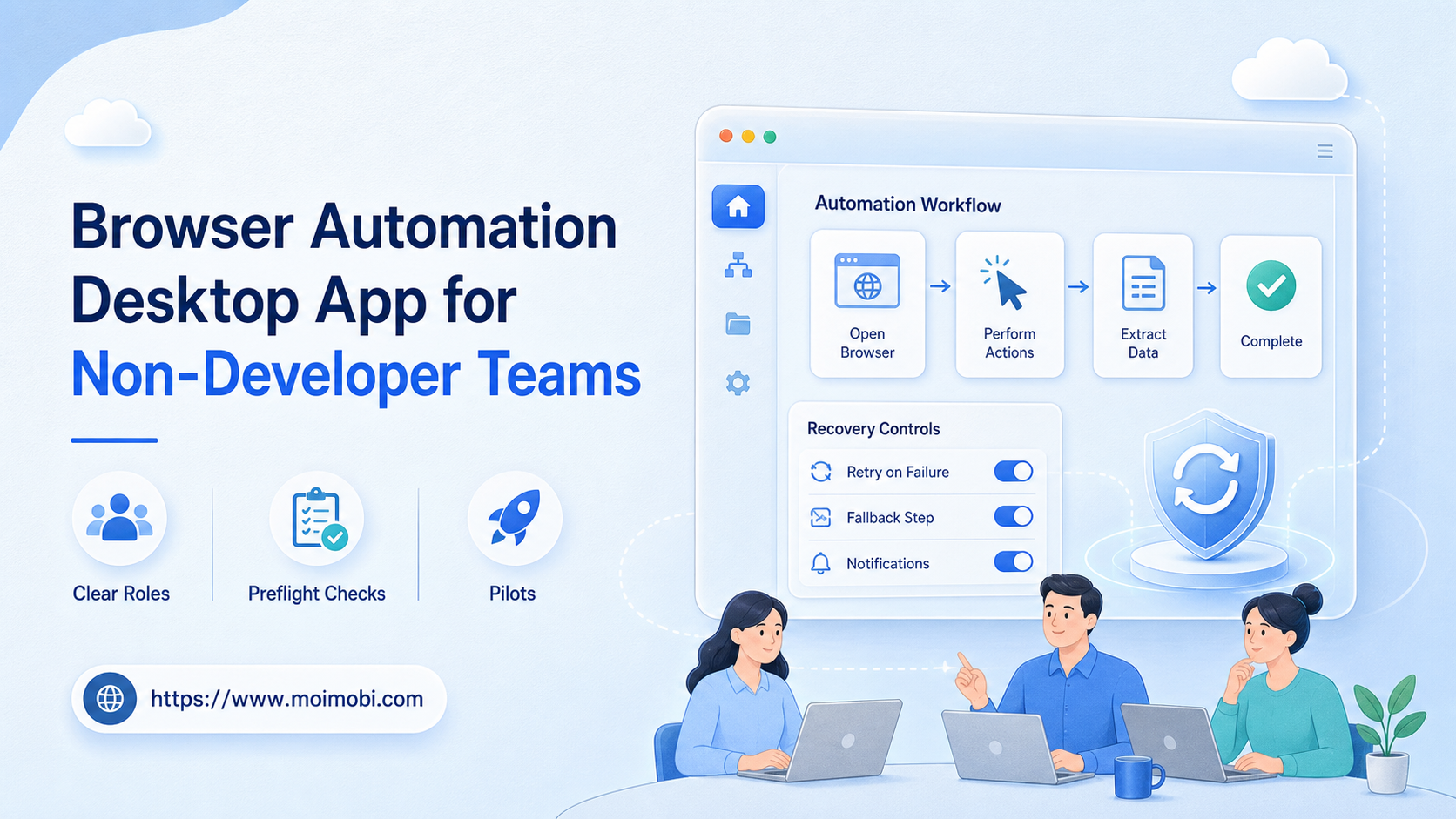
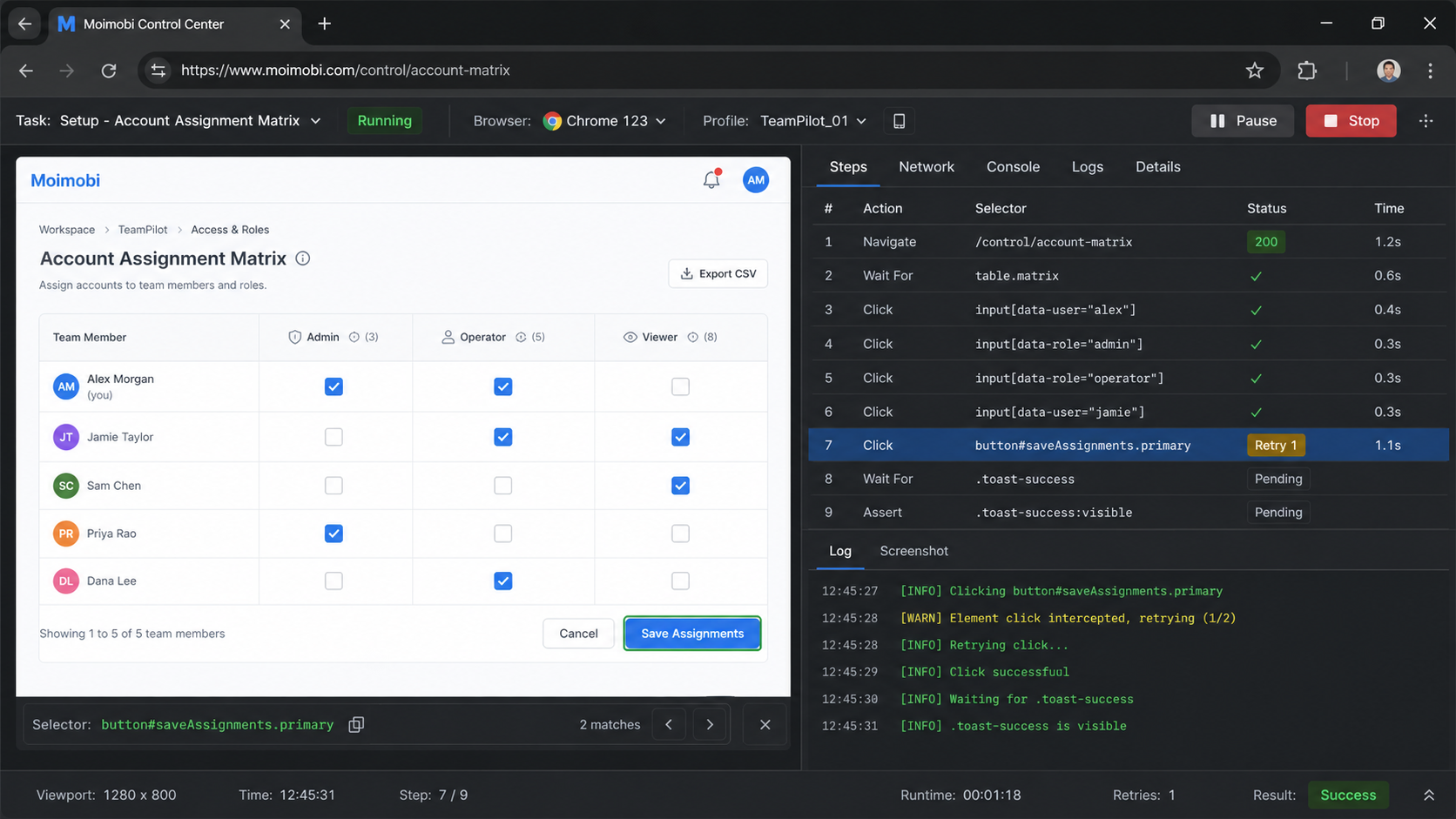
A browser automation desktop app is a visual operating layer for browser-based tasks. It may let a team select an account workspace, choose a prepared workflow, fill in approved inputs, review the intended action, and inspect the result. The app can hide implementation detail without hiding the operational record.
The common misunderstanding is that non-developer automation means pressing a single button and walking away. Real browser work is rarely that uniform. Pages change, permissions expire, fields require review, and some tasks need a person to decide what a message or record means. A well-designed workflow handles the repeatable parts and escalates the ambiguous parts.
Browser automation itself is not new. The W3C WebDriver specification defines a standard remote interface for automating browser actions. A desktop application does not need to expose that protocol to an operations team. It should expose the business action: update a record, collect an approved report, prepare content for review, or check a dashboard against a defined threshold.
For teams working across browser and mobile processes, AI browser execution is one part of a wider operating system. Browser profiles, mobile workspaces, task routing, and result evidence should all follow the same ownership model. A cloud phone can extend that same task record when an approved workflow moves from a browser dashboard into a legitimate mobile step.
Why a Browser Automation Desktop App Matters for Non-Developers
The main benefit is not speed alone. The result is a clearer path from SOP to execution. A support team might already know how to check a shipment dashboard, add a case note, and hand off an exception. Without a shared workflow, each operator remembers the order differently. A desktop workflow can present the same approved sequence and capture the handoff point.
Visibility also reduces dependency on a single expert. When only one person understands a set of browser steps, holidays, turnover, and queue spikes become operational risks. A workflow card with inputs, prerequisites, expected outputs, and a pause rule gives another trained colleague a defensible way to perform the task.
The Playwright actionability guidance illustrates a useful engineering principle: an action should wait for required conditions rather than blindly assume that a page is ready. Non-developer tools should follow the same principle in business language. A workflow should check that the intended account workspace and required inputs are present before an operator confirms the next step.
| Team problem | Desktop workflow control | What to verify |
|---|---|---|
| Repeated browser steps vary by operator | Named workflow with required inputs | Every run follows the same approved order |
| Multiple people share a business process | Owner, reviewer, and handoff fields | The next operator can see the current state |
| A page or session changes unexpectedly | Pause state with evidence capture | The task stops before a blind retry |
| Managers need proof of completion | Result summary and audit trail | Output, timestamp, and exception are visible |
| Access differs by customer or role | Workspace and permission selection | The operator has only approved scope |
Preflight Checklist Before Automating a Browser Task
Choose a task that is stable enough to describe in plain language. Good first candidates have a repeatable sequence, a small set of allowed inputs, and a clear finish. Avoid tasks that need discretionary judgment at every step or contain sensitive decisions without a review path.
Use this preflight checklist before the task becomes a reusable workflow:
- Business purpose: What approved outcome does this task support?
- Account and workspace: Which role, browser profile, or customer context is allowed to run it?
- Inputs: Which fields, files, or records are required? Which values must never be entered automatically?
- Permissions: Who can start, approve, pause, or edit the workflow?
- Success evidence: What confirms completion: a record ID, a report, a status update, or a reviewer sign-off?
- Failure path: What should the operator capture before stopping or escalating?
- Data boundary: What customer or credential data stays outside the general task log?
The OWASP Logging Cheat Sheet distinguishes useful operational context from indiscriminate data collection. Follow that distinction. Record task identifiers, owners, actions, and outcomes. Keep secrets and unnecessary customer content in the approved system of record rather than copying them into workflow notes.
How to Start With a Browser Automation Desktop App
Begin with an existing SOP that already works manually. Do not automate an unclear process in the hope that the tool will make it clear. The best pilot has one owner, a short run time, a defined completion state, and a known exception path.
- Map the current task. Write the trigger, inputs, browser pages, decision points, output, and handoff in order.
- Separate repeatable from judgment work. Automate navigation, field preparation, and evidence collection. Leave exceptions, customer commitments, and policy-sensitive decisions for a person.
- Assign the workspace. Attach the workflow to the permitted browser account or environment and name the responsible owner.
- Add approval gates. Require a review before sending, submitting, deleting, exporting, or changing a high-impact record.
- Define the stop rule. Tell operators exactly when to pause, capture a screenshot or task log, and escalate.
- Run a small pilot. Test normal completion, an expected page change, a missing input, and an access problem before broader use.
For account-based work, device isolation can support a clearer workspace boundary. It should be paired with documented access and an approved business purpose. Isolation does not make an unapproved workflow acceptable, and it does not remove a team’s responsibility to follow platform terms.
Useful Browser Automation Use Cases for Operations Teams
Start with workflows where consistency is more valuable than improvisation. A service team may prepare a daily queue summary, route complete cases for review, or collect approved status changes from a customer portal. An e-commerce team may check inventory flags, prepare listing-change requests, or reconcile a known set of order exceptions. A marketing operations team may gather campaign reporting into a review queue.
The key is not the industry label. The task should have an approved input boundary and an observable output. “Find useful prospects” is too broad for a first workflow because it contains subjective judgment. “Copy approved fields from a CRM list into a review queue and flag missing data” is narrower and easier to verify.
Teams that work with several legitimate account roles can use multi-account management to keep responsibility visible. The system should identify the workspace and task owner, not encourage multiple people to use an account without a clear operational record.
Common Mistakes to Avoid
Automating a broken SOP. If operators disagree about the next step, document and resolve the difference first. Automation will amplify the disagreement.
Giving every user editing access. A workflow author, task operator, reviewer, and administrator do not need the same permissions. Separate those roles to reduce accidental changes.
Treating every failure as a retry. A missing field, altered page, expired access, and policy question require different responses. A retry button without a reason can create duplicate work or hide the original issue.
Using one shared workspace for unrelated work. Browser sessions need an accountable business context. Reuse only when the prior task is closed, the next role is approved, and the handoff is recorded.
Measuring only task volume. A workflow that completes more tasks but creates more unclear exceptions is not an improvement. Include review time, error recovery, and handoff quality in the evaluation.
Who It Fits and When It Is a Strong Match
- Teams with documented browser SOPs
- Repeated checks, updates, or report preparation
- Clear ownership and approval boundaries
- Tasks with observable results
- Work that depends on constant subjective judgment
- Tasks without an approved business owner
- Unclear data handling or consent requirements
- Processes that conflict with platform rules
A browser automation desktop app is a good match when the team wants to standardize an existing process without turning every operator into a developer. This approach is less suitable when the process itself changes every day or when an action requires legal, policy, or customer-specific discretion at every stage.
The strongest early users are operations teams that already work from checklists. They can compare the manual result with the assisted result, detect missing exceptions, and improve the workflow one control at a time. Teams that need browser and mobile execution in one queue may later connect the browser step to mobile automation, but the initial pilot should remain narrow.
Pilot Rollout, Measurement, and Recovery Checks
Pilot one workflow with a small group for one or two review cycles. Set a baseline first: how long does the manual task take, how often does it need clarification, and what evidence does a manager need to review it? Then run the assisted workflow with the same task type and compare the result.
Measure four signals each week:
- Completion quality: Did the output meet the defined acceptance check?
- Exception clarity: Could an operator explain why a run paused or failed?
- Handoff quality: Could a second person resume the task from the record?
- Change discipline: Were workflow edits reviewed and linked to a reason?
Recovery is part of the pilot. Test what happens if the assigned workspace is unavailable, a required field is missing, a page layout changes, or a reviewer rejects the action. The right recovery response may be to pause, not to keep clicking. Record the incident, preserve the task evidence, assign an owner, and change only the variable needed for the next controlled test.
Frequently Asked Questions
Can non-developers use browser automation without learning code?
Yes, for workflows that expose clear inputs, approvals, and results. Someone still needs to own workflow design and change control.
What should be automated first?
Choose a repetitive task with stable pages, approved inputs, and an observable completion state. Report preparation and record checks are often better first pilots than open-ended outreach.
Does a desktop app replace browser automation engineers?
No. It gives operations teams a usable layer for approved workflows. Engineering may still be needed for integrations, reliability, security, and complex exceptions.
How many steps should a first workflow contain?
Keep the first workflow small enough to test end to end. A short process with one decision gate is easier to validate than a large chain with several hidden dependencies.
What is a good stop rule?
Pause when required inputs are missing, ownership is unclear, page behavior differs materially, access changes unexpectedly, or the next action could be high impact.
Can browser automation handle sensitive customer data?
Teams can support approved workflows when they define data access, logging, retention, and review requirements first. Avoid putting secrets into general task logs.
How do we know the pilot worked?
The team should see consistent outputs, clear exception records, faster recovery, and fewer clarification handoffs. Completion volume alone is not enough.
Can it run social or marketplace accounts automatically?
Only for permitted workflows that comply with each platform’s terms and internal policy. Do not use automation for deceptive activity, spam, or actions that lack consent.
Conclusion
A browser automation desktop app gives non-developer teams a practical way to run browser SOPs with clearer ownership and recovery. The first priority is not scale. Start with a small workflow that has a known owner, approved inputs, a visible result, and a pause path.
Build the workflow from an already reliable manual process. Pilot it with real review checks. Measure whether the team can explain exceptions and resume work cleanly. Once that control loop works, the team can add more browser tasks without losing accountability.