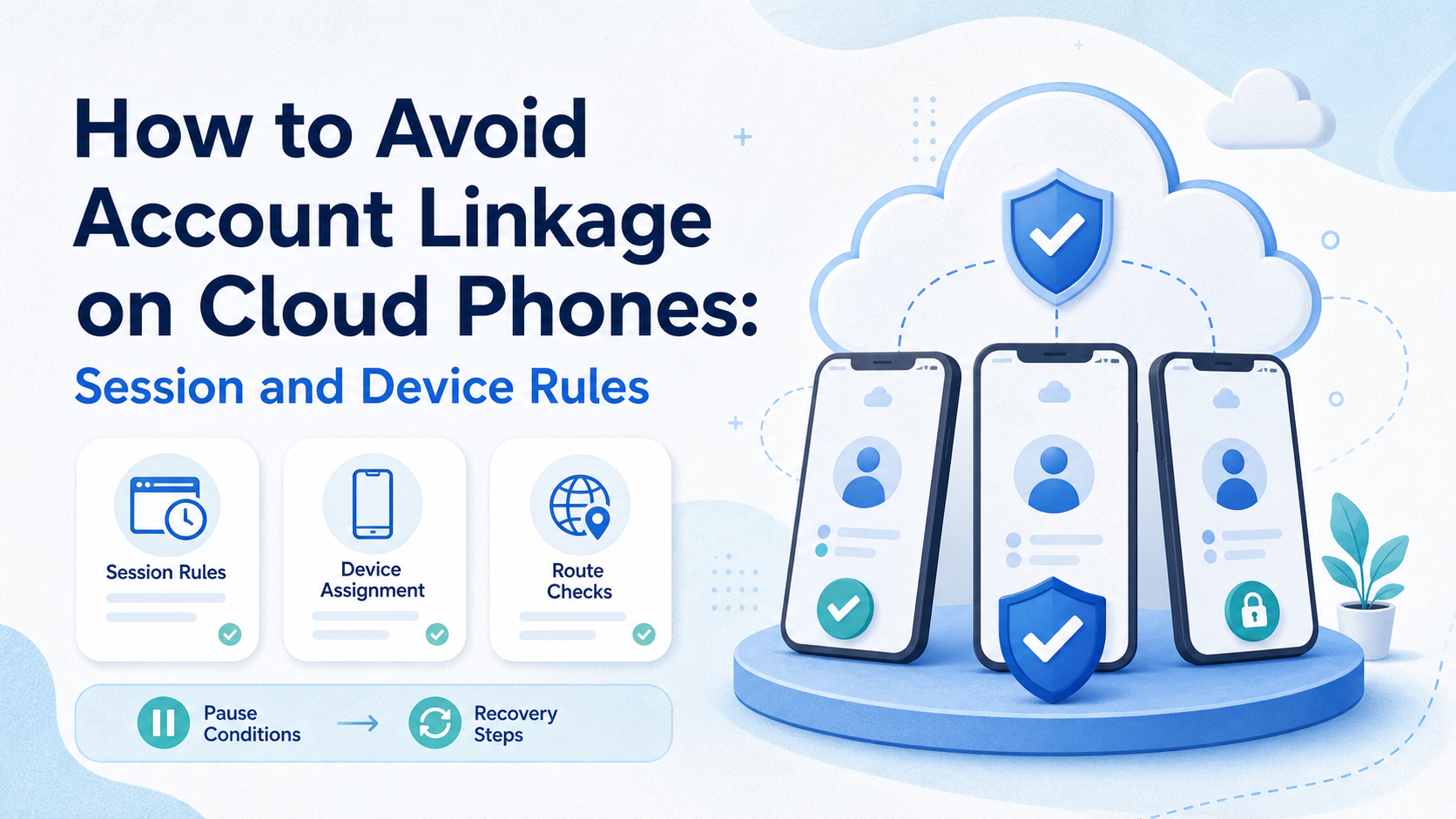
Title: How to Avoid Account Linkage on Cloud Phones: Session and Device Rules
How to avoid account linkage on cloud phones means keeping accounts, sessions, devices, routes, operators, and task records separated enough that teams can operate and diagnose them clearly. It does not mean any platform can remove every account risk.
Teams usually search for this topic after a workflow becomes hard to trust. Several accounts may share media folders, login habits, routes, operators, or recovery notes. The fix starts with cleaner assignment rules, not with more aggressive automation.
Key takeaways
- Account linkage prevention starts with account-to-environment assignment.
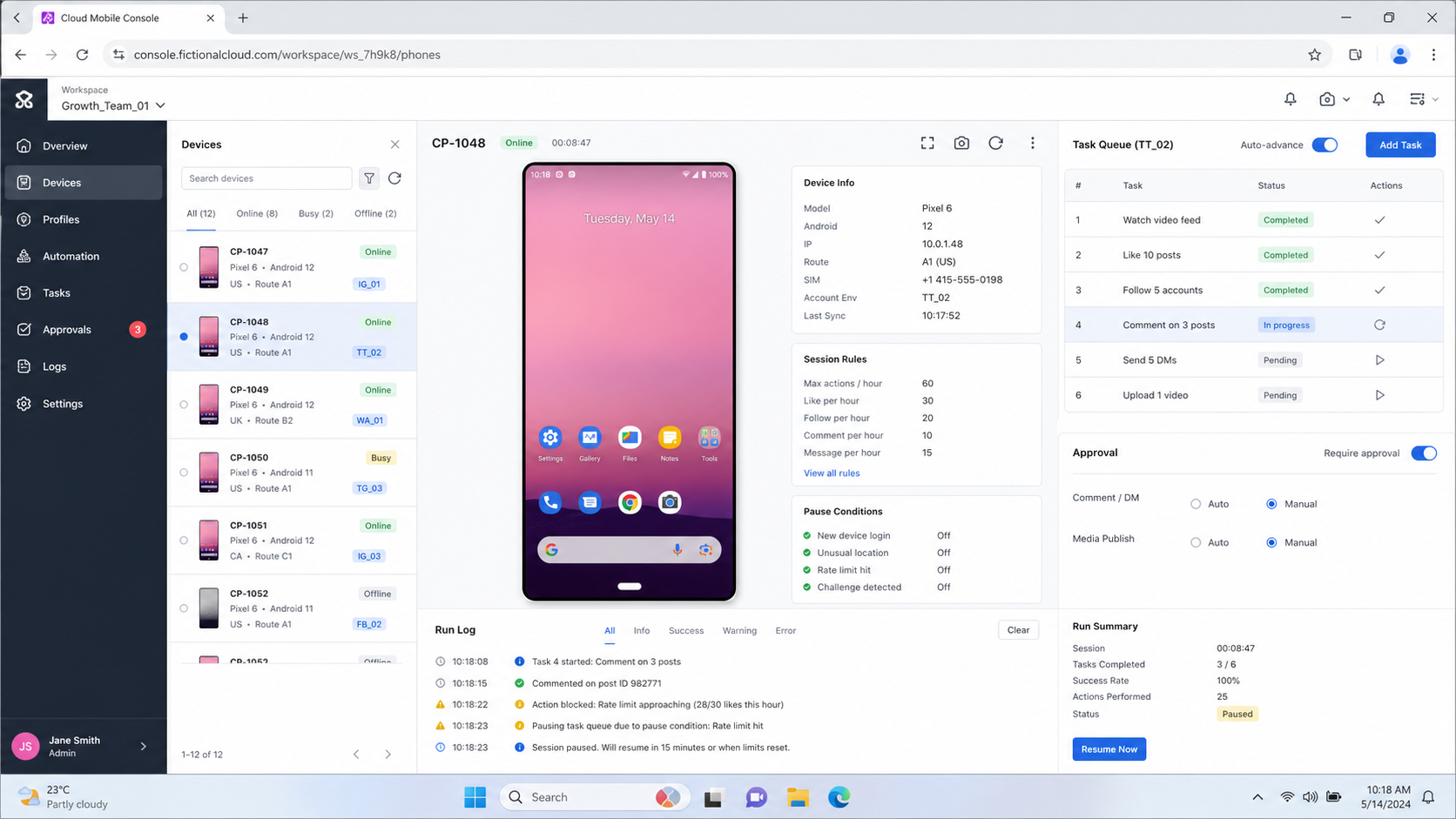
- Session, device, route, media, and operator records should be traceable.
- Teams need pause rules before continuing a risky workflow.
- Troubleshooting should move from low-risk checks to higher-risk changes.
- No setup should claim to avoid all restrictions or bans.
Symptoms, Likely Causes, and First Actions
Start with symptoms before changing environments. Random changes can make the problem harder to diagnose.
| Symptom | Likely Cause | First Action |
|---|---|---|
| Several accounts show similar warnings | Shared workflow, route, or operator pattern | Pause the group and compare recent actions |
| One account changes state after device movement | Environment assignment changed too quickly | Restore the previous assignment and log the change |
| Uploads fail across multiple accounts | Media path, app state, or network issue | Test one low-value account before retrying all |
| Operators cannot explain what happened | Missing task records | Stop execution until logs are updated |
This table is a diagnostic starting point. It does not prove the cause. It gives the team a safer order for investigation.
Pre-Setup Requirements and Checks
The main misconception is that a cloud phone alone solves account linkage. A cloud phone provides a mobile environment. The team still needs rules for who uses it, which account belongs to it, which route it uses, and when it should pause.
Before running any account workflow, define:
- one account owner
- one primary cloud phone or device group
- one route or network rule
- one media folder
- one task log
- one pause condition
This is where device isolation and proxy network planning matter. The goal is not to claim perfect safety. The goal is to keep environments readable when something changes.
Add a written account map before work begins. The map should name the account, cloud phone, assigned operator, route rule, app list, media source, and recovery contact. This may feel basic, but it prevents several people from changing the same account without context.
Do not use the same rule for every account. A high-value account, a test account, and a retired account should not receive the same treatment. The team should decide which accounts need strict separation and which accounts can use a lighter test lane.
The account map also helps with reviews. If a warning appears, the team can compare planned state with actual state. Without that baseline, every diagnosis starts from memory.
Diagnostic Flow for How to Avoid Account Linkage on Cloud Phones
Use a low-risk diagnostic order. Do not start by moving every account at once.
- Freeze the affected account group. Stop new actions until the last known state is recorded.
- Check account assignment. Confirm each account still maps to the expected cloud phone and operator.
- Review session history. Look for recent logins, device switches, app resets, or unusual handoffs.
- Inspect route changes. Check whether route, region, or network settings changed before the symptom appeared.
- Test one low-value account. Verify the workflow with a controlled account before resuming the full group.
- Document the recovery. Record what changed, who changed it, and what result followed.
Android emulator documentation shows a useful testing principle: execution environments have state, configuration, and runtime behavior. Cloud phone operations are not the same as emulator testing, but teams still need to treat the environment as part of the diagnosis.
After the first pass, write down which variable changed. A device change, route change, app reset, media upload, or operator handoff should not be mixed into one vague recovery note. One clean variable makes the next review easier.
For larger teams, assign a reviewer who did not run the task. That reviewer should be able to read the account map, recent task history, and recovery note. If the reviewer cannot understand the sequence, the workflow is not ready to scale.
This is also why mobile automation should include pause and review states. Automation without a review lane can repeat a bad action faster than a human team can diagnose it.
Pause Conditions: When Not to Continue
Some situations should stop execution immediately. Continuing only creates more noise.
Pause the workflow when:
- multiple accounts in the same group show similar warnings
- no operator can identify the last action
- route assignment changed without a record
- public actions are queued without review
- the team is guessing instead of diagnosing
A pause is not failure. It protects the evidence trail. Teams running multi-account management should treat pause rules as normal operating controls.
Create a pause owner for each account group. That person does not need to perform every task. Their job is to decide when a workflow moves from normal execution into investigation.
Good pause rules are specific. "Something looks wrong" is too vague. Better rules include repeated warnings across an account group, missing task records, unexpected device movement, or a public action waiting without review.
The pause owner should also decide when work can resume. Resume only after the account state, environment state, last action, and next test are written down. This protects the team from trying three fixes at once.
How to Verify the Setup Is Working
Verification should be practical. A setup is working when operators can answer basic questions without searching through chat history.
Use this pass/fail check:
- Can each account be matched to one environment rule?
- Can each recent task be matched to an owner?
- Can route or device changes be reviewed later?
- Can public-facing actions be paused before execution?
- Can the team explain why a failed task failed?
If the answer is no, the team needs better workflow records before scaling. If the answer is yes, continue with a small account group and review results after the next cycle.
Verification should include a handoff test. Ask a second operator to continue from the written records without private chat context. If they can find the account, environment, route rule, last action, and next step, the workflow is understandable.
Run the same test after a failed task. A clean setup is not only smooth during normal work. It also gives the next operator enough context when upload, login, app state, or customer response work goes wrong.
Use a simple pass threshold. If two of five fields are missing, do not expand the account group. Fix the labels, logs, and pause rules first.
Where Teams Usually Get Stuck
Teams get stuck when they confuse anti-detect language with operations quality. Labels such as cloud phone anti detection or account linkage prevention are not enough. What matters is whether the team can keep account work separated and auditable.
Another common failure is over-rotation. Moving accounts across devices, routes, and operators too often creates more variables. Keep one change per review cycle when possible.
The third failure is missing escalation. Some account issues need a human owner, not another automated retry. A retry without context can repeat the same mistake.
Teams also get stuck when they mix content problems with environment problems. A platform warning, failed upload, rejected message, and poor content result may look similar in a dashboard. They require different fixes.
Separate the diagnosis into four buckets:
- environment issue: device, app, route, login, or session changed
- workflow issue: task order, owner, review, or pause rule failed
- content issue: media, caption, message, or offer caused the problem
- platform issue: the account needs manual review or policy attention
This bucket system keeps the recovery conversation practical. It prevents the team from blaming the cloud phone for every issue or ignoring environment changes when they clearly matter.
Prevention Rules for Recurring Account Work
Prevention is mainly about reducing unnecessary variation. A team does not need a new device rule every day. It needs clear rules that operators can follow and reviewers can inspect.
Use these operating rules:
- Keep account groups stable unless there is a written reason to change them.
- Move one variable at a time during recovery.
- Separate mobile app work from browser dashboard work.
- Keep public-facing actions in a review queue when risk is unclear.
- Review failed tasks weekly and remove repeated failure causes.
These rules fit teams using Android antidetect or device isolation as part of a broader system. The product layer helps, but the operating discipline keeps the team from creating its own confusion.
Escalation Path for Team Operations
Escalation should be visible before a problem appears. Operators should know who decides on pauses, who reviews account state, and who approves resume actions.
Use a three-level path:
- Operator checks the account map and task log.
- Team lead reviews environment changes and pause conditions.
- Account owner decides whether to resume, reduce scope, or retire the workflow.
This path avoids endless retries. It also gives the team one place to put evidence. Screenshots, device names, route notes, timestamps, and operator notes should live with the task record.
For high-value account groups, escalation should be stricter. A single operator should not make device, route, and content changes in the same session without review.
Review Cadence After Recovery
Recovery is not complete when one account resumes. The team still needs to inspect whether the same failure pattern exists elsewhere.
Run a short review after each recovery cycle:
- Which account group was affected?
- Which environment variable changed?
- Which operator owned the last action?
- Which pause rule worked or failed?
- Which record was missing when diagnosis started?
This review should happen before the next batch of account work. If the same missing field appears twice, update the SOP. If the same environment problem appears twice, inspect assignment and route rules before adding more tasks.
Keep the review short and operational. The goal is not to blame an operator. The goal is to reduce the number of unknowns before the next execution cycle.
Record one owner for follow-up today.
Frequently Asked Questions
Can cloud phones prevent all account linkage?
No. Cloud phones can support cleaner environment separation, but platform behavior, content, user actions, and policy issues still matter.
What is the first rule for account linkage prevention?
Assign each account or account group to a clear environment, owner, route rule, and task log.
Should teams rotate devices often?
Not by default. Frequent changes can make diagnosis harder. Change one variable at a time.
What should happen after an account warning?
Pause the account group, record the last actions, check environment changes, and test with a lower-risk account first.
Are browser profiles enough for mobile accounts?
Browser profiles help with web tasks. Mobile-first app workflows usually need mobile environments too.
What is the safest recovery habit?
Keep a written record of account status, recent actions, device changes, and route changes before retrying.
Where does MoiMobi fit?
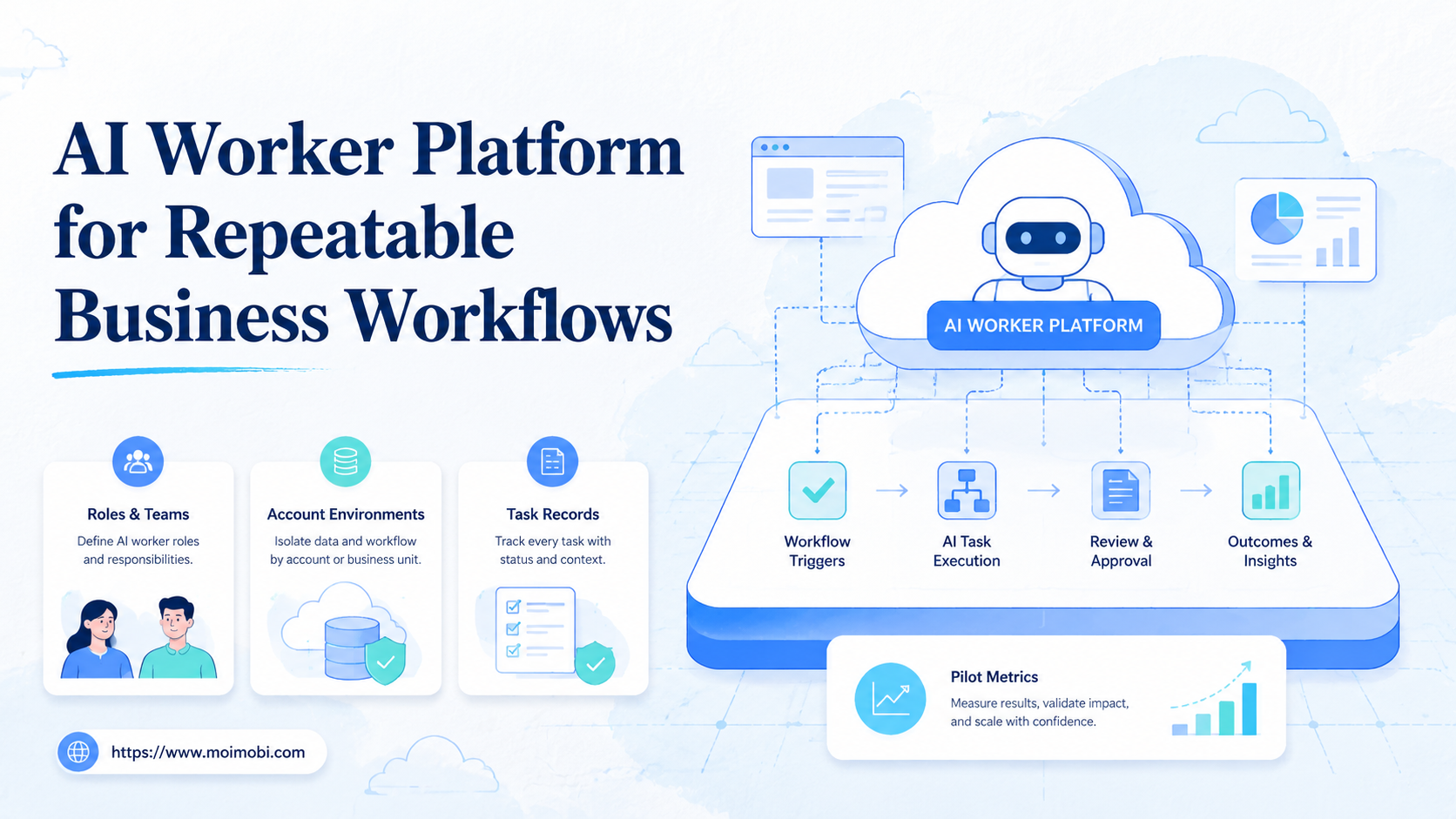
MoiMobi helps teams organize cloud phone environments, account assignment, device isolation, and mobile workflow review.
Conclusion
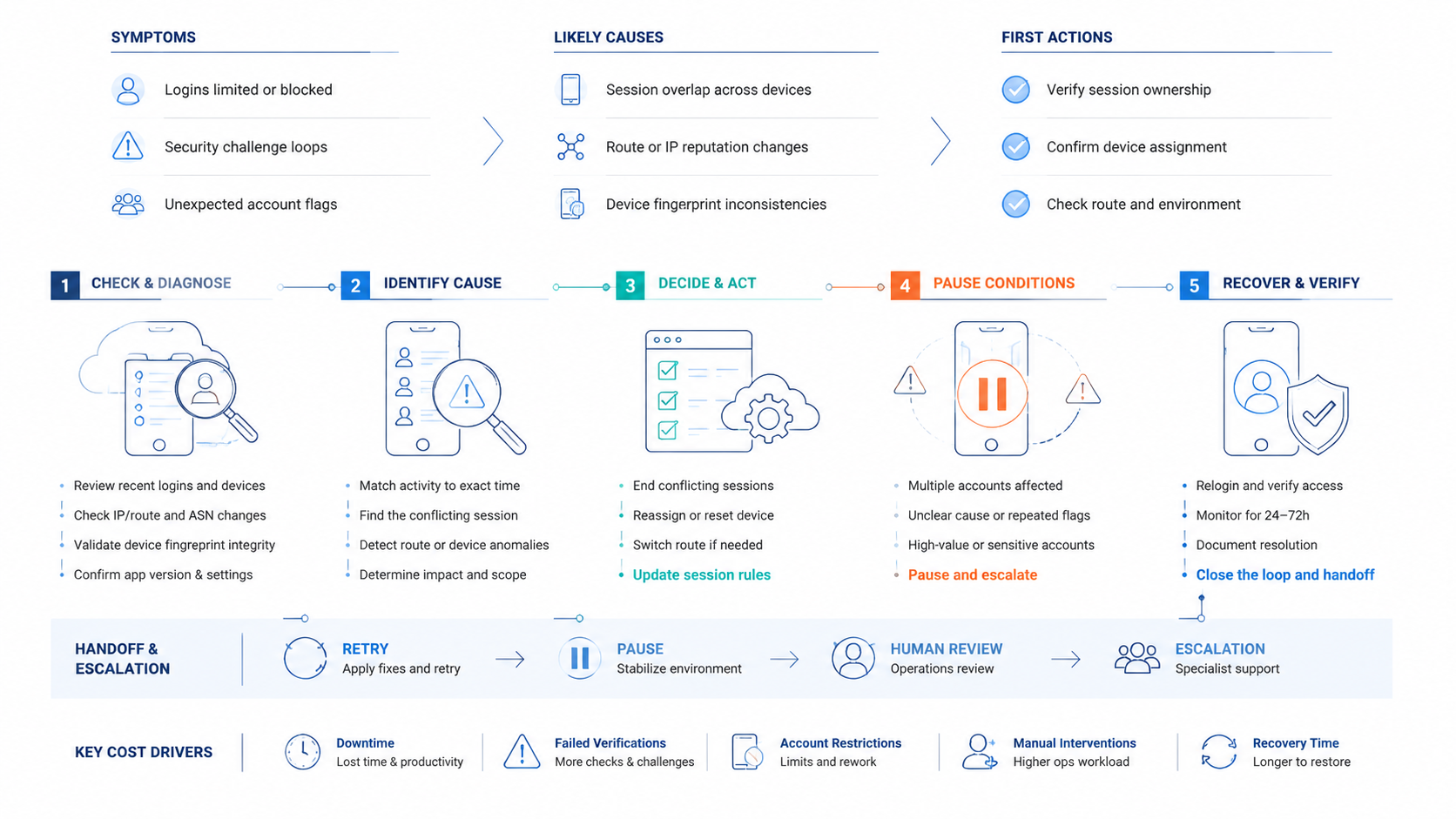
The priority order is simple: pause, identify the account group, check environment assignment, review recent changes, then resume with one controlled test. That order reduces guesswork.
How to avoid account linkage on cloud phones is not a single setting. It is an operating discipline. Keep sessions, devices, routes, operators, and task records clear before adding more accounts.
References: