Key Takeaways
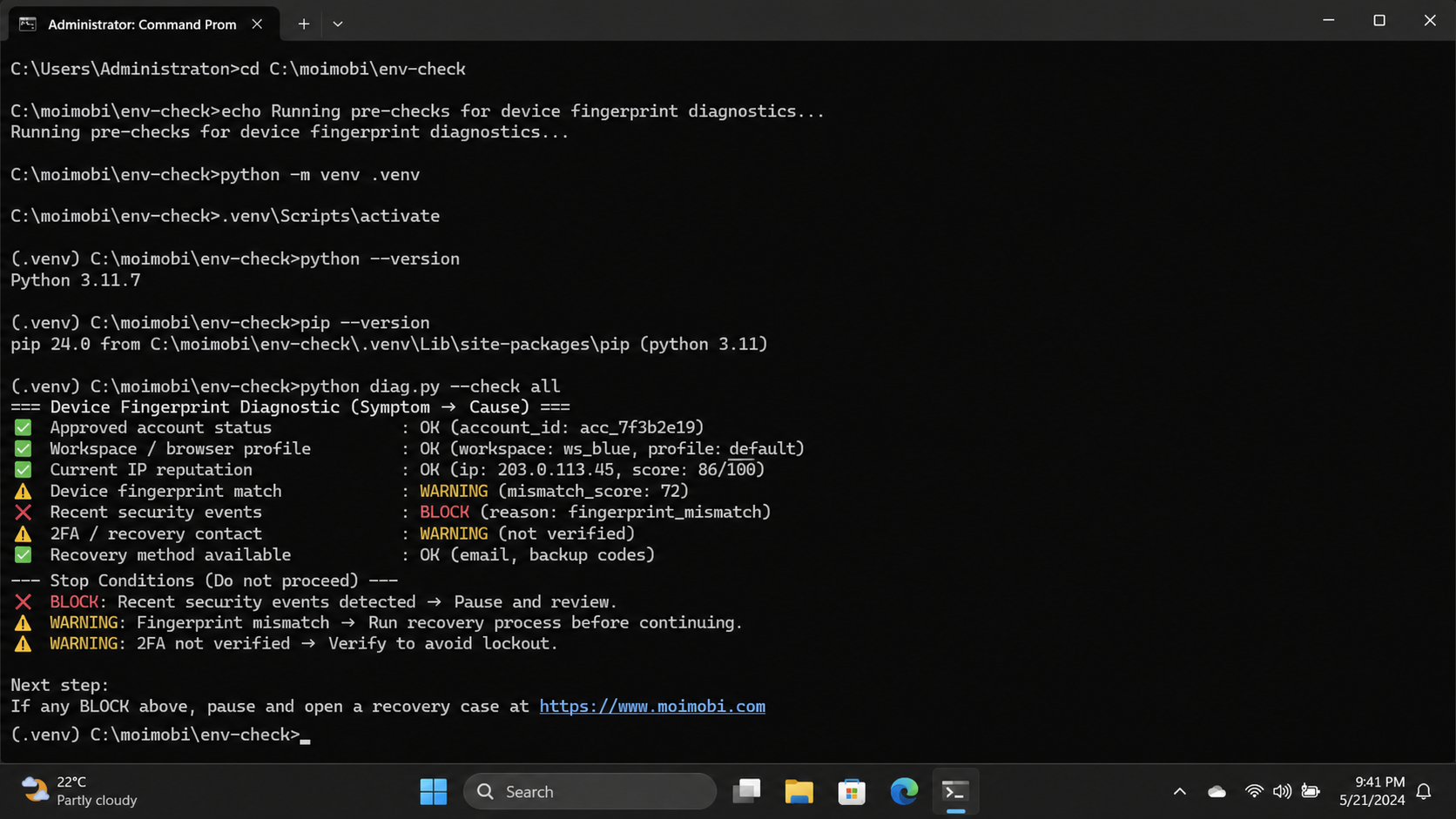
- A device fingerprint mismatch when switching IPs or devices is an access-context problem to investigate, not a signal to disguise or override.
- The correct recovery order is pause, return to the assigned workspace, verify authority and recent changes, then use approved support paths when required.
- Separate browser and mobile workspaces help teams preserve ownership, session context, and a usable audit trail.
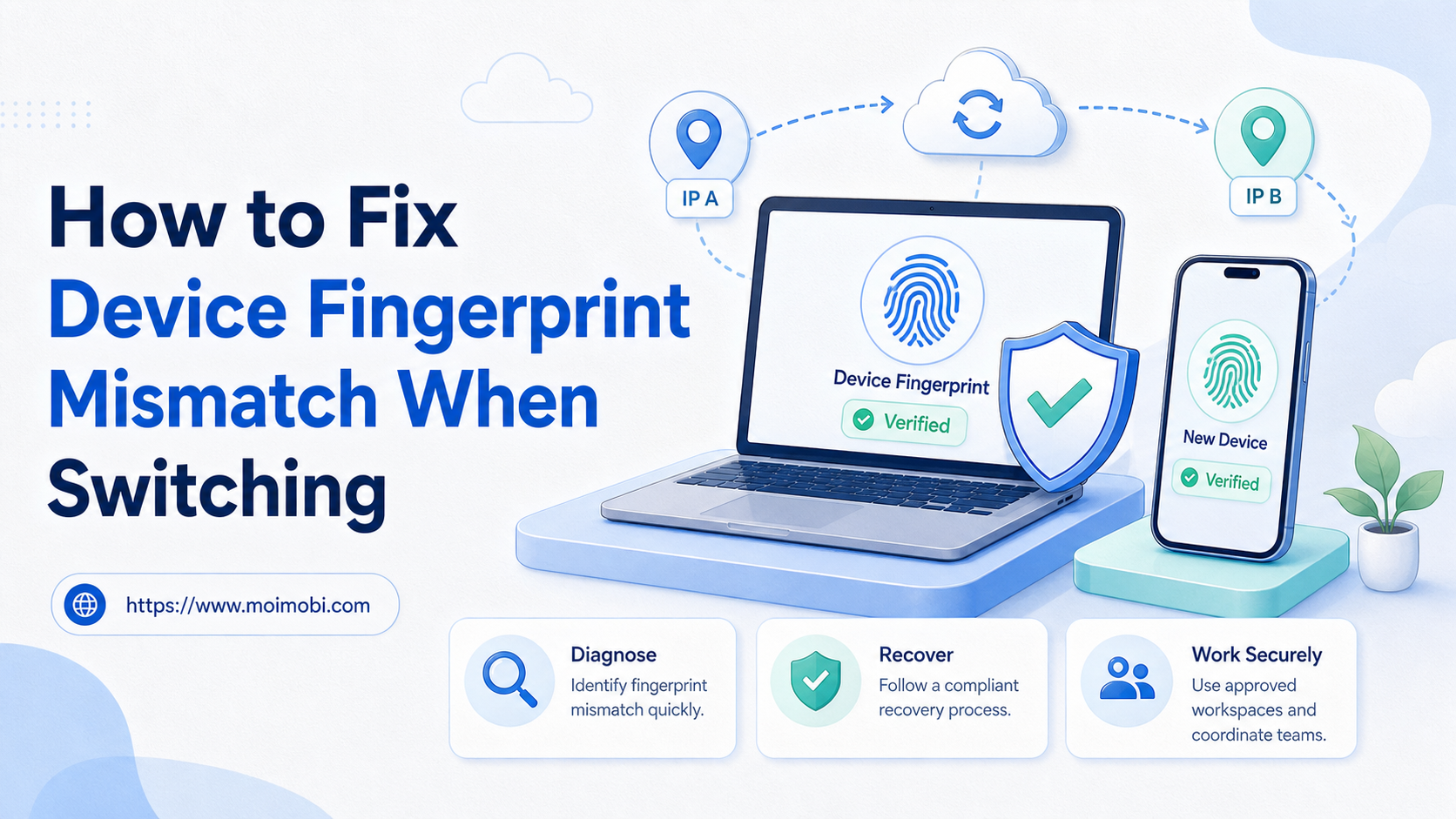
A device fingerprint mismatch when switching IPs or devices is a difference between the account's recent access context and the current browser, device, network, or session state. For an approved business account, the safe fix is to stop changing variables, return to the assigned workspace, and verify the authorized owner and access path. It is not a reason to spoof device data, conceal activity, or try to bypass a platform review.
Browser fingerprinting is real as a privacy and security concern. W3C guidance explains that device and browser characteristics can create fingerprinting surfaces and that these surfaces can affect how users are recognized or correlated across contexts. W3C's fingerprinting guidance is useful background, but it is not an instruction for manipulating those signals.
For operations teams, the practical issue is simpler: an account workflow needs a stable, documented context. If an operator changes devices, networks, locations, permissions, or login methods without a handoff record, a platform or internal review may see an unexpected change. The goal is to make legitimate access explainable and recoverable.
What You Need Before You Start With Device Fingerprint Mismatch When Switching IPs or Devices
Do not begin by changing more settings. Gather the facts first. A useful diagnosis needs an account owner, the approved workspace, the most recent successful task, and a timeline of changes. Without those facts, a team can turn a minor access issue into a confusing series of retries.
Start with these prerequisites:
- A named business owner and current operator for the account.
- The assigned browser profile or Android workspace, if one exists.
- The last known approved login or task time.
- A list of recent legitimate changes, including device replacement, office network changes, permission updates, or role handoff.
- The exact platform message or visible symptom, saved without exposing credentials.
The key distinction is between a technical mismatch and an account-policy decision. A team may be able to fix an internal configuration mismatch by returning to the assigned environment. It cannot decide that a platform notice is wrong, remove a restriction, or override a security control. If the platform asks for verification, follow the platform's official path and pause other nonessential actions.
Browser isolation provides a useful engineering analogy. Playwright documents browser contexts as isolated environments with their own cookies, local storage, and session storage; the purpose is reproducibility and to prevent one test from carrying state into another. Playwright's isolation documentation describes that model. A production account workflow should apply the same discipline to operational clarity, without pretending that a test context determines a platform's trust decision.
| Visible symptom | Likely internal cause | Approved first action |
|---|---|---|
| Unexpected login check | New device, new browser profile, or changed role | Pause, confirm the account owner, and use the platform's verification flow |
| Task cannot resume | Operator changed without a handoff record | Open the assigned workspace and review the last task outcome |
| Mixed account sessions | Several accounts were opened in one shared workspace | Stop the workflow and separate the account contexts before resuming |
| Unexpected network change | Office routing, travel, or a device replacement | Record the legitimate change and avoid repeated login attempts |
| Platform restriction notice | Policy, security, or access decision outside the team’s control | Follow official guidance; do not attempt technical workarounds |
How to Diagnose a Device Fingerprint Mismatch When Switching IPs or Devices
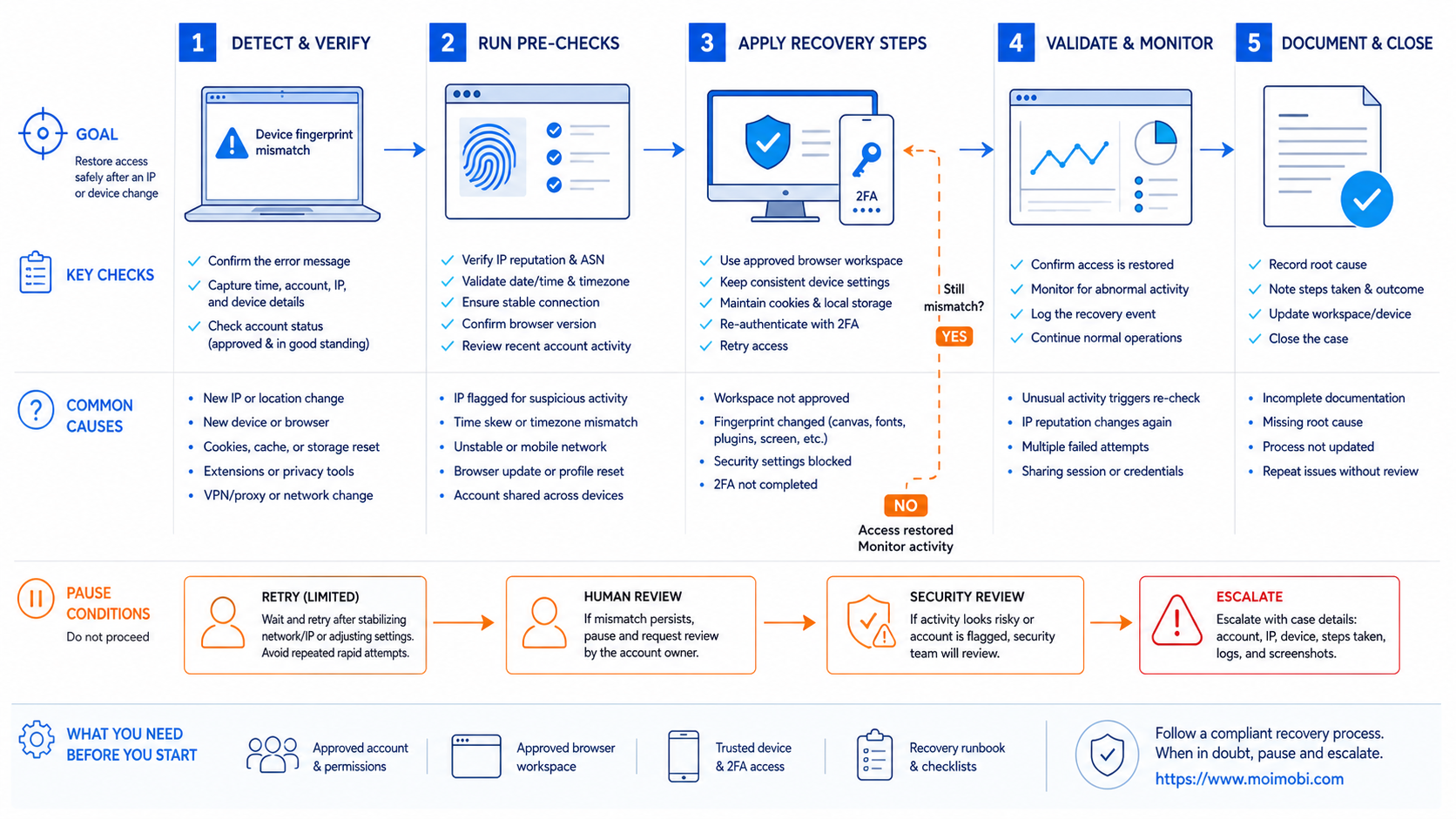
Use a low-risk diagnostic order. The aim is to reduce uncertainty while preserving evidence, not to alter the device characteristics that a service may observe.
- Pause the affected task. Do not retry publishing, messaging, collection, or login actions until the team knows what changed.
- Confirm authorization. Verify that the person handling the account is an approved owner or operator and that the planned action is permitted.
- Return to the assigned workspace. Use the documented browser profile or mobile device environment. Do not create a replacement environment as a quick workaround.
- Compare recent changes. Check the handoff log for device replacement, network change, travel, access-role changes, password resets, or new integrations.
- Use the platform's official recovery path. Complete requested verification or support steps only through the platform's documented interface.
- Record the outcome. Note whether access was restored, whether a review is pending, and who owns the next action.
Keep the log factual. “Operator moved from approved workstation A to approved device B after a replacement” is useful. “We tried several configurations until it worked” is not. A precise record supports a responsible handoff and helps the team decide whether the workflow needs a design change.
If the issue affects a web workflow, an assigned device isolation workspace can help distinguish the business account context from other work. For mobile-first work, a cloud phone can provide a defined Android workspace. These environments support organization and auditability; they do not grant permission to evade service controls.
Best Practices During Setup
The strongest prevention is a boring, consistent operating process. Every account should have a clearly named owner, an approved purpose, and a defined workspace. Teams do not need a complicated system for a small account set, but they do need enough structure that a normal change is understandable later.
Use stable, truthful account records. Do not invent device details, locations, or user identities. If a business changes offices or replaces a phone, record that legitimate event in the account handoff note. When an action is sensitive, require a human approval rather than making the task silently retry.
Separate contexts by business purpose. Android's managed-profile documentation describes separate app data and account boundaries as a way to keep managed work distinct from a primary user context. Android's work-profile documentation offers a useful separation model. In a team workflow, use the same principle to prevent accidental cross-account work, not to conceal activity.
Also maintain a clear boundary between internal automation and platform actions. Internal steps such as assigning a task, checking a content asset, or reminding an approver can be automated. Platform actions must use authorized mechanisms. Instagram's Terms state that unauthorized automated access or collection is not allowed, even when a user is logged in. Instagram's Terms of Use should be part of the workflow review.
Common Mistakes to Avoid
Avoid treating a mismatch as a problem to be “fixed” by changing identifiers. That approach can deepen the uncertainty and may violate platform terms. A legitimate operator should be able to explain why access changed without relying on deceptive signals.
Avoid shared, unnamed workspaces. When several people use the same browser or device without a task record, no one can tell which session performed an action or whether the right account was used. Separate workspaces are more useful when they match a real owner and workload.
Avoid rapid repeated attempts after a warning. A platform challenge, restriction notice, or unclear login outcome is a pause condition. Collect the visible facts, check the approved owner, and use the platform's recovery route. Do not turn a pause into a trial-and-error loop.
Avoid storing sensitive credentials in task notes, screenshots, or shared chat. A recovery record should reference the authorized account owner and official support path, not copy passwords, tokens, or private session data.
Verification and Recovery Checks
Before returning an account to normal work, run a simple verification review. The question is not “did the task go through once?” The question is whether the team can repeat an approved workflow with clear ownership and a reliable pause path.
Pass: ownership is clear
The business owner, active operator, and escalation contact are recorded and current.
Pass: workspace is known
The account's approved browser or mobile environment is documented and available to the responsible team.
Pass: task scope is approved
The team can identify which actions are allowed and which need human approval.
Pause: platform review is unresolved
Stop nonessential work when a platform requests verification, changes permissions, or shows a restriction notice.
Teams that need frequent mobile work can evaluate mobile automation as a controlled task and evidence layer. The fit is operational: a repeatable app workflow, a named responsible person, and a reviewable outcome. It is not a shortcut around account security or platform policy.
When to Escalate Instead of Continuing
Escalate when the account owner cannot be confirmed, when an unexpected person may have accessed the account, when a platform has restricted a feature, or when the team cannot determine whether an action completed. These conditions require judgment and, in some cases, official support.
The escalation note should include the account identifier used internally, the assigned workspace, the last verified action, the exact visible platform message, and the business impact. Do not add credentials or private personal data. This gives a manager or support contact enough context to decide the next approved step.
For a larger account program, create a lightweight recovery playbook: who pauses tasks, who contacts the platform, who approves a resumed workflow, and where evidence is stored. That is a durable control. Repeatedly changing IPs, devices, or browser settings is not a recovery playbook.
Frequently Asked Questions
What does device fingerprint mismatch mean?
It means the current access context differs from recent device, browser, session, or network information. The exact interpretation belongs to the service that observes the activity.
Can a new phone cause a mismatch?
A new phone or browser can create a new access context. Record the legitimate device change, use the approved account owner, and follow any platform verification request.
Should I change browser fingerprint settings to fix it?
No. Do not use deceptive changes to override a platform's decision. Return to the approved workspace, verify the facts, and use official recovery options.
Does changing an IP solve the issue?
Not reliably, and repeated changes can make internal diagnosis harder. Treat a legitimate network change as a fact to record, not a tool for influencing a platform decision.
Can a team use separate browser profiles?
Yes, when the profiles represent real account workspaces with clear owners and approved task scope. The purpose is context separation and easier handoff.
What should happen after a platform challenge?
Pause nonessential actions. Confirm the account owner, preserve the visible message, and complete only the platform's official verification or support process.
Is a cloud phone appropriate for every account?
No. Use a mobile environment when the approved workflow genuinely requires mobile app execution. A browser profile may be sufficient for web-only tasks.
What should a recovery record include?
Include the account's internal identifier, assigned workspace, responsible operator, last verified task, visible issue, decision, and next review time. Exclude credentials and private tokens.
Conclusion
How to fix device fingerprint mismatch when switching IPs or devices starts with reducing change, not adding more. Return to the approved workspace, verify ownership and task authority, document legitimate changes, and pause when the platform asks for review.
The best long-term fix is a clear operating model: one account context, a named owner, explicit task scope, and a recovery record that another approved operator can understand. That improves internal reliability without making claims about platform enforcement outcomes.
Sources