Content Type: guide
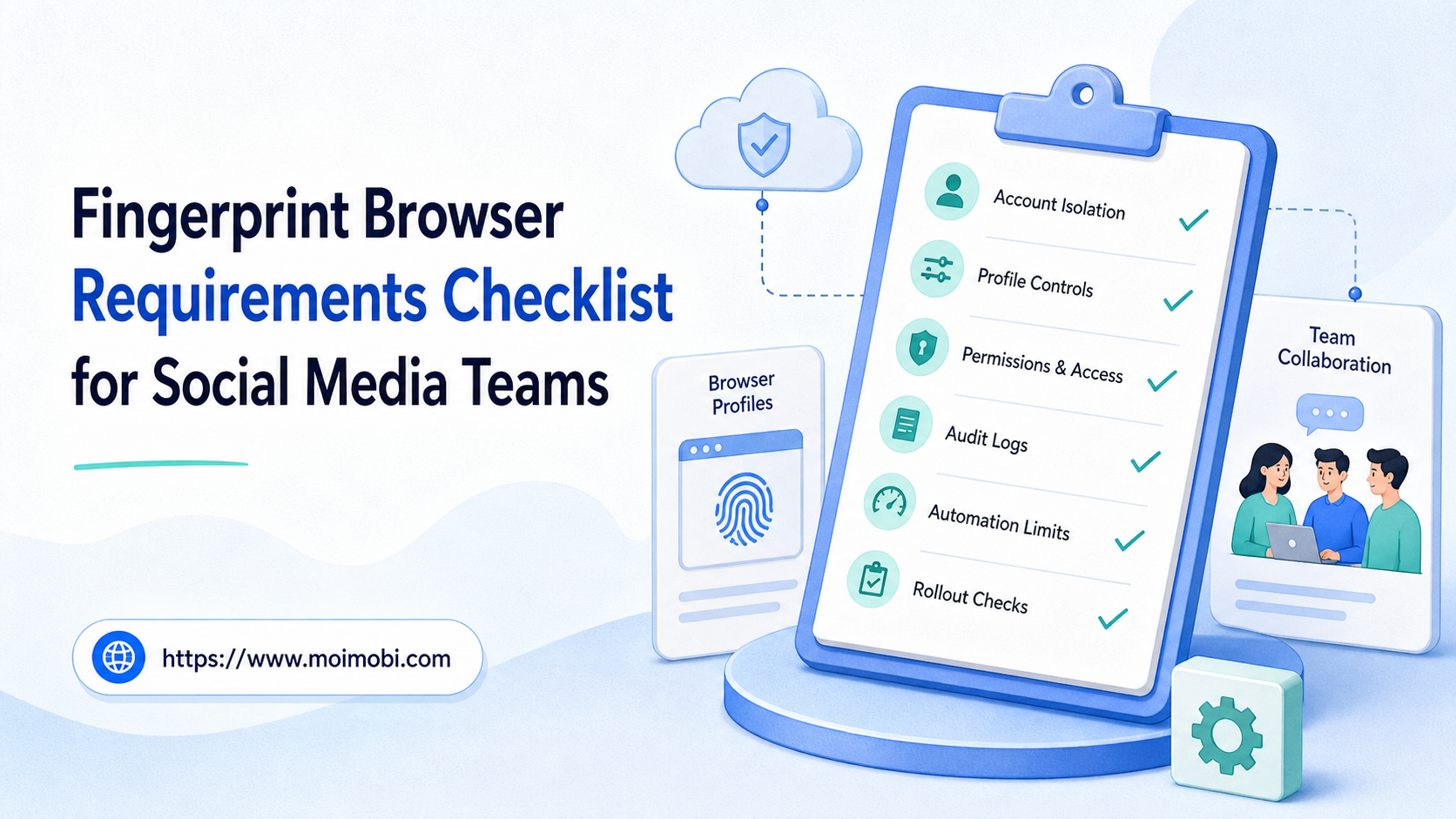
A fingerprint browser requirements checklist is a practical way to decide whether a browser workspace can support social media accounts without mixing sessions, permissions, proxies, task ownership, and activity records. For a social media team, the checklist should not start with hidden tricks. It should start with account separation, team control, repeatable workflows, and recovery visibility.
Browser fingerprinting is real because websites can combine browser and device signals into an identifier. MDN describes fingerprinting as the practice of identifying a browser by collecting and combining distinguishing features such as browser version, time zone, codecs, fonts, settings, and screen size. That makes profile design an operational topic, not just a privacy topic.
The right question is not “Which tool avoids every platform limit?” The better question is “Can this environment keep each account, operator, workflow, and record clean enough for daily team work?” Social teams usually need a system that supports publishing, replying, monitoring, client handoff, and exception review without turning every account into a shared browser tab.
Key Takeaways
- A fingerprint browser should be evaluated as an account workspace, not as a shortcut around platform rules.
- The most important requirements are profile isolation, session persistence, proxy governance, user permissions, logs, and recovery controls.
- Social media teams need role-based workflows because publishing, replying, and reporting often involve different people.
- Automation needs stop rules, approval points, and failure records.
- A pilot should measure account accuracy, handoff speed, error recovery, and content workflow reliability before scale.
What Is a Fingerprint Browser Requirements Checklist for Social Media Teams?
A fingerprint browser is a browser environment designed to separate profile settings, cookies, storage, network routing, and other browser-level signals across accounts. A requirements checklist turns that environment into a buying and rollout framework.
The common misunderstanding is that a fingerprint browser is only an anti-detect browser. That framing is too narrow for legitimate operations. A social media team needs a controlled workspace where account owners can log in, publish, reply, monitor, and hand off work without sharing one messy session.
For example, one agency may manage client accounts across Instagram, Facebook, TikTok, LinkedIn, and marketplace dashboards. If every account shares a normal browser, the team can lose track of who logged in, which proxy was used, which device context belonged to which client, and whether a task was approved.
The checklist should therefore cover five questions:
- Can each account run in a separate profile?
- Can the team control who opens each profile?
- Can sessions persist without mixing cookies or storage?
- Can automation run with approvals and limits?
- Can the team review failures after something goes wrong?
This is where MoiMobi's browser profile and Android workspace workflow becomes relevant for teams that need both browser-side and mobile-side execution planning. The browser profile is one workspace. A cloud phone or mobile device environment can be another workspace for app-first tasks.
Why the Fingerprint Browser Requirements Checklist Matters
A checklist matters because social media work has more moving parts than a solo operator workflow. One person may prepare content. Another may approve it. A third may reply to comments. A fourth may review analytics or export reports.
Without profile discipline, the team may not know whether an action came from the right account, device context, or operator. That uncertainty becomes more expensive as the account count grows.
Playwright's documentation uses browser contexts to create isolated sessions for testing. It explains that each context can have its own cookies, local storage, and session storage. Although social media operations are not software tests, the concept is useful: separate sessions reduce carry-over between workflows.
That does not mean a fingerprint browser removes account risk. Platform rules, account history, content quality, user complaints, and workflow behavior still matter. The checklist is a control layer. It helps the team reduce avoidable confusion, but it cannot replace compliance and judgment.
Here is the practical decision frame:
| Requirement Area | What to Verify | Weak Signal |
|---|---|---|
| Profile isolation | Cookies, storage, device settings, proxy, and account notes stay separate. | Many accounts share one browser or one login workspace. |
| Team permissions | Operators, reviewers, and admins have different access levels. | Everyone uses one shared login. |
| Automation control | Tasks have approvals, pause rules, and failure logs. | Automation runs without ownership or stop conditions. |
| Recovery visibility | The team can see account, task, operator, and timestamp history. | Only success or failure status is recorded. |
Key Benefits and Use Cases in a Fingerprint Browser Requirements Checklist
The main benefit is not “more accounts.” The main benefit is cleaner operations across accounts that already need different owners, locations, campaigns, and workflows.
Social media agencies often need one profile per client account. E-commerce teams may use separate workspaces for brand pages, marketplace seller dashboards, support inboxes, and creator outreach. Growth teams may need controlled access for publishing tests, competitor monitoring, and lead follow-up.
A strong account isolation browser helps with:
- Client account separation for agencies.
- Campaign-specific browser workspaces.
- Role-based publishing and review workflows.
- Safer handoff between content, support, and operations roles.
- Cleaner records for account activity and troubleshooting.
The trade-off is complexity. More profiles mean more governance. Teams need naming rules, proxy assignment rules, ownership records, and a cleanup process for old profiles.
This is also where multi-account social media operations need a broader system than isolated browser tabs. A team should connect profile control with task assignment, approval records, and reporting.
Fingerprint Browser Requirements Checklist Before You Buy
Start with requirements before comparing vendors. The wrong buying process starts with browser automation pricing and then tries to force operations into the cheapest plan. A better process defines account and workflow needs first.
Use this preflight checklist:
- Account inventory: list every social account, client, region, platform, and owner.
- Profile ownership: assign one owner and one backup for each profile.
- Environment fields: record proxy, operating system profile, browser version policy, notes, and login owner.
- Permission model: separate admins, operators, reviewers, and temporary collaborators.
- Task model: define which profiles can publish, reply, monitor, collect leads, or export reports.
- Approval points: require review for first-time posting, sensitive replies, account changes, and bulk operations.
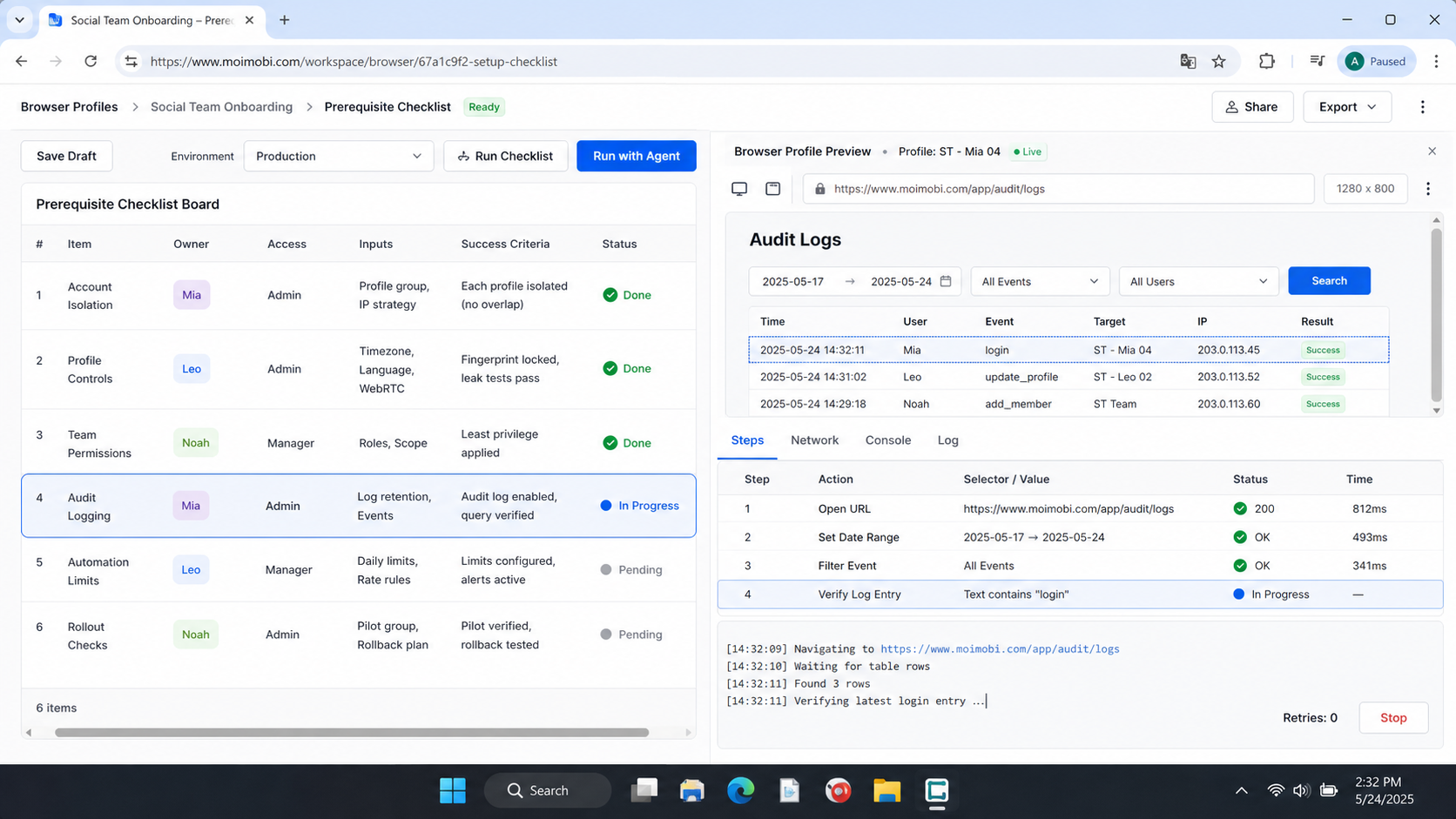
- Evidence trail: keep task ID, operator, time, target account, action type, result, and error message.
- Exit process: decide how to archive profiles, rotate access, or remove a former team member.
The checklist should also include one negative rule: do not choose a tool only because it is marketed as an antidetect browser. That label may describe part of the product category, but it does not prove that the workflow is ready for a team.
How to Get Started with a Fingerprint Browser Requirements Checklist
Start with a small pilot. Pick five to ten accounts that represent the normal range of work. Include one publishing account, one reply-heavy account, one monitoring account, and one client account if you run agency workflows.
Then follow this order:
- Define account groups. Group accounts by platform, client, brand, geography, and role. Do not create profiles before naming the work.
- Create profile naming rules. Use a pattern such as
client-platform-role-owner. The label should be readable without opening the profile. - Assign environment fields. Add proxy, notes, recovery email owner, role, and allowed task types.
- Limit first workflows. Begin with research, dashboard review, and draft publishing. Avoid complex automation until the profile model is stable.
- Add approval points. Require human review for first posts, first replies, account setting changes, and new campaign launch tasks.
- Track every failure. Capture the task, account, profile, time, operator, and next action.
- Review weekly. Remove unused profiles, fix naming drift, and adjust permissions.
For teams that also operate TikTok, Instagram, or messaging apps from mobile environments, the browser-side checklist should connect to a social media execution workflow. Browser profiles handle web dashboards and account workspaces. Mobile execution handles app-first tasks that are not reliable from a desktop browser.
Common Mistakes to Avoid
The first mistake is treating profile isolation as a replacement for platform rules. A separated browser profile does not make poor content, repetitive messaging, suspicious collaboration, or spam-like behavior acceptable. It only gives the team a cleaner workspace.
The second mistake is letting automation run before ownership is clear. If nobody owns a profile, nobody owns the consequences of a task. That is how small workflow errors become account-level confusion.
The third mistake is mixing browser and mobile responsibilities. Some workflows belong in web dashboards. Others belong in app environments. A fingerprint browser should not be forced to handle every mobile task, and a mobile device should not become the only place for team review.
The fourth mistake is buying for the largest imagined account count. A team with weak process will not become stable by opening more profiles. Start with fewer profiles, stronger rules, and clearer recovery logs.
Who It Fits and When It Is a Strong Match
This checklist fits teams that already manage multiple social accounts and need shared execution control. It is especially useful for agencies, e-commerce operators, creator teams, customer support teams, and cross-border growth teams.
It is a strong match when the team has account owners, repeatable tasks, and enough volume to justify process. For example, an agency managing ten client brands may need separate profiles, operator access, approval logs, and monitoring tasks across platforms.
It is a weaker match for a solo creator with one or two accounts. A normal browser, password manager, and content calendar may be enough until collaboration becomes the bottleneck.
Use this fit boundary:
Good Fit
- Multiple client or brand accounts
- Shared team access
- Recurring publishing and reply workflows
- Need for profile-level records
Poor Fit
- One personal account
- No team handoff
- No repeatable workflow
- No need for audit or recovery records
Pilot Rollout, Measurement, and Recovery Checks
A pilot is not successful because the profiles opened correctly. It is successful when the team can run normal work, find errors, and recover without guessing.
Track four operating metrics during the first two weeks:
- Profile accuracy: tasks run in the intended account profile.
- Handoff speed: another operator can continue a task without asking for context.
- Error recovery: failures include enough detail to decide the next action.
- Permission control: temporary users cannot access profiles outside their role.
Add one simple review note to each profile during the pilot. The note should explain what the account is allowed to do, who owns it, which workflow is being tested, and which actions are paused. This small habit makes weekly review faster because the team does not need to reconstruct the setup from memory.
Add one recovery drill before scaling. Pause one account, move ownership to a backup operator, review the profile notes, and verify that the next task can continue. This reveals whether the system is documented or only remembered by one person.
Mozilla's fingerprinting protection guidance also shows why teams should avoid simplistic assumptions. Browser behavior and exposed attributes can affect site compatibility. Any profile policy should be tested against the actual websites and dashboards the team uses.
Frequently Asked Questions
Is a fingerprint browser the same as an anti-detect browser?
The terms overlap in the market, but teams should evaluate the operational requirements. Profile isolation, permissions, logs, and recovery controls matter more than the label.
Does a fingerprint browser make social media automation safe?
No. It can separate workspaces and reduce session confusion, but platform rules and user behavior still matter.
What should a social media team check first?
Check account ownership, profile separation, team permissions, proxy assignment, task limits, and audit logs before comparing tools.
How many browser profiles should a team create?
Start with the number of accounts that have real workflows. Do not create extra profiles just because the plan allows it.
Should every account have one profile?
In most team workflows, one account should have one dedicated profile. Shared profiles should be exceptions, not the default.
When does a team need mobile execution too?
Mobile execution becomes important when the workflow depends on app-only features, mobile inboxes, or mobile-first platform behavior.
How should browser automation pricing be evaluated?
Compare pricing against profiles, seats, proxy needs, automation controls, support, logs, and recovery features. The cheapest plan may not support team operations.
What records should the team keep?
Keep the account, profile, operator, task type, approval status, result, timestamp, and failure reason.
Conclusion
A fingerprint browser requirements checklist helps social media teams evaluate workspace control before they scale account operations. The goal is not to chase a magic browser. The goal is to keep accounts, people, tasks, and recovery records separated enough for repeatable work.
Start with a small pilot, verify the profile model, and only then expand automation. A good system should make the next operator understand what happened, what is allowed, and what to do next.