Content Type: guide
Page Role: pillar
Intent Type: informational
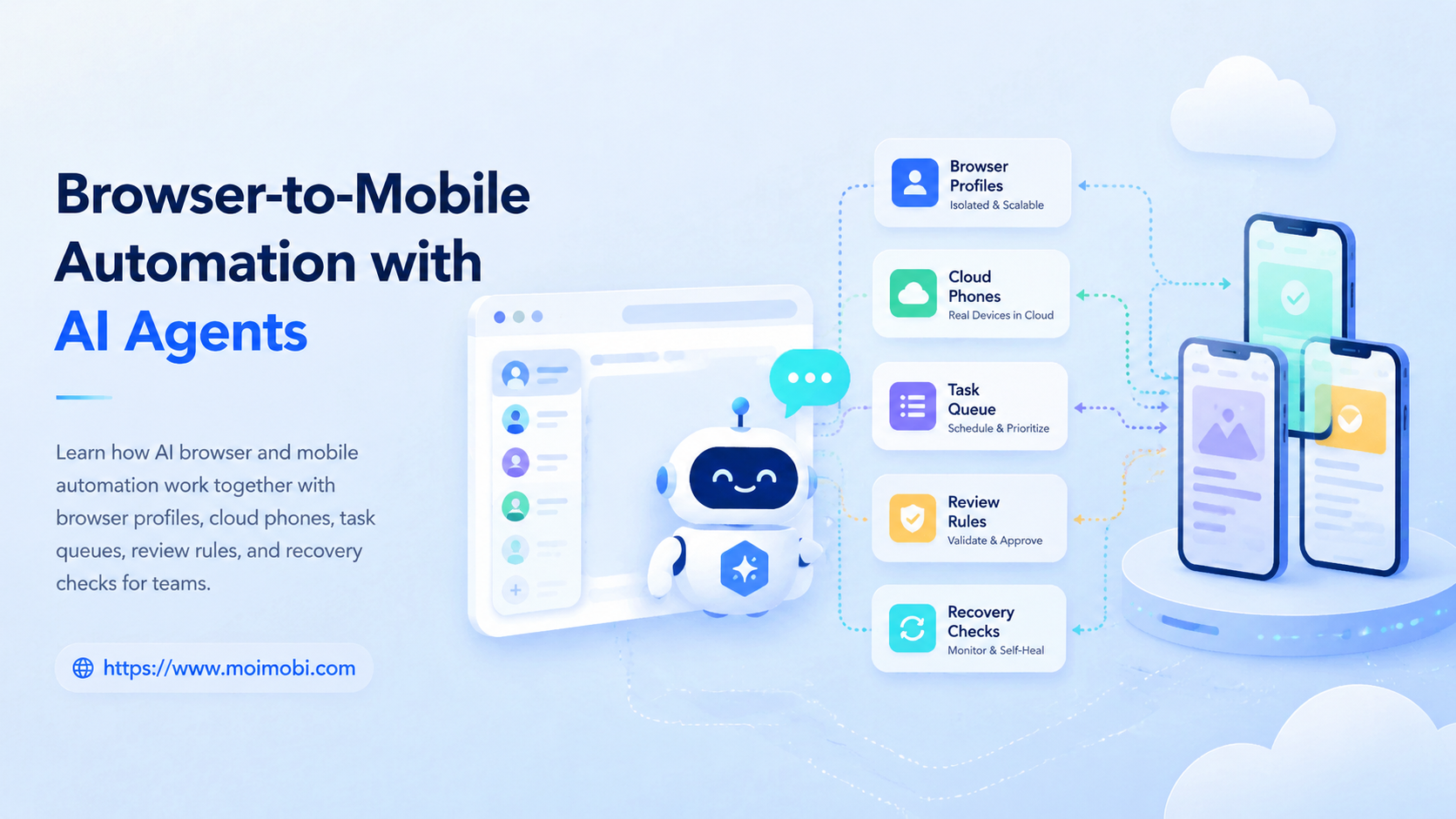
Browser-to-mobile automation with AI agents means using an AI browser for web tasks and a mobile execution environment for app tasks inside one controlled workflow. The goal is to let a team move from dashboards, forms, and account pages into Android apps without losing account ownership, task context, or review control.
This matters because many online operations do not stay in one interface. A team may research leads in a browser, update a CRM, prepare content, open a mobile app, publish, reply, or verify the result. When those steps are split across tools, the work becomes hard to assign and harder to audit.
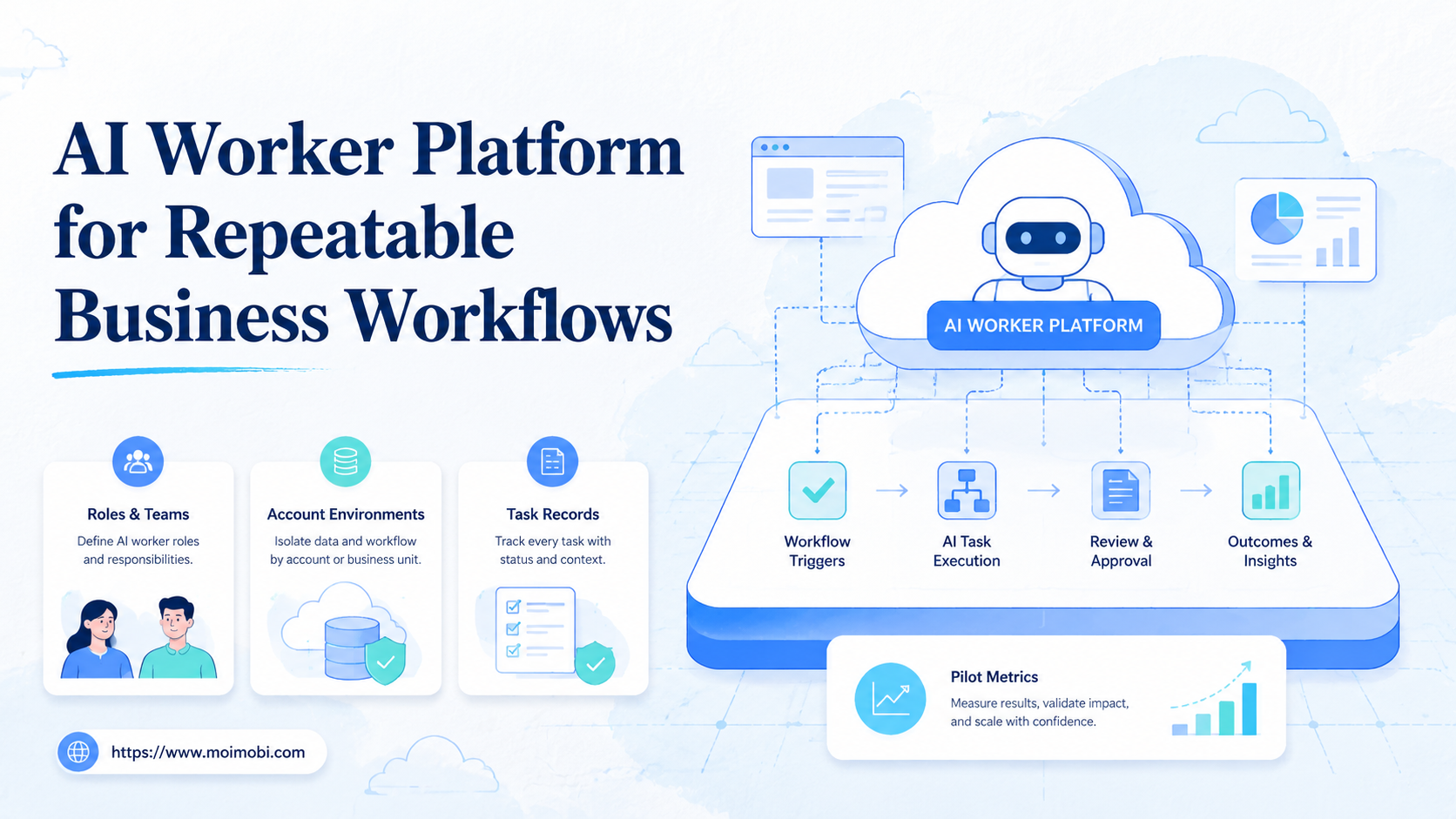
Moimobi connects browser profiles, cloud phone environments, task memory, AI workers, and human review into one execution model. The system is designed for teams that need real web and mobile task execution, not only text generation.
Key Takeaways
- Browser-to-mobile automation works when a workflow naturally crosses web dashboards and mobile apps.
- The browser side should handle forms, research, dashboards, and account data.
- The mobile side should handle app-only publishing, replies, checks, and account workflows.
- AI agents should prepare, decide, and route tasks within approved boundaries.
- Teams need account isolation, handoff records, review rules, and recovery checks before scaling.
What Is Browser-to-Mobile Automation with an AI Browser?
Browser-to-mobile automation is not one script that controls every surface. A better model is a handoff system. The AI browser handles the web part of the workflow, then the mobile environment handles the app part when the task requires Android execution.
The browser portion is usually better for web dashboards, admin portals, web-based inboxes, spreadsheets, research pages, and forms. It can keep a persistent account profile, read page context, fill fields, compare information, and prepare the next step.
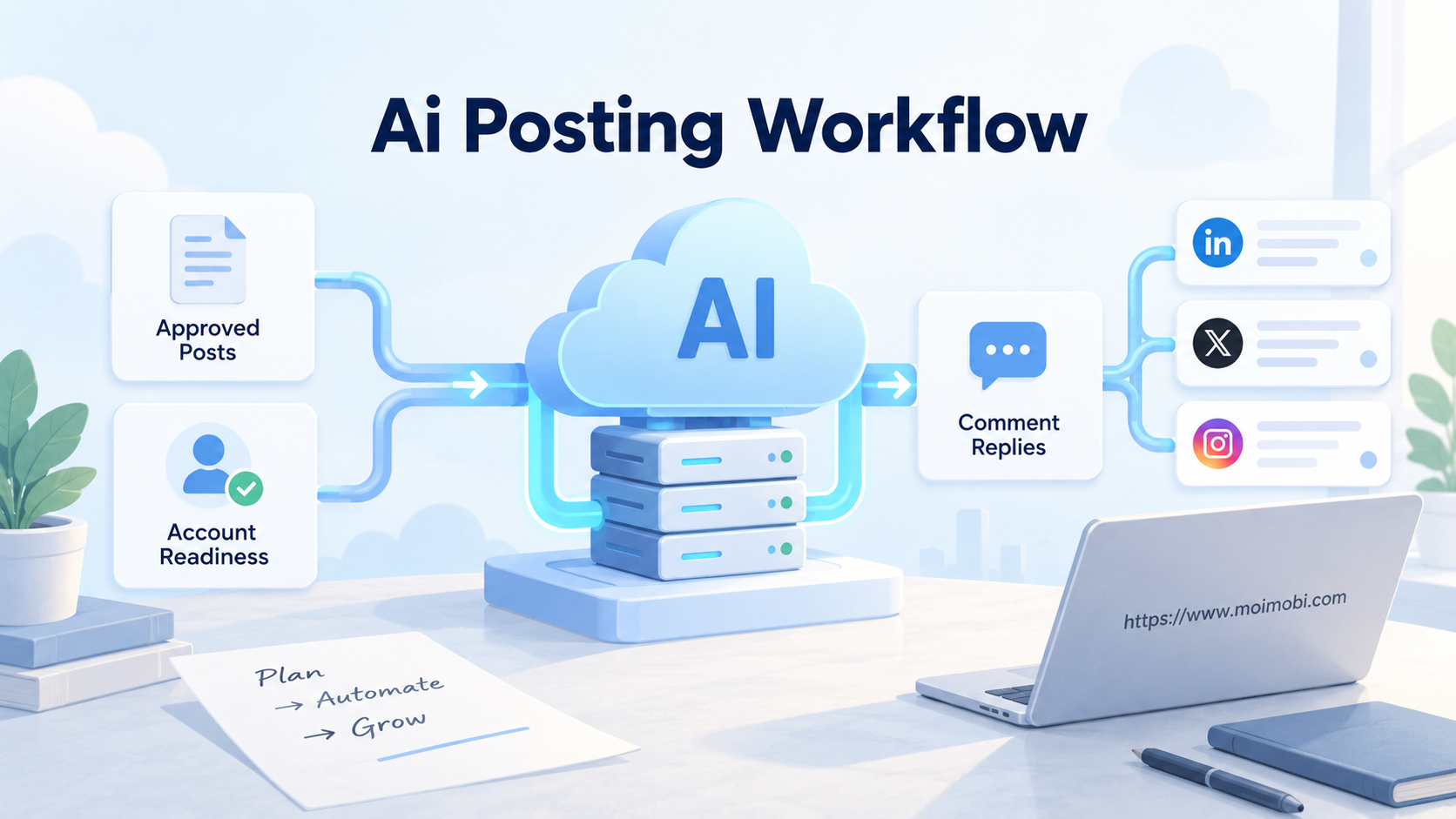
The mobile portion is better for app-first workflows. Examples include checking an Android app notification, posting through a mobile social app, verifying app-side display, replying inside a messaging app, or handling an account workflow that does not exist in a web dashboard.
This split gives teams a practical decision rule: keep web tasks in browser profiles, move app-only tasks to mobile devices, and connect both through a task queue. That is more governable than forcing everything into one browser script or one phone session.
The technical idea of browser automation has a long foundation. The W3C WebDriver standard defines remote control of browser sessions, which shows why browser automation should be treated as session-based execution rather than loose clicking. See the official W3C WebDriver specification for background.
Why Browser-to-Mobile Automation Matters for AI Browser Workflows
The common misunderstanding is that AI agents only need a browser. That is true for some workflows. It fails when the actual work continues inside mobile apps, messaging tools, or app-only account screens.
A sales team may collect leads in a browser but follow up in WhatsApp. A social team may plan content in a web workspace but publish or verify inside TikTok or Instagram. A support team may use a web dashboard for history, then reply in a mobile-first inbox.
The handoff matters because each surface has different state:
- Web dashboards have browser sessions, cookies, forms, and tabs.
- Mobile apps have device state, app sessions, notifications, and permissions.
- Account workflows have owners, regions, risk flags, and approval rules.
- AI agents have memory, instructions, and task context.
The wrong setup loses context between these layers. The right setup passes a task with account, environment, expected action, reviewer, and result fields.
Playwright documentation explains how browser contexts and locators help structure automated browser execution. Even if a team uses a managed system, these concepts are useful for understanding why persistent profiles and clear selectors matter. The official Playwright documentation is a practical reference.
Browser and Mobile Task Map
Teams should decide where each task belongs before building automation. The split should follow the real user interface, not the tool the team prefers.
| Workflow Step | Best Environment | Why It Fits | Review Point |
|---|---|---|---|
| Lead research | Browser profile | Works well across search pages, CRM, and web forms | Check source quality before outreach |
| Content planning | Browser profile | Uses documents, dashboards, and approval boards | Approve claims, links, and campaign notes |
| Mobile publishing | Cloud Android device | Some publishing and display checks are app-side | Verify media, caption, and target account |
| Messaging reply | Mobile or browser, depending on platform | Some inboxes are mobile-first, others are web-friendly | Review sensitive customer replies |
| Result logging | Browser dashboard | Managers need a common record system | Confirm status, screenshot, and next action |
This map stops teams from treating every task as a phone task. It also stops teams from pretending every app workflow can be replaced by a browser tab.
For mobile-heavy steps, Moimobi’s app-side task execution layer explains how mobile workflows can be assigned, executed, and reviewed inside a controlled environment.
Preflight Checklist Before Connecting AI Agents
Start with ownership before adding AI. A browser-to-mobile workflow crosses more surfaces than a normal browser task, so missing rules create confusion fast.
- Account map: list each account, platform, owner, region, and allowed task category.
- Environment map: assign browser profiles and Android environments to each account group.
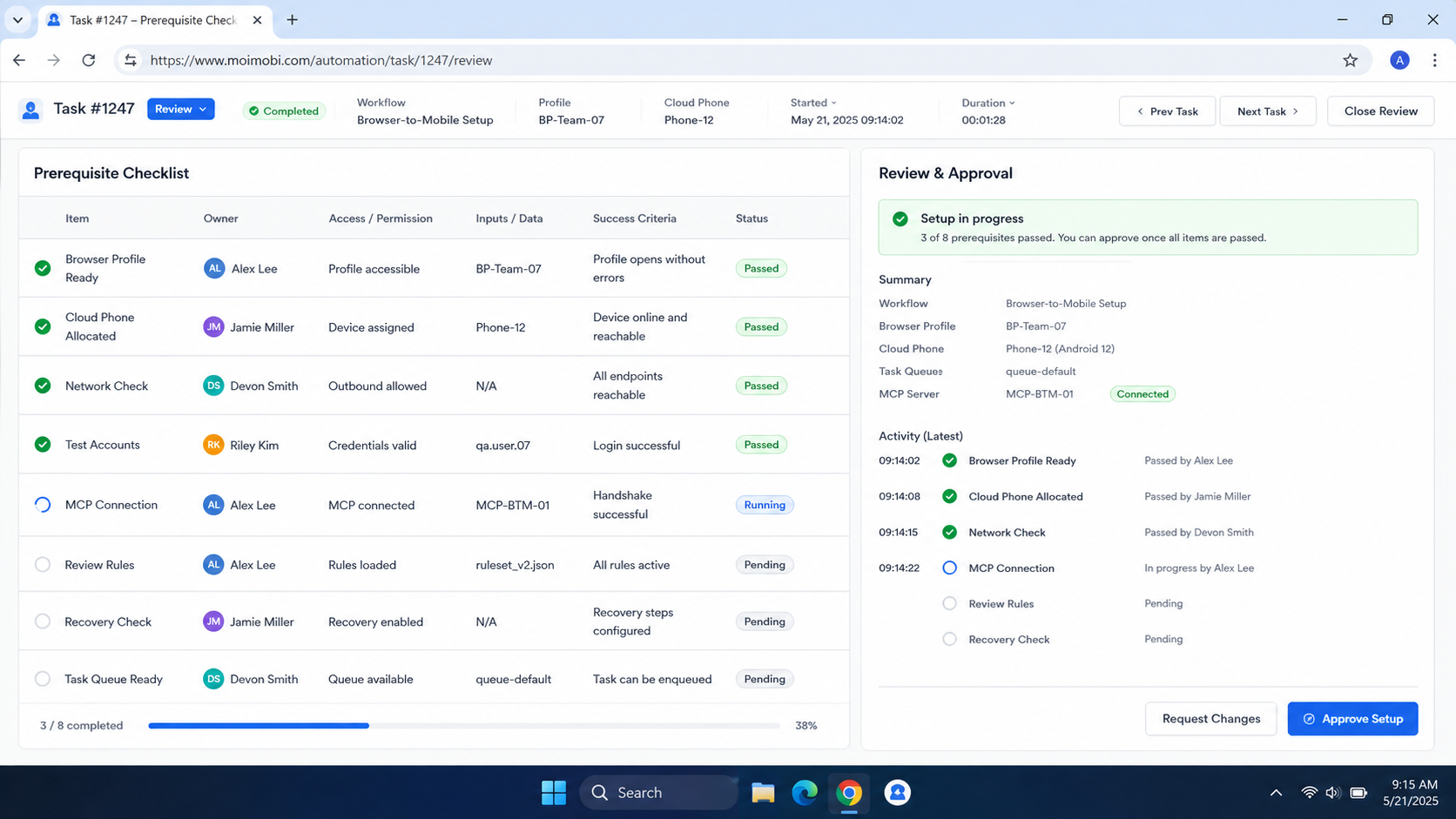
- Task handoff fields: define required fields such as account, source page, mobile app, expected action, and reviewer.
- AI boundary: decide whether the AI can draft, classify, click, queue, or only recommend actions.
- Human checkpoint: require review for first-contact messages, pricing, policy-sensitive text, and account warnings.
- Recovery owner: name who handles login failures, unexpected screens, app errors, and stuck tasks.
This checklist is not bureaucracy. It is the control layer that keeps browser automation, mobile execution, and human review from drifting apart.
How to Build the Workflow
Begin with one repeatable path. A good first workflow might be “collect lead data in browser, prepare a reply, open the assigned mobile workspace, review the message, send after approval, and log the result.”
Use this sequence:
- Start in the browser. The AI browser reads the source page, account notes, CRM record, or dashboard state.
- Prepare the action. The agent drafts a reply, task summary, publishing note, or checklist from approved instructions.
- Attach account context. The task carries account ID, browser profile, mobile environment, owner, and expected outcome.
- Move to mobile only when needed. The task enters the assigned Android workspace when the next step depends on an app.
- Add review before sensitive actions. A human checks customer-facing messages, account prompts, pricing, or policy-sensitive content.
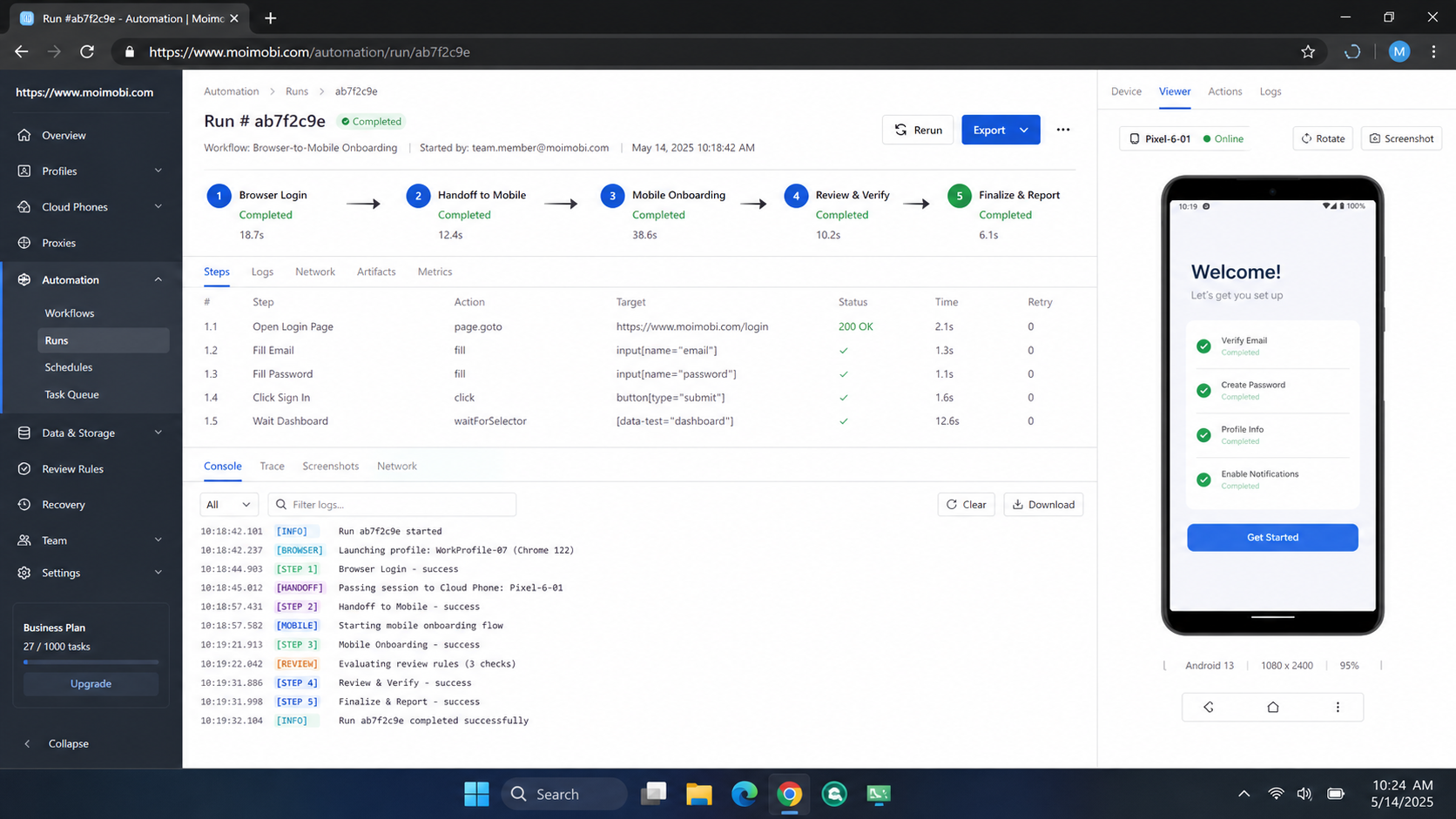
- Record the result. The system logs status, timestamp, environment, screenshot or note, and next action.
- Use failures as feedback. Update the SOP when the same issue repeats.
The key is the handoff record. Without it, a task can disappear between the browser and the phone. With it, the team can see where the workflow succeeded or stopped.
AI Browser Operating Model for Account Teams
An AI browser workflow becomes easier to manage when every task has a record before it moves to mobile. The record should include the account, source page, target app, expected action, reviewer, and stop rule. This turns the handoff into a managed operation instead of a loose instruction.
For account teams, the operating model should be account-first. The browser profile, mobile workspace, proxy route, task queue, and reviewer should all map back to the same account or account group. When that mapping is clear, managers can inspect the work without asking operators to reconstruct what happened.
Use a simple ownership pattern:
- One account group has one primary owner.
- One browser profile is assigned to that account group.
- One mobile environment is paired when app-side work is required.
- One reviewer handles sensitive actions.
- One log records browser output, mobile outcome, and recovery notes.
This is where an account-to-environment assignment map matters. Browser-to-mobile automation is much easier to audit when account ownership is visible before execution starts.
Common Mistakes to Avoid
The first mistake is assuming the browser can replace the phone. Some workflows are web-native. Others are app-native. A stable system accepts that split instead of forcing one execution layer to do everything.
The second mistake is letting the AI agent operate without a clear stop rule. An unexpected login prompt, app update, empty page, or account warning should pause the task. A reviewer should decide the next action.
The third mistake is mixing accounts during handoff. If the browser profile belongs to one account and the mobile environment belongs to another, the team loses traceability. Account pairing should be explicit.
Avoid these patterns:
- One browser profile controlling multiple unrelated accounts.
- One mobile device shared across unrelated account histories.
- AI-generated replies sent without review.
- Browser tasks and mobile tasks logged in separate systems.
- Retrying failed tasks without recording the failure reason.
Appium’s documentation describes mobile automation through device and app interaction drivers, which is useful context for teams that compare mobile automation with browser-only methods. See the official Appium introduction for the basic model.
Who It Fits and When It Is a Strong Match
Browser-to-mobile automation fits teams that already work across web dashboards and Android apps. Social media operations, cross-border commerce, community management, lead follow-up, customer support, and marketplace workflows are common examples.
The strongest fit appears when the same account needs both web and mobile actions. A content team may prepare assets in a browser, publish in a mobile app, then log outcomes in a web dashboard. A support team may research account history in a browser and reply in a mobile-first inbox.
This setup is a weaker fit when the workflow is only one surface. Pure web reporting may need only browser automation. Pure manual account work may need better SOPs before automation. Highly sensitive customer conversations may need AI drafting but not autonomous execution.
Use this fit grid:
| Strong Fit | Weak Fit |
|---|---|
| Web research followed by mobile app action | One-off manual work |
| Multi-account social or commerce workflows | Single personal account use |
| App-side publishing with browser-side planning | Pure spreadsheet updates |
| Reply drafting with human review | Blind bulk messaging |
| Account-level execution logs | Tasks with no owner or stop rule |
Pilot Rollout, Measurement, and Recovery Checks
Do not measure the pilot only by completed actions. A browser-to-mobile workflow has more failure points than a simple browser task. The pilot should show whether the handoff is reliable.
Track these signals:
- Browser task completion.
- Mobile task completion.
- Handoff failure count.
- Human edit rate for AI drafts.
- Review time.
- Unknown-screen events.
- Account mismatch incidents.
- Recovery time after failure.
A clean pilot should show where tasks fail, not just how many succeeded. If most failures happen during browser-to-mobile handoff, fix environment mapping. If most failures happen during customer review, improve the AI instructions or approval workflow.
Recovery rules should be simple. Pause when the account does not match, the app is logged out, a screen is unknown, or the task needs judgment. Retry only after the failure category is understood.
Frequently Asked Questions
What is browser-to-mobile automation?
It is a workflow model where browser tasks and mobile app tasks run in connected execution environments with shared task context and logs.
Why do AI agents need both browser and mobile environments?
Some tasks happen in web dashboards. Others happen inside mobile apps. AI agents need the correct environment for each step.
Is an AI browser enough for social media operations?
Sometimes. It is enough for web dashboards and browser-based account work. Mobile-first publishing, inbox, or app checks may need mobile execution.
Can the handoff be fully automatic?
Some low-risk steps can be automated. Sensitive replies, account warnings, pricing, and unusual screens should usually pause for review.
What should be logged during handoff?
Log account, source environment, target mobile environment, task type, expected result, reviewer, status, and failure reason.
How should teams start?
Start with one account group and one cross-surface workflow. Verify the handoff before adding more accounts or task types.
What is the biggest risk?
The biggest operational risk is losing context between browser and mobile steps. That creates account mix-ups and unclear recovery paths.
How does Moimobi fit into this workflow?
Moimobi connects browser profiles, mobile environments, AI workers, task queues, and review logs so teams can run web and app tasks from one operating model.
Conclusion
Browser-to-mobile automation with AI agents works best when teams design the handoff before scaling. The first priority is account ownership. The second is environment mapping. The third is review control. The fourth is recovery logging.
Before adding more accounts, check whether each task has a source environment, target environment, owner, reviewer, expected result, and stop rule. If those pieces are clear, the workflow can scale with fewer surprises. If they are missing, more automation will only make the confusion harder to diagnose.